
Our readers keep the lights on and my morning glass full of iced black tea. As an Amazon Associate, I earn from qualifying purchases.
Specs are compiled from manufacturer listings and verified buyer reviews and can change over time — please confirm the key details on the product page before buying.
If you’re shopping for an affordable drawing tablet with screen, you already know the difference between looking at your hand and looking at your monitor—and you’ve decided you never want to do the first one again. The shift from a pen tablet to a pen display means your cursor sits exactly where your pen tip touches, which makes that first digital sketch feel almost like pencil on paper. This guide sorts the real contenders from the spec-sheet noise so you can pick the screen size, color depth, and pressure feel that match the way you actually draw.
I’m Min — the founder and writer behind Gadgets Feed. This guide is built by comparing the manufacturers’ published specifications and the patterns across verified customer reviews, so you get each pick’s real strengths and trade-offs instead of marketing spin.
Whether you are a beginner on a tight budget or a freelancer eyeing a bigger canvas, here is the shortlist for the affordable drawing tablet with screen that delivers real drawing performance without the premium price tag.
Our Picks at a Glance


How To Choose The Best Affordable Drawing Tablet With Screen
Every pen display here plugs into your computer and turns its own screen into your canvas. The specs that matter most are the ones that change how your strokes look and feel. Here is what to weigh before you buy.
Screen size and lamination
A bigger screen lets you see more of your canvas without zooming, but it also takes up more desk space. The 13.3-inch models fit a typical desk or a laptop bag, while a 15.6-inch panel gives you a full-page view. Whatever size you pick, look for a fully laminated display—it fuses the glass and the LCD into one layer, so the gap between the pen tip and the cursor nearly disappears. That means your line lands exactly where you aim, not a hair to the side.
Pressure sensitivity and the pen itself
Pressure levels tell you how many shades of line weight the tablet can register between your lightest tap and your hardest press. Most modern models offer 16,384 levels, which is plenty for smooth tapering strokes; a few still use 8,192, which feels perfectly fine for sketching and shading. Equally important is whether the pen is battery-free—a charged stylus never runs dry mid-stroke, and a battery-free pen is lighter and easier to balance for long sessions.
Color accuracy and workflow extras
If you sell your art or print it, color gamut matters. A panel rated at 99% sRGB holds true-to-life colors, while a higher 143% sRGB rating means those colors can look noticeably more vivid and saturated on screen. The shortcut keys and dials on the side are about workflow, not raw drawing ability—a few programmable buttons let you switch brushes or undo without reaching for the keyboard, which adds up over an afternoon of work.
Quick Comparison
| Model | Best For | Screen Size | Pressure Levels | Color Gamut | Amazon |
|---|---|---|---|---|---|
| HUION Kamvas 13 (Gen 3)★ Best Overall | Balanced all-round drawing | 13.3-inch | 16,384 | 99% sRGB | Amazon |
| UGEE UE16Color King | Vivid saturated colors | 15.4-inch | 16,384 | 143% sRGB | Amazon |
| XPPen Artist 12 3rdStudent Pick | Beginners and students | 11.9-inch | 16,384 | — | Amazon |
| VEIKK Studio 16 (VK1600) | Dual-pen starter setup | 15.6-inch | 16,384 | 125% sRGB | Amazon |
| VEIKK Studio 16 Premium | Ergonomic long sessions | 15.6-inch | 16,384 | 125% sRGB | Amazon |
| HUION Kamvas 16 (2021) | Large canvas on a budget | 15.6-inch | 8,192 | 120% sRGB | Amazon |
| XPPen Artist 16 3rd | Pro color work | 15.4-inch | 16,384 | 99% sRGB | Amazon |
| Wacom MovinkPad 11 | Standalone mobile sketching | 11.45-inch | 8,192 | — | Amazon |
In‑Depth Reviews
1. HUION Kamvas 13 (Gen 3)
Our pick — 4.5★ from 800+ verified ratings; the strongest balance of quality and price.
The 13.3-inch all-rounder that blends a clean 1080p panel with a silky 16K pen feel
This is the pick that ticks the most boxes for the widest range of artists. Its fully laminated 13.3-inch screen uses an anti-sparkle Canvas Glass 2.0 finish, so glare stays down and your cursor lines up with the pen tip almost perfectly. The PenTech 4.0 stylus delivers 16,384 levels of pressure with a 2g initial activation force, which means even the faintest touch produces a visible mark—great for soft shading and hair-thin details.
Owners consistently talk about how smooth the pen tracks, describing a thin parallax, no jitter, and a clean 1080p picture that shows the image on both screens at once. The setup is a single USB-C cable affair, and you get 5 programmable shortcut keys plus dual dial buttons to speed up your workflow. A factory calibration report ships in the box, so the color you see is the color you got checked against a standard before it left the plant.
The trade-offs are real but modest. The port side can warm up after roughly three hours of use, and the 200-nit brightness is on the darker side for very bright rooms. It also needs a computer—it is not a standalone device—and the 3-in-1 cable arrangement can feel a little awkward depending on your port layout.
What wins owners over
- Clean, sharp 1080p display with thin parallax
- 16K pressure and quick response for natural strokes
- Dual dial and press keys streamline workflow
Things to weigh
- Needs a computer or compatible Android device to run
- Port side heats up during long sessions
- 200-nit screen can look dim in bright rooms
Grab it if: you want one dependable pen display that balances screen quality, pen feel, and shortcut controls without crossing into premium pricing.
Look elsewhere if: you need a very bright panel for a sunlit workspace or want a fully standalone device with no computer attached.
2. UGEE 15.4 inch UE16
A roomy 15.4-inch canvas with color that visibly pops thanks to a 143% sRGB rating
If you want colors that feel alive, start here. The UE16 shows a 143% sRGB color gamut (a wider slice of the color spectrum than the 99% sRGB on many rivals) on its full-laminated 15.4-inch screen, so your reds look richer and your blues deeper without any tweaking. It reproduces 16.7 million colors with an 8-bit color depth, and you can flip between sRGB, Adobe RGB, DCI-P3, and a Black & White mode depending on the job.
Owners describe it as the best tablet they have used, with one noting it feels like drawing on paper, and the performance and value-for-money praises dominate the feedback. The pressure side is handled by a 16K-level, battery-free U-Pencil that supports a 60° tilt, so you can angle the nib for natural shading strokes. The slim pen body carries two hotkeys and a pressure-sensitive eraser, while the tablet itself offers 8 physical shortcut keys plus a scroll wheel that can cycle through preset functions.
The catch here is nib durability. The pen tips are soft and wear down quickly, and a heavy hand may need replacements in under a year. The screen is also large at 15.4 inches, so it needs real desk space, and it is another model that depends on a computer or Android device to function.
Why it stands out
- 143% sRGB gamut for noticeably vivid color
- 16K pressure with 60° tilt for natural strokes
- Large full-laminated 15.4-inch drawing surface
What to plan for
- Pen nibs wear fast and may need replacement under a year
- Big screen demands plenty of desk space
- Initial pen actuation could be firmer
Choose this for: color-critical work like illustration or photo editing where a wider gamut and a larger canvas earn their keep.
Think twice if: you press hard while drawing—stock nibs will not last you long—or your desk is short on depth.
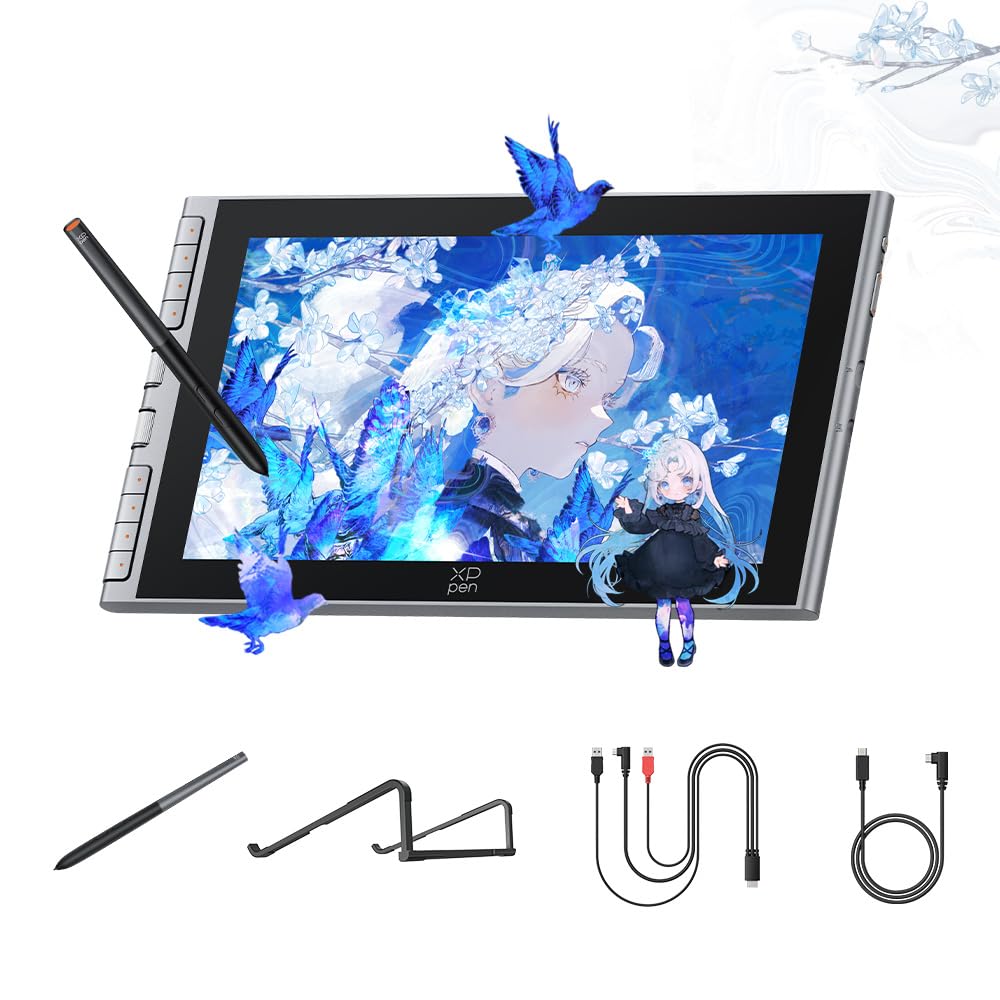
3. XPPen Artist 12 3rd
A beginner-focused 11.9-inch display with an X4 Smart Chip pen that stays put magnetically
Built for the first-time digital artist, the Artist 12 3rd pairs a compact 11.9-inch screen with an X4 Smart Chip stylus that reads 16,384 pressure levels. The pen has a 0.3mm nib travel, which keeps the response snappy, and the magnetic storage on the tablet means you are far less likely to lose it in a dorm or backpack. The 8 customizable shortcut keys sit right under your palm for quick undo and zoom, exactly what a beginner needs to stop hunting for the keyboard.
The screen carries an AG+AF nano-etched glass coating that mimics the friction of paper while cutting glare and smudges, and full lamination removes the air gap so the cursor lines up cleanly under the nib. Owners praise the clean 1920×1080 resolution and how easy the setup is with a MacBook, with one long-time traditional artist saying it works perfectly with Clip Studio Paint and registering zero complaints. The included S20 foldable stand gives you ergonomic support for study sessions.
The honest catch is that a few owners found the pen eraser finicky in certain apps, and the screen durability rating is mixed, so a protective film is a wise investment. It is also the smallest screen in this lineup, which is fine for a starter but tighter for complex multi-layer work.
The good stuff
- 16K pressure via X4 Smart Chip for stable lines
- Magnetic pen storage prevents loss on the go
- Nano-etched glass gives a paper-like feel
Watch points
- Smaller 11.9-inch screen limits complex layouts
- Pen eraser behaves oddly in some apps
- Screen durability gets mixed owner feedback
Best fit: students and hobbyists starting digital art who want plug-and-play simplicity and a magnetic pen that will not vanish.
Not ideal for: animators or illustrators who need a bigger canvas for sprawling scenes and heavy layer stacks.
4. VEIKK Studio 16 (VK1600)
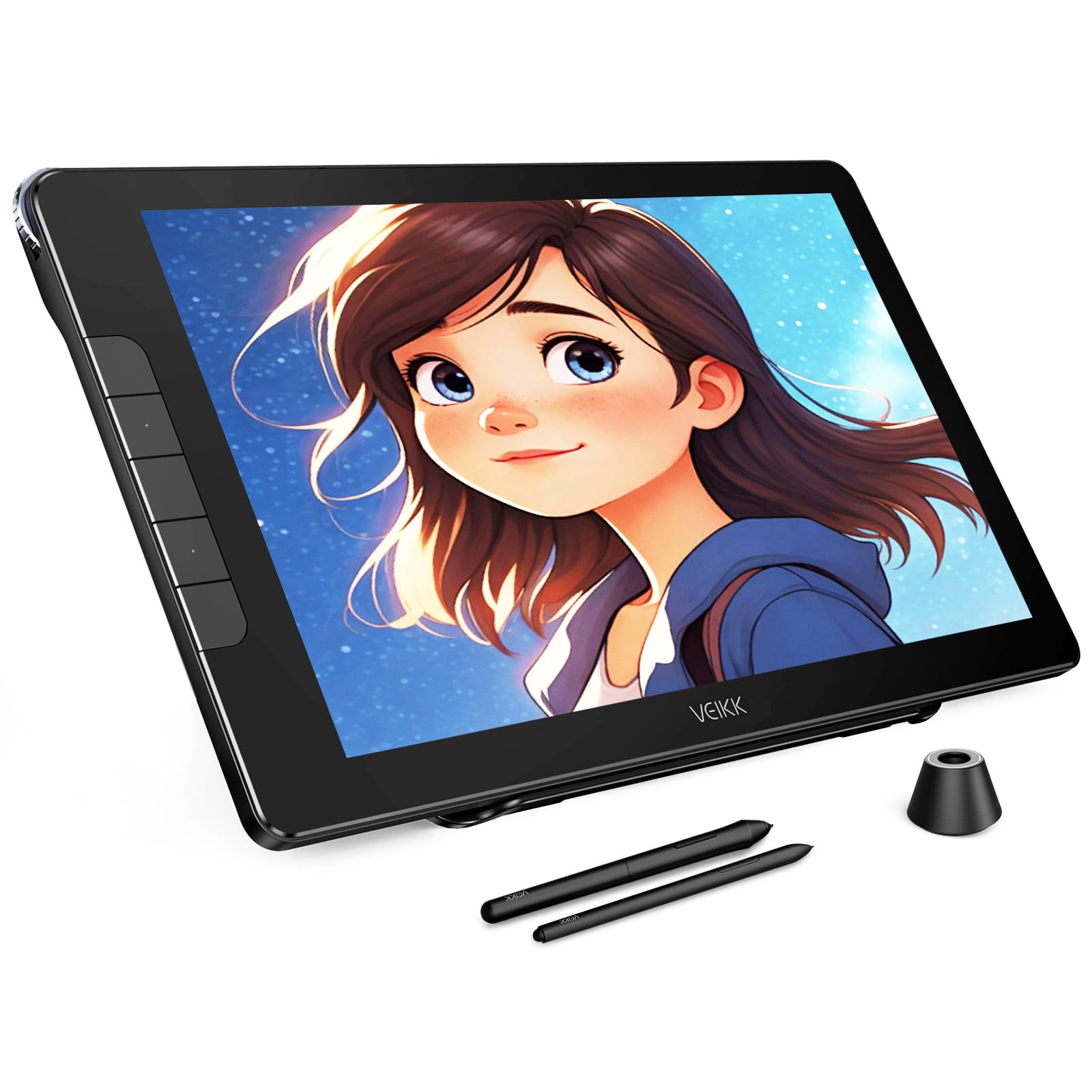
A 15.6-inch full HD canvas that throws in two battery-free pens and an aerospace-grade dial
The Studio 16 gives you a large 15.6-inch, 1920×1080 full HD panel with 125% sRGB coverage and a 178° viewing angle, all behind a full-laminated, anti-glare, anti-fingerprint screen. Weighing 1.42 kg, it is a solid desk companion rather than a travel device, and the included S100 adjustable stand puts it at a comfortable angle for long sessions. The standout trick here is the pair of battery-free pens—one slim, one standard—so two people with different hand sizes can share the same tablet comfortably.
You get 16,384 levels of pressure and 60° tilt support, plus an aerospace-grade aluminum dial for zooming and brush sizing and five customizable hotkeys. Owners call it a great starter device, highlighting the great pressure sensitivity and easy-to-use feel with software like MediBang Paint Pro. Color reaches 125% sRGB, which keeps art vivid without the wallet hit of a studio monitor.
The most honest caveat is reliability: some owners say it works beautifully, while a portion report it stops responding properly after about an hour and a half of use. Setup feedback is split too, with some finding it easy and others wrestling with getting the screen to display. This one rewards a patient setup and a clear eye on the return window.
Where it shines
- Two battery-free pens suit different hand sizes
- Large 15.6-inch FHD screen with 125% sRGB
- Aluminum quick dial speeds up zoom and brush work
Keep in mind
- Reliability is mixed; some units stop responding after long use
- Getting the display running can be tricky at first
- Heavier 1.42 kg frame is desk-bound
Reach for it if: you want a big affordable canvas and plan to share the tablet with a family member or student who prefers a different pen grip.
Pass it by if: you need rock-solid reliability over many hours—the performance here can be inconsistent.
5. VEIKK Studio 16 Premium
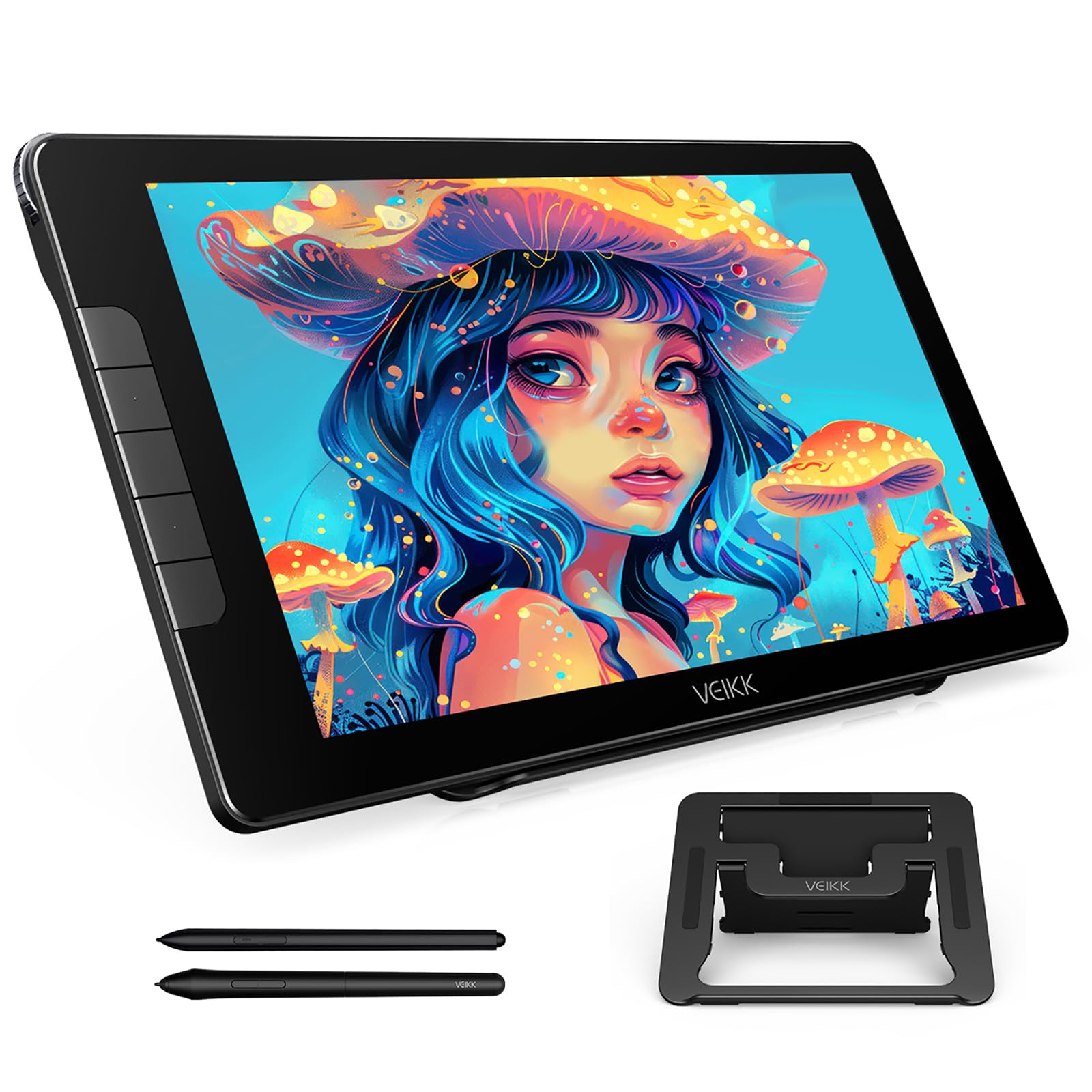
The same 15.6-inch panel, upgraded with a 3-step stand and an anti-fingerprint coating that keeps the glass clean
This is the comfort-first version of VEIKK’s Studio 16, swapping in a 3-position adjustable S100 stand so you can dial in the exact angle that keeps your neck and shoulders relaxed through a full drawing session. The 15.6-inch full-laminated screen still carries anti-glare glass, and the added anti-fingerprint coating means fewer smudge breaks mid-project. At 1452 g, it remains light enough to rest on your lap for casual sketching.
Color accuracy holds at 125% sRGB, and the pen keeps the 16,384 pressure levels with 60° tilt recognition. You again get two pens, letting you swap between a slim and a thicker barrel based on grip preference, and the five shortcut keys plus one Quick Dial handle brush sizes and zoom without touching the keyboard. Owners describe it as pro-quality for the price, praising the crisp 1080p display with no parallax and a pen that glides smoothly across the surface.
The recurring complaint is the fixed stand—it is non-removable, so you cannot mount this panel on an arm, and it does not fold flat for travel. A small number of owners also hit a defective pen on arrival, though the vendor’s one-year hardware service and free driver updates are part of the package. Treat this as a studio workhorse, not a portable device.
Built to last sessions
- 3-step adjustable stand reduces neck and shoulder strain
- Anti-fingerprint coating keeps the glass clean
- Crisp 1080p with no parallax and smooth pen glide
Before you buy
- Non-removable stand blocks arm-mount setups
- Occasional defective pens reported on arrival
- Requires a computer; not a standalone device
Pick it for: long studio sessions where adjustable ergonomics and a smudge-free screen keep you comfortable and focused.
skip it if: you want to mount your tablet on an arm or carry it flat in a bag on the regular.
6. HUION Kamvas 16 (2021)

A 15.6-inch, 2.78-pound panel that packs 10 shortcut keys into an ambidextrous, backpack-ready frame
For artists who want the biggest canvas without going premium, the Kamvas 16 delivers a 15.6-inch, fully laminated display with 120% sRGB gamut volume and a 178° viewing angle so lines stay sharp from the side. The 5080 LPI resolution keeps strokes clean, and the battery-free PW517 pen tracks 8,192 pressure levels with a ±60° tilt function for realistic shading. It weighs just 2.78 pounds and sits 0.47 inches thin, so it slips into a laptop sleeve for campus or travel.
The ten programmable shortcut keys are a genuine workflow booster, letting you map brush size, layer switches, or undo/redo without reaching for the keyboard. Owners praise it as an incredible value against Wacom, noting the natural paper feel and accurate pen tracking, and many appreciate that it ships with both a 3-in-1 cable and a USB-C to USB-C cable for flexible setup. Left-hand mode is a simple driver toggle away.
The trade-offs come down to some quirks. The screen can scratch easily, so a protector or felt nibs are recommended, and the provided cable length is short enough that a desktop setup often needs an extension. A few owners also describe the screen as slightly fuzzy for high-resolution photo editing, so this is a drawing monitor first, a photo-editing monitor second.
Why pick it
- Big 15.6-inch canvas with 120% sRGB gamut volume
- 10 programmable keys boost workflow speed
- Light 2.78-pound frame with left-hand mode
Know the limits
- Screen scratches easily; add a protector
- Cable length may need an extension for desktops
- Not the sharpest choice for high-res photo editing
Go with it if: you want the largest affordable drawing surface and live on shortcut keys for fast, fluid illustration work.
Steer clear if: your main job is pixel-level photo retouching, where a crisper panel matters more than drawing feel.
7. XPPen Artist 16 3rd
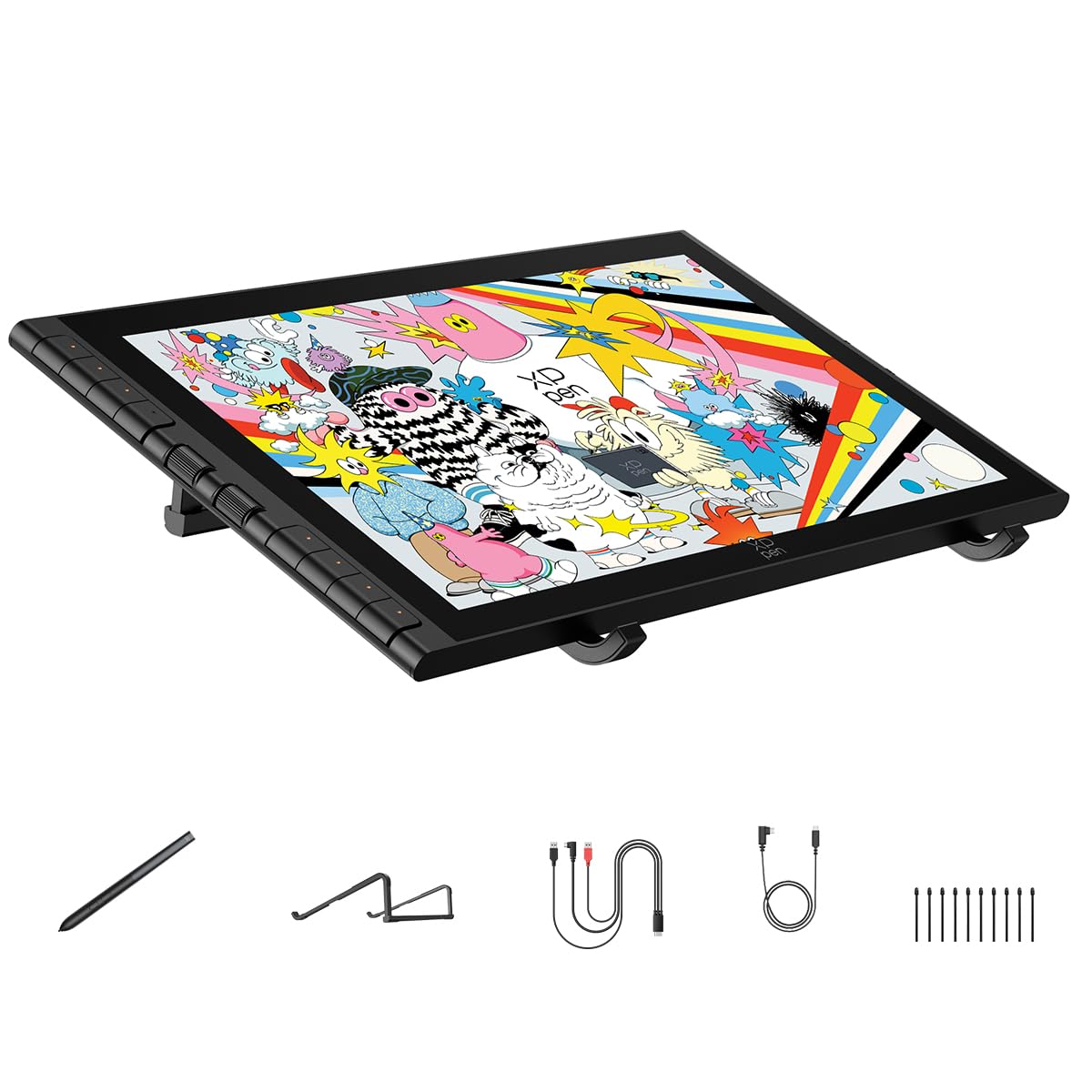
A 15.4-inch studio panel with dual scroll wheels, 99% sRGB, and a magnetic X4 stylus that never wanders
This is the serious upgrade for artists who live in software like Photoshop and Clip Studio Paint. The Artist 16 3rd pairs a fully laminated 15.4-inch FHD display with 99% sRGB, 98% Adobe RGB, and 97% Display P3 coverage, so it covers the color spaces you actually use for print and animation work. The AG+AF nano-etched glass resists fingerprints and delivers a paper-like friction, while full lamination pushes the cursor under your nib for true what-you-see-is-what-you-draw accuracy.
The X4 Smart Chip stylus reads 16,384 pressure levels with an ultra-low 2g initial activation force and only 0.3mm retraction, which owners describe as natural and paper-like, with clean lines and no hand-eye coordination lag. The dual scroll wheels and eight customizable hotkeys let you ride the canvas without touching the keyboard, and the magnetic pen snaps to the tablet so it stays put. The included S20 foldable stand keeps the angle ergonomic.
Setup is the main hurdle—some owners found it tricky to get working at first, often needing the 3-in-1 cable plus a driver install on a laptop before it would display. It is also a desktop device, not a standalone one, and at 1355 g it commands real desk territory. Once set up, though, the drawing feel earns near-universal praise.
The pro edge
- 99% sRGB plus Adobe RGB and Display P3 coverage
- Dual scroll wheels and 8 hotkeys for fast control
- Magnetic X4 stylus with 2g activation force
The setup tax
- Initial setup can be tricky, often needing drivers
- Requires a computer; not standalone
- Large footprint at 1355 g
Best for: digital painters and animators who want pro color spaces and a dial-driven workflow in a single mid-range panel.
Not for: buyers who want a fuss-free plug-and-play first tablet—this one rewards persistence at setup.
8. Wacom MovinkPad 11

The only pick here that works without a computer—an 11.45-inch Android tablet that goes wherever a sketchbook can
Every other device on this list needs a laptop or desktop to function. The MovinkPad 11 is the wild card: a full Android 14 tablet with 8 GB of memory and 128 GB of storage, so you can draw on a plane, in a café, or on a park bench with zero cables. It ships with Wacom Canvas, two years of CLIP STUDIO PAINT DEBUT, and trials of Ibis Paint and Magma, plus the battery-free slim Pro Pen 3 with 8,192 pressure levels and three buttons.
At just 1.3 lbs, it is lighter than most laptops, and the matte etched glass gives a paper-like feel with reduced glare and fingerprints. Owners call it the best standalone option they have found, praising the bright screen, responsive pen, and impressive battery life, with one noting it works smoothly with Clip Studio and Infinite Paint even on large works. The “tap and hold” shortcut launches Wacom Canvas instantly, turning the moment an idea hits into a sketch before you lose it.
The honest trade-offs are the price—it sits in a higher tier than the others here—and a few compatibility quirks. Some buyers report occasional lagginess, the touchscreen can be finicky, and there is no audio jack. A stuck pixel appeared on one unit after a day, so check your panel early. And since it is a full Android device, it is more tablet-computer than pure pen display.
The freedom factor
- Fully standalone with no computer required
- Light 1.3 lbs with paper-like matte glass
- Includes Pro Pen 3 and CLIP STUDIO PAINT DEBUT
Consider the cost
- Sits in a higher price tier than the rest
- Occasional lagginess and finicky touchscreen reported
- No audio jack and some app compatibility gaps
Ideal for: traveling artists and sketchers who refuse to be tethered to a desk and want a true sketchbook replacement.
Not for: budget-first buyers or those who already have a powerful laptop and just need a second screen for studio work.
Understanding the Specs
Full Lamination and Parallax
Full lamination means the glass and the LCD panel are fused into one solid layer with no air gap between them. That air gap is what causes parallax, the annoying effect where your pen tip and the on-screen cursor are slightly out of sync. A fully laminated display puts the cursor almost perfectly under your pen, which matters most for fine line work and detailed coloring where precision is everything.
sRGB and Color Gamut
sRGB is the standard color space for screens, and the percentage tells you how much of that range the display can show. A 99% sRGB panel shows colors true to what devices and most printing processes expect. A reading like 143% sRGB means the panel can go beyond that standard, producing more vivid, saturated colors that look punchier on screen, though you may need to calibrate if you want those colors to print exactly as seen.
Pressure Sensitivity Levels
Pressure levels describe how many distinct strengths of pen press the tablet can register, from the lightest whisper of a touch to a hard push. A rating of 8,192 levels is plenty smooth for sketching and shading; 16,384 levels is the current high bar and gives you finer control over delicate tapering lines. Both feel natural to most artists—the bigger jump is from an older budget tablet to either of these.
Battery-Free vs. Battery Stylus
A battery-free pen pulls power from the tablet itself, so it never needs charging and stays lighter in the hand, which reduces fatigue over long sessions. Because they are lighter, they also feel more balanced and closer to a real pencil. Some older or budget pens still require a charge, which means you are tied to a charging schedule mid-project. For daily drawing, a battery-free pen is the easier, more reliable choice.
FAQ
Does a drawing tablet with screen need a computer to work?
What is the difference between a pen tablet and a drawing tablet with screen?
How much desk space does a 15.6-inch drawing tablet need?
Is 16K pressure sensitivity better than 8K?
Will these tablets work with a MacBook or Android phone?
How long do pen nibs last on these tablets?
Can I use these for photo editing, not just drawing?
Are the shortcut keys and dials customizable?
Do I need to buy a stand or screen protector separately?
Which drawing tablet with screen is best for a complete beginner?
Final Thoughts: The Verdict
For the majority of shoppers, the affordable drawing tablet with screen winner is the HUION Kamvas 13 (Gen 3) because it pairs a clean 1080p laminated display and 16K pen feel with shortcut dials at a genuinely budget-friendly price. If you want a larger canvas and vivid color, grab the UGEE UE16 for its 143% sRGB on a big 15.4-inch screen. And for sketching without any computer at all, the Wacom MovinkPad 11 is the portable, standalone pick that goes wherever your sketchbook would.
How We Picked
We do not accept paid placement. Every pick is matched to a real buyer and a real use-case; we do not hands-on test units.
Sources & Methodology
Specifications: manufacturer listings and product documentation. Review insights: verified customer reviews, as of August 2026. Pricing: not shown on this page (it changes often); check the current price via the retailer link.
As an Amazon Associate, Gadgets Feed earns from qualifying purchases. This does not affect which products we feature.