
Our readers keep the lights on and my morning glass full of iced black tea. As an Amazon Associate, I earn from qualifying purchases.
Specs are compiled from manufacturer listings and verified buyer reviews and can change over time — please confirm the key details on the product page before buying.
Before you buy a touchscreen display for 3D modeling, you need to know one thing: your money goes to pen fidelity and color accuracy, not to fancy extras. The priciest option isn’t always the best, and a monitor that’s great for movies will frustrate you in CAD. The four picks below are the ones that actually fit a designer’s desk, not just a living room shelf.
I’m Min — the founder and writer behind Gadgets Feed. This guide is built by comparing the manufacturers’ published specifications and the patterns across verified customer reviews, so you get each pick’s real strengths and trade-offs instead of marketing spin.
Your canvas needs precision for sculpting in ZBrush or laying out mechanical parts. Find the best 3d design drafting monitors with touch screen that keep your hand, pen, and model perfectly in sync.
Our Picks at a Glance

How To Choose The Best 3D Design Drafting Monitors With Touch Screen
To avoid wasting a large budget, separate the “nice to have” from the “must have” for 3D work. A drafting monitor needs a pen that tracks accurately, a screen that shows true colors, and a stand that does not make your neck hurt after a long modeling session.
Match the Pen to Your Software
3D apps like ZBrush or Blender rely on hover distance and pressure to control brush size and depth. A pen with high pressure sensitivity levels keeps your strokes from looking stepped or choppy. Also check that the pen has a comfortable grip and side switches that you can map to your most-used shortcuts, such as undo or brush size.
Check Color Accuracy, Not Just Resolution
A 4K panel is great, but if the colors are off, your render will not match the final product. Look for high coverage of the Adobe RGB and DCI-P3 color spaces—these are the color ranges that printing and film work demand, so your greens and reds stay true. For serious color work, hardware calibration matters more than a bright backlight.
Consider Desk Space and Setup
These monitors are heavy and their stands take up room. Decide if you want a rolling base for flexibility or a fixed monitor arm for stability. Check what ports your computer has — USB-C is convenient for a single cable, but HDMI and DisplayPort are more universal.
Quick Comparison
| Model | Best For | Screen Size | Resolution | Color Gamut | Amazon |
|---|---|---|---|---|---|
| Wacom Cintiq Pro 27★ Best Overall | Professional Pen Input | 27 Inches | 4K UHD (3840×2160) | 99% Adobe RGB | Amazon |
| HUION KAMVAS Pro 27 | Budget-Conscious Artists | 27 Inches | 4K UHD (3840×2160) | 98% Adobe RGB | Amazon |
| LG Smart Monitor Swing 32U889SA-W | Versatile Work & Play | 32 Inches | 4K UHD (3840×2160) | 95% DCI-P3 | Amazon |
| LG Swing 32U889SA 31.5″ | Home Office & Streaming | 31.5 Inches | 4K UHD (3840×2160) | 95% DCI-P3 | Amazon |
In‑Depth Reviews
1. Wacom Cintiq Pro 27, Drawing Tablet with 4K 120 Hz Touchscreen & ProPen 3
Our pick — 4.5★ from 650+ verified ratings; the strongest balance of quality and price.
The professional’s pen display with a paper-like etched glass feel and a 120 Hz panel.
You get 8,192 pressure levels with the Pro Pen 3, so your brush strokes in ZBrush transition smoothly from light to heavy without stepping. The 27-inch screen runs at 4K UHD (3840×2160 pixels) with 99% Adobe RGB and 98% DCI-P3 coverage, so renders and material previews look true to the final print or film. The 120 Hz refresh rate is double that of older models, making the screen feel fluid when you orbit a 3D model.
This is the first Wacom to ship with the Pro Pen 3, which lets you swap grips or adjust the weight and center of balance. The etched glass cuts glare and gives a toothy, pen-on-paper feel that artists rave about. It connects easily via USB-C or USB plus DisplayPort, and the 8 customizable ExpressKeys put shortcuts under your left hand.
The honest trade-off is the price, which sits well above most competitors, and the stand is sold separately — a common gripe in the reviews. The screen does show some glare in bright rooms, and a few owners note the ExpressKey magnet can weaken over time. Long-term buyers report no issues after 15 months of daily use, confirming the build quality.
What Winning Owners Over
- Etched anti-glare glass that feels like real paper
- Accurate 10-bit color with 99% Adobe RGB coverage
- 120 Hz refresh rate for fluid 3D viewport work
What To Plan For
- Stand not included, adding cost to the total setup
- Glare can be an issue in brightly lit studios
- Premium price that demands professional justification
Reach for this if: you do professional client work and need the most reliable, color-accurate pen display on the market.
Think twice if: you are on a tight budget — the stand is extra and the panel is the priciest here by a wide margin.
2. HUION KAMVAS Pro 27 4K UHD Drawing Tablet with Screen 98% Adobe RGB

A pro-grade 27-inch canvas that undercuts the premium names while keeping the paper feel.
You get a 27-inch 4K UHD (3840×2160) canvas with a finer etched glass that has a true pen-on-paper feel, but at a fraction of the Wacom Cintiq Pro 27’s cost. It covers 98% Adobe RGB across three selectable color spaces (sRGB/Adobe RGB/DCI-P3), which you can switch instantly via the on-screen menu for web, print, or cinema work. The full lamination and anti-glare glass reduce reflections in bright studios.
PenTech 4.0 pens activate with just 2g of force, enabling delicate watercolor strokes and faint underdrawings without hand fatigue. The 0.35mm retraction distance ensures precise stroke placement, and 3D LUT hardware calibration delivers a Delta-E under 1.5 for professional color accuracy. The built-in multi-touch gestures — swipe, pinch, rotate — let you orbit 3D models directly on screen.
Owners point out that the included cables are short — about 4 feet — so a desktop setup usually needs HDMI or USB extensions. The screen surface can scratch, so many use a screen protector or felt nibs. The stand is sturdy but awkward to move, and the overall build does not feel as premium as the costlier options. As owners put it: “This is a fantastic drawing tablet,” with fully programmable side buttons.
Where it wins is value: it delivers nearly the same color and pressure performance as the Cintiq Pro 27 for a significantly lower price, which is why it is a crowd favorite among beginners upgrading from smaller Huion models.
Solid for the cost: the color accuracy and paper feel rival displays that cost twice as much, making it the smart pick for serious hobbyists.
The fit note: budget for a screen protector and longer cables, and treat the surface gently.
3. LG Smart Monitor Swing 32U889SA-W 32-Inch 4K UHD IPS Touchscreen
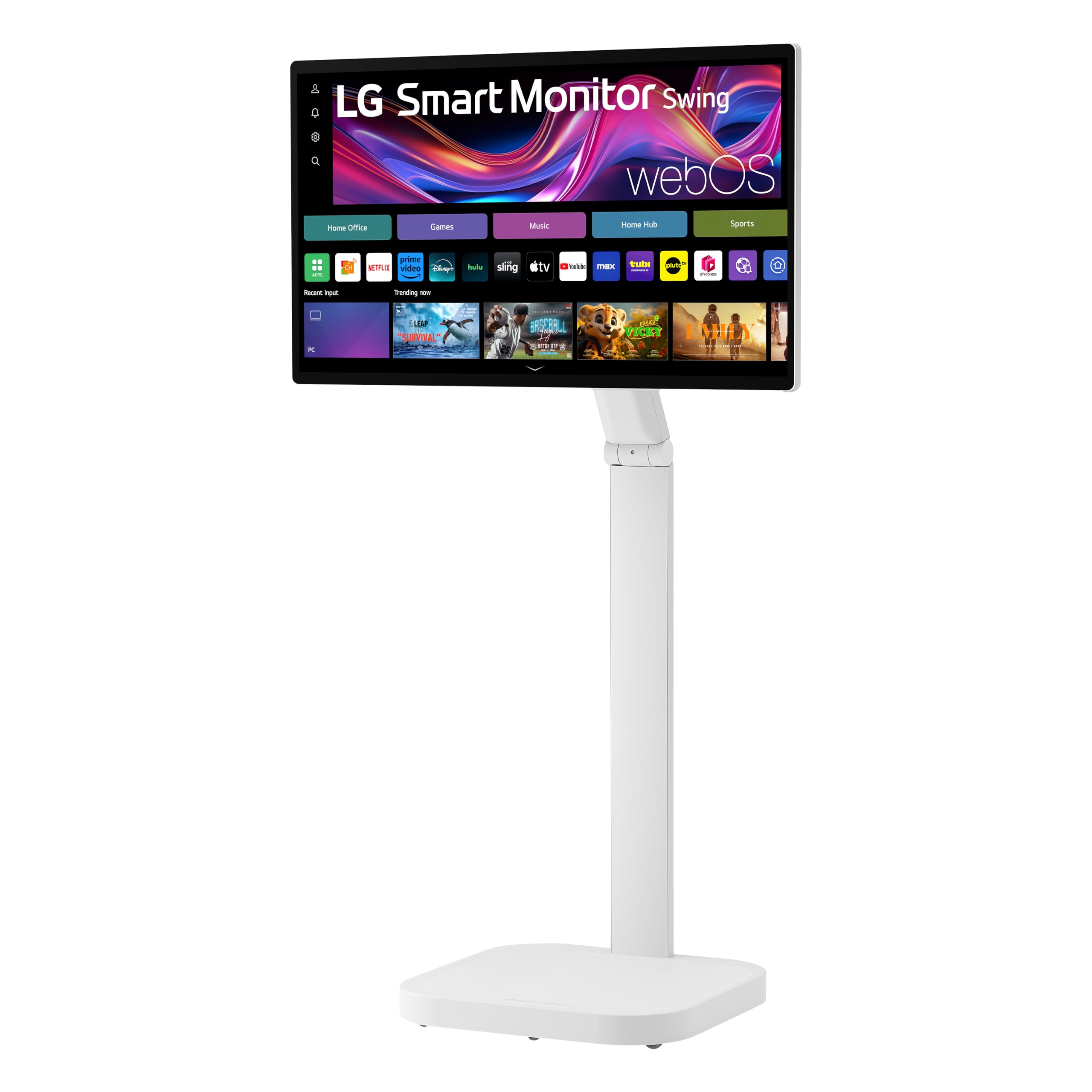
A 32-inch 4K touchscreen on wheels that rolls between your drafting desk and your couch.
What sets this LG apart is the rolling stand — the entire 32-inch 4K UHD IPS touchscreen glides on a wheeled base so you can move it from your drafting table to a meeting room. The torsion spring hinge gives you tilt, swivel, height, and Portrait Mode adjustments, and the hidden adapter compartment keeps cables out of sight. It covers up to 95% DCI-P3 color with 350 nits of brightness, which is plenty for vibrant renders.
It runs webOS, so you can work without a PC — remoting into your workstation or launching streaming apps directly. The three USB-C ports can charge, transfer data, and deliver up to 65W of power to a laptop through a single cable, plus there are two HDMI ports. Touch interaction is smooth, and the whole base is stable, though the screen is heavy and you might want a second pair of hands when attaching the stand.
The weaknesses are its dual nature: the picture is beautiful and crispy clear, but some owners find it does not have that high-end 4K punch, and the built-in speakers are quiet and low quality. Owners mention that screen sharing can be a little difficult and the Wi-Fi disconnects randomly. It is better as a portable TV and work companion than a strict color-grading tool.
This LG is larger than the Cintiq Pro 27 at 32 inches versus 27 inches, but it lacks the pen fidelity for serious sculpting — it is a touchscreen for your fingers, not a stylus canvas.
What Wins People Over
- Wheeled base for true portability around a studio or home
- USB-C with 65W power delivery to charge a laptop
- webOS built-in, so no PC is required for streaming
Where It Cuts Corners
- Built-in sound is noticeably weak
- Wi-Fi connectivity can be unreliable
- Not a pen display, so no stylus input for sculpting
Pick this for: the designer who wants a flexible 4K touchscreen for both serious work and casual streaming, and needs to move it around.
Look elsewhere if: you need precise stylus input — this is a finger-touch monitor, not a drawing tablet.
4. LG Swing 31.5″ 32U889SA 4K UHD IPS Smart Monitor with Touchscreen

The same rolling 4K touchscreen idea in a slightly smaller, more home-friendly 31.5-inch frame.
Sitting at 31.5 inches, this LG Swing offers the same 4K UHD IPS touchscreen, 350 nits of brightness, and up to 95% DCI-P3 color as the 32-inch LG, but in a size that fits more neatly into a home office. The wheeled base with a hidden adapter compartment makes it easy to move between a desk and a kitchen counter, and the tilt, height, swivel, and pivot adjustment keep the screen comfortable to view from any angle.
Everything runs on webOS, meaning you can use it as a smart TV or work monitor without a PC — owners note you can watch anything on it with Wi-Fi, with no cable subscription needed. The three USB-C ports deliver up to 65W to a laptop, and there are two HDMI ports for extra devices. The stand swivels easily and is handy for sharing a screen across a dining table during board game nights.
The catch is similar to the 32-inch model: the speakers are trebly and lack bass, so a Bluetooth speaker helps a lot. At 21.2 kg, the screen requires two people to set up. A few customers note laggy menus and connectivity drops for the price point, though the build quality itself feels solid. It has a Blue Light Filter for comfort during long evening sessions.
This is the same touchscreen experience as the 32-inch LG but it is aimed more at home multipurpose use than at professional color grading. For a designer who wants a large touch display for both check-ins and drafting, it is a versatile middle ground.
Great all-in-one: it serves as a lag-free laptop monitor, a TV, and a digital frame all in one rolling package.
Before you buy: pair it with external speakers and make sure your desk or room can handle the 21.2 kg weight.
Understanding the Specs
Color Gamut (Adobe RGB and DCI-P3)
This tells you how much of the professional color spectrum the screen can display. Higher Adobe RGB coverage means the greens and reds in your print work will match what you see on screen. DCI-P3 is the standard for film and video, so editors and motion designers should prioritize it.
Pen Pressure Sensitivity
This is how finely the pen can tell the difference between a light stroke and a hard press. More levels, like 8,192 on the Wacom, mean smoother transitions when you vary brush size or opacity in sculpting tools. A pen that starts responding with just 2g of force helps reduce hand fatigue.
FAQ
Can I use these monitors for 3D modeling software like Blender or ZBrush?
Do I need a separate stand or mount for the Wacom Cintiq Pro 27?
What is the difference between the two LG Swing monitors?
Will the HUION KAMVAS Pro 27 work with my Mac or PC?
Can I charge my laptop through the monitor’s USB-C port?
Why does my HUION screen scratch easily?
Is the LG Swing good for watching TV and streaming?
Does the Wacom Cintiq Pro 27 have a fan that makes noise?
Final Thoughts: The Verdict
If you want one dependable pick, the winner for the best 3d design drafting monitors with touch screen is the Wacom Cintiq Pro 27 because it pairs the most advanced pen with a 120 Hz panel and exceptional color fidelity, earning near-universal praise from professionals. If you want nearly the same experience without the premium mark-up, grab the HUION KAMVAS Pro 27, which offers 98% Adobe RGB and a paper-like surface at a fraction of the cost. And for a flexible touchscreen that moves with you, the LG Smart Monitor Swing is the one to reach for.
How We Picked
We do not accept paid placement. Every pick is matched to a real buyer and a real use-case; we do not hands-on test units.
Sources & Methodology
Specifications: manufacturer listings and product documentation. Review insights: verified customer reviews, as of August 2026. Pricing: not shown on this page (it changes often); check the current price via the retailer link.
As an Amazon Associate, Gadgets Feed earns from qualifying purchases. This does not affect which products we feature.