
Our readers keep the lights on and my morning glass full of iced black tea. As an Amazon Associate, I earn from qualifying purchases.
Specs are compiled from manufacturer listings and verified buyer reviews and can change over time — please confirm the key details on the product page before buying.
If your day is spreadsheets, code editors, or long documents, the one spec that matters more than anything else is text sharpness. A 4K panel packs four times the pixels of a standard HD screen, so letters are crisper, lines are smoother, and you can fit more windows side by side without squinting. The catch is that not every 4K panel renders text equally well, and your laptop’s connection type decides what you can actually use.
I’m Min — the founder and writer behind Gadgets Feed. This guide is built by comparing the manufacturers’ published specifications and the patterns across verified customer reviews, so you get each pick’s real strengths and trade-offs instead of marketing spin.
Struggling to read fine print on your current display? The right 4k monitor for productivity makes every spreadsheet, tab, and timeline noticeably easier on the eyes.
Our Picks at a Glance


How To Choose The Best 4K Monitor For Productivity
Before you compare contrast ratios, decide how the monitor will sit in your daily routine. The most expensive panel is wasted if your desk setup or laptop ports can’t take advantage of it. Start with the physical connection, then the panel, then the stand.
USB-C Power Delivery Is The Desk Declutterer
A USB-C port that delivers power means one cable handles video, data, and laptop charging all at once. This turns the monitor into a dock, so you can leave your charger in your bag. Look for a wattage figure that at least matches your laptop’s power needs — a 90W port runs most MacBooks and ultrabooks comfortably.
Panel Type Decides Color And Viewing Angle
IPS panels let you see accurate colors from wide angles, which is why they dominate office and photo work. VA panels offer deeper blacks and higher contrast, but colors can shift when you view from the side. If you share your screen with a colleague or edit photos, IPS is the safer choice.
Ergonomics Prevent The Chair Shuffle
A stand that adjusts height, tilt, swivel, and pivot lets you set the screen at eye level, which saves your neck during long stretches. Some stands rotate into portrait mode for reading long documents. A stand that matches your chair height and viewing distance prevents neck strain during long work sessions.
Quick Comparison
| Model | Best For | Panel | USB-C Power | Refresh Rate | Amazon |
|---|---|---|---|---|---|
| LG 27UP650K-W★ Best Overall | Sharp text on a budget | IPS | No | 60Hz | Amazon |
| Dell S2725QSSmooth Operator | Buttery-smooth scrolling | IPS | No | 120Hz | Amazon |
| INNOCN 27C1U-DMac Budget Star | MacBook one-cable setups | IPS | 65W | 60Hz | Amazon |
| LG 27UP850K-W | MacBook one-cable setups | IPS | 90W | 60Hz | Amazon |
| Samsung ViewFinity S80D | Portrait document reading | IPS | No | 60Hz | Amazon |
| Samsung ViewFinity S80UH | Docking and Ethernet in one | VA | 90W | 60Hz | Amazon |
| BenQ PD2706U | Color-critical photo editing | IPS | 90W | 60Hz | Amazon |
| ASUS ProArt PA279CRV | Professional color accuracy | IPS | 96W | 60Hz | Amazon |
| ViewSonic VG2756-4K | Office docking with Ethernet | IPS | 90W | 60Hz | Amazon |
| Dell P3225QE | Large multitasking workspace | IPS | 90W | 100Hz | Amazon |
| BenQ MA270U | Deep MacBook integration | IPS | 90W | 60Hz | Amazon |
| Dell UltraSharp U2725QE | Thunderbolt 4 and KVM | IPS | 140W | 120Hz | Amazon |
| ASUS VP327Q | Big screen on a budget | IPS | No | 60Hz | Amazon |
In‑Depth Reviews
1. LG 27UP650K-W
Our pick — over 4.5★ from 300+ verified ratings; the strongest balance of quality and price.
The office crowd-pleaser that nails crisp text at a price that respects your budget.
Text on this LG looks so sharp that several owners openly admitted it is “1000x better” than cheaper screens they tried first, and they returned the others to keep this one. That clarity comes from a 27-inch UHD 4K (3840 x 2160) IPS display with up to 95% DCI-P3 color gamut, so spreadsheets are crisp and photos look vibrant side by side. The panel also hits 400 cd brightness and a 1200:1 contrast ratio, which is plenty for a bright home office.
The stand is the quiet hero here — height, tilt, and pivot adjustments let you dial in the exact position for your chair height. Owners consistently describe the matte screen as superb at taming overhead light and ambient glare, which matters if you work near a window. With both HDMI and DisplayPort included, you can run two computers and let the monitor auto-detect the active one.
A weekly gripe in the review pages is that a rare unit can arrive with a damaged panel from shipping, so check it the day it lands. This model skips USB-C charging and built-in speakers, so plan to keep your laptop charger handy. At 60Hz it is not built for fast gaming, but for daily work it is the best balance of image quality and price in this lineup.
What Owners Value
- Superb matte anti-glare screen handles bright rooms
- Highly adjustable stand with pivot
- Excellent value at this price point
Watch Out For
- No USB-C port for charging laptops
- No built-in speakers
Your pick if: you want the most dependable 4K text clarity for daily office work without paying extra.
Think twice if: you need a one-cable USB-C setup or want speakers built in.
2. Dell 27 Monitor S2725QS
A 120Hz refresh rate makes scrolling feel twice as fluid as a standard office display.
Here is the monitor that owners describe as the one you “can’t go back to 60hz” after using. The Dell S2725QS runs a 120Hz refresh rate against the 60Hz you get on most productivity panels, so scrolling through long web pages and big documents feels dramatically smoother. That motion clarity pairs with 99% sRGB color and a 1500:1 contrast ratio, giving depth and detail without the washed-out look.
Built-in speakers here are genuinely usable, with owners calling them great for the price. The stand adjusts height, pivot, swivel, and tilt, and the ultra-thin bezels in ash white make a clean multi-monitor setup easy. The ComfortView Plus feature cuts blue light to ≤35% without wrecking color accuracy, which is a real win for all-day sessions.
The matte coating adds a slight grain in dark scenes, which is only noticeable in movies, not office work. Default brightness arrives high and needs a manual nudge down. For productivity plus light gaming, this is the best all-rounder in the mid-range tier.
Why It Shines
- 120Hz refresh makes daily scrolling feel silky
- Great built-in speakers
- Full ergonomic stand
Keep In Mind
- No USB-C power delivery for laptops
- Matte coating adds slight grain in dark scenes
Reach for it: to feel the smoothness of 120Hz in every scroll, click, and window snap.
Look elsewhere if: your laptop needs USB-C charging from the monitor itself.
3. INNOCN 27″ 4K USB-C Monitor
A factory-calibrated panel that charges your laptop over a single USB-C cable on a budget.
If you run a MacBook, this is the cheapest honest way to get a proper one-cable desk. The INNOCN 27C1U-D plugs into your laptop through USB-C and delivers 65W of charging power, so the screen auto-powers on with your Mac and keeps it topped up. The 27-inch IPS panel covers 1.07B colors with DeltaE <2 from the start, which is factory-grade accuracy normally reserved for pricier displays.
Owners praise the crisp text and vibrant colors, with one calling it a flawless match for an M2 MacBook Air. The stand rotates a full ±90° into portrait mode and adjusts height, tilt, and swivel, so long documents read like a page instead of a scroll. VESA 75×75 mounting is available if you want it on an arm.
You will want separate speakers because the built-in ones are weak, and the menu buttons take time to learn. The single USB-C port is the only one, and there is no USB hub, so plan your connections. For pure Mac-to-4K value with accurate color, this BenQ is tough to top.
The Trade-Off: phenomenal color and one-cable charging for Mac users, but you give up speakers and a USB hub.
Best for: MacBook owners who want accurate color and laptop charging without spending premium money.
skip it if: you need a USB hub or strong built-in audio.
4. LG 27UP850K-W

The version of LG’s Ultrafine line that adds the full port array for a true one-cable dock.
This is the LG Ultrafine 27″ with the ports people actually ask for. USB Type-C delivers data and up to 90W of power to a laptop, plus DisplayPort, two HDMI connections, two USB 3.0 ports and a headphone jack are all built in. Owners love that it is “worth the extra” over the 650 model specifically for these ports, the speakers, and the extra OSD options.
The panel is the same sharp IPS 4K with up to 95% DCI-P3 color gamut and VESA DisplayHDR 400 support, so what you saw on the cheaper LG carries over with added flexibility. Built-in stereo speakers with Waves MaxxAudio make meetings and videos watchable without a separate speaker. The matte display serves up crisp text for M-series Macs over a single cable.
One USB-C port is the only one on board, which owners note as a limitation. The stand is ergonomic with height, tilt, and pivot, though a slightly crooked stand has been reported on some units. This is the better LG for anyone who wants docking without a separate hub.
The Upgrade Worth Paying For: 90W USB-C charging and a full port array turn this monitor into your desk hub.
Choose this if: you want to ditch the dongles and charge your laptop straight from the screen.
Consider another if: you only need a basic display and never plug in peripherals.
5. SAMSUNG 32″ ViewFinity S8 (S80D)

A 32-inch IPS canvas with deep contrast and a pivot that turns long documents into pages.
For anyone living in spreadsheets or design software, the extra screen space on this Samsung is noticeable. The 32-inch 4K UHD (3840×2160) panel delivers a 3000:1 contrast ratio — deeper blacks than typical office IPS screens — and owners working in Photoshop and Lightroom call it wonderfully color-accurate. The height-adjustable stand swivels, tilts, and pivots a full 90 degrees for portrait document reading.
Setup is genuinely tool-free: the Easy Setup Stand clicks together without screws, and a simple push of a button changes the layout. Owners describe the pixel density as impressive next to larger displays and praise HDR10 for truer-to-life color. TÜV-certified Eye Saver Mode cuts flicker and blue light for long sessions.
There are no built-in speakers and no camera, so expect to add those. The single back button that controls everything feels backwards to some owners at first. If you want a big, sharp, portrait-friendly workspace at a mid-range price, this delivers.
Why It Wins: 3000:1 contrast on a 32-inch panel plus a 90° pivot makes this a document reader’s dream.
Get it for: designers and spreadsheet users who want a large, adjustable canvas.
Pass if: you want integrated speakers or a USB-C charging port.
6. Samsung 32″ ViewFinity S8 (S80UH)
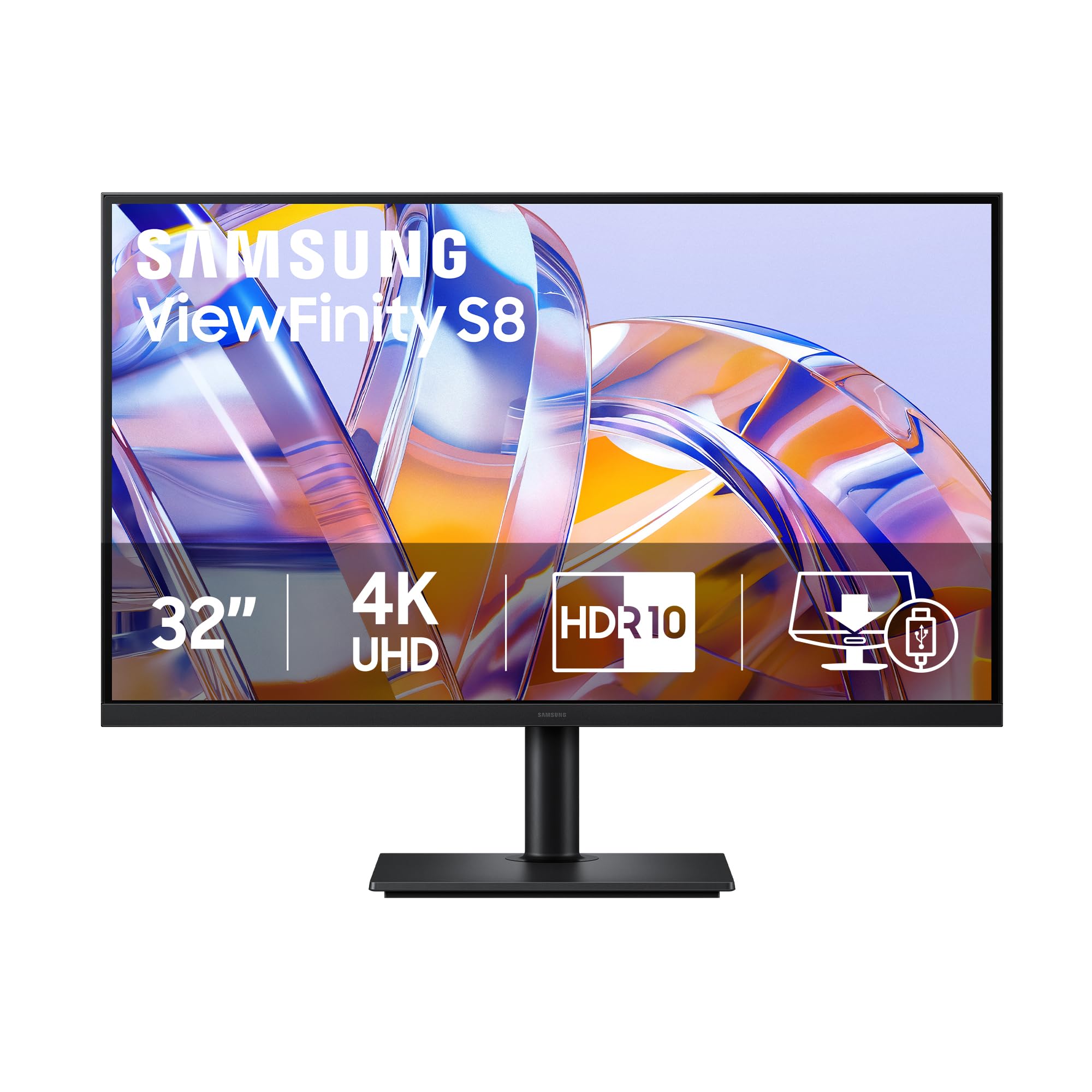
A VA panel that doubles as a dock, with Ethernet and a KVM switch built right in.
Its USB-C port delivers 90W charging, data, and wired Ethernet over a single cable. The USB-C port provides 90W charging and data transfer, while a built-in LAN port delivers wired Ethernet — so your laptop gets a fast, stable network connection over that same single cable. A built-in KVM switch lets you control two computers with one keyboard and mouse, and Picture-in-Picture shows both at once.
You get deep blacks and accurate colors from the 32-inch 4K UHD (3840×2160) VA panel with HDR10+ and a 3000:1 contrast ratio, so spreadsheets, CAD, and photo editing look crisp once you adjust the default eco mode. Owners say rotating it for portrait use feels like having three 15-inch laptop screens stacked vertically. The stand tilts, swivels, and adjusts height comfortably.
The panel is VA, so viewing angles are weaker than IPS when you step to the side — better for solo work than shared viewing. There are no speakers, and the wake-from-sleep time runs slower than some rivals. If you want a dock and a screen in one tidy package, this is it.
The Dock Difference: this monitor replaces a separate hub with USB-C, Ethernet, and KVM all built in.
Ideal for: tidy desks where a single USB-C cable powers, connects, and networks the laptop.
Not for: anyone who needs wide viewing angles or built-in speakers.
7. BenQ PD2706U

The pick for photo editors who need factory-calibrated color they can trust.
If your work lives in photo editing, color accuracy is everything, and this BenQ delivers it straight from the start. The PD2706U covers 95% P3 and 99% sRGB/Rec.709 with Delta E ≤ 3 accuracy, and it is Pantone, Pantone SkinTone Validated, and Calman Verified. Owners editing photos call it clear and sharp, with one switching from an Apple display and saving significantly.
The 90W USB-C port charges a Mac while syncing images and data over one cable. A built-in keyboard-video-mouse (KVM) switch lets you control two PCs with one keyboard and mouse — owners working from home on both a Mac and a Windows laptop call the built-in video switch a real time-saver. The HotKey Puck puts color modes and settings right on your desk.
Brightness is a modest 250 nits, so very bright rooms may wash it out. The value question earns mixed feedback from owners, but for color-critical work the calibration is the point. Its Pantone-validated calibration and Delta E ≤3 accuracy suit color-critical workflows.
The Specialist Edge: Pantone-validated color and a KVM switch make this a photo-editing workstation in one screen.
Buy it for: serious photo editing where factory color calibration saves you setup time.
Think twice if: you work in a very bright room or just need a general office display.
8. ASUS ProArt PA279CRV

A professional-grade panel with 99% Adobe RGB coverage and a 5-year warranty.
This ASUS ProArt is built for creators who need color they can trust, covering 99% DCI-P3 and 99% Adobe RGB for accurate reproduction. Factory pre-calibration to Delta E < 2 means you don’t have to wrestle with settings before editing photos or video, and owners working in film editing praise the accuracy. The 27-inch 4K IPS panel hits 400 cd brightness with a 3000:1 contrast ratio.
Connectivity is extensive: DisplayPort over USB-C with 96-watt Power Delivery, plus DisplayPort, HDMI, and a USB hub. DisplayPort daisy-chain support lets you connect multiple monitors through one cable for a bigger workspace. The stand adjusts tilt, swivel, pivot, and height, and a 5-year warranty (with online registration) backs it up.
Buyers report you must change power settings (disable eco mode and deep sleep) to avoid wake and connection issues — a one-time setup that fixes things. A small number report port failure, though the broader consensus is strong value against rival brands. For color-critical work with Macs, this is a proven choice.
The Creator’s Pick: Adobe RGB coverage and Delta E <2 calibration make this a true studio display.
Choose it for: video editing, color correction, and Photoshop where 99% Adobe RGB matters.
Skip if: you don’t want to tweak power settings for reliable wake behavior.
9. ViewSonic VG2756-4K
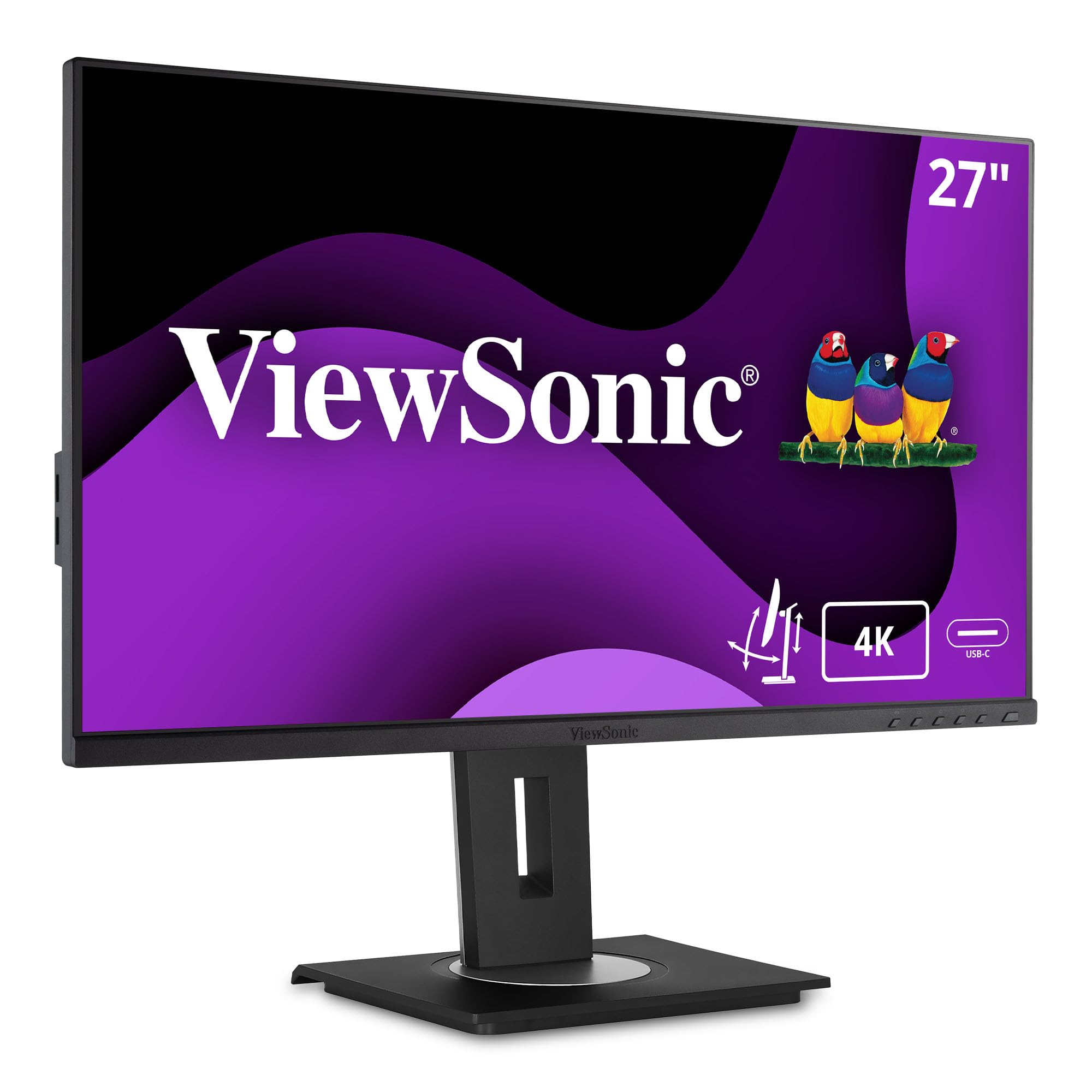
An office-focused monitor with an integrated USB-C docking hub and wired Ethernet.
This ViewSonic is built to clear your desk of dongles. The USB-C port provides 90W of passthrough power to charge demanding laptops, while an RJ45 Ethernet port delivers secure wired networking — all over a single cable. Owners praise its integrated dock and daisy-chain support for up to four monitors in multi-screen offices.
The 27-inch 4K (3840 x 2160) IPS panel delivers consistent colors and wide viewing angles, and owners describe it as a capable office monitor with excellent visibility. The advanced ergonomic stand offers a 40-degree tilt plus swivel, rotate, and height adjustment for a healthier workspace. Integrated Flicker-Free technology and a Blue Light Filter keep long workdays comfortable.
The built-in speakers are very quiet, and the 6-button menu takes getting used to. Some owners note the dock powers down with the monitor and that source selection is manual. It prioritizes office docking and wired networking over entertainment features.
The Hub Advantage: 90W USB-C plus RJ45 Ethernet turns this into a true one-cable docking station.
Best for: office setups that need wired internet and laptop charging in one slim package.
Not for: listening to audio through the monitor’s weak speakers.
10. Dell P3225QE
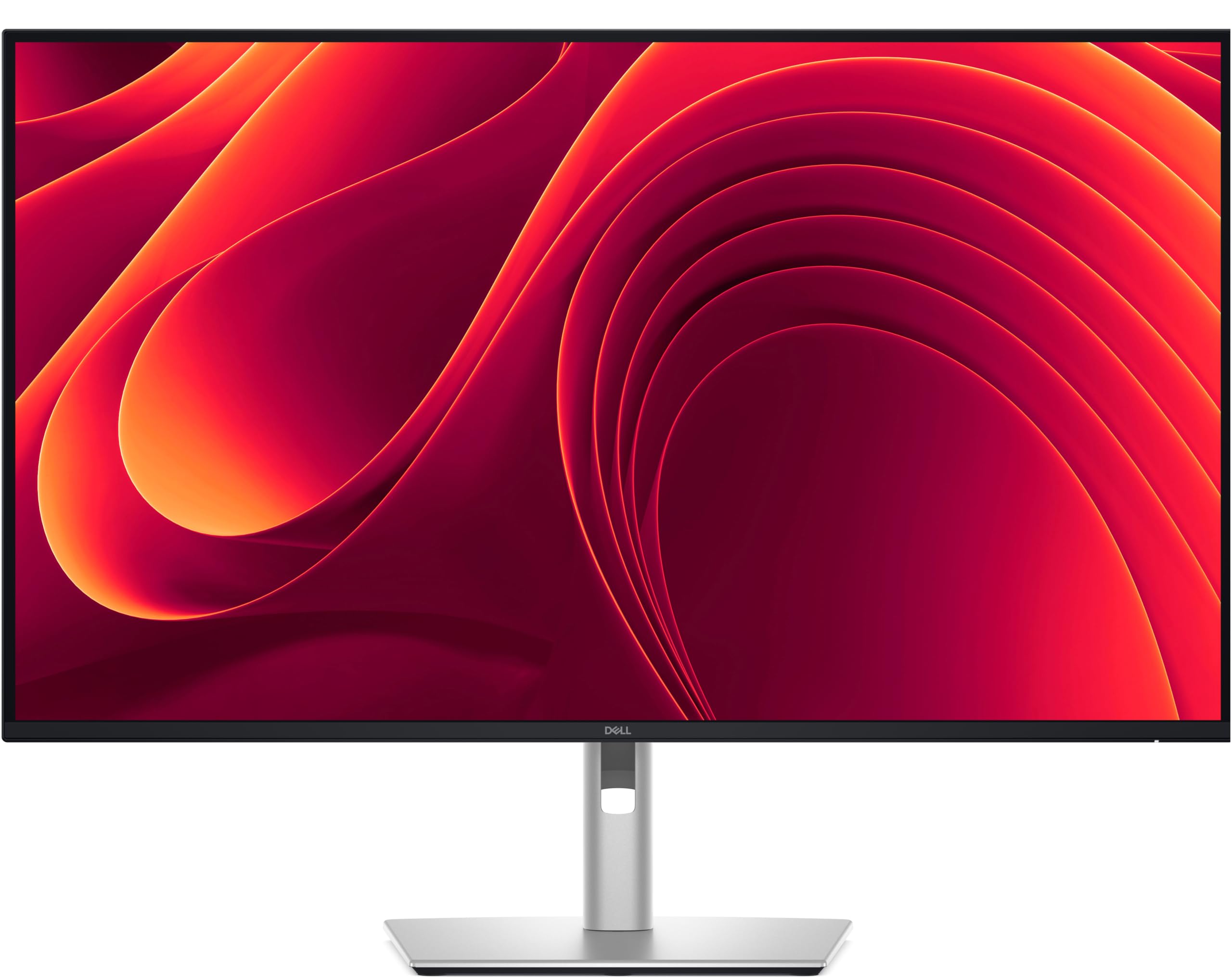
A roomy 31.5-inch panel with 100Hz motion and USB-C power for a clutter-free desk.
For anyone juggling databases, spreadsheets, and docs side by side, the extra width here pays off every day. This Dell pairs a 31.5-inch 4K Ultra HD (3840 x 2160) IPS panel with a 100Hz refresh rate and 5ms GTG response, so scrolling stays fluid and images stay sharp. Owners working in graphics-heavy tools like Bluebeam PDF review call the graphics crisp, and the 99% sRGB (CIE 1931) coverage keeps colors consistent.
You can connect modern laptops easily with HDMI 2.1, DisplayPort 1.4, and USB-C that delivers up to 90W Power Delivery, so one cable handles video and charging. An Ethernet port gives you wired networking, and the stand tilts, swivels, pivots, and adjusts height. Narrow bezels let you line up multiple monitors smoothly.
There is no audio in or out, which owners note as the one connectivity miss. An occasional unit has VESA mounting quirks that need spacers for wall arms. If you want a big 4K canvas with smooth motion, this is a strong mid-range pick.
The Size Pick: 31.5 inches of 4K IPS canvas with 100Hz smoothness and 90W charging.
Choose it for: heavy multitaskers who want a huge, smooth, single-cable workspace.
Look elsewhere if: you need audio passthrough or a compact footprint.
11. BenQ MA270U

A Mac-specific 4K panel that lets you control brightness and volume from your keyboard.
This BenQ is built for MacBook users, and owners say it delivers pro-level performance at a fraction of the price of Apple’s own displays. The 27-inch 4K (3840×2160) IPS panel is calibrated for MacBook with BenQ’s exclusive color tuning, offering a vibrant P3 wide color gamut, and owners call the colors spot-on. It works smoothly with MacBook Pro and Air, giving you crisp 4K clarity and no reflection glare.
The dual USB-C ports deliver 90W to your MacBook and 15W to charge an iPad or iPhone. A single USB-C cable expands your MacBook display and powers it at once, reducing desk clutter. You can adjust brightness and volume directly from your MacBook keyboard, and the adjustable stand handles height, tilt, swivel, and pivot.
A single USB-A port sits in a hard-to-reach spot, which owners note versus Dell rivals. Set up the Display Pilot 2 software to open up the keyboard controls and touch ID recognition. Its Mac-calibrated P3 color and keyboard-controlled brightness make it a smooth MacBook companion.
The Mac Native: keyboard-controlled brightness and volume plus P3 color make this the closest thing to a first-party display.
Get it for: MacBook Pro and Air users who want smooth integration and beautiful color.
Pass if: you need lots of USB-A ports or run a Windows desktop.
12. Dell UltraSharp U2725QE

The flagship pick with Thunderbolt 4, 140W power, and a KVM hub for serious workstations.
Professionals who want the complete package should look at the Dell UltraSharp U2725QE. It offers a 4K UHD IPS Black display with 3840 x 2160 resolution and 99% DCI-P3 color coverage, calibrated to Delta E less than 1.5, so colors are accurate for photo and video work. Owners call it an outstanding display with crisp viewing that pairs perfectly with laptops like the ThinkPad X1 Carbon, praising the picture quality and adjustability.
One Thunderbolt 4 cable transmits video, data, and up to 140W of power at the same time, and you can daisy-chain two additional 4K monitors. A built-in KVM hub lets you share Ethernet and peripherals between machines — owners call it smooth for switching between a Mac Studio and an HP Elitebook. The 120Hz refresh rate with 5ms response keeps motion fluid, and ComfortView Plus with an ambient light sensor adjusts brightness automatically for all-day comfort.
This screen is completely silent, with owners noting no coil whine after months. A rare unit can fail after 50 days, and support has been called useless in that situation. Its 140W Thunderbolt 4 port powers, connects, and daisy-chains multiple displays from one cable.
Flagship Features
- 140W Thunderbolt 4 charges even powerful laptops
- 120Hz refresh with silky motion
- Built-in KVM hub for two computers
The Premium Cost
- Priced far above mid-range options
- Rare units have support issues
Worth it for: power users running a dock, a KVM, and dual monitors from one Thunderbolt cable.
Too much if: your laptop only needs 60W charging and you work on one screen.
13. ASUS VP327Q

A 32-inch 4K screen with built-in speakers that delivers huge multitasking space for less.
For a large 4K canvas on a budget, this ASUS gives you serious screen real estate. The 31.5-inch 4K UHD display offers 4x the pixel density of a standard screen, and owners call it “extremely high quality and easy on your eyes with the Blue light filters.” The 3000:1 contrast ratio provides deeper blacks than typical budget panels, and HDR-10 support plus 99% sRGB gamut keep colors lifelike.
Built-in stereo speakers offer convenient audio output, and dual HDMI ports plus DisplayPort let you switch between laptop, PC, and gaming console. ASUS Eye Care Technology adds flicker-free and low blue light filters, making this an eye-friendly home office pick. A 3-year warranty with Advanced Replacement and Repair service backs it up, and a free 1-month Adobe Creative Cloud subscription is included.
Reliability gets mixed feedback from owners — most units work perfectly from the start, but some report a screen failing after a few months or showing flicker. Its 32-inch footprint demands a deep desk, and the short power cord limits placement options. For a big, affordable 4K display with speakers, it is a solid value.
The Big-Screen Value: 32 inches of 4K with built-in speakers and eye-care filters at a budget price.
Ideal for: buyers who want the biggest possible 4K workspace with speakers included.
Check carefully: if reliability over many years is your top concern, consider a higher-rated panel.
Understanding the Specs
Panel Type And Text Clarity
The panel type — IPS or VA — decides how colors look from different angles. IPS panels keep colors consistent when you view from the side, which is why they dominate office and photo work. VA panels offer deeper blacks and higher contrast, but colors shift when you step off-center. For shared screens or color work, IPS is the safer bet.
USB-C Power Delivery
A USB-C port that delivers power turns your monitor into a dock, so one cable handles video, data, and laptop charging. The wattage figure tells you how fast it charges — 90W runs most MacBooks and ultrabooks, while 140W handles even the most demanding laptops. Match the wattage to your laptop’s needs or you will still carry a charger.
FAQ
What is the best size for a 4K productivity monitor?
Do I need a 120Hz refresh rate for office work?
How many watts of USB-C power do I need to charge my laptop?
What is the difference between IPS and VA panels?
Will a 4K monitor work with my MacBook?
What is a KVM switch and do I need one?
How important is color accuracy for productivity work?
Can I mount these monitors on a wall or arm?
What is the difference between HDR400 and HDR10?
Final Thoughts: The Verdict
For most people, the 4k monitor for productivity winner is the LG 27UP650K-W because it nails crisp text, vibrant color, and a highly adjustable stand at a price that respects your budget. If you want smooth 120Hz scrolling that makes daily work feel easy, grab the Dell S2725QS. And for a MacBook one-cable setup with laptop charging and accurate color, the INNOCN 27C1U-D is the one to reach for.
How We Picked
We do not accept paid placement. Every pick is matched to a real buyer and a real use-case; we do not hands-on test units.
Sources & Methodology
Specifications: manufacturer listings and product documentation. Review insights: verified customer reviews, as of August 2026. Pricing: not shown on this page (it changes often); check the current price via the retailer link.
As an Amazon Associate, Gadgets Feed earns from qualifying purchases. This does not affect which products we feature.