
Our readers keep the lights on and my morning glass full of iced black tea. As an Amazon Associate, I earn from qualifying purchases.
Specs are compiled from manufacturer listings and verified buyer reviews and can change over time — please confirm the key details on the product page before buying.
Your laptop has maybe two ports, but your desk has a monitor, a keyboard, a mouse, an external drive, and an Ethernet cable that all need to plug in somewhere. A docking station solves that by turning one USB-C connection into a full desktop setup — but the catch is that not all docks handle video the same way, and picking the wrong one means returns and frustration. This guide ranks the nine best docking stations on Amazon, detailing each one’s standout feature and its biggest drawback.
I’m Min — the founder and writer behind Gadgets Feed. This guide is built by comparing the manufacturers’ published specifications and the patterns across verified customer reviews, so you get each pick’s real strengths and trade-offs instead of marketing spin.
You can turn your laptop into a full desktop setup with one cable, if you need triple monitors, fast charging, or a travel-friendly hub. The right docking station makes that happen, and this guide helps you pick the one worth buying.
Our Picks at a Glance
How To Choose The Best Docking Station
Before you compare ports and prices, the single most important check is whether your laptop’s USB-C port supports video output at all. Look for the terms “DisplayPort Alt Mode” or “Thunderbolt” in your laptop’s spec sheet — if neither appears, no dock in this list will drive an external monitor for you.
Match the Dock to Your Ports, Not the Other Way Around
Thunderbolt 4 docks are the most powerful, but they only work at full capacity with laptops that have a Thunderbolt 4 port. A standard USB-C dock like the Mukiya or the Acer works with a far wider range of Windows and Mac laptops, as long as that port supports DisplayPort Alt Mode. Check your laptop model against the dock’s compatibility list before you buy.
Count Your Monitors and Your Refresh Rate
If you need two external screens at crisp 4K resolution, pay close attention to the HDMI and DisplayPort specs. Some docks push 4K at 60Hz on both monitors, while others limit 4K to just 30Hz on the HDMI port — which feels choppy for everyday mouse movement and is unusable for gaming or design work. For a single 8K display, you will need a Thunderbolt 4 dock.
Don’t Forget Charging Power
The power delivery (PD) rating tells you how fast the dock charges your laptop. Look for a dock that delivers at least the same wattage as your laptop’s own charger — a 100W input dock that only passes 85W to the laptop may still drain the battery slowly under heavy load. If you own a large MacBook Pro or a powerful gaming laptop, prioritize a dock with a higher PD output.
Quick Comparison
| Model | Best For | Number of Ports | Max Charging | Max Display | Amazon |
|---|---|---|---|---|---|
| Dell Pro WD25★ Best Overall | Dell laptop owners needing 4K triple displays | 10 | 100W | 4 High-Res Displays | Amazon |
| Mukiya 8-in-1Budget Champion | Travelers who want a stand and hub in one | 8 | 90W | 4K UHD @30Hz | Amazon |
| Acer 11-in-1Triple Display Pick | Triple-monitor setups on a budget | 11 | 100W | 8K @30Hz or 4K @60Hz | Amazon |
| Selore 14-in-1 | Windows users with VGA monitors | 14 | 100W | Dual 4K + VGA | Amazon |
| Baseus Spacemate | Clean vertical desks with status display | 11 | 100W | Triple 4K | Amazon |
| Lenovo ThinkPad Universal | IT-managed ThinkPad fleets | 3 | 90W | 3 Monitors | Amazon |
| Anker Prime 14-in-1 | Power users with multiple devices to charge | 14 | 160W | Dual @ 2K@60Hz | Amazon |
| Plugable TBT4-UD5 | Mac users chasing true dual 4K@60Hz | 13 | 100W | Single 8K or Dual 4K@60Hz | Amazon |
| UGREEN 13-in-1 TBT4 | Fanless, quiet Thunderbolt 4 setups | 13 | 96W | Dual 4K@60Hz | Amazon |
In‑Depth Reviews
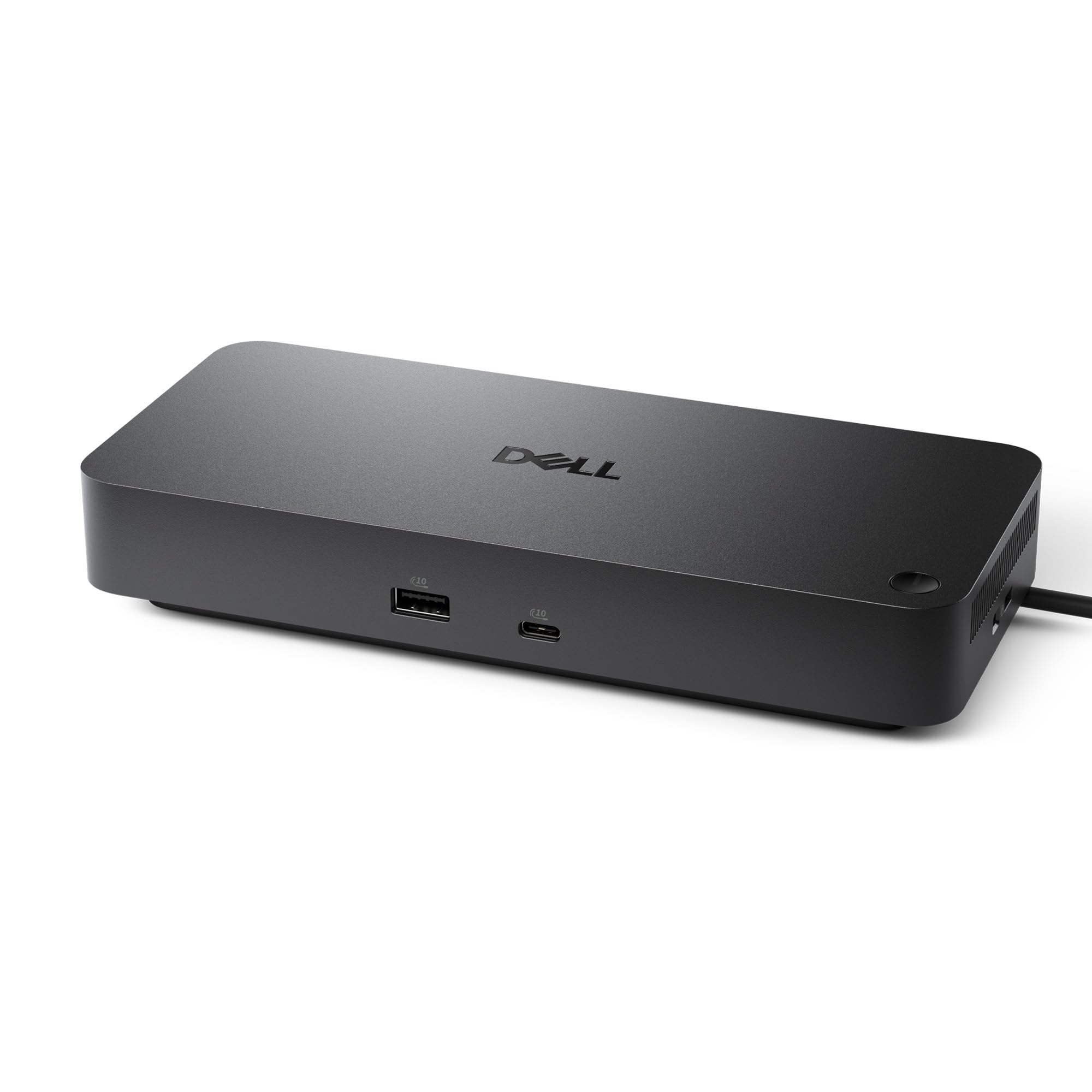
1. Dell Pro Laptop Docking Station WD25
Our pick — 4.5★ from 300+ verified ratings; the strongest balance of quality and price.
The Dell WD25 is the easy pick for owners of new Dell AI PCs and XPS laptops who want true plug-and-play triple monitors.
It wakes your XPS 14 with the power button and drives three 4K monitors (two DisplayPort, one HDMI) with zero driver installation. The USB-C cable routes left or right for tidy desks, and the reinforced connector withstands daily plugging and unplugging.
It is not just about screens. The WD25 delivers up to 100W of power to your laptop, keeps accessories charged, and adds faster USB and network speeds for the AI-PC workplace. Owners say it turns a notebook into a full desktop, but pushing an XPS-15 to four screens requires a separate power source for charging. One honest expectation: these docks have a service life — buyers report they typically run for 3-5 years before needing replacement.
The sustainability angle is real too: standby power drops by up to 72%, and the body uses at least 65% postconsumer recycled materials. It pairs desktop-grade performance with eco-friendly materials in a compact 1.2-pound frame.
Why the Dock Wins
- Native support for up to four high-res displays — a genuine desktop replacement
- Plug-and-play with current Dell laptops, no driver hunting
- Ambidextrous cable routing keeps any desk layout tidy
What to Expect
- Multi-year lifespan means eventual replacement, not forever hardware
- Charging may fall short on the most power-hungry 4-screen setups
Grab it for: a Dell laptop owner who wants one-cable desk power with multiple 4K screens.
Look elsewhere if: your laptop is not a recent Dell — this dock is tuned for that ecosystem.
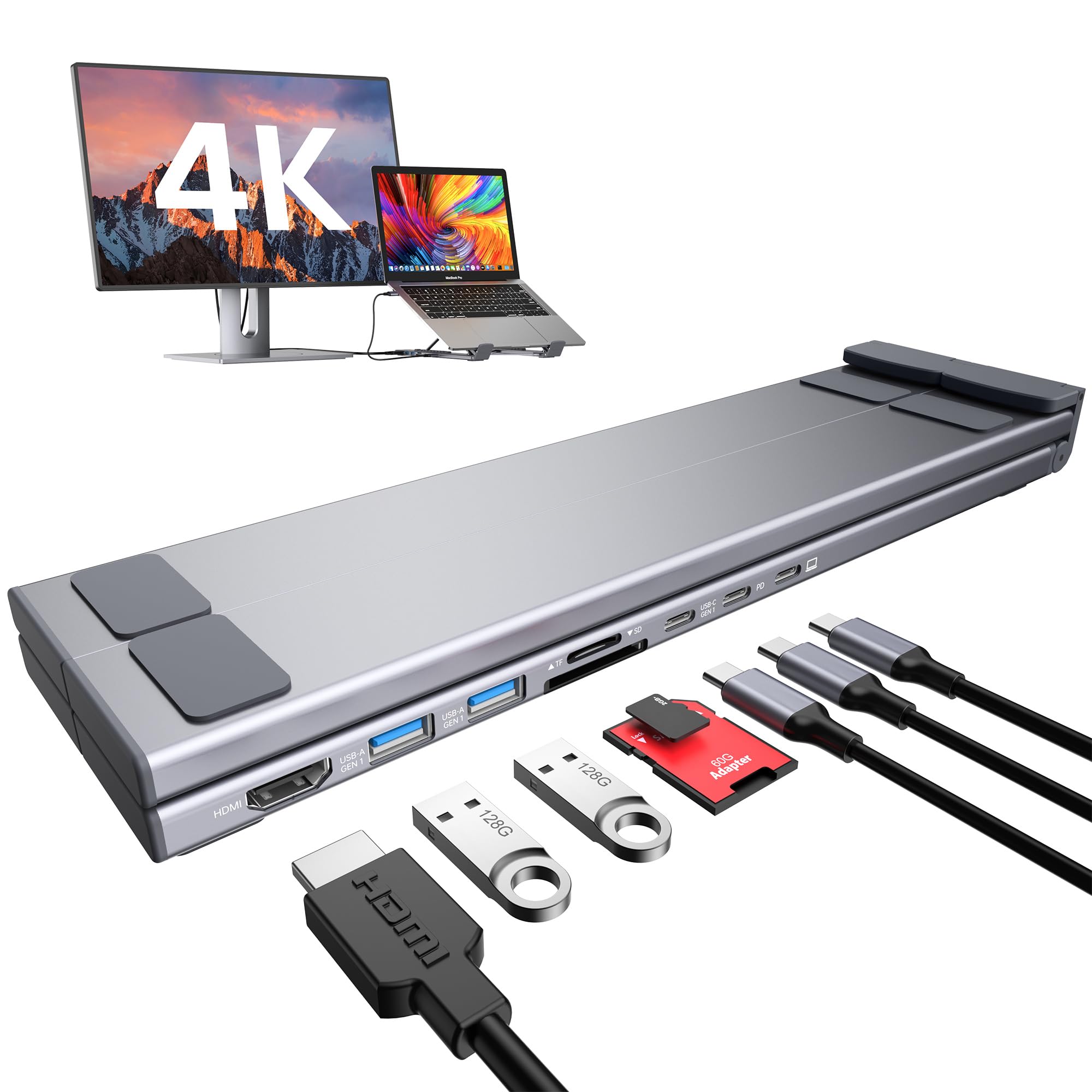
2. Mukiya USB C Laptop Docking Station Stand
The Mukiya pairs a laptop stand with an 8-in-1 hub, giving travelers a full desk setup that folds down to 10.5 by 2.2 inches.
This dock solves two problems at once: it improve your laptop to eye level for better posture while adding all the ports your slim laptop lacks. The 4K HDMI output reaches 3840×2160 at 30Hz, which is fine for creative work with still images but not for gaming or video editing — buyers noted that limitation clearly. You get two USB-A ports at 5Gbps, one USB-C data port, SD and TF card slots, and a PD port that charges your laptop at up to 90W.
Portability is the real story here. At just 0.7 pounds with a premium aluminum build and a folding design, it slips into a travel bag alongside a storage pouch for “fold up and go” trips. The 9-level height adjustment and non-slip silicone pads keep your laptop stable, and the open design promotes airflow to fight overheating.
Owners praise the port count and portability, but the steepest tilt can let a laptop slide—stick to middle angles for daily use. The single-cable setup keeps your desk tidy, and the aluminum build is sturdy enough for an iPad Pro of any size.
Reach for this if: you are a student or road warrior who needs a stand, a hub, and a 4K output in one tiny package.
Think twice if: you game or do color-critical design — the 30Hz HDMI ceiling will frustrate you.
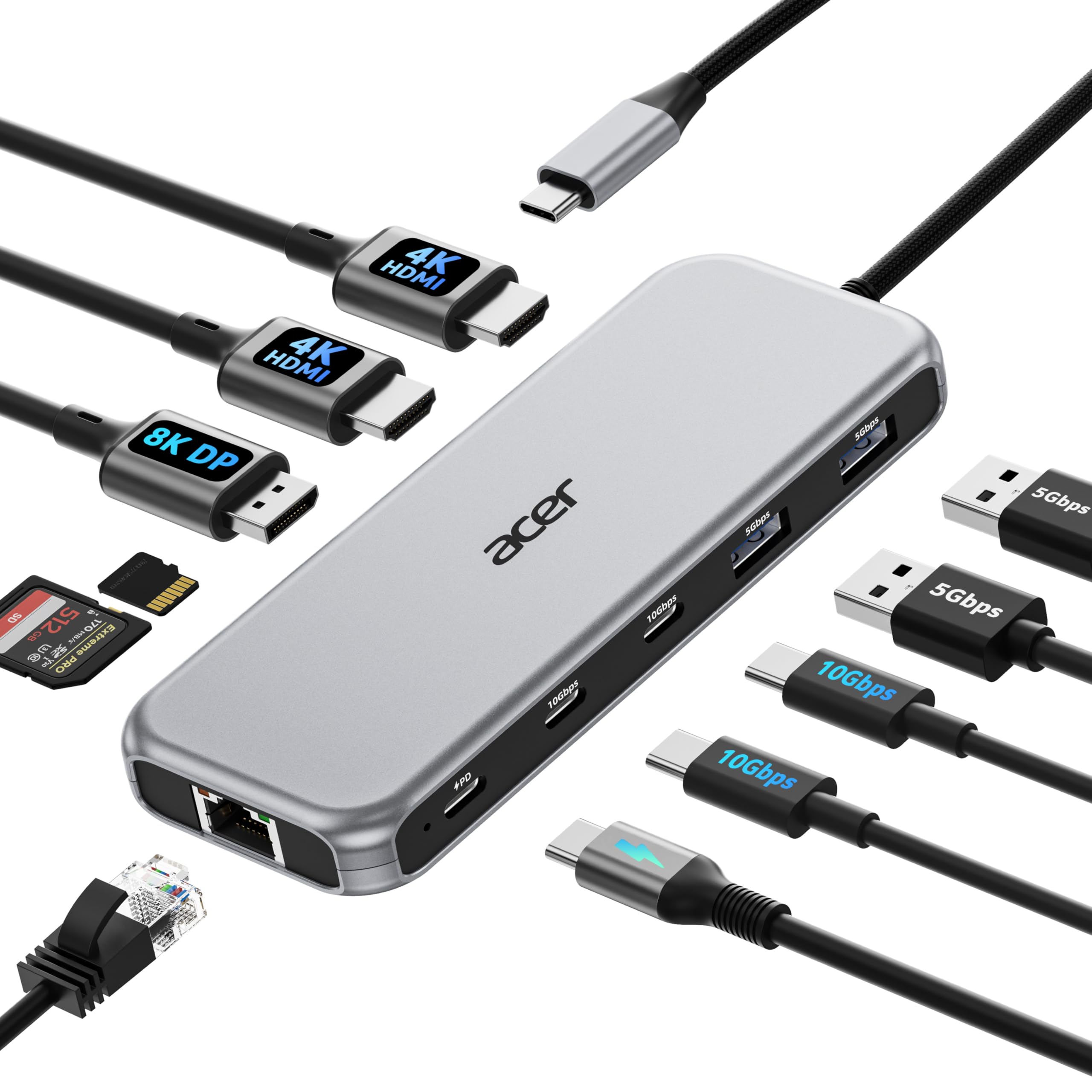
3. Acer Laptop Docking Station 3 Monitors, 11-in-1
The Acer 11-in-1 turns a single USB-C port into a triple-monitor command center with 8K and 4K support.
With 11 ports packed in, this dock delivers 2 HDMI at 4K@60Hz, 1 DisplayPort at 8K@30Hz, 2 USB-C at 10Gbps, 2 USB-A at 5Gbps, a 1 Gbps Ethernet port, and SD/MicroSD slots at 104Mbps. That is a 38% wider port selection than the Mukiya’s 8 ports — a real edge for photographers moving big files from memory cards. Triple displays auto-configure to your monitors’ capabilities, typically landing on 4K@60Hz plus 4K@60Hz plus 1080P@60Hz.
Charging is strong: it accepts up to 100W input and safely delivers 85W to your laptop, so you can work all day on heavy tasks. The 1000Mbps RJ45 Ethernet port delivers fast, low-latency networking for video calls and large downloads, replacing flaky Wi-Fi.
Owners praise the instant plug-and-play connection without any drivers, and one even saved a class when the media system went down — the iPad connected instantly. The trade-off: value gets mixed reviews, and a single unit reportedly burned out after a week of light use. This is an occasional defect, not the norm, but it is worth knowing. For Mac users, remember macOS can only mirror the same content across all external monitors.
Best-in-value: this is the least expensive way to run three external monitors from one cable.
The honest catch: quality control varies — most units work flawlessly, but a rare one may fail early.
4. Selore USB C Docking Station Dual Monitor, 14-in-1

The Selore 14-in-1 is the rare dock with VGA, audio, and dual HDMI — built for classrooms, boardrooms, and older monitors.
This dock extends one USB-C port into 14 connections, including 2 HDMI ports, a VGA port for legacy projectors, 3 x 10Gbps USB-C/A ports, 4 x USB-A ports, SD/MicroSD readers, a 3.5mm audio jack, and 1000M Ethernet. On Windows laptops, you can display three different screens simultaneously — laptop plus two external monitors in extended mode. Mac owners get mirror mode only, showing the same content on all screens.
Charging hits 100W power in, with 87W out to your laptop for safety. The USB-A 3.1 and USB-C 3.1 ports move data at up to 10Gbps and stay backward compatible with older USB devices. SD and microSD readers handle up to 200Mbps, so dumping a camera card is quick.
The crowd favorite — 4.4 stars across 22,000+ ratings — tells you this is a proven workhorse. Owners love that it drives dual monitors with the lid closed and keeps a wireless mouse and USB drive working flawlessly. The main quirk: it uses both USB-C ports on slimmer MacBooks, which can limit charging options. The Ethernet port also failed for one owner after 5 months, though support solved it quickly.
Choose it for: a mixed-device household with old VGA monitors and new USB-C laptops.
skip it if: you are a Mac user expecting three separate displays — macOS mirrors instead.
5. Baseus Spacemate Docking Station 11-in-1
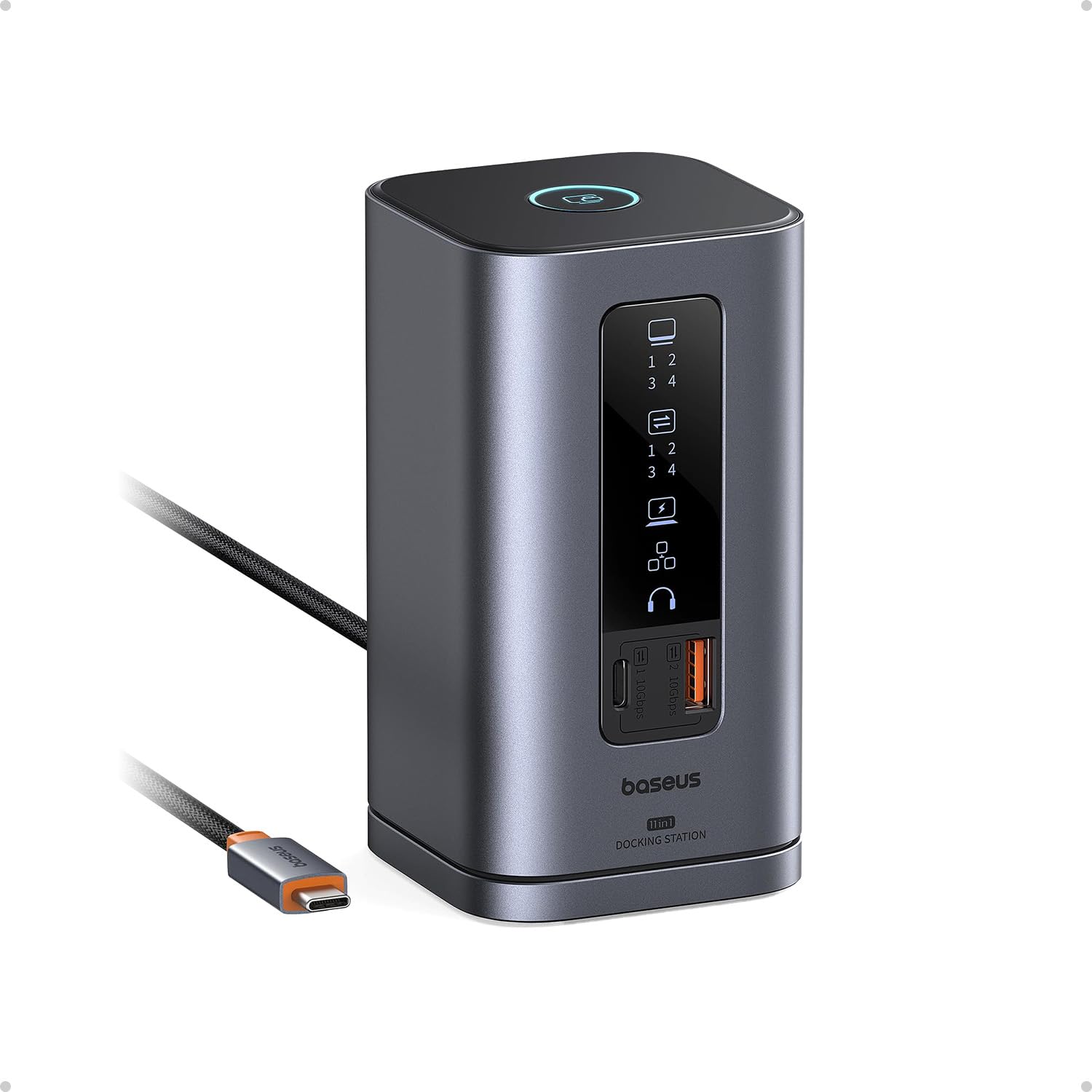
The Baseus Spacemate stands upright to reclaim desk space, with a built-in LED screen that shows each port’s live status.
This is the dock for people who hate cable spaghetti. Its vertical aluminum design takes up almost no footprint, and the magnetic base keeps it planted. The real a neat extra is the LED digital screen that displays the connection status and power draw of each port — a feature you rarely see in this category. A screen-lock button lets you secure sensitive info instantly, which is handy in shared offices.
Ports are generous: 2 HDMI, 2 DisplayPort, 1 USB-C and 2 USB-A at 10Gbps, a USB-A 2.0 port, 100W USB-C PD input, Gigabit Ethernet, and a 3.5mm AUX jack. On Windows, you can extend to three displays in 4K through the HDMI and DisplayPort connections. Mac users only get one extended display, so Windows is the right home for this dock.
Owners consistently call it a sleek addition that “cleans up the desk” and note the extra ports are genuinely handy. The 80cm cable gives you routing freedom, and data transfers hit 10Gbps — moving a 20GB file in about 20 seconds. A few report needing a replacement unit, and one owner found power delivery quirks with a Baseus combo charger. The 100W input passes 85W to your laptop, so keep a 100W adapter handy for full loads.
Desk-first design: no other pick looks this good standing up, with the status screen as the standout feature.
Know before buying: it is Windows-tune — Mac users will not get triple displays here.
6. Lenovo ThinkPad Universal USB-C Dock 40AY0090

The Lenovo ThinkPad Universal Dock is the IT manager’s dream, handling firmware updates automatically and supporting PXE boot and WOL.
This dock is less about flashy features and more about rock-solid enterprise reliability. It ships with a 90W power supply, charges a ThinkPad X1 Carbon to 100%, and supports three monitors through a mix of DisplayPort and HDMI connections. The setup is simple with precise instructions, and the footprint is smaller than many rivals.
For IT teams, this is the standout: critical firmware updates install automatically, and traditional tools like PXE boot, Wake-on-LAN, and MAC Address Pass Through all work. That means laptops can be remotely managed and booted without touching them, which is exactly what a large organization needs.
Owners who have owned two of these docks praise the stable connections and brighter displays compared to older docks. One noted a 135W power supply works for even faster charging, though the included 90W unit is plenty for most. The honest caveats: there is no dual HDMI, so you will use two DisplayPorts or one of each, and the 2-foot USB-C cable can be limiting for desktop layouts. A few owners mention receiving units that were not brand new, so buy from authorized sellers.
Best for: ThinkPad owners and IT departments that need remote management and rock-solid daily reliability.
Not ideal for: anyone wanting lots of ports at a low price — this prioritizes stability over port count.
7. Anker Prime Docking Station, 14-in-1

The Anker Prime pumps 160W of total power, charging four devices at once while running dual displays and 10Gbps data.
This dock is a power plant for your desk. The 160W total output charges up to four devices simultaneously — three USB-C ports at up to 100W each and one USB-A port at 12W. That means your laptop, phone, tablet, and wireless earbuds all top up from one hub. The front ports are easy to reach, while the back ports keep your mouse and keyboard cables tidy.
Dual displays connect through two HDMI ports at up to 2K@60Hz with a DP 1.4 laptop, or 1080p@60Hz with a DP 1.2 laptop. Data moves at up to 10Gbps across 11 data ports. It supports USB-C, USB4, and Thunderbolt connections, and works with Windows 10/11 and ChromeOS — but not Linux, so keep that in mind.
Owners call it the “golden standard for multi-laptop workspaces,” praising the instant plug-and-play across Windows and Mac and the ability to charge a MacBook even under heavy load. The built-in display shows power draw and data speed, which power users love. The main limitation: with a dual setup, one monitor tops out at 1080p while the other runs full 2K — not a dealbreaker unless you need identical resolutions. At 1.28 kg, it is a hefty desktop fixture, not a travel companion.
What Impresses
- 160W total output — the most powerful charging in this lineup
- Front-and-back port layout keeps a clean desk
- Status display shows live power draw and data speeds
What to Weigh
- Dual monitors run at mixed resolutions (2K and 1080p)
- No Linux support, and the 3.3ft cable is short for some desks
Pick this for: a power user with a phone, tablet, and laptop that all need charging at once.
Pass if: you need dual 4K monitors — this dock caps out at 2K per display.
8. Plugable Thunderbolt 4 Dock TBT4-UD5

The Plugable TBT4-UD5 is a Wirecutter-winning Thunderbolt 4 dock that finally delivers true dual 4K@60Hz to MacBook Pro owners.
Recognized by Wirecutter as the Best Thunderbolt Dock and Intel Evo certified, this dock delivers the full 40Gbps Thunderbolt 4 experience. The headline feature is dual 4K 60Hz HDMI support — on a MacBook Pro 16-inch, customers note true dual external monitors with zero lag or flicker, something many cheaper docks simply cannot do. It also drives a single 8K display on compatible Thunderbolt 4, Thunderbolt 5, and USB4 laptops.
With 13 ports, this dock covers every base: 2x HDMI, 1x Thunderbolt 4 downstream with 15W charging and 8K support, 4x USB at mixed speeds, 1x USB-C at 10Gbps, SD/microSD readers, an audio combo jack, Gigabit Ethernet, and a K-lock slot for physical security. It charges your laptop at 100W with 96W certified, and the 15W downstream port keeps a second device topped up.
Owners who use demanding software like AutoCAD and Blender praise the native HDMI GPU output — no DisplayLink, no lag. The compact 8.9-inch design stays cool and quiet. The recurring comments: the host cable sits on the front rather than the rear, which complicates cable management, and a few units needed warranty replacement within the first year. One owner had an initial flicker fixed quickly by support with a replacement. For base M1 and M2 Macs, only a single display is supported.
The Mac answer: this is the dock that finally open up dual 4K@60Hz for M-series MacBook Pro users.
Worth noting: TB3 and base M1/M2 Macs only get one external display, so check your chip before buying.
9. UGREEN 13-in-1 Thunderbolt 4 Docking Station
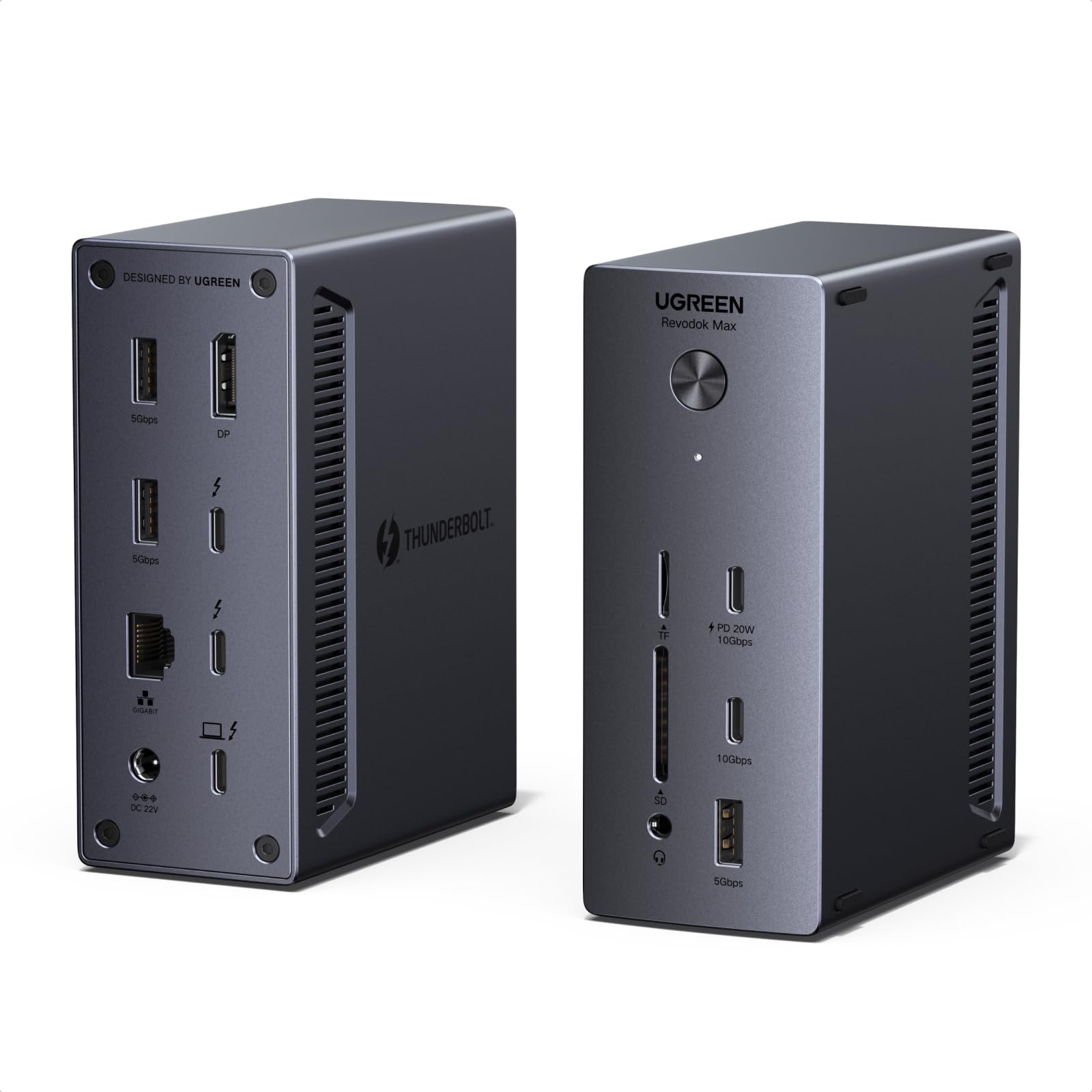
The UGREEN 13-in-1 stays completely silent with fanless cooling, pairing a 180W adapter with dual 4K@60Hz output.
This is the dock for noise-sensitive spaces. The fanless passive cooling means it operates in total silence — no whirring fans in a quiet home office or recording studio. The aluminum-front design with anti-slip pads lets you set it vertically or horizontally, whichever fits your desk best.
Listing 13 ports, it includes 3x Thunderbolt 4, 3x USB-A at 5Gbps, 2x USB-C at 10Gbps (one with 20W PD), dual SD/TF card readers at 200MB/s, Gigabit Ethernet, a 3.5mm audio jack, and DP1.4. It supports dual 4K@60Hz monitors or a single 8K@30Hz display. The 180W power adapter delivers up to 96W PD to your laptop, keeping everything powered through long workdays.
Owners praise the rock-solid stability — no disconnects, even driving a 240Hz 1080p display on complex Windows setups. For MacBook Air M2 users, it delivers stable Ethernet and simultaneous charging in a driverless plug-and-play package. The one port people miss: there is no HDMI. You will need an active DP-to-HDMI adapter for an HDMI monitor, since passive cables do not work with this dock’s DP port. A 1-year warranty backs it up.
Silent and stable: the fanless design and 180W adapter make this a premium, quiet workhorse.
Plan for adapters: no HDMI port means you will need a DP-to-HDMI adapter for most monitors.
Understanding the Specs
DisplayPort Alt Mode vs Thunderbolt
DisplayPort Alt Mode is the standard that lets a USB-C port carry video signals to a monitor. Most docks in this list rely on it. Thunderbolt 4 is a faster, Intel-certified standard that handles video, data, and power over one cable at up to 40Gbps. If your laptop has Thunderbolt 4, you can use either type of dock — but if it only has standard USB-C with DisplayPort Alt Mode, a Thunderbolt 4 dock will not open up its full potential.
Power Delivery (PD) Ratings
The PD rating tells you the maximum wattage the dock can push to your laptop. A 100W input dock that delivers 85W out means your laptop gets most of the power it needs but might drain slowly under heavy load. The Anker Prime delivers a total 160W across multiple ports. Match the dock’s output to your laptop’s original charger wattage for the best experience.
FAQ
Will a docking station work with any laptop?
Can a docking station charge my laptop and run monitors at the same time?
Why does my Mac only mirror displays on the dock?
Is Thunderbolt 4 worth the extra money over USB-C?
How many monitors can a docking station support?
Will a dock with 4K@30Hz support feel slow for daily use?
Do I need to install drivers for a docking station?
Can I use a docking station with a gaming laptop?
Why is my external monitor not being detected by the dock?
How long do docking stations typically last?
Final Thoughts: The Verdict
Across the board, the docking station winner is the Dell Pro WD25 because it delivers a true desktop experience with 4K triple displays and 100W charging — the crowd favorite at 4.5 stars. If you want raw charging power with a status screen, grab the Anker Prime. And for Mac users chasing true dual 4K@60Hz, the Plugable TBT4-UD5 is the one to reach for.
How We Picked
We do not accept paid placement. Every pick is matched to a real buyer and a real use-case; we do not hands-on test units.
Sources & Methodology
Specifications: manufacturer listings and product documentation. Review insights: verified customer reviews, as of August 2026. Pricing: not shown on this page (it changes often); check the current price via the retailer link.
As an Amazon Associate, Gadgets Feed earns from qualifying purchases. This does not affect which products we feature.