
Our readers keep the lights on and my morning glass full of iced black tea. As an Amazon Associate, I earn from qualifying purchases.
Specs are compiled from manufacturer listings and verified buyer reviews and can change over time — please confirm the key details on the product page before buying.
Before you buy an art drawing tablet, decide how you want to draw: directly on a screen or on a pad that mirrors your computer monitor while you look up. On-screen models feel more like pen and paper, but they cost more and need a computer to run. Pad-style tablets are cheaper, lighter, and let you see the whole canvas without your hand blocking it, though they take practice to coordinate eye and hand.
I’m Min — the founder and writer behind Gadgets Feed. This guide is built by comparing the manufacturers’ published specifications and the patterns across verified customer reviews, so you get each pick’s real strengths and trade-offs instead of marketing spin.
Your daily workflow depends on three specs: pressure sensitivity (how hard you press changes line thickness), active area (the drawing surface size), and if you need a computer at all. art drawing tablet choices range from a pad to a standalone, so matching the right one to your skill level matters.
Our Picks at a Glance


How To Choose The Best Art Drawing Tablet
Forget brands and prices for a moment. Ask yourself: do you want to see your strokes appear directly under the pen tip on a screen, or are you comfortable looking up at a monitor while drawing on a pad? That single choice splits every tablet on this list into two very different experiences.
Decide: Pad Style Versus Display Screen
A pad-style tablet has no screen. You draw on a flat surface and watch your computer monitor. These are lighter, more portable, and easier on the wallet, but they demand a short learning curve for hand-eye coordination. A display tablet puts the screen right under your pen, which feels more natural for most beginners, but it needs to be plugged into a computer to function and typically costs more for the same active area.
Pressure Sensitivity Is Your Line Control
Pressure levels tell you how finely the pen can detect how hard you press. More levels mean smoother transitions from a faint hairline to a bold stroke. Entry-level pens often offer 8192 levels, while newer models jump to 16384 for finer control over shading and line weight. If you do detailed illustration or watercolor-style digital painting, the higher count gives you more expressive range.
Active Area Versus Portability
The active area is the drawing surface itself, not the tablet’s total size. A bigger active area feels more natural because your arm moves like it does on paper, but it takes up desk space and weighs more. A compact active area around 6 x 3.9 inches slips into a laptop bag, yet it forces smaller wrist movements. Measure your desk and think about where you will actually create before you pick a size.
Shortcut Keys and Workflow
Programmable buttons and scroll wheels sound like small details, but they become your undo, zoom, and brush-size shortcuts. More keys mean fewer trips to your keyboard mid-stroke. Consider how many shortcuts your favorite drawing software actually uses, and look for a tablet that puts those controls where your non-drawing hand already rests.
Quick Comparison
| Model | Best For | Active Area | Pressure Levels | Computer Needed | Amazon |
|---|---|---|---|---|---|
| HUION Inspiroy 2 Small★ Best Overall | Budget pad for students | 6.3 x 3.9 in | Not listed | Yes | Amazon |
| ienRon IES1060Budget Champion | Entry-level value bundle | 60 sq in | 8192 levels | Yes | Amazon |
| Frunsi RubensTab T8Untethered Pick | Standalone no-PC sketching | 8 in | Not listed | No | Amazon |
| XPPen Artist 12 3rd | Entry display for beginners | 141.61 sq in | 16384 levels | Yes | Amazon |
| HUION Kamvas 13 (Gen 3) | Mid-range display tablet | 293.8 x 165.2mm | 16384 levels | Yes | Amazon |
| UGEE UT3 Fun | Large standalone screen | 14.25 in | Not listed | No | Amazon |
| Wacom Intuos Pro Large | Pro pad with wireless | 148 sq in | 8192 levels | Yes | Amazon |
| Wacom MovinkPad 11 | Premium standalone travel | 9.6 x 6.3 in | 8192 levels | No | Amazon |
In‑Depth Reviews
1. HUION Inspiroy 2 Small Drawing Tablet
Our pick — over 4.5★ from 950+ verified ratings; the strongest balance of quality and price.
A budget-friendly pad-style tablet with a 6.3 x 3.9-inch active area and battery-free pen for beginners.
The Inspiroy 2 Small is the crowd favorite for a reason — the build quality wins people over, and the price makes it an easy first step into digital art. Its 6.3 x 3.9 inch active area is slim enough to pack in a laptop bag, yet not so tiny that your strokes feel cramped. The new PenTech 3.0 stylus promises controlled lines without noticeable lag or wobble, which matters when you are just learning to trust the pen.
Left-handed users get a real welcome here, since the layout works for both hands, and it connects to Mac, Windows, Linux, and Android devices running OS 6.0 or later. A scroll wheel plus six press keys sit on the left, ready to map to your favorite shortcuts in Photoshop, SAI, or Medibang. You also get a USB-C cable and OTG adapter in the box, plus a pen holder hiding 10 replacement nibs inside.
What everyone raves about is the quality-for-price balance, and the value story is reinforced by owners who call it a great affordable medium tablet. The honest trade-offs are a stiff scroll wheel, a nib that wears faster than some, and no Bluetooth — so it stays tethered by cable. Setup is simple once the driver installs, though a handful of people find that first driver step confusing.
What Wins People Over
- Lightweight and portable at just 275 g
- Battery-free pen skips charging entirely
- Scroll wheel and six customizable keys speed up workflow
- Left-handed friendly layout
Where It Compromises
- No Bluetooth, so the cable is mandatory
- Nib wears quickly with heavy use
- Scroll wheel feels stiff at first
Reach for this if: you are a student, hobbyist, or 3D modeler who wants a reliable, low-cost pad that travels well and works across multiple operating systems.
Think twice if: you need wireless freedom or a display screen, since this is a wired, pad-style device with no internal power source.
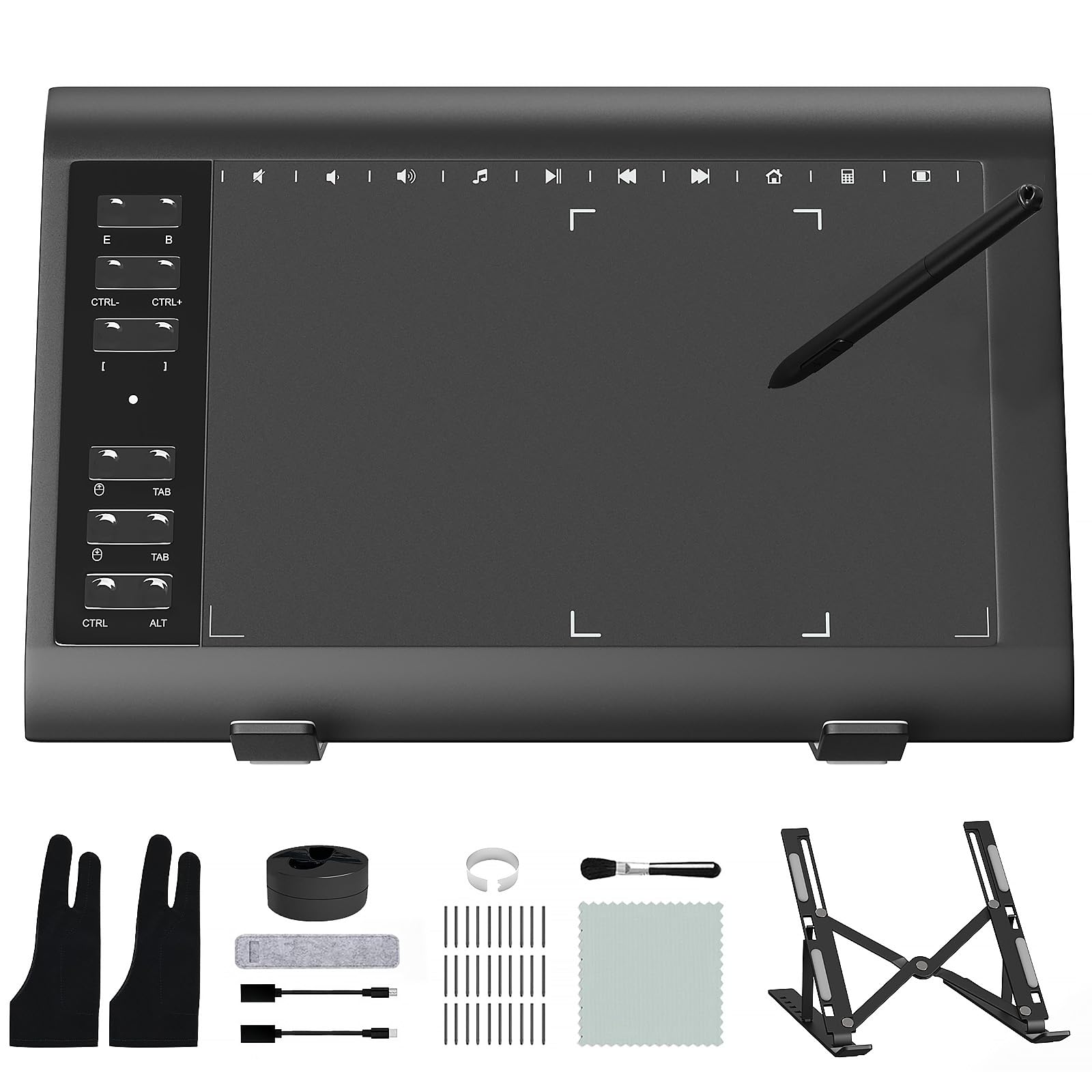
2. ienRon IES1060 Graphic Drawing Tablet
A value-packed pad with a 60-square-inch active area, 12 hot keys, and a full accessory kit.
The ienRon IES1060 earns its spot as the roomiest pad here, with a 60 square inch active area (the drawing surface) inside a 13.99 x 9.39-inch body. Buyers report it “works as it should, bigger than I expected.” That canvas gives you noticeably more room than the Inspiroy 2 above, which spans a smaller 9.7 x 6 inches footprint. You will appreciate the extra space if you prefer sweeping arm movements over wrist-only strokes.
Its standout feature is the control layout: 12 customizable shortcut keys plus 10 soft multimedia keys, so your undo, brush, and zoom commands sit right at your fingertips. The battery-free stylus offers 8192 pressure levels and 60° tilt recognition, meaning you can shade by angling the pen like a real pencil. It ships with 30 replacement nibs, a drawing glove, cleaning brush, and an aluminum alloy stand to prop it at a comfortable angle.
The bundle earns praise for effectiveness and value, with owners calling it a great pick for beginners, students, and budget-conscious pros. Compatibility spans Windows XP through 11, Android 5.0 and up, and Mac OS 10.7.0 and later — but not iPhone, iPad, or Chromebook, so check your device first. The main complaints are the left-side cable placement and pen buttons that feel loose on some units.
Value overload: the extras alone — stand, glove, brush, and 30 nibs — make this one of the fullest bundles at its tier.
Keep in mind: driver quirks and a left-side cord are the recurring gripes, and an occasional unit develops pen registration issues after a couple of months of heavy use.
3. Frunsi RubensTab T8 Standalone Drawing Tablet
An 8-inch Android 13 standalone tablet with a 1200×800 display and no computer required.
The RubensTab T8 breaks the pad-style mold by running Android 13 on its own, with no computer required. Its 8-inch, 1200×800 display puts your art right under the pen, and the MTK quad-core processor with 4GB RAM and 64GB storage (expandable to 256GB) handles apps like SketchBook, ArtFlow, and ibis Paint X. A 4000mAh battery promises up to 20 hours of drawing, so you can leave the charger behind.
It comes pre-loaded with drawing apps and tutorials, plus a detachable keyboard, stylus pen, and screen protector in the box. Effectiveness is what owners praise most, particularly for beginners starting out in drawing and animation. The 8-inch size fits neatly into a mini backpack, and the included case makes it easy to grab on the way out the door.
The honest split is around screen quality and endurance. Some owners call the display vibrant and clear, while others find it grainy, and battery life draws mixed reports — one dedicated sketcher measured under 3.5 hours of continuous drawing, well short of the 20-hour claim. Durability is the biggest negative theme, with a few units stopping working or failing to charge after a few months, though the customer service gets strong marks for quick replacements.
Freedom first: if you want to draw in bed, on a train, or anywhere without hunting for a laptop, this standalone delivers what a pad-style tablet cannot.
Set expectations: treat the battery rating as a best-case figure, and know that long drawing sessions may need a charge sooner than expected.
4. XPPen Artist 12 3rd Drawing Tablet with Screen
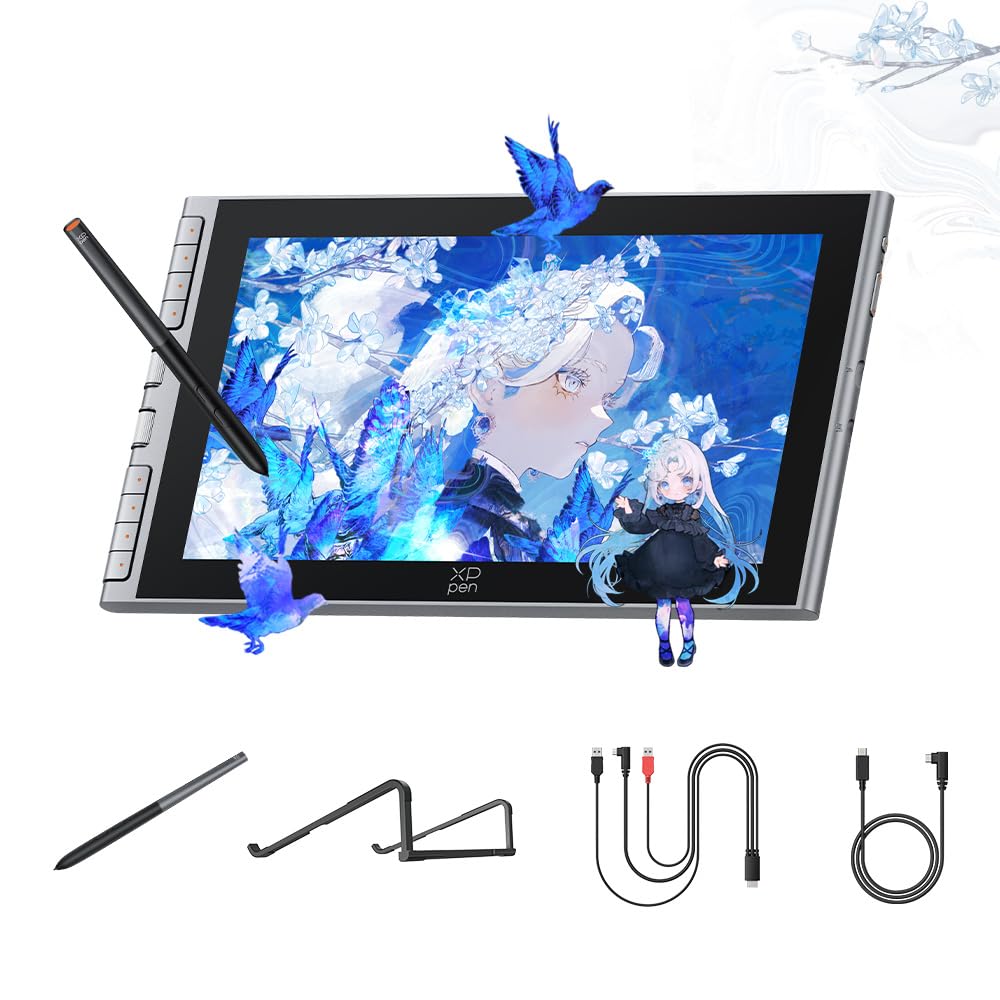
An 11.9-inch display tablet with 16,384 pressure levels and a one-cable USB-C setup.
If you are a beginner who wants to see lines appear right under the pen tip, the Artist 12 3rd delivers that with an 11.9-inch screen at 1920×1080 native resolution (the pixel count, so details stay sharp). Its full-lamination build removes the air gap between layers, so the cursor sits exactly where the nib touches. The AG+AF nano-etched glass (an anti-glare, anti-fingerprint coating) cuts glare and smudges while mimicking the resistance of paper.
At the heart of it is the X4 Smart Chip stylus with 16,384 pressure levels and a 0.3mm nib travel, giving rapid response and stable lines that newcomers can trust. Eight customizable shortcut keys sit ready for undo and zoom, and the included S20 foldable stand props the screen to reduce neck strain during long study sessions. Setup is genuinely one-cable: a full-featured USB-C connection handles data, video, and power to Windows, Mac, and Android devices at once.
Performance is the thing everyone praises, with owners calling it fast, responsive, and ideal for hobbyists entering digital art. The 141.61 square inch active area is big enough for large projects without feeling cramped. A few owners note the pen eraser pressure can be jumpy, and the screen durability gets mixed feedback, so a gentle touch and a screen protector are smart additions.
Why It Shines
- 16,384 pressure levels for fine shading control
- Single USB-C cable for a tidy, clutter-free desk
- Paper-like etched glass reduces glare
- Foldable stand included for comfortable posture
Watch Out For
- Eraser pressure can feel jumpy on some units
- Screen durability is a mixed theme in reviews
- Needs a computer — it is not standalone
Grab this for: the beginner who wants the natural feel of drawing on a screen without the complexity or cost of a pro display tablet.
skip it if: you need a battery-powered device, or you plan to draw away from your desk.
5. HUION Kamvas 13 (Gen 3) Drawing Tablet with Screen

A 13.3-inch display tablet with Delta-E under 1.5 and 99% sRGB coverage for color-accurate work.
Owners describe the Kamvas 13 (Gen 3) as an affordable alternative to far pricier display tablets. Its 13.3-inch fully laminated screen uses HUION’s Canvas Glass 2.0 to reduce glare, and the 1920×1080 resolution keeps your lines crisp. What really separates it is color accuracy: an average Delta-E under 1.5 (a measure of color error, so lower means truer), 16.7 million display colors, 99% sRGB coverage (the standard color space for digital art), and Rec.709 support (a video color standard). A factory calibration report in the box means your on-screen colors match your intent.
The PenTech 4.0 stylus brings 16,384 pressure levels with a 2g initial activation force, meaning even the lightest touch registers. Three customizable pen side buttons and five programmable shortcut keys join two dial buttons for a workflow that keeps your hands off the keyboard. The included ST300 adjustable stand lets you tilt the screen to a comfortable angle, and a single USB-C cable handles the connection to Windows 10 or later, Mac OS 10.12 or later, and compatible Android devices.
Quality and value are the two things owners praise most, with feedback calling the 1080p display clean and the pen pressure smooth with no jitter. The recurring gripes are the setup process, which some find fiddly, and connectivity, with a few owners noting the port side gets warm after about three hours. It is not touch-compatible, and it must stay plugged into a computer to work.
What Impresses
- Factory-calibrated color with Delta-E under 1.5
- Dual dials plus five shortcut keys speed up editing
- Smooth 16,384-level pressure with no jitter
- Adjustable stand included
What To Know
- Setup involves multiple steps and can confuse first-timers
- Not touch-compatible
- Port side can warm up during long sessions
Choose this for: the illustrator or designer who wants professional color accuracy and a bigger canvas without jumping to the highest price tier.
Look elsewhere if: you want a touchscreen or a standalone device, because this one requires a computer and has no touch input.
6. UGEE UT3 Fun 14.25″ Standalone Drawing Pad

A 14.25-inch standalone with a 2400×1600 display, 8GB RAM, and 256GB storage.
The UGEE UT3 Fun is the biggest standalone option here, pairing a 14.25-inch display with a 2400×1600 native resolution so your artwork stays sharp across a generous canvas. It runs Android 14 on a 6nm octa-core processor, with 8GB of RAM and 256GB of storage, and a 10000mAh battery with 27W DC fast charging keeps the creative flow going. The paper-like NanoMatte display cuts glare while the TÜV Rheinland certified low blue light filter eases eye strain during long sessions.
A unique U-Key lets you switch between regular, ink paper, and color paper modes, so you can read, take notes, or enjoy vibrant visuals on a whim. It is remarkably thin at 6.95mm and light at 760g, belying its large screen. Functionality is the top praise theme, with one owner even ranking it better than a certain Apple tablet for drawing, and the stylus performance earns strong marks for its comfortable, responsive feel.
The catch is battery reality: heavy-use owners mention about 5-6 hours of drawing before needing a charge, though standby can stretch to about three weeks. A few note the stylus needs charging itself, and there is no microSD slot for extra storage. For sheet music readers, the massive screen is a delight, though the included case feels a bit slippery in tabletop mode.
Big screen, no strings: this is the pick for anyone who wants desktop-sized canvas in a device that fits in a bag and runs entirely on its own.
Plan around power: budget for mid-session charges during intense drawing days, and know the pen is battery-powered rather than passive.
7. Wacom Intuos Pro Large with Pro Pen 3

A pro pad-style tablet with a 148-square-inch active area, Bluetooth, and a customizable Pro Pen 3.
The Intuos Pro Large is the pad-style tablet that serious artists reach for when they want Wacom’s best pen technology. The Pro Pen 3 delivers 8192 pressure levels with tilt support and lag-free tracking, and it is fully customizable — swap between slim, straight, or flared grips and adjust the button layout to match your hand. The 148 square inch active area in a 16:9 format suits modern widescreen monitors, and the magnesium body measures just 4mm at its thinnest.
Productivity comes from 10 customizable ExpressKeys and 2 mechanical dials at the top of the tablet, keeping brush size and zoom controls within reach. It works wired via USB or wirelessly through Bluetooth, switching between multiple computers with a simple selector button. Owners moving up from older or cheaper tablets consistently report cleaner lines and a smoother, quieter surface texture that feels like pen on paper.
The surface feel is the top praise theme, and versatility for photo editing earns strong marks. Yet the performance picture is genuinely mixed: while some find it works easily, others report connection drops, and durability feedback includes occasional button attachment breakage. An included USB cord has also been flagged as defective on some units, so a spare is worth having on hand.
The Pro Upside
- Customizable grip and button layout on Pro Pen 3
- Bluetooth wireless with multiple computer switching
- Thin 4mm magnesium body is travel-friendly
- Large 148 sq in active area for wide monitors
The Honest Catch
- Connectivity is mixed — some units drop the link
- Button attachments can break with rough use
- Premium price with no display screen
Best suited for: the working professional or serious hobbyist who wants Wacom’s pen precision and a large wireless pad for a monitor-based setup.
Not the right fit if: you want to draw directly on a screen, or you are on a tight budget and cannot absorb the premium price.
8. Wacom MovinkPad 11 Android Drawing Tablet

An 11.45-inch Android 14 standalone tablet with a matte etched glass screen and Pro Pen 3.
The MovinkPad 11 is Wacom’s answer to artists who want the brand’s legendary pen feel without a computer attached. This 11.45-inch Android 14 tablet packs 8GB of memory and 128GB of storage, and the slim Pro Pen 3 delivers 8,192 pressure levels with three buttons and replacement nibs tucked into its back end. Tap and hold the pen on screen to instantly launch the bundled Wacom Canvas app, just like opening a sketchbook.
The drawing experience centers on a bright, sharp display with matte etched glass that feels subtly like paper while cutting glare and fingerprints. At just 1.3lbs, it is lighter than most laptops and travels wherever a sketchbook can. It comes with the Wacom Canvas app, 2 years of CLIP STUDIO PAINT DEBUT, and trials of Ibis Paint, Magma, and Artwod training to get you creating immediately.
Performance and drawing performance are the two things owners praise most, and portability plus battery life earn strong marks. The paper-like screen texture and organic drawing experience are repeated favorites, with one owner calling it the best standalone option they have tried. The trade-offs are responsiveness — some find the touch finicky and a few report laggy performance — and compatibility quirks, including issues with Pro Pen 2 and relatively high price for the hardware.
The premium standalone: if you want a no-compromise, no-computer drawing slab from a brand known for pen precision, this is the one.
Know the quirks: the touch layer can be finicky until you adjust settings, and occasional units arrive with a stuck pixel, so check your display early.
Understanding the Specs
Pressure Sensitivity
This number tells you how many distinct levels of pressure the pen can detect, from the lightest feather touch to a hard press. Higher counts like 16384 give you smoother transitions in line weight and shading, which matters for expressive illustration. Entry-level pens with 8192 levels still handle most drawing tasks well, so do not assume you need the maximum.
Active Area
The active area is the drawing surface itself, measured separately from the tablet’s outer size. A larger active area like 148 square inches lets your arm move naturally like it does on paper, while a compact 6.3 x 3.9 inch surface suits travel and small desks. Your physical stroke size should match the area, because cramping your hand on a small pad can cause fatigue.
FAQ
What is the difference between a pad-style drawing tablet and a display tablet?
Do all drawing tablets require a computer to work?
How many pressure levels do I actually need?
Will a drawing tablet work with my software like Photoshop or Clip Studio?
Can left-handed people use these drawing tablets?
Is a battery-free pen better than one that needs charging?
How long does the battery last on a standalone drawing tablet?
What does the active area size mean for my drawing experience?
Can I use a drawing tablet to replace my mouse for everyday tasks?
What is the difference between 8192 and 16384 pressure levels?
Final Thoughts: The Verdict
For most people starting out, the art drawing tablet winner is the HUION Inspiroy 2 Small because it delivers reliable quality, a scroll wheel, and a battery-free pen at a price that makes trying digital art painless. If you want the natural feel of drawing on a screen with pro-grade color, grab the HUION Kamvas 13 (Gen 3). And for drawing anywhere with no computer attached, the UGEE UT3 Fun is the standalone to reach for.
How We Picked
We do not accept paid placement. Every pick is matched to a real buyer and a real use-case; we do not hands-on test units.
Sources & Methodology
Specifications: manufacturer listings and product documentation. Review insights: verified customer reviews, as of September 2026. Pricing: not shown on this page (it changes often); check the current price via the retailer link.
As an Amazon Associate, Gadgets Feed earns from qualifying purchases. This does not affect which products we feature.