
Our readers keep the lights on and my morning glass full of iced black tea. As an Amazon Associate, I earn from qualifying purchases.
Specs are compiled from manufacturer listings and verified buyer reviews and can change over time — please confirm the key details on the product page before buying.
If your laptop has only one video output but you want two monitors running side by side, you need a dual monitor adapter — a small box that plugs into one port and splits your screen across two displays. The catch is that not all of them work the same way. Some plug in and just run, and some need a driver installed before your screens light up at all. That single difference decides whether you are working in five minutes or troubleshooting for an hour.
I’m Min — the founder and writer behind Gadgets Feed. This guide is built by comparing the manufacturers’ published specifications and the patterns across verified customer reviews, so you get each pick’s real strengths and trade-offs instead of marketing spin.
Most buyers get burned by the same trap: a hub that mirrors both screens instead of extending them, so you see the same desktop twice. Checking whether a pick supports extended display — and whether it needs a driver — is what separates a smooth setup from a return. Here is what actually works in a dual monitor adapter. Check whether your laptop’s port carries video before you buy one.
Our Picks at a Glance

How To Choose The Best Dual Monitor Adapter
Two screens are not the hard part — the hard part is knowing whether your specific laptop’s port can actually push video out to two displays. Get that wrong and the adapter never lights up no matter how good it is. Get it right and everything is a single cable.
Know what your port can do
The most common failure is a USB-C port that only handles data and charging, not video. That is where DisplayPort Alt Mode matters — it is the feature that lets a USB-C port carry a video signal to your monitors. If your port has it, a direct adapter will drive two screens. If it does not, you need a driver-based adapter instead.
Driver-based or plug-and-play
Plug-and-play adapters use your laptop’s own video output, so nothing to install and they work the moment you connect. Driver-based adapters use their own display chip (DisplayLink is the common one) and need software installed first. That extra step is what lets them add monitors to a laptop whose port has no video at all — which is exactly why so many Mac users and older Windows laptops end up with them.
Mirror or extend
Extended mode gives you extra desktop space — separate windows on each screen. Mirror mode just repeats the same image on both. On macOS, several adapters only mirror, so if you need true extra workspace on a Mac, that is a detail worth checking before you commit.
Quick Comparison
| Model | Best For | Max Resolution | Connection | Driver Needed | Amazon |
|---|---|---|---|---|---|
| Anker Laptop Docking Station Dual Monitor★ Best Overall | All-around office and travel hub | 4K@30Hz dual / 4K@60Hz single | USB-C / USB4 / Thunderbolt | No | Amazon |
| Selore USB C Docking Station Dual MonitorBest Value | Budget dual-HDMI for Windows laptops | Dual 4K@60Hz | Thunderbolt / full-featured USB-C | No | Amazon |
| Acer 4-in-1 USB C HubCompact Pick | Compact dual-screen on the move | Dual 4K@60Hz (HDMI 2.0) | USB-C with DisplayPort Alt Mode | No | Amazon |
| Plugable USB-C, USB 3.0 to Dual HDMI | Laptops with no video-out port | Dual 1080p@60Hz | USB-C / USB 3.0 / Thunderbolt | Yes | Amazon |
| WAVLINK USB 3.0 or USB C to Dual HDMI | Adding screens to older laptops | Dual 1080p@60Hz / 1440p + 1080p | USB-A or USB-C | Yes | Amazon |
| StarTech USB-A and USB-C to Dual HDMI | Mixed-resolution work setups | 1x 4K30 + 1x 1080p | USB-A 3.2 Gen 1 / USB-C | Yes | Amazon |
| OREI SplitExtend 4K HDMI Splitter | Clean triple-screen desk setup | 4K@60Hz + 2K@60Hz dual | USB-C / USB-A 3.1 / Thunderbolt | Yes | Amazon |
| WAVLINK USB 3.0 & USB C to Dual HDMI 4K@60Hz | Macs needing reliable dual 4K | Dual 4K@60Hz | USB-C / USB-A / Thunderbolt 3/4 | Yes | Amazon |
| ACASIS USB C to Dual HDMI DisplayLink | Charging and screens from one cable | Dual 4K@60Hz | USB-C / USB-A | Yes | Amazon |
In‑Depth Reviews
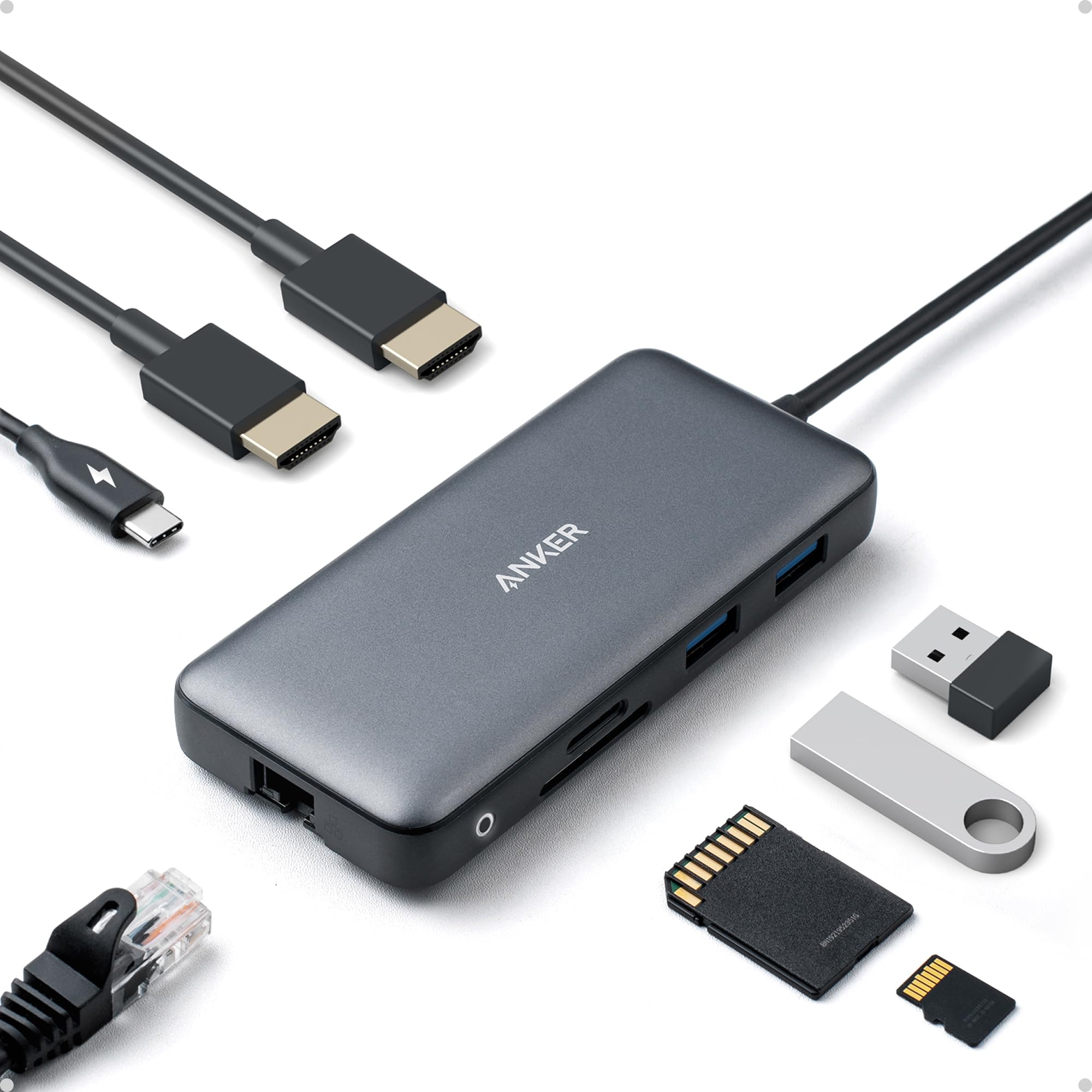
1. Anker Laptop Docking Station Dual Monitor, 8-in-1 USB C Hub with 4K HDMI
Our pick — 4.5★ from 35,000+ verified ratings; the strongest balance of quality and price.
Eight ports, two HDMI outputs, and a 3.2-ounce body that survives being stepped on.
The Anker PowerExpand 8-in-1 is the one most buyers should start with, and the crowd favorite proves it: 4.5 stars across 35,000+ owners. It turns a single USB-C port into two HDMI outputs, two USB-A data ports, an Ethernet jack, and a microSD/SD card reader — so your monitors, mouse, external drive, and wired internet all run off one cable. At 3.2 ounces and small enough to slip into a laptop bag, it travels as easily as it works at a desk.
The display math is simple: mirror or stream to one screen at 4K@60Hz (that is 3840×2160 pixels refreshing 60 times a second, which reads as smooth motion), or run two monitors at 4K@30Hz. One caveat hits Mac owners hard — on macOS both external screens show the identical image, so you cannot spread windows across them the way you can on Windows. You also need your own 100W PD wall charger and USB-C to C cable to use the pass-through charging, which tops out at 85W.
What wins people over is how much it does without complaint — functionality is the runaway praise point, followed closely by build quality that survives drops, water, and being stepped on. Ethernet and USB 3.0 round out the 5120 megabytes-per-second transfer ceiling. Unlike the Selore below, this one needs no driver at all, so it is genuinely plug-and-play. Buyers report it “works perfectly with Dell Pro laptop and two monitors.”
What earns the top spot
- Eight ports from one USB-C connection — dual HDMI, two USB-A, Ethernet, and SD/microSD readers
- No driver to install; works with USB-C, USB4, and Thunderbolt
- Durable build that survives real travel abuse, at just 3.2 ounces
Where it asks more of you
- Mac users get only mirrored (identical) images on both external monitors, not extended desktops
- You supply your own 100W charger and cable to use the 85W pass-through charging
- Not compatible with Linux
Top of the list if: you want the widest port spread on a Windows or ChromeOS laptop with no software fuss.
Cross it off if: you are on a Mac and need two separate extended desktops rather than a mirror.
2. Selore USB C Docking Station Dual Monitor, USB C to Dual HDMI Adapter
The aluminum-bodied dual-HDMI hub that delivers 4K@60Hz for less.
If you are on a tight budget but refuse to settle for blurry screens, this Selore is the pick. It delivers dual 4K@60Hz HDMI — the same smooth 60-refresh ceiling as the Acer, but with an aluminum shell instead of plastic. Eight functions ride on one connection: dual HDMI, a 100W PD charging port (input 100W, output 85W), one USB-C up to 5Gbps, two USB 3.0 up to 5Gbps, and an SD/microSD slot up to 104 Mbps.
The one rule to remember is that this needs a Thunderbolt or full-featured USB-C port — if your laptop’s port only does data and charging, the video outputs stay dark. Mac users get mirror mode only (there is no dual-screen extension on macOS), while Windows laptops get full MST extension for two separate desktops. The charging port sits next to the SD slot and needs its own charger and cable, neither included. It carries just 0.1 kg, so it disappears into a pocket.
The pattern across owners is a hub that drives screens cleanly with the lid shut and no lag, backed by responsive support that replaced a unit quickly when an Ethernet port failed. Build quality is the most-praised trait by a wide margin, with portability close behind. Owners mention it “works perfectly with both my Intel NUC and Samsung laptop.” Compatibility is the honest split: some MacBooks fly, others simply do not connect, so check your exact model first.
The real draw: dual 4K@60Hz over aluminum at gadget-budget pricing, with a 5Gbps data trio and card readers bundled in.
The trade-off to plan for: it leans on your laptop already having a Thunderbolt or full-featured USB-C port, and Macs are limited to mirror mode.
Grab it if: you want the most screen quality per euro and you run a Windows machine with a proper video-out USB-C port.
Look past it if: you are on a MacBook that needs two independent extended displays.
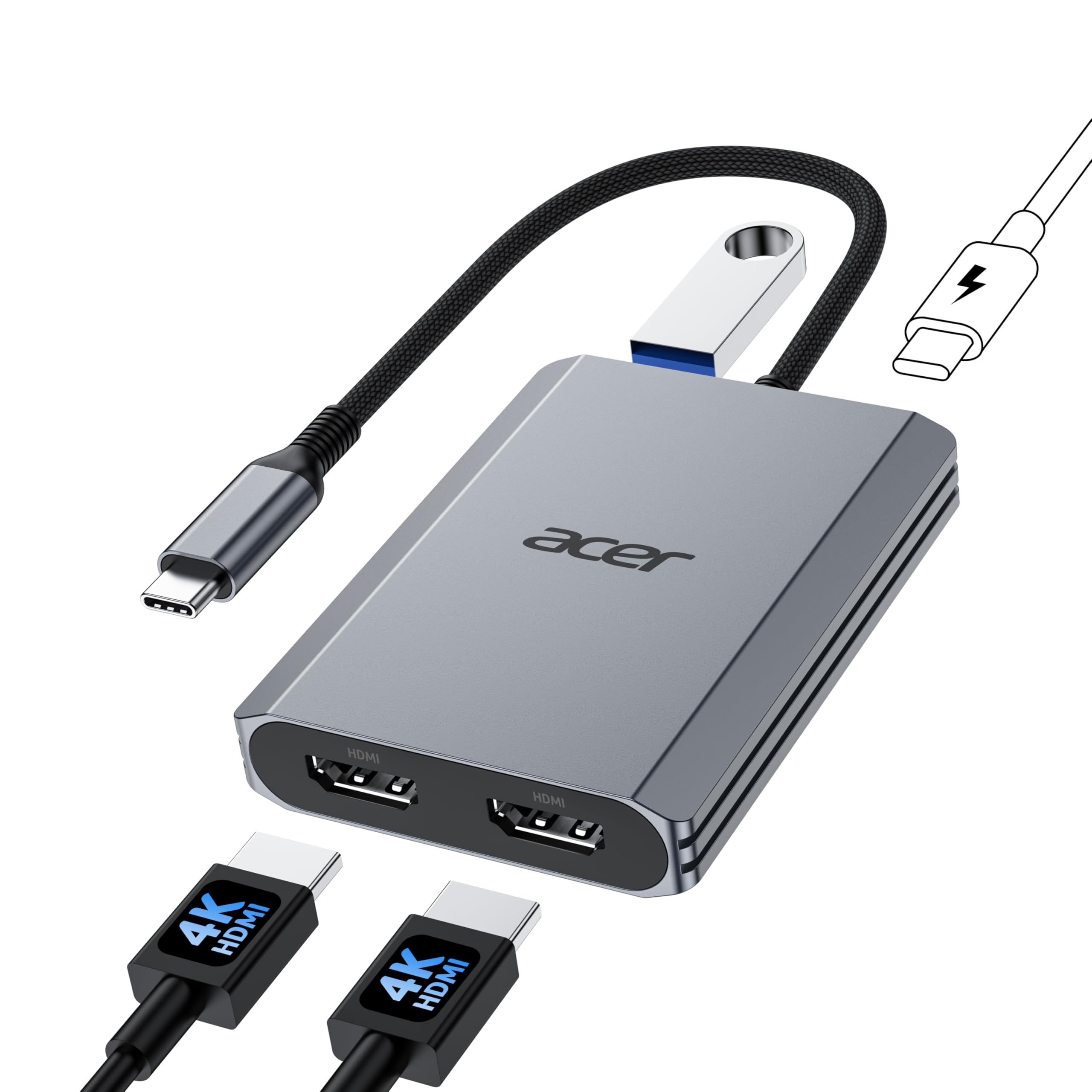
3. Acer 4-in-1 USB C Hub, Type C to Dual HDMI Adapter 4K@60Hz
Four ports, a slender body, and dual 4K@60Hz that runs off your laptop’s own video output.
Acer stripped this down to the essentials: two HDMI ports at 4K@60Hz, one USB-A 3.0 at 5Gbps, and a 100W PD charging port that feeds your laptop 90W. That is the whole kit. No driver, no card reader, no Ethernet — just a lean adapter that sets up in seconds and tucks into any pocket. If you already have your other peripherals handled elsewhere, this is the smallest way to run two crisp screens on the move.
The requirement is non-negotiable: your laptop’s USB-C port must support DisplayPort Alt Mode, or nothing appears on your monitors. Met that, and both screens run at 4K@60Hz through HDMI 2.0 — and your monitors and cables need to handle HDMI 2.0 or higher too. On macOS, the external displays can only mirror each other. One wiring note bites some buyers: the built-in cable is 20cm (0.65 ft), so a laptop sitting far from your monitors may leave it stretched tight. Customers note wanting “a longer input cable to the computer.”
Setup is the star here — quality and easy setup are the leading applause points, and owners describe plug-and-play with no software at all. But there is a real reliability split worth knowing about. Some units run three monitors flawlessly with no flicker, and others simply fail to output video, typically because the laptop’s port lacks video output despite looking like a full USB-C port. Acer’s EU spare-part availability lasts 7 years, which is unusually long for a hub at this size.
Best at: ditching bulky docks when all you need is two clean screens and charging.
Watch for: the short built-in cable and the fact that a data-only USB-C port renders it dead on arrival.
Made for you if: you travel light and your laptop has a confirmed DisplayPort Alt Mode USB-C port.
Think twice if: you need a long reach to your monitors or you can’t verify your laptop’s port carries video.
4. Plugable USB-C, USB 3.0 to Dual HDMI Adapter for Dual Monitors
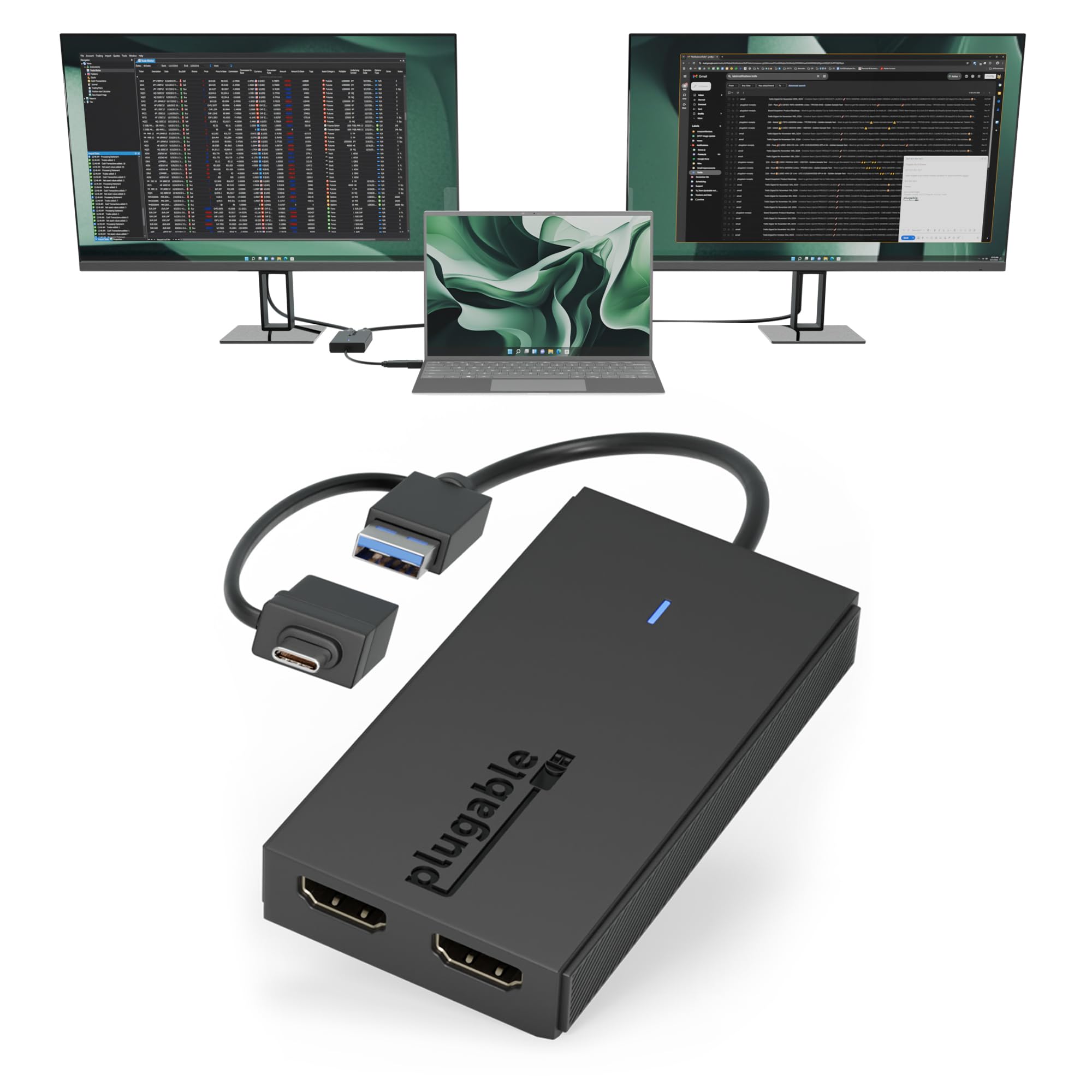
For laptops with no video-out port at all, this dongle adds two 1080p HDMI screens via its own display chip.
Here is the situation this solves. Your laptop’s USB-C port does data and charging but no video, or you only have an old USB 3.0 port lying around. Plugable’s hybrid 2-in-1 cable connects to USB 3.0, USB-C, USB4, Thunderbolt 3, 4, or 5, and uses Silicon Motion graphics technology to generate two displays where your laptop had none. It is designed for Windows 10/11, macOS 10.14 or later including M1 through M5/Neo systems, and ChromeOS 100+.
The screens top out at 1920×1080 at 60Hz per display — enough for spreadsheets, docs, email, and Slack, but not for gaming, 4K work, or graphics-heavy editing. The catch is that driver installation is required, which cuts two ways: corporate IT environments sometimes block drivers, and it is not compatible with DisplayLink software. On Windows the driver usually arrives through Windows Update, but macOS needs the InstantView driver installed by hand. At 1.6 ounces with a matte finish, it stays comfortable in a travel bag.
What people value most is how simple it is once it is running — ease of use leads the feedback, with monitor expansion close behind. Owners stretch it to three independent screens with two external monitors plus the laptop. Plugable’s lifetime support is the other headline: replacements have shipped in a couple of days when problems came up. Budget-tier cabling is one honest weak spot for some units, and the connector can feel unstable if the dongle is knocked around.
Why it stands out
- Adds two screens to laptops whose ports carry no video, via one hybrid USB-C/USB 3.0 cable
- Lifetime support from a North American connectivity team
- Extends or mirrors at 1920×1080@60Hz across a wide laptop range
Costs worth knowing
- Full-resolution ceiling is 1080p — not built for 4K or gaming
- Driver install is mandatory and may be blocked on locked-down work machines
- No HDCP playback, so streaming services on the extra screens won’t work
Pick this when: your laptop genuinely cannot output video and you need two dependable 1080p work screens.
Keep looking if: you want 4K detail or your IT department won’t allow new drivers.
5. WAVLINK USB 3.0 or USB C to Dual HDMI Adapter

Old USB-A port or modern USB-C — this adapter’s hybrid 2-in-1 cable fits either one.
A hybrid 2-in-1 cable is the whole idea here. This WAVLINK plugs into USB-A, USB-C, or a Thunderbolt 3/4 or USB 4 device and gives you dual extended or mirrored displays without hunting for the right dongle. Resolution works two ways: two screens at up to 1920×1080@60Hz, or one at 2560×1440@60Hz plus one at 1920×1080@60Hz. Android devices handle mirror mode only, capped at 1080P. The cable runs 12cm (4.7in).
Two conditions come with it. First, driver installation is required — this is not plug-and-play, so you will follow the manual to download the latest driver before your screens switch over. Second, it does not play back HDCP-protected content, so Netflix and similar streaming on the extra displays is off the table. It supports Windows 7 through 11, macOS 10.14 or later, ChromeOS, and Android with OTG, but not Linux or iPadOS.
For the price, what lands is straightforward usefulness — functionality is the leading praise, with ease of use next. Owners describe it as plug-and-play from a USB-A port once the driver is in, and one used it to add two TV outputs plus a portable display to an HP all-in-one for four extended screens off one PC. The honest trade-offs: it runs warm in extended use, and it can hijack your default audio output, so you may need to switch sound back to the laptop speakers by hand. Owners confirm the price is reasonable for what it does.
Where it shines: the dual-cable design means it works whether your laptop is new or a decade old.
Know before you buy: a driver is mandatory, it warms up under load, and it may grab your laptop’s sound settings.
Reach for this if: your laptop mixes old and new ports and you need it to just connect either way.
Choose another if: you need plug-and-play with zero setup or rely on HDCP streaming.
6. StarTech USB-A and USB-C to Dual HDMI, 4K30 + 1080p
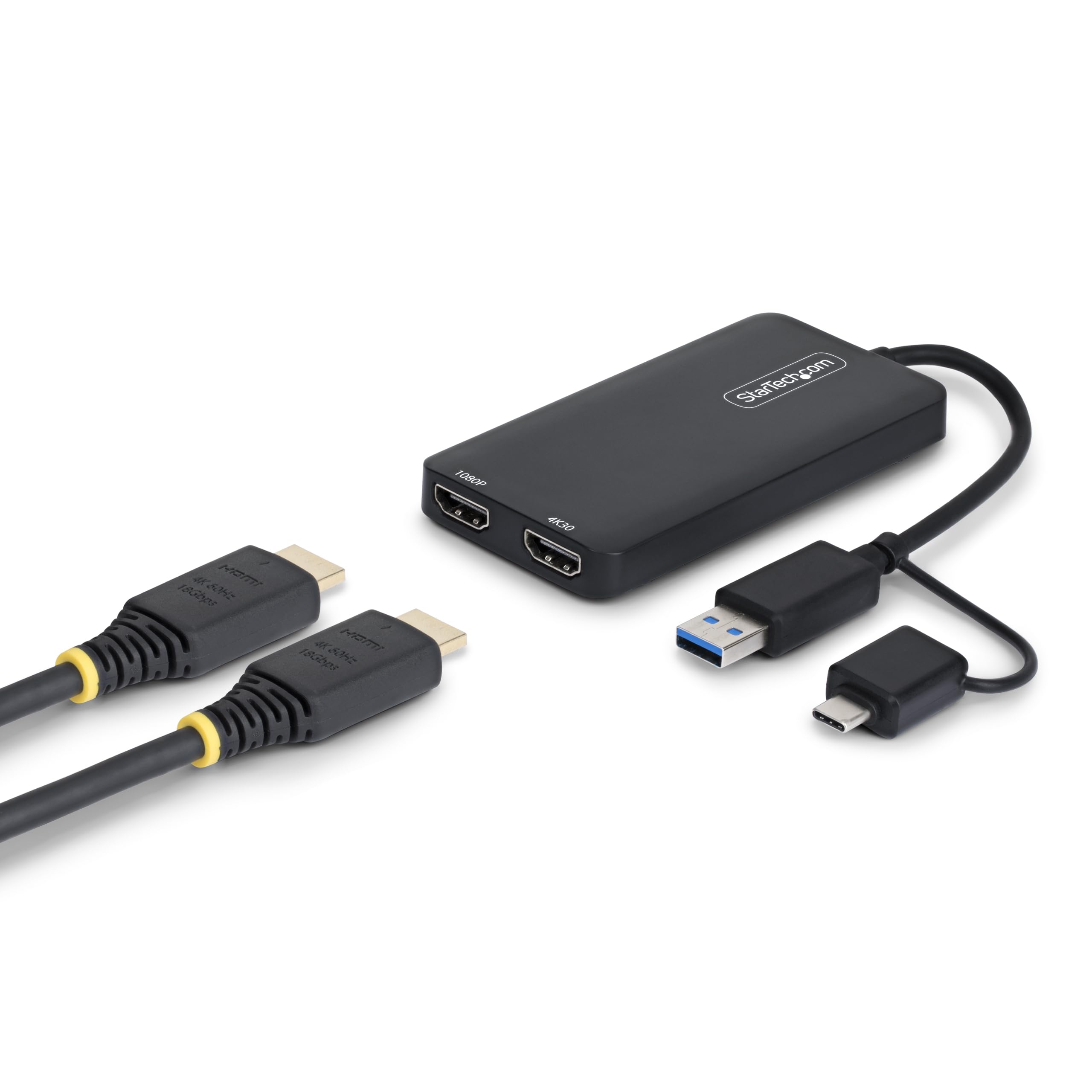
Two independent screens from a single USB-A port — one 4K@30Hz, one 1080p, no dock required.
StarTech’s angle is the odd resolution pairing most adapters skip: one display at 4K 30Hz and the other at 1080p, both independent, both off a single USB Type-A 3.2 Gen 1 (5 Gbps) port. That means a laptop that only offers a plain USB-A data port can still gain two working monitors — the sort of machine most hubs abandon. It is bus-powered and light at 2.4 ounces, with an integrated 4.3-inch cable that dangles neatly off a desk.
It supports extended and mirrored modes plus ultrawide displays, and runs Windows 7 through 11, macOS 10.14 to 13.0, and ChromeOS. The integrated USB-A to USB-C dongle means it fits whichever port you have. The trade-off is that it is a DisplayLink-class device — drivers must be installed, and one macOS 26 (Tahoe) build broke the installer entirely, so update your macOS carefully before relying on it. On the plus side, it runs only warm to very warm, never hot, with no lag across web and apps.
What owners appreciate is flexibility — the same adapter works on a laptop dropping to USB-A and a newer one on USB-C. Setup is straightforward though it may need drivers and permissions, especially on a Mac. One owner found their 27-inch monitor was blurry until they nudged the resolution in Mac settings, after which it was sharp — a clue that a quick settings tweak solves a lot here. It is built for office and work use, not gaming.
Strong points
- One 4K 30Hz plus one 1080p screen, both independent, from a single USB-A or USB-C port
- Works on laptops with no video-out USB-C, thanks to the integrated USB-A to USB-C dongle
- Supports extended, mirrored, and ultrawide displays, and runs cool enough to leave going
Trade-offs on the table
- Not plug-and-play — driver install is required, and one recent macOS build broke the installer
- Resolution is mixed rather than matched, so your two screens won’t be identical
- Limited to macOS 10.14 to 13.0 for guaranteed support
Right for you if: you run one high-detail screen and one standard screen and your laptop only has a plain USB port.
Not the one if: you want matched resolution across both displays or you’re on the newest macOS.
7. OREI SplitExtend 4K HDMI Splitter Extended Display for Dual Monitor
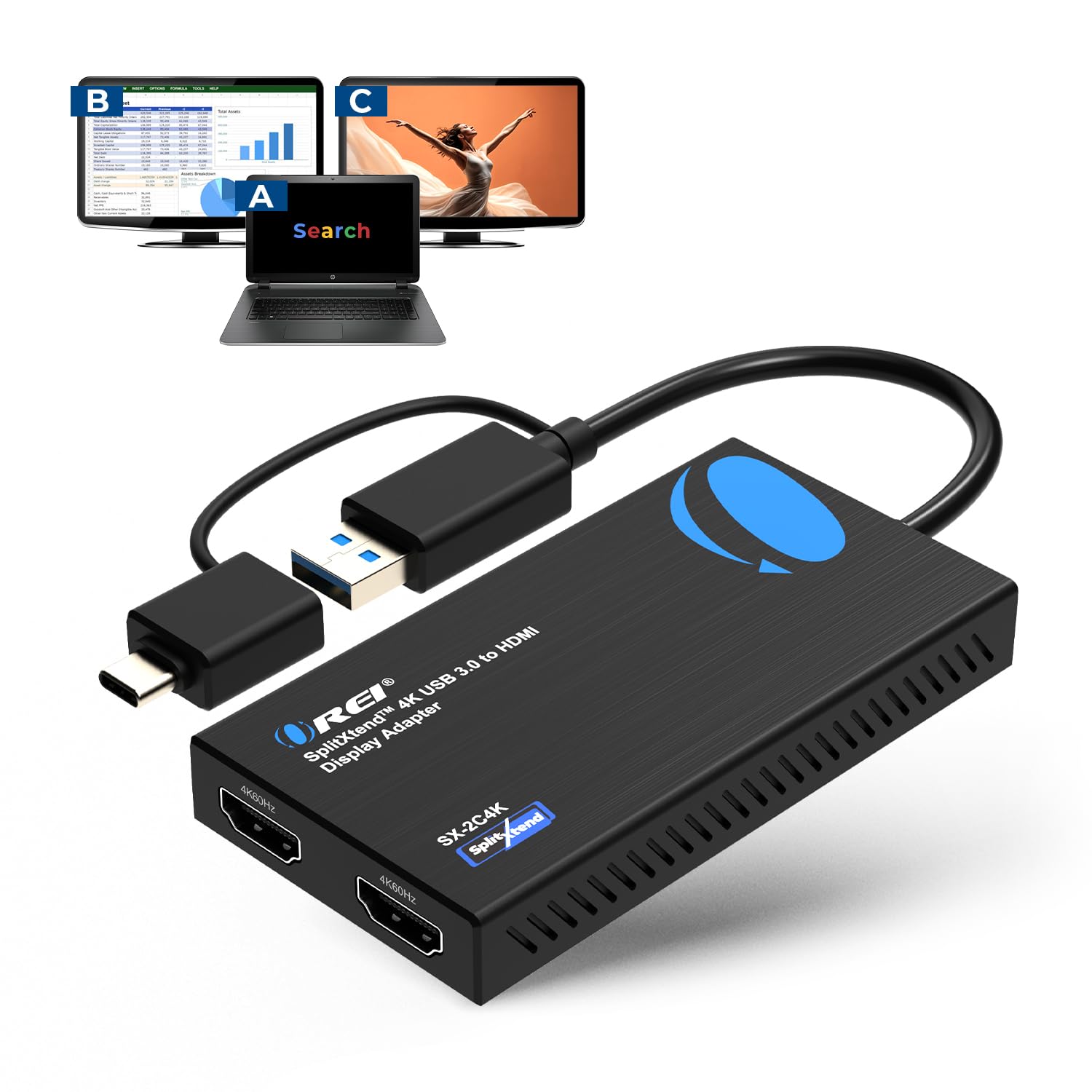
A clean three-screen desk machine, from a brand that has clearly thought about driver headaches.
OREI’s SplitExtend pushes a full 4K@60Hz plus a 2K@60Hz across both extended screens, turning your laptop into a three-display workstation counting the built-in panel. It supports Apple M1, M2, and M3 MacBooks for real extended display — the thing most budget adapters can’t do on a Mac — alongside Windows 11 down to 7, ChromeOS, and Android 7.1 and up (Android mirrors only, up to 1080P). The 2-in-1 cable joins USB-C, USB-A 3.1, Thunderbolt 3/4, or USB 4.
The honest caveats sit in the fine print. It uses a DisplayLink solution, so a driver is required on macOS and Windows — though ChromeOS auto-installs. It will not work with macOS 10.13.4 to 10.13.6, so older Mac users should update to 10.14 or later first. And like its sibling picks, it won’t play HRCP-protected streaming content from the likes of Netflix or Hulu. It leans toward web and productivity rather than gaming or design work. It weighs 2.5 ounces with no external power plug.
What earns the praise here is that it just behaves — functionality and easy setup are the standout reasons owners keep it, with connectivity and image quality close behind. Reviewers point out it recognizing their computer quickly, sometimes without installing software at all. And the results hold up over time: shoppers say “reliable, rapid, and comes with updates.” Reports spread across months of daily use mention no flickering and no disconnects, though one unit eventually stopped adding to the monitor count — the kind of rare misstep that can hit any DisplayLink device.
Why it earns the rank: real extended displays on Apple M1-M3 Macs plus a clean 4K@60Hz and 2K@60Hz pair — a combination budget adapters rarely manage.
What to factor in: Windows and Mac need the DisplayLink driver, and it’s the priciest of the mid-tier cluster.
Best fit for: Mac owners who need two truly independent screens and don’t mind a driver install.
Think again if: you’re on a pre-10.14 Mac or you want plug-and-play from the start.
8. WAVLINK USB 3.0 & USB C to Dual HDMI Adapter 4K@60Hz

The DisplayLink adapter for Macs that need two crisp 4K screens without native video-out.
This WAVLINK is the pick for a Mac that simply won’t extend to two displays on its own. It delivers dual 4K@60Hz through USB-C or USB-A, and its encrypted DL-chip technology is aimed at corporate use where data protection matters. It works across Thunderbolt 3/4, USB4, and even legacy USB 2.0, on Windows 11/10, macOS 11 or later, and ChromeOS 100+. At 120 grams with a matte finish, it’s compact enough to live on a desk permanently or travel between them.
Two things define how you’ll use it. First, the DisplayLink driver is required — this does not support plug-and-play, and you download the driver from displaylink.com. Second, it won’t handle HDCP-protected content like Netflix, and it’s not for gaming. There’s a small setup quirk some owners hit: each monitor’s HDMI cable must go to a separate port on the adapter, because routing both into “HDMI 1” prevents recognition. It doesn’t support Linux, Unix, iPad, or iOS — Mac and Windows only.
What you’re paying for is reliability where flagship systems struggle. Owners run it on a MacBook Pro M2 and MacBook Air M2 with no latency, replacing larger powered units, and one calls it “the best two-monitor software driven display adapter” — more reliable than some premium rivals that flicker on sleep or fail to re-enumerate. Functionality and dual-monitor support are the two things people praise most, and it holds steady on an older Windows laptop whose USB-C port only carries data. It’s a software-driven adapter, so expect it to lean on your processor rather than a dedicated video path.
Why Mac owners favor it
- Dual 4K@60Hz output on Apple M1 through M5/Neo and Windows machines alike
- Encrypted DL-chip aimed at secure corporate environments
- Runs quietly without native MST support, matching premium rivals on reliability
Caveats to weigh
- DisplayLink driver install is required — no true plug-and-play
- No Linux, Unix, iPad, or iOS support
- No HDCP playback for streaming services like Netflix
Suits you if: you run a Mac or a data-only USB-C laptop and want two sharp 4K displays one cable away.
Skip the effort if: you want a zero-install solution or you’re on Linux or an iPad.
9. ACASIS USB C to Dual HDMI DisplayLink Adapter
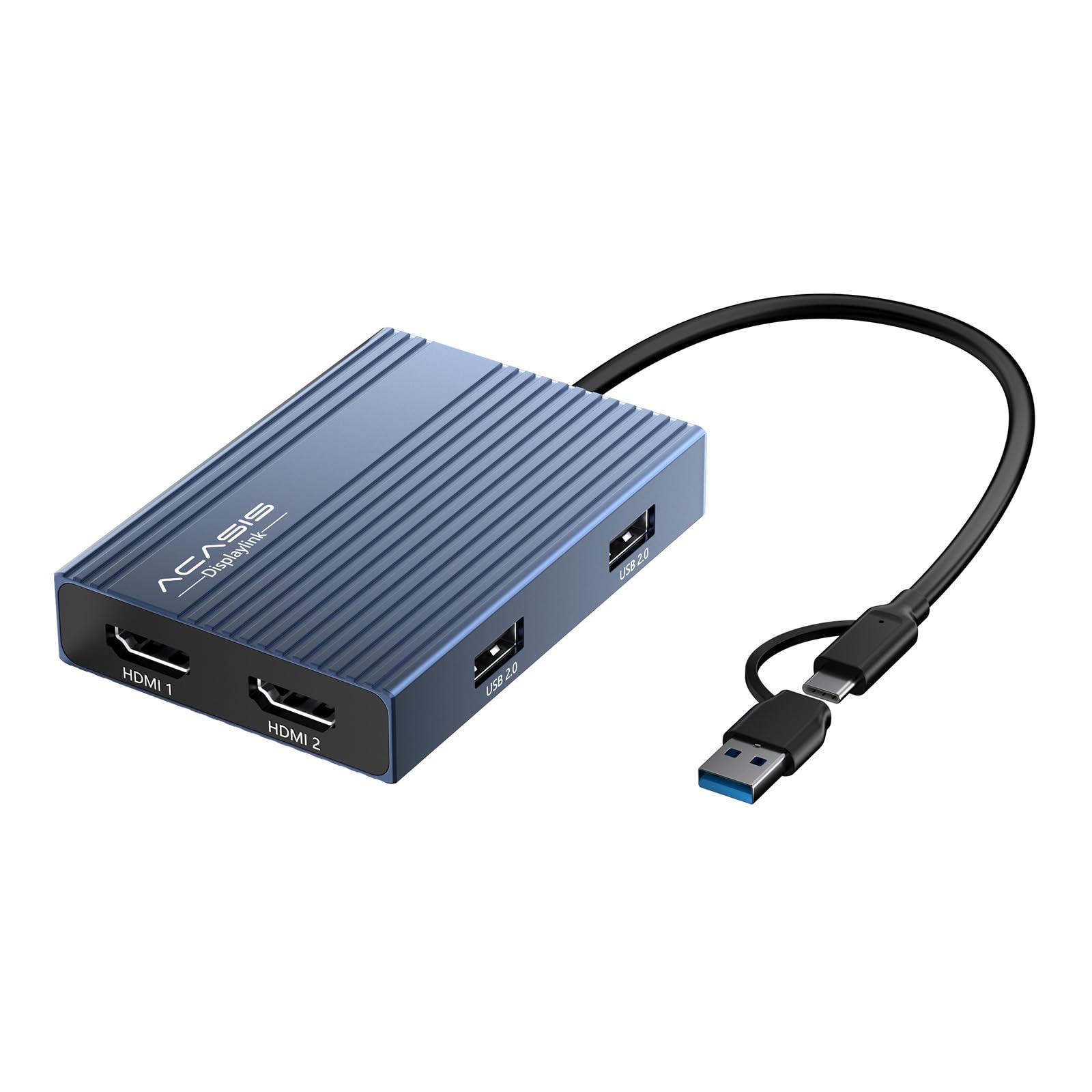
Two 4K screens, three USB accessories, and a laptop charge — all from a single USB-C cable.
ACASIS packs more into one cable than almost anything else here. Two HDMI ports drive dual 4K monitors up to 60Hz, a 100W USB-C PD port charges your MacBook Pro, Air, or Dell/HP laptop while you work, and three USB-A ports (480Mbps) handle your mouse, keyboard, and flash drives. That is six ports total, wrapped in a compact aluminum body that stays cool in the hand and slides into a bag. It works with Mac M1 through M5/Neo and Windows PCs — no gaming or HDCP content.
The catch worth understanding up front is the driver. Like other DisplayLink hubs, it needs software installed for the dual screens to wake, unlike a native video adapter. It’s also honest about one quirk — you should only unplug the adapter when the computer is off, according to the maker. And the three USB-A ports are the slow 480Mbps tier, so they’re for peripherals rather than speed, not a drive you want to move large files onto. DisplayLink means the adapter extends your screen without leaning on your laptop’s native video output at all.
What people reward is that it does a lot with very little fuss — functionality, easy setup, and port capacity lead the praise, and it’s compact enough that owners barely notice it in a bag. Mac users especially appreciate plugging in and getting two extra monitors with the driver in place. The one thing to watch is heat. It warms noticeably during extended use, and a handful of units ran into overheating problems after about a month. Owners say it stays warm rather than hot in most cases — treat it as a workspace fixture rather than something to bake in a hot car.
The win: six ports on one cable — dual 4K screens, 100W charging, and three USB-A slots for peripherals, all in an aluminum shell.
Worth knowing: the driver install is mandatory, the USB-A ports are slow (480Mbps), and it runs warm under sustained load.
Ideal if: you want screens, charging, and peripherals from a single cable on a Mac or Windows laptop.
Consider another if: you need fast USB transfer speeds or you can’t add a driver to your computer.
Understanding the Specs
Port Type and DisplayPort Alt Mode
Before anything else, check what your laptop’s port can do. DisplayPort Alt Mode is the feature that lets a USB-C port send video to a screen, and without it, a plug-and-play adapter will not light up. Thunderbolt 3/4 and USB4 ports have this built in. A plain data-only USB-C port does not — that is when you reach for a driver-based adapter instead, which builds its own display signal.
Plug-and-Play vs Driver-Based
Plug-and-play adapters ride on your laptop’s own video output, so they work the moment you connect. Driver-based ones use a display chip (DisplayLink being the common name) and need software before the screens wake. The trade-off is real: plug-and-play is instant but needs a video-capable port, while driver-based works on machines with no video output but costs you a short setup and can be blocked on locked-down work laptops.
Resolution and Refresh Rate
Resolution is how many pixels each screen shows; refresh rate (Hz) is how many times a second it redraws. Many adapters give one screen 4K@60Hz or two screens at 4K@30Hz. Higher refresh means smoother motion, which matters for scrolling and video more than static documents. If your adapter only mirrors, both screens show the same image no matter the resolution.
Power Delivery Passing Through
Power Delivery (PD) is the standard that lets a USB-C port carry charging power. An adapter with a PD input lets a wall charger feed power through to your laptop while the adapter runs. You almost always supply your own 100W charger and cable — they are rarely in the box — and the hub usually passes slightly less through to the laptop than it takes in. Without PD, the hub draws from your laptop and drains the battery faster.
FAQ
How do I know if my laptop’s USB-C port can run two monitors?
Why do my two external monitors show the same image instead of extending?
Do I have to install a driver for a dual monitor adapter?
Can I charge my laptop through the adapter at the same time?
Will a dual monitor adapter work with my MacBook Air or MacBook Pro?
Can I watch Netflix or other streaming services on the extra monitors?
What is the difference between mirror mode and extended mode?
How long should a dual monitor adapter last?
Can a dual monitor adapter run three or more displays?
Do these adapters work with Thunderbolt docks and USB4 laptops?
Final Thoughts: The Verdict
For most people, the dual monitor adapter winner is the Anker Laptop Docking Station Dual Monitor because it pairs eight ports with no driver install, so your two screens work the moment you plug in — and it has earned trust from 35,000-plus owners at 4.5 stars. If your priority is crisp 4K@60Hz screens on the tightest budget, the Selore USB C Docking Station Dual Monitor delivers that in an aluminum body for less. And if you are on a Mac that refuses to extend to two displays, the OREI SplitExtend is the one to reach for, with genuine extended display on M1 through M3 MacBooks.
How We Picked
We do not accept paid placement. Every pick is matched to a real buyer and a real use-case; we do not hands-on test units.
Sources & Methodology
Specifications: manufacturer listings and product documentation. Review insights: verified customer reviews, as of September 2026. Pricing: not shown on this page (it changes often); check the current price via the retailer link.
As an Amazon Associate, Gadgets Feed earns from qualifying purchases. This does not affect which products we feature.