
Our readers keep the lights on and my morning glass full of iced black tea. As an Amazon Associate, I earn from qualifying purchases.
Specs are compiled from manufacturer listings and verified buyer reviews and can change over time — please confirm the key details on the product page before buying.
If your laptop only has one or two USB-C sockets, but you want two screens, a keyboard, a mouse and wired internet all running at once, a docking station is the fix. The catch is that not every dock drives two monitors the way you expect — some mirror the same picture onto both screens, and some only work on Windows laptops. Every pick below drives two monitors, sorted by laptop type so you can skip the ones that will not fit your machine.
I’m Min — the founder and writer behind Gadgets Feed. This guide is built by comparing the manufacturers’ published specifications and the patterns across verified customer reviews, so you get each pick’s real strengths and trade-offs instead of marketing spin.
Before you buy, the one thing that matters most is your laptop’s USB-C port: it has to carry video, not just data. The nine docks below span budget hubs to Thunderbolt 4 units, and each one earns its place in this 2 monitor docking station roundup.
Our Picks at a Glance

How To Choose The Best 2 Monitor Docking Station
Buying the wrong dock is almost always a port problem, not a quality problem. Almost every one-star dock review starts with a laptop whose USB-C port cannot carry a video signal at all. So the checklist below is ordered by what breaks dual-monitor setups first.
Check your USB-C port can output video
A plain USB-C port moves files and charges, but it may not carry a picture to a screen. What you need is a full-featured port, also written as DisplayPort Alt-Mode or Thunderbolt. If your port is one of those, most modern docks will light up two screens without any software. If it is not, you have two options: switch to a DisplayLink dock, which uses a driver to paint the picture over a normal USB connection, or pick a different laptop port.
Decide between DisplayLink and Alt-Mode
DisplayLink docks install a small driver and then drive two screens on laptops that normally cap out at one. That is why they rescue base-chip MacBooks, which on their own allow just a single external display. Alt-Mode docks skip the driver entirely and just work when you plug in, but they only push two screens if the laptop was built to allow it. Cheap hubs are usually Alt-Mode; docks with a dedicated driver package are usually DisplayLink.
Count the ports you will actually use
Two monitor ports are the headline, but the daily pain is usually elsewhere. Wired internet matters if your calls drop on Wi-Fi. Enough USB-A ports matters if you still run a mouse, a keyboard and a webcam — that is three right there. And check which USB ports are fast and which are slow: makers often split their ports into fast data versions and slower ones meant only for a mouse or keyboard.
Quick Comparison
| Model | Best For | Ports | Monitor Outputs | Laptop Charging | Amazon |
|---|---|---|---|---|---|
| UD22 Dell Docking Station Dual Monitor Bundle★ Best Overall | Mixed Windows, Mac and Chrome fleets | 10 | 1 HDMI + 1 DisplayPort | 130W adapter included | Amazon |
| MOKiN USB C Laptop Docking Station 13-in-1Budget Champion | Budget buyers needing three screens | 13 | 2 HDMI + 1 DisplayPort | 100W PD in, 85W out | Amazon |
| WAVLINK Triple Monitors DockFastest Network | Windows desktops wanting 2.5G internet | 12 | 1 HDMI + 2 DisplayPort | 100W PD in, 85W out | Amazon |
| Baseus Docking Station Dual Monitor 10-in-1 | Tidy desks that want two plain HDMI screens | 10 | 2 HDMI | 100W PD in, 85W out | Amazon |
| Umaniy M91 Laptop Docking Station Dual Monitor Stand | MacBook owners who want a raised screen | 9 | 2 HDMI | 100W PD in, 85W out | Amazon |
| Plugable Thunderbolt 4 Dock with 100W Charging | Thunderbolt 4 and USB4 laptops | 13 | 2 HDMI | 100W (96W certified) | Amazon |
| Plugable USB C Docking Station Dual Monitor | Macs limited to one external screen | 15 | 1 HDMI + 1 DisplayPort | 100W | Amazon |
| Dell Pro Smart Dock SD25 Bundle | IT-standardized office rollouts | 11 | 2 DisplayPort + 1 HDMI | 180W adapter included | Amazon |
| Anker Prime Docking Station 14-in-1 | One dock shared across several laptops | 14 | 2 HDMI | 160W total output | Amazon |
In‑Depth Reviews
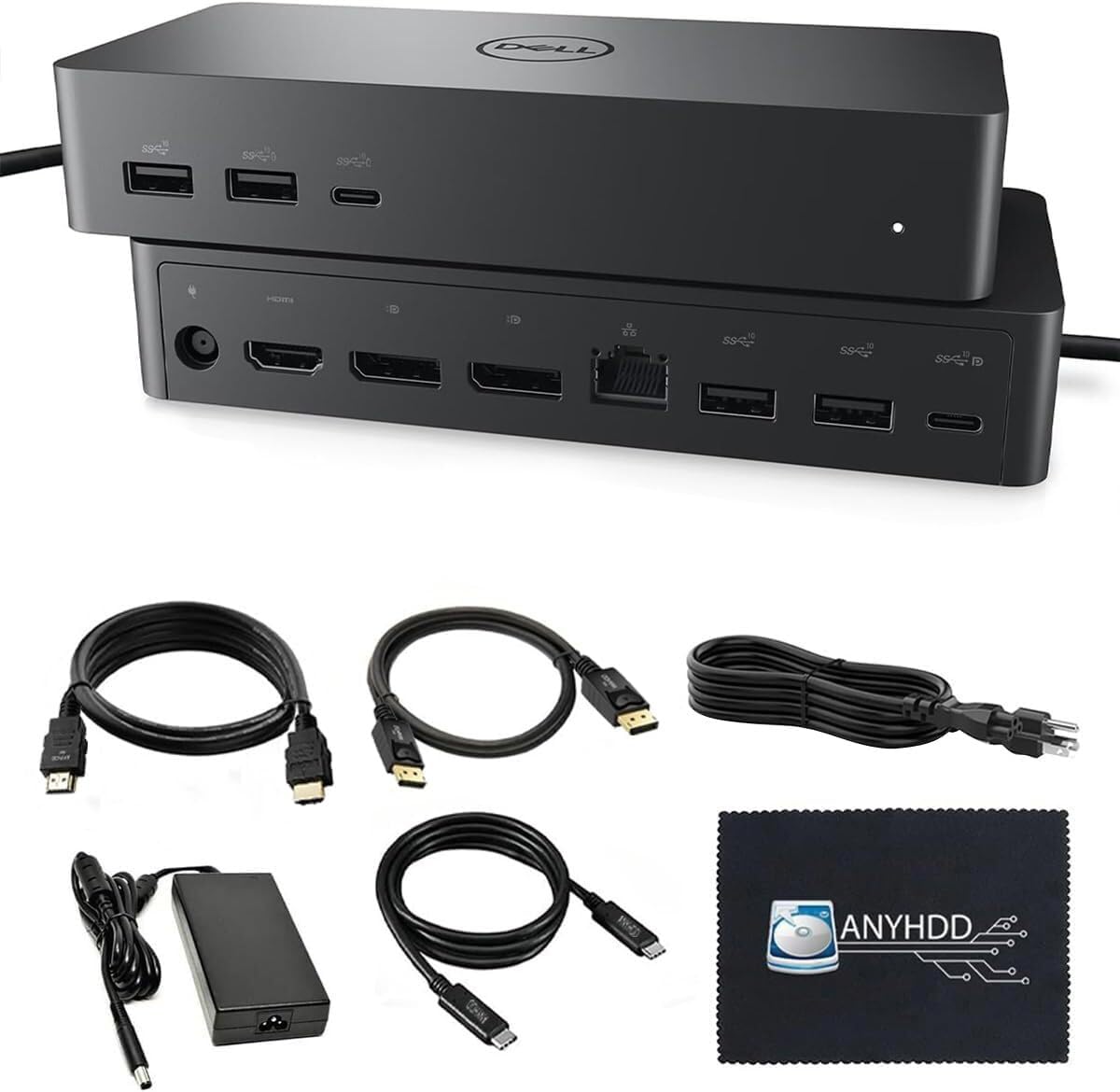
1. UD22 Dell Docking Station Dual Monitor Bundle
Our pick — 4.5★ from 200+ verified ratings; the strongest balance of quality and price.
The one dock built to behave the same on Windows, Mac, Ubuntu and ChromeOS — and it brings its own power brick.
This dock earns the top spot because it can run up to four 4K screens at 60Hz (4K means 3840×2160 pixels, and 60Hz means the screen refreshes 60 times a second) using DisplayLink drivers (software that sends an extra video signal over a standard USB cable, so your laptop’s built-in port limits do not hold you back). For a normal two-screen desk, that headroom means you plug in one cable and both monitors wake up. It is the crowd favorite here at 4.5 stars across 200+ owners, and buyers report it often just works across laptops running different operating systems.
You get everything you need to start in the box: the dock, a 130W power adapter (130 watts of charging power), and the cables — so there is no separate charger to buy. That separates it from the MOKiN below, whose 85W laptop charging depends on you supplying your own 100W brick. Two monitor hooks sit on the back: one HDMI and one DisplayPort 1.2 (a 20-pin video connector standard that is older but very widely supported). Ten ports in total, including three USB 3.2 Gen 2 sockets (fast data ports) and gigabit RJ-45 wired internet (a standard ethernet jack for a wired network connection).
The honest catch is fit, not function. One buyer found their work laptop had no drivers available for home use, and another with a small Dell and three monitors had to swap brands entirely. So check your exact model is on Dell’s supported list before you commit. The ports themselves also draw more mixed notes than the rest of the package — enough USB, just not always the exact shape people expected. One accounting desk wanted two DisplayPort plus two HDMI and needed a small adapter for their setup.
What Earns It Top Spot
- Up to four 4K screens at 60Hz, far more than a two-monitor desk needs.
- Four operating systems from one dock — Windows, Ubuntu, macOS and ChromeOS.
- 130W adapter in the box, so nothing extra to buy.
- Quick setup: load Dell’s drivers first and the dock picks up your screen, keyboard and mouse on the first try.
Where It Demands Care
- Compatibility is not universal — a laptop with no Dell driver support will not work.
- Port layout reads as mixed; some desks want more DisplayPort sockets than the two video outputs provided.
- Occasional first-night quirk, like wired internet needing a restart before it registers.
Best home for it: a household or office running several different laptop brands that all need to reach the same two screens.
Choose differently if: you are on a consumer laptop with no Dell driver coverage — check that first, because this dock leans on drivers to do its multi-screen trick.
2. MOKiN USB C Laptop Docking Station Dual Monitor 13-in-1
Thirteen ports, three screens of output and no driver install — the entry point that punches far past its shelf placement.
If you run a Windows laptop with a full-featured USB-C port and you want the most sockets for your money, this is the one to grab. It gives you 13 ports against the UD22’s 10, and the extra count is exactly where you feel it: three video outs (two 4K HDMI plus a DisplayPort) rather than two, so a triple-monitor desk does not need an adapter. Fast 10Gbps USB-C and USB-A ports (10 gigabits per second, a fast data speed) move a 20GB file in about 25 seconds per the maker, while two slower USB 2.0 ports are there for your mouse and keyboard.
Owners lean on this one heavily for work-from-home setups, and the standout reports come from Linux users — an Ubuntu 24 machine driving two external HDMI screens plus one DisplayPort at the same time, for three external displays in total. That is a hard trick to pull off without display-capability limits getting in the way, and it makes this dock quietly among the most flexible budget picks on the market. It also charges your laptop and your phone at once, and the SD and microSD slots (memory card readers) read both cards at the same time.
The trade to know about is Mac. On a macOS laptop this dock can only extend one of the screens; the second mirrors it, because of how Apple’s chips handle external displays. Charging figures in as a mild caveat too — the 100W input only passes 85W through to your laptop, and that assumes you supply the 100W power brick, which is not included. Long-term notes on durability also come up, so treat the cable runs gently rather than yanking them out daily.
Three screens at a low bar: the triple display support is the reason to pick this over higher-priced two-output docks — two HDMI plus one DisplayPort covers a serious multi-monitor desk, and a dual-monitor user has a spare socket for a TV or projector.
Value framing to keep honest: you get a lot of ports for very little, but the power brick for laptop charging comes from your own parts bin — budget for that separately if you do not already own one.
Pick it if: you run Windows or Linux and want three display outs plus a fistful of USB ports without stretching the budget.
Pass if: your laptop is a Mac and you need both external screens to show different things — this one mirrors the pair instead.
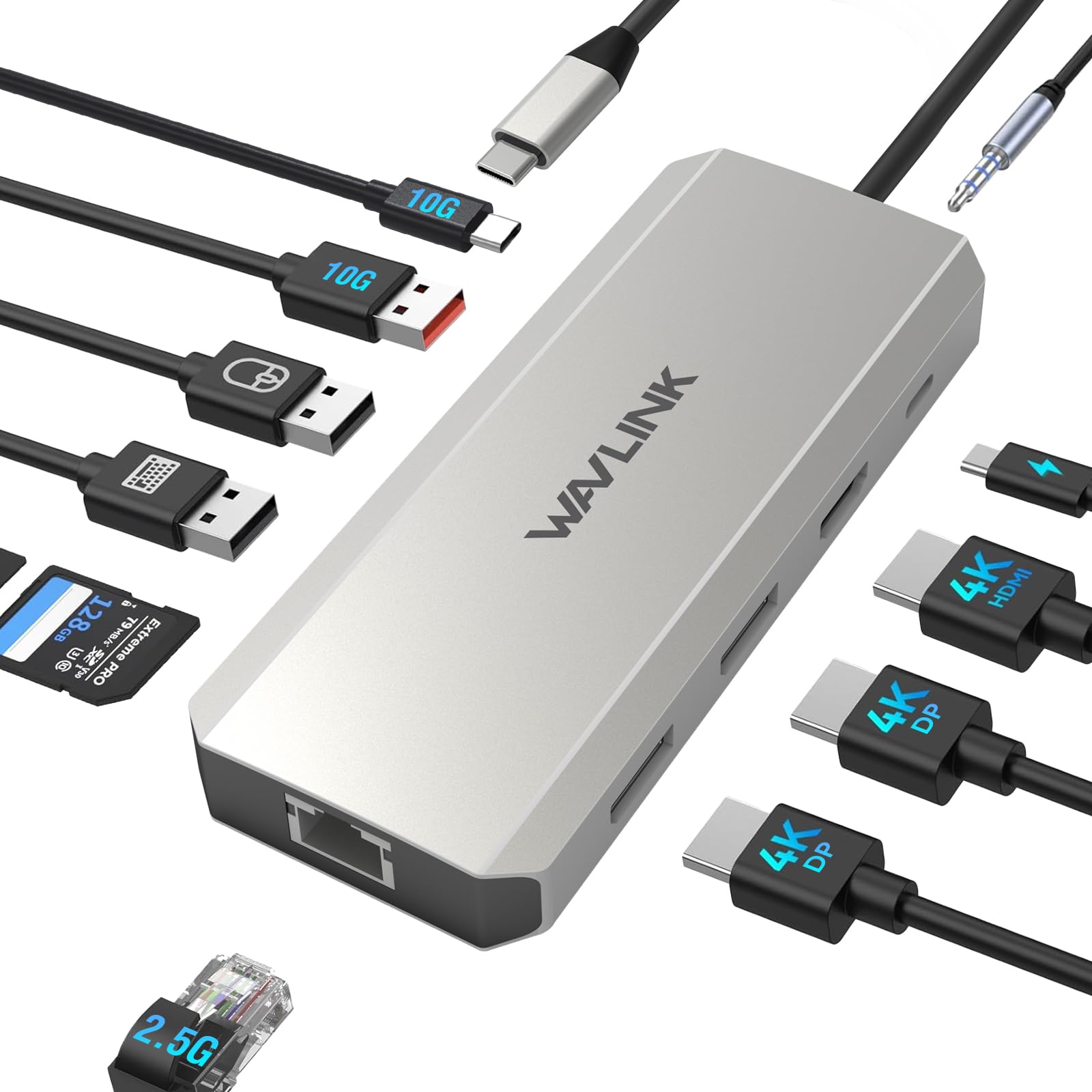
3. WAVLINK Triple Monitors Dock
A tiny aluminum wedge that carries the fastest wired internet here and two DisplayPort sockets at the same time.
Two things set this apart from the MOKiN sitting just above it, both aimed at Windows desks. First, wired internet: this dock runs a 2.5-gigabit Ethernet port rated at 2500Mbps, the fastest network hookup in this roundup and a real upgrade over the gigabit ports most docks carry. Second, the video layout — two DisplayPort plus one HDMI, which suits monitors sold with DisplayPort cables rather than HDMI. It also fits in a laptop bag at 4.4 ounces and folds into a compact footprint, which is why one owner bought a second unit purely for travel.
Gaming and streaming are where the video specs land. Single-display output reaches 4K at 144Hz with DSC (Display Stream Compression, a way of squeezing more picture through the same cable), and 8K at 30Hz, while a dual-display setup runs 4K at 60Hz through the DisplayPort sockets. Fast 10Gbps USB-A and USB-C ports sit alongside two slower USB 2.0 ports meant for wireless dongles. Plug-and-play, no driver step at all.
Warmth is the recurring note, and it is worth taking seriously rather than dismissing. Owners repeatedly mention the case running warm under load — one thought about adding USB fans underneath, another described it as warmer than expected but not dangerously so. There is also an occasional quirk where a monitor drops after the PC sleeps for hours and needs the DisplayPort cable reseated. And a hard limit: this dock is for Windows only, not macOS, and its charging requires a 20V/5A adapter you supply yourself.
The network angle: 2.5-gigabit internet is unusual at this level and is the clearest reason to choose this over a plain gigabit dock — useful if your router and switch can feed that much speed.
Where the heat shows up: the aluminum shell does its job but the dock genuinely warms under sustained load, so leave it some air rather than stacking papers on it.
Built for: a Windows mini-PC or laptop feeding two DisplayPort monitors on a fast wired network.
Not for: Mac owners — this dock does not support macOS at all, and the charger is on you.
4. Baseus Docking Station Dual Monitor 10-in-1

Two plain HDMI sockets and a one-press privacy lock — the simplest way to run a second screen on any desk.
Two HDMI ports side by side is the least fussy dual-monitor setup there is, and that is exactly what this Baseus gives you. Both screens run 4K at 60Hz when you are driving two displays, or a single screen up at 4K 120Hz. Fast 10Gbps USB-C and USB-A ports handle the data, the SD and TF slots read cards at up to 104MB/s, and there is a wired Ethernet port for a stable connection. Ten ports in total, in a shell small enough to slip into a bag.
The feature nobody else here offers is the lock button: press once on Windows, twice on macOS, and the picture output freezes so whatever is on your screens is not left visible when you walk away. Owners generally find the whole thing quick to set up and versatile, running dual monitors with clear video off a single cable to all their accessories. It also plays nicely with handhelds — one owner runs a Steam Deck into a 4K/120 TV over HDMI with HDR working, which speaks well of the video path.
Two caveats come up more than others. Some owners find power does not pass through to charge their laptop reliably, so plan to keep your own charger in the mix rather than relying on the dock’s power path. And the built-in USB-C lead is short and permanently attached — on laptops with ports only on one side or the other, that means flipping the dock around, and if the cable ever fails the whole unit is out of action.
Reasons It Stays in the Bag
- Dual HDMI at 4K 60Hz — the friendliest monitor connection to find cables for.
- One-press screen lock keeps your work out of view when you step away.
- Metal body runs cool and dissipates heat well under load.
- SD/TF reader handles both cards at up to 104MB/s.
What to Plan Around
- Charging pass-through is the weakest part — some owners see no power flowing to the laptop.
- The attached USB-C cable is short and non-replaceable.
- Port selection does not stretch to dual 2K QHD monitors.
Worth reaching for if: you want two HDMI screens and a quick privacy trick, and you are happy keeping your own charger plugged in.
Skip if: you need the dock itself to charge your laptop — that is the one job this one is least reliable at.
5. Umaniy M91 Laptop Docking Station Dual Monitor Stand

A dock that is also the stand your laptop sits on — two screens and better posture from one piece of kit.
This is the odd one out here, and that is its strength. Instead of a slab you tuck behind the desk, it is a 0.9-pound folding stand your laptop rests on, with the hub built in. The height is adjustable across six levels, so you can raise the screen to cut neck and eye strain rather than propping it on a stack of books. It folds down to roughly the footprint of a thin paperback and ships with a storage bag, which is why owners mention using one at the desk and taking another on trips.
On the dock side you get dual 4K at 60Hz HDMI output (two screens at 3840×2160 pixels, refreshing 60 times a second) — enough for a real two-monitor desk — plus two USB 3.0 ports running 5Gbps (5 gigabits per second) for fast file moves and the usual keyboard, mouse or external drive. A USB-C PD 3.0 port (Power Delivery, a charging standard) accepts up to 100W input and passes 85W to charge your laptop while everything else stays plugged in. Nine ports in total, with SD and TF card slots (memory card readers) folded in too. No drivers needed: plug in and it works.
The reputation to weigh is sturdiness. Some owners found it held their laptop firmly with no wobble while typing, and others saw the stand break within a couple of months, so it rewards gentle, set-and-forget handling rather than constant folding. The compatibility note is strict here: your laptop’s USB-C port has to support DisplayPort Alt-Mode for the screens to work, and it fits 10 to 17 inch laptops. One user outgrew it once they needed dual DisplayPort instead of HDMI, which is a fair sign of where its ceiling sits.
Two jobs, one object: raising your screen and expanding your ports in the same folding piece saves desk space and lets you carry both to a hotel, a coworking spot or a kitchen table.
Handle with care: the sturdy-versus-frail reports sit squarely in the middle, so treat it as a fixed stand you occasionally pack, not a piece you snap open and shut every day.
Reach for this if: you want two screens and a raised laptop without buying a separate stand, and you move between desks.
Look elsewhere if: you want six months of hard daily folding, or you need dual DisplayPort rather than HDMI.
6. Plugable Thunderbolt 4 Dock with 100W Charging

The one for modern Thunderbolt 4 and USB4 laptops — 40Gbps down a single cable, no driver disc in sight.
Speed is the headline here: 40Gbps is the Thunderbolt 4 standard, which is the fastest single-cable link in this group and moves large video files, external drives and two 4K screens at once without a bottleneck. The 13-port body delivers 100W charging (96W certified), dual 4K 60Hz over the two HDMI sockets, an Ethernet port, SD and microSD slots, a headphone jack and a lock slot. It is driverless — plug into a Thunderbolt 4, Thunderbolt 5 or USB4 laptop and it just works.
For Mac owners this is one of the few docks that delivers genuine extended dual monitors on the right hardware. Base M1 and M2 MacBooks still cap at one external screen; base M3 handles two only in clamshell mode with the lid shut; and the Pro and Max chips run two opened up. Owners running a MacBook Pro describe two monitors working independently, with the laptop charging at the same time. On Windows it is equally comfortable across HP, Dell, Lenovo, Framework, Surface and more. Compact build, a subtle blue light, and it runs cool and quiet.
Two things to weigh before committing. The host cable plugs into the front rather than the back, which several owners wish were reversed for tidier cable routing. And reliability is the most-discussed topic on this dock, with a range of experiences: many report months of steady service, while others hit periodic Ethernet dropouts needing a power cycle, or USB ports failing over time. It is also picky about port type — a plain USB-C or Thunderbolt 3 laptop gets just one external display, so check your machine’s generation before you buy.
The speed sell: 40Gbps and 96W certified charging on one cable is as clean as single-dock setups get for a Thunderbolt 4 machine, and it is the reason this sits in the premium tier.
The front-cable quirk: keeping your main connection tidily out of sight is not possible here, and occasional Ethernet hiccups mean you may occasionally power-cycle it — worth knowing if your desk build is meticulous.
Right buyer: someone on a Thunderbolt 4 or USB4 Windows laptop or a Pro/Max Apple silicon Mac who wants one fast cable to everything.
Wrong buyer: a base M1 or M2 Mac, or an older USB-C laptop — those get a single screen out of this dock, not two.
7. Plugable USB C Docking Station Dual Monitor 4K 60Hz

The MacBook rescue dock — it forces two 4K screens onto Macs that only allow one on their own.
Here is the problem this dock solves: base-chip MacBooks normally support just one external display, so a second screen mirrors the first. This one uses DisplayLink technology, which installs a small driver and paints the extra picture over a standard USB link, letting you extend to two 4K 60Hz monitors over HDMI and DisplayPort. That driver is the whole point — it is what lets a Mac that says it supports one screen quietly run two different ones instead. Fifteen ports sit in a premium aluminum body, including front-facing USB-C and USB ports for charging, three more USB 3.0 ports, SD and microSD readers, a headset jack and Ethernet.
Owners of older Macs are the happiest group, and their reports are worth reading before you buy. The classic case is a Mac with an M2 chip that only wanted two extra displays — one buyer called this a command center rescued from a dead older dock, up and running simply. Another runs a MacBook Neo into two 1440p HDMI displays plus the laptop screen with no lag they could see, despite being told elsewhere that it would not work. Setup takes a driver install, not a plug-and-play moment, but the reward is two working screens where the laptop alone would refuse.
One limitation is worth stating plainly, because it catches people out. On ordinary HD monitors, this dock can soften the picture — support confirmed it downgrades image quality on non-4K screens to drive two of them. So pairing it with 1440p or 4K monitors is the smarter move. It also requires the DisplayLink driver on every system, works on macOS 11+, Windows 10+ and ChromeOS 100+, and does not support HDCP, which means protected streaming video may not play over the docked screens.
The screen-count fix: where most docks shrug at a one-display Mac, this one adds the second screen through software — the reason it earns its place over cheaper Mac-limited options.
Match it to good monitors: run it into sharp 1440p or 4K panels to get the best from its output; on plain HD screens the two-display trick costs you some crispness.
Made for: a Mac owner stuck at one external screen who wants two — especially on an older Apple silicon or Intel MacBook.
Think twice if: your monitors are plain HD panels rather than 1440p or 4K, since the dual-screen output trades away some sharpness there.
8. Dell Pro Smart Dock SD25 Bundle

The office-standard dock with a module you can swap for an upgrade instead of replacing the whole unit.
Two details put this in a class of its own. First, the 180W adapter is the biggest on this list and it is included, which means it can feed a hungry performance laptop while still running two or three 4K screens. Second, the body is modular — a swappable module lets you upgrade the dock’s capability rather than buying a new one, which is why offices standardize on it. Eleven ports include two Thunderbolt 4 ports, two DisplayPort 1.4 sockets, an HDMI 2.0 port, a USB-C socket that can also carry video, five USB ports total and gigabit Ethernet. It runs Windows 10, Windows 11, macOS and Ubuntu.
In practice it is a one-cable desk cleaner. Plug in a single USB-C lead and your monitors, keyboard, mouse and webcam come alive at once, with dual or triple 4K screens carrying a crisp, steady picture. Transfers run at 10Gbps. Buyers describe it as genuinely portable enough to move between home and office, and as good value for a Dell-first setup. For home offices fed by a Dell laptop, it is the least fiddly option in this group because the drivers and hardware are already matched.
Reliability is where this dock draws the most attention, and it is mixed rather than poor. Most days it behaves, but some owners see monitors fail to reconnect after the PC has slept for a while and need the dock reset. Others have hit firmware quirks that needed a power cycle. Port count is the second honest note: a 34-inch ultrawide over HDMI, a smaller Dell over DisplayPort, plus mouse, keyboard and webcam is enough to fill the USB-A ports, so anything extra needs a small hub.
Where It Wins
- 180W adapter included — the most headroom for charging a powerful laptop here.
- Modular design upgrades in place instead of a full replacement.
- Two Thunderbolt 4 ports, two DisplayPort 1.4, one HDMI 2.0 and gigabit Ethernet.
- Single-cable connection declutters a home or office desk fast.
Trade-offs Noted
- Occasional monitor reconnect failures after sleep, needing a dock reset.
- USB-A ports can run out once a webcam, mouse and keyboard are attached.
- Firmware updates have caused quirks for a few owners.
Strongest for: a Dell-based home office or an IT team wanting a dock they can upgrade rather than replace.
Less ideal if: you juggle many USB-A accessories and would rather not add a hub on top.
9. Anker Prime Docking Station 14-in-1

One dock that charges four devices at once and shows you the power flowing out of the front ports.
The distinguishing number is 160W of total output (160 watts of charging power), split across three USB-C ports that can each push up to 100W and one USB-A port at 12W, so you can charge your laptop plus a couple of phones and earbuds while both screens stay lit. A smart front display shows how much power each port is drawing, which is a genuinely useful touch when you are not sure whether your laptop is actually charging. Fourteen ports in total cover dual 4K HDMI, data speeds up to 10Gbps (10 gigabits per second), Ethernet (wired internet) and audio, all through one cable with no drivers to install.
This is the dock for a household or small office with several laptops sharing one desk. Owners run it across both Windows and Mac machines, connecting a Windows box and a Mac to the same setup without reconfiguring anything. It handles two monitors, a keyboard, a mouse, a phone charger and wired internet simultaneously, and MacBook Pro users praise the amount of pass-through power it delivers. Daily-drive reports include external drives and USB sticks plugged in constantly with no trouble, and a Surface Laptop 6 owner replaced a dead Dell dock with it and had zero issues across two HDMI screens.
Resolution is the honest limitation, and it is worth reading carefully. Dual HDMI runs the two screens up to 2K 60Hz (2560×1440 pixels, refreshing 60 times a second) on a DP 1.4 laptop (DisplayPort 1.4, a newer video connector standard), or 1080p 60Hz (1920×1080 pixels) on a DP 1.2 laptop — and with a dual setup, one monitor can reach 2K while the other caps at 1080p. This is not the pick for a matched pair of sharp monitors, but for two standard screens it is more than enough. Note too that this dock does not support Linux, and that on a Mac the two external screens mirror each other (show the same image) rather than extending (acting as one wide desktop).
The charging story: four devices powered at once with live readouts on the front is what makes this the shared-desk champion — nobody fights over a socket.
The screen ceiling: matched 4K dual monitors are not the aim here; this is a two-standard-screen dock, and it tops out at 1080p on the second display in a dual setup.
Great for: a home office or shared desk where one dock must serve several laptops and charge everyone’s gear.
Less suited to: matching two crisp high-resolution monitors, or a Linux machine — this one runs 1080p on the second screen and skips Linux support.
Understanding the Specs
DisplayLink versus DisplayPort Alt-Mode
DisplayPort Alt-Mode (often shortened to DP Alt-Mode) means your laptop’s USB-C port can send a video signal directly, no software needed. A dock built for Alt-Mode just works when you plug in — but it is limited to whatever screen count your laptop was built to allow, which is why some Macs refuse a second screen. DisplayLink works differently: it installs a small driver and sends the extra picture as data, similar to how a printer gets its instructions. That lets it add a second or third screen to laptops that would otherwise cap at one. The trade-off is that you must install the driver, and on some setups the image can be softer on two screens than it would be on a directly connected one.
Power Delivery and wattage
Power Delivery (PD) is the standard that lets one cable both charge your laptop and carry data. The number to watch is the output wattage — how much of the incoming power actually reaches your laptop. A dock rated at 100W input typically passes through a bit less after using some itself, and a laptop running two screens draws more than an idle one. If you are on a power-hungry performance laptop, a dock with a bigger included adapter — 130W, 160W or 180W — gives you more headroom than a small hub that relies on your own charger. Always confirm whether the power brick is included, because several docks here expect you to supply your own.
FAQ
Will a 2 monitor docking station work if my laptop only has one USB-C port?
Why do my two monitors show the same picture instead of extending?
Do I need to install drivers for a dual-monitor dock?
Can a docking station charge my laptop while running two screens?
Will a dual-monitor dock work on a MacBook that only supports one screen?
Are USB-C and Thunderbolt docks interchangeable?
How many USB ports doI need on a dual-screen desk?
Does a docking station support 4K on both monitors at once?
Why does my dock get warm during use?
Can I use a docking station with a gaming handheld or mini PC?
Final Thoughts: The Verdict
For most people, the 2 monitor docking station winner is the UD22 Dell Docking Station Dual Monitor Bundle because it drives up to four 4K screens at 60Hz, runs Windows, Mac, Ubuntu and ChromeOS from one unit, and includes its own 130W adapter — and it is the highest-rated pick here at 4.5 stars across 200+ owners. If your laptop is a modern Thunderbolt 4 or USB4 machine (fast connection standards) and you want one 40Gbps cable (40 gigabits per second) to everything, grab the Plugable Thunderbolt 4 Dock. And if you are on a Mac that refuses a second screen, the Plugable USB C Docking Station is the one to reach for, since its DisplayLink driver adds that missing screen. Whichever you choose, match the dock to your port type first — that single check decides whether two monitors light up at all.
How We Picked
We do not accept paid placement. Every pick is matched to a real buyer and a real use-case; we do not hands-on test units.
Sources & Methodology
Specifications: manufacturer listings and product documentation. Review insights: verified customer reviews, as of September 2026. Pricing: not shown on this page (it changes often); check the current price via the retailer link.
As an Amazon Associate, Gadgets Feed earns from qualifying purchases. This does not affect which products we feature.