
Our readers keep the lights on and my morning glass full of iced black tea. As an Amazon Associate, I earn from qualifying purchases.
Specs are compiled from manufacturer listings and verified buyer reviews and can change over time — please confirm the key details on the product page before buying.
If you draft, model, or draw for a living, the mouse is the tool you touch more than any other. The right one keeps your wrist neutral through a long session of orbit, pan, and zoom; the wrong one leaves you shaking out your hand by mid-afternoon. For architecture work specifically, what matters is a shape you can tilt or rotate to fit your hand, a scroll wheel you can trust for endless zooming, and buttons you can map to the shortcuts you actually use. This guide walks through seven picks that each solve a different part of that problem.
I’m Min — the founder and writer behind Gadgets Feed. This guide is built by comparing the manufacturers’ published specifications and the patterns across verified customer reviews, so you get each pick’s real strengths and trade-offs instead of marketing spin.
Some models are wickedly adjustable, some push the cursor with a thumb trackball instead of your arm, and one is a genuine 3D navigation puck for modeling. Every pick here is a different answer to the same wrist-strain problem, which is exactly what makes a shortlist like this worth comparing side by side for anyone hunting the best architecture mouse.
Our Picks at a Glance

How To Choose The Best Architecture Mouse
An architecture mouse has one job above all others: keep your hand in a shape it can hold for hours without twisting. Everything else — buttons, sensor, battery — supports that core. Before you compare models, think about which of these three levers matters most in your day.
Tilt and grip shape
A vertical mouse rolls your hand onto its side so your palm faces inward instead of down. That angle is what eases the forearm twist that builds up during a long drafting session. The catch is that a single fixed angle suits one hand size well and others poorly. Look for a mouse that lets you dial the tilt — whether that is a two-position 0° or 18° switch, or a friction hinge that moves anywhere from 35° to 70°. The more adjustable, the more likely it fits your hand rather than the manufacturer’s idea of an average hand.
Sliding versus trackball movement
A standard mouse asks you to sweep your whole arm across the desk every time the cursor runs out of room. On a large dual-monitor CAD setup, that is a lot of shoulder travel. A trackball flips this: the ball sits under your thumb, and your hand stays put while the cursor moves. The trade-off is a learning curve — most people need one to two weeks before thumb control feels natural. If you have limited desk space or a shoulder that complains about reaching, a trackball is the more radical fix.
Buttons, DPI and workflow
In drafting software you repeat the same handful of commands all day: pan, zoom, orbit, escape. Every one of those you can map to a button is a trip back to the keyboard you do not make. Look at how many programmable buttons a mouse offers and whether the companion software supports per-application profiles — so your shortcuts change automatically when you switch from your CAD app to email. DPI (dots per inch, the sensor’s sensitivity) matters less than people think once you find your comfortable speed, but a wider adjustable range gives you more room to fine-tune cursor control on high-resolution displays.
Quick Comparison
| Model | Best For | Buttons | Max DPI | Connectivity | Amazon |
|---|---|---|---|---|---|
| Logitech MX Master 3S★ Best Overall | All-day CAD comfort | 7 | 8000 | Bluetooth | Amazon |
| SABLUTE Trackball MouseBest Value | Adjustable wrist relief | 8 | 4800 | Bluetooth, USB | Amazon |
| INFINMIND L910 Pro+ | Multi-device multitasking | 8 | 4800 | Bluetooth, USB | Amazon |
| Contour Unimouse | Customizable tilt range | 6 | — | USB | Amazon |
| Logitech MX Ergo S | Thumb trackball precision | 8 | — | Bluetooth, USB | Amazon |
| ELECOM Huge Plus | Large-ball trackball control | 10 | — | Bluetooth, 2.4GHz, Wired | Amazon |
| 3Dconnexion SpaceMouse Wireless Kit 2 | 3D modeling navigation | 7 | — | Bluetooth, USB | Amazon |
In‑Depth Reviews
1. Logitech MX Master 3S Bluetooth Wireless Mouse No Receiver – Graphite
Our pick — 4.5★ from 600+ verified ratings; the strongest balance of quality and price.
The glove-fits-most-all-day mouse that designers reach for without thinking and rarely regret owning.
If you draft for eight hours straight and want one mouse that just works, the MX Master 3S is the safe bet — and it is the crowd favorite here, holding 4.5 stars across 600+ ratings. It packs a 8000 DPI sensor (dots per inch — how much the cursor moves per inch of hand travel), so you can fine-tune the cursor for wide-screen drafting or dial it back for detail work on shop drawings. The MagSpeed scroll wheel is the standout: it spins fast enough to fly through a model tree, then locks into click-by-click precision when you need to land on a single layer. Owners call the 8000 DPI tracking the best part of the mouse by a wide margin, and it works on glass as well as a bare desk. That one feature alone justifies the mouse for anyone who zooms in and out hundreds of times a day.
Comfort is where this mouse does its quiet work. The silhouette is shaped for a more neutral wrist posture, with the thumb controls sitting exactly where your thumb wants to rest. It connects to up to three devices over Bluetooth and switches between them with a tap, so you can jump from the office desktop to a laptop without re-pairing. Buyers report the battery held at 55% for hours of continuous work — that is a realistic read on the 70-day rating, not a marketing figure. The catch is fit: the mouse is generous in size, and smaller-handed users may find the forward button sits a stretch too far back, which is worth checking before you commit. Battery life and quiet clicks both earn their keep in a shared studio, with clicks described as dramatically quieter than a standard mouse.
Two things a buyer should know up front: this is Bluetooth-only with no USB receiver or charging cable in the box, so if your machine lacks reliable Bluetooth you will need to sort that out first. It is also a seven-button mouse — compared with the eight-button INFINMIND and SABLUTE below, you give up one programmable button but gain the MX-grade sensor and build quality that reviewers keep coming back to. The weight sits at 141 g, which is deliberate: it feels planted on the desk and does not skate during a long orbit session.
What wins people over
- 8000 DPI sensor works on glass and any surface
- MagSpeed wheel flips between free-spin and precise click
- 70-day battery with USB-C charging
- Switches between three Bluetooth devices instantly
- Quiet clicks suit a shared studio
Watch-outs before you buy
- No USB receiver or charging cable included
- Large footprint — smaller hands may find the buttons a reach
- Seven buttons places it one behind the higher-count alternatives
Best for: The designer or architect who wants one proven, wide-tracking mouse with a wheel built for heavy zooming.
Look elsewhere if: You need a bundled USB receiver, or you have small hands and prefer a mouse that sits further up your palm.
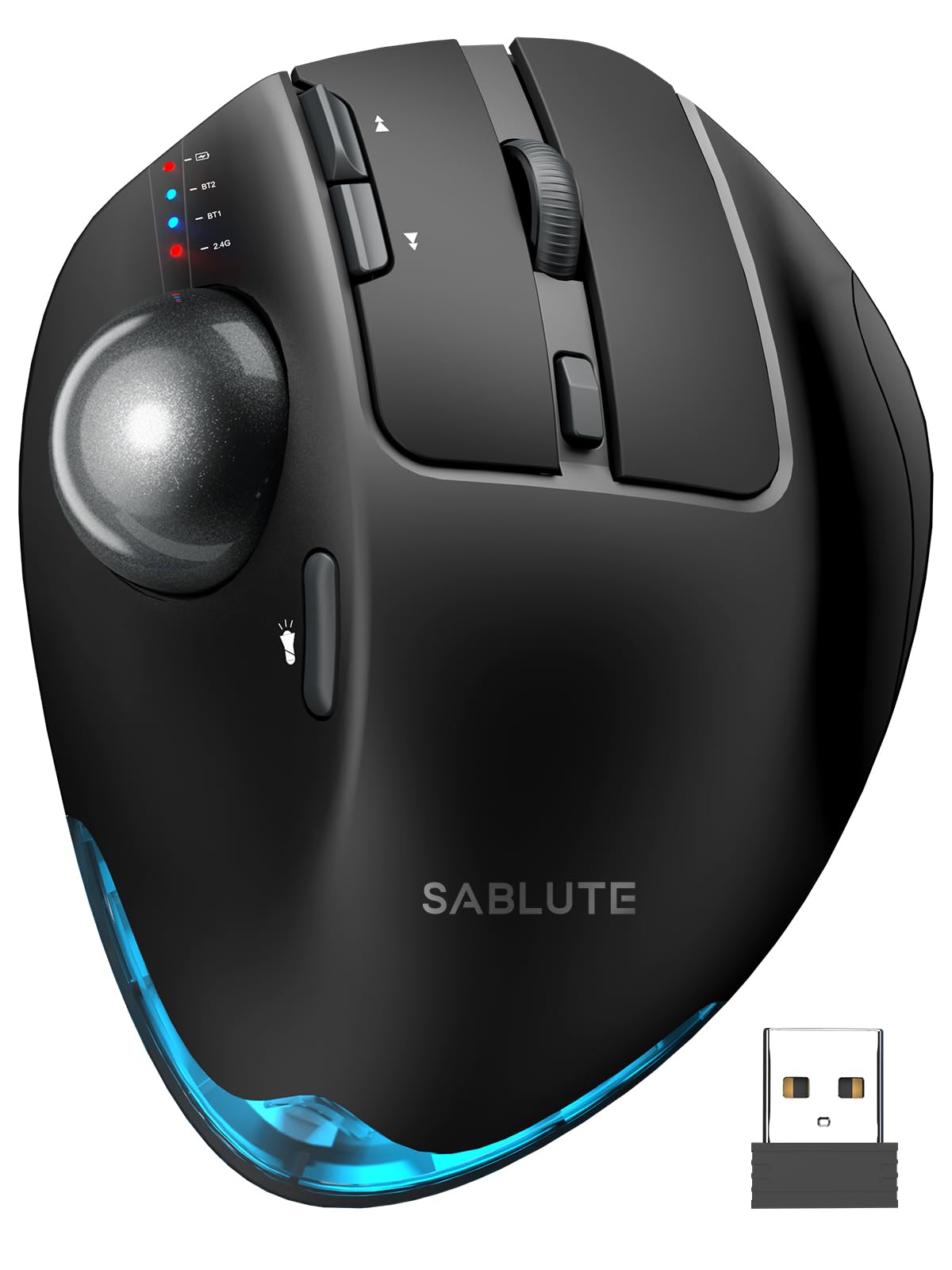
2. Ergonomic Wireless Trackball Mouse, Rechargeable Adjustable 0°/18° Angle
A two-angle thumb trackball that lets your wrist sit neutral while your arm stays completely still.
If a standard sliding mouse leaves your forearm knotted after a big sheet set, this SABLUTE trackball is the budget-friendliest way to change that. The defining trick is the 0° or 18° adjustable tilt — that is an 18° handshake angle that follows the wrist’s natural resting posture. It is a two-position switch, not an infinite dial, but for most hands the 18° setting alone is enough to take the twist out of long drafting sessions. Instead of sweeping your arm, you nudge the ball with your thumb, which is a lifesaver on a desk that already has a keyboard, tablet, and drawing reference competing for room. Its 5.36″L x 3.94″W body is a touch larger than the MX Master 3S at 4.92″L x 3.32″W, giving the ball more room to sit comfortably under your thumb.
The 18° setting eases wrist pain, and one buyer logged eight-plus hours a day for six months with zero issues — charging only about one and a half times across that entire stretch. Sensitivity runs from 800 to 4800 DPI across five levels, and quiet buttons cut click noise so you are not the loud corner of a shared office. It connects to three devices over Bluetooth plus a 2.4GHz USB receiver (a small dongle you plug in), and the receiver stores in the base so it never walks off.
What is the real trade-off? A trackball is a new motor skill. Most first-timers need one to two weeks to adapt, and the ball occasionally needs cleaning to keep tracking smooth. A few owners also note Bluetooth hiccups that vanish once the USB dongle is used instead. If you have never used a trackball, that adaptation period is the honest cost of admission. Note too that the downloadable customization driver is not compatible with Mac OS, so Mac users get the hardware without the software tweaks.
Standout feature: The 0°/18° adjustable tilt is the headline — a genuine two-position ergonomic switch at a fraction of premium trackball money.
The honest catch: It is a trackball, so budget two weeks to retrain your thumb, and Mac users miss out on the customization software.
Reach for this if: You want trackball wrist relief and an adjustable tilt without paying flagship prices.
Think twice if: You are on a Mac and want full software customization, or you cannot spare a fortnight to learn thumb control.
3. INFINMIND Ergonomic Wireless Bluetooth Mouse with 6 Programmable Buttons (Mac/Windows)
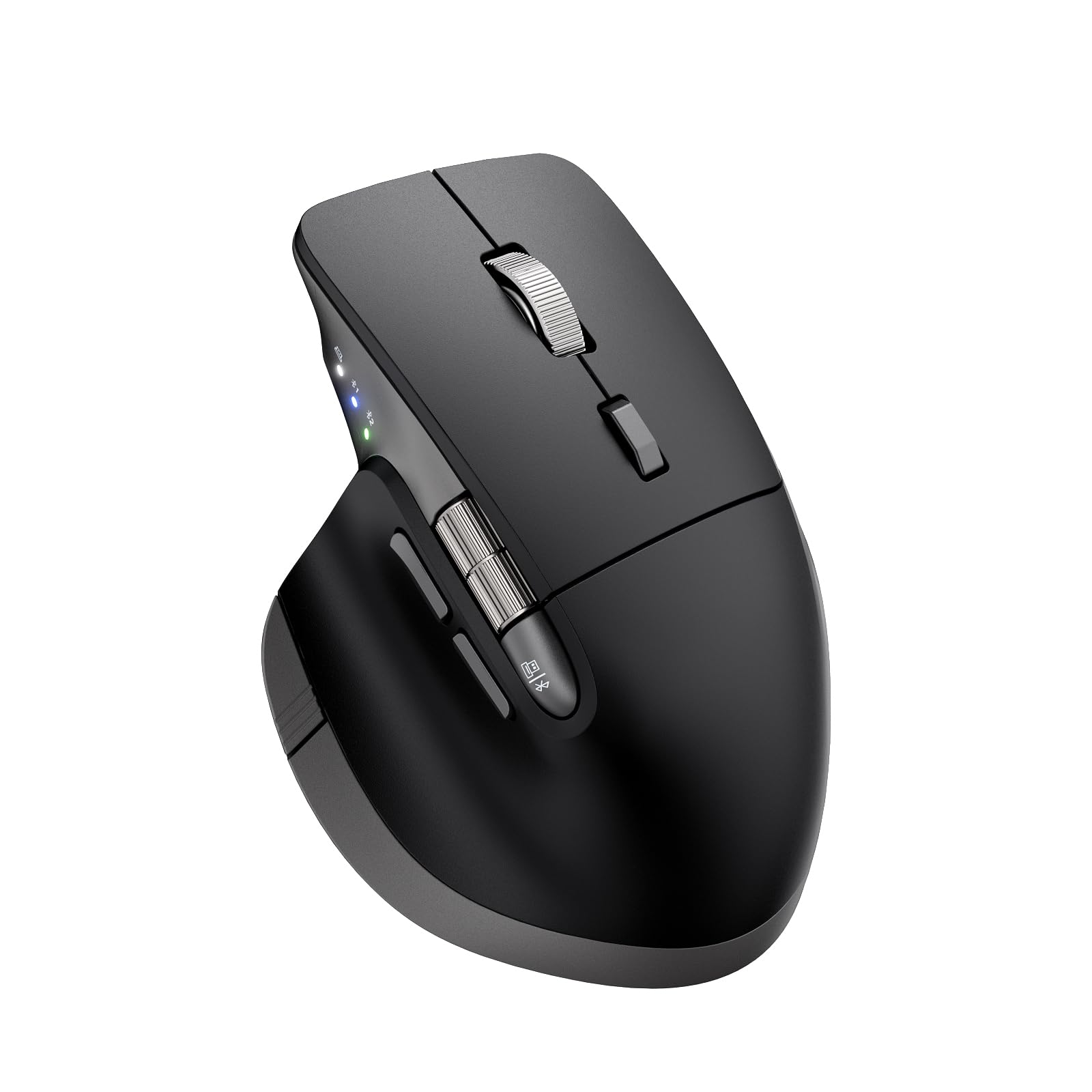
A rebadged-feel workhorse that skips between three machines and lasts three months between charges.
Here is the pick for the architect who works across a desk tower, a laptop, and a tablet all day and does not want to re-pair the mouse every time they switch. The L910 Pro+ connects three ways at once: one 2.4GHz USB-A receiver plus two Bluetooth channels, all toggled with a single button. Battery life is the marquee number — up to 90 days on a single USB-C charge, which beats both the 70-day MX Master 3S and the 120-day MX Ergo S in raw endurance terms. Six programmable buttons map to your own shortcuts, though the programming software is Mac- and Windows-only.
What makes it interesting for CAD is the dual scroll wheel setup: a precision metal scroll wheel front and side, both machined for a cool, smooth tactile feel. Fast page-scrolling down a long model tree is exactly the kind of repetitive motion this pair is built for. Sensitivity spans five DPI levels from 1000 to 4800, so you can click into 1000 for fine sketch work or jump to 4800 for fast sweeps. Owners mention the mouse is a very good substitute for the flagship Logitech Master 3S, and that smooth operation plus button-response choices are real draws. The build is a solid right-handed ergonomic shape, though flat-mouse converts will need an adjustment period.
Where does it fall short against the field? The 90-day battery is excellent, but the sensor tops out at 4800 DPI — well short of the 8000 DPI MX Master 3S above, so pixel-precise sniping at extreme speeds is not its strength. The 3Dconnexion below is still the true specialist for orbit-heavy modeling. For most architecture workflows, though, 4800 DPI on a metal scroll wheel is plenty. It is a straightforward value-and-connectivity play rather than a sensor monster.
Reasons it earns a spot
- 90-day battery — longest of the three wireless mouse picks here
- Dual metal scroll wheels for fast CAD page navigation
- Connects three devices with a single toggle button
- 5-level DPI from 1000 to 4800
- USB-C rechargeable
Where it gives ground
- 4800 DPI top speed trails the MX Master 3S at 8000
- Programming software limited to Mac and Windows
- No dedicated per-app profile depth like the MX line
Pick this if: You rotate between several computers and value three-device switching with marathon battery life.
Consider another if: You need the highest possible sensor resolution, or you run Linux and want full software customization.
4. Contour Unimouse Ergonomic Vertical Mouse, Adjustable Thumb Rest, Wired
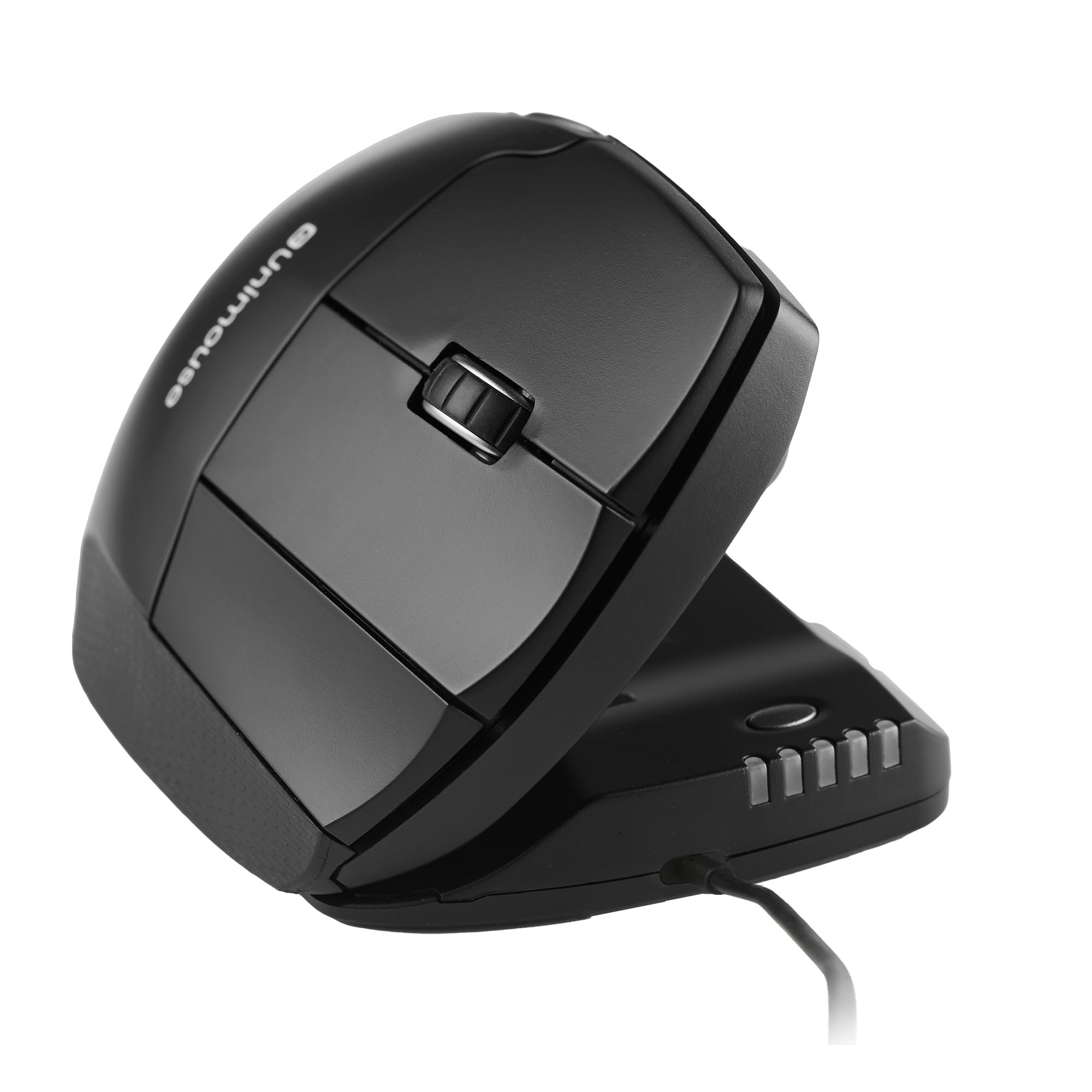
The one vertical mouse that reshapes itself to your hand instead of forcing you into one fixed angle.
Most vertical mice lock you into a single tilt and hope your hand happens to like it. The Unimouse does the opposite. A sturdy friction hinge lets you set the tilt anywhere from 35° to 70°, and a movable thumb support slides, pivots, and rotates up and down, in and out, forward and back. That is an unusual degree of adjustment: you can re-angle the mouse mid-session to shift pressure off a tired spot, then dial it back to your default. Fixed-angle and one-size vertical mice cannot do that. It is wired over USB-C, so there is no battery to charge and no pairing to fuss with — just plug in and work.
For CAD specifically, this is a natural fit. Owners praise the real middle button above all else, calling it excellent for CAD work — one buyer even bought two because the middle-click does not trigger accidental scrolls. Six programmable buttons and a smooth scroll wheel let you assign the functions you actually use, and the company positions the mouse for CAD designers and digital artists who need fine cursor control. Comfort is the other recurring theme, with users describing it as the most comfortable mouse they have owned once the adjustments are dialed in. Responsiveness is the aspect owners praise most, and the angle adjustment is what makes long sessions bearable.
The trade-off is the wired tether wearing thin with some buyers. A rare dissenting voice found the mouse less responsive than a standard one, needing more hand travel even in the wired version — a reminder that a vertical grip is a different feel, and not every hand takes to it. Weigh that against the upside of unlimited tilt. If you value infinite adjustability over a wireless desk, this is the pick.
Why the designers keep it: The 35°–70° friction hinge and fully movable thumb rest give you a custom grip no fixed-angle mouse can match.
A caveat worth knowing: It is wired only, and a vertical grip takes some hands a while to love.
Best matched to: CAD and digital-art users who want a true middle button and infinite tilt adjustability over a wireless setup.
Not the one if: You insist on a cordless desk, or you have tried vertical mice before and never got comfortable.
5. Logitech MX Ergo S Advanced Wireless Trackball Mouse USB C – Graphite

Logitech’s premium thumb trackball, built for medium-to-large hands and wired for months between charges.
This is the flagship expression of the thumb-trackball idea, and it lands with 4.4 stars across 800+ ratings — the deepest review pool of any trackball here. It sits on a 20° tilt that lifts your forearm into a better posture, and owners describe a neutral wrist with far less arm movement than a sliding mouse. The contoured shape is sized for medium-to-large hands, so if your hands run small, the SABLUTE above is the friendlier pick. It runs on Bluetooth or the included Logi Bolt USB receiver, with an Easy-Switch button to hop between machines.
Charging is where the MX Ergo S embarrasses nearly everything else. A full charge lasts up to 120 days, and — this is the number owners keep repeating — one minute on USB-C delivers up to 24 hours of use. That is the kind of trickle-charge savior story you want on a deadline. Clicks are rated 80% quieter than the previous generation, and the 20° tilt is claimed to cut muscle strain by 27%. Six programmable buttons via the Logi Options+ app handle shortcuts and Smart Actions. What wins owners over is trackball performance: the ball glides after easy internal cleaning, the metal baseplate grips the desk so the whole unit does not slide, and switching between PCs is quick. The recurring gripe is connectivity — a rare owner reports the cursor freezing over Bluetooth until a click, and the Bolt receiver being picky about hubs, so check your port situation before committing.
Set against the SABLUTE trackball, the MX Ergo S costs more but delivers the deeper sensor pedigree, the longer battery, and the 20° fixed tilt rather than an 18° switchable one. If your priority is pure endurance and the MX name, this is the trackball to beat. If value leads, the SABLUTE punches close for far less.
The case for it
- One-minute charge gives up to 24 hours of use
- Up to 120 days on a full charge
- 20° tilt with 80% quieter clicks
- Six programmable buttons via Logi Options+
- Deep review pool confirms long-term reliability
Fair warnings
- Occasional Bluetooth freeze reported
- Bolt receiver can be finicky about hubs and docks
- Sized for medium-to-large hands, not smaller ones
Suits you if: You have medium-to-large hands and want a premium thumb trackball with near-forget-about-it battery life.
Skip if: Your hands are on the small side, or you rely on docking hubs that may not recognize the Bolt receiver.
6. ELECOM Huge Plus Wireless Trackball Mouse, Ergonomic 52mm Large Ball

A 52mm ball and ten buttons make this the most tweakable trackball a heavy CAD user can buy.
If you want maximum control surface and maximum buttons, the Huge Plus is the specialist pick. The 52mm ball — noticeably larger than the thumb balls on the SABLUTE and MX Ergo S — gives you more rolling surface for precise, fluid cursor movement. It is also the most connected trackball here: Bluetooth, 2.4GHz wireless, and wired USB-C all in one, switchable across up to three devices. Ten programmable buttons is double what the MX Master 3S offers, so complex shortcuts live right under your fingers.
The bearings are a genuine talking point. MinebeaMitsumi steel bearings give smooth rotation and, unusually, can be swapped or upgraded to ruby units if you want to tinker — a flexibility no rival trackball matches. Battery life stretches to up to 5 months per charge, the longest single-charge figure in this whole lineup. Silent clicks keep long sessions calm. Owners say the 52mm ball rolls 10x smoother than the earlier model, that the responsive DPI and quiet tactile buttons impress, and. Reliability and button feel are the aspects owners call out most.
Two honest gripes surface. The scroll wheel draws mixed notes — some find it mushy and light on tactile feedback, falling short of the MX Master-grade wheel. And despite the “Huge” name, the shape does not suit everyone: the thumb can extend well past the scroll wheel, forcing awkward articulation and making some buttons painful for larger hands. That is a fit issue, not a defect — but it is worth measuring your hand against it before you buy. For a small-handed architect, the SABLUTE trackball is the better-fitting alternative.
what separates it: Swappable MinebeaMitsumi steel bearings and ten programmable buttons make it the most tunable trackball in the group.
Fit note to respect: The scroll wheel splits opinion and the large shape can strain bigger hands despite the name.
Go for it if: You want the biggest ball, the most buttons, and up to 5 months between charges.
Pass if: Your hands run large, or you lean on a crisp tactile scroll wheel for CAD navigation.
7. 3Dconnexion SpaceMouse Wireless Kit 2 3DX-700136

Not a mouse replacement — the 3D navigation puck that sits beside your mouse and lets you orbit a model with one hand.
For the architect who spends more time inside a 3D model than on a 2D drawing, this is a different category of tool entirely. The SpaceMouse Wireless Kit 2 pairs a 3Dconnexion six-degrees-of-freedom sensor (a puck you push, pull, and twist to move a model on every axis at once) with a companion CAD-style mouse, a mousepad, and a wireless receiver. It is the premium pick by a wide margin, and its 5.0 star score reflects how fiercely modeling users defend it — a small but devoted review pool. Navigation via wireless Bluetooth/RF at 2.4GHz keeps the desk cord-free.
Owners describe the 6-DOF puck as intuitive once you are up and running, with simple Bluetooth setup that auto-reconnects. Newcomers to CAD find it friendly — quick response, a natural fit, and the SpaceMouse puck feeling good in the hand thanks to its shape and weight. The CAD tools stay reachable through the buttons, and battery life holds up well after a full charge. The two units share a single Bluetooth USB connection, so you are not fighting for ports. One recurring note: the mousepad picks up particulates that can cause a crunching sensation, so keep it clean.
The reality check is that this is a companion device, not a standalone mouse — if you are looking for a single pointing tool to replace the one in your hand, start with the MX Master 3S or the SABLUTE trackball instead. And at seven buttons paired to a dedicated 3D puck, it is overkill for anyone who mostly works in 2D drafting and only occasionally opens a model. For teams living in 3D, though, it is the tool that changes the workflow more than any other pick here.
Why modelers swear by it
- Six-degrees-of-freedom sensor for one-handed model orbit
- Ships as a kit with a CAD mouse, mousepad, and receiver
- Simple Bluetooth setup that auto-reconnects
- Both units share a single wireless USB connection
Considerations
- Companion tool, not a mouse replacement on its own
- Mousepad needs cleaning to avoid a crunchy feel
- Overkill for primarily 2D drafting work
The right tool if: You live in 3D modeling and want dedicated one-handed orbit control beside your existing mouse.
Money better spent elsewhere if: Your work is mostly 2D drafting and a single pointing mouse would cover you.
Understanding the Specs
DPI and cursor control
DPI stands for dots per inch — how far the cursor travels across the screen for each inch your hand moves. Higher numbers move the cursor faster with less hand travel, which helps when you are sweeping across a wide monitor or two screens. Lower numbers give you finer control for detail work on tight linework. The MX Master 3S tops the group at 8000 DPI, while several others sit at 4800. In practice, most people find a comfort zone somewhere in the middle and adjust from there, which is why a mouse with several sensitivity levels is easier to live with than one with a single fixed speed. A wider adjustable range simply means more room to tune the feel to your hand and your screen.
Tilt and trackball movement
A vertical tilt rolls your hand onto its side so your wrist sits closer to neutral instead of flat on the desk. Some mice offer a fixed angle — the MX Ergo S uses a fixed 20°, and the SABLUTE offers a switchable 0° or 18°. Others, like the Contour Unimouse, use a friction hinge that moves anywhere from 35° to 70°, so you set the exact shape your hand wants. A trackball, meanwhile, keeps your hand still and moves only the cursor when you roll the ball with your thumb. That eliminates the arm sweep of a traditional mouse and suits anyone with limited desk space or shoulder strain from constant reaching. Both approaches aim at the same goal — fewer awkward, repetitive hand movements over a long drafting session.
FAQ
Is a trackball or a vertical mouse better for long CAD sessions?
Can I use these mice with an iPad or a tablet alongside my desktop?
How long do the batteries actually last between charges?
Do I need a USB receiver, or is Bluetooth enough?
Will a vertical mouse fit if I have large hands?
Are programmable buttons and per-app profiles genuinely useful for drafting?
What is the difference between the MX Ergo S and a mouse like the MX Master 3S?
Does the Contour Unimouse work on Windows and Mac?
Is the SpaceMouse a replacement for my regular mouse?
Final Thoughts: The Verdict
For most architecture workflows, the architecture mouse winner is the Logitech MX Master 3S because its 8000 DPI any-surface sensor, MagSpeed wheel, and 70-day battery cover the widest range of daily drafting needs. If your priority is adjustable wrist relief at a modest cost, reach for the SABLUTE trackball and its switchable 0°/18° tilt, or step up to the MX Ergo S for a 120-day battery and a one-minute 24-hour top-up. For hands-in-the-model 3D work, the 3Dconnexion SpaceMouse Wireless Kit 2 changes your workflow more than any single mouse can.
How We Picked
We do not accept paid placement. Every pick is matched to a real buyer and a real use-case; we do not hands-on test units.
Sources & Methodology
Specifications: manufacturer listings and product documentation. Review insights: verified customer reviews, as of September 2026. Pricing: not shown on this page (it changes often); check the current price via the retailer link.
As an Amazon Associate, Gadgets Feed earns from qualifying purchases. This does not affect which products we feature.