
Our readers keep the lights on and my morning glass full of iced black tea. As an Amazon Associate, I earn from qualifying purchases.
Specs are compiled from manufacturer listings and verified buyer reviews and can change over time — please confirm the key details on the product page before buying.
Adding a second screen is the cheapest upgrade that makes your desk feel twice as big. The right pick gives your email, chat, and reference docs their own screen while your main monitor keeps the heavy work. The wrong pick brings a blurry panel, a wobbling stand, or ports your laptop cannot feed. This guide sorts the standout mid-range and premium options by what actually matters in daily desk life: panel type, refresh rate, ports, and the stand under it all.
I’m Min — the founder and writer behind Gadgets Feed. This guide is built by comparing the manufacturers’ published specifications and the patterns across verified customer reviews, so you get each pick’s real strengths and trade-offs instead of marketing spin.
Most buyers only need three things worked out: which panel type suits their room, which port their laptop can actually feed, and whether the bundled stand holds a straight line. Everything below answers those questions and shows you which of these is the best 2nd monitor for your setup.
Our Picks at a Glance
How To Choose The Best 2nd Monitor
A second monitor is not a smaller copy of your main screen — it does a different job. It holds your inbox, your chat window, your reference PDF, or a game running alongside a guide. That changes what you should prioritise. Here is what to weigh before you buy.
Panel type decides how the screen looks from an angle
IPS (in-plane switching, a panel design that keeps colours stable when you view from the side) is the safe default for a second screen. A second monitor usually sits beside your main one, so you are looking at it from an off-centre position for hours. IPS holds its colour there, which is why most picks in this guide use it.
Refresh rate is about how fluid motion looks
Refresh rate is measured in hertz (Hz) — the number of times per second the panel redraws the image. A 120Hz screen redraws 120 times a second, which makes scrolling and cursor movement look smoother than a basic 60Hz panel. You do not need a high number for spreadsheets, but it makes everything feel less choppy.
Match the port to the machine feeding the screen
Check what your laptop or desktop can output before you buy. HDMI is the universal choice and works almost everywhere. DisplayPort carries higher refresh rates on gaming desktops. USB-C is the tidy option for modern laptops because one cable can carry both the picture and the power.
The stand is the part buyers complain about most
Bundled stands on budget and mid-range monitors commonly wobble or offer tilt only. If you type hard or want the screen at eye level, plan for a VESA mount (a standard square bolt pattern on the back that lets you attach the panel to an arm or wall bracket). Most screens in this guide include one.
Quick Comparison
| Model | Best For | Screen Size | Refresh Rate | Ports | Amazon |
|---|---|---|---|---|---|
| Dell 24 Monitor SE2426H★ Best Overall | Best overall desk upgrade | 23.8-inch | 144Hz | 2x HDMI | Amazon |
| LG 24G411A-B UltraGearTop Performer | Gaming second screen | 24-inch | 144Hz (O/C) | HDMI, DisplayPort | Amazon |
| AOC Q27G4XNBest Value | Sharp 2K on a budget | 27-inch | 180Hz | DisplayPort, HDMI | Amazon |
| Samsung Odyssey G5 (G50F) | Ergonomic QHD setup | 27-inch | 180Hz | DisplayPort, HDMI | Amazon |
| ViewSonic VS2725-2K | Daisy-chain multi-screen desks | 27-inch | 100Hz | DisplayPort, HDMI | Amazon |
| ASUS ProArt PA279CRV | Colour-accurate creative work | 27-inch | — | USB-C, DisplayPort, HDMI | Amazon |
| Samsung Odyssey G7 (G75F) | Big curved 4K immersion | 37-inch | 165Hz | DisplayPort, HDMI | Amazon |
| ASUS ZenScreen MB169CK | Travel and remote work | 15.6-inch | — | USB-C, Mini HDMI | Amazon |
| ViewSonic VA2448-MH | Simple plug-and-play office screen | 24-inch | 120Hz | HDMI, VGA | Amazon |
| LG 24U411A-B | Budget dual-screen building | 24-inch | 120Hz | HDMI | Amazon |
| Amazon Basics 23.8-inch | Cheapest capable starter screen | 23.8-inch | 120Hz | HDMI, DisplayPort, VGA | Amazon |
In‑Depth Reviews
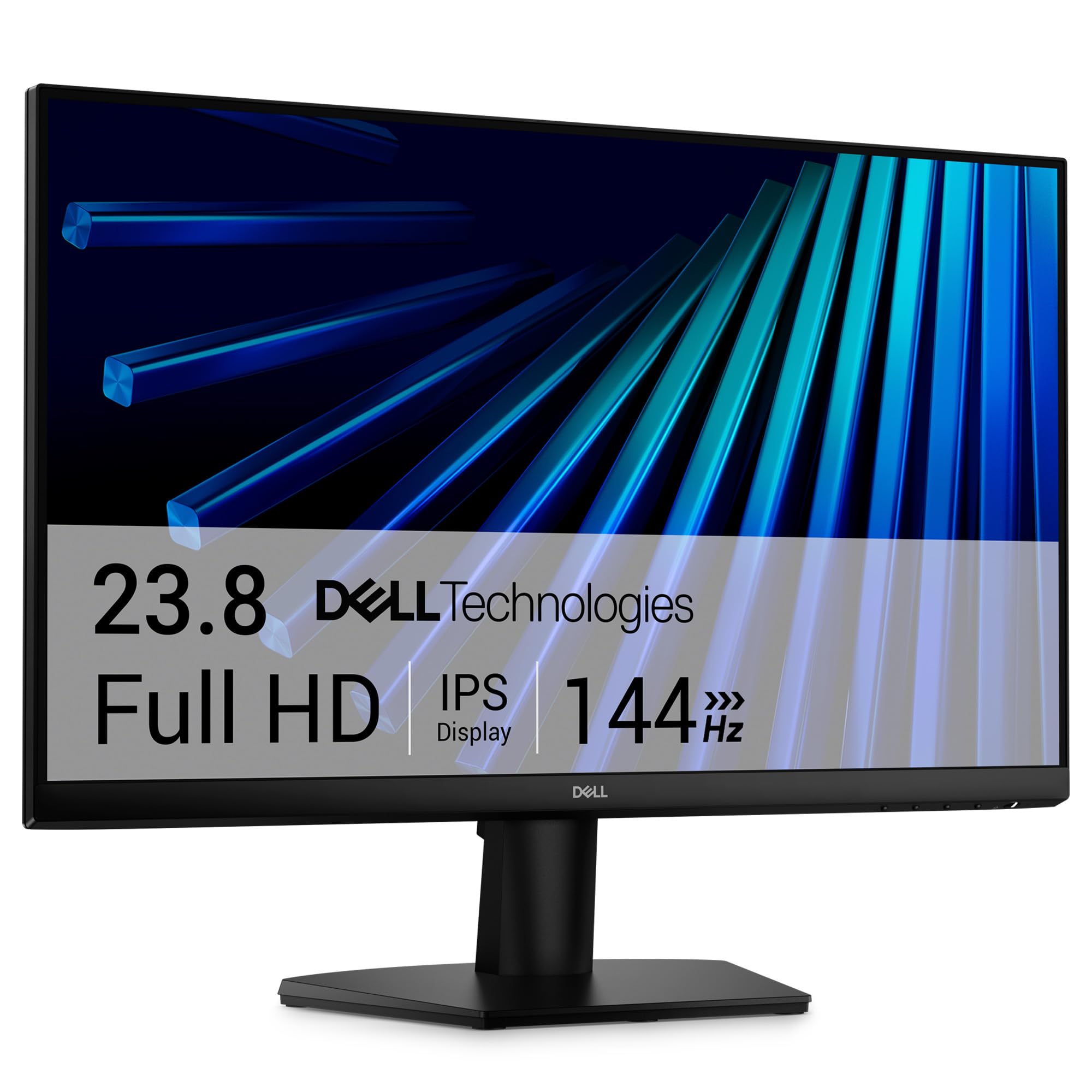
1. Dell 24 Monitor – SE2426H – 23.8-inch FHD (1920×1080) 144Hz 1ms Display, in-Plane Switching (IPS) Technology, AMD FreeSync™, TÜV 3-Star 2X HDMI, Tilt
Our pick — over 4.5★ from 300+ verified ratings; the strongest balance of quality and price.
The 144Hz panel that makes your old 60Hz main screen look sluggish by comparison.
If your second screen is going to sit beside a laptop all day, this Dell earns its place the way most people actually use it: plug in one HDMI cable, and the picture lands crisp with no tinkering. The 23.8-inch panel runs 1920 x 1080 pixels (Full HD, the standard sharp-enough desktop resolution), so text stays readable at normal desk distance. The part that surprises buyers is the 144Hz refresh rate — the screen redraws 144 times a second, which makes scrolling and window dragging visibly smoother than the 60Hz screen you are probably coming from.
What wins people over is the underlying quality of the thing. It holds the highest rating of the group, 4.7 stars across 300+ ratings, and owners consistently call the picture crisp with no distortion. The 1ms MPRT figure (motion picture response time, a measure of how fast the panel clears a moving image) keeps fast motion clean. In-Plane Switching keeps the colours true when you glance across from an angle. TÜV Rheinland 3-star eye comfort certification (an independent blue-light and flicker rating) plus a matte anti-glare screen make long shifts easier on your eyes.
Look at the numbers next to the alternatives and the value is obvious. Its contrast ratio is 1,000:1, while the LG 24U411A-B costs more and reaches 1,500:1, so the LG shows deeper blacks in dark scenes. On pixel density the Dell is nearly a dead heat with the LG, at 23.8-inch versus 24-inch. Against the Amazon Basics below it, the Dell leads on refresh rate, 144Hz against 120Hz. It also ships with an HDMI cable, a stand, and a power cable in the box, so nothing extra to buy on day one.
What earns the top spot
- 144Hz smoothness on a 23.8-inch Full HD IPS panel — plenty for work and casual gaming.
- Matte anti-glare finish and TÜV Rheinland 3-star eye comfort certification for long sessions.
- Two HDMI ports and a cable in the box, so a laptop hookup is a one-minute job.
- AMD FreeSync support keeps frame pacing tidy if you game on it too.
Trade-offs worth knowing
- Contrast tops out at 1,000:1, so dark scenes are less deep than on the LG 24U411A-B’s 1,500:1 panel.
- Tilt is the only stand adjustment — no height or pivot without a VESA arm.
- Pair it with a Windows machine for the smoothest 144Hz handshake.
Reach for this if: you want the safest all-round second screen for a home office desk — crisp IPS colour, smooth 144Hz, and a hookup that takes one cable.
Look elsewhere if: you need height adjustment from the start or crave the deeper blacks a higher contrast panel delivers.
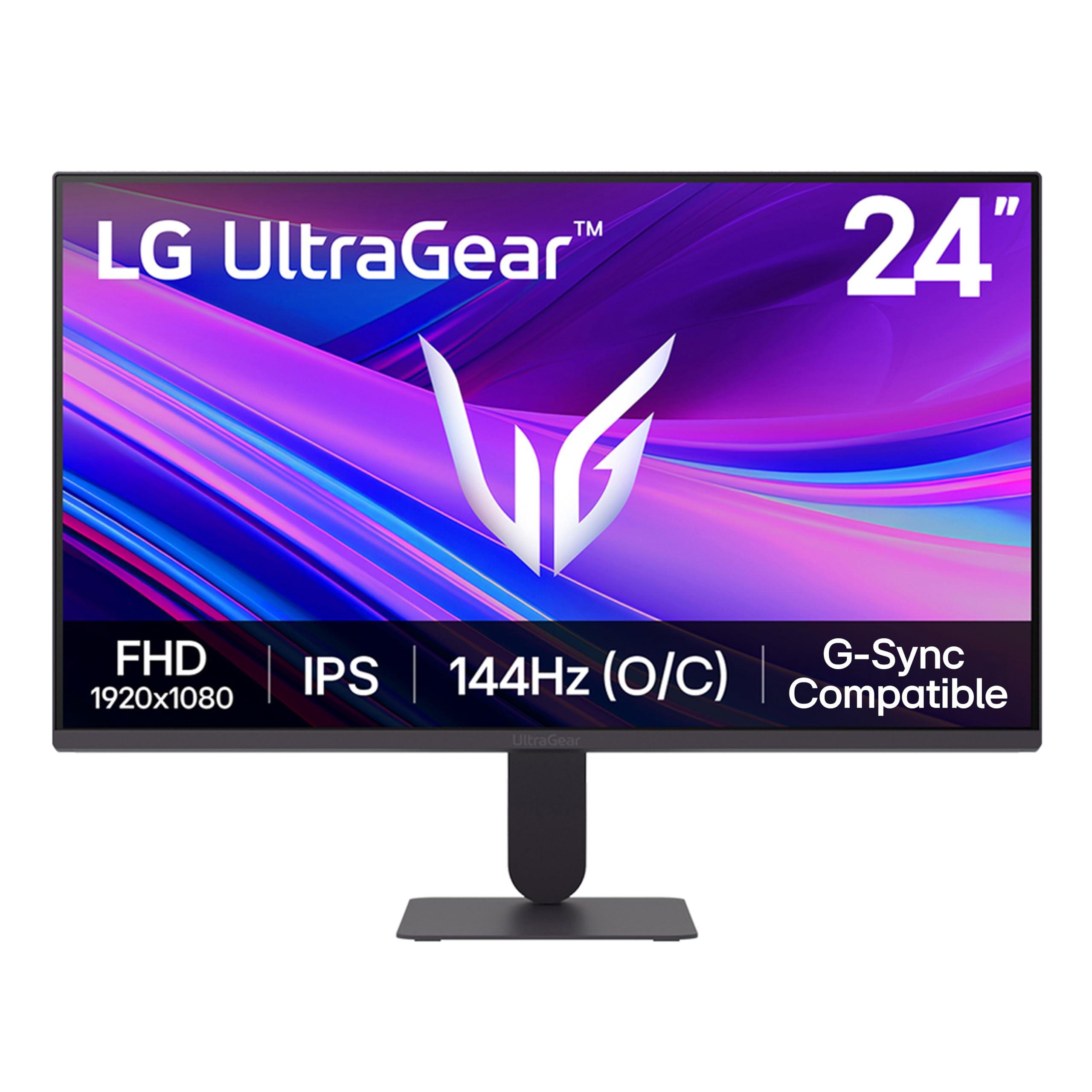
2. LG 24G411A-B 24-inch Ultragear Full HD (1920 x 1080) IPS Gaming Monitor, 144Hz (O/C), 1ms MBR, NVIDIA G-Sync Compatible, AMD FreeSync, HDR10, HDMI, DisplayPort, Slim Stand, Black
A gaming-grade second screen that doubles as a genuinely tidy desk monitor.
Buy this if your second screen occasionally becomes the main event. The LG UltraGear runs a 24-inch Full HD IPS panel rated at 120Hz natively and 144Hz when overclocked — overclocking here just means the panel is tuned to push past its stock rate. On a desktop, the result is smoother motion than the plain 120Hz crowd, and it works with both NVIDIA G-Sync Compatible and AMD FreeSync, so whichever graphics card you own, the screen can sync to it and cut tearing.
The feature list is unusually deep for the money. Dynamic Action Sync trims input lag (the delay between your action and the screen showing it) so the picture responds the instant you move. Black Stabilizer brightens shadowed areas, which helps both in dark games and in dim office corners. A Crosshair overlay adds a centre-dot aiming guide. The 99% sRGB colour gamut keeps reds and greens looking natural rather than washed out, and HDR10 support gives highlights a touch more punch — though at 250 nits brightness, this is a comfortable indoor panel, not a sunlit-room one.
Owners mostly echo that reading, with picture quality as good as the price suggests and a clean run with a PS5. The recurring caveat is the bundled stand, which a few describe as jittery — the sort of wobble you notice the moment you type hard. The fix is cheap and common: the standard VESA mount points let you bolt it to an arm. If you set it up on a monitor arm, that complaint disappears entirely.
Where it stands out: dual adaptive-sync support is the differentiator — G-Sync Compatible and FreeSync together mean almost any modern GPU can drive it tear-free. Shop around and you will see rival gaming screens asking for G-Sync support as a premium line item.
The honest catch: 1080p on a 24-inch panel is sharp at desk distance but will not match the fine text of the 27-inch 1440p screens further down this list. If you read dense spreadsheets all day, a higher resolution panel earns its keep.
Best for: desk setups where the second monitor gets used for casual gaming alongside normal work, and where you want tear-free motion without paying gaming-flagship money.
Skip if: the wobble of a lightweight stand will drive you mad and you have no intention of mounting it to an arm.
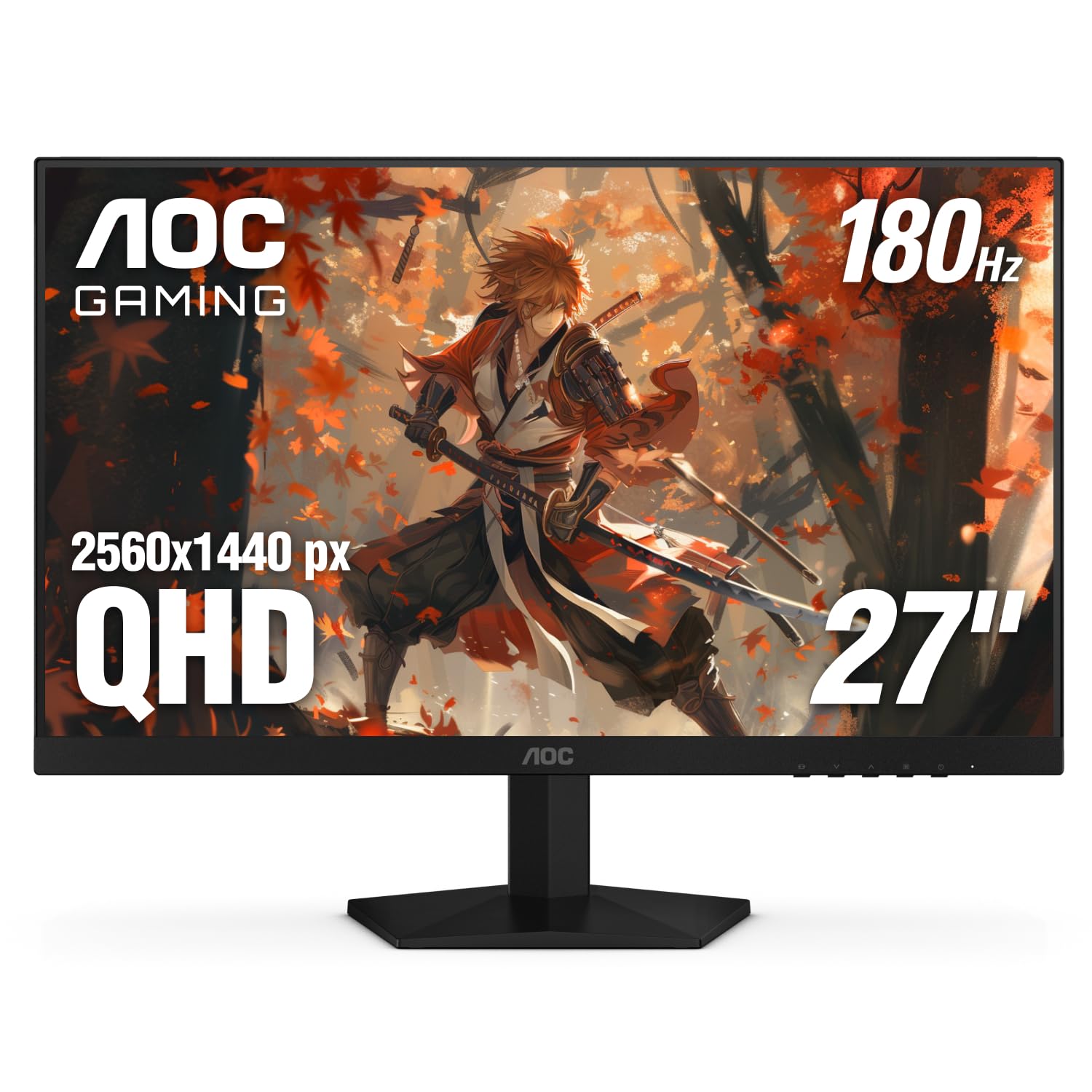
3. AOC 27 Inch Gaming Monitor 2K QHD 180Hz VA 1ms HDR, Q27G4XN
Quad HD sharpness and a 180Hz refresh crammed into a mid-range asking price.
If you want your second screen to look noticeably crisper than the first, this is the pick. The AOC pushes 2560 x 1440 pixels — Quad HD, roughly 78% more pixels than a Full HD panel of the same size — across a 27-inch VA panel. VA is the panel type that trades some off-angle colour for deeper blacks. Here that pays off: the 127.8% sRGB colour gamut coverage means reds, blues, and greens are rich and saturated, and the VA contrast gives dark scenes a depth closer to OLED than the IPS crowd can manage.
Speed is the other half of the story. The 180Hz refresh rate (via DisplayPort 1.4) halves the motion blur you would see on a 60Hz office panel, and the 1ms GtG response time — grey-to-grey, the standard way of measuring how fast a pixel changes colour — keeps fast transitions clean without ghosting. Adaptive-Sync handles the tear-free part. Brightness lands at 400 nits, which is comfortable even in a well-lit room, higher than several rivals on this list.
Owners who use it for simulators and shooters consistently praise how it handles shadows and textures, and the picture quality holds up as a serious step up over an old 1080p 60Hz screen. Two honest notes: there are no built-in speakers, only a 1.8mm audio jack for headphones or external speakers, and the on-screen menu buttons are fiddly to navigate. Neither is a dealbreaker if you already have sound sorted.
Why buyers keep it: the 2K resolution is the headline — text is visibly finer than Full HD at this size, which matters for reading email and documents on a screen you sit beside rather than directly facing.
Who should look past it: VA panels can show a faint smear on the darkest game scenes, and off-angle viewing is not as forgiving as IPS. Sit roughly centred and you will not notice either.
Great fit for: anyone moving up from a 1080p screen who wants real Quad HD sharpness and smooth 180Hz without jumping to premium money.
Not ideal if: you need built-in speakers or you sit far off to the side of the screen all day.
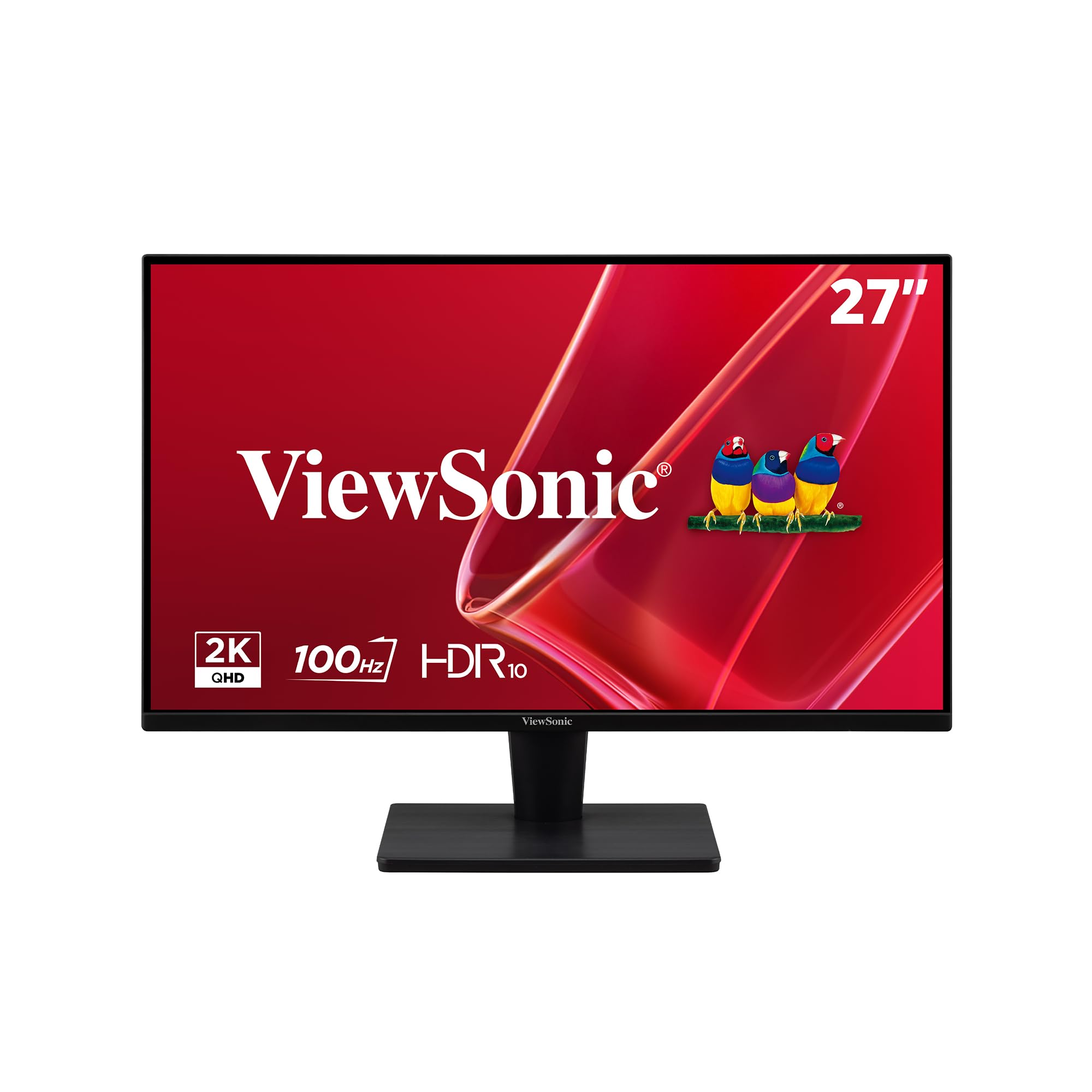
4. ViewSonic VS2725-2K 27 Inch 1440p Computer Monitor, QHD 100Hz Display
A 27-inch 2K panel that daisy-chains — one cable in, two screens lit.
The single best reason to pick this ViewSonic is the DisplayPort-out port. DisplayPort-out lets you run a cable from this monitor’s output straight into a second display, so a laptop can drive two screens through one connection instead of hunting for a spare port. For a desk that is being built out screen by screen, that is a genuinely useful trick you will not find on most of the mid-range options here.
The panel itself suits a home office well. 2560 x 1440 pixels on a 27-inch screen gives fine, crisp text, and the frameless edge-to-edge design means putting two of these side by side barely shows a seam — useful when the whole point is a wide workspace. The 100Hz refresh rate is smoother than a standard 60Hz screen without chasing gaming numbers. Flicker-Free and Blue Light Filter handling ease eye strain over long workdays, and ViewMode presets let you jump between Game, Movie, Web, Text, and Mono settings to match what you are doing.
Its 4000:1 contrast ratio is the deepest of the 27-inch group here, nearly four times the Dell’s 1,000:1, so dark backgrounds look solid. Sharp 2K text and generous screen real estate are the two things owners keep coming back to, alongside a low-maintenance setup. It also carries a 3-year limited warranty with US-based support, which is longer coverage than most rivals in this bracket.
Standing out from the pack: that 4000:1 contrast is the spec win — the difference between greys and true blacks is visible even on an ordinary desktop wallpaper.
The honest limitation: the bundled stand wobbles and does not rotate, so portrait-mode users will want a VESA arm. The on-screen joystick is also fiddly at first.
Pick this when: you are building a multi-screen desk and want to stack displays over a single cable with deep, high-contrast 2K colour.
Think again if: you need portrait rotation from the stock stand or you prefer to keep buttons simple.
5. ASUS ProArt PA279CRV 27 Inch 4K UHD USB-C HDR Professional Monitor for Mac

A 4K screen that plugs into a laptop with one USB-C cable and charges it at the same time.
This is the one to consider if colour accuracy actually affects your income. The ProArt runs 3840 x 2160 pixels — 4K UHD, four times the detail of a 1080p panel — over a 27-inch IPS screen. The colour coverage is the real story: 99% DCI-P3 and 99% Adobe RGB coverage across a wide gamut. In plain terms, both the cinema-standard colour space and the print-standard one are covered, so the reds you see on screen are the reds a photographer or designer expects to see in the output.
It also arrives pre-calibrated. ASUS factory-calibrates each unit to Delta E less than 2 — Delta E is the standard measure of the difference between the colour shown and the colour intended, with lower being more accurate — and the panel is Calman Verified. That means the calibration paperwork is filled in before you unbox it, not after you spend a fortune on your own calibration gear. A single USB-C cable carries both the video signal and up to 96 watts of power delivery, so a modern laptop gets screen and charge from one line.
Owners describe the image as sharp and consistent with excellent colour for design and editing work, and praise how easy it is to get a comfortable viewing angle. It has a tilt, swivel, pivot, and height-adjustable stand plus its own USB hub and DisplayPort daisy-chain output, so a second ProArt can hang off this one. One honest wrinkle: some buyers found the factory power-saving settings got in the way of waking the screen, and had to switch Power Saving to Normal and turn off deep sleep. Worth knowing before you assume something is broken.
Worth-the-money moment: the factory Delta E under 2 calibration and Calman Verified status are what push a monitor into pro territory — you are not settling for whatever the panel happens to produce.
Trade-off to accept: the built-in speakers are weak, and the stock power settings need a couple of minutes of adjustment from the start. Everything else about it is professional grade.
Right for: photo and video editors, graphic designers, and MacBook users who want one USB-C cable to handle picture and charging on a colour-accurate 4K panel.
Wrong for: gamers chasing high refresh rates — this pick is tuned for accuracy and resolution, not frames per second.
6. Samsung 37” Odyssey G7 (G75F) Series 4K UHD Curved Gaming Monitor
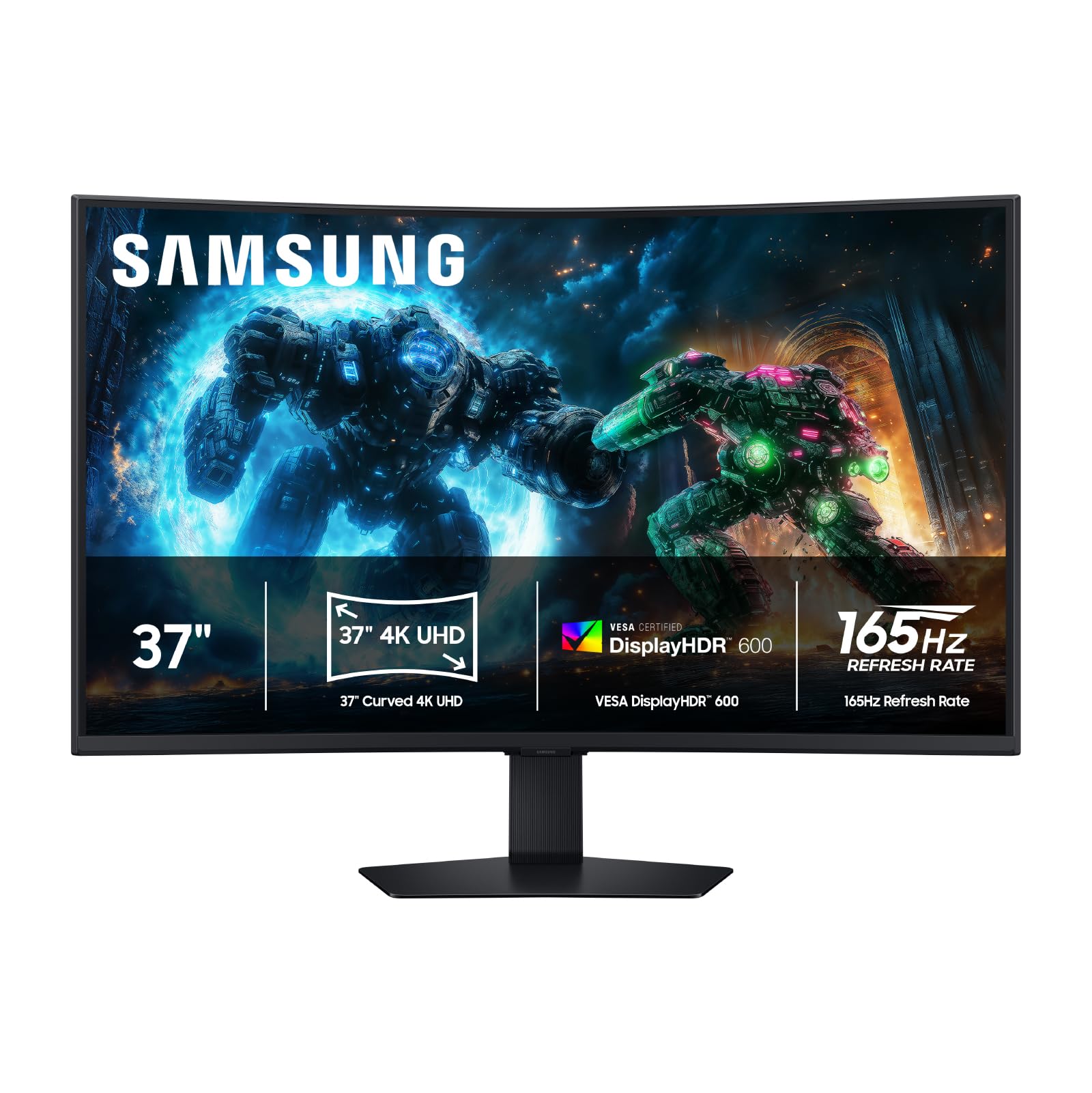
A 37-inch curved 4K panel that turns a second screen into a small cinema.
Nobody buys this one for spreadsheets alone. The Samsung Odyssey G7 is a 37-inch 4K UHD curved panel with a 1000R curve — the number describes the radius of the arc, and a tighter curve means the screen wraps toward your eyes rather than sitting flat. At 37 inches, that curve exists to keep your eye to screen distance even across a display this wide. Combine it with 3840 x 2160 resolution and a 165Hz refresh rate plus 1ms GtG response, and you get big, sharp, and fast all at once.
VESA DisplayHDR 600 is the brightness and contrast specification that pushes the highlights brighter and the blacks deeper than a standard HDR panel. Owners who game on consoles rate it strongly for 4K at 120Hz, and the sheer size — the screen carries over four square feet of display area — is what everyone mentions first. For a 53-year-old PS5 player in the reviews, the large screen even made in-game subtitles easier to read. Build quality, deep colours, and a genuinely rich curve round out the picture.
The honest catch is the one the owner feedback keeps raising: at this size and price, some buyers feel a high-end OLED lands close enough in cost that it becomes worth a look instead. That is a fit question, not a flaw — if you want a huge curved non-OLED with clean 165Hz motion, this delivers. If you are chasing absolute blackest blacks, a first-gen OLED might call to you.
What sells it: 4K detail on a 37-inch 1000R curved screen is a combination you simply cannot get from the smaller picks here — it makes any 24-inch panel feel like a postage stamp.
The trade-off: it is a big, heavy, premium purchase, and it wants desk depth and a sturdy mount. Confirm your desk can take it before you commit.
Buy this if: you want your second screen to double as an rich gaming and media display, and you have the desk space to give it room.
Rethink the fit if: you work at a shallow desk or need to sit close to the panel all day — a 37-inch curve is a lot of screen at close range.
7. Samsung 27” Odyssey G5 (G50F) Series QHD Gaming Monitor
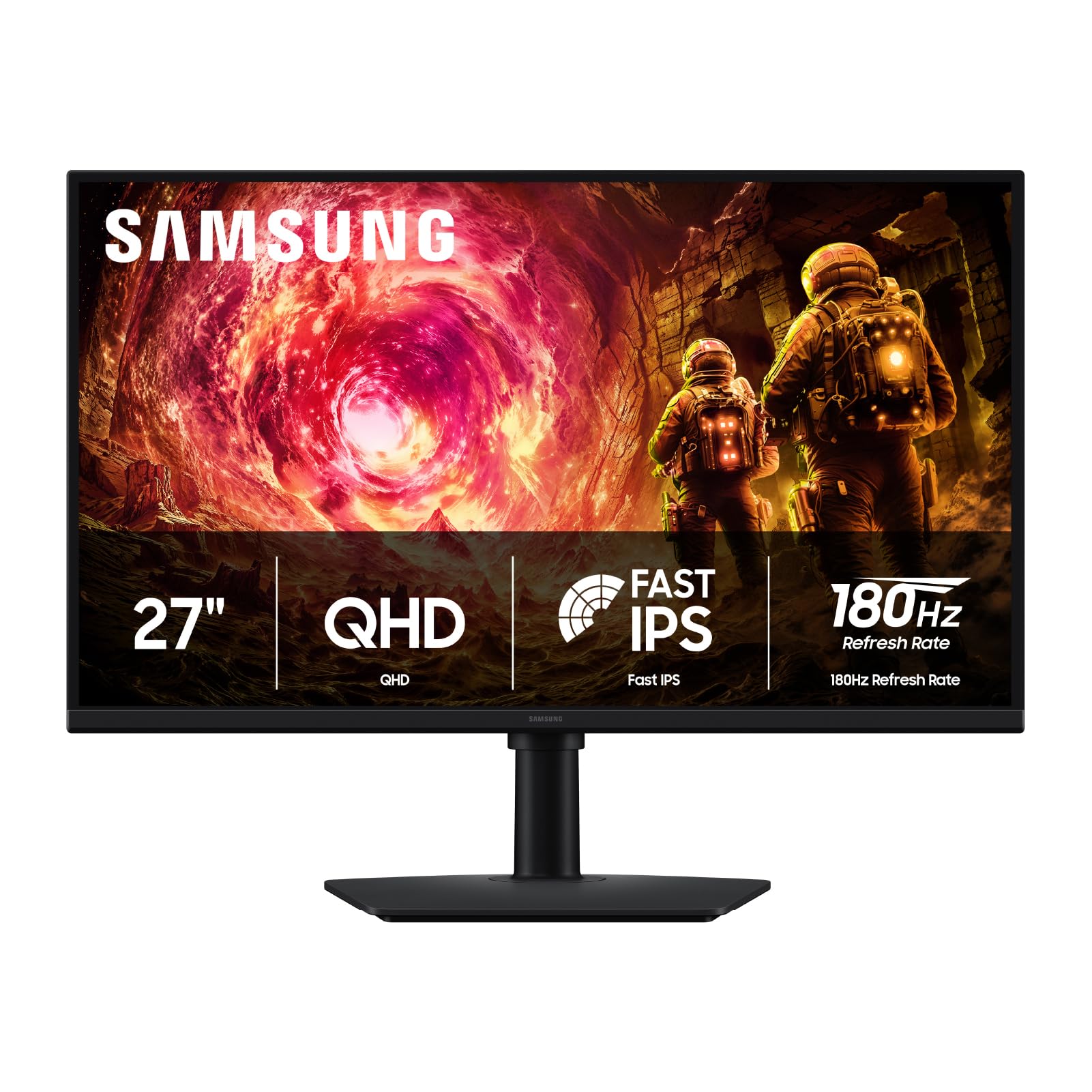
QHD sharpness plus an ergonomic stand that pivots, tilts, swivels, and moves up and down.
This is the pick for anyone who values their neck. The Odyssey G5 is a 27-inch QHD panel at 2560 x 1440, which is fine enough that text stays crisp and the curve of your desk setup stays comfortable. But the standout is the stand — it is height-adjustable and pivots, tilts, and swivels, so you can raise the screen to eye level and angle it without buying a monitor arm. That is a rare inclusion at this price and the single most useful feature for someone who reads documents all day.
The panel itself runs 180Hz with a 1ms GtG response, and G-Sync compatibility keeps the GPU and panel in step to reduce the choppiness and tearing that shows up on unmanaged displays. HDR10 adds brighter highlights and softer shadows for depth. Two clever extras round it out: Black Equalizer lifts detail out of dark areas, and Virtual Aim Point adds an on-screen aiming reference. Auto Source Switch+ hops between connected devices without you digging through menus, and the 178-degree viewing angle keeps colour consistent even if you sit far to one side of the QHD panel.
Owners value the display quality strongly — sharp, richly coloured, and quick to set up, with the price-to-performance ratio landing better than most of its rivals. Not everything is perfect, though. There are only two inputs (one DisplayPort, one HDMI), which can feel tight on a multi-device desk, and the rear joystick for navigating menus is awkward to reach. Also note: the bundled stand will not run the panel in portrait orientation, so software developers who want a vertical code column will need a VESA arm instead.
The head-turner: that fully adjustable stand is the differentiator — most screens on this list give you tilt at best, and buyers routinely end up buying an arm to make up the difference.
Keep in mind: two inputs only, and no portrait mode without a separate mount. Plan your cable run before you buy.
Suits: a work-from-home desk where you want crisp QHD text and proper height adjustment without adding a monitor arm to the purchase.
Look past it if: you need three or four inputs or a vertical secondary column for code.
8. ASUS ZenScreen MB169CK 15.6 Inch 1080p Portable Monitor
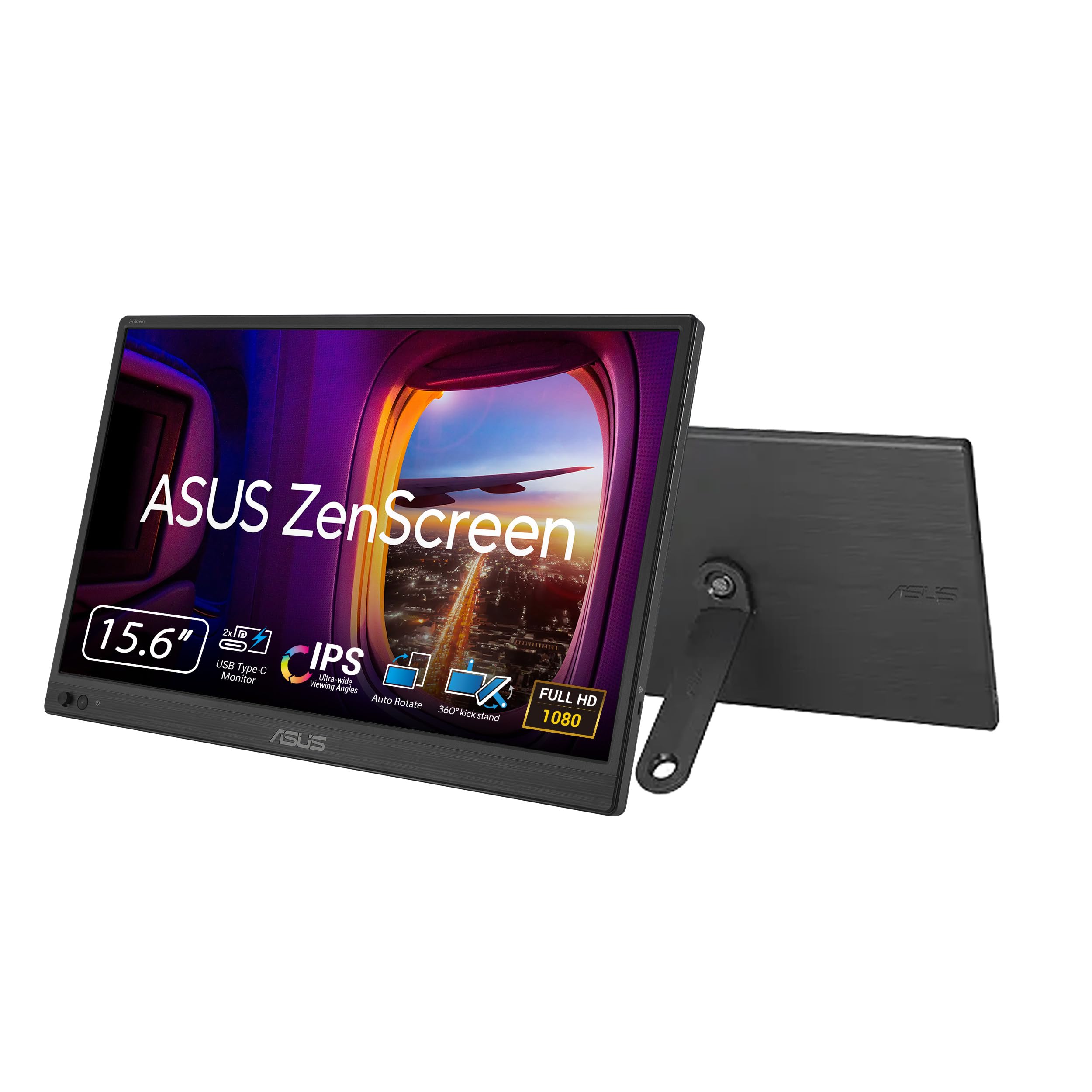
A 15.6-inch second screen that lives in your bag and wakes up in one cable.
This is what a second monitor looks like when your desk changes weekly. The ZenScreen is a 15.6-inch Full HD IPS panel that weighs 0.78kg and measures just 11.8mm thin, so it slides into a normal backpack alongside a laptop. Power and picture both travel down a single USB-C cable, which means you are not hunting for a spare socket in a cafe or a hotel room — one line in, and it is running. There is a Mini HDMI port too if the machine you are plugging into needs it.
The build is designed around movement. A 360-degree kickstand gives you a range of viewing angles on a hotel desk or kitchen table, and a tripod socket lets you screw it onto a standard camera tripod mount if the surface is uneven. Auto-Rotate software flips the screen between portrait and landscape automatically — handy for reading a long document with the screen standing tall. Flicker-free and low blue light handling look after your eyes during late-night work, and a 3-year warranty with Advanced Replacement covers defects while you are on the road.
Owners with older laptops report the setup taking five minutes or less, and the display clarity is often described as good enough to sit beside a MacBook screen without feeling like a downgrade. Two things to plan around: there are no built-in speakers, and the monitor can grab your audio output when you plug it in, so you will want to redirect sound in your settings. It also draws a fair amount of power at full brightness, so expect the host laptop’s battery to work a little harder.
Where it shines: the single-cable power-and-video design is what makes this genuinely portable — no wall adapter, no second plug, and the 0.78kg weight keeps your bag light.
Watch out for: the awkward bundled stand caused a few buyers to grumble, and the audio hijack catches most people once. Both are easy to live with once you know.
Made for: remote workers, consultants, and students who need a real second screen that travels with them between home, office, and hotel.
Not the one if: you only ever work from one fixed desk — a full-size screen gives you more real estate for the same money.
9. LG 24U411A-B 24-inch Full HD (1920 x 1080) IPS Computer Monitor, 120Hz, HDR10, Reader Mode, Flicker Safe, HDMI, Slim Stand Base, Black
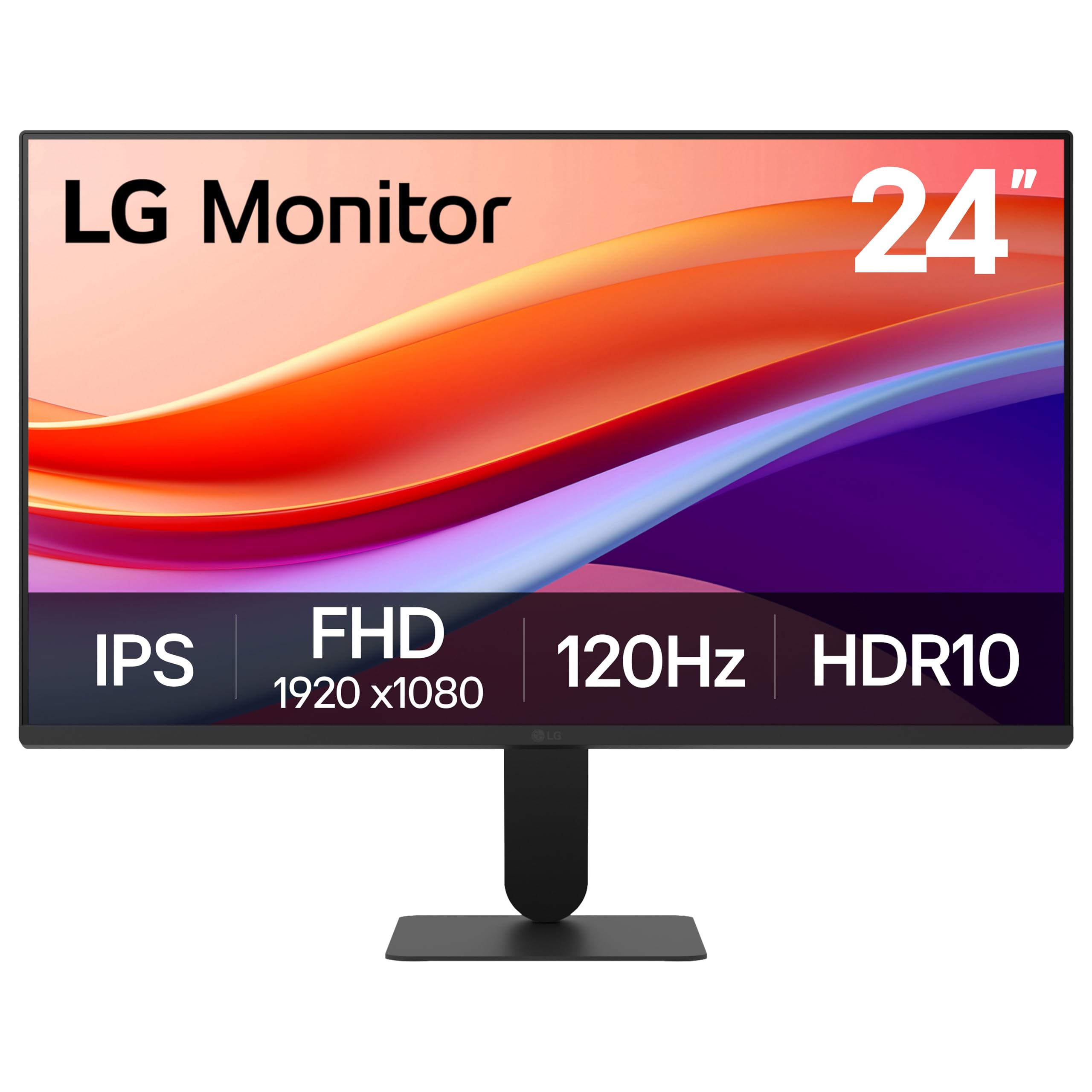
The budget screen that quietly beats the class above it on contrast.
On a dark desktop theme or a space scene, you can see the difference. The 24-inch Full HD IPS panel also covers up to 99% sRGB colour and handles HDR10, so colours stay rich and consistent rather than washed out, and the 120Hz refresh rate keeps scrolling fluid.
Where it earns its keep for a desk setup is the software and comfort features. The Switch app splits the screen into up to six sections — handy if you are using this as a secondary display for chat, mail, and a video feed at once. Reader Mode lowers blue light for document-heavy days, and the panel is Flicker Safe, which reduces the flicker that tires eyes over long sessions. The stand tilts from -5 to 20 degrees so you can angle it toward wherever you are sitting.
Buyers consistently call it a great everyday non-gaming monitor and single out the crisp picture and easy install, with the size landing as ideal for a home office desk. The honest caveats: it has just one HDMI and one VGA port, there are no built-in speakers, and the bundled stand is on the flimsy side — some buyers even found screws missing in the box. Those are minor on a screen this capable, but a cheap VESA arm cleans up the stand issue for good.
Value read: the 1500:1 contrast is what makes this punch above its bracket — a spec that usually costs more than this screen does.
Fine print: single HDMI plus VGA only, no speakers, and a stock stand that will not win any stability awards.
Smart buy for: a first second-screen setup or a desk build on a tighter budget where you still want proper contrast and smooth 120Hz.
Pass on it if: you need speakers in the monitor or more than one modern input port.
10. ViewSonic VA2448-MH 24 Inch 1080p Computer Monitor, IPS 120Hz Display
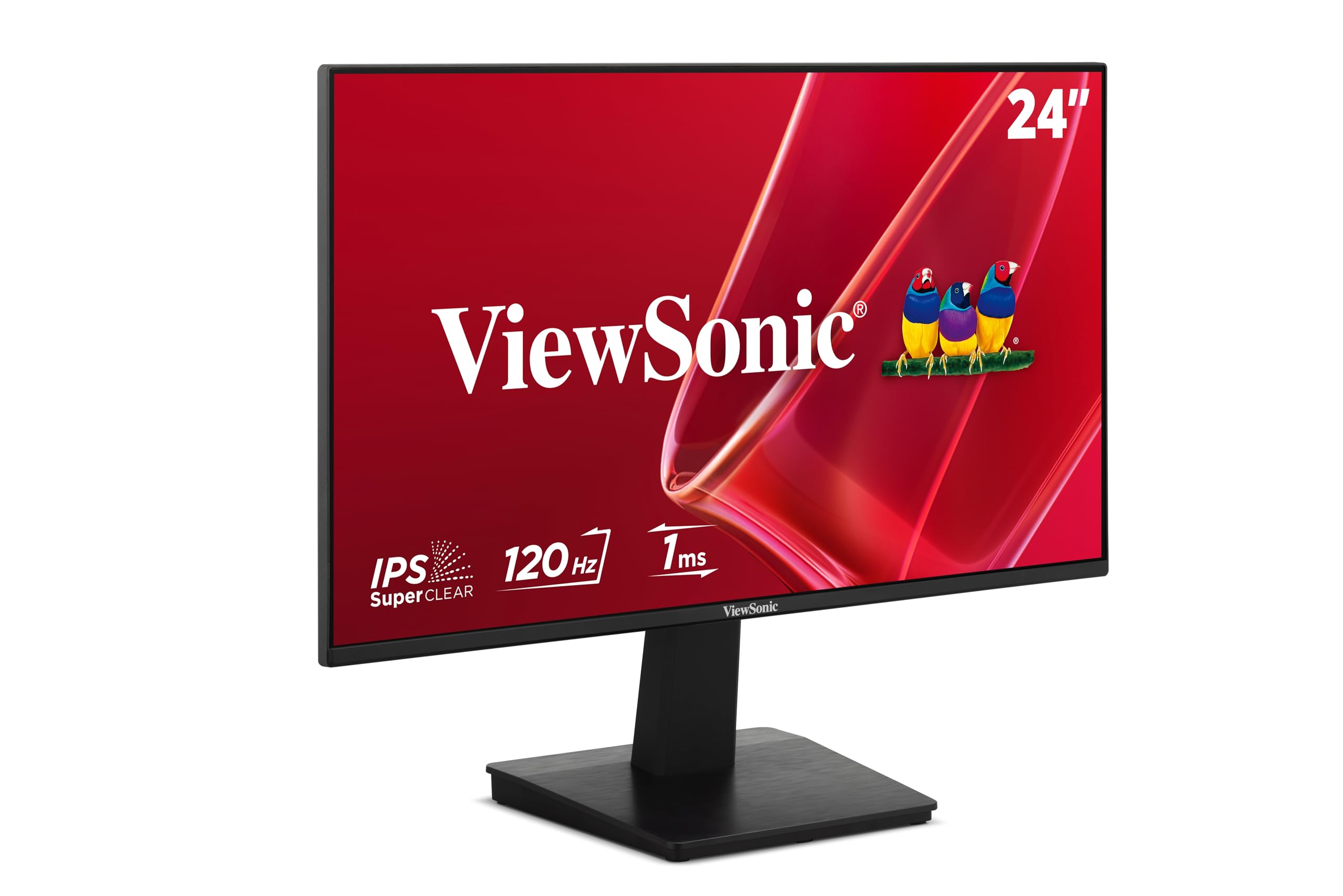
A plug-in-and-forget 24-inch panel that works the moment it is powered on.
Some buyers just want the monitor to behave. This ViewSonic does that job cleanly: 24-inch Full HD IPS panel, 120Hz refresh rate, HDMI and VGA inputs so both a modern laptop and an older desktop can connect. The 1500:1 contrast ratio gives it more depth than a plain office panel, and the 300 nits brightness holds up fine in a normally lit room. It also ships with built-in speakers, which the LG and Amazon Basics rivals at this tier do not.
The comfort features are present and correct. Flicker-Free technology and a Blue Light Filter reduce eye strain over a long workday or a study session. ViewMode presets let you hop between Game, Movie, Web, Text, and Mono settings to match the task, adjusting gamma, contrast, and brightness each time. The narrow bezel helps when the screen sits in a multi-monitor arrangement and you do not want a thick frame interrupting the run of displays.
Owners describe the picture as crisp with no distortion and the setup as near-instant, and several note it works fine straight from the start with a docking station. The one recurring gripe is that no printed operations manual is included, which meant a few buyers had to hunt for the power and control buttons. That is a small annoyance on a screen that otherwise asks nothing of you.
Why it works for a low-effort setup: built-in speakers save you a second purchase, and the dual HDMI-plus-VGA inputs cover old and new hardware in one panel.
One snag: no paper manual in the box, so the on-panel button layout takes a moment to figure out on day one.
Good for: a home office or study desk where you want a reliable, no-fuss second screen with speakers already built in.
Step up instead if: you want portrait rotation or more than two types of input port.
11. Amazon Basics 23.8-inch 1080P Computer Monitor, 120 Hz, HDMI, DP, VGA, VESA Compatible for Office, Home
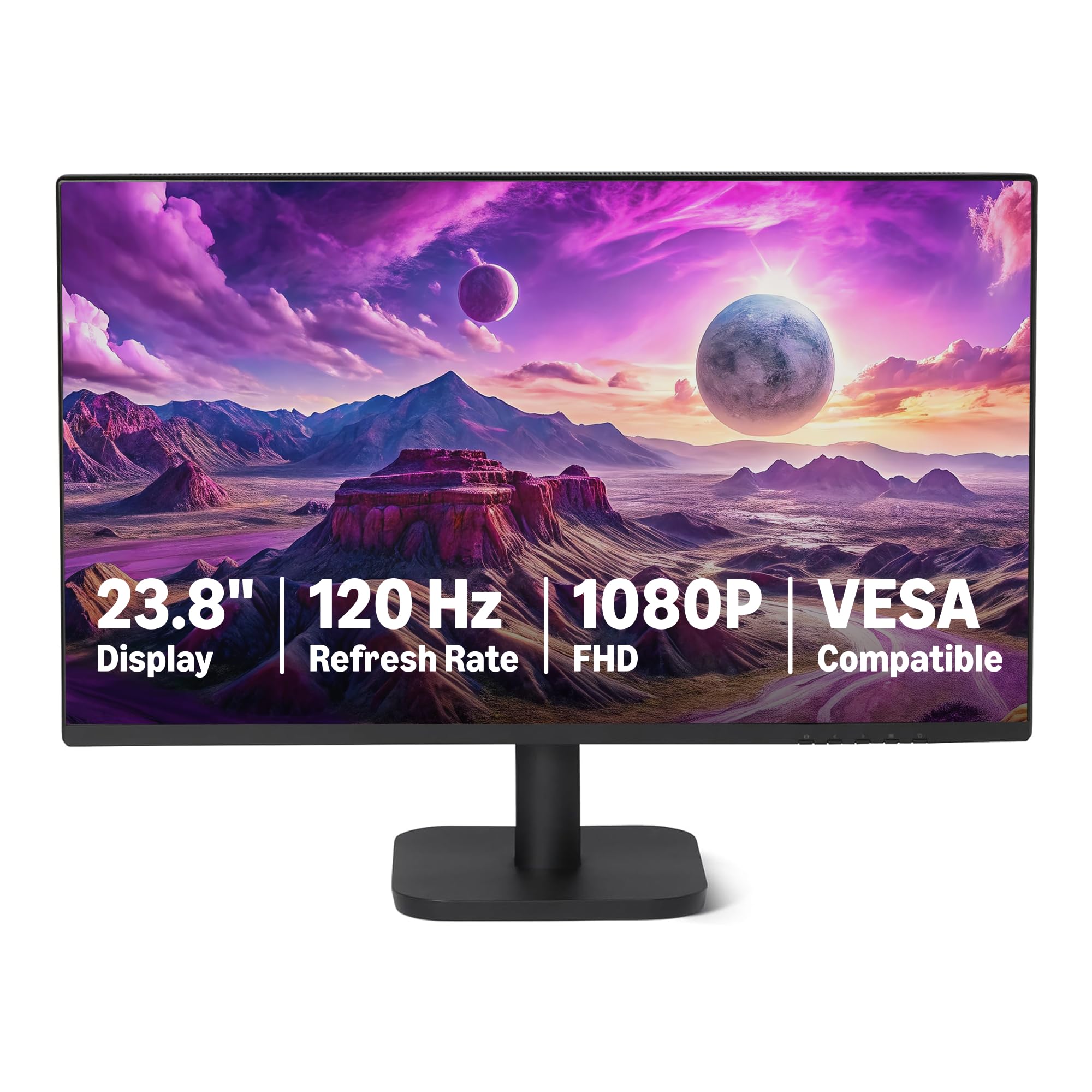
The entry-level screen that ticks every basic box and then quietly adds speakers.
For a first second screen, this Amazon Basics panel does the whole job. A 23.8-inch IPS display at 1920 x 1080 Full HD with 16.7 million colours and 99% sRGB coverage means colours stay rich and consistent. It handles a 120Hz refresh rate with Adaptive Sync, so motion is smoother and less blurred than a plain 60Hz office screen. The panel is VESA compatible, so you can mount it to an arm or a wall bracket instead of trusting the stock stand.
Connectivity is where it earns its keep at this tier. You get HDMI 1.4, DisplayPort 1.2, and a 3.5mm audio-out port — three ways to hook up a machine — plus built-in 2W x2 speakers. A 4-sided narrow bezel means two of these side by side leave only a slim seam, which is exactly what you want if the plan is an eventual multi-screen setup. Matte screen finish keeps reflections down, and LowBlue Light and Flicker-Free handling look after your eyes.
Buyers report that setup is genuinely plug-and-play, with everything you need in the box and default settings that look right without fiddling. First-time dual-monitor users do note that learning the Windows display configuration was the only real hurdle. And because every owner is different, a few describe it as plainly basic — which is fair, because it is: it is a capable everyday screen, not a feature showcase.
Worth knowing: it is a 23.8-inch 1080p panel, so text is not as fine as the 27-inch Quad HD options higher up the list. Upgrading means moving up the range.
Built for: a first-ever dual-monitor setup on a starter budget, where having HDMI, DisplayPort, and VGA all on hand is genuinely useful.
Choose bigger if: you already know you want the crisper text and wider workspace a 27-inch 1440p screen delivers.
Understanding the Specs
Panel technology
IPS (in-plane switching — a panel design where the liquid crystals rotate parallel to the glass, so colours stay stable from the side) is the safest type for a second monitor, because the screen sits beside your main one and you view it off-centre for hours. VA panels trade some off-angle accuracy for deeper blacks and stronger contrast, which is why the AOC Q27G4XN and Samsung Odyssey screens here use VA or IPS depending on their exact model.
Refresh rate and response time
Refresh rate, in hertz, is how many times per second the panel redraws the picture. A 120Hz screen redraws 120 times a second — smoother scrolling, smoother cursor, smoother game motion than a standard 60Hz panel. Response time, measured in milliseconds (ms), tracks how quickly one pixel changes colour, and the lower the number, the cleaner fast movement stays. A 1ms figure is excellent; 14ms is fine for office work and no use for fast games.
Resolution and pixel count
1920 x 1080 (Full HD) is the standard desktop resolution and looks sharp on a 24-inch screen. 2560 x 1440 (Quad HD) packs in noticeably more pixels, which means finer text on a 27-inch screen. 3840 x 2160 (4K UHD) sharpens it further and is the pick for photo and video work where fine detail matters.
Ports and how you feed the screen
HDMI is the universal connection and works with almost any laptop or desktop. DisplayPort handles high refresh rates and supports daisy-chaining on some models, letting you run several screens from one cable. USB-C is the tidy choice for modern laptops because a single cable can carry the video signal and charge the laptop at the same time — the ASUS ProArt delivers up to 96 watts this way. VGA remains on a few budget panels for older hardware.
FAQ
Will a 24-inch and a 27-inch monitor work together as a dual setup?
Does a second monitor need DisplayPort or is HDMI enough?
Can I mount these monitors on an arm or wall bracket?
Is a 144Hz second monitor overkill for office work?
Do I need built-in speakers in a second monitor?
What is the difference between 1080p and 1440p on a 27-inch screen?
Is a curved monitor worth it as a second screen?
How do I stop my second monitor from showing a washed-out picture?
Can a budget monitor handle photo editing on a second screen?
Is a portable monitor a good substitute for a full-size second screen?
Final Thoughts: The Verdict
For most people building out a desk, the pick to start with is the Dell SE2426H. It is the strongest all-round second screen here — a 144Hz IPS panel, TÜV Rheinland 3-star eye comfort, a matte anti-glare finish, and a one-cable hookup, and it holds the highest rating of the group at 4.7 stars across 300+ ratings. If your focus is gaming, the LG 24G411A-B UltraGear brings G-Sync and FreeSync together with 144Hz overclocking. For a crisper Quad HD workspace, the AOC Q27G4XN and Samsung Odyssey G5 both land sharp 1440p panels with high refresh rates. Creative professionals should go straight to the ASUS ProArt PA279CRV for its factory-calibrated 4K colour. And for a screen that travels, the ASUS ZenScreen MB169CK is the one to toss in the bag. Buy with the ports and panel type that fit your day, and your second screen will feel like a working tool, not an accessory.
How We Picked
We do not accept paid placement. Every pick is matched to a real buyer and a real use-case; we do not hands-on test units.
Sources & Methodology
Specifications: manufacturer listings and product documentation. Review insights: verified customer reviews, as of September 2026. Pricing: not shown on this page (it changes often); check the current price via the retailer link.
As an Amazon Associate, Gadgets Feed earns from qualifying purchases. This does not affect which products we feature.