
Our readers keep the lights on and my morning glass full of iced black tea. As an Amazon Associate, I earn from qualifying purchases.
Specs are compiled from manufacturer listings and verified buyer reviews and can change over time — please confirm the key details on the product page before buying.
You bought a second monitor and your laptop only has one spare video port. Or worse — your MacBook cheerfully ignores the second screen entirely. A 2 monitor adapter (a small box that splits one USB-C port into two video outputs) is the fix, but the wrong one gives you a mirrored picture, a flickering screen, or a dead port within weeks. The short answer: match the adapter to the port your laptop actually has and the resolution your monitors actually run, and you are done.
I’m Min — the founder and writer behind Gadgets Feed. This guide is built by comparing the manufacturers’ published specifications and the patterns across verified customer reviews, so you get each pick’s real strengths and trade-offs instead of marketing spin.
Most disappointment in this category comes from a port mismatch, not a bad product. Below you get the honest breakdown of which adapter suits Windows, which one finally beats Apple’s one-screen limit, and which ones to skip if you stream. Read on for the full 2 monitor adapter shortlist, ranked by fit rather than hype.
Our Picks at a Glance

How To Choose The Best 2 Monitor Adapter
Two things decide your purchase, and neither is the brand name. First, does your laptop’s USB-C port carry video at all? Second, does your laptop’s graphics chip allow two separate desktops or only a duplicate image? Answer both and the shortlist shrinks to a handful of models.
Check your port before anything else
A 2 monitor adapter needs a USB-C port that supports DP Alt Mode — a mode where the port sends a video signal, not just data and power. If your port is data-only or charging-only, the picture will never appear, no matter which adapter you buy. The Selore dual-HDMI dock names this outright: if the port you use has only data or charging function, video will not work. Thunderbolt 3, Thunderbolt 4 and full-featured USB-C ports all carry video; a plain charge port does not.
Windows extends, macOS usually mirrors
On Windows, most of these adapters give you two independent desktops — a feature called MST, which stands for Multi-Stream Transport. On macOS, many adapters can only mirror, meaning both screens show the same thing. That is an Apple system limit, not a broken adapter. The exception is DisplayLink (a driver-based technology that drives screens through software instead of the laptop’s own video output) — that is the only route to two separate displays on a base M-series Mac.
Match the resolution to the port version
Dual 4K at 60Hz — 60 refreshes per second, which is what makes scrolling feel smooth — needs DisplayPort 1.4 with DSC. The Anker Nano states this plainly: dual 4K@60Hz only happens when the host port supports DP 1.4 with DSC 3:1. If your laptop is older, expect dual 4K@30Hz or drop to 1080p and enjoy a smoother picture instead of a sharper, choppier one.
Decide if you need charging and Ethernet too
You want one cable to your desk that carries power, network and both monitors. That makes pass-through charging the number to check: the Anker dual-HDMI hub takes a 100W PD (Power Delivery, a fast-charging standard) input and passes up to 85W to your laptop. It needs a 100W charger and a USB-C to C cable, and neither is in the box. Budget for that charger, or your laptop will slowly drain while docked.
Quick Comparison
| Model | Best For | Video Outputs | Max Dual Resolution | Data Speed | Amazon |
|---|---|---|---|---|---|
| Anker Laptop Docking Station Dual Monitor (8-in-1)★ Best Overall | Most Windows laptops | 2x HDMI | 4K@30Hz dual | 5120 MB/s | Amazon |
| Selore USB C Docking Station Dual MonitorBest Value | Budget dual-HDMI desk setup | 2x HDMI | 4K@60Hz dual | 5 Gbps | Amazon |
| Anker Nano 8-in-1 Dual DisplayFastest Transfers | Fast file transfers | 2x HDMI | 4K@60Hz dual (DP 1.4) | 10 Gbps | Amazon |
| Selore USB-C to Dual DisplayPort Splitter | DisplayPort monitors only | 2x DisplayPort | 4K@60Hz dual | 5 Gbps | Amazon |
| Plugable USB-C / USB 3.0 to Dual HDMI | Older laptops with USB-A only | 2x HDMI | 1920×1080 @ 60Hz dual | — | Amazon |
| MOKiN MacBook Pro Docking Station | MacBook Pro / Air desks | 2x HDMI | 4K@30Hz dual | 5 Gbps | Amazon |
| ACASIS USB C DisplayLink Adapter | Base M1–M4 Macs | 2x HDMI | DisplayLink dual | 480 Mbps (USB-A) | Amazon |
| WAVLINK USB C and USB 3.0 Dual 4K Adapter | Mixed PC and Mac fleets | 2x DP + 2x HDMI | 5120×1440 @ 60Hz dual | — | Amazon |
| Plugable 14-in-1 USB C Docking Station | Full desktop replacement | 2x HDMI / DisplayPort | 4K@60Hz dual | — | Amazon |
In‑Depth Reviews
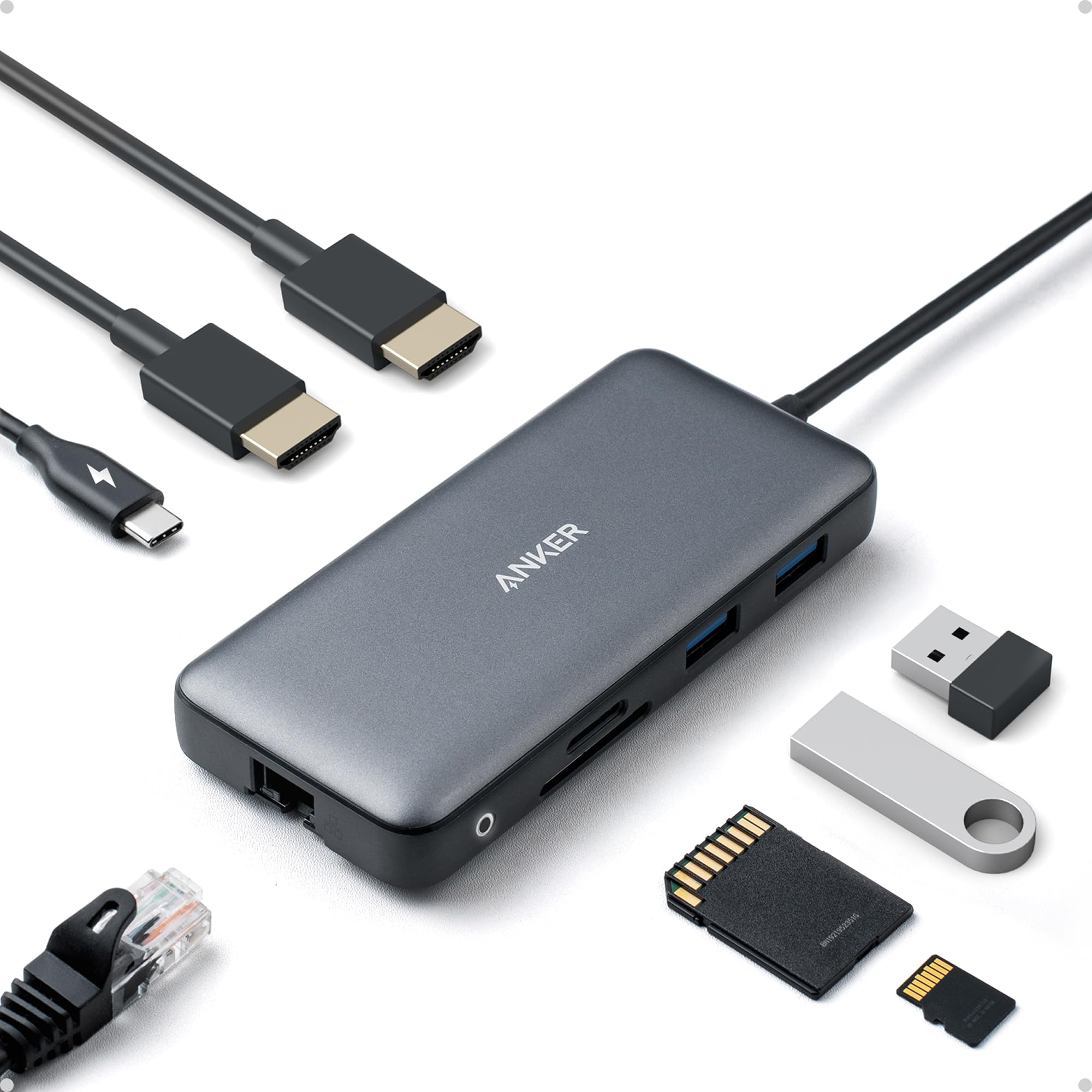
1. Anker Laptop Docking Station Dual Monitor, 8-in-1 USB C Hub with 4K HDMI
Our pick — 4.5+★ from 35,000+ verified ratings; the strongest balance of quality and price.
Eight ports, two screens and a network cable from one laptop slot — the safest first buy here.
This is the pick that suits the widest slice of Windows buyers. It is a pocket-sized gray box — 4.65 by 2.01 by 0.69 inches, 3.2 ounces — that turns one USB-C port into two HDMI outputs, two USB-A data ports, an Ethernet jack, a microSD/SD reader and a USB-C PD-IN charging port. That last one accepts a 100W charger and feeds up to 85W to your laptop, though the wall charger and the USB-C to C cable are not included.
Display rules are simple and clearly stated. One monitor runs at 4K@60Hz (a 60-per-second refresh, so motion looks smooth). Two monitors drop to 4K@30Hz. On macOS both external screens show the same picture — that is a Mac limit, not a fault. It works with USB-C, USB4 and Thunderbolt connections on Windows 10 and 11, plus ChromeOS, as long as the port supports DP Alt Mode and Power Delivery. Linux is not supported.
Buyers praise it for everyday office expansion and its small footprint, though pass-through charging divides opinion. Two nitpicks deserve honesty — pass-through charging divides opinion, and some setups lose monitor connections, usually where the port was not fully featured to begin with. Set against the Nano below, this one is 3.2 ounces versus 3.84 ounces, and it is the smaller of the two on the desk at 4.65 inches long against 7.87 inches.
Where this dock earns its place
- Two HDMI ports plus Ethernet and a card reader in one 3.2-ounce body
- One screen at a 4K@60Hz refresh for smooth scrolling
- Feeds up to 85W to your laptop from a 100W PD charger
- Works across Windows 10, Windows 11, ChromeOS, USB4 and Thunderbolt
What to plan around
- Two screens together cap at 4K@30Hz, a choppier picture
- macOS shows both monitors with identical content
- Charger and USB-C to C cable are sold separately
- Not compatible with Linux
Pick it when: you run a Windows or ChromeOS laptop with a full-function USB-C port and want screens, network and card access on one cable.
Walk past if: you own a Mac and expect two different desktops, or your monitors must both run at 60Hz.
2. Selore USB C Docking Station Dual Monitor, USB C to Dual HDMI Adapter
Dual 4K at a smooth 60Hz, in an aluminum shell that costs less than the Anker above.
Here is the head-to-head that matters for Windows multitaskers. This Selore runs both HDMI ports at 4K@60Hz when paired with a DP 1.4 laptop, while the Anker dual-HDMI dock above tops out at 4K@30Hz with both screens active. That is twice the refresh rate — the difference between a pointer that glides and one that smears. It also moves data at 5 Gbps across one USB-C 3.0 port and two USB-A 3.0 ports, with an SD/microSD reader rated to 104 MB/s.
Charging is taken seriously. A USB-C power delivery port beside the card slot takes 100W in and sends 85W to your laptop, and again the charger and cable are not in the box. The metal body and temperature control are the reasons it holds a stable picture over a long workday rather than drifting.
The catch is compatibility, and it is the most-discussed topic in the feedback. This hub needs a Thunderbolt or full-featured USB-C port; a data-only or charge-only port will not output video. Mac owners get mirroring only, never two separate desktops. Plug-and-play is a genuine plus — it earns consistent approval for portability and port selection — but confirm your port spec before ordering, because that single detail decides whether this is a bargain or a paperweight.
Refresh-rate verdict: If smooth dual-screen scrolling is the goal, this is the better buy than the Anker dual-HDMI hub — 4K@60Hz on both screens versus 4K@30Hz.
The honest caveat: macOS mirroring and the Thunderbolt/full-featured USB-C requirement mean this is a Windows-first purchase.
Suits you if: you have a DP 1.4 Windows laptop and want two sharp, smooth 4K screens without paying premium-tier money.
Not your dock if: you are on a Mac expecting independent desktops, or you cannot confirm your USB-C port carries video.
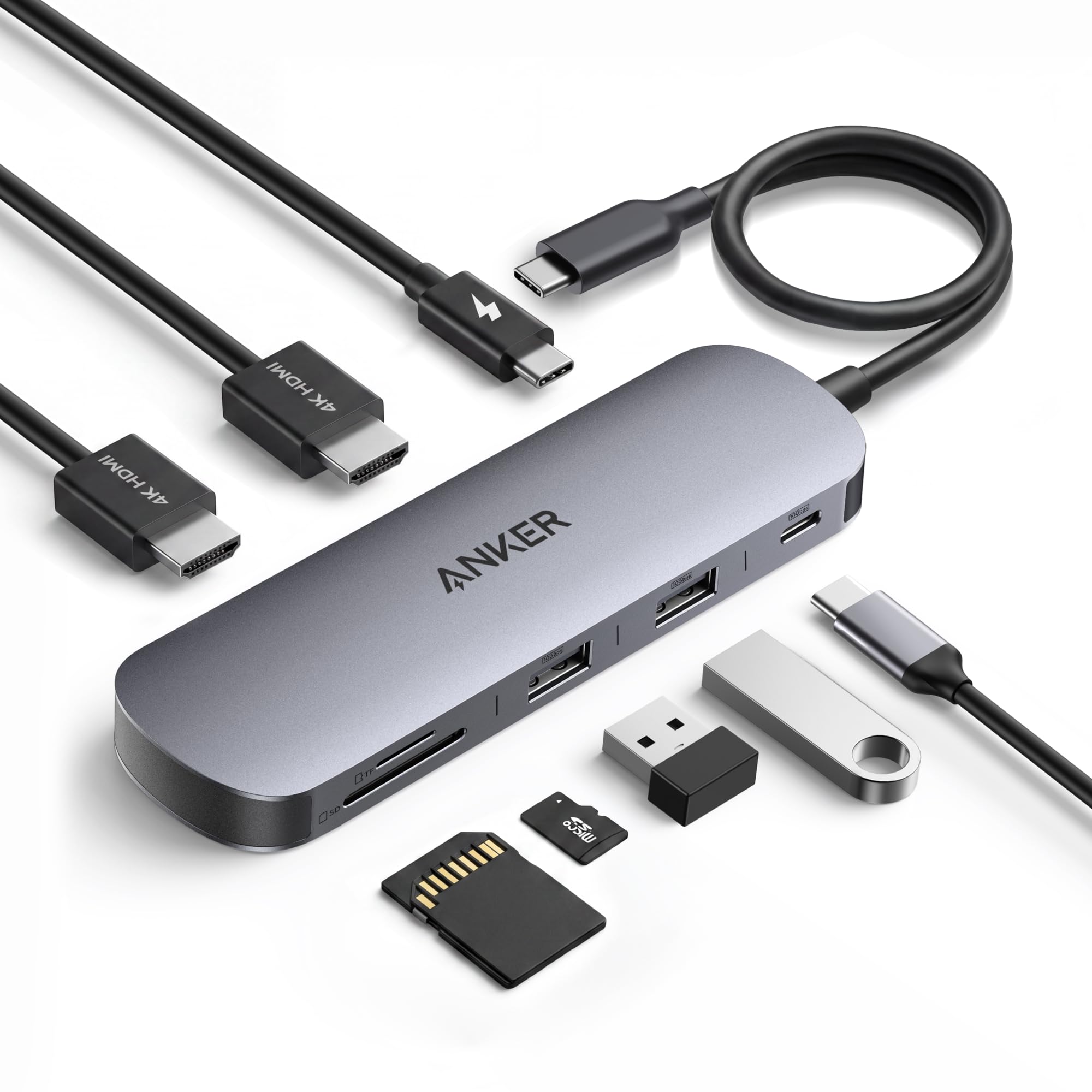
3. Anker Nano Laptop Docking Station Dual Monitor, 8-in-1 USB C Hub for Windows
Ten-gigabit ports on every slot — the dock for people who move big files, not just windows.
Video editors and photographers, start here. Every USB-A and USB-C data port on this Nano runs at 10 Gbps (gigabits per second, a measure of data speed), and the Selore above manages 5 Gbps on its ports — a 2.0x gap that shows up as minutes saved every time you offload a card full of footage. The SD and TF 3.0 slots add up to 104 MB/s (megabytes per second) for photo pulls. Just know that high speed needs a 10 Gbps-rated cable, which is not the one in your drawer.
Both HDMI ports support up to 4K@60Hz, and dual 4K@60Hz is possible when the host port handles DP 1.4 with DSC 3:1. Charging runs at up to 85W pass-through from a 100W PD input, with 15W reserved to run the hub itself — so a 100W charger and cable are required and not included. It supports full-function USB-C, USB4 and Thunderbolt, on Windows 10 and 11 and ChromeOS. Macs get mirrored screens only, and Linux is out.
Reviewers lead with functionality and value for money, followed by port count and easy setup. The nits are compatibility and power delivery, both of which come down to whether your port and charger are up to spec. It is the bulkier of the two Anker boxes at 7.87 by 4.13 by 0.79 inches and 3.84 ounces, so it takes a little more desk room.
Speed worth paying for: 10 Gbps across all data ports versus the standard 5 Gbps on most rivals — for anyone shuttling raw video or large backups, that is the whole point of this dock.
Ideal owner: a Windows creative who moves large files daily and wants one cable for two 4K screens, cards and fast drives.
Think twice if: you are on macOS (mirroring only), or you do not own a 10 Gbps cable and a 100W charger yet.
4. USB-C to Dual 4K DisplayPort Splitter Adapter Selore USB C Hub DisplayPort

Two DisplayPort jacks that push 120Hz on a single screen — if your monitors speak DP.
This one is for a narrow, specific buyer: someone whose monitors have DisplayPort inputs. It has DP ports only, not HDMI, and it will not work on HDMI-only monitors. If your screens are DP and your laptop supports DP Alt Mode, you get up to 4K@120Hz on one display or dual 4K@60Hz via MST, and 1440p or 1080p both run at 60Hz. Certified DisplayPort 1.4 or higher cables are required, and your laptop, monitor and cable must all support 4K for 4K to appear.
Setup is plug-and-play with no drivers, and the order matters: connect the monitors to the DP ports first, then the adapter to your laptop. You also set the adapter as the default audio output in system settings. Windows gets Extended Mode with two independent desktops; macOS mirrors only. KVM switches are not supported, and HP owners may need a driver and BIOS update first.
Buyers single out plug-and-play ease and value, and the aluminum-and-plastic shell keeps it light. The honest note is reliability over time — the durability question is the recurring one in the feedback, so treat it as a desk fixture rather than something you unplug and re-plug daily, and keep the receipt handy for the 1-year warranty.
Buy only if the ports match: DP monitors plus a DP Alt Mode laptop equals a clean, smooth picture; HDMI monitors equal a return label.
Worth knowing: DisplayPort cables are not included, so factor two certified DP 1.4 cables into the plan.
Made for: the DP-monitor owner chasing a high refresh rate on one screen or dual 4K@60Hz on two.
Skip the order if: your monitors are HDMI-only, you use a KVM switch, or you need independent screens on a Mac.
5. Plugable USB-C, USB 3.0 to Dual HDMI Adapter for Dual Monitors
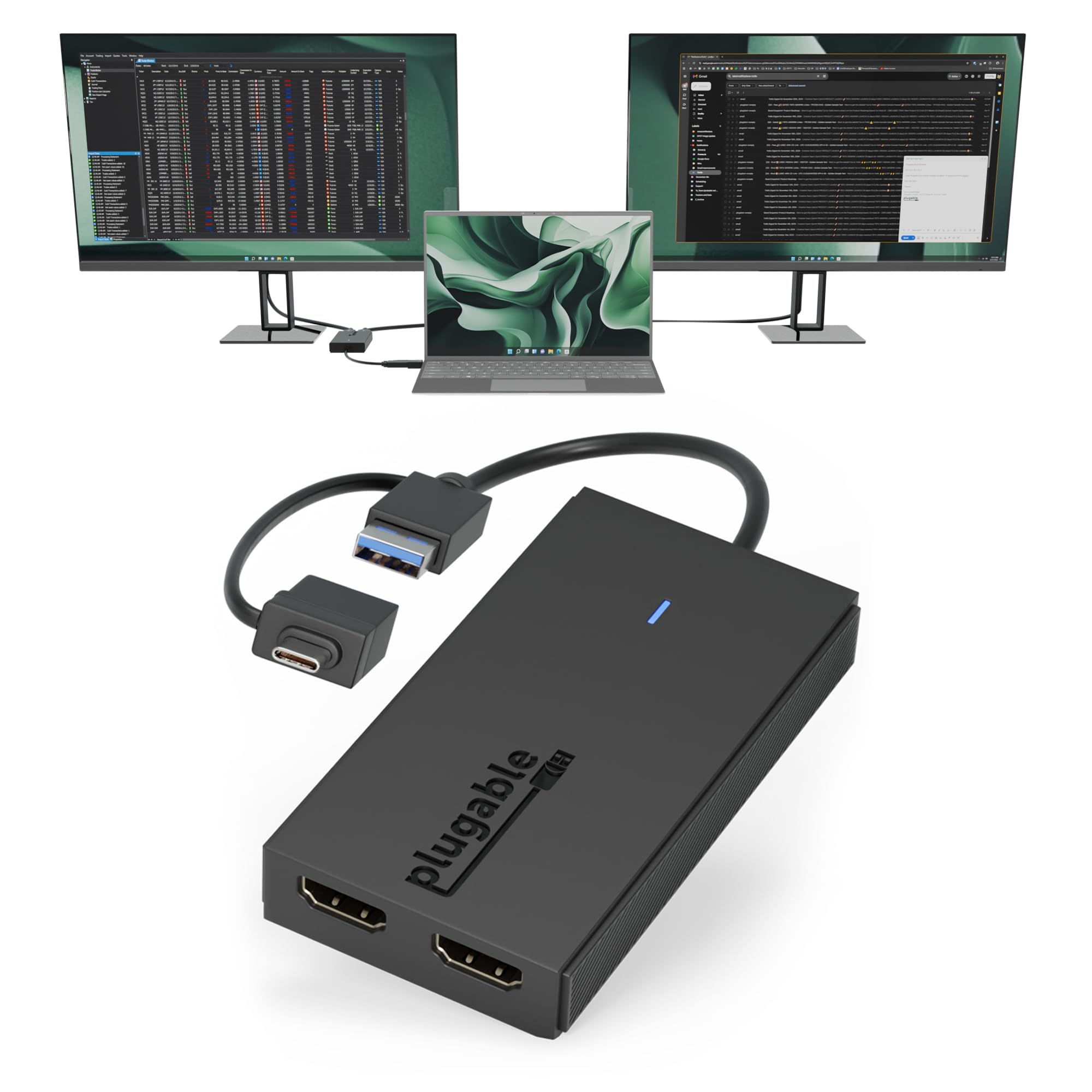
A hybrid 2-in-1 cable that adds two screens to laptops with no video-capable USB-C port at all.
This is the fix for the laptop that cannot do DP Alt Mode. The cable ends in both USB 3.0 and USB-C, so it works on plain USB-A machines as well as USB-C, USB4, Thunderbolt 3, 4 and 5 ports. It runs Windows 10 and 11, macOS 10.14 or later including M1 through M5 and Neo systems, and ChromeOS 100 and newer. Two HDMI monitors work in extended or mirrored mode at up to 1920×1080 at 60Hz each.
Because it uses Silicon Motion graphics technology, drivers are required. Windows usually installs them through Windows Update; on macOS the InstantView driver must be installed by hand. It does not work with DisplayLink software, and some corporate IT setups block driver installs entirely — check with your admin first if it is a work machine.
It does the unglamorous job well: two 1080p screens through a single USB port, with easy setup earning steady approval. Be realistic about its ceiling. It is not built for gaming or 4K work — 1080p at 60Hz is where it lives — and a few setups report lag or connectivity trouble with locked-down work computers. The 1.6-ounce body and lifetime support from a North American team are real comfort for a device this small.
Right for: older laptops and locked-down office machines that need two 1080p screens and have no video-capable USB-C port.
Wrong fit if: you need 4K output, play games on your monitors, or stream HDCP-protected video.
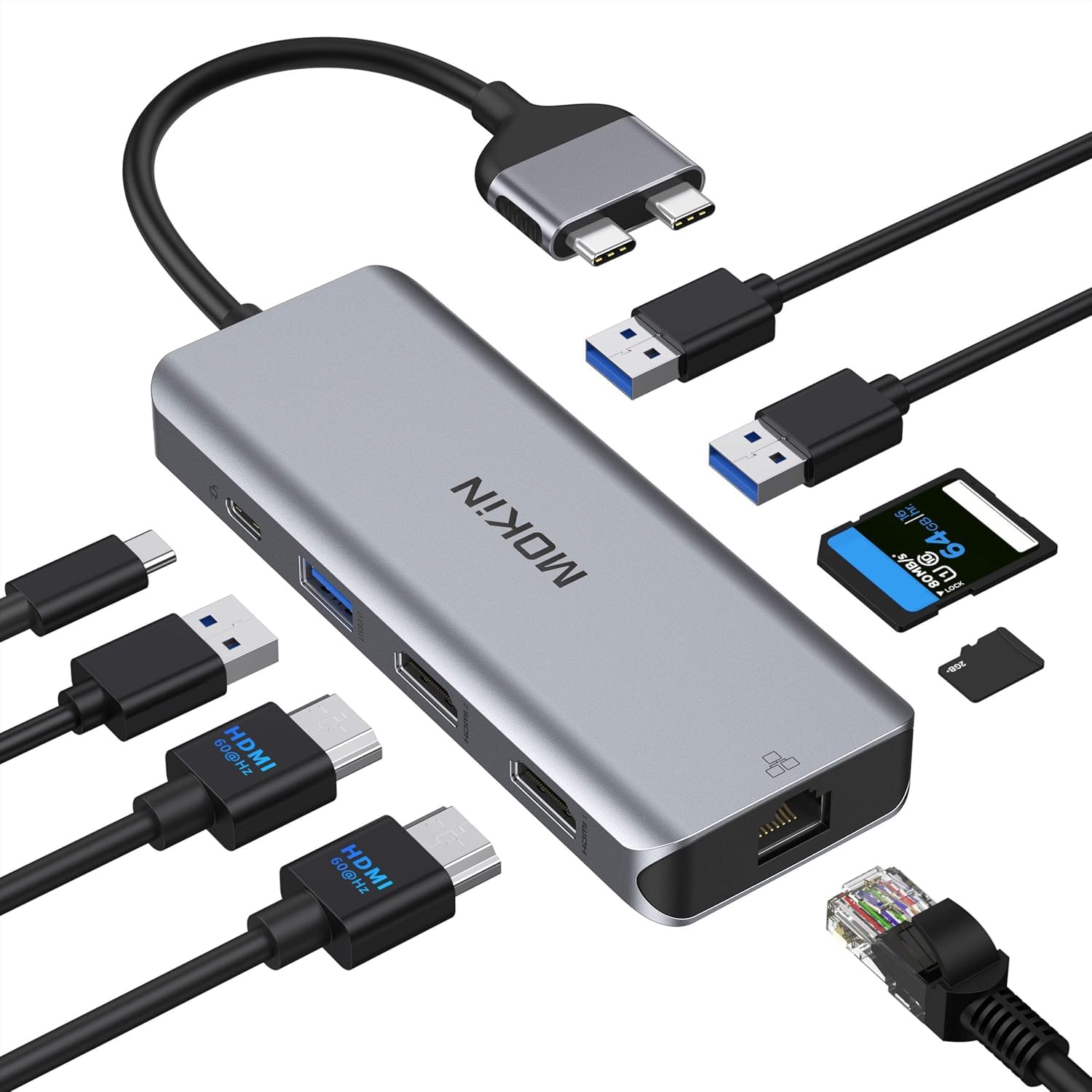
6. MOKiN MacBook Pro Docking Station Dual Monitor MacBook Pro/Air HDMI Adapter
Nine ports carved for the MacBook Pro, with wired Ethernet that Apple left off the laptop.
MacBook Pro and Air owners on Intel-era or 2021-and-earlier machines get the most here. It expands into two HDMI ports, two USB 3.0, one USB 2.0, an SD and microSD reader, Gigabit Ethernet rated to 1000 Mbps, USB-C 100W power delivery and a Thunderbolt 3 port. Data moves at 5 Gbps, and the card reader reaches 104 MB/s for photo and video pulls.
The display split is worth reading twice. One HDMI in use gets you up to 4K@60Hz. Both HDMI ports in use gets you dual 4K@30Hz, and both monitors must be plugged into the hub, not the laptop. It supports mirror and extend mode and does not support Apple’s USB SuperDrive. The anodized aluminum body is meant to shed heat and measures 4.84 by 1.85 by 0.65 inches at 103 grams, so it disappears into a bag.
Buyers praise the build quality and port capacity — it feels like a proper desk dock rather than a dongle. Heat is the divided point: some units run cool, others warm up under load, and a small number report early failures, which is why the plug-and-play no-driver setup matters so much for the rest. One hard limit: if your MacBook has only one USB-C port on one side, this dock will not work for it.
Its real job: turning a two-port MacBook into a full desk with wired internet, cards and two HDMI screens, no drivers needed.
Best match: a MacBook Pro or Air with two Thunderbolt 3 ports on one side, used mostly at a fixed desk.
Look elsewhere if: your MacBook has only a single USB-C port, or you need both screens at 60Hz.
7. ACASIS USB C to Dual HDMI DisplayLink Adapter for Mac M1/M2/M3/M4 & PD100W

The workaround for the Mac that refuses a second screen — DisplayLink ignores the limit.
If you own a base M1 or M2 MacBook, you already know the frustration: the laptop will drive only one external display natively, and every cheap HDMI adapter just mirrors. This ACASIS uses DisplayLink technology to extend screens without relying on the laptop’s native video output, which is how it sidesteps that cap. It works on macOS and Windows, and the driver must be installed — the download link is included.
It also keeps the laptop fed. The built-in USB-C PD port takes 100W in and delivers 90W out, enough to hold an M1 through M4 or Neo MacBook Pro or Air on a long session. Three USB-A ports at 480 Mbps handle mice, keyboards and flash drives, which is fine for office life and slow for large transfers. The hybrid 2-in-1 cable reaches USB-C, USB-A, Thunderbolt 3 and 4 and USB 4 ports.
Buyers like most that it simply works: dual monitor support is the second thing they mention, and mirroring or extending is immediate once the driver is in. Honest notes: HDCP-protected apps like Netflix, Disney+, Hulu and Prime Video will not play through DisplayLink, so keep a standard adapter for streaming. The unit also runs warm, and the maker’s own instruction is to unplug only when the computer is off. Those two habits keep it in service.
Why it exists: DisplayLink extension is the only way around Apple’s one-screen cap on non-Pro chips, and that is precisely the problem this solves.
Choose it for: a base M1–M4 MacBook that must have two working, independent external displays for real productivity work.
Not for you if: you mostly stream video on the second screen, or 480 Mbps USB-A speed will slow your workflow.
8. WAVLINK USB C and USB 3.0 to Dual 4K DP or HDMI Adapter
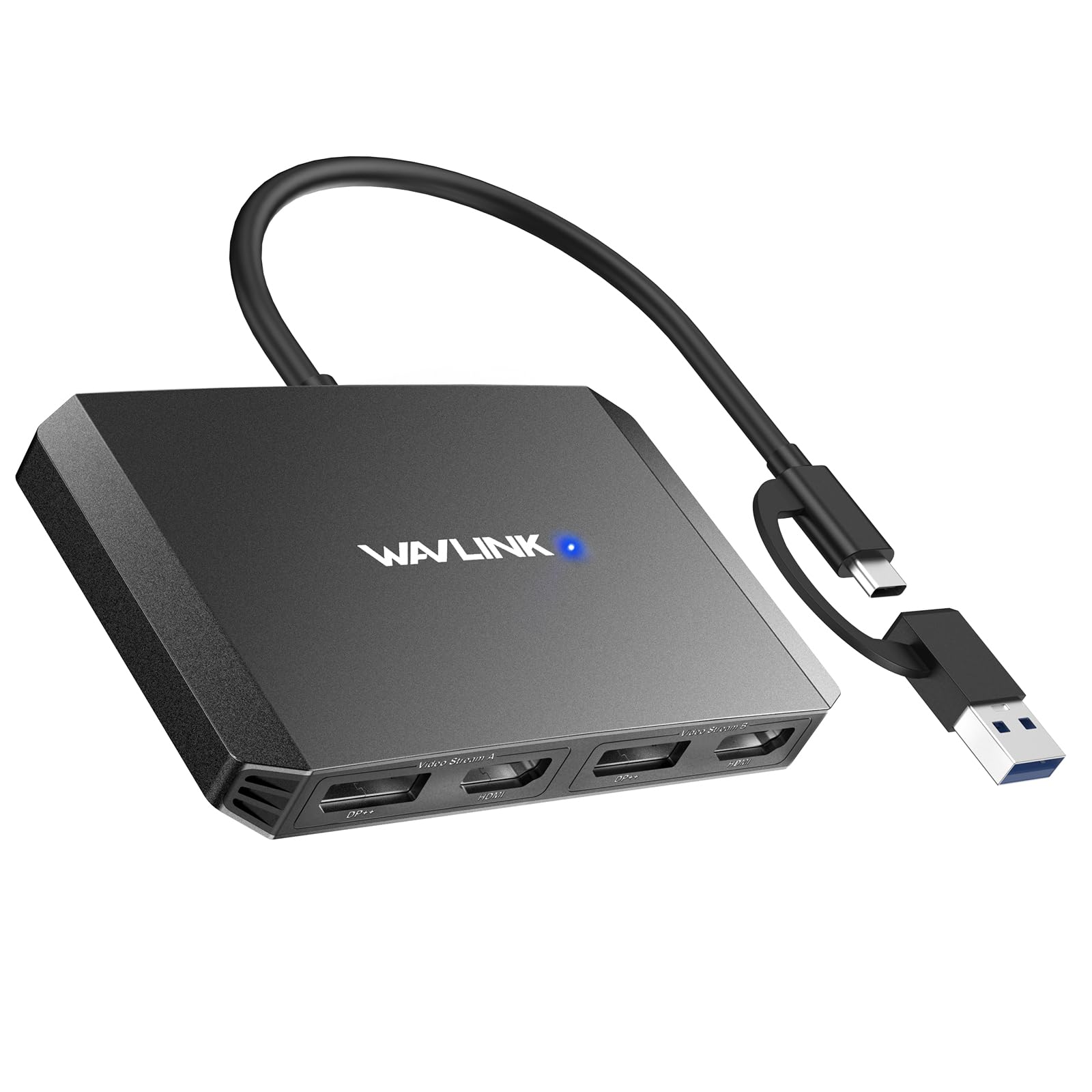
Ultrawide-friendly dual 4K@60Hz that reaches 5120×1440 — the right call for a mixed Mac and PC office.
Two things separate this from the rest of the DisplayLink adapters here. First, output options: it carries both DP and HDMI ports, so it fits whichever cable your monitors use. Second, resolution ceiling: it supports dual displays up to 5120×1440 at 60Hz or 4096×2160 at 60Hz, which is what you need for an ultrawide plus a standard screen. The hybrid 2-in-1 cable connects to USB-C or USB-A along with Thunderbolt 3, 4 and USB 4 ports.
It runs Windows 10 and newer, macOS 11 or later and ChromeOS 100 and up, and it does not work on Linux, Unix or iPadOS. Driver installation is required — it is not plug-and-play, so download the latest driver from displaylink.com before setup. The box includes a CD-shaped card with driver links and a quick-start guide, and the cable length is 90mm, or about 3.5 inches, which keeps the whole thing tight against the laptop.
Reliability is the reason to pick it: it is the most consistently praised part of the feedback, with build quality and versatility next in line, and buyers report it holds up across both PC and Mac. Be clear about the ceiling — it is not meant for gaming or graphics-heavy work, and HDCP content will not play. Driver install is the one hurdle; clear it and this is a quietly dependable dual-screen box.
The ultrawide argument: 5120×1440 dual output is a higher ceiling than the ACASIS or MOKiN adapters here offer, and it takes whichever cable you already own.
Fair warning: no plug-and-play, no Linux, no HDCP streaming — this is a deliberate desk workhorse.
Take this one if: you want a dependable DisplayLink dock that handles ultrawide dual 4K on both PC and Mac.
Step away if: you need a plug-and-play swap between machines, or Linux support.
9. Plugable USB C Docking Station, Dual Monitor 4K 60Hz 2x HDMI or DisplayPort

The full desk replacement: fourteen ports, space-gray aluminum, and two 4K@60Hz screens for Macs that only allow one.
This is the pick for someone building a permanent workstation, not a travel bag. Fourteen ports run from two 4K monitors in HDMI, DisplayPort or one of each, through a front-facing USB-C and USB port for charging, three USB 3.0 ports, SD and microSD readers, a 3.5mm headset jack, Ethernet and 100W charging. Both 4K screens refresh at 60Hz (60 times per second, smooth for everyday work), and the aluminum housing measures 9.4 by 3.1 by 1.2 inches at 11.7 ounces.
Its trick is DisplayLink. Apple’s own hardware caps many Macs and Neo devices at one external screen; this dock uses DisplayLink to drive two 4K@60Hz displays anyway, which is why it suits business workstations, teaching stations and healthcare documentation desks. It runs macOS 11 or later, Windows 10 or later and ChromeOS 100 or later on supported Thunderbolt, USB4 or USB-C systems, and driver installation is needed for full function. HDCP is not supported.
The steady theme in the feedback is that it is sturdy and simple to set up, with enough ports for multiple monitors on Macs. Charging, value and responsiveness divide opinion, which is normal for a dock this ambitious. Lifetime support from a North American team is the backstop, and the sheer port count means you can retire a handful of dongles the day it lands.
When it pays off: a fixed desk with two 4K screens, a wired network and a dozen peripherals — the 14-in-1 layout removes the accessory clutter entirely.
The match you want: a permanent Mac or Windows workstation that needs two 4K@60Hz screens and every port on one cable.
Overkill when: you only need two HDMI screens and already have a spare charger — a leaner adapter does that job for less.
Understanding the Specs
DP Alt Mode and Thunderbolt Support
DP Alt Mode is the setting that lets a USB-C port carry a video signal, and it is the single gate for every adapter here. Thunderbolt 3, 4 and full-featured USB-C ports almost always include it; a plain data or charging port does not. If you plug into a port without it, the screens stay dark even though the adapter is fine. Check your laptop’s spec sheet before you buy, and if it lists only data and power for that port, choose the Plugable USB 3.0 hybrid adapter — it works from a plain USB-A port instead.
MST Extension versus Mirroring
MST (Multi-Stream Transport) is what lets Windows show two different desktops on two monitors. macOS generally does not use MST across these adapters, so it mirrors the same image on both — not a defect, an Apple system limit. The workaround is DisplayLink, which drives screens partly through software and a driver. That is why the ACASIS, WAVLINK and Plugable 14-in-1 adapters can extend on a base M-series Mac while an HDMI splitter cannot. Expect to install a driver for those, and expect it to be worth it.
FAQ
Will a 2 monitor adapter work with my MacBook Air M1?
Why do both my monitors show the same picture?
Do I need a special cable for dual 4K at 60Hz?
Can a dual-monitor adapter charge my laptop at the same time?
Will these adapters play Netflix or Disney+ on my second screen?
What is the difference between a hub and a docking station?
Can two monitors run at 4K and 60Hz on one adapter?
Does a USB-A laptop work with any of these adapters?
Why does my adapter run hot?
Can I use a 2 monitor adapter for gaming?
Final Thoughts: The Verdict
For most Windows laptops, the winner among these 2 monitor adapter picks is the Anker 8-in-1 Dual Monitor Hub because it covers both screens, Ethernet, cards and 85W charging from one port with the widest compatibility. If smooth dual 4K at 60Hz matters more than port count, grab the Selore USB C Dual HDMI Dock. And if you are stuck on a base M-series Mac that will only drive one display, the ACASIS DisplayLink Adapter is the one that gets you two independent screens — install the driver and it works.
Before you click buy, open your laptop’s spec page and confirm the port you plan to use says DP Alt Mode or Thunderbolt. That one check decides whether your new adapter works or goes back in the box.
How We Picked
We do not accept paid placement. Every pick is matched to a real buyer and a real use-case; we do not hands-on test units.
Sources & Methodology
Specifications: manufacturer listings and product documentation. Review insights: verified customer reviews, as of November 2026. Pricing: not shown on this page (it changes often); check the current price via the retailer link.
As an Amazon Associate, Gadgets Feed earns from qualifying purchases. This does not affect which products we feature.