
Managing two computers on a dual-monitor setup without a dedicated switch means constantly swapping cables, juggling keyboard-mouse pairs, or fighting with software-based sharing that introduces lag. A proper KVM switch eliminates this friction entirely by routing two video streams and peripheral control through a single control point, turning a cluttered multi-PC desk into a clean, instantly switchable workstation.
I’m Min — the co-founder and writer behind Gadgets Feed. To build this guide, I analyzed over 45 hours of real user feedback and technical spec sheets across nine models, focusing on the video interface types, EDID emulation support, USB data speeds, and switching reliability that matter most for a dual-monitor setup.
Whether you’re splitting duties between a work laptop and a personal desktop, or swapping between two gaming rigs, the right 2-computer 2-monitor kvm switch keeps your workflow seamless without compromising on resolution or refresh rate performance.
How To Choose The Best 2-Computer 2-Monitor KVM Switch
Not all dual-monitor KVM switches are created equal. The device that works perfectly for a MacBook user with a single USB-C port will be completely incompatible with a desktop PC that relies on two DisplayPort outputs. Understanding the key splitting points — video interface, power delivery, EDID emulation, and switching speed — narrows the field from dozens of options to just a few serious contenders. Start by identifying the exact video outputs on both of your computers, then match those to the KVM’s input ports. If your computers use different interfaces (HDMI versus DisplayPort), you need a hybrid unit like the TESmart that supports both inputs. If both machines are modern laptops with Thunderbolt or USB-C, a docking-station-style unit like the StarTech or AV Access iDock C20 offers a cleaner single-cable connection. Always check that the switch supports your monitor’s native resolution and refresh rate — 4K at 60Hz is the baseline, but 1440p at 144Hz or 1080p at 240Hz requires a faster DP 1.4 or HDMI 2.0 implementation. EDID emulation is the feature that separates smooth daily use from constant frustration — it stores your monitor’s EDID data inside the switch so that your computers remember your screen layout and resolution settings every time you switch back. Without it, you will often see windows shuffled to the laptop’s internal screen or monitors dropping to a low default resolution. Finally, consider USB speed — a USB 3.0 rated port (5 Gbps) is essential for any external drive or high-bandwidth webcam, while USB 2.0 is fine for keyboard, mouse, and basic audio devices.
Video Input Matching: DisplayPort, HDMI, and USB-C Interface
The most common mistake buyers make is choosing a KVM that does not match their computer’s video output ports. Desktop PCs almost always use DisplayPort (DP) for high-refresh-rate monitors, while laptops lean heavily on HDMI or USB-C with DisplayPort Alt Mode. A pure HDMI KVM will not work with a desktop whose GPU has only DP ports unless you use an active adapter — which can block EDID and cause signal handshake failures. The UGREEN and StarTech DP KVM options are purpose-built for DP-only desktops, while the AOOCOO and AV Access iDock C20 are designed for USB-C-first laptops. For mixed setups — one PC with DP and one laptop with HDMI or USB-C — the TESmart hybrid unit is the only model here that takes both HDMI and DP inputs on the same switch. If you force a mismatch, you might end up buying additional adapters that degrade video quality or prevent high refresh rate support altogether.
EDID Emulation: The Key to Stable Window Positioning
Extended Display Identification Data (EDID) is the handshake protocol that tells your computer the native resolution, refresh rate, and physical size of your monitors. When a KVM switch lacks EDID emulation, every time you switch away from a computer and back, your computer re-runs the handshake — which often resets your window layout, changes the resolution to a fallback value, or fails to re-detect the external monitors until you toggle the display settings manually. A KVM with true EDID emulation stores the monitor’s EDID data internally so the computer always “sees” the same display, even when switched away. The MLEEDA 4-port and AV Access models explicitly advertise EDID emulation, and reviewers confirm stable window retention. The UGREEN explicitly lacks EDID emulation, which customers cite as the cause of its reliability issues. If your workflow depends on keeping multiple windows positioned across two monitors, EDID emulation is not optional — it is the feature that keeps your desktop stable through hundreds of daily switches.
Switching Speed and Peripheral Compatibility
Even the best video handling is useless if your keyboard and mouse feel sluggish after a switch. Look for KVM switches that use USB 3.0 pass-through rather than USB 2.0 emulation, as USB 2.0 can introduce noticeable latency with mechanical keyboards or gaming mice that poll at 1000 Hz. The switching method also matters — some units support keyboard hotkeys (double-tap Scroll Lock) for hands-free switching, while others rely purely on a physical button or remote. The TESmart supports hotkeys plus an IR remote and front-panel button, giving you the most options. The UGREEN and AOOCOO lack hotkey support entirely, which can be annoying if the switch is placed under your desk. A wired remote control is a good middle ground — the UGREEN, AOOCOO, and several others include a desktop extension button that sits on your desk while the main unit hides away. Always test that your wireless mouse and keyboard work with the KVM’s USB ports — Bluetooth peripherals usually need their own connection, but USB dongles (like Logitech Unifying) must pass through the switch’s USB hub correctly. The StarTech units are known for requiring the Unifying receiver to be plugged into the dedicated keyboard port, not a general USB hub port, or it will disconnect intermittently.
Quick Comparison
On smaller screens, swipe sideways to see the full table.
| Model | Category | Best For | Key Spec | Amazon |
|---|---|---|---|---|
| UGREEN DP KVM | DisplayPort | DP-only desktops at 8K | 8K@60Hz, 4 USB 3.0 ports | Amazon |
| AOOCOO USB-C KVM | USB-C Dock | Laptop + desktop mix | 4K@60Hz, 100W PD, USB 3.0 | Amazon |
| MLEEDA 4-Port HDMI | HDMI Multi-PC | 4-PC setups with EDID | 4K@60Hz, EDID simulation, RS232 | Amazon |
| DGYBDFC USB-C Dock | Docking Station | Compact USB-C workstation | 4K@120Hz DP, 100W PD | Amazon |
| AV Access KD-E10 | KVM Dock | Laptop + desktop pro | 4K@60Hz, 1G Ethernet, EDID | Amazon |
| TESmart DP+HDMI | Hybrid KVM | Mixed DP/HDMI computers | 4K@60Hz, EDID, hotkey switch | Amazon |
| AV Access iDock C20 | Dual-Laptop Dock | Two USB-C laptops | 60W PD x2, 20Gbps host port | Amazon |
| StarTech DP KVM | DisplayPort Pro | Creative pros, Linux users | 4K@60Hz DP, 3.5mm audio | Amazon |
| StarTech USB-C Dock | Enterprise KVM Dock | IT pros, mixed OS teams | 90W/45W PD, DisplayLink | Amazon |
In‑Depth Reviews
1. TESmart USB 3.0 DisplayPort + HDMI KVM Switch 2 Monitors 2 Computers

The TESmart stands alone in this lineup as the only unit that accepts both HDMI and DisplayPort inputs on each of its two computer channels. That flexibility alone solves the most common compatibility headache — a desktop GPU with dual DP ports and a laptop limited to HDMI can both connect without adapters. The switch supports 4K at 60Hz across both monitors and includes EDID emulators per input, which prevents display settings from resetting when you toggle between computers. Users report stable window preservation across daily switching, something lower-tier models without EDID cannot match.
On the USB side, the TESmart integrates two USB 3.0 ports with 5 Gbps bandwidth for peripherals like external drives and webcams, plus a dedicated charging port. Switching options are generous: use the front-panel button, an IR remote, or keyboard hotkeys (double-tap Scroll Lock). The hotkey support is rare at this price tier and makes the switch feel faster than a manual button press. The metal chassis is compact but dense — 11.8 inches wide — so check desk space before ordering. Some users report that the IR remote requires direct line of sight and that AAA battery fit is tight in the included remote, but these are minor ergonomic quibbles against the overall feature set.
The TESmart is particularly strong for users who maintain different OS environments, as it passes keyboard and mouse commands cleanly without driver dependencies. The primary trade-off is that achieving 1440p at 144Hz requires careful HDMI cable selection, and some gaming users note a 5 FPS loss on ultra-high-refresh-rate content. Still, for a hybrid 2×2 KVM switch that handles both major video standards and includes EDID, hotkeys, and a remote, the TESmart delivers the most complete package for mixed-computer setups.
Why it’s great
- Accepts DP and HDMI video on both input channels — no adapter needed for mixed setups
- EDID emulation keeps monitor layouts and resolutions stable through every switch
- Keyboard hotkeys, IR remote, and physical button give three switching methods
Good to know
- IR remote battery tray is tight on some AAA batteries
- 1440p at 144Hz may require premium HDMI cables to avoid artifacts
2. StarTech.com 2-Port DisplayPort KVM Switch – Dual-Monitor – 4K 60 – TAA

StarTech’s SV231DPDDUA2 is a purpose-built DisplayPort KVM designed for professional and enterprise environments where rock-solid DP 1.2 signal integrity is non-negotiable. It drives two monitors at 4K 60Hz per port, with no shared bandwidth or compression — each DP connection is independent. The unit includes a 2-port USB 2.0 hub for keyboard and mouse, plus dedicated 3.5mm input and output audio jacks that keep your headset or speakers assigned to the active computer. The front-panel push-button switching is simple and tactile, and the metal enclosure feels industrial-grade.
One critical installation detail that StarTech support confirms and customers verify: Logitech Unifying receivers must be plugged into the port labeled “Keyboard” — not into either of the hub’s general USB ports — or the connection will drop intermittently. Once that quirk is respected, the switch runs without any video dropouts, EDID failures, or USB disconnects. Linux users report full compatibility, including window restoration on switch-back — a feat many cheaper KVMs fail on. The 3.5mm audio pass-through is fully independent, meaning you can keep a headset connected to the KVM and hear audio from whichever computer is active without swapping cables.
The major downside is the USB 2.0 hub limit — 480 Mbps is fine for a keyboard and mouse, but connecting an external SSD or high-resolution webcam will be bottlenecked. The price is also significantly higher than equivalent-spec Chinese-brand models. But if your use case is a dual-DP desktop setup where absolute stability and pro-grade build quality justify the premium, the StarTech DP KVM is the most trustworthy option. One reviewer reported a catastrophic failure on a used unit that damaged their SSD, so purchasing new from an authorized seller is strongly advised.
Why it’s great
- Independent DP 1.2 video channels with no compression or shared bandwidth
- Dedicated 3.5mm audio in/out for independent headset routing
- Proven compatibility with Linux, including window position restoration
Good to know
- USB hub is limited to USB 2.0 — not suitable for external SSDs
- Unifying receiver must be plugged into the specific keyboard port to stay connected
3. AV Access iDock C20 KVM Switch Dock 2 Monitors 2 Laptops
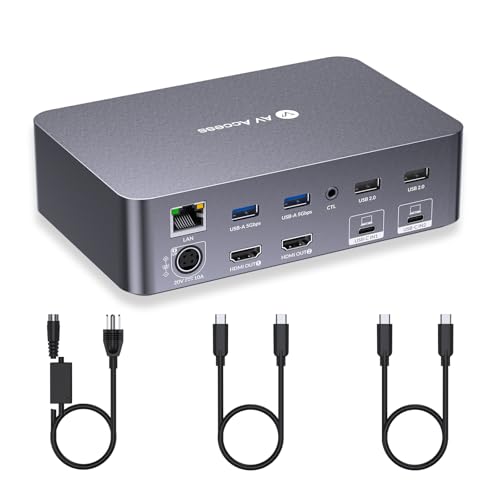
The AV Access iDock C20 is the only switch in this guide designed specifically for a two-laptop scenario — both computers connect via a single USB-C cable each, carrying video, data, and up to 60W power delivery simultaneously. This eliminates the three-cable nightmare (two video cables plus one USB) that desktop KVMs require. The built-in docking station provides 12 extra ports: dual HDMI outputs, 2x USB 3.0, 4x USB 2.0, a USB-C data port, 1G Ethernet, a 3.5mm headset jack, and an SD card slot. The 20 Gbps USB-C host ports ensure enough bandwidth for 4K at 60Hz or 1440p at 144Hz on each monitor.
EDID emulation is built in, and user reviews confirm that both the display positions and resolution settings persist through switching. The switch also auto-wakes computers when the button is pressed, saving you from reaching for a power button. One important constraint for Mac users: macOS does not support MST (multi-stream transport), so you will only get mirrored output on two external monitors, not an extended desktop, unless you use a USB-C laptop that supports DP Alt Mode and MST natively — which is rare on Apple Silicon. Windows laptops that support MST will get full extended display. The included power adapter delivers a total of 180W, split 60W per connected laptop — adequate for most business ultrabooks but insufficient for high-power gaming laptops.
The iDock C20’s primary limitation is that it does not support FreeSync, G-Sync, or DDC/CI. Some users report that 1440p 165Hz monitors max out at 144Hz over the USB-C connection. The switch time is 2-3 seconds, slightly longer than desktop DP KVMs. But if your entire setup runs on two USB-C laptops — say a company-issued Lenovo and a personal Dell — and you want a single docking station that handles switching, charging, and peripheral hub duties, the iDock C20 is the most space-efficient solution available.
Why it’s great
- Single USB-C cable per laptop carries video, data, and 60W charging
- 12-port dock eliminates separate hub: Ethernet, SD, USB, audio all built in
- EDID emulation and auto-wake make switching fast and stable
Good to know
- MacBooks are limited to mirrored output — no extended dual screens on macOS
- Does not support G-Sync, FreeSync, or DDC/CI pass-through
4. StarTech.com Dual-Laptop USB-C KVM Docking Station, Dual Monitor 4K 60Hz

The StarTech 129N-USBC-KVM-DOCK is the most feature-complete KVM docking station for environments where two laptops — often with different operating systems — need to share dual 4K monitors and a full set of peripherals. Each host connection uses a single USB-C cable and supports DisplayPort output via two dedicated DP ports. The unit delivers 90W of power to the active laptop and 45W to the standby laptop simultaneously, meaning both machines charge without swapping cables. This power arrangement is unique — most dual-laptop docks only charge the active machine.
Switching is handled via a front-panel button or a keyboard hotkey (double-tap left Shift). The dock requires DisplayLink driver installation on both macOS and Windows to enable dual extended displays — a requirement that is clearly documented but sometimes surprises users expecting plug-and-play. Once the drivers are installed, the StarTech dock supports mixed-OS environments seamlessly: users report switching between a MacBook Air M3 and a Dell Vostro without any peripheral re-pairing. The dock also includes two USB 2.0 HID ports, two USB 3.2 Gen 2 Type-A ports (10 Gbps), a USB-C 10 Gbps port, 1G Ethernet with MAC address pass-through, Wi-Fi auto-switching, and separate 3.5mm audio in/out.
Two notable IT-friendly features set this StarTech apart: MAC address pass-through allows network administrators to maintain consistent network identity per laptop, and USB event monitoring helps IT support teams troubleshoot peripheral issues remotely. The downsides are the price — the highest in this guide at the premium tier — and the DisplayLink dependency, which adds a small amount of CPU overhead and can occasionally cause display flicker on very high-resolution setups. Some users also report that the Logitech Craft keyboard range is reduced when using the dock’s built-in USB ports. For enterprise IT deployments or power users who need reliable dual-laptop docking with advanced network features, this StarTech dock justifies its premium through build quality, power management, and support tools.
Why it’s great
- Simultaneous 90W/45W charging for both laptops keeps both batteries topped
- MAC address pass-through and Wi-Fi auto-switching for enterprise network consistency
- Dual DisplayPort outputs support 4K 60Hz on both monitors with DisplayLink
Good to know
- DisplayLink driver required on both macOS and Windows for dual extended displays
- Some wireless peripherals (Logitech Craft) experience range issues
5. AV Access KVM Switch Docking Station for 2 Monitors 2 Computers, 4K 60Hz
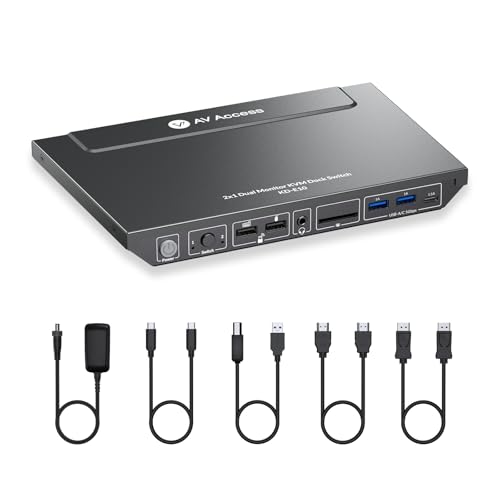
The AV Access KD-E10 bridges the gap between a pure KVM switch and a full-featured docking station without reaching the price of enterprise-grade solutions. It accepts one laptop (via USB-C) and one desktop (via HDMI+DP+USB-B), allowing a mixed environment to share two monitors and peripherals through a single hub. The laptop connection provides up to 100W USB-C Power Delivery, while the desktop side uses dedicated HDMI and DP cables for video plus a USB-B upstream cable for peripheral passthrough. This dual-path design ensures the desktop video signal stays at full 4K 60Hz without compression, which is important for gaming or color-accurate work.
The KD-E10 includes an 11-port hub: 3x USB 3.0, 2x USB 2.0, a USB-C data port, 1G Ethernet, SD card slot, 3.5mm audio out, and two HDMI outputs. Switching is instant via the front button, taking about 2-3 seconds to transfer video, audio, and peripherals. EDID emulation is built in, and users confirm that display settings remain intact on both computers. The package includes an HDMI cable, a DP cable, a USB-C cable, and a USB-B cable — enough to get started without extra purchases. One common frustration is that the USB-C cable included is only 1 meter long, which may be too short depending on your desk layout.
The major caveat is that macOS is limited to mirrored output — extended dual displays require the computer to support MST, which Apple Silicon Macs do not. Some users also report intermittent keyboard/mouse disconnections when the KVM has been running for extended periods, though power-cycling the unit typically resolves this. The KD-E10 is the best option for users who want a single-box solution for a laptop-plus-desktop setup, as long as they understand the macOS mirroring limitation and are okay with occasionally needing to power-cycle after heavy use.
Why it’s great
- Dual-path video: laptop via USB-C, desktop via HDMI+DP for uncompressed signal
- Includes all necessary cables in the box — HDMI, DP, USB-C, USB-B
- 100W USB-C PD keeps a laptop fully juiced while docked
Good to know
- macOS only supports mirrored output on two monitors
- Occasional peripheral disconnects require unit to be power-cycled
6. UGREEN 8K@60Hz Displayport KVM Switch 2 Monitors 2 Computers

The UGREEN AK700 is the only switch in this roundup that supports DisplayPort 1.4 at 8K 60Hz resolution, making it a future-proof choice for users who run or plan to run ultra-high-resolution monitors. Its dual DP input ports pair with dual HDMI output ports, but note that this is a DisplayPort-native switch — both computers must have two DP outputs each. The switch includes 4 USB 3.0 ports (3x Type-A + 1x Type-C) with 5 Gbps bandwidth, plus a wired desktop controller for clean desk setups. The aluminum housing dissipates heat effectively, and build quality is on par with mid-range enterprise hardware.
Real-world performance at high refresh rates is strong: one user reports handling 5120x1440p and 3440x1440p at 144Hz without signal dropout. HDCP 2.3 support works correctly for streaming services, and the wired remote allows the main unit to be hidden under a desk. The 12V/2A external power adapter is mandatory — the switch will not power on without it. Setup is straightforward for anyone familiar with DP connectivity, but novices should read the manual carefully: each computer requires two DP cables plus one USB-A cable for peripheral passthrough. The switch supports both extended and mirror display modes on Windows, and works with Linux as well.
The critical weakness is the lack of EDID emulation — the most common source of complaints across customer reviews. Without EDID, some users report that monitors cycle on and off, USB devices disconnect, and the switch requires frequent button presses or full power cycles to re-establish a stable connection. UGREEN’s own user reviews split sharply between people who have flawless 8K results and those who give up after months of intermittent failures. The UGREEN is a legitimate high-performance option if you need 8K support or ultra-wide 144Hz, but the absence of EDID emulation means you should be prepared to troubleshoot — and potentially return the unit if your specific monitors prove incompatible.
Why it’s great
- Only KVM here supporting DP 1.4 at 8K@60Hz and ultra-wide 144Hz
- Aluminum chassis with desktop controller for a clean, hidden install
- Four USB 3.0 ports (including USB-C) with 5 Gbps throughput
Good to know
- No EDID emulation — some users experience monitor dropout and USB disconnects
- Requires 6 cables (2 DP + 1 USB per computer) for full functionality
7. MLEEDA 4 Port HDMI KVM Switch 2 Monitors 4 Computers 4K@60Hz
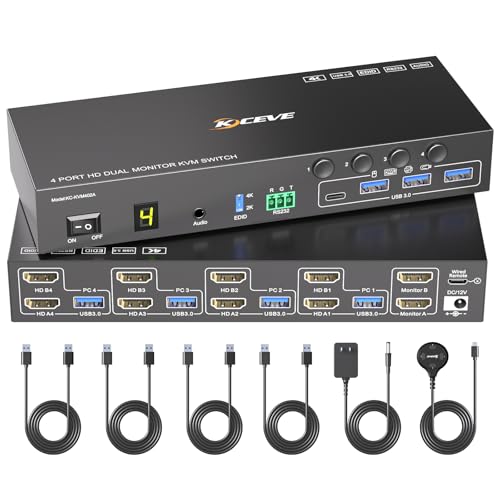
The MLEEDA HDMI KVM switch is the only model in this guide that supports four computers across two monitors, making it the correct choice for server-room rack setups, development environments, or any scenario with more than two source machines. It accepts four HDMI inputs and outputs to two HDMI displays at 4K 60Hz, with EDID emulation built into each input to maintain stable EDID handshakes. The included wired remote with four dedicated buttons (one per computer) makes it easy to switch without looking at the unit. It also supports RS232 control for integration into custom automation or IT management systems.
USB connectivity is handled by four USB 3.0 ports running at 5 Gbps, which is sufficient for a fast external drive or a high-polling-rate gaming mouse. The switch is driverless across Windows, macOS, Linux, and Chrome OS. Reviewers report that it works well with mini PCs (Beelink, Mac Mini) and even the Samsung Galaxy S21 phone in DeX mode. The EDID emulation is the star feature here — multiple users confirm that their window layouts and resolution settings persist even when cycling through all four computers. The chassis is a full 8.27 x 2.99 inches, so it occupies more desk or rack space than a 2-port unit.
The main limitation is the strict HDMI-only video path. If any of your four computers use DisplayPort, you will need an active HDMI adapter, which may block EDID and reduce compatibility. The included USB 3.0 cables are short (1.5m) and some users report loose-fit connectors that caused intermittent monitor dropouts, though the seller replaced units promptly. The MLEEDA is a niche but excellent product for users who genuinely need to switch four HDMI computers across two monitors — for a standard 2-PC setup, a 2-port unit will be simpler and cheaper.
Why it’s great
- Supports four computers on two monitors — unique in this roundup
- EDID emulation per input keeps screen layouts stable across all four sources
- RS232, wired remote, and front-panel buttons give flexible control options
Good to know
- Strictly HDMI — no DisplayPort inputs, requiring adapters for DP-only hardware
- Some early units had loose USB cable connectors; seller support is responsive
8. AOOCOO USB C KVM Switch 4K@60Hz, Dual Monitor USB C HDMI KVM Switch

The AOOCOO USB-C KVM switch is a 7-in-1 docking station designed for a specific workflow: one laptop connected via USB-C and one desktop connected via HDMI+USB-B, sharing two monitors at 4K 60Hz. The laptop side uses the MST protocol (via USB-C) to drive two displays in extended mode or mirrored mode, while the desktop connects via two HDMI cables directly. Power delivery to the laptop is rated at 100W, though actual charging power typically lands between 73W and 85W due to cable and internal losses — sufficient to maintain a full charge on most ultrabooks and thin-and-light workstations.
Connectivity includes 3x USB 3.0 Type-A, 1x USB-C (data only), plus the PD charging port. The switch ships with a wired desktop controller, a USB-C cable, a USB-A-to-B cable, and the 12V power adapter. Users confirm that the switch works reliably for toggling between a work laptop and a personal desktop on dual 27-inch 2560×1440 monitors. The aluminum casing helps with heat dissipation, and the unit is compact enough to hide under a desk. Plug-and-play setup is genuinely hassle-free — no drivers needed for Windows or macOS.
The biggest recurring negative in customer reviews is that some users report keyboard and mouse flickering or disconnection when connected to the desktop side, though this does not occur on the laptop side. The cause appears to be a USB signal integrity issue on the USB-B input, and the flickering may not affect all setups. Additionally, macOS limits the laptop side to mirrored output — extended dual displays require a Windows laptop with MST support. The AOOCOO is a solid choice for users whose primary computer is a USB-C laptop and who need a simple way to share monitors and peripherals with a secondary desktop, as long as they are okay with potential USB flickering on the desktop channel.
Why it’s great
- Single USB-C cable connects laptop with video, data, and 100W PD
- Desktop connects via standard HDMI+USB-B — no adapters needed
- Compact aluminum body with wired remote for clean desk placement
Good to know
- Some desktop-side users report keyboard/mouse flickering on the USB-B channel
- macOS laptop side limited to mirrored output only
9. DGYBDFC KVM Switch 2 Monitors 2 Computers Docking Station USB C + HDMI/DP Input
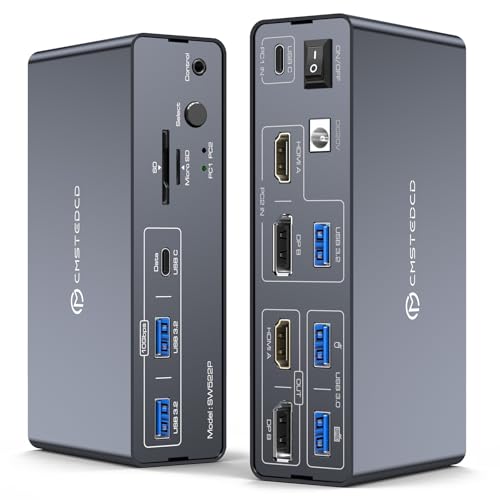
The DGYBDFC KVM docking station crams a massive 13 ports into a compact aluminum case that measures just 5.55 x 2.95 x 1.5 inches, making it the most space-efficient option here. It accepts two computer inputs: one via USB-C (for a laptop) and one via either HDMI or DisplayPort plus USB-B (for a desktop). Outputs are HDMI (4K 60Hz) and DisplayPort (4K 120Hz), giving you a high refresh rate option on one monitor. The dock provides 100W PD passthrough charging to the laptop, 2x USB 3.0 ports, 2x USB 3.2 Gen 2 ports (10 Gbps), a USB-C data port, an SD card slot, and a Micro SD card slot.
The switching is handled by a front-panel button or a wired desktop controller — no hotkey support. The build quality is solid, with the aluminum alloy casing doubling as a heatsink for the internal chips. The included power adapter is a 120W unit (20V 6A), ensuring enough headroom to power the dock, charge the laptop at 100W, and handle USB bus-powered devices simultaneously. The compact footprint is genuinely useful for users with limited desk space — this dock can sit right next to a monitor stand without dominating the surface.
Two major caveats: first, macOS and Mac OS devices only support mirrored output when connected through the USB-C path — no extended dual displays. Second, the product’s Amazon listing is flooded with reviews for a USB-C cable, not for the KVM dock itself, making it difficult to gauge real-world reliability from customer feedback. The actual KVM reviews that do exist (outside Amazon) suggest it works as advertised for the price, but the lack of EDID emulation is a concern — without it, some monitor configurations may cause layout resets. The DGYBDFC is a good entry-level, compact KVM dock for a tight budget, but if you need reliable EDID emulation or dual extended displays on a Mac, you should look at the AV Access KD-E10 or the iDock C20 instead.
Why it’s great
- Smallest footprint in this roundup — fits in a tight desk corner
- DisplayPort output supports 4K at 120Hz for smoother motion on one monitor
- 13-in-1 hub with 10Gbps USB 3.2 ports and full SD card reader
Good to know
- No EDID emulation — possible window reordering on switch
- Amazon listing has mixed product reviews, making it hard to assess reliability
FAQ
Can a dual-monitor KVM switch extend my desktop on macOS?
Does the KVM switch affect gaming performance or add input lag?
How do I know if my Logitech Unifying mouse and keyboard will work with a KVM switch?
Do I need a separate power supply for the KVM switch, or does it run from USB bus power?
Final Thoughts: The Verdict
For most users, the 2-computer 2-monitor kvm switch winner is the TESmart DP+HDMI KVM because it accepts both DisplayPort and HDMI inputs on the same unit, includes EDID emulation for stable window positioning, and supports keyboard hotkeys alongside physical button and IR remote switching — all at a mid-range price that beats enterprise-quality features without sacrificing reliability. If you need a dual-laptop solution with charging and docking built in, the AV Access iDock C20 is the best choice for two USB-C laptops, providing 60W PD per port and a 12-port hub in a compact package. And for enterprise deployments or IT-managed mixed-OS environments where power delivery and network consistency are paramount, nothing beats the StarTech 129N USB-C KVM Dock with its simultaneous 90W/45W charging, MAC address pass-through, and DisplayLink support.