
An affordable monitor for photo editing must deliver factory-calibrated color accuracy, a resolution that lets you see every pixel, and enough connectivity to fit into your existing workflow—all without breaking the bank. Most sub- screens cut corners on color uniformity or panel brightness, forcing you to spend hundreds more after your initial purchase just to get a reliable color cast.
I’m Min — the co-founder and writer behind Gadgets Feed. I’ve spent countless hours cross-referencing factory calibration reports, color gamut specifications, and real-world user feedback to isolate the panels that genuinely serve photographers and retouchers on a budget.
After analyzing dozens of competing models in the 27-inch 4K segment, I have identified the monitors that balance price and precision. Use this guide to find the best affordable monitor for photo editing that suits your studio or home setup.
How To Choose The Best Affordable Monitor For Photo Editing
Editors often assume any 4K panel is good enough for color work, but resolution alone does not guarantee accurate tones. The real distinguishing factors are color space coverage, factory calibration tolerances, and the panel’s ability to maintain uniform brightness across the screen. Here are the three areas that define a photo-editing monitor.
Color Accuracy and Delta E (ΔE)
Delta E measures the difference between a displayed color and its intended reference value. A ΔE of less than 2 is considered excellent for professional work — the human eye cannot reliably detect a deviation that small. Many affordable monitors claim wide color coverage but ship with a noticeable green or magenta tint. Look for models that are Calman Verified or ship with individual calibration reports so you do not have to buy a hardware calibrator immediately.
Color Gamut: sRGB vs. Adobe RGB vs. DCI-P3
sRGB remains the most common web and social media output space, and 100% sRGB is the baseline for a photo-editing monitor. If you print frequently or work in fashion and product photography, Adobe RGB coverage above 90% gives you access to deeper cyan and green tones. Video-first editors should prioritize DCI-P3 coverage. The monitors in this roundup cover at least 99% sRGB, with several topping out above 95% DCI-P3 for hybrid workflows.
Connectivity and Power Delivery
Single-cable USB-C with power delivery simplifies a photo-editor’s desk by carrying video signal, data, and charging over one wire. A monitor that delivers at least 60W to your laptop keeps the battery topped off during long tethered shoots. Models offering 90W or 96W USB-C PD work best with larger MacBook Pro and premium Windows workstations, while 60W suffices for MacBook Air and ultrabooks.
Quick Comparison
On smaller screens, swipe sideways to see the full table.
| Model | Category | Best For | Key Spec | Amazon |
|---|---|---|---|---|
| ASUS ProArt PA279CRV | Premium | Wide-gamut color work | Delta E < 2 / 99% DCI-P3 / 96W PD | Amazon |
| LG 27UP850-W | Mid-Range | Mac connectivity | DCI-P3 95% / USB-C 96W PD | Amazon |
| Dell S2725QS | Mid-Range | Mixed productivity + editing | sRGB 99% / 120Hz / 1500:1 contrast | Amazon |
| ViewSonic VP2756-4K | Mid-Range | Professional photo retouching | Delta E < 2 / Pantone Validated | Amazon |
| ASUS ProArt PA279CV | Premium | Critical color grading | Calman Verified / ΔE < 2 / sRGB 100% | Amazon |
| BenQ MA270U | Premium | Mac ecosystem integration | P3 color / 90W PD / Mac keyboard control | Amazon |
| Samsung ViewFinity S7 S70D | Mid-Range | Budget 4K + HDR10 | 4K UHD / HDR10 / USB hub | Amazon |
| INNOCN 27C1U-D | Budget | Entry-level 4K / USB-C | Delta E < 2 / USB-C 65W PD | Amazon |
| Dell UltraSharp U3425WE | Premium | Ultrawide color grading | 34″ 21:9 / 100% sRGB / 2000:1 contrast | Amazon |
In‑Depth Reviews
1. ASUS ProArt Display PA279CRV

The PA279CRV is the gold standard for this price segment. It covers 99% of both DCI-P3 and Adobe RGB, giving you the widest color space latitude among all monitors reviewed here. Factory calibration to Delta E < 2 is backed by a Calman Verification report in the box, so you can start editing immediately without a hardware calibrator.
Connectivity is a highlight: the USB-C port delivers 96W of power delivery, enough to charge a 16-inch MacBook Pro at full speed while driving 4K at 60 Hz. The 3000:1 contrast ratio from the IPS panel produces deeper blacks than the standard 1000:1 panels, making shadows in landscape and portrait edits more defined.
The ergonomic stand supports tilt, swivel, pivot, and height adjustment, and the built-in speakers are adequate for system audio. The 60 Hz refresh rate is standard for professional work, so this monitor is built for grading, not gaming. If your priority is absolute gamut coverage at a reasonable cost, this is the choice.
Why it’s great
- Class-leading 99% Adobe RGB and DCI-P3 coverage
- 96W USB-C PD charges a large laptop via one cable
- Calman Verified with individual calibration report
Good to know
- Limited to 60 Hz refresh rate
- Speakers are adequate but not studio-grade
- Heavy stand takes up desk space
2. BenQ MA270U

Designed specifically for the Mac ecosystem, the MA270U features BenQ’s color tuning to match the P3 gamut on MacBook Pro and MacBook Air screens. The 27-inch 4K IPS panel hits 400 nits of brightness with a 2000:1 contrast ratio, meaning shadow detail holds up better than on typical 1000:1 IPS panels.
The dual USB-C ports are a standout: one delivers 90W of power delivery and video simultaneously, while the second provides 15W for charging an iPad or iPhone. The pillar-mounted stand supports height, tilt, swivel, and pivot, so you can switch between landscape and portrait orientation for vertical compositions or catalog sheets.
Integrated Mac keyboard controls allow you to adjust brightness and volume without touching the monitor’s OSD buttons. The Display Pilot 2 software enables HiDPI scaling for razor-sharp text. The built-in speakers are weak — plan on using external speakers or headphones for review sessions.
Why it’s great
- Mac color matching out of the box with P3 gamut
- Dual USB-C ports with 90W + 15W charging
- Full ergonomic stand with pivot for portrait mode
Good to know
- Built-in speakers are poor
- Designed primarily for Mac; Windows support is secondary
- Premium price over standard sRGB monitors
3. LG 27UP850-W

The LG 27UP850-W delivers a strong balance of color accuracy and connectivity. The 27-inch UHD IPS panel covers 95% of the DCI-P3 gamut and reaches 400 nits of brightness, earning VESA DisplayHDR 400 certification. The 178-degree viewing angles ensure your edits remain consistent when stepping back from the desk.
USB-C with 96W power delivery handles high-power laptops with a single cable. The virtually borderless design on three sides makes dual-monitor setups nearly seamless. The stand provides height, pivot, and tilt adjustments, though it occupies a solid footprint on the desk.
Out of the box, colors are vivid but may lean slightly warm. The Onscreen Control software works on Windows, though some M1 Mac users reported compatibility quirks. For the price, the combination of wide P3 gamut and 96W PD is hard to beat for a dual-purpose editing and productivity monitor.
Why it’s great
- Excellent DCI-P3 95% coverage for video and photo
- 96W USB-C PD charges large laptops at full speed
- Three-side borderless design for multi-monitor rigs
Good to know
- USB-A ports limited to 1A output
- Onscreen Control app has issues with M1 Macs
- Stand base is large and takes desk space
4. ViewSonic VP2756-4K
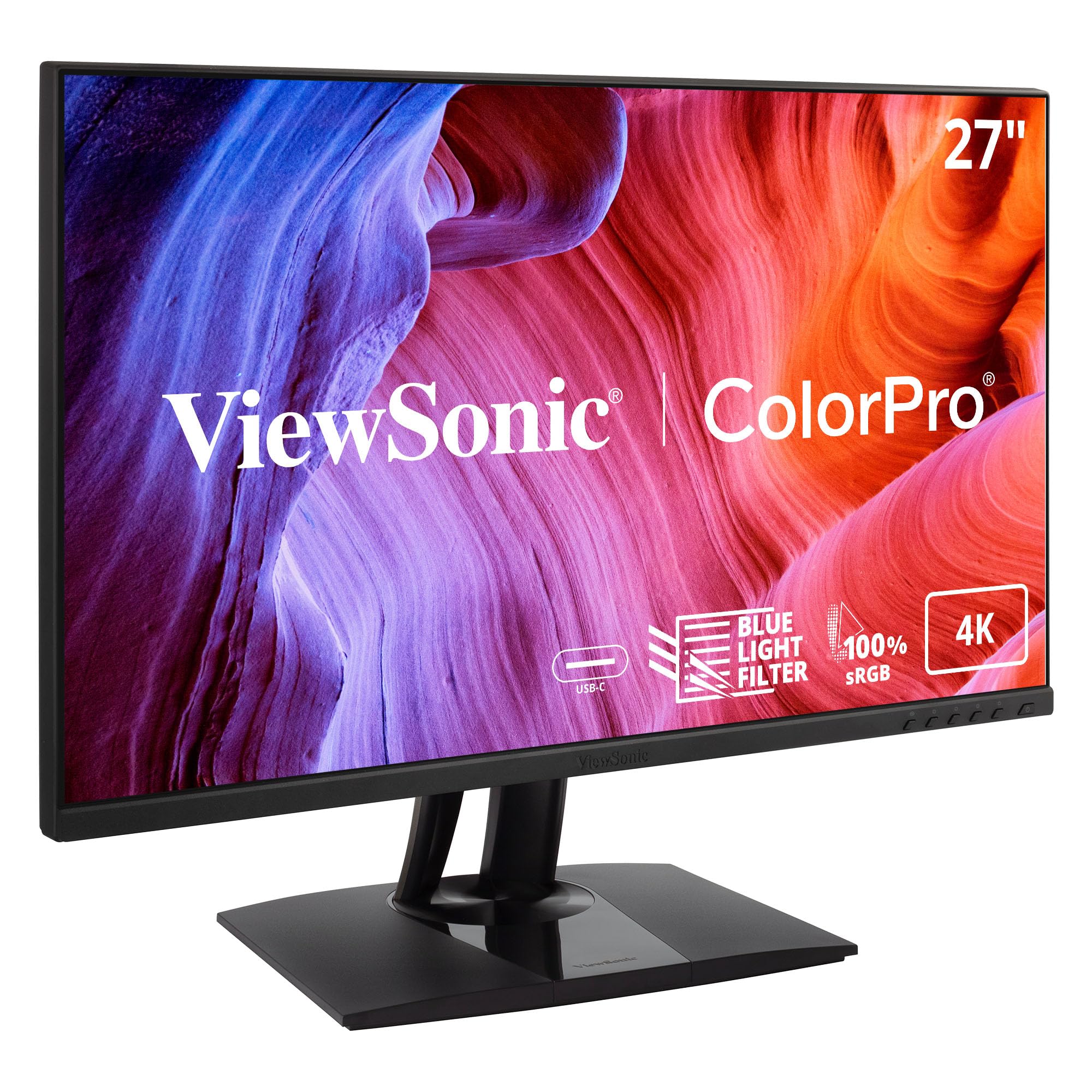
Pantone Validation and factory Delta E < 2 calibration put the VP2756-4K in genuine professional territory without a four-figure price tag. The 27-inch IPS panel covers 100% sRGB, EBU, and SMPTE-C standards, making it a strong choice for retouchers who output to web, print, and broadcast.
The USB-C port delivers 60W of power delivery — sufficient for a MacBook Air or a 13-inch Pro — alongside data and video. A built-in USB hub and KVM function let you switch between a MacBook and a desktop workstation without rearranging cables. The advanced ergonomic stand covers tilt, swivel, pivot, and height.
Matte screen coating reduces glare in bright rooms, and Flicker-Free technology reduces eye fatigue during long editing sessions. The OSD is less intuitive than software-based control, but the free ViewSonic color calibration software compensates. If you need Pantone-grade color without climbing above the mid-range, this monitor delivers.
Why it’s great
- Pantone Validated for accurate spot color matching
- KVM switch + USB hub for dual-computer workflows
- Full ergonomic stand with pivot and height adjust
Good to know
- OSD navigation is clunky
- 60W PD is not enough for 16-inch laptops
- Speakers are adequate only for system sounds
5. ASUS ProArt Display PA279CV

The PA279CV is ASUS’s entry-level ProArt model, but it holds no compromises on sRGB and Rec. 709 coverage — both hit 100%. Factory calibration targets Delta E < 2, and the monitor ships with a Calman Verification report. This is a reliable reference for web designers, YouTubers, and print photographers.
Connectivity covers USB-C with 65W power delivery, DisplayPort, HDMI, and a four-port USB 3.1 hub. The 65W PD is enough for smaller laptops but will slowly drain a 16-inch Pro under heavy load. The stand provides tilt, swivel, pivot, and height adjustment.
A common user note is a slight green tint out of the box, correctable via the OSD or a hardware calibrator. The included three-month Adobe Creative Cloud subscription adds value for new editors. If your primary output is web and video, the PA279CV gives you the reference-grade sRGB accuracy you need at a reasonable price.
Why it’s great
- 100% sRGB and Rec. 709 coverage for web and video
- Calman Verified with individual report
- USB-C with 65W PD and USB hub
Good to know
- 65W PD insufficient for large laptops under load
- Minor green tint reported out of the box
- 60 Hz only — not intended for gaming
6. Dell UltraSharp U3425WE
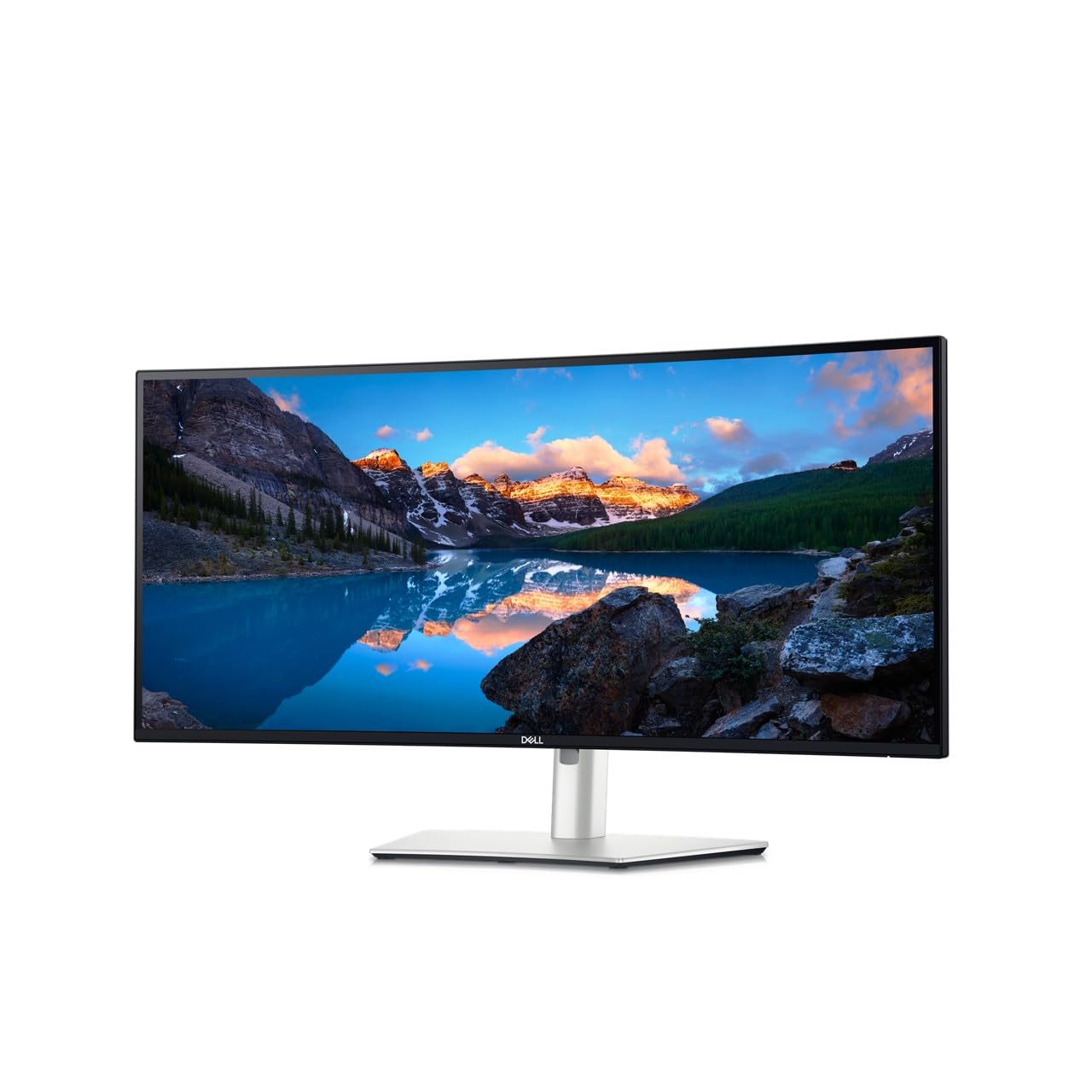
For editors who want a timeline or a full toolkit visible without scrolling, the 34-inch 21:9 UltraSharp delivers a 5K QHD resolution (3440 x 1440) with 100% sRGB coverage and a 2000:1 contrast ratio. The ultrawide IPS panel reduces the need for a second monitor during video editing and large-format retouching.
The USB-C port supports Thunderbolt 4 speeds and power delivery. The built-in Ethernet, USB hub, and daisy-chain capability make cable management clean for a desktop workstation. An ambient light sensor adjusts brightness automatically, which keeps your eyes comfortable from morning to late-night editing.
The 2000:1 contrast ratio produces noticeably deeper blacks than standard IPS panels, helping you assess shadow detail in portraits and landscapes. The matte anti-glare coating is effective under overhead lights. The on-screen display menus are Dell-standard — functional but not the most intuitive. This is a premium productivity tool that also serves photo editing well.
Why it’s great
- Ultrawide 21:9 aspect ratio reduces tab switching
- 2000:1 contrast ratio for rich black levels
- Thunderbolt 4 connectivity with integrated hub
Good to know
- Resolution is 3440 x 1440, not 4K UHD
- Large physical size requires deep desk space
- OSD menus are somewhat clunky
7. Dell S2725QS

The S2725QS is an unusual hybrid: a 27-inch 4K IPS monitor that runs at 120 Hz while still delivering 99% sRGB coverage and a 1500:1 contrast ratio. For photo editors who also dabble in video or light gaming, this monitor eliminates the need for a dedicated secondary gaming display.
AMD FreeSync Premium keeps motion smooth, and the 0.03 ms MPRT response time reduces ghosting during fast camera pans in video previews. The ComfortView Plus feature cuts blue light to ≤35% without a visible yellow shift, so you can grade for long hours with less eye fatigue.
The ultra-thin bezel in ash white gives the desk a modern look. The stand supports height, pivot, swivel, and tilt adjustment. Some users noted a very slight yellow tint on certain units, so inspect yours within the return window. If you want 4K editing resolution plus the smoothness of 120 Hz for previews and light gaming, this is a unique fit.
Why it’s great
- 120 Hz refresh rate for fluid video previews
- 1500:1 contrast ratio for better shadow separation
- ComfortView Plus reduces eye strain in long sessions
Good to know
- Limited to 99% sRGB — not wide gamut
- Some units exhibit a slight yellow tint
- Speakers are average for casual use
8. Samsung ViewFinity S7 S70D

The ViewFinity S7 is a solid entry-level 4K monitor for photo editing on a strict budget. The 27-inch IPS panel covers 99% sRGB and supports HDR10, giving you decent contrast and brightness for JPEG and RAW previews. The 1000:1 contrast ratio is typical for budget IPS, so shadow detail is less pronounced than on higher-end panels.
Port selection includes HDMI, DisplayPort, and a USB-A/USB-B hub for connecting peripherals. The tool-less Easy Setup Stand snaps together without screws, making this one of the quickest monitors to assemble. The Auto Eye Saver mode adjusts brightness and temperature based on ambient light.
Some users reported that 4K at 27 inches makes UI elements very small on macOS, requiring scaling adjustments that may compromise screen real estate. Brightness is capped to 350 nits, which is adequate for indoor studios but not for brightly lit spaces. If you need a basic 4K reference panel for occasional editing, the S7 is a capable value pick.
Why it’s great
- Tool-less assembly saves setup time
- HDR10 support improves highlight detail
- Auto Eye Saver reduces fatigue in variable lighting
Good to know
- MacOS scaling can make text tiny
- Brightness limited to 350 nits
- Stand is non-adjustable — no height or pivot
9. INNOCN 27C1U-D

The INNOCN 27C1U-D is the best monitor in the budget tier that does not compromise on color accuracy. The 27-inch 4K IPS panel achieves Delta E < 2 out of the box and supports VESA DisplayHDR 400, hitting 400 nits of peak brightness. The 1.07 billion color depth (8-bit + FRC) ensures smooth gradients in sky and skin tones.
USB-C delivers 65W of power delivery, enough for a MacBook Air or a 13-inch Pro. The stand supports height, pivot, swivel, and tilt, making it one of the most adjustable options at this price point. The bezel is minimal, and the VESA 75×75 mount lets you switch to a monitor arm if desk space is tight.
The built-in speakers are weak and the OSD button layout is confusing, but these are minor complaints given the price. Some units may exhibit a slow wake-from-sleep behavior with MacBooks. If you need a fully adjustable 4K monitor with real color calibration at a budget price, the 27C1U-D is a smart choice.
Why it’s great
- Delta E < 2 factory calibration at a budget price
- USB-C 65W PD with full ergonomic stand
- DisplayHDR 400 for brighter highlights
Good to know
- OSD buttons are poorly labeled and confusing
- Wake-from-sleep issue on some Macs
- Speakers are barely usable
FAQ
Can I use a 60 Hz monitor for photo editing without issues?
What is the minimum brightness needed for photo editing in a studio?
Is a dedicated calibration tool necessary, or can I rely on factory calibration?
Final Thoughts: The Verdict
For most users, the best affordable monitor for photo editing winner is the ASUS ProArt Display PA279CRV because it delivers 99% Adobe RGB and DCI-P3 coverage with a factory Calman Verified Delta E < 2 and 96W USB-C power delivery. If you want a Mac-native experience with P3 color and seamless keyboard control, grab the BenQ MA270U. And for a truly budget-friendly 4K panel that still hits professional calibration standards, nothing beats the INNOCN 27C1U-D.