
Every hour you spend inside AutoCAD is an hour of micro-adjustments — snapping to endpoints, rotating orthographic views, and cycling through layers with precision that a standard office mouse simply cannot deliver. The wrong pointer introduces latency, forces awkward hand positions, and turns a 30-minute drafting session into a battle against your own hardware. The gap between a generic peripheral and a tool purpose-built for computer-aided design is measured not in comfort alone, but in the cumulative strain on your wrist and the time lost correcting misclicks.
I’m Min — the co-founder and writer behind Gadgets Feed. My buying guides are built on thousands of hours spent filtering through technical datasheets, analyzing sensor accuracy across DPI ranges, and cross-referencing real user feedback from professionals who depend on these tools for their daily drafting and modeling workflow.
Whether you are a full-time mechanical designer or a student learning the ropes, this deep dive into the best autocad mouse options on the market will help you choose a pointer that matches the precision and ergonomics your software demands.
How To Choose The Best AutoCAD Mouse
AutoCAD is a precision tool, and your mouse is the bridge between your intent and the digital model. Picking the wrong one leads to missed snap points, wrist fatigue, and constant context-switching to the keyboard. Focus on three pillars: sensor accuracy, ergonomic fit for long sessions, and button customization that reduces your reliance on toolbar clicks.
Ergonomics — Your Wrist Is Not Disposable
Drafting for eight hours straight demands a mouse that keeps your forearm, wrist, and hand in a neutral posture. Vertical mice shift your hand to a handshake position, which can reduce strain on the carpal tunnel. Trackball designs let your thumb or finger move the cursor without shifting your entire arm, ideal for crowded desks. Look for adjustable tilt angles, sculpted thumb rests, and a weight below 110 grams if you move the mouse frequently.
Sensor Resolution and DPI Range
AutoCAD benefits from a sensor that tracks accurately across both high-speed panning and pixel-level snapping. A minimum of 4,000 DPI ensures smooth cursor movement on a 4K monitor without skipping. Higher DPI figures (8,000 and above) are useful if you zoom into tight tolerances and need micro-movements. Avoid mice with fixed DPI levels — look for at least five adjustable steps so you can slow down for detail work and speed up for layout navigation.
Programmable Buttons — Your Shortcut Hub
Every extra button you can configure is a keyboard shortcut you no longer need to reach for. In AutoCAD, that means mapping OSNAP toggling, layer cycling, or the ESC key to a thumb button can save dozens of seconds per minute. Aim for at least six programmable buttons. Mice with on-board memory store these macros even when you switch computers, which is critical for professionals who move between a workstation and a laptop.
Quick Comparison
On smaller screens, swipe sideways to see the full table.
| Model | Category | Best For | Key Spec | Amazon |
|---|---|---|---|---|
| Logitech MX Master 3S | Premium | All-day drafting comfort | 8K DPI, MagSpeed scroll | Amazon |
| 3Dconnexion CadMouse Compact Wireless | Premium | Professional CAD workflow | 7 buttons, 2-month battery | Amazon |
| Logitech MX Ergo S | Premium | Wrist-friendly trackball work | 20° tilt, 120-day battery | Amazon |
| Corsair Scimitar Elite Wireless SE | Mid-Range | Macro-heavy productivity | 33K DPI, 16 buttons | Amazon |
| Rapoo MT760 | Mid-Range | Multi-device cross-computer use | 11 buttons, 4K DPI | Amazon |
| SABLUTE MAM4 Vertical Mouse | Budget | Reducing wrist strain on a budget | 8K DPI, 800mAh battery | Amazon |
| SABLUTE MAM1 Pro Trackball | Budget | Space-saving trackball entry | 5 DPI levels, 0–18° tilt | Amazon |
In‑Depth Reviews
1. Logitech MX Master 3S Bluetooth Edition
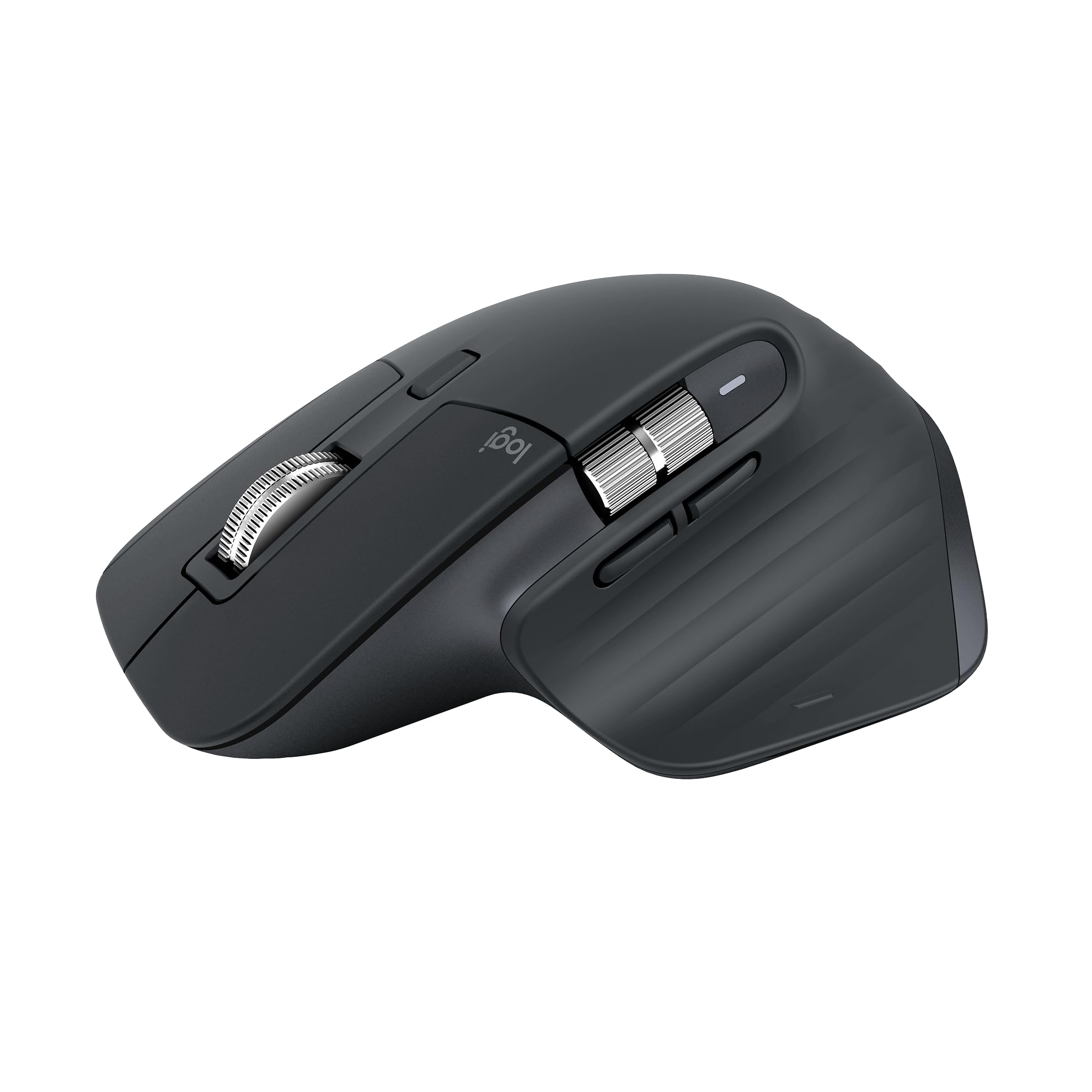
The MX Master 3S sits at the top of the productivity mouse hierarchy for good reason. Its 8,000 DPI optical sensor tracks on virtually any surface, including glass, which means you can work from a coffee shop or a standing desk without carrying a mouse pad. The MagSpeed scroll wheel is the standout feature for CAD users — it free-spins through long layer lists and drawing sets, then clicks back into notched mode for precision scrolling through toolbars.
Ergonomically, the sculpted silhouette supports a natural wrist angle, and the thumb rest houses two horizontal scroll buttons and a gesture button. The ability to assign app-specific profiles via Logi Options+ means you can map OSNAP toggling, orthographic mode, and zoom extents to dedicated thumb buttons — and those profiles follow the mouse across computers. The 70-day battery life from a full charge reduces downtime, and a one-minute quick charge gives you three hours of use.
The quiet clicks reduce click noise by 90% compared to the MX Master 3, which is a welcome refinement for shared offices. The only catch is that this Bluetooth edition ships without the Logi Bolt USB receiver, so you cannot use it with a dongle — ensure your workstation has native Bluetooth or pick up the receiver separately. For pure CAD performance, this is the benchmark.
Why it’s great
- 8,000 DPI tracks on glass for workspace flexibility
- MagSpeed wheel switches between free-spin and notched modes instantly
- App-specific profiles store AutoCAD shortcuts on the mouse
Good to know
- No USB receiver included — Bluetooth only
- No USB-C charging cable in the box
2. 3Dconnexion CadMouse Compact Wireless
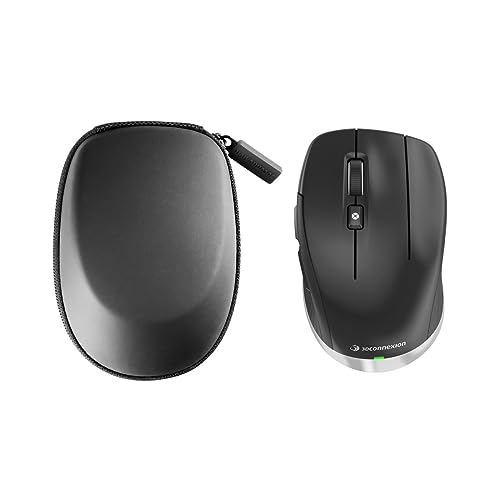
3Dconnexion lives in the CAD ecosystem, and the CadMouse Compact Wireless is engineered specifically for that environment. The seven-button layout includes a dedicated middle-click button placed under the scroll wheel rather than built into the wheel itself — a small change that eliminates accidental middle-clicks during pan operations. The optical sensor delivers smooth, dependable cursor movement that matches the precision required for snapping to vertices and midpoints in AutoCAD.
The compact form factor is not a compromise for ergonomics. 3Dconnexion designed the shape to encourage a claw grip that keeps your hand relaxed, reducing the risk of repetitive strain during extended modeling sessions. The Bluetooth connection is energy-efficient, delivering up to two months of use on a single charge, and the wireless range is solid enough to keep the connection steady across a typical office desk setup.
The programmable buttons natively support CAD functions, including quick access to the 3Dconnexion QuickFly menu for viewport navigation. Users report that the build quality feels dense and premium, with no flex in the chassis even after months of daily use. The main downside is the lower maximum DPI compared to gaming-oriented mice, but for AutoCAD work where consistent tracking matters more than extreme speed, it is a non-issue.
Why it’s great
- Dedicated middle-click button prevents accidental panning
- Native CAD software integration for QuickFly menu
- Dense build quality with no chassis flex
Good to know
- Lower DPI ceiling than productivity or gaming mice
- Compact shape may not suit large hands
3. Logitech MX Ergo S Advanced Wireless Trackball

The MX Ergo S is a trackball that redefines how you interact with AutoCAD. Instead of dragging your entire arm to move the cursor, you roll the thumb-operated ball — reducing the repetitive shoulder and wrist motion that leads to fatigue. The 20-degree adjustable tilt positions your forearm in a more natural handshake posture, and Logitech claims this reduces muscle strain by 27% compared to a standard flat mouse.
Six programmable buttons can be mapped through Logi Options+ to handle common CAD commands like zoom window, layer properties, or the ESC key. The thumb ball offers two tracking modes — standard speed for general navigation and a precision mode that slows the cursor for fine-tuned snapping. The 1-minute quick charge delivers 24 hours of use, and a full charge lasts up to 120 days.
The built quality is premium, with a metal baseplate that prevents the mouse from sliding on the desk as you work the trackball. The quiet clicks reduce noise significantly, and the sculpted rubber grip provides a stable hold for medium-to-large hands. The main consideration is the learning curve: first-time trackball users should expect one to two weeks of adjustment before the muscle memory clicks in. After that, many report complete relief from wrist and shoulder pain.
Why it’s great
- Thumb trackball eliminates arm dragging for wrist relief
- 20° tilt reduces muscle strain by 27%
- 120-day battery life with USB-C fast charging
Good to know
- Steep learning curve for trackball newcomers
- Silicon coating can attract dust and wear over time
4. Corsair Scimitar Elite Wireless SE

The Scimitar Elite Wireless SE packs 16 programmable buttons onto a side grid — a layout designed for MMO gaming but equally powerful for AutoCAD macro assignments. You can assign OSNAP cycling, layer toggling, viewport switching, and the UNDO command to individual keys, effectively reducing your dependency on the keyboard during intense drafting sessions. The key slider mechanism lets you adjust the grid position forward or backward to match your thumb reach.
The MARKSMAN S optical sensor delivers 33,000 DPI with precise tracking, and the 1,000Hz polling rate ensures near-instantaneous click registration. In wireless mode via the Slipstream receiver, latency is indistinguishable from a wired connection. The battery lasts up to 150 hours over Bluetooth, so you can work through a full work week without reaching for the charging cable.
The Elgato Stream Deck integration is a bonus for streamers, but for CAD users, the real value is the Virtual Stream Deck functionality that expands the 16 buttons into layered profiles. The main drawbacks are the iCue software setup process, which some users find cumbersome, and the relatively short range of the wireless dongle. The chassis is also wider than typical productivity mice, requiring a bit more desk space.
Why it’s great
- 16 customizable buttons with adjustable side grid positioning
- 33,000 DPI sensor with 1,000Hz polling for zero lag
- 150-hour battery life over Bluetooth
Good to know
- iCue software has a steep learning curve
- Wide chassis takes up more desk space
5. Rapoo MT760 Multi-Device Wireless Mouse

The Rapoo MT760 is built for professionals who toggle between a desktop workstation and a laptop throughout the day. It supports two Bluetooth 5.0 channels and a 2.4GHz dongle, letting you switch between up to four devices with a single button press. The M+ Cross-Computer Technology goes a step further: when both computers are on the same network, you can move the cursor to the edge of one screen and have it appear on the other — dragging files and layers between systems without extra hardware.
The ergonomic bow-back design provides full palm support with a sculpted thumb rest, and the side scroll wheel is a Hall magnetic induction wheel that feels smooth and precise — excellent for horizontal scrolling through wide AutoCAD timelines or spreadsheet columns. The eleven programmable buttons can be customized through Rapoo’s software to execute complex macros, though the software is Windows-only for macro programming.
Battery life is a standout feature: the 800mAh Li-Po battery lasts up to 90 days on a single charge, and the USB-C quick charge tops it up fast. The build quality feels on par with Logitech’s MX series at a significantly lower price point. The main trade-off is the scrolling wheel — it uses a clicky detent rather than a smooth magnetic feel, which some users find less satisfying for rapid scrolling through long documents.
Why it’s great
- M+ Cross-Computer Technology for multi-PC workflow
- 90-day battery life with USB-C quick charge
- 11 programmable buttons with macro support
Good to know
- Scroll wheel uses clicky detent, not smooth magnetic feel
- Macro programming software is Windows-only
6. SABLUTE MAM4 Ergonomic Vertical Mouse
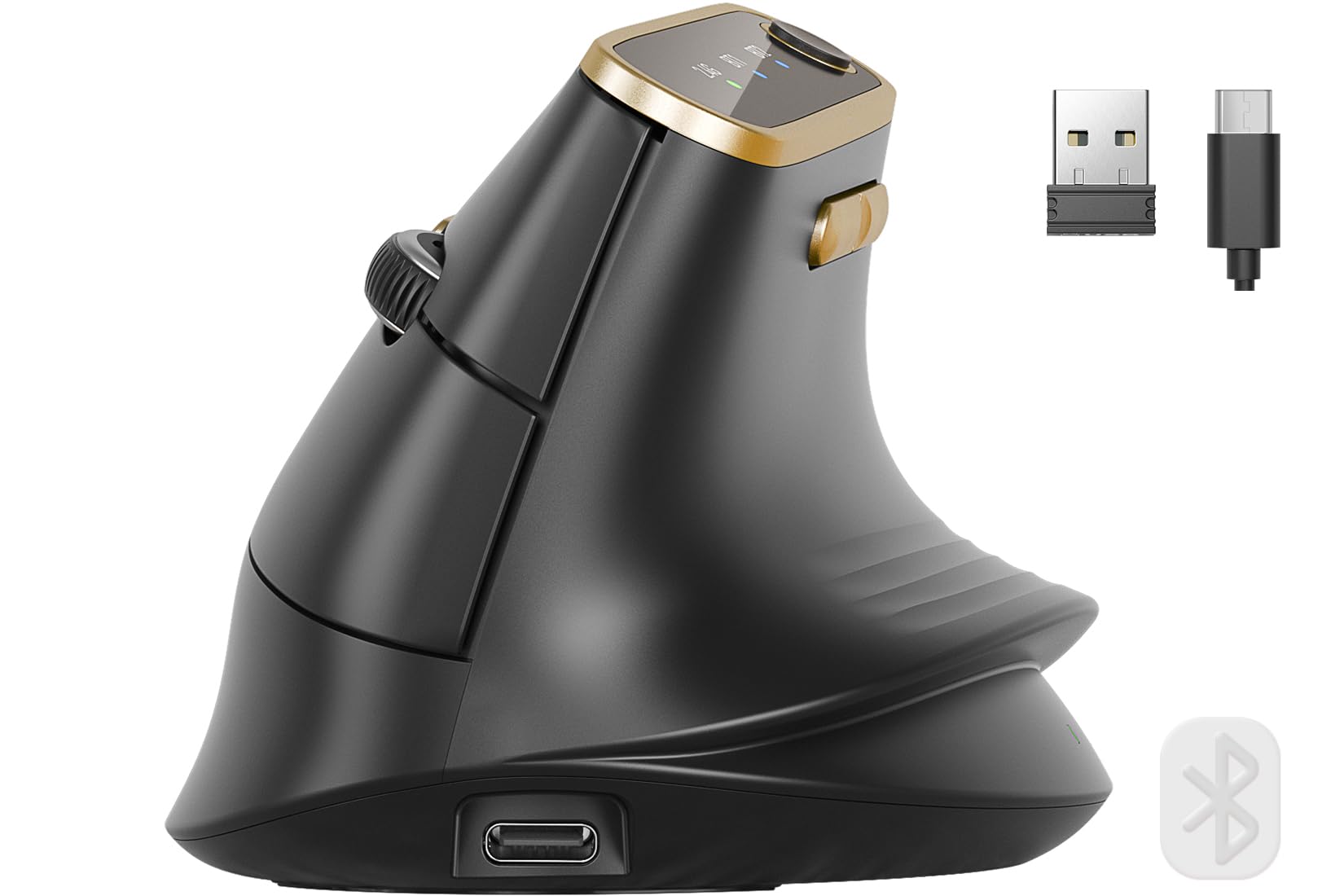
The MAM4 is designed specifically for medium to large hands, with a 57-degree vertical angle that forces your hand into a handshake posture. This alignment eliminates the pinky drag that occurs when smaller ergonomic mice force your fingers to curl. The taller profile provides a full-palm resting surface, which is a rarity in the budget ergonomic segment.
The optical sensor supports up to 8,000 DPI with six preset levels indicated by LED color prompts. For AutoCAD use, dropping to 800 DPI provides controlled cursor movement for precise snapping, while higher DPI values handle 4K monitor navigation smoothly. The ultra-fast scrolling wheel can fly through 1,000 lines per second — useful for scanning through long drawing revision histories. All six buttons are fully programmable via the Windows driver, allowing you to assign complex macros and Adobe shortcuts.
The 800mAh battery lasts up to 30 days per charge, nearly double the capacity of many premium competitors. The tri-mode connectivity (dual Bluetooth 5.0 and 2.4GHz) lets you switch between desktop and laptop seamlessly, and the advanced chipset eliminates the sleep lag that plagues cheaper wireless mice. The quiet click technology reduces noise by 90% while maintaining tactile feedback. The minor downside is that the software is not available for macOS, so Mac users will need to configure customizations on a Windows PC first.
Why it’s great
- 57-degree vertical angle suits medium to large hands
- 8,000 DPI with 6 preset levels for multi-monitor use
- Ultra-fast scrolling wheel for long documents
Good to know
- Configuration software is Windows-only
- Middle click requires more pressure than side buttons
7. SABLUTE MAM1 Pro Ergonomic Wireless Trackball
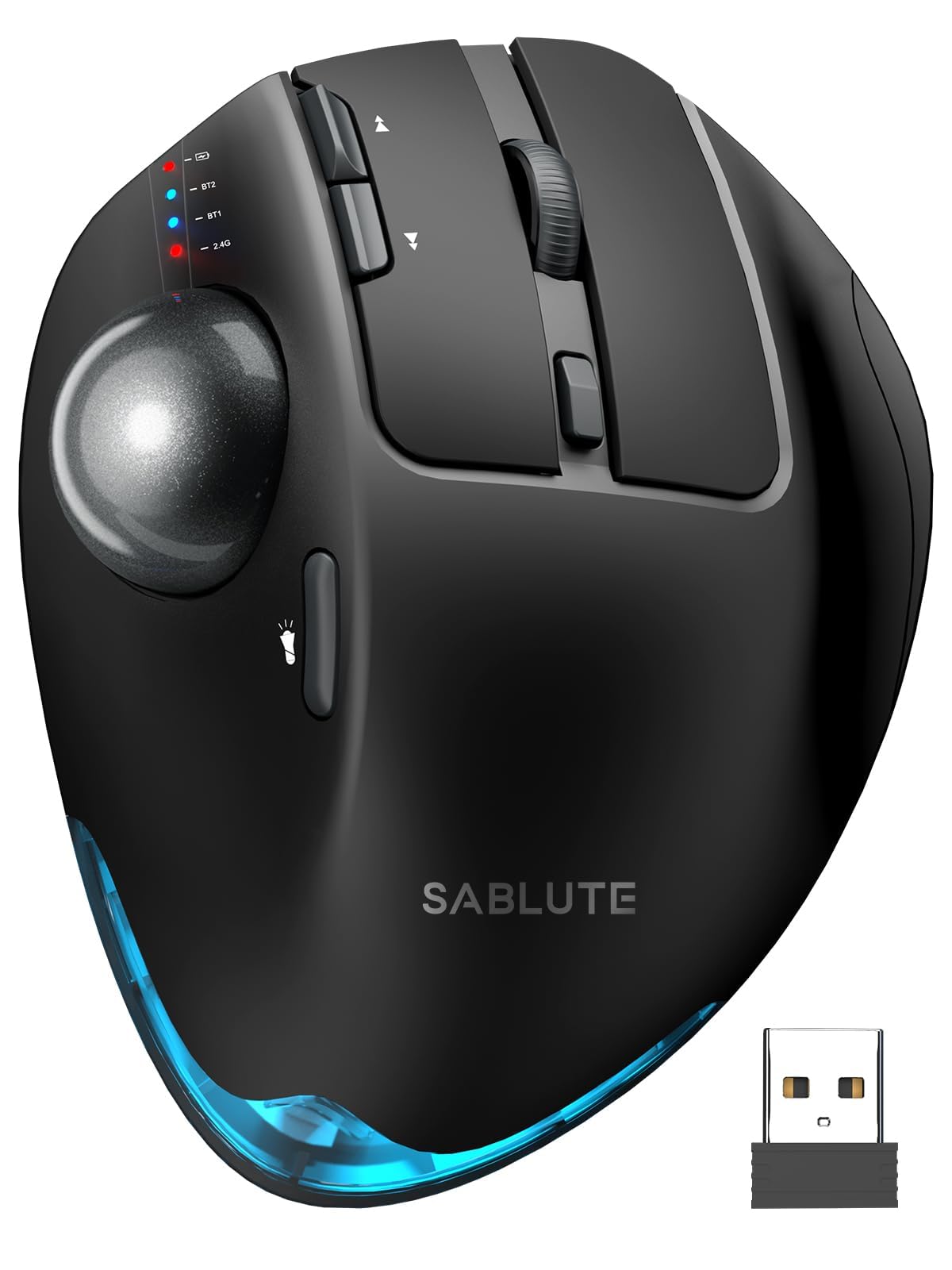
The MAM1 Pro is an accessible entry point into trackball ergonomics for AutoCAD users. The adjustable base lets you choose between a flat 0-degree angle and an 18-degree tilt, which follows the wrist’s natural resting posture. The thumb-operated trackball provides precise cursor control without moving your entire arm across the desk — a significant advantage for users with limited desk space or existing wrist discomfort.
The ball itself is smooth and responsive, and the replaceable design means you can clean or swap it as it wears. Five DPI levels range from 800 to 4,800, giving you enough range to adjust cursor speed for detailed drafting versus broad layout navigation. The eight buttons include forward, back, and a DPI cycle button, all of which can be customized through the downloadable driver (Windows only). The quiet click buttons reduce noise by up to 95%, which is ideal for shared office environments.
The built-in rechargeable battery with USB-C charging eliminates the need for disposable batteries, and the soft ambient backlight can be toggled off to conserve power. Multi-device support connects to three devices via dual Bluetooth and a 2.4GHz receiver. The main caveat is the adaptation period — new trackball users should expect one to two weeks of practice before achieving the same speed as a traditional mouse. Some users with thumb sensitivity may prefer a finger-operated trackball instead.
Why it’s great
- Adjustable 0–18 degree tilt for natural wrist posture
- Smooth thumb-operated trackball reduces arm movement
- 5 DPI levels with 8 programmable buttons
Good to know
- Requires 1–2 weeks of adjustment for new users
- Thumb operation may cause discomfort for some users
FAQ
Do I need a mouse with programmable buttons for AutoCAD?
Is a trackball mouse good for AutoCAD precision work?
Can I use a gaming mouse for AutoCAD?
Final Thoughts: The Verdict
For most users, the best autocad mouse winner is the Logitech MX Master 3S because it combines 8K DPI tracking, a best-in-class MagSpeed scroll wheel, and app-specific profiles that streamline your drafting workflow without sacrificing comfort. If you want a trackball that eliminates wrist strain completely, grab the Logitech MX Ergo S — the 120-day battery life and 20-degree tilt make it a long-term ergonomic investment. And for a budget-friendly vertical option that supports medium to large hands, nothing beats the SABLUTE MAM4 with its 8K DPI sensor and 800mAh battery.