
Every edit you make is a lie if your monitor can’t tell the truth. Grading skin tones or balancing a log profile on a display that crushes shadows or shifts greens mid-timeline is a recipe for a ruined export. The difference between a passable grade and a broadcast-ready master starts with a single panel decision.
I’m Min — the co-founder and writer behind Gadgets Feed. I’ve spent hundreds of hours analyzing color accuracy specs, panel uniformity data, and real-world workflow integration across dozens of professional 4K displays to separate the truly color-accurate from the marketing noise. I’m the co-founder and writer behind Gadgets Feed, and I’ve spent hundreds of hours analyzing color accuracy specs, panel uniformity data, and real-world workflow integration across dozens of professional 4K displays to separate the truly color-accurate from the marketing noise.
This guide breaks down the panels, gamuts, and connectivity options that actually matter for modern NLE timelines, grading sessions, and client reviews. Whether you cut in DaVinci Resolve, Premiere Pro, or Final Cut Pro, finding the right 4k video editing monitor means prioritizing consistent color science over marketing hype.
How To Choose The Best 4K Video Editing Monitor
Selecting a monitor for video editing is fundamentally different than picking a general-use or gaming display. The panel must reproduce colors consistently across the entire luminance range, maintain uniformity from edge to edge, and offer connectivity that supports high-bandwidth video signals without compression artifacts. Ignoring any of these pillars can result in an inaccurate grade, banding in shadows, or a frustrating desk setup that wastes time.
Panel Technology and Color Gamut Coverage
IPS panels dominate professional editing environments because they offer stable color reproduction across wide viewing angles. However, not all IPS is equal — look for panels that cover 95% or more of the DCI-P3 color space for HDR workflows and 100% sRGB/Rec.709 for standard dynamic range projects. QD-OLED panels now rival IPS in color accuracy while providing infinite contrast ratios, making them excellent for HDR grading if your workflow can tolerate the risk of burn-in on static UI elements during long edit sessions.
Factory Calibration and Delta E Ratings
Factory pre-calibration to a Delta E of less than 2 ensures the monitor arrives with usable color accuracy straight out of the box. For critical color work, a Delta E under 1.5 is preferred. Calman Verification or an included calibration report adds another layer of trust, confirming the monitor meets professional color standards before it reached your desk.
Connectivity and Workflow Integration
A single USB-C cable that delivers video signal and power simultaneously simplifies desk clutter and streamlines laptop-based editing setups. Look for USB-C with at least 65W power delivery — 90W or 96W is better for larger laptops. Thunderbolt 4 support offers the highest bandwidth for daisy-chaining multiple 4K monitors or connecting high-speed storage peripherals directly through the display.
Quick Comparison
On smaller screens, swipe sideways to see the full table.
| Model | Category | Best For | Key Spec | Amazon |
|---|---|---|---|---|
| LG 32UN650-W | Mid-Range | Budget color work | DCI-P3 95% | Amazon |
| LG 27UP850-W | Mid-Range | Mac connectivity | 96W USB-C PD | Amazon |
| ASUS ProArt PA279CV | Mid-Range | Premiere Pro grading | ΔE < 2 factory calibrated | Amazon |
| ASUS ProArt PA279CRV | Mid-Range | DCI-P3 grading | 99% DCI-P3/Adobe RGB | Amazon |
| BenQ MA270U | Mid-Range | MacBook editors | Mac color match | Amazon |
| Dell UltraSharp U2725QE | Mid-Range | All-around performance | 120Hz, Thunderbolt 4 | Amazon |
| BenQ PD2705U | Premium | Professional color work | ΔE ≤ 3, Pantone validated | Amazon |
| MSI PRO MAX 271UPXW12G | Premium | QD-OLED grading | ΔE < 2, True Black 400 | Amazon |
| MSI MPG 321URX | Premium | Mixed editing/gaming | 240Hz, 0.03ms GtG | Amazon |
| Alienware AW3225QF | Premium | High-end color & motion | QD-OLED, Dolby Vision | Amazon |
| Dell UltraSharp U4025QW | Premium | Ultrawide timeline work | 5120×2160, 120Hz | Amazon |
In‑Depth Reviews
1. ASUS ProArt PA279CRV

The PA279CRV is the sweet spot for serious editors on a mid-range budget. It covers 99% of both DCI-P3 and Adobe RGB, meaning you can grade HDR content in Davinci Resolve and switch to print-accurate photo work without second-guessing your panel. The factory calibration report confirms Delta E under 2, so you aren’t fighting a green cast or blown highlights right out of the cardboard.
Connectivity is forward-looking: a single USB-C port delivers 96 watts of power to a MacBook Pro while passing video data, and the built-in USB hub handles peripherals. The stand offers full ergonomic adjustment including pivot for portrait-mode timeline scrubbing. At this price point, no other monitor delivers this breadth of color gamut coverage with a premium adjustable stand.
Matte coating reduces glare in mixed lighting conditions, and the IPS panel maintains consistent color from extreme viewing angles — useful when a client peeks over your shoulder. The only trade-off is a 60Hz refresh rate, but for editing workflows that prioritize static color accuracy over motion smoothness, this monitor is unbeatable.
Why it’s great
- Factory calibrated to Delta E < 2 with report
- 99% DCI-P3 and 99% Adobe RGB coverage
- 96W USB-C power delivery for laptops
Good to know
- 60Hz refresh rate limits gaming use
- Buttons on bottom right can be fiddly
2. Dell UltraSharp U2725QE
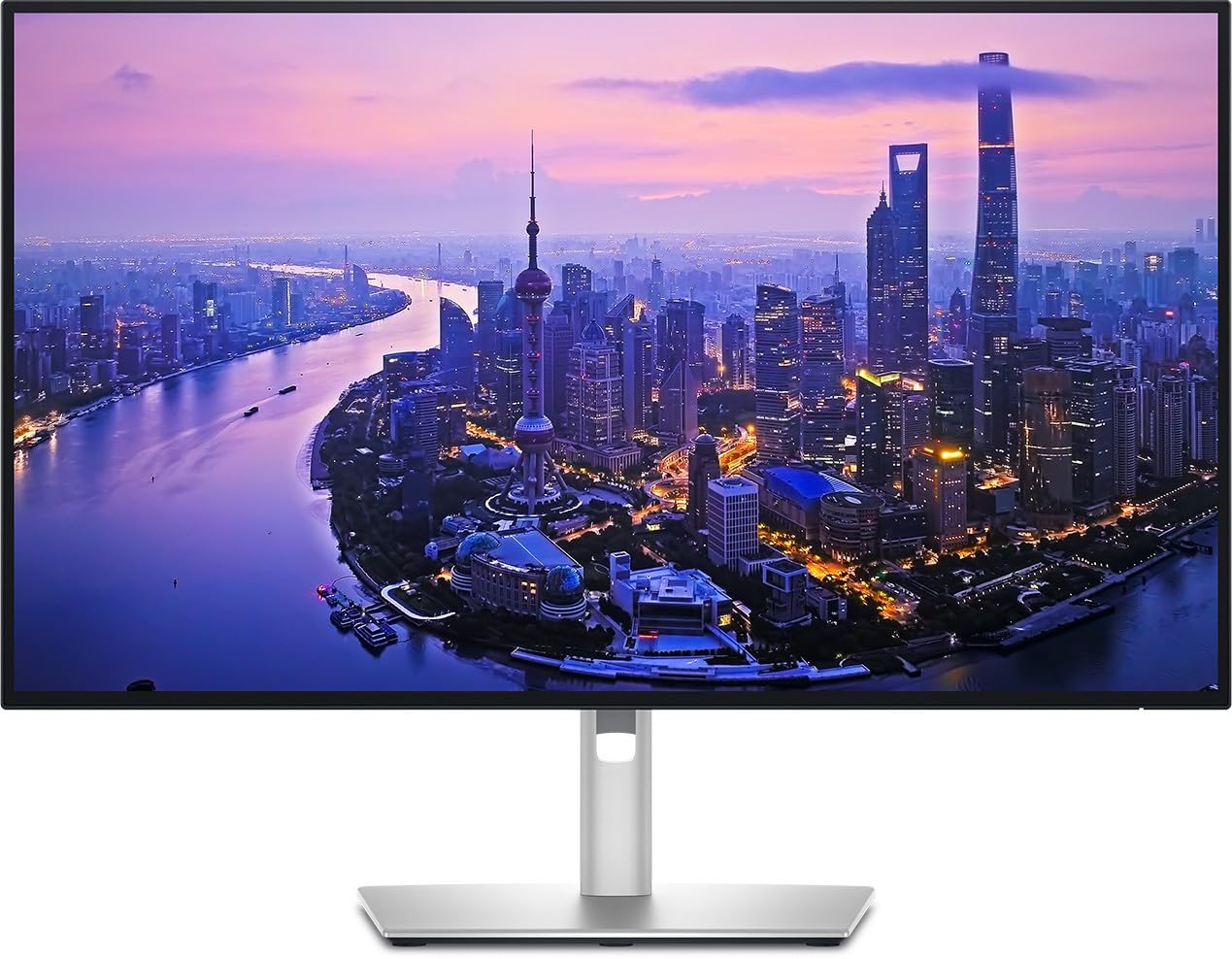
The U2725QE raises the bar for multi-function editing monitors by combining a factory-calibrated IPS Black panel with a 120Hz refresh rate. The Delta E less than 1.5 calibration means your scopes and waveform monitors will match the on-screen image with minimal drift, and the 99% DCI-P3 coverage ensures HDR grades look punchy without clipping.
Thunderbolt 4 connectivity is the headline feature — it delivers up to 140 watts of power while driving video and data through a single cable, and it supports daisy-chaining an additional 4K monitor. The built-in ambient light sensor automatically adjusts brightness to match your room, reducing eye strain during long overnight sessions.
The IPS Black panel technology improves contrast ratio noticeably over standard IPS, making deep shadow regions in log footage appear more detailed. ComfortView Plus reduces blue light without shifting color temperature, which is critical for editors who stare at a timeline for ten hours straight. The anti-glare coating is excellent, though Mac users should verify Thunderbolt 4 compatibility before purchase.
Why it’s great
- Factory calibrated to Delta E < 1.5
- 120Hz refresh for smoother timeline scrubbing
- 140W Thunderbolt 4 power delivery
Good to know
- Some Mac users report compatibility quirks
- Premium price reflects Thunderbolt 4 chipset
3. ASUS ProArt PA279CV

The PA279CV is the entry-level ProArt monitor that doesn’t sacrifice the essentials. It covers 100% sRGB and Rec.709 — the exact color spaces used for broadcast and web delivery — and arrives with a Calman Verified factory calibration report showing Delta E under 2. For editors cutting commercials or social media content, this monitor guarantees your final export matches what viewers will see.
Connectivity is generous for the class: DisplayPort over USB-C with 65-watt power delivery, plus HDMI, DisplayPort, and a four-port USB 3.1 hub. The ergonomic stand supports height, pivot, swivel, and tilt adjustments, making it easy to find a comfortable position for long grading sessions.
The 5-year warranty (3 years plus 2 with online registration) is a strong vote of confidence for a professional tool. The included 3-month Adobe Creative Cloud subscription is a nice bonus for new editors. While the PA279CV lacks the wider DCI-P3 gamut of its more expensive sibling, it remains the most cost-effective path to professional-grade color accuracy for standard dynamic range projects.
Why it’s great
- Calman Verified with Delta E < 2 out of box
- Full sRGB/Rec.709 coverage for broadcast work
- 5-year warranty included
Good to know
- No DCI-P3 coverage for HDR grading
- 65W USB-C may not charge larger laptops at full speed
4. BenQ MA270U

The MA270U is purpose-built for editors who live inside the Apple ecosystem. BenQ tuned the color calibration specifically to match MacBook displays, so when you pull a grade on the MA270U and check it on your MacBook Pro screen, the colors stay consistent. The P3 wide color gamut covers the same space as modern MacBooks, making it a seamless secondary display for Final Cut Pro timelines.
Single USB-C cable delivers 90 watts of power to a MacBook while carrying video and audio. The dual USB-C ports also support daisy-chaining accessories or charging an iPad at 15 watts. Integrated MacBook controls let you adjust brightness and volume using the keyboard shortcuts you already know, eliminating the need to hunt for OSD buttons.
The stand is fully adjustable with height, tilt, swivel, and pivot. The matte anti-glare coating reduces reflections in brightly lit rooms. The only meaningful downside is the built-in speaker quality — it’s functional for system sounds but inadequate for critical audio monitoring during edits.
Why it’s great
- Color matched to MacBook displays
- 90W USB-C with single-cable convenience
- Full ergonomic stand with pivot
Good to know
- Reliability issues reported — early failure on some units
- Speakers are weak
5. LG 32UN650-W

The 32UN650-W delivers a generous 32-inch IPS panel with 95% DCI-P3 coverage at a price point that undercuts most pro-branded monitors. The larger screen real estate is a genuine productivity boost — you can keep a full-resolution timeline on the main canvas while previewing source footage in a side window without sacrificing legibility.
The virtually borderless three-side design works well in multi-monitor setups, and the height-adjustable stand means you don’t have to stack books under the base. HDR10 compatibility adds some extra pop for reviewing HDR content, though the 350-nit peak brightness means true HDR grading is off the table.
Color accuracy out of the box is strong for the price, and several reviewers note it calibrates well with a hardware puck. The lack of USB ports and the minimal integrated speakers are the main compromises. This monitor serves best as a color-accurate primary display for editors who don’t require factory-calibrated Delta E numbers or extended connectivity.
Why it’s great
- 32-inch IPS panel with 95% DCI-P3
- Excellent value for large-screen color work
- Height-adjustable stand included
Good to know
- No factory calibration report
- No USB hub or USB-C connectivity
6. LG 27UP850-W

The 27UP850-W is a versatile 27-inch monitor that pairs excellent color performance with serious laptop charging capability. The 96-watt USB-C power delivery means a single cable drives video and keeps a MacBook Pro fully powered, even during intensive rendering tasks. The VESA DisplayHDR 400 certification enables noticeably more vibrant highlights than standard monitors.
The DCI-P3 95% color gamut covers the essential HDR color space, and the 400-nit peak brightness provides enough luminance to grade SDR content with proper contrast perception. The three-side borderless design and fully adjustable stand with pivot support make this monitor adaptable to different desk layouts and ergonomic needs.
The USB-C connectivity can be finicky — some users report needing specific cables or firmware resets to maintain stable connections, particularly with M1 MacBooks. The USB-A ports are limited to 1 amp, so they won’t fast-charge accessories. For editors who prioritize single-cable simplicity and have patience for occasional troubleshooting, this is a strong mid-range contender.
Why it’s great
- 96W USB-C power delivery
- DisplayHDR 400 with 400-nit brightness
- Fully adjustable stand with pivot
Good to know
- USB-C connectivity can be unstable
- USB-A ports limited to 1 amp output
7. BenQ PD2705U

The PD2705U is a workstation-grade monitor that targets professionals who need Pantone-validated color reproduction and hardware calibration support. The 100% sRGB and Rec.709 coverage ensures broadcast-standard accuracy, while the AQCOLOR technology maintains consistent color across different brightness levels. The included HotKey Puck is a practical tool for quickly switching between color modes during collaborative review sessions.
The built-in KVM switch lets you control two computers — for example, an editing workstation and a client review laptop — with a single keyboard and mouse setup. USB-C connectivity with 65-watt power delivery handles laptop charging, while the DisplayPort and HDMI ports support additional inputs. The ICC Sync feature simplifies color mapping through the Display Pilot software, completing the process in roughly one second.
The ergonomic stand supports height, pivot, and tilt adjustments, and the anti-glare coating reduces reflections in brightly lit edit suites. The monitor calibrates well with a hardware puck — several users report achieving Delta E under 0.8 after calibration. The built-in speakers are basic but adequate for system sounds. This is the right choice for editors who demand broadcast-standard color accuracy and multi-device workflow flexibility.
Why it’s great
- Pantone SkinTone validated for skin accuracy
- Built-in KVM switch for multi-computer workflows
- HotKey Puck for rapid mode switching
Good to know
- On-screen menu navigation is clunky
- 65W USB-C lower than some competitors
8. MSI PRO MAX 271UPXW12G
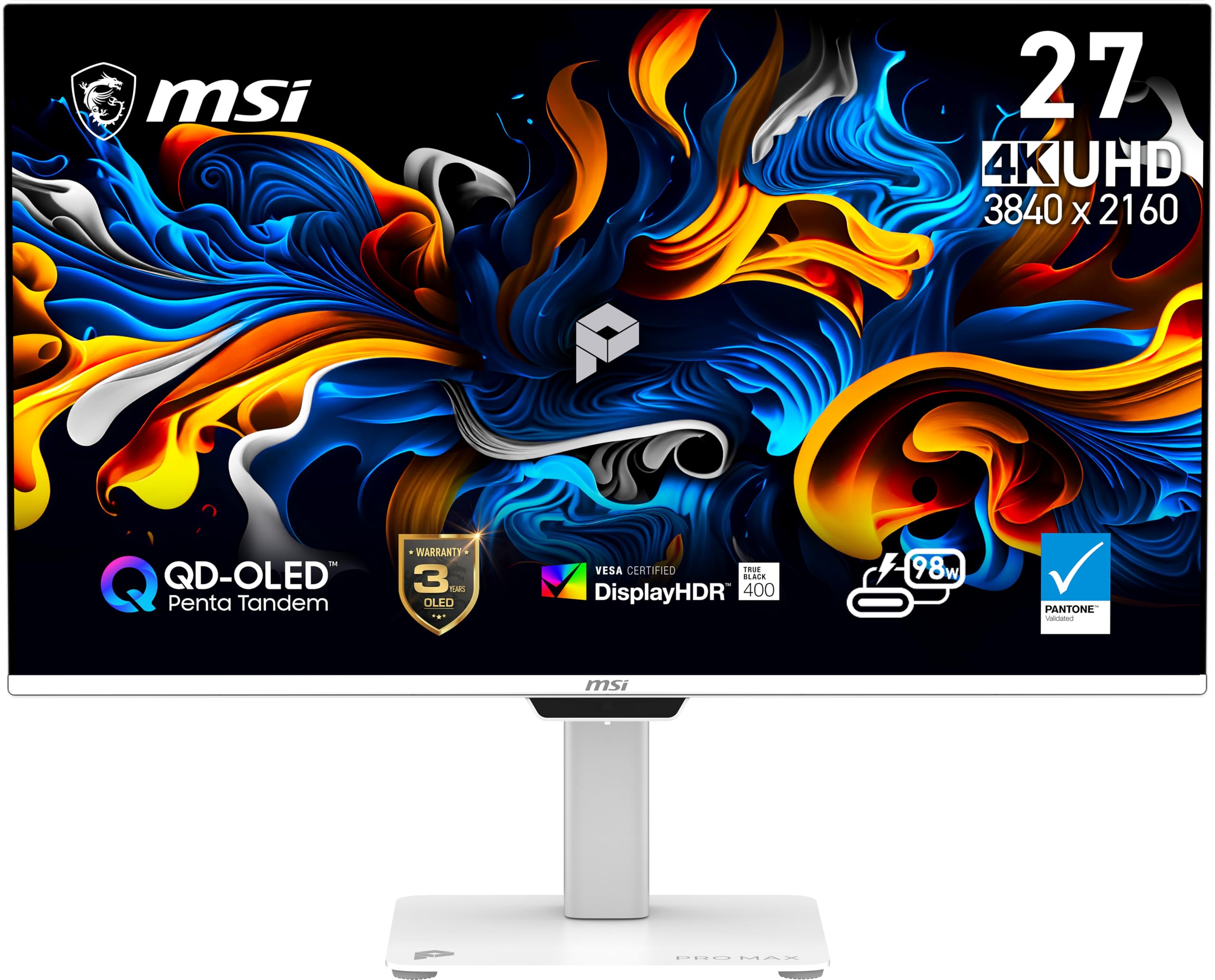
The PRO MAX 271UPXW12G brings QD-OLED technology into the professional monitor space, offering infinite contrast and pixel-level luminance control. For HDR grading, this means true black levels and no haloing around bright objects — a significant advantage over IPS panels when evaluating shadow detail in log footage. The Delta E under 2 factory calibration ensures the accuracy matches the immersive visual quality.
The 120Hz refresh rate is a practical upgrade for timeline navigation — panning and scrubbing feel noticeably smoother than standard 60Hz panels. Dual USB-C ports with 98-watt and 15-watt power delivery support laptop charging and accessory power through a single cable. The MSI Mac Optimization Software synchronizes color profiles with macOS, making this a viable option for Apple editors.
VESA DisplayHDR True Black 400 certification delivers noticeably punchier highlights without crushing shadows. The white chassis is a departure from the standard black pro monitor aesthetic, which may clash with some studio setups. QD-OLED burn-in risk remains a consideration for editors who leave static timeline elements on screen for extended periods, though MSI includes OLED Care features to mitigate this.
Why it’s great
- QD-OLED infinite contrast for HDR grading
- 120Hz refresh for smooth timeline work
- 98W USB-C power delivery
Good to know
- Burn-in risk with static UI elements
- White chassis may not suit all studios
9. MSI MPG 321URX

The MPG 321URX is a 32-inch QD-OLED monitor that bridges professional editing and high-refresh gaming without significant compromises in either domain. The 99% DCI-P3 coverage and Delta E under 2 accuracy make it legitimate for HDR grading, while the 240Hz refresh rate and 0.03ms response time deliver silky-smooth motion for monitoring high-frame-rate content or switching to game projects.
VESA DisplayHDR True Black 400 ensures deep blacks and bright highlights, revealing shadow detail that IPS panels would crush. The KVM switch with Picture-by-Picture mode lets you display two input sources side by side — useful for comparing a graded shot against reference footage from a separate source. The USB-C port delivers 90 watts of power for laptop users.
The stand is four-way adjustable, and the OLED Care 2.0 software includes pixel shift and panel refresh features to mitigate burn-in. The 240Hz refresh requires significant GPU bandwidth at 4K resolution, so ensure your editing workstation can drive this panel at full speed if you plan to use it for gaming or high-frame-rate content review. This monitor is for editors who refuse to choose between color-critical work and fluid motion.
Why it’s great
- 99% DCI-P3 with Delta E < 2 accuracy
- 240Hz refresh for fluid motion
- KVM switch with PiP/PbP functionality
Good to know
- Requires powerful GPU to drive 240Hz at 4K
- Chunky stand base takes desk space
10. Alienware AW3225QF
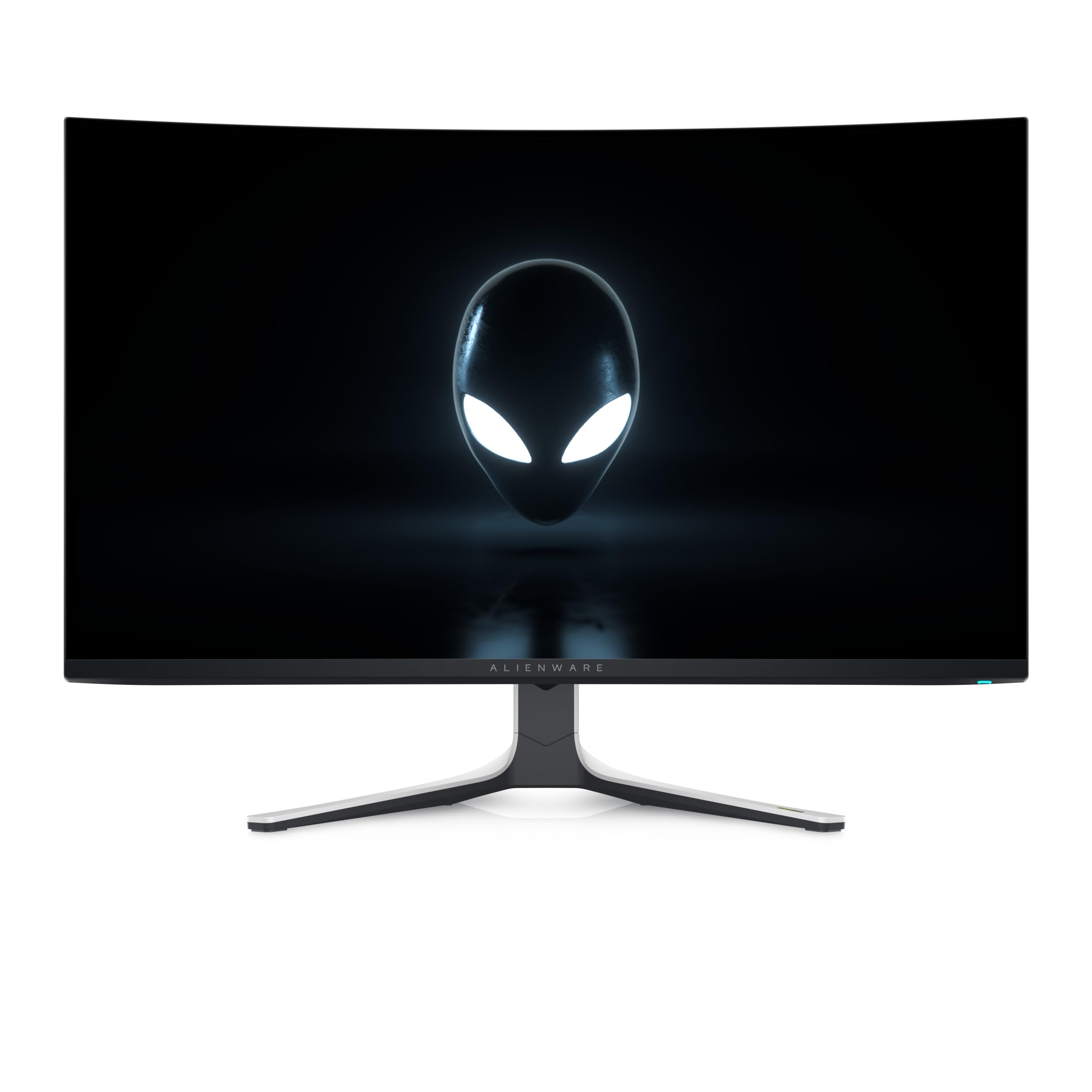
The AW3225QF delivers Dolby Vision support on a QD-OLED panel, making it one of the few monitors that can properly evaluate Dolby Vision graded content without tone-mapping to a lower standard. The infinite contrast ratio and 12-bit color processing provide the dynamic range necessary for professional HDR mastering, though the monitor is marketed primarily as a gaming display.
The 4K UHD resolution at 32 inches provides a sharp canvas for inspecting fine detail in 4K footage. The 240Hz refresh rate ensures motion clarity when reviewing fast-paced content. The 12-bit color depth means smoother gradients without banding — a genuine advantage for grading skies, skin tones, and other continuous-tone regions.
Mac users should note that HDMI on M1 Macs is limited to 60Hz; a USB-C to DisplayPort cable is required to reach the full 120Hz refresh rate on Apple Silicon machines. Disabling HDR in macOS improves text clarity for UI work. The premium price reflects the Dolby Vision licensing and QD-OLED manufacturing cost, making this a specialist tool for editors who regularly master HDR content for streaming platforms that support Dolby Vision.
Why it’s great
- Dolby Vision certified for HDR mastering
- Infinite contrast with 12-bit color
- 240Hz refresh for fluid motion
Good to know
- Mac requires special cable for 120Hz
- Premium price point
11. Dell UltraSharp U4025QW

The U4025QW is a massive 40-inch 5K2K ultrawide monitor with a 21:9 aspect ratio that transforms how editors interact with a timeline. The 5120×2160 resolution provides enough horizontal space to park a full Premiere Pro timeline, source monitor, program monitor, and effect controls without overlapping windows. The IPS Black panel technology delivers a 2000:1 contrast ratio — double that of standard IPS — making shadow regions more legible.
The 120Hz refresh rate makes timeline scrubbing and playback feel fluid, and the 600-nit peak brightness ensures highlights remain visible even in well-lit edit suites. The built-in hub includes Thunderbolt 4, HDMI, DisplayPort, Ethernet, and USB-A ports, effectively replacing a separate docking station. The built-in KVM switch lets you toggle between a Mac editing workstation and a PC render machine with a single button press.
The curved screen reduces eye strain by keeping all content at a consistent focal distance. The premium price is justified by the unique combination of resolution, refresh rate, contrast ratio, and connectivity density. This monitor is specifically designed for editors who need to see their entire timeline at native resolution without scrolling — it is not a general-purpose display.
Why it’s great
- 5K2K ultrawide fits full timeline without scrolling
- IPS Black with 2000:1 contrast ratio
- Built-in Thunderbolt 4 hub replaces dock
Good to know
- Very expensive — targeted at professionals
- Requires powerful GPU for native resolution
FAQ
Is a 60Hz monitor adequate for 4K video editing?
What Delta E rating should a video editing monitor have?
Should I choose an IPS or OLED panel for video editing?
How much DCI-P3 coverage do I need for HDR editing?
Can I use a gaming monitor for professional video editing?
Final Thoughts: The Verdict
For most editors, the 4k video editing monitor winner is the ASUS ProArt PA279CRV because it delivers 99% DCI-P3 coverage, factory Delta E under 2 calibration, and 96W USB-C power delivery at a mid-range price that doesn’t require a separate dock. If you need Thunderbolt 4 and a higher refresh rate for smoother timeline work, grab the Dell UltraSharp U2725QE. And for editors who want the immersive experience of a full 5K2K ultrawide timeline without scrolling, nothing beats the Dell UltraSharp U4025QW.