
Delayed video feeds, dropped frames, and audio sync nightmares can destroy a live stream or recording session before it even begins. The right capture card eliminates these pain points, letting you broadcast console gameplay to a PC or laptop with near-zero latency, crisp resolution, and reliable plug-and-play connectivity. Whether you’re routing a Nintendo Switch 2 through OBS or recording 4K HDR from a PS5 Pro, the internal chipset, connection interface, and supported frame rates determine whether your setup runs flawlessly or fights you every step of the way.
I’m Min — the co-founder and writer behind Gadgets Feed. I’ve spent countless hours analyzing capture card specifications, poring over technical datasheets for HDMI chipsets, passthrough bandwidth limits, encoding formats, and latency benchmarks across budget, mid-range, and premium streaming hardware to identify the models that genuinely deliver on their advertised specs.
This guide breaks down the key specs, real-world performance trade-offs, and the seven best options available so you can confidently pick the right capture card for gaming without getting lost in marketing jargon.
How To Choose The Best Capture Card For Gaming
Picking the right capture card comes down to matching your console’s output capabilities with your PC’s available ports and your streaming goals. The most common mistake beginners make is buying a card that can only handle 1080p60 passthrough when their monitor supports 4K120 — forcing them to either play at a lower resolution or add an expensive HDMI splitter. Below are the three specs that separate frustrating setups from seamless ones.
Passthrough vs. Capture Resolution
Passthrough resolution is the video signal sent from your console directly to your gaming monitor — this is what you see while playing. Capture resolution is what the card encodes and sends to your PC for recording or streaming. High-end cards like the Elgato 4K Pro support 8K60 passthrough and 4K60 capture simultaneously, while budget cards often pass 4K60 but only capture 1080p60. If you play on a 4K240Hz monitor, prioritize a card with passthrough that matches your display’s capabilities so your gaming experience stays unaffected.
Connection Type: USB vs. PCIe
External USB capture cards offer plug-and-play convenience and work with laptops, but they rely on USB 3.0/3.2 bandwidth — typically topping out at 4K30 capture or 1080p240 passthrough. Internal PCIe cards (like the AVerMedia GC571) connect directly to your motherboard, delivering lower latency and higher sustained bandwidth for 4K60 capture and multi-console setups. For single-console streamers on a laptop, a good USB 3.0 card like the ASUS TUF CU4K30 is ideal. For dual-PC or multi-console rigs, PCIe is the better path.
Latency and Encoding Formats
Latency — the delay between what happens on screen and what appears in your stream preview — is measured in milliseconds. Budget cards using MJPEG compression at 4K60 introduce 4-6 frames of latency, while premium cards with YUY2 or NV12 at 4K60 can drop to under one frame. Cards that support H.264 or H.265 hardware encoding offload the compression work from your CPU, keeping your gaming PC’s performance high. Always check whether the card supports UVC (USB Video Class) for driverless operation — this prevents compatibility headaches on macOS and Linux systems.
Quick Comparison
On smaller screens, swipe sideways to see the full table.
| Model | Category | Best For | Key Spec | Amazon |
|---|---|---|---|---|
| Elgato 4K Pro | Internal PCIe | Dual-PC & highest fidelity | 8K60 passthrough / 4K60 HDR10 capture | Amazon |
| ASUS TUF CU4K30 | External USB-C | Laptop streaming with 120Hz passthrough | 4K30 capture / 4K60 HDR passthrough | Amazon |
| AVerMedia GC571 | Internal PCIe | Stable 4K30 streaming with VRR support | 4K60 passthrough / 1080p120 capture | Amazon |
| GENKI ShadowCast 3 Pro | External USB-C | Portable iPad/laptop gaming monitor | 4K60 MJPEG capture / 1080p240 passthrough | Amazon |
| NearStream CCD10 | External USB-C 3.0 | Budget-friendly 4K60 passthrough | 4K60 passthrough / 1080p60 capture | Amazon |
| Guermok GM-72A | External USB 3.0 | High-refresh 1440p144 input capture | 4K60 capture / 1080p240 passthrough | Amazon |
| SUDTREEV C7 | External USB 3.0 | Quick OBS setup with aluminum durability | 1080p60 capture / 4K30 passthrough | Amazon |
In‑Depth Reviews
1. Elgato 4K Pro

The Elgato 4K Pro is an internal PCIe card that crushes the rest of the field with support for 8K60 passthrough and 4K60 HDR10 capture over HDMI 2.1. Variable Refresh Rate (VRR) passthrough eliminates screen tearing entirely, and the ultra-low latency means your stream preview stays in near-perfect sync with your gameplay — critical for competitive titles where every frame matters. The card fits into any PCIe x4, x8, or x16 slot and draws power directly from the motherboard, removing the cable clutter associated with USB-powered solutions.
On the software side, the 4K Capture Utility offers custom color and audio controls, while OBS integration is seamless. Flashback Recording lets you save up to four hours of gameplay retroactively, so you never miss a clip. Users report flawless plug-and-play detection on Windows 10 and 11, though a minority note that the card can be picky about HDMI cable quality — using certified Ultra High Speed HDMI 2.1 cables resolves signal splitting issues.
For streamers running dual-PC setups or those who want the absolute highest capture fidelity available in a consumer card, the 4K Pro is the undisputed champion. Its internal design means it won’t work with laptops, but for desktop-based content creators chasing 4K60 HDR streams with zero compromises, this is the gold standard.
Why it’s great
- 8K60 passthrough and 4K60 HDR10 capture over HDMI 2.1
- VRR passthrough eliminates screen tearing on compatible monitors
- Flashback Recording saves up to 4 hours retroactively
Good to know
- Requires a free PCIe slot — not compatible with laptops
- Picky about HDMI cable quality; use certified Ultra High Speed cables
2. ASUS TUF Gaming CU4K30

The ASUS TUF CU4K30 is a rugged external capture box that passes 4K HDR at 60 Hz and captures up to 4K at 30 FPS — or 1080p at a smooth 120 FPS for high-refresh-rate streaming. Its OBS certification means zero configuration headaches: plug the USB 3.2 Type-C cable into your PC, and OBS instantly recognizes it as a video source without driver downloads. The durable alloy shell keeps the internal chipset cool during multi-hour streams, and the slim footprint fits neatly into any laptop bag.
A common minor issue reported by users is an initial audio delay in OBS, which resolves quickly by adjusting the sync offset in the audio settings — a one-time tweak. The controller and headset passthrough ports allow team comms audio to be broadcast directly to your stream, a feature missing from many USB cards at this level. It works flawlessly with Xbox Series X at 1440p 120 FPS and PS5 at 4K60 HDR passthrough.
This is the card to buy if you stream from a laptop or an ITX PC without a free PCIe slot. The combination of OBS certification, high-refresh passthrough, and a durable build makes it the best external option for gamers who want clean, reliable streaming without opening their chassis.
Why it’s great
- OBS certified with true plug-and-play over USB 3.2 Type-C
- 4K60 HDR passthrough with 1080p120 capture for smooth streams
- Durable alloy shell with controller/headset audio passthrough support
Good to know
- Initial audio delay in OBS may need offset adjustment
- Capture maxes out at 4K30 — not for native 4K60 recording
3. AVerMedia Live Streamer Ultra HD GC571

AVerMedia’s GC571 delivers internal-card reliability at a breakthrough price point. It provides 4K60 passthrough with full VRR support, giving streamers a tear-free visual experience on compatible monitors, while capturing at 4K30 or 1080p120. The PCIe x1 interface means it slots into any open motherboard slot, including x4, x8, and x16, freeing you from USB cable routing and bandwidth ceilings that external cards impose.
The card is plug-and-play on Windows 10/11 with no driver downloads required — OBS and Streamlabs detect it immediately. Viewers report that the picture quality is noticeably cleaner than similarly-priced USB cards, and the stable connection eliminates the intermittent black-screen drops that plague budget external hardware. One quirk: the RGB lighting control software is clunky and lacks third-party support, but this doesn’t affect capture performance at all.
For streamers transitioning from a USB card who want PCIe stability without spending flagship Elgato money, the GC571 is the sweet spot. Its VRR passthrough alone justifies the step up from budget cards, making gameplay feel native while you capture crisp 1080p120 footage for your audience.
Why it’s great
- 4K60 VRR passthrough delivers tear-free gameplay to your monitor
- PCIe x1 interface offers rock-solid connection with lower latency than USB
- 1080p120 capture gives your streams smooth high-FPS visuals
Good to know
- RGB control software is poor with no third-party support
- Captures at 4K30, not 4K60 — fine for streaming, less ideal for local recording
4. GENKI ShadowCast 3 Pro
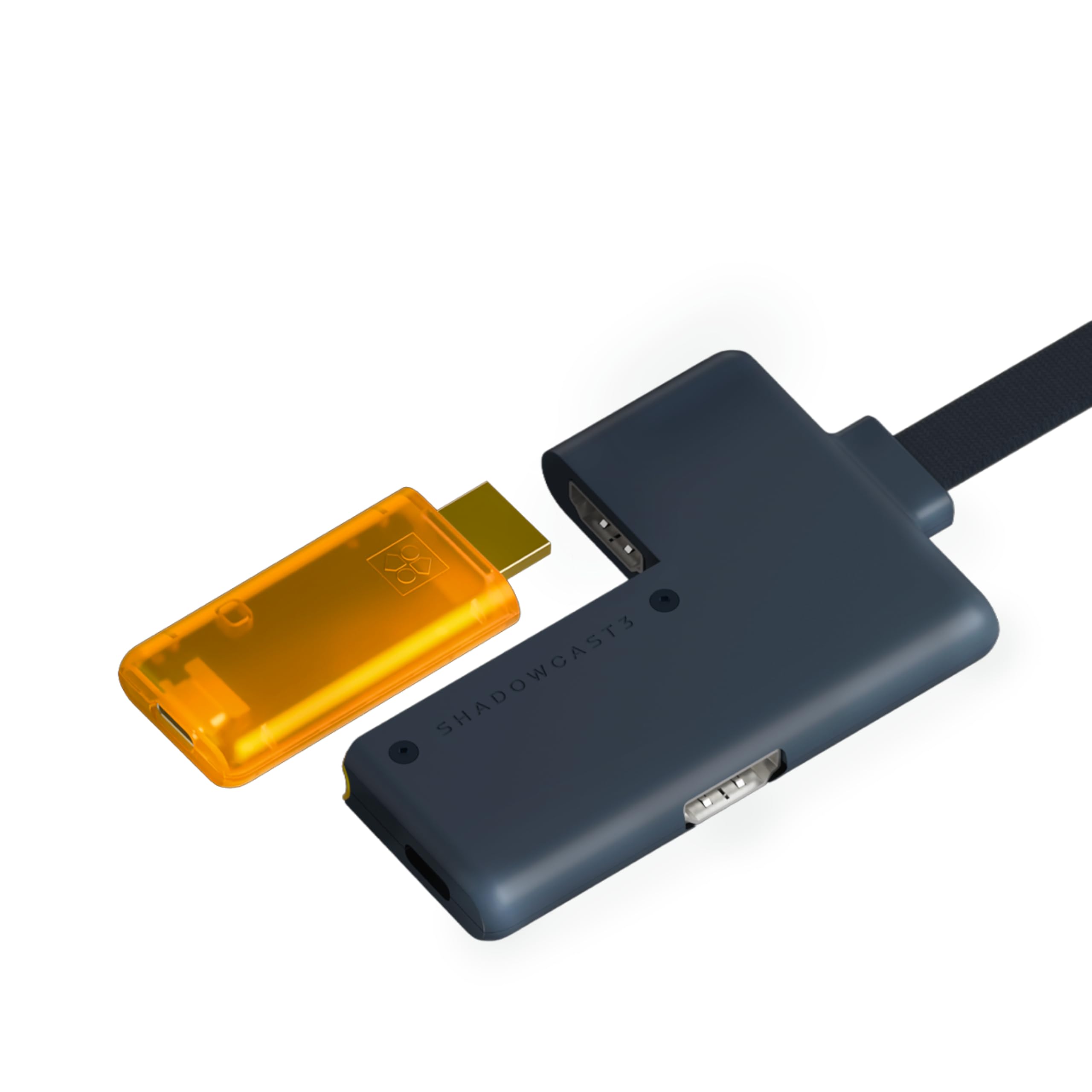
The GENKI ShadowCast 3 Pro is purpose-built for portable gaming and streaming. Its integrated HDMI passthrough module lets you play on a primary monitor with zero added lag while sending a 4K60 MJPEG stream to a second screen or iPad via USB-C. The compact form factor with four ports — HDMI Input, HDMI Passthrough, USB-C Capture, and Passthrough Power Supply — keeps your travel kit minimal while supporting 1080p240 for super-smooth high-refresh-rate capture.
Using the Genki Studio app, you can turn an iPad or laptop into a portable gaming monitor with near-real-time response — a killer feature for console gaming in hotels, cafes, or LAN events. The MS2130S chipset delivers excellent color accuracy in MJPEG mode, and the card is instantly recognized by OBS, Discord, and Streamlabs as a camera feed with no drivers needed. A minority of users note that the lossless YUYV422 mode introduces artifacts above 30Hz, so sticking to MJPEG 4K60 is the way to go for most setups.
If your priority is a zero-compromise portable streaming rig that works with iPad, laptop, or desktop, the ShadowCast 3 Pro is unmatched. Its combination of passthrough+capture in a thumb-drive-like footprint makes it the best choice for traveling content creators.
Why it’s great
- Zero-latency HDMI passthrough in a highly portable USB-C package
- Supports 1080p240 and 4K60 MJPEG capture for versatile streaming
- Genki Studio app turns iPad into a gaming monitor without extra gear
Good to know
- Lossless YUYV422 mode shows artifacts above 30Hz input
- HDMI passthrough module may need external power with certain setups
5. NearStream CCD10

The NearStream CCD10 is the budget pick that doesn’t feel like one. It offers 4K60 HDMI passthrough and records 1080p60 over USB-C 3.0 with ultra-low latency — making it a surprisingly capable entry point for aspiring streamers. The 3.5mm mic-in and headset jacks let you mix voice commentary with game audio into a single OBS track, eliminating the need for a separate audio interface at this price tier.
Users praise its plug-and-play simplicity on Windows, macOS, and Linux, with OBS detecting it instantly with no driver installs. The build quality is solid, and the included HDMI and USB cables mean you can start streaming right out of the box. One key caveat: some users discovered that the card requires the NearStream proprietary app for initial setup on certain systems, which isn’t prominently disclosed in the product description — a minor friction point for pure plug-and-play expectations.
For the streamer on a tight budget who needs 4K60 passthrough without sacrificing the 3.5mm audio routing that higher-end cards offer, the CCD10 delivers exceptional value. It won’t capture 4K video natively, but for 1080p60 Twitch streams, it’s more than capable.
Why it’s great
- 4K60 passthrough with 1080p60 low-latency capture over USB-C 3.0
- Dual 3.5mm jacks for mic input and headset output in a single OBS source
- Works out of the box with Windows, macOS, and Linux
Good to know
- Proprietary app may be required for initial setup on some systems
- Captures only 1080p60 — no 4K capture option
6. Guermok GM-72A
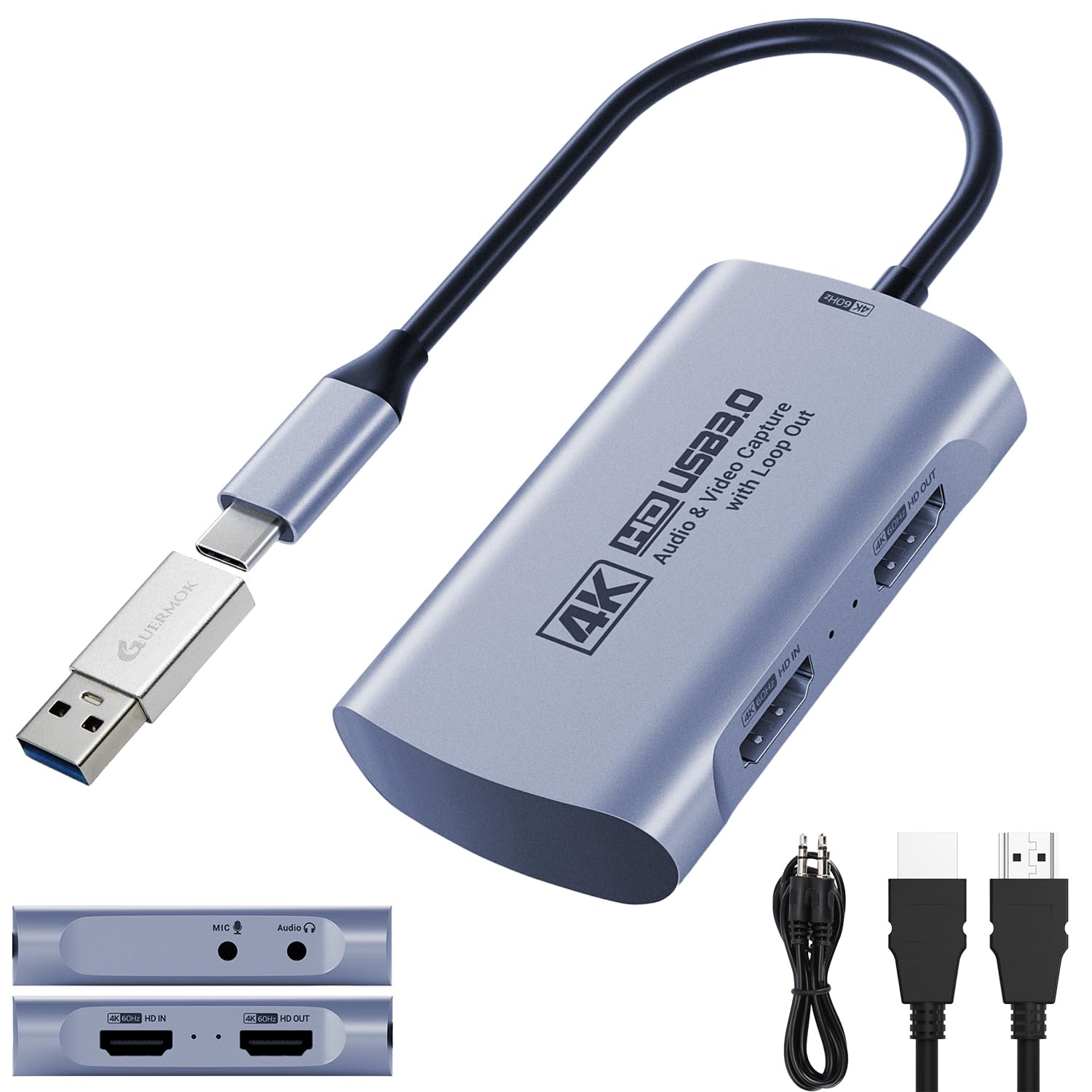
The Guermok GM-72A stands out in the budget category by supporting 2560×1440 at 144 FPS input and 1920×1080 at 240 FPS — a spec normally reserved for cards costing significantly more. It captures 4K60 via MJPEG through USB 3.0 and passes 4K60 to your monitor with zero added delay. The 3.5mm audio input and mic output jacks allow seamless voice integration, making it a versatile option for both console and PC streaming.
Setup is genuinely plug-and-play: connect the HDMI source, plug the USB-A to USB-C adapter (included) into your PC, and OBS recognizes it immediately. Users report excellent results with Nintendo Switch 2 and PS5 streams, praising the generational price-to-performance ratio. Some quirks exist: the HDMI port orientation and sleeve design can cause connectivity issues if you’re using thick DisplayPort adapters, and it requires a USB-C Y-splitter for power when used with Android phones.
For console gamers who play at 1440p144 or 1080p240 and want to stream those high refresh rates without spending premium money, the Guermok GM-72A is a hidden gem. Just make sure you have a USB 3.0 port available — USB 2.0 caps it at 1080p.
Why it’s great
- 1440p144 and 1080p240 input support — rare at this price level
- 4K60 MJPEG capture with 4K60 passthrough for smooth gameplay streaming
- Includes 3.5mm audio in/out jacks for integrated voice commentary
Good to know
- HDMI port orientation can be finicky with thick adapter cables
- Requires Y-splitter power for Android phone use
7. SUDTREEV C7
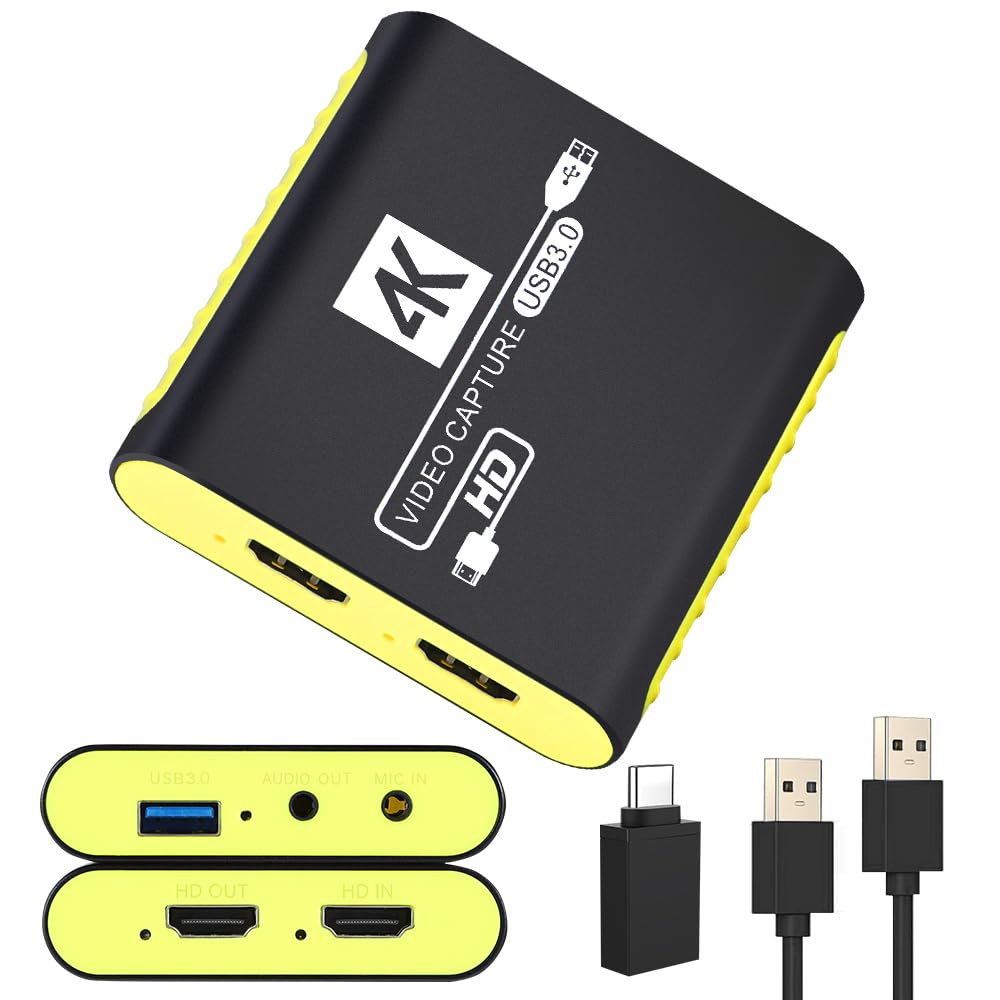
The SUDTREEV C7 focuses on what a 1080p60 streamer needs most: reliability and thermal stability. Its full aluminum alloy housing passively dissipates heat from the chipsest, preventing the frame drops and disconnects that plastic-bodied budget cards suffer during long streams. It captures 1080p at 60 FPS in MJPEG and YUY2 formats, passing through a 4K30 signal to your monitor so you can play at higher resolution while your audience watches a clean 1080p feed.
Plug-and-play is genuinely instant — Windows, Mac, and Linux all recognize it as a standard UVC device without drivers. The included USB-A to USB-C adapter extends compatibility to modern laptops and tablets. Users consistently report zero latency issues when streaming with OBS, and the dedicated 3.5mm mic-in port blends commentary with game audio cleanly. The only limitation is the 4K30 passthrough ceiling; if you game on a 4K60 monitor, you’ll want a card with higher passthrough bandwidth.
For casual streamers, budget-conscious beginners, or anyone who just wants a compact, reliable 1080p60 capture card that won’t overheat, the SUDTREEV C7 is a perfect entry-level companion. Its aluminum build alone puts it ahead of most competitors at this tier.
Why it’s great
- Full aluminum alloy housing prevents thermal throttling during extended streams
- True plug-and-play with UVC support on Windows, Mac, and Linux
- Compact footprint with USB-A to USB-C adapter for modern laptops
Good to know
- Passthrough is capped at 4K30 — not ideal for 4K60 gaming monitors
- Capture limited to 1080p60; no high-refresh or 4K capture options
FAQ
Is 4K60 capture necessary for gaming on Twitch or YouTube?
Can I use a capture card to record PC gameplay without a second PC?
Why does my capture card show a black screen when connected to a Nintendo Switch 2?
Final Thoughts: The Verdict
For most users, the capture card for gaming winner is the Elgato 4K Pro because its 8K60 passthrough, 4K60 HDR10 capture, and PCIe-level latency leave nothing on the table for serious content creators. If you want a laptop-friendly external card, grab the ASUS TUF CU4K30 for its OBS certification and rock-solid reliability. And for budget-friendly 1080p60 streaming that doesn’t overheat, nothing beats the SUDTREEV C7.