
Stepping into digital art for the first time means facing a wall of specs — pressure levels, active areas, battery-free pens, and compatibility lists that read like alphabet soup. The right choice here isn’t about picking the most expensive box; it’s about matching a tool to your actual drawing style and workflow, whether that’s sketching on a phone with Bluetooth or diving straight into a display tablet that shows your strokes in real time.
I’m Min — the co-founder and writer behind Gadgets Feed. After combing through hundreds of technical specifications, real customer experiences, and the fine print on driver compatibility across Windows, macOS, Android, and Linux, I built this guide to cut through the confusion.
Whether you need a budget-friendly pad for your laptop or a standalone device for sketching anywhere, this guide to the best art tablets for beginners details every feature that actually matters when you’re starting out.
How To Choose The Best Art Tablet For Beginners
Before you click buy, three factors will determine whether your first tablet feels like a natural extension of your hand or a frustrating paperweight: the type of tablet (display vs. pen-only), the pressure sensitivity and tilt of the stylus, and the active area size that fits your natural drawing motion. Beginners often overvalue screen resolution on display tablets while ignoring the more critical aspect of driver stability across their operating system.
Display Tablet vs. Pen Tablet: Which One Is Right For You?
A pen tablet (like the XPPen Deco MW or HUION HS610) has no screen — you draw on a smooth surface while looking at your computer monitor. This forces you to develop hand-eye coordination, but it costs significantly less and offers a larger active area for the price. A display tablet (like the UGEE UE12 or GAOMON PD1161) lets you draw directly on the screen, providing an intuitive experience similar to pen on paper. Beginners who struggle with coordination often prefer a display tablet, but it ties you to your desk and requires a higher budget for entry.
Battery-Free Stylus and Pressure Sensitivity: What the Numbers Mean
The industry standard for entry-level tablets is 8192 levels of pressure sensitivity, which allows the tablet to detect incredibly subtle changes in how hard you press. Battery-free electromagnetic resonance (EMR) technology means the stylus requires no charging and no battery replacement — it draws power from the tablet itself. Avoid tablets with lower than 8192 pressure levels or active styluses that need batteries, as they introduce latency and maintenance headaches. Tilt support (typically ±60°) is another spec that directly affects shading and brush behavior in apps like Photoshop, Krita, and Clip Studio Paint.
Active Area Size and Desk Space
Active area is the usable drawing surface — usually measured in inches like 8×5 or 10×6.25. A larger active area lets you make sweeping arm movements rather than cramped wrist flicks, which is more natural for illustration and reduces fatigue over long sessions. However, a larger tablet requires more desk space. For beginners, a medium-sized tablet around 10×6.25 inches offers the best balance between expressiveness and portability. If you travel frequently or work on a small desk, a compact 8×5 inch tablet paired with Bluetooth is a smarter choice.
Quick Comparison
On smaller screens, swipe sideways to see the full table.
| Model | Category | Best For | Key Spec | Amazon |
|---|---|---|---|---|
| Wacom Intuos Pro Small (2025) | Premium Pen Tablet | Professional-grade build and Bluetooth 5.3 | 8192 Pressure Levels, Pro Pen 3 | Amazon |
| UGEE UE12 | Display Tablet | Full-laminated screen with vivid color | 11.6″ FHD, 124% sRGB | Amazon |
| GAOMON PD1161 | Display Tablet | Value-focused 11.6″ screen with matte film | 72% NTSC, 8192 Levels | Amazon |
| HUION Inspiroy Frego M | Pen Tablet | Wireless freedom with 24-hour battery life | 10×6.25″, Bluetooth 5.0 | Amazon |
| Frunsi RubensTab T8 | Standalone Tablet | No computer needed for drawing | 8″ FHD, 2048 Levels | Amazon |
| HUION HS610 | Pen Tablet | Large active area with touch ring control | 10×6.25″, PW100 Stylus | Amazon |
| XPPen Deco MW | Pen Tablet | Max portability with Bluetooth 5.0 | 8×5″, X3 Smart Chip | Amazon |
In-Depth Reviews
1. Wacom Intuos Pro Small Bluetooth (2025)
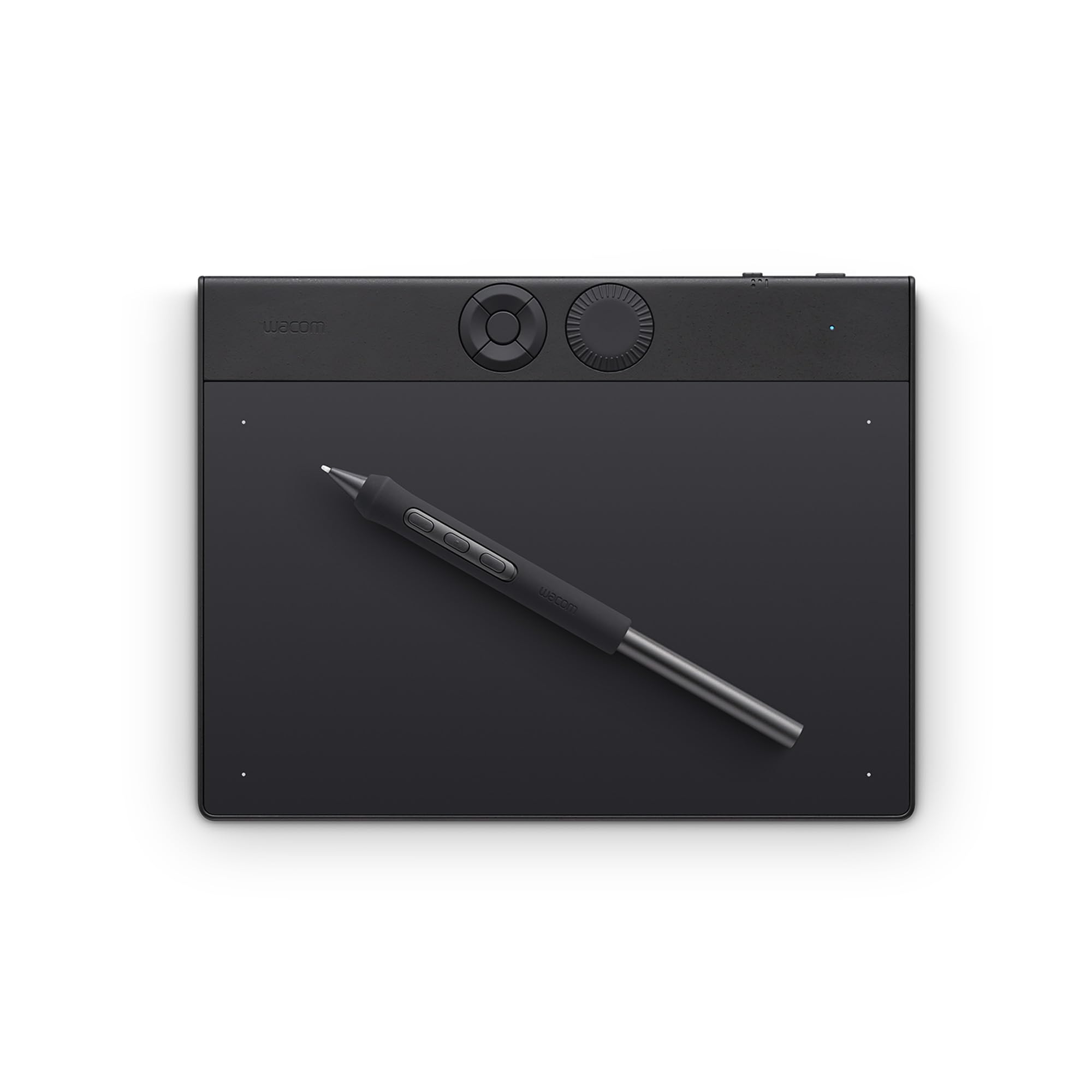
The Wacom Intuos Pro Small (2025) brings the company’s best pen technology — the Pro Pen 3 with 8192 pressure levels and tilt support — into a remarkably compact footprint measuring just 8.5 x 6.4 inches with a 4mm profile. The magnesium alloy chassis feels dense and premium, and the 16:9 aspect ratio active area (8.4 x 6.4 inches) is designed to match modern widescreen monitors without consuming your entire desk. The mechanical dial and five customizable ExpressKeys add physical controls that reduce reliance on keyboard shortcuts.
Bluetooth 5.3 offers reliable wireless connectivity to both Windows and macOS systems, with users reporting flawless pairing on Mac mini (M4) and MacBook (M1) setups. The Pro Pen 3 itself is adjustable — you can swap between slim, straight, or flared grips and change the balance weight and button layout. This is the only tablet in this guide that gives you that level of ergonomic customization out of the box.
Some users noted Bluetooth stability quirks on Windows 11 that weren’t present on macOS, and the small version lacks the touch ring found on the medium model. But for a beginner who values build quality, precise tracking, and a brand known for long-term driver support, this is the most refined pen tablet experience available in this size class.
Why it’s great
- Adjustable Pro Pen 3 with interchangeable grips and customizable balance
- Ultra-slim magnesium design with mechanical dial and ExpressKeys
- Reliable Bluetooth 5.3 with dual-device switching on macOS
Good to know
- Bluetooth may require troubleshooting on Windows 11
- No touch sensitivity on the small model
- Premium pricing compared to alternative brands
2. UGEE UE12 Drawing Tablet with Screen

The UGEE UE12 stands out in this lineup as the most display-centric option that doesn’t break a beginner’s budget. Its 11.6-inch full-laminated FHD screen (1920×1080) eliminates parallax — the visual gap between the pen tip and cursor that plagues non-laminated displays — and the anti-glare coating reduces reflections during long studio sessions. The 124% sRGB color gamut with switchable color spaces (sRGB, Adobe RGB, DCI-P3) is a spec normally found on monitors costing twice as much, making this a strong pick for anyone working with color-critical illustration or photo editing.
The battery-free stylus offers 16K levels of pressure sensitivity — the highest in this guide — along with ±60° tilt recognition. In practice, this means even the lightest feather stroke registers accurately, and shading with the side of the pen feels natural. The eight customizable shortcut keys have a concave-convex design that makes blind operation easier, and the dual Type-C ports support flexible cable routing.
A small number of users reported an intermittent screen failure that resolved on its own, and the included nibs are soft enough that heavy-handed artists may need to replace them relatively quickly. However, considering the full-laminate construction and color accuracy, the UE12 delivers a professional-level drawing interface at an entry-level asking price.
Why it’s great
- Full-laminated zero-parallax screen with 124% sRGB color gamut
- 16K pressure sensitivity for ultra-fine stroke detection
- Dual Type-C ports for flexible desktop and mobile connection
Good to know
- Soft nibs wear down faster under heavy pressure
- A small number of units experienced intermittent display glitches
- 3-in-1 cable can feel awkward on a crowded desk
3. GAOMON PD1161 Drawing Tablet with Screen

The GAOMON PD1161 brings a capable 11.6-inch IPS display into the conversation for users who want a screen they can draw on without jumping into the premium tier. The pre-installed matte film gives the surface a paper-like texture that reduces glare and provides tactile resistance — a detail that many artists prefer over the slippery glass finish of cheaper display tablets. The 72% NTSC (100% sRGB) color gamut is solid for a beginner-friendly display, delivering 16.7 million colors with smooth gradations.
It uses the battery-free AP50 stylus with 8192 pressure levels and ±60° tilt, which users report works flawlessly with Krita, Clip Studio Paint, and Photoshop after proper driver installation. The eight programmable press keys on the side plus two pen buttons give you ten customizable shortcuts without needing a separate keypad. The included 3-in-2 USB cable carries video and data over HDMI and USB, so you’ll need an available HDMI port on your laptop or desktop.
Some users found the flush hotkeys hard to locate by touch, especially in dim environments, and the power button can feel unresponsive if not pressed firmly. But the build quality, responsive customer support, and the fact that it ships with a drawing glove, pen holder, and replacement nibs make this a compelling all-in-one starter package for anyone moving from a pen tablet to a screen-based setup.
Why it’s great
- Pre-installed matte film mimics natural paper texture and reduces glare
- Reliable driver support for Krita, Clip Studio Paint, and Photoshop
- Includes drawing glove, pen holder, and eight replacement nibs
Good to know
- Requires HDMI port on your computer for video input
- Flush hotkeys are difficult to identify by touch
- Power button may feel stiff on some units
4. HUION Inspiroy Frego M Wireless Drawing Tablet

The HUION Inspiroy Frego M takes a different design philosophy from most pen tablets — it strips away physical shortcut keys entirely in favor of a minimalist, symmetrical surface. The 10 x 6.25-inch active area is slightly smaller than an A4 sheet, and the sloping curved edges reduce wrist strain when your hand rests on the table. The PW550S pen has a slim 9.5mm diameter with a 0.4mm retraction distance, giving it a mechanical-pencil feel that many beginners find immediate and familiar.
Connectivity is flexible: you can plug in via USB-C for zero-latency wired use or switch to Bluetooth for a cable-free workspace. The 2.5-hour charge delivers up to 24 hours of continuous use, which covers multiple days of drawing between charges. It works with Android devices via HiPaint and ibisPaint, and even supports iPhone and iPad through those same apps with automatic aspect ratio detection to prevent canvas stretching.
Users note that while the tablet hardware is excellent, the driver software lacks profile preset saving — you have to manually adjust settings each time you switch programs. The surface texture also draws mixed feedback: some find it slightly scratchy with certain nib types, while others appreciate the extra control. For beginners who value battery longevity and a clean, uncluttered workspace, the Frego M is a standout wireless option.
Why it’s great
- 24-hour battery life with fast 2.5-hour USB-C charging
- Symmetrical design with ergonomic sloping edges for left- and right-handed use
- Compatible with Android, iPhone, and iPad via art apps
Good to know
- No physical shortcut keys for quick access to tools
- Driver software doesn’t support per-app profile saving
- Drawing surface can feel scratchy with included nibs
5. Frunsi RubensTab T8 Drawing Tablet

The Frunsi RubensTab T8 is the only standalone device in this guide — it runs Android 13 out of the box with a quad-core processor, 4GB of RAM, and 64GB of internal storage (expandable via microSD up to 256GB). This means you don’t need a laptop or desktop computer to start drawing; you can install SketchBook, ArtFlow, ibis Paint X, or even Clip Studio Paint directly onto the tablet. The 8-inch FHD display with 1200×800 resolution is sharp enough for detailed work, and the included detachable keyboard makes it functional for note-taking or light typing between drawing sessions.
The 4000mAh battery is rated for up to 20 hours of drawing, and the USB-C charging means you can top it up with the same cable you use for your phone. With 2048 levels of pressure sensitivity, the stylus response is a step down from the 8192-level industry standard found on other tablets here, but for sketching, doodling, and learning digital art fundamentals, it’s more than adequate. The 8-inch size makes it extremely portable — roughly the same footprint as a small notebook.
Some users reported that battery life drops to about 3.5 hours when running graphics-heavy apps like SketchBook, and there’s a slight drawing delay when the battery is critically low. Palm rejection is also absent, which can cause accidental marks if you rest your hand on the screen. However, for a beginner who wants an all-in-one device that doesn’t require a computer, the T8 offers unmatched convenience at this price.
Why it’s great
- Standalone Android 13 tablet — no computer needed to draw
- Includes detachable keyboard, stylus, and screen protector
- Portable 8-inch form factor with expandable storage up to 256GB
Good to know
- 2048 pressure levels are half the sensitivity of competitors
- Battery life drops significantly under heavy graphics load
- No palm rejection on the touchscreen
6. HUION HS610 Drawing Tablet

The HUION HS610 offers a generous 10 x 6.25-inch active area — one of the largest in the budget pen tablet segment — combined with 8192 levels of pressure sensitivity and ±60° tilt support via the battery-free PW100 stylus. The stand-out physical feature is the multifunctional touch ring, which lets you zoom, scroll, or adjust brush size by swiping your finger around the capacitive surface. This is a premium ergonomic detail that most tablets at this price point omit entirely, making navigation smoother during long drawing sessions.
The 12 programmable press keys provide more shortcut assignments than any other tablet in this guide, reducing the need to reach for your keyboard or on-screen menus. The tablet is only 8mm thick and weighs 600 grams, making it easy to slide into a laptop bag. Users report that the driver software, once properly installed, works reliably with Photoshop, SAI, GIMP, and Krita, though initial setup may require a system restart or driver reinstall on older Windows 7 machines.
The HS610 is wired only — no Bluetooth option — so you’ll be tethered to your computer via the included USB cable. A few users noted minor surface scratches on arrival, likely from handling during fulfillment, but the overall build quality and pressure curve consistency earned frequent praise as a step up from older-generation Wacom Intuos models. For beginners who want maximum canvas space without stepping into the premium tier, this is a compelling choice.
Why it’s great
- Expansive 10×6.25-inch active area with 8192 pressure sensitivity
- Multifunctional touch ring for zoom, scroll, and brush control
- 12 programmable press keys for comprehensive shortcut customization
Good to know
- Wired-only connection — no Bluetooth support
- Driver installation may require troubleshooting on older Windows systems
- No protective cover included for storage and travel
7. XPPen Deco MW Bluetooth Wireless Drawing Tablet

The XPPen Deco MW packs a Bluetooth 5.0 wireless connection, the X3-Smart-Chip stylus, and 8 customizable shortcut keys into a compact 8 x 5-inch active area that’s ideal for beginners with limited desk space or for artists who want to draw on the go. The X3 stylus delivers 8192 levels of pressure sensitivity and 60° tilt recognition, with users consistently describing the out-of-box experience as responsive and accurate — no latency issues in Krita, Photoshop, or Clip Studio Paint across Windows, macOS, and even Linux with Wayland drivers.
One of the Deco MW’s strongest advantages is its wired-wireless flexibility. You can connect via the included USB-C cable for zero-latency desktop sessions, then unplug and pair via Bluetooth to work from the couch or a coffee shop. The eight shortcut keys have tactile bumps for blind identification, and the dongle-less Bluetooth setup works seamlessly on Windows 10/11 and macOS (though Linux Bluetooth pairing requires the USB receiver according to user reports). The package includes both USB-A to USB-C and OTG adapters for Android phone and tablet compatibility.
Some Linux users experienced driver conflicts with Ubuntu Xorg that caused cursor crashes during Krita sessions, though switching to Wayland resolved the issue. The small 8×5-inch surface may feel cramped for artists who prefer sweeping arm movements, but for note-taking, sketching, and beginners building coordination, the compact size and wireless freedom make this an excellent entry point. It’s also one of the few tablets in this guide that ships with 10 replacement nibs and a carrying-friendly form factor.
Why it’s great
- Bluetooth 5.0 with dongle-free pairing on Windows and macOS
- X3 Smart Chip stylus with 8192 pressure levels and 60° tilt
- Lightweight and portable with OTG adapter for Android devices
Good to know
- Small 8×5-inch surface may feel limiting for large arm-drawn strokes
- Linux Bluetooth requires USB receiver for stable connection
- Initial pressure curve set too “Hard” per some user feedback
FAQ
Do I really need 8192 levels of pressure sensitivity as a beginner?
Should I buy a display tablet or a pen tablet for my first device?
Can I use an art tablet with my Android phone or iPhone?
Is a battery-free stylus really better than one that needs charging?
Final Thoughts: The Verdict
For most beginners, the best art tablets for beginners winner is the UGEE UE12 because it delivers a full-laminated display, 124% sRGB color gamut, and 16K pressure sensitivity at a price that demolishes the traditional cost barrier for screen-based drawing. If you want a battery-free wireless setup with the industry’s best build quality, grab the Wacom Intuos Pro Small (2025). And for standalone drawing without a computer, nothing beats the Frunsi RubensTab T8.