
Our readers keep the lights on and my morning glass full of iced black tea. As an Amazon Associate, I earn from qualifying purchases.
Specs are compiled from manufacturer listings and verified buyer reviews and can change over time — please confirm the key details on the product page before buying.
You are shopping for an animation drawing pad, and the one number that separates a frustrating tool from a fluid one is pressure sensitivity — not just the advertised level but how the pen responds to your lightest touch. A pad that misses faint strokes or jitters on diagonal lines will fight your hand every single frame, whether you are storyboarding, rigging, or painting keys. This guide cuts through the spec sheet noise to find the pads that actually track every nuance of your stroke, from a 2-gram brush fade to a bold ink line.
I’m Min — the founder and writer behind Gadgets Feed. This guide is built by comparing the manufacturers’ published specifications and the patterns across verified customer reviews, so you get each pick’s real strengths and trade-offs instead of marketing spin.
Whether you are a student animator on a tight budget or a professional chasing 4K color accuracy, the right animation drawing pad depends on three specs: active area size, screen resolution, and pen pressure levels — and how those specs actually feel in real work.
Quick Picks
- HUION Kamvas 13 (Gen 3) — Best Overall
- Wacom Cintiq 16 — Pro Color
- HUION KAMVAS Pro 27 — 4K Canvas
- Wacom Cintiq Pro 17 — Industry Standard
- XPPen Deco Pro LW 2nd — Wireless Freedom
- Wacom Cintiq 22 — Big Canvas
- HUION Inspiroy 2 Medium — Entry Value
How To Choose The Best Animation Drawing Pad
Picking an animation drawing pad is different from buying a general graphics tablet. Animation means thousands of repetitive strokes, onion-skinning across frames, and zero tolerance for input lag. Here are the three specs that matter most when the timeline is open.
Pen Display vs. Pen Tablet: Do You Need a Screen?
A pen display (also called a drawing monitor) lets you draw directly on the screen, which feels intuitive — your hand and cursor are in the same place. A pen tablet has no screen; you draw on a flat surface while looking up at your computer monitor. For animation, a pen display speeds up frame-by-frame work because you can see the onion skins and layers right under your pen tip. Pen tablets are cheaper, more portable, and take up less desk space, but the hand-eye separation takes practice. Budget usually decides this: pen displays start around the mid-range, while reliable pen tablets start much lower.
Pressure Sensitivity: It Is Not Just the Number
Pressure sensitivity is measured in levels (8192, 16384, 16K). A higher number means the pad can detect finer gradations of force — a 16384-level pen can tell the difference between a 1-gram and a 2-gram press, which matters for delicate shading in animation. But the real test is the Initial Activation Force (IAF), the minimum force required to register a stroke. A pen with a 2g IAF (like the HUION PenTech 4.0) catches the faintest sketch lines; a pen with a higher IAF may miss them. Check reviews for real-world pressure behavior, not just the spec number.
Active Area and Resolution for Animation
The active area is the drawing surface size. A larger area (9 x 6 inches or bigger) lets you make broad, sweeping arm movements instead of cramped wrist motions — healthier for long animation sessions. For pen displays, screen resolution determines how sharp your lines appear. Full HD (1920 x 1080) is fine for most 2D animation. 4K UHD (3840 x 2160) shows finer detail, which helps when you zoom into a character’s eye or a tiny UI element. A 120Hz refresh rate, found on premium models like the Wacom Cintiq Pro 17, means near-zero latency, so every stroke feels instant.
Quick Comparison
| Model | Best For | Active Area | Pressure Levels | Screen | Amazon |
|---|---|---|---|---|---|
| HUION Kamvas 13 (Gen 3) | Best Overall Pen Display | 293.8 x 165.2 mm | 16384 | 13.3-inch 1080p | $209.00$269.00Limited time dealAmazon |
| Wacom Cintiq 16 | Pro-grade Color & Build | 13.6 x 8.5 inches | 8192 | 16-inch 2.5K | $699.95Amazon |
| HUION KAMVAS Pro 27 | 4K Color-Critical Work | — | 16384 | 27-inch 4K UHD | $1,529.00$1,799.00Limited time dealAmazon |
| Wacom Cintiq Pro 17 | Industry-standard Precision | 15 x 8.5 inches | 8192 | 17.3-inch 4K 120Hz | $2,499.00Amazon |
| XPPen Deco Pro LW 2nd | Best Wireless Pen Tablet | 9 x 6 inches | 16K | None | $138.48$169.99Limited time dealAmazon |
| HUION Inspiroy 2 Medium | Budget-friendly Entry | 8.7 x 5.4 inches | — | None | $67.19$79.99Limited time dealAmazon |
| Wacom Cintiq 22 | Large Canvas on a Budget | 18.74 x 10.55 inches | 8192 | 21.5-inch 1080p | $1,059.63Amazon |
In‑Depth Reviews
1. HUION Kamvas 13 (Gen 3)

The pen display that delivers 16384 pressure levels with a 2g IAF for a mid-range price — so your faintest sketch line registers every time.
This pad gives you a screen to draw on, a responsive pen with 16384 levels of pressure sensitivity (gradations of force from light to hard) and a 2g IAF (Initial Activation Force – the minimum pressure, in grams, needed for a stroke), plus dual dials for scrolling through your timeline or adjusting brush size — all without jumping to a premium price tier. The fully laminated 13.3-inch display uses Canvas Glass 2.0, which means the glass eliminates the air gap between the surface and the pixels (less parallax, or visual offset), so you line up your onion skins (ghosted previous frames) without a guessing game. Color coverage hits 99% sRGB (the standard color space for web and video) with factory calibration (an average Delta E of less than 1.5, a measure of color accuracy), meaning what you paint in Toon Boom or Adobe Animate matches what exports. Compared to the Wacom Cintiq 16, this pad is significantly more affordable, offering 16384 pressure levels compared to the Cintiq’s 8192 pressure levels.
Buyers report the “port side gets warm after 3 hours” and the screen is “relatively dark (200 nits),” which is fine for indoor studio work but could struggle in a bright coffee shop. A nit is a unit of screen brightness. At 14.2 inches long and 7.98 inches wide, it is more compact than a 16-inch display, but one reviewer noted it is “slightly long for backpacking.” The adjustable stand ST300 is included, so you can tilt it to 20 degrees or more without buying extra gear. Unlike the larger Wacom Cintiq 22, this pad is light enough at 2 pounds to fit in a laptop bag, and the 5 programmable shortcut keys plus dual dials keep your left hand productive.
What Lifts It Above
- 16384 pressure sensitivity with 2g IAF captures feather-light animation lines
- 99% sRGB coverage with factory calibration report for consistent colors
- Includes adjustable stand — no extra purchase needed
- Dual dials and 5 shortcut keys speed up frame-by-frame work
The Real Trade-offs
- 200-nit screen can look dim compared to the 2.5K Wacom Cintiq 16
- 3-in-1 cable setup is less convenient than a single USB-C
- Not a standalone device — must connect to a computer
Reach for this if: you want a screen-based animation pad with high pressure sensitivity and accurate colors without spending Wacom-level money.
Look elsewhere if: you need a bright, portable display for outdoor work or a single-cable connection to simplify your desk.
2. Wacom Cintiq 16

The 2.5K display that covers 99% DCI-P3 (a wide color gamut for cinema) so your animation frames look vibrant and true-to-life.
One look at the Wacom Cintiq 16 and you see why 99% DCI-P3 (Digital Cinema Initiatives – Protocol 3, a color standard for film) coverage matters — the 2560 x 1600 resolution shows every subtle gradient in your background layers without color banding (visible steps between similar colors). The Pro Pen 3 offers 8192 pressure levels with tilt support and 3 shortcut keys, and the pen is battery-free so you never stop mid-stroke to charge. The 16-inch IPS display (In-Plane Switching, a screen type with wide viewing angles) uses anti-glare glass, cutting reflections so you focus on the puppet rigging or the frame you are cleaning up. Built-in fold-out legs give you a 20-degree working angle right from the start. The sharpness here is 2560 x 1600 compared to 1080p on the HUION Kamvas 13 (Gen 3).
Owners mention the Pro Pen 3 can feel “uncomfortable (slim, stiff buttons, no eraser)” compared to earlier Wacom pens, and that no mini-HDMI cable is included — a surprise at this level. The active area (13.6 x 8.5 inches) is large enough for arm-driven strokes but 8-bit color depth (showing 16.7 million colors) falls short of the 10-bit panel (showing 1.07 billion colors) on the Cintiq Pro 17. At 4.5 pounds and 15.1 inches wide, it is less portable than the HUION Kamvas 13 (Gen 3) at 2 pounds. Customers note the build is durable and the “pressure sensitivity matches high-end Pro models.” The USB-C connection works with DisplayPort Alt Mode (a feature that sends video over USB-C) or Thunderbolt 3 or 4 (high-speed connection standards), so check your computer’s ports before buying.
Why It Shines
- 2560 x 1600 2.5K resolution is significantly sharper than 1080p pen displays
- 99% DCI-P3 color gamut — ideal for film and broadcast animation
- Anti-glare glass with built-in fold-out legs for instant setup
- Battery-free Pro Pen 3 with 8192 pressure levels captures every stroke
Where It Holds Back
- No customizable shortcut buttons on the display
- Pro Pen 3 reported as less comfortable than Pro Pen 2 by some users
- Requires separate cable purchase if your computer lacks DP Alt Mode
Best for: animators who need wide color gamut (DCI-P3) and sharp 2.5K resolution for color-critical work.
Skip if: you rely on on-device shortcut buttons or want the most portable pen display — this one demands desk space.
3. HUION KAMVAS Pro 27

A 27-inch 4K display with 16384 pressure levels that gives you pixel-level control for detailed animation work.
When every frame demands fine detail, the Kamvas Pro 27 delivers a 3840 x 2160 native resolution (4K UHD, or Ultra High Definition) with 16384 pressure levels and 2g IAF — so a 1-pixel line on a character’s eye stays exactly that. The Canvas Glass 2.0 anti-glare surface with full lamination reduces eye strain during overnight deadlines, and the 3D LUT hardware calibration (a method of applying color adjustments directly on the display’s processor) keeps ΔE<1.5, essential for matching brand colors or ensuring consistent skin tones across a short film. Multi-touch gestures (swipe, pinch, rotate) let you pan and zoom your canvas without reaching for a keyboard. The 16384 pressure sensitivity here compares to 8192 levels on the Wacom Cintiq 16 and the Cintiq Pro 17.
The catch is scale: at 25.83 inches wide and 17.6 pounds, this is not a portable tool — it is a studio installation. Reviewers point out the included stand “does not lock” and feels “cheap plastic legs,” and the cable length around 4 feet limits placement. One buyer mentioned the PenTech 4.0 pen’s side buttons are “too easy to press accidentally.” On the plus side, the 98% Adobe RGB coverage and 1 billion colors produce smoother gradients than the Wacom Cintiq 16’s 8-bit panel, making this a strong choice for printed animation work or comics where color accuracy is non-negotiable. It also supports a wireless express key remote, so you can map shortcuts without cluttering the 27-inch face.
Strengths That Stand Out
- 4K UHD (3840×2160) resolution for pixel-level animation detail
- 16384 pressure sensitivity with 2g IAF — among the most sensitive pens available
- 98% Adobe RGB and 3D LUT hardware calibration for pro-grade color
- Multi-touch gestures for intuitive canvas navigation
Limitations to Know
- 17.6 pounds and 25.83 inches wide demand dedicated desk space
- Included stand is unstable; many buyers buy a third-party arm
- Short cable length (around 4 feet) restricts monitor placement
Ideal for: professional animators and illustrators who work in 4K and need wide-gamut color accuracy on a large surface.
Not for: anyone who needs to move their setup or has limited desk depth — this pad claims its territory.
4. Wacom Cintiq Pro 17

The 120Hz refresh rate (the screen redraws 120 times per second) makes every stroke appear instantly — no lag between your hand and the line.
For an animator, the 120Hz refresh rate on the Cintiq Pro 17 is transformative — you see your stroke appear on the 4K Ultra HD display with near-zero latency (delay between action and reaction), which means no disconnect between hand and pixel. The 8192-level Pro Pen 3 comes with customizable grips, adjustable weight, and center of balance, so you can tune the pen to feel heavier or lighter depending on your drawing style. The 17.3-inch display (active area 15 x 8.5 inches) is compact enough for a home office but big enough for full-arm strokes. It also supports 10-point multi-touch, letting you rotate the canvas or zoom with gestures. The 4K resolution here compares to 1080p on the Wacom Cintiq 22.
Shoppers say the Cintiq Pro 17 offers the “best drawing/painting experience of any pen display” with “outstanding line quality.” However, one owner reported the “pen feels cheap despite adjustable weight” and the side buttons are “useless.” The included Easy Stand offers a fixed angle, but users warn it is “wobbly” and recommend an Ergotron arm instead. At 4.9 pounds, it is lighter than the HUION KAMVAS Pro 27 (17.6 pounds) and more portable, but the deep investment (Pro Pen 3 replacements, stand upgrades) adds up. The 8 ExpressKeys on the display are programmable, giving you one-touch access to undo, save, or brush size — a feature missing from the Wacom Cintiq 16.
What Makes It Exceptional
- 120Hz refresh rate delivers near-zero latency for fluid animation strokes
- 4K Ultra HD resolution for sharp detail on a 17.3-inch display
- 8 customizable ExpressKeys plus 10-point multi-touch for hands-on workflow
- Adjustable Pen 3 with weighted balance suits personal drawing preference
Critical Cons
- Premium investment — stands and accessories add cost beyond the pad itself
- Some users find the Pro Pen 3 feel and side button placement disappointing
- Built-in Easy Stand reported as wobbly; third-party arm often needed
Go for it if: you are a professional animator who demands the lowest latency and a customizable pen feel, and you have the budget for a full studio setup.
skip it if: your work is primarily 2D vector animation that does not benefit from 120Hz refresh — the Cintiq 22 gives more canvas for less.
5. XPPen Deco Pro LW 2nd

The 11-inch wireless tablet with 16K pressure sensitivity that works for over 10 hours on a charge — so you can animate away from the desk.
If your animation desk already has a good monitor and you just need a reliable drawing surface, the Deco Pro LW 2nd skips the built-in screen and focuses on pen feel — and the X3 Pro stylus delivers 16K levels of pressure sensitivity with a 60-degree tilt function, so you can shade and angle just like a real pencil. The tablet connects via Bluetooth 5.0 (a wireless standard), USB wireless receiver, or wire, and the large-capacity lithium battery (1000mAh/3.7V) runs for over 10 hours on a charge. The active area of 9 x 6 inches gives you room for broad arm movement without hogging desk real estate. Its 16K pressure sensitivity is a meaningful upgrade over the HUION Inspiroy 2 Medium, which does not advertise its pressure level.
Buyers report the “16K pressure works perfectly, calibration fits light drawing style” and the Mini Keydial (a wireless shortcut remote) integrates well with Photoshop. One reviewer, a senior 3D artist with 25 years of experience, noted initial Bluetooth lag in Maya and ZBrush, resolved by switching to USB-C. At 13.1 inches long and 10.15 inches wide, it is more compact than the HUION Inspiroy 2 Medium (7.1 x 12 inches) but offers wireless capability that the Inspiroy lacks. The pen is battery-free, so you never stop for a charge mid-keyframe. Note that Bluetooth wireless is not compatible with Android 10.0 or later or Linux, though wired mode works with those systems.
Why It Wins
- 16K pressure sensitivity with 60-degree tilt for natural shading
- Over 10 hours of wireless battery life — no cord during long sessions
- Includes wireless Mini Keydial remote for custom shortcut mapping
- Battery-free X3 Pro stylus with eraser and near-zero latency
Watch Out For
- Bluetooth lag reported with some 3D software; wired USB-C resolves it
- No built-in screen — hand-eye separation takes adjustment
- Bluetooth not compatible with Android 10.0+ or Linux
Reach for this if: you already own a quality monitor and want a wireless, high-pressure-sensitivity pen tablet with a remote for shortcuts.
Look elsewhere if: you need a screen-based drawing experience or work primarily on Android or Linux wirelessly.
6. Wacom Cintiq 22
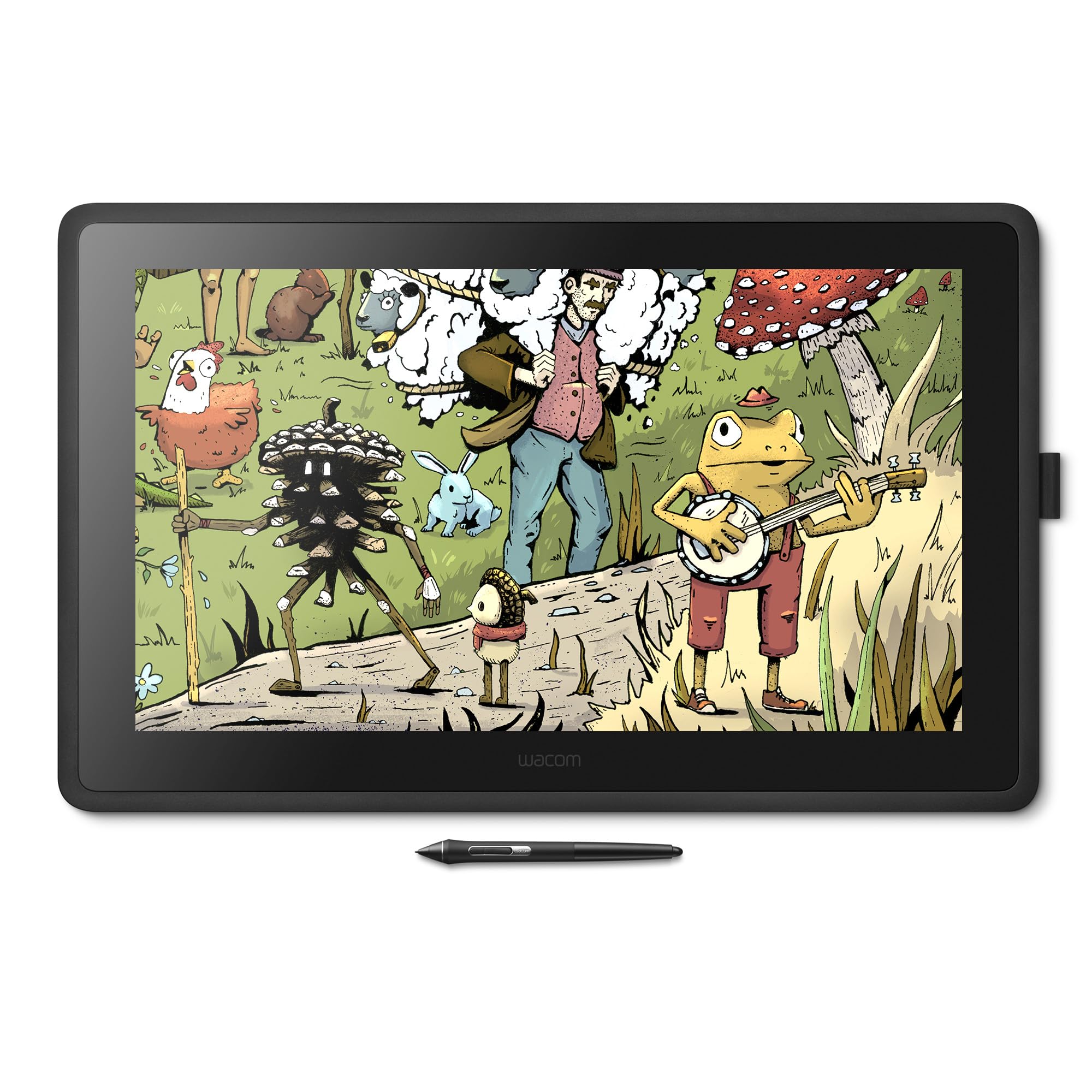
The 21.5-inch screen (with an 18.74 x 10.55-inch active area) gives your animation timeline room to breathe, so you zoom less and draw more.
With an active area of 18.74 x 10.55 inches, the Cintiq 22 is a massive canvas — large enough to keep your full animation timeline visible while you draw, reducing the need to zoom in and out. The Pro Pen 2 delivers 8192 levels of pressure sensitivity with tilt recognition and virtually lag-free tracking, so your stroke matches your intent frame by frame. The 1080p LCD display with anti-glare glass keeps reflections down in a studio environment, and the included adjustable stand lets you tilt the 21.5-inch panel from flat to upright without buying extra hardware. Its larger screen size is handy compared to the 13.3-inch HUION Kamvas 13 (Gen 3), though at a lower resolution.
Owners mention the drawing experience is “best with zero anti-glare sparkle, gorgeous display, durable build.” The trade-off is resolution: at 1080p, the pixel density is lower than the 2.5K Wacom Cintiq 16 or the 4K Cintiq Pro 17, which means fine details at 100% zoom are less sharp. The Pro Pen 2, however, is widely praised for its ergonomics — a contrast to the Pro Pen 3 complaints on the Cintiq 16.
Strengths
- Large 21.5-inch active area (18.74 x 10.55 inches) for full-timeline visibility
- Pro Pen 2 with 8192 pressure levels, tilt, and ergonomic design
- Included adjustable stand — tilt from flat to upright
- Anti-glare glass for comfortable long sessions
Weaknesses
- Only Full HD (1080p) resolution — less sharp than 2.5K or 4K alternatives
- 72% Adobe RGB coverage falls short of pro-level color standards
- Large size and weight make it a permanent desk fixture
Best for: animators who want a big screen to keep their timeline visible and prefer the proven Pro Pen 2 over newer pen designs.
pass on it if: resolution and color accuracy are more important to you than canvas size — the Cintiq 16 gives you higher pixel density in a smaller package.
7. HUION Inspiroy 2 Medium

The scroll-wheel-equipped tablet that proves a budget-friendly pen tablet can still feel purposeful with 60-degree tilt support.
The Inspiroy 2 Medium shows that a budget-friendly pen tablet can still feel purposeful. The active area (8.7 x 5.4 inches) is large enough for natural wrist and forearm strokes, and the PenTech 3.0 stylus (PW110) features 60-degree tilt support and a slimmer body with a soft silicone grip — a noticeable upgrade from earlier HUION pens. The standout feature here is the scroll wheel plus 8 customizable press keys, giving you one-touch access to brush size, undo, or layer navigation without reaching for the keyboard. It connects via USB-C and works with Mac, PC, Linux, Android, and ChromeOS, so you can pair it with a laptop for on-the-go storyboarding. At its price, it competes well with the XPPen Deco Pro LW 2nd, though it lacks that model’s wireless capability and 16K pressure sensitivity.
Customers note that “pressure sensitivity works well” and the tablet is “great quality for the price.” One customer observed the tablet “fits on laptop keyboard without pressing keys,” making it a good travel companion. The catch: there is no Bluetooth — it is wired-only — and some users say the rubber stoppers are too small, causing the tablet to slide on a smooth desk. The battery-free stylus means you never charge the pen, but the nib wears down faster than some alternatives. At 500 grams and 7.1 inches long by 12 inches wide, it is more portable than the XPPen Deco Pro LW 2nd (13.1 x 10.15 inches) but lacks the wireless freedom and higher 16K pressure sensitivity of that model. For someone just starting frame-by-frame animation on a tight budget, this is a reliable, feature-rich entry point.
What Makes It Worth It
- Scroll wheel + 8 customizable keys speed up animation shortcuts
- 9 x 5.4-inch active area offers enough room for natural drawing motion
- 60-degree tilt support in a battery-free stylus with silicone grip
- USB-C connectivity works with Mac, PC, Android, and ChromeOS
Real Limitations
- No Bluetooth option — wired connection only
- Small rubber stoppers can cause sliding on smooth desks
- Lower pressure sensitivity range than the 16K XPPen Deco Pro LW 2nd
Best for: new animators and students who need a reliable, portable pen tablet with shortcut keys and are comfortable with a wired setup.
Look elsewhere if: wireless freedom or the highest pressure sensitivity is a deal-breaker for your workflow.
Understanding the Specs
Pressure Sensitivity & Initial Activation Force (IAF)
Pressure sensitivity is measured in levels (8192, 16384, 16K). More levels mean the pad can register finer gradations of force — helpful for light shading or hair-thin lines in animation. But the real spec to watch is Initial Activation Force (IAF), measured in grams. A 2g IAF (found on the HUION PenTech 4.0 pens) means the pad registers a stroke with a barely-there touch. A higher IAF might miss those whisper-light lines, forcing you to press harder than intended. For frame-by-frame animation where every line matters, lower IAF wins.
Active Area & Screen Resolution
The active area is the drawing surface itself. A larger area (like 18.74 x 10.55 inches on the Wacom Cintiq 22) lets you draw from your shoulder, reducing fatigue during long sessions. For pen displays, screen resolution determines how sharp your lines appear when you zoom in. Full HD (1920 x 1080) is standard and sufficient for 2D animation. 2.5K (2560 x 1600) and 4K UHD (3840 x 2160) show finer detail, helping you see every pixel when you are cleaning up a character’s edge or adjusting a tiny UI element. A 120Hz refresh rate (as in the Wacom Cintiq Pro 17) means near-zero lag between your pen movement and the on-screen line.
FAQ
Do I need a screen-based animation drawing pad or will a pen tablet work?
What is the difference between 8192 and 16384 pressure sensitivity levels?
Can I use an animation drawing pad with my Android phone or tablet?
How important is screen resolution for 2D animation?
What does anti-glare glass do for an animation drawing pad?
Is a 10-hour battery life enough for wireless drawing?
Why does my pen tablet need a driver and how do I install it?
What size active area should I get for animation?
Can I use an animation drawing pad for 3D modeling or photo editing?
How do I get the best line quality from my animation drawing pad?
Final Thoughts: The Verdict
For most buyers, the animation drawing pad winner is the HUION Kamvas 13 (Gen 3) because it packs 16384 pressure sensitivity, a fully laminated anti-glare display, and dual dials into a mid-range price — perfect for students and professionals who need a screen without the premium markup. If you want the sharpest 2.5K resolution and pro-grade DCI-P3 color coverage, grab the Wacom Cintiq 16. And for wireless artists who already have a great monitor, the XPPen Deco Pro LW 2nd stands out with its 16K pressure pen and over 10 hours of battery life.
How We Picked
We do not accept paid placement. Every pick is matched to a real buyer and a real use-case; we do not hands-on test units.
Sources & Methodology
Specifications: manufacturer listings and product documentation. Review insights: verified customer reviews, as of July 2026. Pricing: not shown on this page (it changes often); check the current price via the retailer link.
As an Amazon Associate, Gadgets Feed earns from qualifying purchases. This does not affect which products we feature.
Product prices and availability are accurate as of the date/time indicated and are subject to change. Any price and availability information displayed on Amazon at the time of purchase will apply to the purchase of this product. As an Amazon Associate I earn from qualifying purchases.
CERTAIN CONTENT THAT APPEARS ON THIS SITE COMES FROM AMAZON. THIS CONTENT IS PROVIDED "AS IS" AND IS SUBJECT TO CHANGE OR REMOVAL AT ANY TIME.
Amazon and the Amazon logo are trademarks of Amazon.com, Inc. or its affiliates.