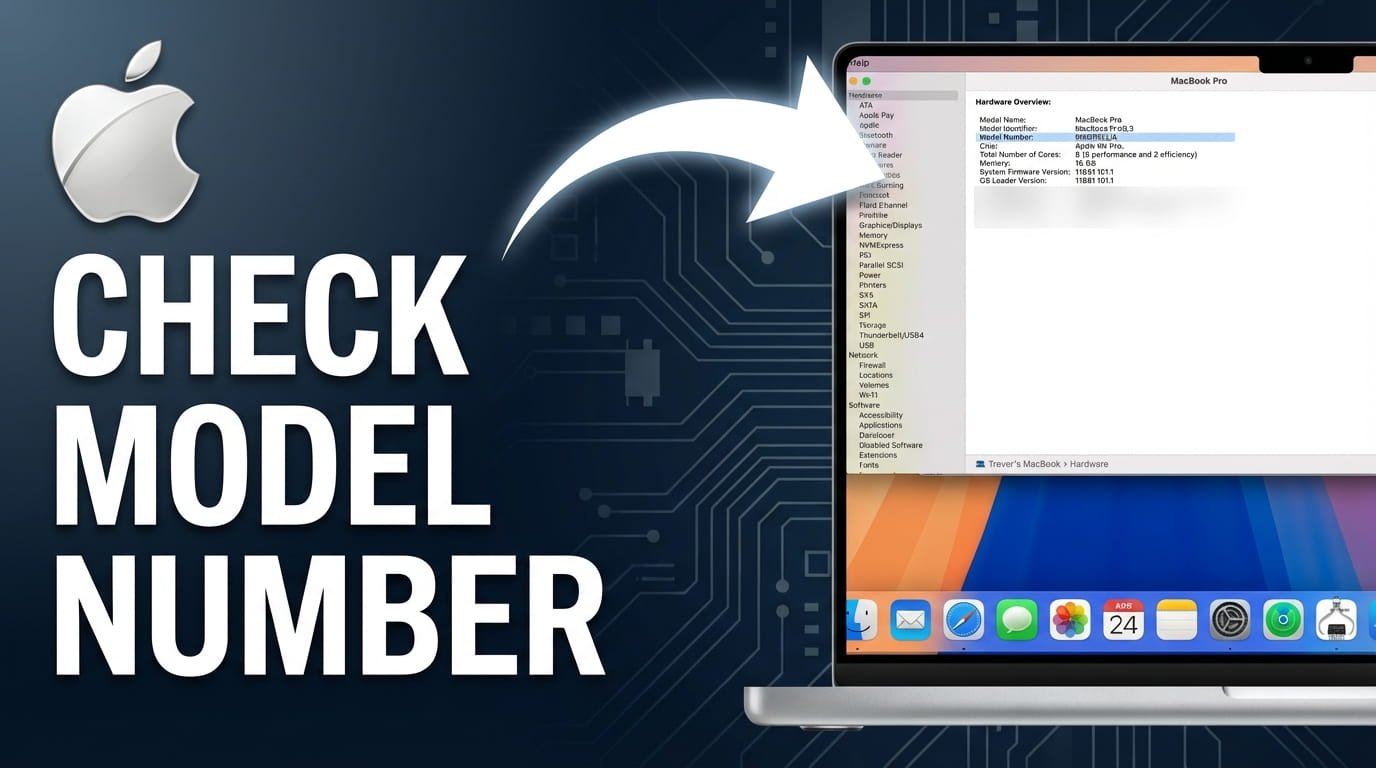
Finding your MacBook’s exact model can sometimes feel tricky. This is especially true if you’re looking to upgrade, sell it, or simply ensure you’re buying compatible accessories. You might need this information to check macOS compatibility, plan an upgrade, or simply find the right accessories. Regardless of your reason, identifying your MacBook model is a common need for many Apple users.
Fortunately, macOS offers several straightforward ways to identify your specific MacBook model and its manufacturing year. You don’t need any special tools or technical expertise to find this crucial information.
This article walks you through several simple methods to discover your MacBook’s model. These methods range from checking its system information to examining the device itself. By the end, you’ll confidently know your MacBook’s exact identity.
1) Check Through “About This Mac”
The “About This Mac” window is the fastest way to find key details about your MacBook, including its model name and year. This built-in utility provides a quick snapshot of your system’s hardware and software specifications.
To access this information, click on the Apple menu. You’ll find it in the top-left corner of your screen, marked by the iconic Apple logo.
From the dropdown menu, select “About This Mac.” A small window will appear, immediately displaying an overview of your MacBook.
In this window, you will see key details like the macOS version, your MacBook’s model name (e.g., MacBook Pro, MacBook Air), and its release year (e.g., 2020, Early 2015).
You will also find the serial number here, which is useful for further inquiries.
This method often provides all the information you need, giving a clear, immediate answer. It’s the best first step for identifying your MacBook.
2) Use the System Information App for More Detail
For a more detailed look at your MacBook’s hardware specifications, use the System Information app. If you need more specific data, such as the exact model identifier or a list of components, this is the place to look.
To open it, first go to the Apple menu and select “About This Mac.”
In the “About This Mac” window, click the button labeled “System Report…” or “System Information…” (the label varies by macOS version). This launches the System Information app.
Once open, you will see a sidebar on the left with various categories. Under the “Hardware” section, select “Hardware Overview.” This section displays an extensive list of your MacBook’s hardware details.
Look for “Model Name” (e.g., MacBook Pro), “Model Identifier” (e.g., MacBookPro16,1), and “Serial Number.” The Model Identifier is especially useful for pinpointing specific hardware generations.
This can be helpful for advanced troubleshooting or checking parts compatibility.
This method provides a much higher level of detail for your MacBook model. It’s especially useful for technical support or when matching specific components.
3) Find the Model Information on the MacBook Itself
If your MacBook won’t turn on or you prefer a physical check, you can find its model information directly on the device. Apple prints essential model details on the hardware, making them accessible even without booting into macOS.
For most modern MacBook models, especially those released recently, you can find the model identifier and serial number laser-etched on the bottom case. Carefully turn your MacBook over.
Look for small, fine print near the hinge or along one of the edges. You’ll typically see “Designed by Apple in California” and then a line starting with “Model: Axxxx” and your MacBook’s serial number.
The “Axxxx” (e.g., A1708, A2338) is a specific model number. You can cross-reference this to determine the exact model and year.
For older MacBook models, particularly those with removable batteries, the information might be found inside the battery compartment. If your MacBook has an optical drive, you might also find the model information there.
This physical check is a reliable option, especially if your MacBook isn’t functional. It confirms your device’s identity directly from its hardware markings.
4) Use the Apple Support Website with Your Serial Number
With your MacBook’s serial number, you can use Apple’s official website to find definitive information, including coverage status, technical specifications, and manufacturing date. This is an excellent way to verify details or learn more about your specific configuration.
First, find your serial number using either the “About This Mac” window or by checking the physical bottom of your MacBook. Write it down carefully.
Next, open a web browser and go to Apple’s Check Coverage page (support.apple.com/en-us/repair/checkcoverage) or their Tech Specs page (support.apple.com/specs).
On the Check Coverage page, enter your serial number into the designated field. After entering the verification code, click “Continue.”
The page will then display information about your MacBook, including its model name, purchase date, and warranty status. This gives you official confirmation of your device’s identity and service history.
For even more detailed technical specifications, you can use the Tech Specs page. Once you have your model name and year, you can browse or search for that specific model. This lets you see its original processor, memory, storage, and other features. This is helpful for understanding what came standard with your MacBook.
Using Apple’s official resources provides the most accurate and complete data about your specific MacBook model.
5) Locate the Model Number (Axxxx)
Beyond the user-friendly name like “MacBook Air (13-inch, 2020),” your device also has a technical “Model Number” (e.g., A1466, A2337) starting with ‘A’ and four digits. This identifier is very precise.
It’s useful for looking up compatible parts, specific repair guides, or when working with detailed product databases.
You’ll typically find this model number etched into the bottom casing of your MacBook. Turn the device over and look at the fine print, usually near the regulatory marks and serial number.
For instance, you might see “Model A1990” for a specific MacBook Pro generation. This “Axxxx” number uniquely identifies the chassis and often indicates a specific range of internal components.
While “About This Mac” gives you the user-friendly model name and year, the “Axxxx” model number serves as a unique hardware identifier. It’s especially helpful if you’re dealing with a non-functional MacBook and need to order exact replacement parts.
Once you have this Axxxx number, you can search online databases like EveryMac.com or Apple’s vintage and obsolete products list. This helps pinpoint its exact specifications and original configuration. This method is crucial for confirming hardware compatibility.
Why Knowing Your MacBook Model is Important
Knowing your MacBook’s precise model is important for several practical reasons, not just for trivia. This information helps you make informed decisions about your device.
First, it’s essential for upgrades. If you’re considering adding more RAM or replacing an SSD, component compatibility is strictly tied to your MacBook’s model and year.
Incorrect parts can cause performance issues or even damage.
Second, for repairs, technicians will always ask for your model information. Providing the correct model number or year helps them quickly identify the right parts and repair procedures.
This saves you time and potential misdiagnosis.
When selling or buying a used MacBook, accurate model identification is paramount for valuation. Prices can vary significantly between different models and years, even if they look similar externally.
Transparency about the model builds trust and ensures fair transactions.
Software compatibility is another key reason. Newer macOS versions often require specific MacBook models to run correctly. Knowing your model helps you determine if your device is eligible for the latest updates.
It also tells you if you need to stick with an older, supported operating system.
Finally, for accessories like cases, docks, or chargers, the fit and function depend on your MacBook’s exact dimensions and port configuration. A case for a MacBook Air M1 won’t fit a 2017 MacBook Pro, for example.
Identifying your model prevents costly mistakes.
In all these situations, accurate information about your MacBook model helps you manage, maintain, and use your device effectively.
FAQ
What’s the difference between model name, model identifier, and model number?
The model name (e.g., “MacBook Pro (14-inch, 2021)”) is the user-friendly name and year. The model identifier (e.g., “MacBookPro18,3”) is a more specific internal Apple designation for a hardware generation. The model number (e.g., “A2442”) is a physical identifier on the device, often used for parts and chassis identification.
Why do I need to know my MacBook model?
You need it for system updates, buying compatible accessories, checking warranty or repair eligibility, buying or selling your device, and looking up specific technical specifications for upgrades or troubleshooting.
Can I find my MacBook model if it won’t turn on?
Yes. You can find the model number (Axxxx) and serial number printed on the bottom casing of the MacBook itself. You can then use the serial number on Apple’s support website to get the full model details.
Is the year important for my MacBook model?
Absolutely. Even within the same model name (e.g., “MacBook Air”), significant changes in processors, ports, and internal components often occur year by year. The year helps pinpoint the exact specifications and compatibility of your device.
Finding your MacBook’s model and year is simple, thanks to the tools built into macOS and offered by Apple. Whether you check “About This Mac” or use the System Information app, you have reliable options to get the details you need.
This information is essential for everything from basic maintenance to upgrades. Try one of these methods to confidently identify your MacBook.

Hi, I’m Michael Davis, the owner and writer of GadgetsFeed.com. This website is where I share my knowledge and passion for tech, laptops, and computers. I’m a software engineer by profession, and I enjoy testing and reviewing various gadgets and technologies. I started GadgetsFeed.com to help others find easy solutions for their laptop, computer, and tech problems.