
Our readers keep the lights on and my morning glass full of iced black tea. As an Amazon Associate, I earn from qualifying purchases.
Specs are compiled from manufacturer listings and verified buyer reviews and can change over time — please confirm the key details on the product page before buying.
Choosing your first drawing tablet can feel overwhelming, but the right specs make it simple. Focus on pressure sensitivity, active area, and setup ease rather than button count. This guide breaks down seven beginner-friendly tablets by the specs that actually matter for learning: pressure sensitivity, active drawing area, and how easy they are to set up.
I’m Min — the founder and writer behind Gadgets Feed. This guide is built by comparing the manufacturers’ published specifications and the patterns across verified customer reviews, so you get each pick’s real strengths and trade-offs instead of marketing spin.
You want a drawing surface that feels natural and fits your budget, whether you’re doodling for fun or starting a serious illustration hobby. The right art tablet for beginners matches your skill level and your wallet, so you don’t overpay for features you won’t use yet.
Our Picks at a Glance

How To Choose The Best Art Tablet For Beginners
A beginner tablet should respond smoothly without complex configuration. The core idea is simple: you draw on the flat pad while watching your computer monitor, and the pen translates your strokes into digital lines. The three specs below do the heavy lifting in how that feels.
Pressure sensitivity determines line control
Higher pressure levels give finer control over line weight and shading. Pressure sensitivity measures how many distinct levels of force the pen can detect—the higher the number, the finer the control you have between a whisper-light sketch and a bold stroke. For a beginner, this translates directly to how naturally you can shade or taper a line without fiddling with settings.
Active area vs. desk space
Your drawing area is the physical space you have to move the pen. A larger active area means bigger, more fluid arm movements and less wrist strain, but it takes up more desk space and costs more. Smaller tablets are portable and fit in a laptop bag, but they force you into tighter finger-and-wrist movements that can feel cramped as you learn.
Quick Comparison
| Model | Best For | Active Area | Pressure Levels | Connection | Amazon |
|---|---|---|---|---|---|
| HUION Inspiroy 2★ Best Overall | Ultra-Portable Starter | 6.3″ x 3.9″ | PenTech 3.0 | USB-C | Amazon |
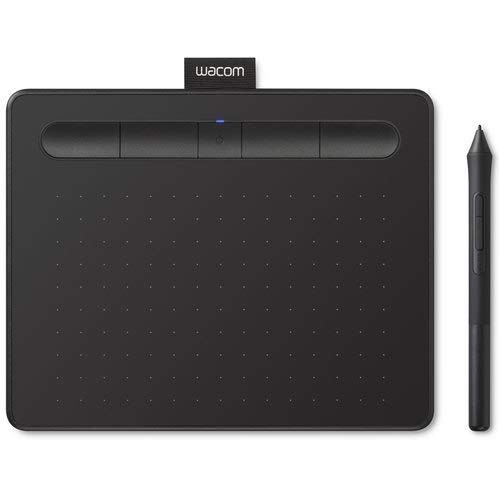
| Wacom IntuosAlso Great | Trusted Brand & Software | 6.0″ x 3.7″ | 4096 | Bluetooth / USB | Amazon |
| GAOMON M10K | Large Area on a Budget | 10″ x 6.25″ | 8192 | USB | Amazon |
| XPPen Deco 01 V3 | Top-Tier Pen Precision | 10″ x 6.25″ | 16,384 | USB-C | Amazon |
| XPPen Deco mini7W | Wireless Freedom | 7″ x 4″ | 8192 | 2.4GHz / USB-C | Amazon |
| GAOMON WH851 | Bluetooth & Long Battery | 8″ x 5″ | 16,384 | Bluetooth 5.0 / USB-C | Amazon |
| HUION H1161 | Maximum Shortcut Keys | 11″ x 6.87″ | 8192 | USB-C | Amazon |
In-Depth Reviews
1. HUION Inspiroy 2 Small
Our pick — over 4.5★ from 900+ verified ratings; the strongest balance of quality and price.
At just 275 g, this ultra-portable tablet fits easily in a laptop bag.
The Inspiroy 2 weighs just 275 g, which makes it the most portable pick here—over 2.5 times lighter than the GAOMON M10K. It’s the tablet to grab if you sketch between classes, at coffee shops, or on your commute. The slim build takes up almost no desk space, and it connects via USB-C to everything from your PC to your Android phone.
The upgraded PenTech 3.0 stylus is designed to feel like a real pen in your hand, with a slimmer body and a soft silicone grip. A unique scroll wheel and six press keys sit on the left side, and you can program them to match your favorite shortcuts in apps like Photoshop or even for remote work in Zoom. It’s a genuinely versatile tool—you can use it to sign documents, take notes, or as a more precise mouse replacement.
The active area is 6.3″ x 3.9″, which is a comfortable middle ground for a small tablet. Owners mention it works fantastically for the price and is accurate for drawing and 3D modeling. The honest trade-off is that the scroll wheel can be stiff to push, and the tablet must stay plugged in—there’s no battery or Bluetooth here.
portable choice: Ultra-portability and a budget-friendly price are your top priorities for sketching on the go.
desk space: You want a wireless setup or a larger drawing surface for detailed work.
2. Wacom Intuos CTL4100WLK0 (Renewed)
Wacom’s reliable drivers and bundled software make setup painless for newcomers.
You get the confidence of the industry standard here. Wacom’s driver software is famously reliable, so your pen strokes stay smooth without crashes. The battery-free pen (a stylus that draws power from the tablet, so you never charge it) means you never stop mid-sketch. It connects wirelessly via Bluetooth to your Mac or PC, so you can keep your desk tidy without a cable running across it.
The 6.0″ x 3.7″ active area is compact, which is perfect for small desks, but it does mean tighter hand movements as you draw. Four customizable express keys put shortcuts like undo or copy/paste right under your fingers. For a beginner, the included software bundle is a huge bonus—it comes with three programs to get you started immediately.
As a renewed unit, it arrives with all original accessories and the same functionality as new. Buyers report it’s a fantastic starter that works flawlessly for daily drawing with a laptop. The main trade-off to expect is the compact size—if you have large hands or prefer sweeping arm movements, this might feel a bit small.
budget-friendly starter
- Trusted Wacom drivers that just work
- Includes 3 bonus software programs
- Wireless Bluetooth with battery-free pen
refurbished unit
- Small active area limits big arm strokes
- Renewed unit, so packaging may vary
- Bluetooth setup can occasionally need a retry
budget pick: Absolute beginners who want a dependable, well-known brand and free software to start drawing right away.
needs warranty: You have a large desk and want to use your whole arm for sweeping strokes.
3. GAOMON M10K

Its 10 x 6.25-inch active area delivers premium performance at a budget price.
The M10K is the pick for anyone who wants a big drawing area without a big price tag. Its 14.17″L x 9.44″W footprint—versus the HUION Inspiroy 2’s 6.3″ x 3.9″ footprint—gives you room to draw with your whole arm, which is easier on your wrist and feels more like traditional paper. As customers note, it’s a cheap, portable tablet that produces work comparable to a Wacom.
The battery-free stylus offers 8192 levels of pressure sensitivity, so light pencil strokes and heavy ink lines come through naturally. The 10 press keys and a creative touch ring let you customize shortcuts for zooming, brush sizing, and page scrolling. This tablet is especially popular for beginners, and teachers use it in classes for its easy setup and broad compatibility with Windows, Mac, and recent Android devices.
The main thing to note is the size—at 695 g, it’s noticeably heavier and takes up more desk space than smaller options. Owners also mention the pen requires a harder press after a few hours of use. It’s a fantastic tool for learning and teaching, though full-time professional artists might want to step up.
large canvas
- Generous 10 x 6.25-inch drawing area
- Left-hand friendly with touch ring controls
- Includes carrying bag and 8 replacement nibs
bulky footprint
- Heavier and bulkier than travel tablets
- Pen needs a firmer press after extended use
- Wired connection only, no Bluetooth
big canvas: You want a roomy canvas for learning to draw with full-arm movements without spending premium money.
limited desk: Your desk is cramped or you need to carry your tablet everywhere.
4. XPPen Deco 01 V3

With 16,384 pressure levels, this stylus captures the finest stroke nuances.
The Deco 01 V3 is the tablet for beginners who don’t want to upgrade in six months. Its stylus is the star: a battery-free pen with 16,384 levels of pressure sensitivity and up to 60 degrees of tilt support. That means you can shade with the side of the pen like you would a pencil, and the lines respond with a smoothness that rivals much more expensive gear. It operates like a real pen, with no battery or charging needed.
The 10 x 6.25-inch active area is the same generous size as the GAOMON M10K, giving you plenty of room for natural arm movement. Eight customizable shortcut keys work for both right and left-handed users, and the tablet itself is just 8 mm thin with a lightweight build that fits easily in a backpack. It’s compatible with Windows, macOS, Android 10.0 and above, Chrome OS, and even Linux—a rare flexibility for budget tablets.
The quality and value for money are the most-praised aspects here, and Linux users in particular report near-zero setup friction. The recurring caveat from owners is the physical build—the pen tip can feel a bit squishy and wiggly, and the USB port can be prone to damage if you’re rough with the cable. It’s still an outstanding first tablet that supports serious skill growth.
precise pen tech
- Highest 16,384 pressure levels in this roundup
- 60° tilt support for natural shading
- Ultra-slim 8 mm design with 10 nibs included
wired setup
- Pen tip feels soft and slightly wobbly
- USB port needs gentle handling
precision work: Beginners who want professional-level pen precision and tilt control from day one.
wireless needs: You’re strictly looking for the cheapest entry point and don’t need the extra pressure fidelity.
5. XPPen Deco mini7W

A compact wireless slate that eliminates the cable clutter from your desk.
The Deco mini7W is for the artist who hates being tethered. It connects to your PC or laptop via a 2.4 GHz wireless receiver—just plug the included USB dongle in and draw with both speed and freedom. The 7 x 4-inch active area keeps it compact and portable, while the battery-free pen delivers a smooth, waiting-free drawing experience.
The stylus offers 8192 levels of pressure sensitivity with tilt-response, so your lines respond accurately to how hard you press. Eight customizable press keys let you personalize your workflow, whether you’re zooming in Photoshop or switching brushes in Krita. It connects via a USB-C to USB-C cable (adapter included), and works with Windows 7 and above, Mac OS X 10.10, Android 6.0, and Chrome OS.
The build quality and pen sensitivity are what owners praise most. However, the wireless functionality is the most-discussed mixed point—while many find it works well, a notable group has trouble getting the wireless connection to pair reliably. It’s a lovely tablet for on-the-go use, but if you’re not willing to troubleshoot the wireless occasionally, consider a wired model.
wireless pick: Artists who want a clutter-free desk and a tablet small enough to throw in a bag without the wire hassle.
small projects: You need guaranteed plug-and-play reliability and don’t want to risk wireless pairing quirks.
6. GAOMON WH851
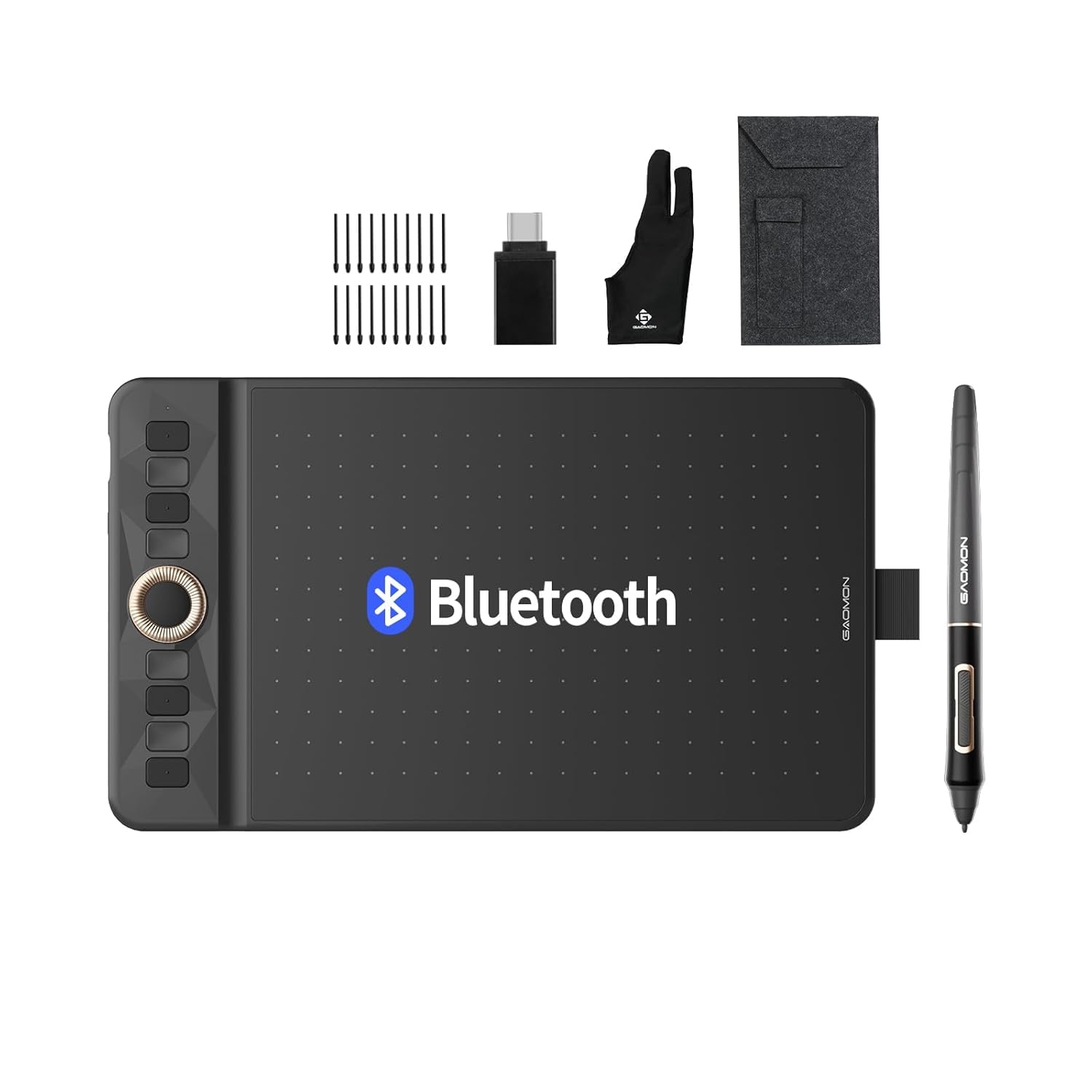
A premium-feeling Bluetooth slate with a true 18-hour working battery.
The WH851 gives you the freedom of true wireless drawing with a battery that lasts. It holds 18 hours of working time on a full charge, so you can draw through an entire workday and then some without hunting for a power outlet. It connects via Bluetooth 5.0 or a USB Type-C cable, meaning you can switch between wireless freedom and a stable wired connection whenever you need it.
The stylus is a standout, supporting 16,384 levels of pressure with a minimal 0.45 mm sink into the surface. That means your pen tip doesn’t depress into the tablet much, keeping that familiar feel of pen on paper. The intuitive dial in the center lets you zoom, adjust brushes, or scroll with a quick twist, and eight customized shortcut keys sit ready for your favorite commands. Owners find the build quality rivals pricier tablets like the Intuos Pro 4, and the Bluetooth pairs quickly for easy use.
It’s a hit with teachers and students for its reliable connectivity with smartboards, and pixel artists love the accuracy. The honest downside is that the pen is not sold separately, so you’ll want to care for the included stylus. The 8 x 5-inch active area is a nice middle size—bigger than the mini7W but smaller than the 10-inch models.
budget large: You want long wireless sessions and a pen that feels solid with a dial for quick brush control.
heavy use: You want the largest possible drawing surface or don’t want to worry about keeping the stylus safe.
7. HUION Inspiroy H1161

The spacious 11-inch canvas loaded with more shortcut keys than any other pick.
The H1161 is the tablet for learners who want to build pro habits early and hate reaching for the keyboard. Its 11 x 6.87-inch active area is the largest in this roundup, allowing for natural, precise movements that cut down on wrist strain. It comes with a programmable touch strip, 10 hard express keys, and 16 soft express keys—a total of 26 customizable shortcuts that put your most-used commands right at your fingertips.
Under the hood, the battery-free PW100 stylus offers 8192 levels of pressure with 60° tilt, so you get responsive, accurate lines that make your early work feel more polished. The 5080 LPI resolution and 266 RPS reading rate keep your strokes tracking smoothly. It’s a delight to use for beginners, and reviewers point out being able to draw for a week straight without wanting to stop. The quality and ease of use are the top-praised aspects, making it excellent value for someone serious about learning.
Set up is straightforward—just install the driver and adjust the sensitivity. It’s widely compatible with Windows, Mac, Android, and Linux. The trade-off is that it’s the most expensive pick here, and some owners note the driver compatibility can be finicky on certain systems, so you may need to reinstall it. The pen holder also feels flimsy, though the tablet itself is solid.
many shortcuts
- Massive 11 x 6.87-inch drawing area
- 26 total customizable keys plus touch strip
- Natural-feeling battery-free pen with tilt
steeper price
- Priciest option in this lineup
- Drivers can be temperamental on some setups
shortcut king: You want the biggest canvas and the most shortcut keys to learn an efficient workflow from the start.
simple needs: You just want a plug-in-and-draw experience and don’t need the extra buttons.
Understanding the Specs
Pressure Sensitivity (Levels)
This tells you how many distinct degrees of force your pen can detect. A tablet with 4096 levels feels good; one with 8192 feels better; 16,384 is the current top-tier and picks up the finest variations in your stroke. For a beginner, you want at least 4096 so your shading and line weight respond naturally, but you don’t need the highest number to learn effectively.
Active Area
This is the physical drawing surface you work on. Bigger areas (10 inches and up) let you draw using your whole arm and wrist, which is more comfortable and natural over long sessions. Smaller areas (5-7 inches) are more portable and compact, but you’ll be making tighter movements with your fingers, which can lead to less fluid lines until you adjust.
Tilt Support
This spec allows the tablet to detect the angle of your pen, just like a real pencil. With 60° tilt support, you can tilt the stylus to shade or create broad strokes—a feature that makes digital drawing feel much closer to traditional media. It’s a quality-of-life feature that’s worth having if you want to grow your skills.
Connection Type
You’ll see wired (USB) and wireless (Bluetooth or 2.4GHz) options. Wired tablets are cheaper and have zero latency, making them great for beginners. Wireless ones offer freedom and a cleaner desk, but you’ll need to manage battery life and occasionally troubleshoot the connection. All tablets still need to connect to a computer or phone—none of these are standalone devices.
FAQ
Do I need a screen on the tablet to draw?
Will a drawing tablet work with my laptop or phone?
How long does a battery-free pen last?
Is a bigger drawing area always better for beginners?
What’s the difference between 4096, 8192, and 16384 pressure levels?
Can I use a drawing tablet for things other than art?
Do I need to install special software to use these tablets?
Should I get a wireless tablet or a wired one?
Final Thoughts: The Verdict
For most buyers, the art tablet for beginners winner is the Wacom Intuos because it pairs a trusted, reliable brand with free software, making the first day of drawing smooth and frustration-free. If you want a larger canvas on a budget and don’t mind a wire, the GAOMON M10K gives you professional-level room to grow. And for the artist who wants top-tier pen precision from day one, the XPPen Deco 01 V3 with its 16,384 pressure levels is the one to reach for.
How We Picked
We do not accept paid placement. Every pick is matched to a real buyer and a real use-case; we do not hands-on test units.
Sources & Methodology
Specifications: manufacturer listings and product documentation. Review insights: verified customer reviews, as of August 2026. Pricing: not shown on this page (it changes often); check the current price via the retailer link.
As an Amazon Associate, Gadgets Feed earns from qualifying purchases. This does not affect which products we feature.