
Our readers keep the lights on and my morning glass full of iced black tea. As an Amazon Associate, I earn from qualifying purchases.
Specs are compiled from manufacturer listings and verified buyer reviews and can change over time — please confirm the key details on the product page before buying.
You want a screen you can draw directly on, where your pen tip meets the artwork right where your hand rests, not a separate pad that forces you to look up at a monitor. The real decision for any artist tablet computer depends on three things: how naturally the pen glides and responds, how accurately the screen shows color, and whether that screen is big enough for the way you work. This guide breaks down eight pen displays across every budget, from entry-level companions to professional studio tools, so you can match the hardware to your art style without overpaying.
I’m Min — the founder and writer behind Gadgets Feed. This guide is built by comparing the manufacturers’ published specifications and the patterns across verified customer reviews, so you get each pick’s real strengths and trade-offs instead of marketing spin.
Whether you’re sketching thumbnails on the couch or rendering final frames in a studio, the right artist tablet computer turns your favorite drawing app into a natural extension of your hand.
Our Picks at a Glance


How To Choose The Best Artist Tablet Computer
Picking your first (or next) pen display is about matching the hardware to the kind of art you actually make. A comic artist who needs fast, clean line art cares more about pressure feel and low parallax than a colorist who lives inside color wheels and needs a wide gamut. Start with your workflow, then let the specs fill in the gaps.
Size and Portability
Screen size shapes your posture, your desk space, and your travel plans. A compact 8-inch model slides into a backpack and works in a coffee shop, while a 24-inch canvas keeps you anchored to a studio desk and weighs enough that you’ll think twice before moving it. Measure your desk first — a larger screen needs a deeper workspace to keep the tablet close and your shoulders relaxed.
Connection and Setup
Every pen display needs to talk to a computer or tablet. The simplest setups use a single USB-C cable that carries both video and data, while others rely on a 3-in-1 cable that splits into power, video, and USB. Check whether your laptop’s USB-C port supports DisplayPort Alt Mode, or you may need an adapter before your screen even turns on. Standalone tablets dodge this entirely — they run their own operating system with drawing apps installed.
Pen Feel and Ergonomics
The stylus determines how naturally your strokes translate to the screen, so prioritize pressure sensitivity and tilt support. Higher pressure sensitivity levels catch lighter touches, while a low initial activation force (IAF) means even a whisper of pressure starts a mark. Look for tilt support if you shade with the side of the pen, and check whether the stylus needs charging or works battery-free. Adjustable stands and shortcut keys protect your wrist and neck during long sessions.
Quick Comparison
| Model | Best For | Screen Size | Pressure Levels | Color Gamut | Amazon |
|---|---|---|---|---|---|
| HUION Kamvas 13 (Gen 3)★ Best Overall | Balanced entry value | 13.3 inches | 16,384 | 99% sRGB | Amazon |
| Frunsi RubensTab T8Untethered Pick | Portable standalone use | 8 inches | 2,048 | — | Amazon |
| UGEE UE16Color King | Vivid color on a budget | 15.4 inches | 16,384 | 143% sRGB | Amazon |
| XPPen Artist 15.6 Pro V2 | Large canvas, proven track record | 15.6 inches | 16,384 | 99% sRGB | Amazon |
| Wacom Cintiq 16 | Premium pen feel | 16 inches | 8,192 | 100% sRGB | Amazon |
| XPPen Artist Pro 19 Gen2 | 4K detail and dual pens | 18.4 inches | 16,384 | 156% sRGB | Amazon |
| Xencelabs Pen Display 24 | Studio-grade color accuracy | 24 inches | 8,192 | 99.43% Adobe RGB | Amazon |
| Wacom Cintiq Pro 27 | Pro-grade 4K performance | 27 inches | 8,192 | 99% Adobe RGB | Amazon |
In‑Depth Reviews
1. HUION Kamvas 13 (Gen 3)
Our pick — 4.5★ from 750+ verified ratings; the strongest balance of quality and price.
The budget-friendly 13.3-inch companion that punches far above its price tier.
The Kamvas 13 (Gen 3) delivers near-professional pen precision at a budget price, making pricier alternatives hard to justify. It leads with the finest pen precision available anywhere — 16,384 levels of pressure sensitivity and a 2g initial activation force, meaning the faintest brush of the stylus leaves a mark. The display is fully laminated with anti-glare Canvas Glass 2.0, which closes the gap between the pen tip and the cursor, so your line lands exactly where your hand points.
Color work holds up too, with a factory calibration report to back its 99% sRGB coverage and a color accuracy of Avg. ΔE<1.5. That means what you see matches what you export. The workflow extras set it apart: 5 programmable shortcut keys, 2 dial buttons, and a single USB-C connection keep your hand off the keyboard and on the canvas.
What wins people over is the build quality — it feels far more solid than its price suggests. The side buttons and dual dials get heavy praise for cutting keyboard dependence, and even die-hard XP-Pen fans admit the 16k pressure and clean 1080p display win them over. Setup gets more mixed reviews, so budget some patience for the first connection.
Pro-Grade Pen Feel
- Full 16,384 pressure levels with a feather-light 2g activation force for expressive strokes
- Fully laminated anti-glare screen keeps the pen tip close to the cursor
- Factory calibration report and Avg. ΔE<1.5 for trustworthy color from the start
Setup & Screen Cautions
- Some buyers find the first-time driver and cable setup fiddly
- The 200-nit screen runs a bit dark and the unit warms up after long sessions
Grab it for: artists who want near-professional pen precision and solid color accuracy without the premium price.
Think twice if: you need a bright, touchscreen display or absolutely zero setup tinkering.
2. Frunsi RubensTab T8 Standalone
An 8-inch portable easel that frees you from the desk and the cable entirely.
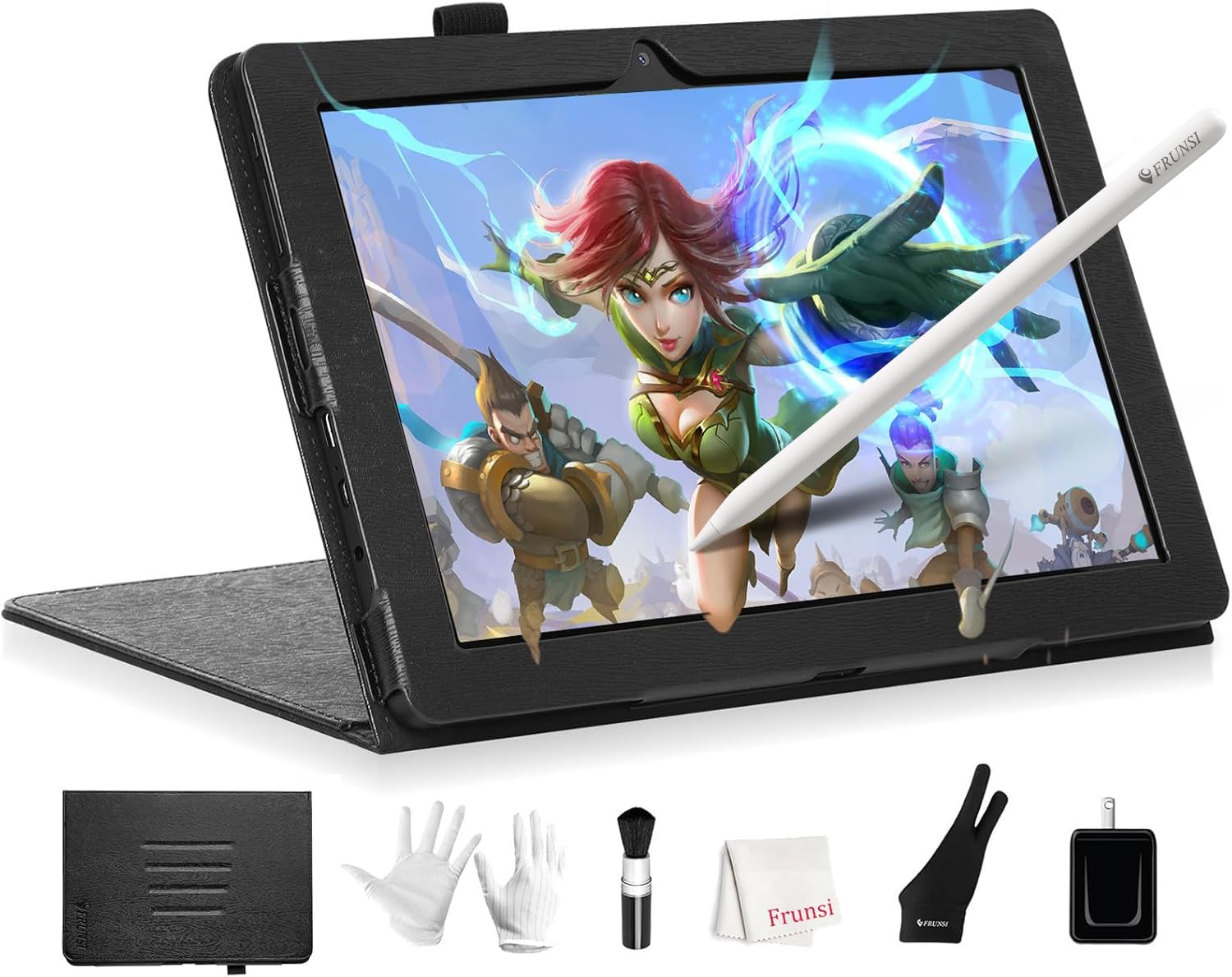
Unlike every other pick here, the T8 runs its own Android 13 operating system, so you do not need a computer at all. It boots straight into pre-installed drawing apps and tutorials, making it the fastest path from unboxing to first sketch. The 1200×800 resolution display is compact but serviceable, and the included detachable keyboard and stylus cover the basics.
The hardware leans practical rather than flashy — an MTK quad-core CPU with 4GB RAM and 64GB storage expandable to 256GB. The 4000mAh battery targets up to 20 hours of drawing, and with a 2,048-level pressure sensitivity, it handles the fundamentals well. It runs Clip Studio Paint with only minor lag, which is remarkable for a tablet in this class.
Build quality earns the most thumbs-up here, with buyers praising the solid feel and the included case and magnetic stand. The screen itself gets mixed notes — images look clear and digital paintings come out vivid, but one viewer found the display a touch unnatural. Battery life also divides opinions, with owners reporting anywhere from a few hours in Sketchbook to days of light use, so heavy sessions may still need a charger nearby.
Freedom From the Desk
- Standalone Android 13 tablet means zero cables or computer required
- Runs Clip Studio Paint, Sketchbook, and Krita with only little lag
- Expandable storage up to 256GB for a growing portfolio
Portable Trade-Offs
- No palm rejection, so resting your hand while drawing can create stray marks
- Screen quality is mixed and battery life varies widely by app
- The included case lacks a proper pen holder loop
Reach for it if: you sketch on the go, take notes, and want to learn digital art without owning a powerful laptop.
Look elsewhere if: you need a large, color-accurate canvas for professional work or precise palm rejection.
3. UGEE UE16
A 15.4-inch color-rich canvas that outshines its budget price on paper and in person.
This is the color pick of the budget tier. The UE16 boasts a 143% sRGB color gamut — a full 44% more coverage than the HUION Kamvas 13’s 99% sRGB — so reds stay punchy and greens stay deep. You also get four color space presets (sRGB, Adobe RGB, DCI-P3, and a Black & White mode) to jump between when you’re drawing, designing, or proofing a layout.
The drawing experience pairs a full-laminated anti-glare screen with 16K pressure sensitivity and a battery-free stylus that includes two hotkeys and a pressure-sensitive eraser. Eight physical shortcut keys plus a scroll wheel give you tactile control without reaching for your keyboard. It connects via HDMI and USB to Windows, Mac, Chrome OS, Android, and Linux systems.
Owners call the visual quality excellent and say setup is easy, with the tablet doubling nicely as a second display. The experience edge over a Huion H610 Pro V2 is clear, and buyers report it works well even on Windows 11 Pro. One practical warning: the screen ships with a blue protective film — remove it or you’ll wonder why your colors look tinted for a year. Durability draws some caution, and nibs wear quickly if you press hard.
Vivid and capable: the 143% sRGB gamut and 16K pressure make this the budget pick that refuses to look budget.
Worth knowing: the blue protective film must come off for true colors, and heavy-handed artists will replace nibs sooner.
Best for: artists on a budget who prioritize vivid, accurate color in a larger 15.4-inch format.
skip it if: you want the largest possible color gamut in a premium-grade case, or you prefer a lighter desk footprint.
4. XPPen Artist 15.6 Pro V2

A 15.6-inch pen display trusted by tens of thousands of artists for its balance of everything.
The Artist 15.6 Pro V2 is the most-reviewed pen display in this lineup by a wide margin, and that track record speaks to consistent quality. The X3 Pro smart chip stylus delivers 16,384 pressure levels, and the signature Red Dial puts brush size, zoom, and navigation under one physical dial. A fully laminated anti-glare screen with a 178° viewing angle keeps the stylus nib and cursor aligned with minimal parallax.
The display specs are strong for the tier: 1920×1080 resolution, 99% sRGB, 96% Adobe RGB, and 96% Display P3. It also packs 250 cd/m² brightness and a 1000:1 contrast ratio, with eight fully customizable shortcut keys on the slim 11mm body. The included foldable stand adjusts to 90 degrees, helping your posture during long sessions.
Buyers call it an excellent bargain and a major upgrade from compact tablets, with colors better than most laptop screens and a stylus comfortable for hours. The recurring friction is setup — getting drivers, cables, and display mirroring working takes time, and some report needing to reconnect the HDMI adapter on each boot. This is a device that rewards patience, not a plug-and-play gadget.
Feature-Rich Workhorse
- 16K pressure with a Red Dial for brush size and zoom control
- Wide 178° viewing angle and 99% sRGB coverage
- Slim 11mm profile with a stable foldable stand included
Setup Friction
- Driver installation and cable setup can take multiple attempts
- Some units need the HDMI adapter reconnected at every boot
Who it suits: hobbyists and students ready to invest setup time for a feature-rich 15.6-inch canvas at a strong value.
Who it doesn’t: beginners who want the absolute simplest plug-and-play experience, or anyone needing true portability.
5. Wacom Cintiq 16
Wacom’s signature pen feel arrives on a 16-inch QHD screen that serious artists adore.
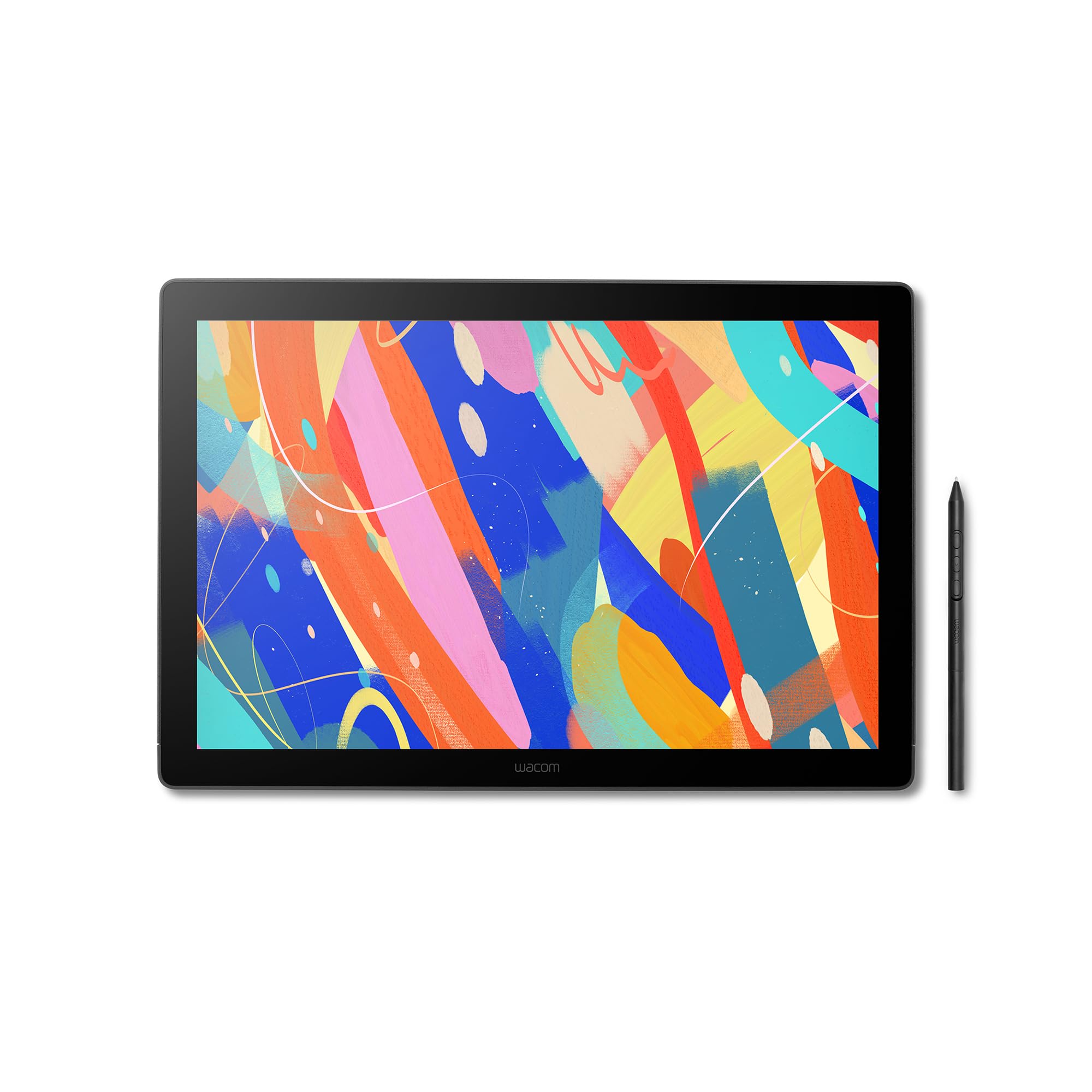
If you want the pen feel that professional studios have trusted for decades, the Cintiq 16 is the safest path. It pairs a 16-inch IPS display (a screen type known for accurate colors and wide viewing angles) with a sharp 2.5K WQXGA resolution (2560 x 1600), so your lines stay crisp. The Pro Pen 3 detects 8,192 pressure levels, meaning it responds to the lightest touch — line artists will feel the difference immediately. The pen holder mounts to either side of the display, so you can keep it within reach whether you’re left- or right-handed.
Color fidelity is cinematic: 99% DCI-P3 and 100% sRGB coverage with 8-bit color depth. That means the wide gamut used in film and digital media renders the way it’s meant to be seen. The 16:10 aspect ratio gives you extra vertical space, and built-in fold-out legs provide a 20-degree working angle from the start.
Owners praise its zero anti-glare sparkle, crisp display, and durable build that shows no wear even after months. The honest catches: the Pro Pen 3 feels slim for some hands, there is no mini-HDMI cable included (so most PCs need an extra purchase), and there’s no stand in the box. It’s not very portable either, so treat it as a desk fixture.
The Wacom draw: 100% sRGB with 99% DCI-P3 on a 2.5K screen, plus the Pro Pen 3’s 8,192 levels of refined pressure.
Budget for: a separate mini-HDMI cable and a stand, since neither ships in the box.
Choose this if: you prioritize a proven premium pen feel and sharp QHD resolution and don’t mind buying a cable and stand separately.
Pass if: you’re on a tight budget or need a fully self-contained portable setup.
6. XPPen Artist Pro 19 Gen2

An 18.4-inch 4K powerhouse that out-features and out-colors the premium competition.
If you’re a Wacom owner wondering if you can switch, the Artist Pro 19 Gen2 is the mid-range-to-premium balance that makes you rethink your loyalty. It delivers true 4K UHD resolution (3840×2160) on an 18.4-inch screen, so you get four times the pixels of Full HD for ultra-detailed work. The 156% sRGB gamut (a measure of how many colors the screen can show) is the widest color coverage in this roundup. Calman verification (an independent color-calibration check) confirms a △E < 1.5 — meaning color errors are barely visible to the human eye — covering 99.8% sRGB, 96% Adobe RGB, and 98% Display P3 across 1.07 billion colors.
The hardware package is generous: this pick beats the Wacom Cintiq 16’s single stylus by shipping two — the X3 Pro Roller Stylus and the X3 Pro Slim Stylus — both with 16,384 pressure levels and 60° tilt support, so you can shade naturally by angling the pen. The ACK05 wireless shortcut keyboard adds a physical dial plus ten customizable keys over Bluetooth 5.0, letting you adjust brush size or undo without reaching for the keyboard. Setup is streamlined with dual reversible USB-C connections and HDMI input, and a VESA adapter (75x75mm) lets you mount it on an arm or stand.
Owners say it beats the Wacom Cintiq 16 in quality, drivers, and value, praising the gorgeous design, zero lag, and the pen’s rear eraser nub. The matte screen and huge work area win praise too. Owners mention that 4K at this size is technically overkill and causes occasional scaling glitches in some programs, though these are fixable with display tweaks. It’s also heavy, so this is a dedicated desk setup.
Everything Included
- Sharp 4K UHD 18.4-inch display with 156% sRGB coverage
- Two styluses with 16,384 pressure levels and 60° tilt
- Wireless ACK05 shortcut keyboard with dial and ten keys
Minor Quirks
- 4K resolution can cause scaling glitches in some programs
- Heavy frame means it’s not portable
Reach for it if: you want 4K detail, the widest color gamut here, and dual styluses with a wireless shortcut remote.
Consider another if: your software has scaling issues with 4K displays or you need something lighter and more portable.
7. Xencelabs Pen Display 24

A 24-inch 4K studio canvas with Pantone-validated color and a remote that lives beside you.
For color-critical work, this is the pick that out-specs even Wacom’s own options. The Pen Display 24 serves a 4K UHD IPS screen (3840×2160) with 1.07 billion colors, covering 99.43% Adobe RGB and 96.11% DCI-P3, and it’s Pantone & SkinTone validated. Hardware calibration with two internal slots means you can lock in a profile and trust it all week.
The ergonomics are where this shines for marathon sessions. The Super-AG Etching reduces glare in bright rooms, and the magnesium alloy back dissipates heat silently with a fan-less design. Two battery-free pens ship with the display — a 3-button pen with an eraser and a slim pen with its own eraser — both offering 8,192 pressure levels, 5080LPI pen resolution, and tilt recognition. The tilt-stand adjusts from 16 to 72 degrees with one hand.
The optional quick-key remote is a highlight, with an OLED display showing your assignments and 40 programmable functions per app. Buyers praise its silky anti-glare surface, luxurious pen response, and spot-on calibration that beats older Wacom and Huion displays. The honest friction: some find the slim pen uncomfortable after long sessions, the power connector feels loose, and the screen-switching software can be clunky.
The pro reference: 99.43% Adobe RGB and Pantone validation on a 4K screen with two battery-free pens in the box.
Expect to adjust: the slim pen’s comfort and the occasional clunky software switch between displays.
Ideal for: illustrators, animators, and sculptors who need studio-grade color accuracy and a large silent canvas.
Not for: budget buyers or anyone who wants a fully self-contained standalone tablet.
8. Wacom Cintiq Pro 27

The 27-inch studio flagship with 4K, 120Hz, and the industry-standard pen experience.
The Cintiq Pro 27 is the only pick here with a 120Hz refresh rate, making drawing and on-screen motion feel dramatically smoother than any previous Wacom model. The 27-inch 4K UHD display (3840×2160) delivers exceptional 10-bit color (meaning over a billion shades) with 99% Adobe RGB and 98% DCI-P3, so your colors stay accurate for print and video. The multi-touch screen responds to gestures, so you can pinch to zoom and swipe to pan directly on the canvas.
The Pro Pen 3 is Wacom’s most advanced stylus, offering 8,192 pressure levels, 3 side switches, and fully customizable weight and balance with swappable grips. Eight ExpressKeys sit conveniently on the display, and four standard ¼-inch mount options let you attach a phone, camera, or the Wacom extension table. It weighs in at 15.9 pounds, so this is a permanent studio fixture, not a traveler.
Owners call it the best pen display they’ve used, citing excellent pen control, a natural etched-glass feel, and a quiet fan. Artists upgrading from smaller displays note the paper-like surface feels natural and the 120Hz refresh is a bonus for drawing and even gaming. The sticker price draws the most commentary — customers note it’s a professional tool for a professional price, and some note that value is hard to justify over Huion or XP-Pen for basic use. A few units arrive with noticeable dead pixels, so check your panel early.
The Flagship Experience
- Silky-smooth 120Hz refresh on a 4K 27-inch display
- Multi-touch gestures plus 8 customizable ExpressKeys
- Pro Pen 3 with adjustable weight, balance, and swappable grips
The Price of Pro
- Premium cost that’s hard to justify for casual or hobby use
- Reports of dead pixels on some units; check your panel early
- Heavy 15.9-pound build is strictly for a dedicated desk
Built for: full-time professionals in animation, VFX, game art, and 3D who need the smoothest, most accurate large canvas available.
Look elsewhere if: your budget is tight or your art is a hobby, since cheaper displays handle that workload well.
Understanding the Specs
Pressure Sensitivity
This is the number that defines how expressive your strokes feel. It’s measured in levels (like 2,048 or 16,384), and a higher count means the pen can register finer gradations of pressure, from a whisper of a pencil mark to a heavy ink fill. Lined up head-to-head, the HUION Kamvas 13’s 16,384 levels is an 8.0x gap over the T8’s 2,048 levels — the difference between catching every nuance of a light hand and losing the faintest strokes entirely. There’s also the initial activation force (IAF), measured in grams; a lower IAF like 2g means even the slightest touch starts a mark.
Color Gamut
Color gamut tells you how much of a color standard the screen can reproduce, and it’s vital if your art will be printed or published. It’s measured as a percentage of a standard like sRGB (for web) or Adobe RGB (for print). A higher percentage means more vivid, accurate colors. The UGEE UE16’s 143% sRGB is a 44% more coverage than the HUION Kamvas 13’s 99% sRGB, so the UE16 shows noticeably punchier reds and greens. For professional print work, look for high Adobe RGB coverage like the Xencelabs’ 99.43%.
FAQ
What is the difference between a standalone drawing tablet and a pen display?
Will an artist tablet computer work with my laptop’s USB-C port?
How many pressure sensitivity levels do I actually need?
Can I use an artist tablet as a regular second monitor?
Why does my drawing tablet need a computer if it has a screen?
What is parallax and why does it matter for drawing?
Do artist tablets come with a stand and stylus?
Which drawing software is compatible with these tablets?
Are battery-free pens better than rechargeable ones?
Final Thoughts: The Verdict
For the majority of shoppers, the artist tablet computer winner is the HUION Kamvas 13 (Gen 3) because it delivers the finest pen precision at a price that leaves room for software. If you want vivid color and a bigger canvas, grab the UGEE UE16 with its 143% sRGB. And if you sketch anywhere and everywhere, the Frunsi RubensTab T8 is the one to reach for — its standalone design has earned a loyal following among beginners who want to draw without a desk setup.
How We Picked
We do not accept paid placement. Every pick is matched to a real buyer and a real use-case; we do not hands-on test units.
Sources & Methodology
Specifications: manufacturer listings and product documentation. Review insights: verified customer reviews, as of August 2026. Pricing: not shown on this page (it changes often); check the current price via the retailer link.
As an Amazon Associate, Gadgets Feed earns from qualifying purchases. This does not affect which products we feature.