
The standard mouse forces your forearm into a twisted, strained position that, after hours at a desk, can lead to debilitating pain in your wrist, forearm, and shoulder. For anyone already managing arthritis, carpal tunnel syndrome, or repetitive strain injury, that familiar click-and-drag motion becomes a daily source of discomfort rather than productivity. The solution isn’t just a softer pad or a different grip — it’s a complete rethink of how your hand interfaces with the computer, and the best accessible computer mouse designs prioritize this fundamental biomechanical shift over flashy features.
I’m Rikta — the co-founder and writer behind Gadgets Feed. I’ve spent years analyzing ergonomic research, tracking user-reported outcomes across thousands of reviews, and comparing the technical specifications that separate a genuinely therapeutic input device from one that merely looks different. (And Homer 🐱 approved the trackball after knocking it off the desk twice.)
Whether you need a thumb-operated trackball to minimize arm movement or a vertical grip that keeps your wrist in a neutral handshake position, choosing the right device can transform your workday and long-term joint health. This guide breaks down the top contenders to help you find the best accessible computer mouse for your specific needs and hand size.
How To Choose The Best Accessible Computer Mouse
Choosing an ergonomic mouse is deeply personal — the wrong shape can aggravate your pain, while the right one can make it disappear within days. Focus on three core pillars: the type of ergonomic design, the size relative to your hand, and the level of customization available.
Vertical Mice vs Trackball Mice: Which Twist Do You Need?
Vertical mice keep your hand in a handshake position, eliminating the forearm twist that can inflame the carpal tunnel. This style is best for users with wrist, forearm, or elbow pain. Trackball mice, on the other hand, keep your hand still while your thumb or finger moves the cursor — ideal for those with shoulder pain or limited desk space. A thumb-operated trackball is intuitive for first-timers, while finger-operated balls offer finer precision.
Button Programmmability and DPI Sensitivity
The number of programmable buttons determines how many repetitive keystrokes you can offload to the mouse. For users with arthritis or limited dexterity, mapping common commands (copy, paste, scroll lock) to side buttons can dramatically reduce strain. Adjustable DPI (dots per inch) lets you control how fast the cursor moves across your screen; lower settings (600–800 DPI) are better for precise work, while higher settings (1000–4800 DPI) suit large monitors or multitasking.
Hand Size and Orientation
Many ergonomic mice are designed specifically for right-handed users, with sculpted thumb rests or button layouts that don’t mirror for lefties. If you have small hands, look for models explicitly labeled with a small form factor. A mouse that is too large will force your fingers into a stretched, uncomfortable position, cancelling out the ergonomic benefits. Always check the hand orientation and physical dimensions before buying.
Quick Comparison
On smaller screens, swipe sideways to see the full table.
| Model | Category | Best For | Key Spec | Amazon |
|---|---|---|---|---|
| Evoluent VM4S | Vertical Ergonomic | Severe wrist strain, small hands | 6 programmable buttons, 4 DPI speeds | Amazon |
| Logitech M575S | Trackball | All-day thumb navigation | 18-month battery life, 3 buttons | Amazon |
| Nulea M514 | Trackball Vertical | Budget-friendly thumb control | 3 DPI levels, 6 buttons, 65° tilt | Amazon |
| SABLUTE MAM1 Pro | Trackball Adjustable | Customizable tilt angle | 5 DPI levels (800-4800), 8 buttons | Amazon |
| Microsoft Ergonomic | Vertical Wired | Reliable plug-and-play comfort | 2 programmable buttons, thumb rest | Amazon |
| Redragon M811 Aatrox | MMO Gaming | Maximum programmable hotkeys | 15 buttons, 5 DPI levels (500-6200) | Amazon |
| Logitech Pro Mouse | Multi-Device Office | Seamless workflow across 3 computers | 24-month battery life, 4 buttons | Amazon |
In‑Depth Reviews
1. Evoluent VM4S Vertical Mouse
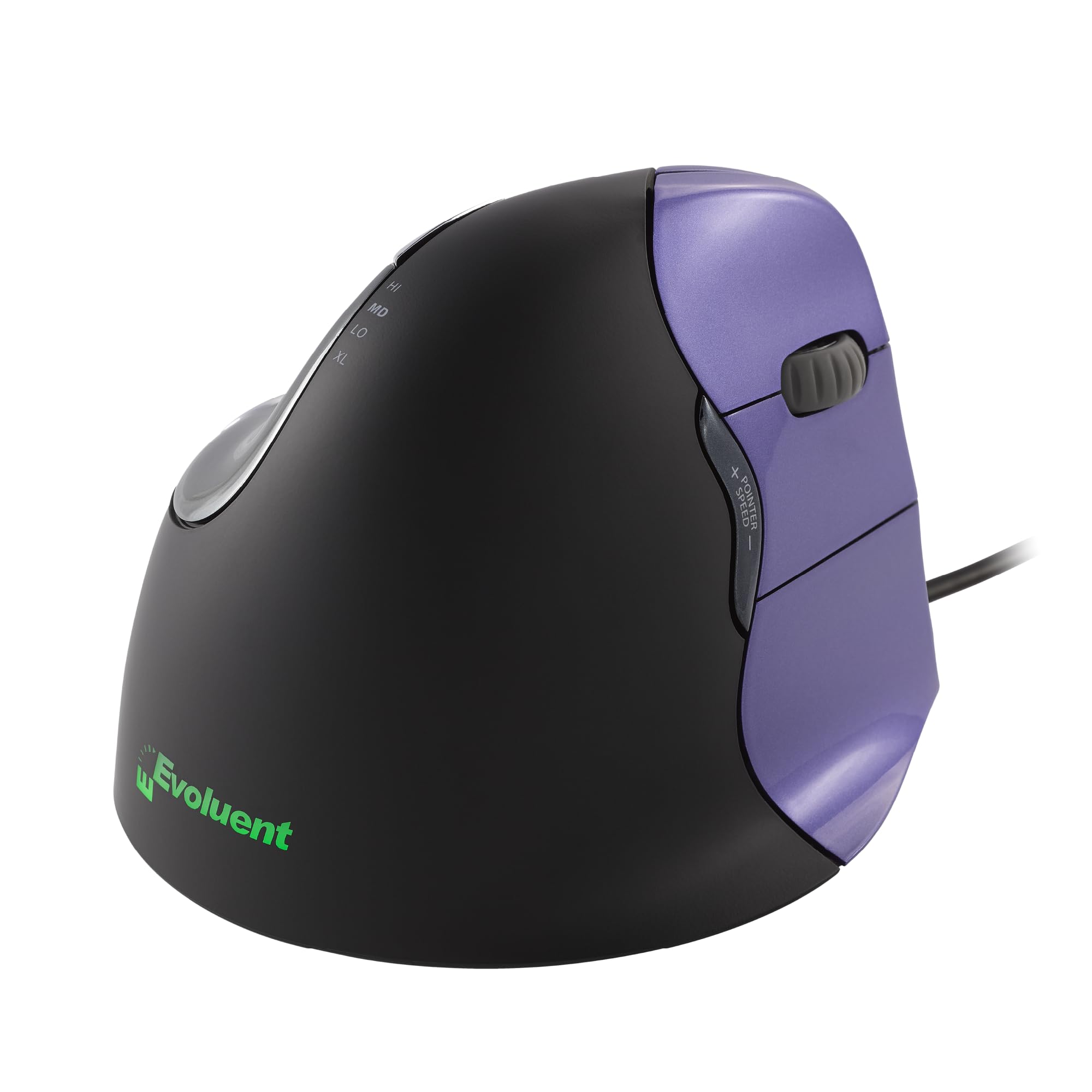
Invented by Jack Lo in 1994 and refined over three decades, the Evoluent VM4S is the original vertical mouse and remains the gold standard for users with chronic wrist, forearm, or hand pain. Its sculpted shape supports your hand in a neutral handshake position, and the pinky lip prevents your smallest finger from dragging on the desk — a thoughtful detail that competition often overlooks. This is a wired USB device with 4 adjustable pointer speeds controlled by top-mounted buttons, so you can switch sensitivity without opening software.
Multiple customers report that their wrist swelling and tendonitis resolved completely within one week of switching, even after years of suffering. The small version fits hands under 7 inches perfectly, making it a rare ergonomic pick for petite users. The optional Evoluent Mouse Manager software on Windows unlocks nearly unlimited button and wheel customization, letting you map complex keystrokes to a single click.
It’s worth noting that the bottom thumb button can be awkward to reach, and the bright logo light might be distracting — though holding the speed button while plugging it in turns it off. The premium build quality and medical-grade outcome potential justify the investment for anyone with serious joint issues.
Why it’s great
- Proven to eliminate wrist pain in days for many users
- Pinky lip reduces desk friction for all-day comfort
- Small version tailored for hands under 7 inches
Good to know
- Wired only — no Bluetooth or multi-device option
- Bottom thumb button can be difficult to press
- Requires a 1-2 week adjustment period
2. Logitech Ergo M575S Trackball Mouse

Logitech’s M575S is the natural evolution of the legendary M570 line, offering a refined thumb-operated trackball that reduces forearm muscle strain by 25 percent according to Logi Ergo Lab testing. The sculpted shape supports your hand in a relaxed posture, and the high-resolution ball delivers smooth, precise tracking without stickiness. It connects via Bluetooth or the included Logi Bolt USB receiver, and a single AA battery powers it for up to 18 months.
The 3 customizable buttons and Smart Actions via the Logi Options+ app let you optimize shortcuts for specific applications. The ball cage is easy to eject for cleaning, which is essential since the ball can accumulate debris over weeks of use. Users consistently report that this mouse lasts over a decade — several reviewers mentioned their M570 survived 10-plus years with only minor sensor issues.
It’s important to note that the Logi Bolt receiver is not compatible with older Logitech Unifying keyboards, so you may need two USB ports if you use both. The warranty has also been reduced from three years to one. Still, the M575S remains the most reliable and comfortable thumb trackball on the market for its price tier.
Why it’s great
- Proven long-term durability — many units last 10+ years
- Bluetooth and Logi Bolt support for flexible connectivity
- Quieter clicks and smoother scrolling than older models
Good to know
- Logi Bolt receiver incompatible with Unifying peripherals
- Warranty shortened to 1 year
- Occasional initial connectivity issues reported
3. Nulea M514 Wireless Trackball Mouse
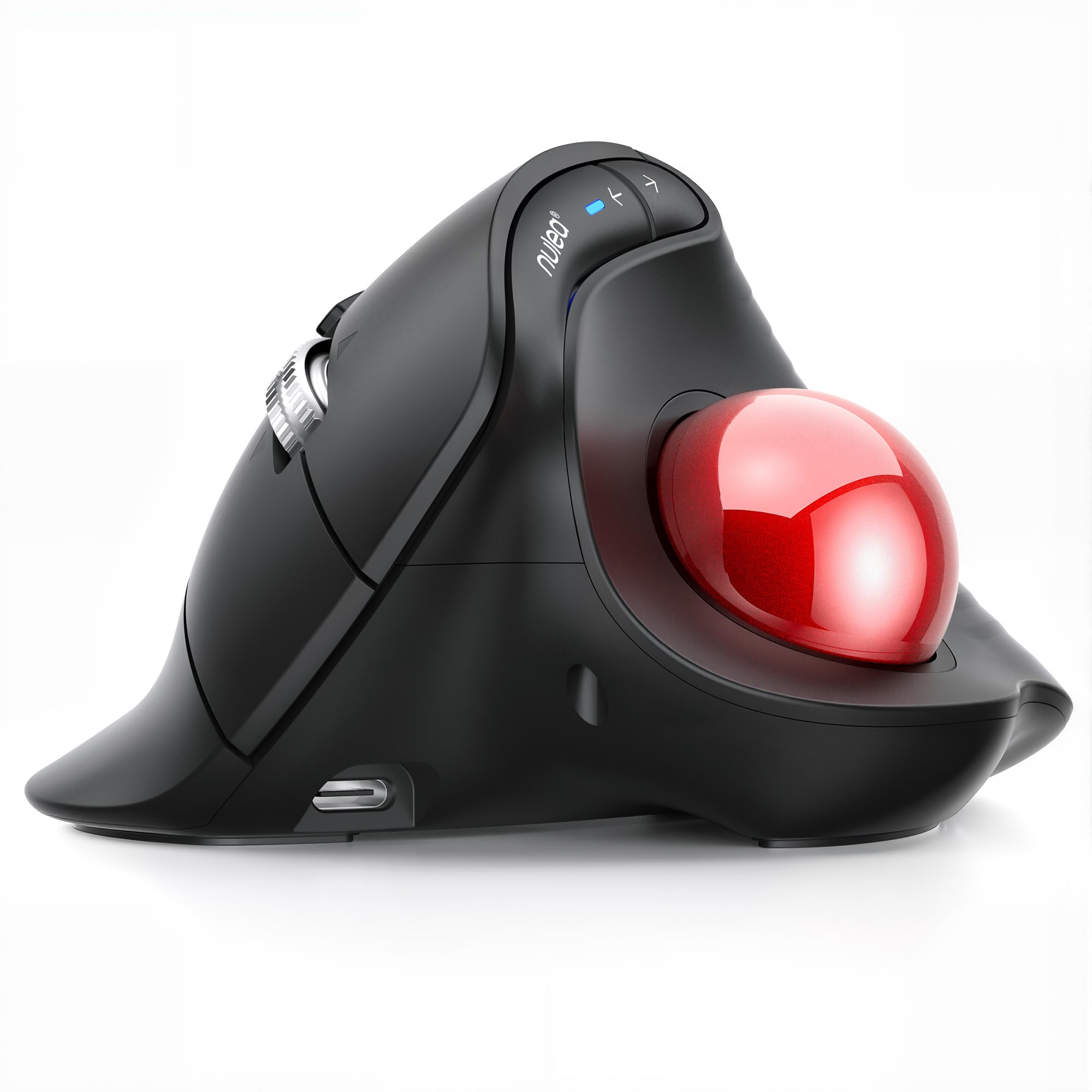
The Nulea M514 combines a 65-degree vertical tilt with a thumb-operated trackball — a unique hybrid that reduces wrist strain without requiring arm movement. Its sculpted wave-textured surface fits the palm naturally, and the infinite scroll wheel automatically switches between precise and fast scrolling based on speed. With 3 DPI levels (600/800/1000) and support for 3 devices via Bluetooth or USB receiver, it offers strong value for the price.
Users switching from high-end Logitech MX Ergo models often praise the M514 for its smoother ball action, faster scroll wheel, and significantly lower price. The thumb-based forward and back buttons take some adaptation but prevent accidental presses. Silent clicks and a quiet trackball make it ideal for shared office environments.
Build quality is lower than premium options, and users with large hands report that the design feels cramped. The trackball can feel slightly loose, making precise selections more difficult than on tighter mechanisms. Nonetheless, for anyone needing a quiet, vertical trackball on a budget, the M514 delivers impressive performance.
Why it’s great
- Combines vertical tilt with thumb trackball for dual ergonomics
- Infinite scroll wheel with smart speed detection
- Fully silent operation for shared workspaces
Good to know
- Build materials feel less premium than competitors
- Trackball can feel loose for precise work
- Best suited for small to medium hands
4. SABLUTE MAM1 Pro Trackball Mouse
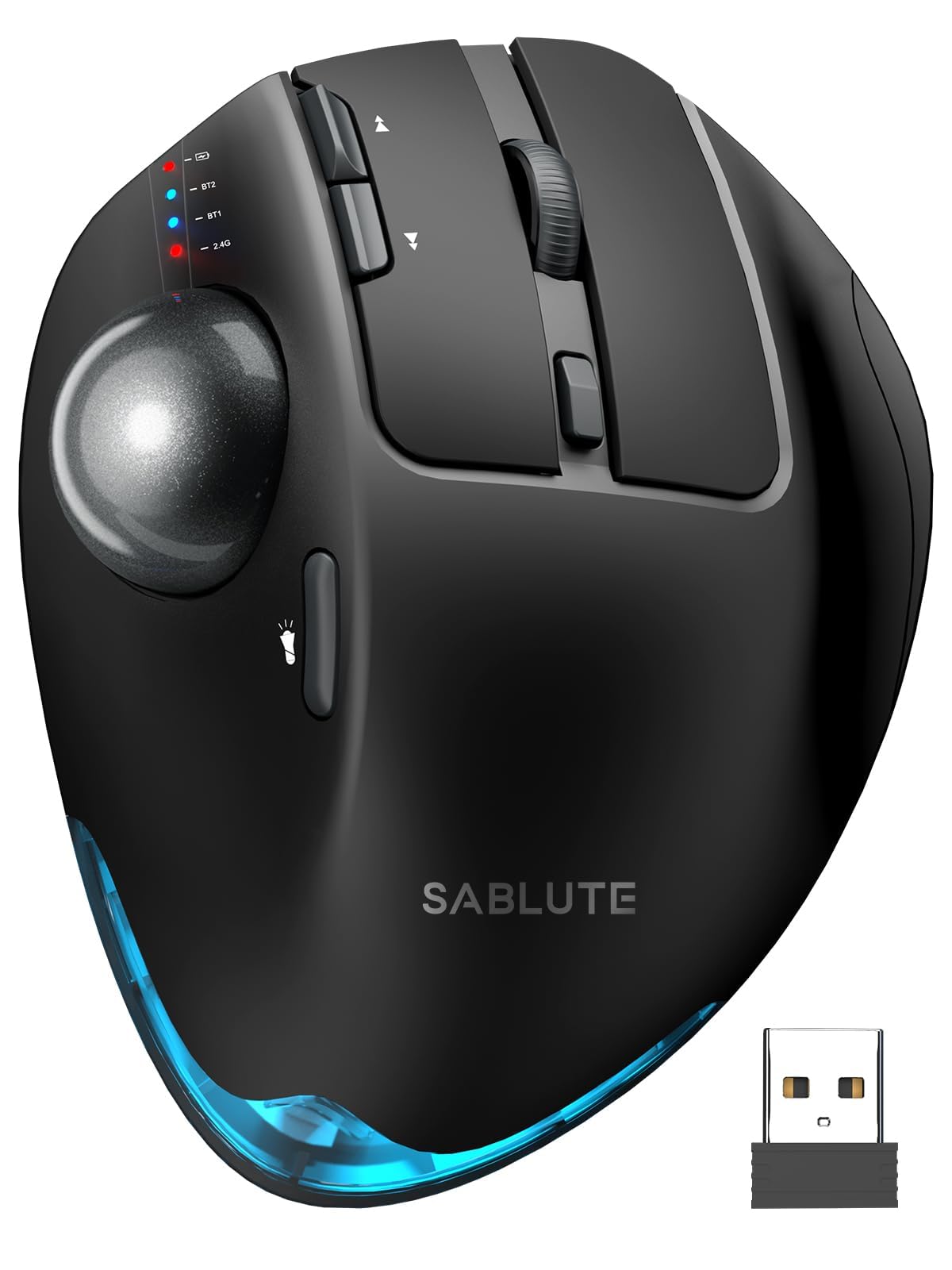
The SABLUTE MAM1 Pro stands out for its adjustable 0 or 18-degree ergonomic tilt, letting you experiment with two different handshake angles to find what suits your wrist best. It features a smooth thumb-operated trackball, 8 programmable buttons, and 5 DPI levels ranging from 800 to 4800. The magnetic base detaches for easy cleaning, and the replaceable ball comes in multiple colors for a personalized look.
Users praise its solid build quality and comfortable feel for all-day use, with several noting significant relief from carpal tunnel sensitivity. The rechargeable battery with USB-C charging lasts several weeks on a single charge, and the ambient backlight can be toggled on or off. The customizable driver software works on Windows but is not compatible with Mac OS.
Some users report a clanking sound when the mouse is tilted left, caused by the ball knocking against the cage. Thumb control may not suit everyone — reviewers switching from finger-style trackballs sometimes experience new wrist pain. If you prefer a finger-operated ball, this might not be the right fit, but for thumb users who value adjustability, it’s a strong mid-range contender.
Why it’s great
- Two tilt angle settings (0° and 18°) for personalized ergonomics
- Magnetic detachable base for easy cleaning
- Long battery life and USB-C rechargeability
Good to know
- Ball can create clanking noise when tilted
- Thumb control may cause pain for some users
- Driver software not supported on Mac OS
5. Microsoft Ergonomic Mouse

Microsoft’s Ergonomic Mouse offers a straightforward, plug-and-play solution for users who want a contoured shape without the complexity of trackballs or vertical designs. Its sculpted body and thumb rest encourage a natural hand position, and the precise tracking sensor works reliably on a wide range of surfaces. The wired connection ensures zero latency and no battery hassles — simply plug in via USB and start working.
Multiple users with long-term carpal tunnel pain report that switching to this mouse eliminated their symptoms entirely, especially when paired with an ergonomic keyboard. The two programmable buttons default to browser back and forward, but they can be remapped via the Microsoft Mouse and Keyboard Center software. The optimized scroll wheel offers good tactile feedback for precise document navigation.
The mouse is right-handed only, and the scroll wheel can be inconsistent — occasionally speeding up or slowing down unexpectedly. The side buttons require special software to reprogram, which may be a limitation for some. But for its reasonable price and proven pain relief, this wired ergonomic mouse remains a solid choice for desktop users.
Why it’s great
- Proven effective for carpal tunnel pain relief
- No batteries, no pairing — true plug-and-play
- Contoured thumb rest for natural hand position
Good to know
- Right-handed only, no left-handed version
- Scroll wheel can behave inconsistently
- Side button reprogramming requires separate software
6. Logitech Pro Mouse

The Logitech Pro Mouse is built for efficiency across multiple computers, offering Easy-Switch technology that lets you pair with up to 3 devices and toggle between them with one button. Its hyper-fast scroll wheel can fly through long documents or shift to click-to-click precision mode. The buttons are rated for up to 10 million clicks, and a single AA battery delivers an exceptional 24 months of power.
Users upgrading from older Logitech models note that the Pro Mouse feels noticeably sturdier, with improved tactile feedback and a dedicated thumb gesture button. The ambidextrous shape works well for right-handed users, and the optical sensor tracks smoothly on surfaces where others slip — bedspreads, couches, glass tables, and even your thigh. The included USB dongle provides a more reliable connection than Bluetooth alone.
Some users report that the left-click can fail after 2.5 years, and the scroll wheel can feel less responsive over time. The mouse is also on the heavier side, which may tire some users during long sessions. But for a multi-device productivity mouse with exceptional battery endurance and reliable tracking, the Logitech Pro Mouse remains a strong value option.
Why it’s great
- Switches seamlessly between 3 connected devices
- 24-month battery life on a single AA
- Hyper-fast scroll wheel with precision toggling
Good to know
- Left-click button can fail after extended use
- Heavier than many office-focused mice
- Scroll wheel may lose responsiveness over years
7. Redragon M811 Aatrox MMO Mouse

While marketed as a gaming mouse, the Redragon M811 Aatrox is a powerful accessibility tool for users who rely on macro hotkeys to minimize repetitive keystrokes. With 15 programmable buttons — including 2 large and 8 small side buttons — it lets you map complex commands, keyboard shortcuts, or even entire scripts to single clicks. The software supports DIY keybinds and stores commands locally, so you don’t need the app running after setup.
The ergonomic shape follows the natural curve of the hand and is designed for long sessions, making it suitable for productivity use like stock trading, video editing, or spreadsheet navigation. The 5 adjustable DPI levels range from 500 to 6200, with an optional software extension up to 12400. The wired USB connection ensures zero latency, and the braided cable is durable and long.
The matte coating on the body collects oils over time and can rub off with heavy use. The software interface is functional but unintuitive — some commands are labeled confusingly, and the macro creator lacks reordering abilities. The mouse is also large and right-handed, so users with small hands or left-handed users should look elsewhere.
Why it’s great
- 15 fully programmable buttons reduce repetitive hand movements
- Local onboard memory stores profiles without software
- Well-spaced side buttons prevent accidental clicks
Good to know
- Matte coating wears and collects oils over time
- Software interface is clunky and unintuitive
- Large size not suitable for small hands or left-hand use
FAQ
How long does it take to adjust to a trackball mouse?
Should I choose a vertical mouse or a trackball for carpal tunnel?
Can I use an MMO gaming mouse for accessibility purposes?
Are wired or wireless ergonomic mice better for accessibility?
Final Thoughts: The Verdict
For most users, the best accessible computer mouse winner is the Evoluent VM4S because its decades-refined vertical design and excellent small-hand fit provide proven, rapid relief from chronic wrist and hand pain. If you want wireless flexibility and a trackball that integrates seamlessly across multiple devices, grab the Logitech M575S. And for budget-conscious users seeking a quiet, vertical trackball hybrid, nothing beats the value of the Nulea M514.