
A 10-inch touch screen monitor sits at the intersection of DIY innovation and practical desktop utility, yet most buyers end up with a display that fights them at every gesture. The real challenge isnt just resolution or brightness — its finding a panel that delivers accurate, lag-free touch response across the specific operating system you actually use, whether thats a Raspberry Pi running Raspbian, a Windows 11 kiosk, or a portable lapdock for your phone.
I’m Min — the co-founder and writer behind Gadgets Feed. I’ve spent hundreds of hours parsing through capacitive touch controller compatibility, HDMI vs USB-C power delivery quirks, and the subtle differences in IPS glow and viewing angles that separate a usable 10-inch monitor from a frustrating one.
Every monitor in this guide was selected because it demonstrates a specific strength — whether its industrial-grade sealing, high resolution for text legibility, or seamless driver-free integration with single-board computers — so you can confidently find the best 10 touch screen monitor for your exact application.
How To Choose The Best 10 Touch Screen Monitor
The 10-inch touch monitor category is crowded with nearly identical-looking panels, but the differences in touch controller firmware, power delivery design, and operating system compatibility can make or break your project or desktop setup. Here’s what to prioritize.
Touch Technology: Capacitive vs Resistive
Every monitor in this guide uses capacitive touch — the same technology found in modern smartphones — which supports multi-finger gestures like pinch-to-zoom and swipe. Capacitive panels require a bare finger or a specialized capacitive stylus, and they cannot be used with thick gloves unless specifically rated for it (some industrial models support up to 2mm gloves). If your use case involves a dusty workshop, food service environment, or medical gloves, seek out monitors with an IP65 front rating and explicitly stated glove support, like the RIUIIN industrial display. Never assume a generic 10-inch touchscreen will work through gloves.
Resolution and Pixel Density
At the 10-inch diagonal, the difference between 1024×600, 1280×800, and 1920×1200 is dramatic. A 1280×800 panel delivers roughly 151 pixels per inch (PPI), which is comfortable for reading system logs, navigating Klipper interfaces, or running a POS system. The 1920×1200 panels push past 226 PPI, making text razor-sharp and fine UI elements like slider knobs and radio buttons much easier to tap accurately. However, higher resolution requires your operating system to handle fractional scaling — Windows 11 handles this gracefully, but older Linux distros or bare-bones Raspberry Pi OS installations may render text painfully small at native resolution. If you are using a Pi without compositing, consider whether the extra pixels justify the configuration overhead.
Connectivity and Power Delivery
The single most common failure point in 10-inch touch monitors is the power and signal connection. Many monitors require two separate cables — one HDMI for video and one USB-A for touch data plus power. Some premium units include USB-C ports that support DP Alt Mode, allowing a single cable to carry video, touch, and power from a compatible laptop or phone. Pay close attention to whether the monitor includes a power adapter in the box (usually 12V at 1A to 5A). Monitors that draw power entirely from a connected Raspberry Pi’s GPIO pins may trigger low-voltage warnings unless the Pi itself has a sufficiently rated power supply. The SunFounder model addresses this by including a built-in 5.1V/5A output specifically for the Pi 5, a rare and practical detail.
Quick Comparison
On smaller screens, swipe sideways to see the full table.
| Model | Category | Best For | Key Spec | Amazon |
|---|---|---|---|---|
| SunFounder 10.1″ | Premium DIY | Raspberry Pi 5 All-in-One | Built-in 5.1V/5A output | Amazon |
| XBONFIRE 10.1″ | High-Res | Sharp text and media | 1920×1200 IPS | Amazon |
| MINIX SF10T | Portable | Laptop secondary display | 1920×1280, 3:2 aspect | Amazon |
| Eyoyo 10.1″ | Industrial | Metal case, VGA input | Metal housing, VESA 75 | Amazon |
| GeeekPi 10.1″ | Pi Focused | Easy Pi 5 integration | 10-point touch, speakers | Amazon |
| ELECROW 10.1″ | Budget DIY | Entry-level Pi projects | 1280×800, 5-point touch | Amazon |
| ROADOM 10.1″ | Value Kit | Full accessory bundle | 1024×600, stand included | Amazon |
| RIUIIN 10″ | Heavy Duty | Harsh environments | IP65 front, 500 cd/m² | Amazon |
| ASUS VT229H | Desktop | Full-size desktop touch | 21.5″, 1920×1080 | Amazon |
In-Depth Reviews
1. SunFounder Latest 10 Inch DIY Touch Screen for Raspberry Pi 5

The SunFounder 10.1-inch monitor stands apart from the dozens of generic Pi displays because it was engineered specifically to solve the Raspberry Pi 5’s power appetite. Instead of relying on the Pi’s own limited USB output or an external brick for the board, this monitor integrates a 5.1V/5A Type-C output that delivers the full 25 watts a Pi 5 demands during peak load — no undervoltage warnings, no throttling. The 1280×800 IPS panel delivers a 178-degree viewing angle and a 2000:1 contrast ratio, making system text and terminal output crisp and readable without backlight bleed.
The driver-free philosophy extends to the Raspberry Pi OS, Windows, Ubuntu, and Android, with 10-point capacitive touch that requires zero calibration. SunFounder also provides detailed online tutorials and 3D design files for building a custom enclosure, a rarity in this category that signals genuine maker-oriented engineering rather than a repackaged generic panel. The included mini HDMI to HDMI cable, Type-C power cable, and DC adapter cover all the basics, though the absence of a built-in stand means you will need to mount it on a VESA bracket, wall, or 3D-printed frame.
User reports confirm that the display behaves well with Pi 4 and Pi 3B+ models too, and SunFounder’s customer support team responds within 12 hours if you encounter a defective unit. The one consistent criticism involves the internal speakers, which are audibly thin — fine for beeps and system alerts but inadequate for media consumption. For any serious DIY project where power stability and responsive touch are non-negotiable, this monitor sets the benchmark.
Why it’s great
- Built-in 5.1V/5A USB-C output eliminates Pi power issues
- Driver-free 10-point capacitive touch works with Pi OS, Windows, Ubuntu, Android
- Excellent 2000:1 contrast ratio for a 10-inch IPS panel
Good to know
- No included stand or case — requires DIY mounting or VESA bracket
- Built-in speakers are low-quality for music or video
2. XBONFIRE 10.1 Inch Touchscreen Monitor
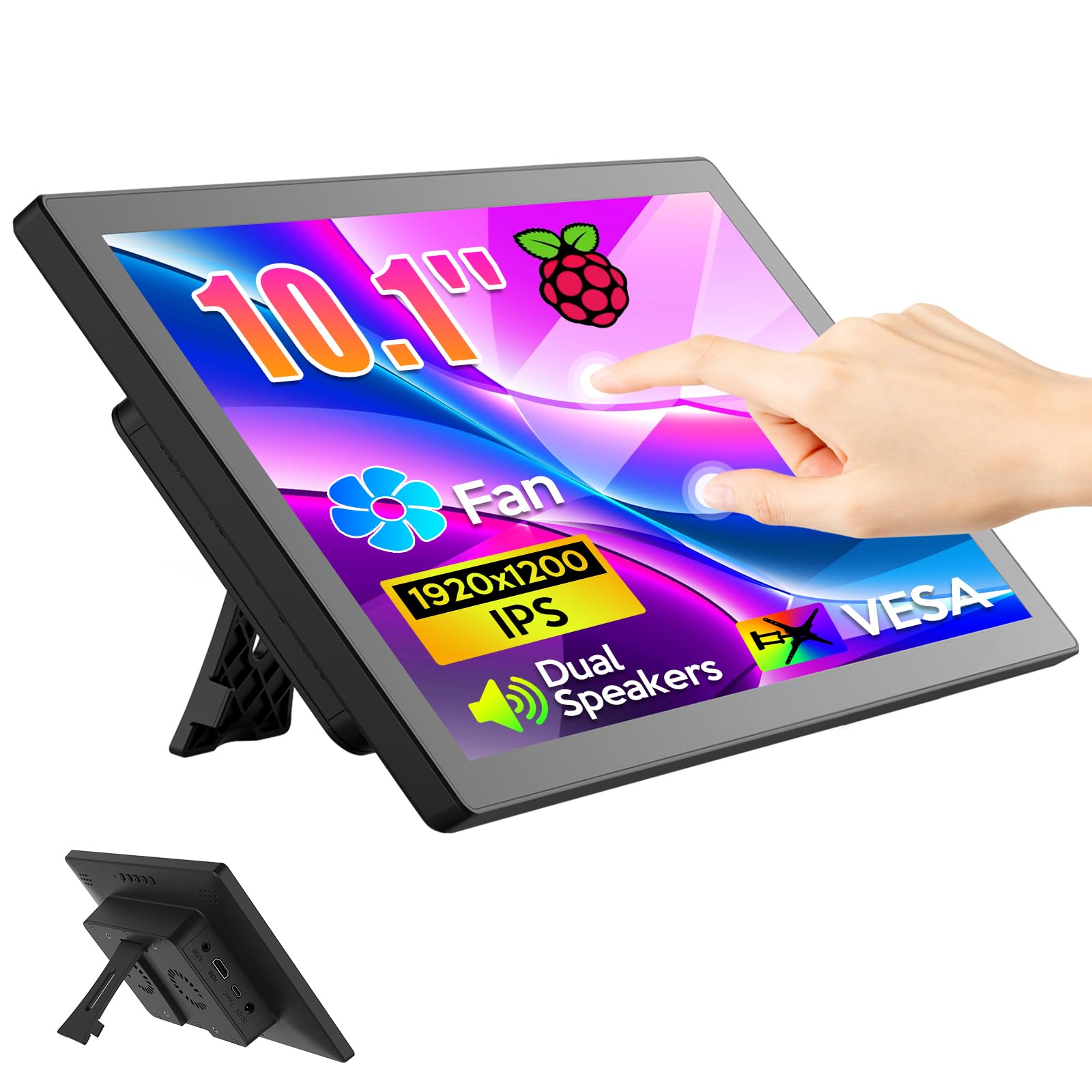
The XBONFIRE 10.1-inch monitor occupies a rare spot in this category by delivering a native 1920×1200 resolution on a 10-inch panel — a pixel density of roughly 226 PPI that makes 8-point system text and dense UI panels look like printed media. The IPS glossy screen supports a 178-degree viewing angle and 370 candela per square meter brightness, which is sufficient for indoor use even near a window. The 3-to-5 millisecond touch response time ensures that swipe gestures feel immediate, whether you are navigating a Klipper printer interface or tapping through a Windows 11 tablet-mode app.
Connectivity is handled through HDMI and a USB Type-C port that carries touch data and power, though it does not support single-cable video via DP Alt Mode — you will need both HDMI and USB-C connected for full functionality. The monitor includes a built-in speaker and a small fan, plus a stand and VESA mount compatibility. Notably, the package includes adapter boards for both Raspberry Pi 4 and Pi 5, allowing the Pi to be mounted directly to the rear PCB. However, several user reports note that the internal DC-to-DC converter does not supply enough amperage to run a Pi 5 under full load without a low-voltage warning, so plan to power the Pi separately if you use the XBONFIRE as a direct-back attachment.
The on-screen display is controlled by tactile buttons on the rear edge, giving you access to brightness, contrast, and blue-light filtering presets. The main trade-off for this high resolution is that some Linux distributions may require manual configuration to avoid microscopically small text — the monitor works plug-and-play with Windows 11 and Raspberry Pi OS, but older Ubuntu releases may need fractional scaling enabled. Overall, this is the best option for anyone who prioritizes text sharpness and UI precision over the simplicity of a lower-resolution panel.
Why it’s great
- Highest resolution in the 10-inch class at 1920×1200 (226 PPI)
- Fast 3-5ms touch response with smooth 10-point multi-touch
- Includes Pi 4 and Pi 5 adapter boards for direct mounting
Good to know
- Internal power may not fully sustain a Pi 5 — separate power recommended
- No single-cable USB-C video; requires HDMI + USB-C
3. MINIX SF10T Portable Monitor 10.5 Inch
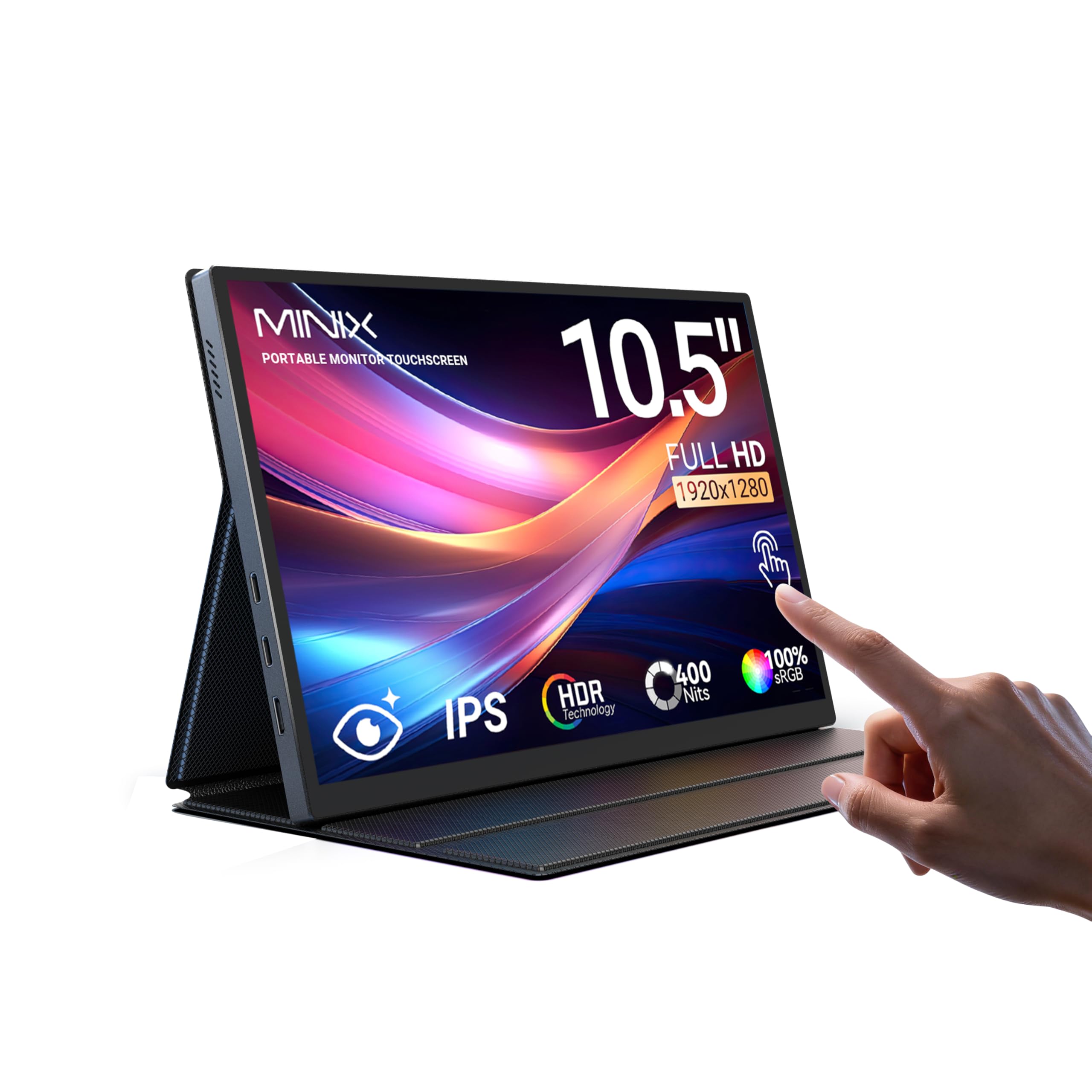
The MINIX SF10T is the only monitor in this roundup that breaks away from the 16:10 aspect ratio standard, opting instead for a 3:2 panel at 1920×1280. This gives you noticeably more vertical screen real estate — roughly 20 percent more height than a 16:10 equivalent — which is a genuine productivity advantage for reading documents, browsing code, or working on spreadsheets while on the go. The IPS panel covers 100 percent sRGB and hits 400 candela per square meter, making it bright enough for use in a coffee shop or plane seat without washing out colors.
Touch functionality is 10-point capacitive and works with Windows and Android natively, though macOS is limited to single-touch. The included magnetic sleeve cover doubles as a folding stand, offering multiple viewing angles and providing scratch resistance during travel. Connectivity options include two full-function USB-C ports (one for power and video, one for daisy-chaining or accessory power) plus a mini HDMI port. For laptops and phones with USB-C DP Alt Mode, a single cable handles video, touch, and power simultaneously — a significant convenience that most 10-inch monitors lack.
The SF10T ships with a 20V/1.5A power adapter, multiple cables, and a micro USB to USB-A adapter for legacy devices. Some users have noted that the touchscreen is non-functional unless the USB-C cable is connected to a port that supports data, not just charging — a common point of confusion that is clearly addressed in the manual. The inclusion of FreeSync support is an unexpected bonus for light gaming, reducing screen tearing when connected to a compatible laptop. For anyone who needs a genuinely portable secondary monitor that handles like a laptop display, the MINIX SF10T is the standout choice.
Why it’s great
- Unique 3:2 aspect ratio provides extra vertical workspace
- Single-cable USB-C DP Alt Mode for video, touch, and power
- Bright 400 cd/m² IPS panel with 100% sRGB coverage
Good to know
- MacOS touch is single-touch only — not for full gesture support
- Requires USB-C data connection for touch; power-only cables wont activate touch
4. Eyoyo 10.1-Inch Small Touchscreen Monitor
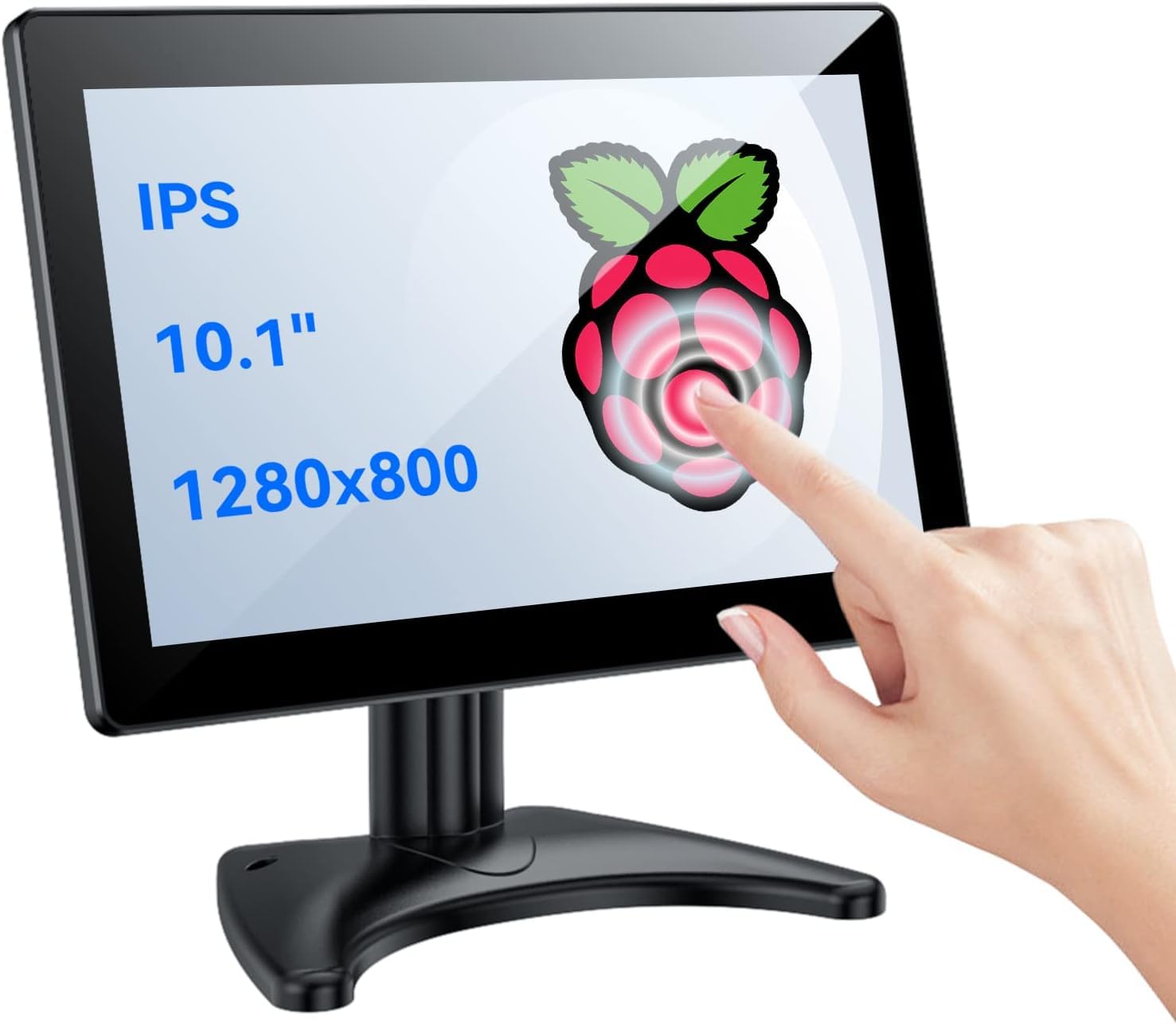
The Eyoyo 10.1-inch monitor takes a fundamentally different approach from the plastic-bodied DIY displays — it is encased in a full metal housing that dissipates heat efficiently and withstands the bumps and vibrations of industrial environments. The 1280×800 IPS panel offers a 300 candela brightness and a 1000:1 contrast ratio, with a 178-degree viewing angle that ensures readability even when the monitor is mounted at an off-axis position. The true flat bezel-less design prevents dust accumulation around the edges, and the front is flush for easy cleaning.
Connectivity is unusually flexible for this size class: the Eyoyo includes HDMI, VGA, and AV (RCA) inputs, making it compatible with older CCTV cameras, industrial controllers, and analog video sources that would be incompatible with modern HDMI-only displays. The 10-point capacitive touch works with Windows, Android, and Linux without drivers, and the image mirror function — adjustable both vertically and horizontally — is a thoughtful addition for teleprompter setups or overhead display configurations. The recessed rear bracket allows for flush embedding into control panels, and the 75x75mm VESA mount pattern offers standard mounting options.
The main drawback is the physical thickness and weight — this is not a monitor you want to carry around in a laptop bag. The on-screen display controls are located on the back panel, which can be awkward if the monitor is mounted flush. A remote control is included for adjusting settings at a distance. Multiple user reviews confirm that the Eyoyo supports analog BNC and RCA video alongside digital HDMI and VGA, and that the default menu language is Chinese (easily changed in settings). For any application requiring a rugged, multi-input touch monitor that can survive a workshop or factory floor, this is the clear pick.
Why it’s great
- Full metal housing for durability and heat dissipation
- Exceptional input variety: HDMI, VGA, and AV (RCA) ports
- Image mirror function for teleprompter and vertical mounting
Good to know
- Heavy and bulky — not suitable for portable use
- Rear-mounted OSD buttons are awkward to reach when flush-mounted
5. GeeekPi 10.1 Inch Capacitive Touchscreen for Raspberry Pi

The GeeekPi 10.1-inch display was designed from the ground up for Raspberry Pi integration, and it shows in the details. The rear PCB includes pre-drilled screw holes that align perfectly with the Pi 5 and Pi 4B boards, allowing direct mounting without dangling cables or messy standoff arrangements. The package includes HDMI and USB touch adapters specifically shaped for the Pi 4B and Pi 5, plus a pogo-pin power solution that lets you run both the display and the Pi from a single power supply — a clean setup that eliminates the need for separate bricks.
The 1280×800 IPS panel delivers vibrant colors and sharp detail, and the 10-point capacitive touch is responsive and consistent across the entire surface. Dual integrated stereo speakers provide acceptable audio for system feedback and light media, with volume control accessible through the on-screen display menu. The OSD itself supports multiple languages and contrast adjustment, giving you fine control over image quality without needing software configuration. The display dimensions are compact at 9.25 inches wide and 5.59 inches tall, with a depth of just 0.31 inches for the panel itself.
One standout feature is the inclusion of a protective film on the screen surface — a detail that many buyers miss and then return the monitor thinking the display is scratched. The film is clearly labeled and should be removed before first use. User feedback is overwhelmingly positive, with multiple verified purchasers noting that this display worked flawlessly with Pi 5 when other displays failed to maintain stable power delivery. The single minor annoyance is the combination rocker button used for volume and settings navigation, which some users find imprecise. For a dedicated Pi console or HMI project, the GeeekPi is a near-perfect fit.
Why it’s great
- Precision mounting holes and adapters for Pi 5 and Pi 4B
- Pogo-pin power allows single-supply operation of Pi and display
- Sharp 1280×800 IPS with responsive 10-point touch
Good to know
- Single rocker button for OSD navigation is imprecise
- Protective film must be removed — easy to miss
6. ELECROW 10.1 Inch Touchscreen Monitor
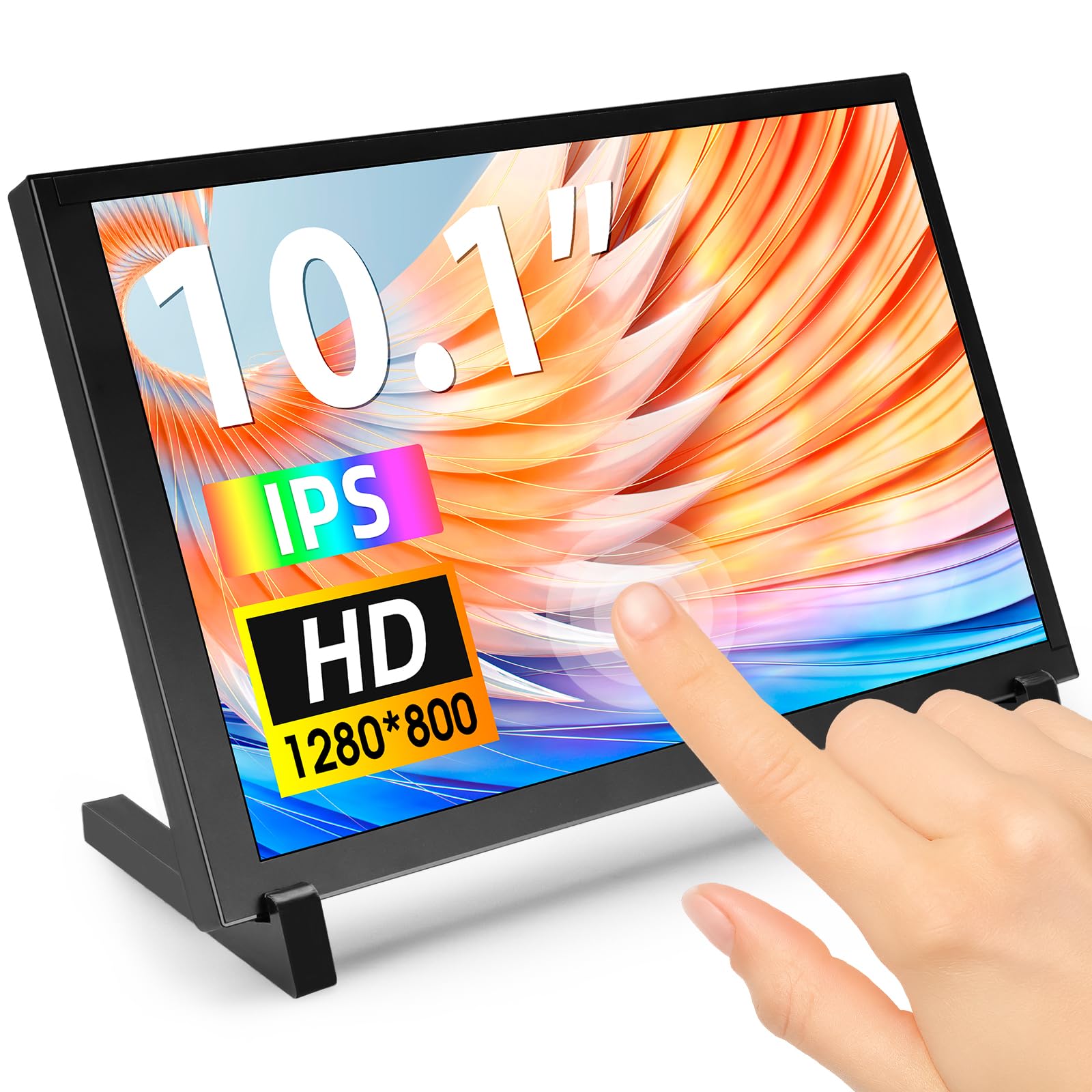
ELECROWs 10.1-inch touchscreen occupies the entry-level sweet spot without cutting the corners that matter most. The 1280×800 IPS panel delivers a 2000:1 contrast ratio that is genuinely impressive at this tier — blacks are deep rather than washed out, and text remains legible even at oblique viewing angles thanks to the 178-degree IPS technology. The display supports 5-point capacitive touch on Windows 11/10/8/7 and single-point touch on Raspberry Pi OS, Ubuntu, and Kali, which is sufficient for basic navigation, menu selection, and simple gesture control.
The monitor connects via HDMI for video and USB for power and touch data, with Plug-and-Play functionality across the supported operating systems. ELECROW includes a full accessory set: an HD to HD cable, two USB cables, an HD to Mini HD adapter, mounting screws, brackets, a screwdriver, and a user manual. The rear panel features four mounting holes compatible with standard standoffs, making it easy to attach a Raspberry Pi directly to the back or mount the display on a wall. At 521 grams and measuring 24 by 15.7 centimeters, it is light enough for portable projects but robust enough to remain stationary in a CCTV or Klipper setup.
One limitation is the 5-point touch maximum rather than the 10-point found on more expensive models — this will not impede basic interactions but may feel restrictive if you plan to use complex multi-finger gestures. Some users have reported dead-on-arrival units, though the seller’s return process is straightforward. The acrylic protective case gives the monitor a clean, finished look and shields the edges from bumps. For anyone building a first DIY project with a Raspberry Pi or Jetson Nano who wants a reliable display without overpaying, the ELECROW delivers exactly what is needed.
Why it’s great
- Excellent 2000:1 contrast ratio for an entry-level IPS panel
- Lightweight at 521g with included protective acrylic case
- Full accessory kit includes cables, standoffs, and screwdriver
Good to know
- 5-point touch max — not suitable for complex multi-finger gestures
- Some reports of DOA units, though returns are straightforward
7. ROADOM 10.1 Inch Touch Screen Monitor with Case

ROADOM takes a different approach by bundling everything into one ready-to-use package: the monitor comes pre-assembled in a protective hard case with the circuit board integrated internally, eliminating the exposed PCB that many DIY displays leave hanging. The 1024×600 IPS panel is lower resolution than some competitors, but at this screen size the pixel density is sufficient for system interfaces, OctoPi dashboards, and RetroPie emulation menus. ROADOM claims the display is upgradable to 1920×1080 via software settings on some systems, though this involves interpolation rather than native resolution — set your expectations accordingly.
Touch response is rated at 3 to 5 milliseconds, and the 5-point capacitive touch supports intuitive gestures like tapping, zooming, and mouse clicks without requiring drivers. The integrated dual built-in speakers are a genuine advantage for media-light applications, producing adequate volume for game emulation soundtracks or video playback without external speakers. The included versatile stand offers tilt and height adjustments, and the package contains every cable you might need: two HDMI-HDMI cables, one micro HDMI-HDMI cable, two Type-C to USB-A cables, a GPIO cable, a touch cable, a 5V/3A power adapter, and a Pi installation kit.
Compatibility spans the full Raspberry Pi lineup from Pi 5 down to Pi Zero, plus Banana Pi, Retro Pi, game consoles like Xbox and PS4/PS5, and standard PCs running Windows, Noobs, Debian, Ubuntu, and Kodi. The one significant caveat is that touch functionality is disabled on iOS and macOS systems — this is a Windows/Linux/Android touch panel only. User reports indicate the image quality is sharp at native resolution, with a color temperature menu and low blue light mode accessible through the OSD. For a buyer who wants a complete, enclosed touchscreen solution with mounting hardware, stand, and cables included from the start, the ROADOM is the most comprehensive package.
Why it’s great
- Complete all-in-one kit with case, stand, and all cables included
- Dual built-in speakers with adequate volume for media and alerts
- Wide OS compatibility including Raspberry Pi, Windows, and game consoles
Good to know
- Native resolution is 1024×600 — lower than many 10-inch competitors
- No touch support on iOS or macOS at all
8. RIUIIN 10 Inch Capacitive Touchscreen Monitor
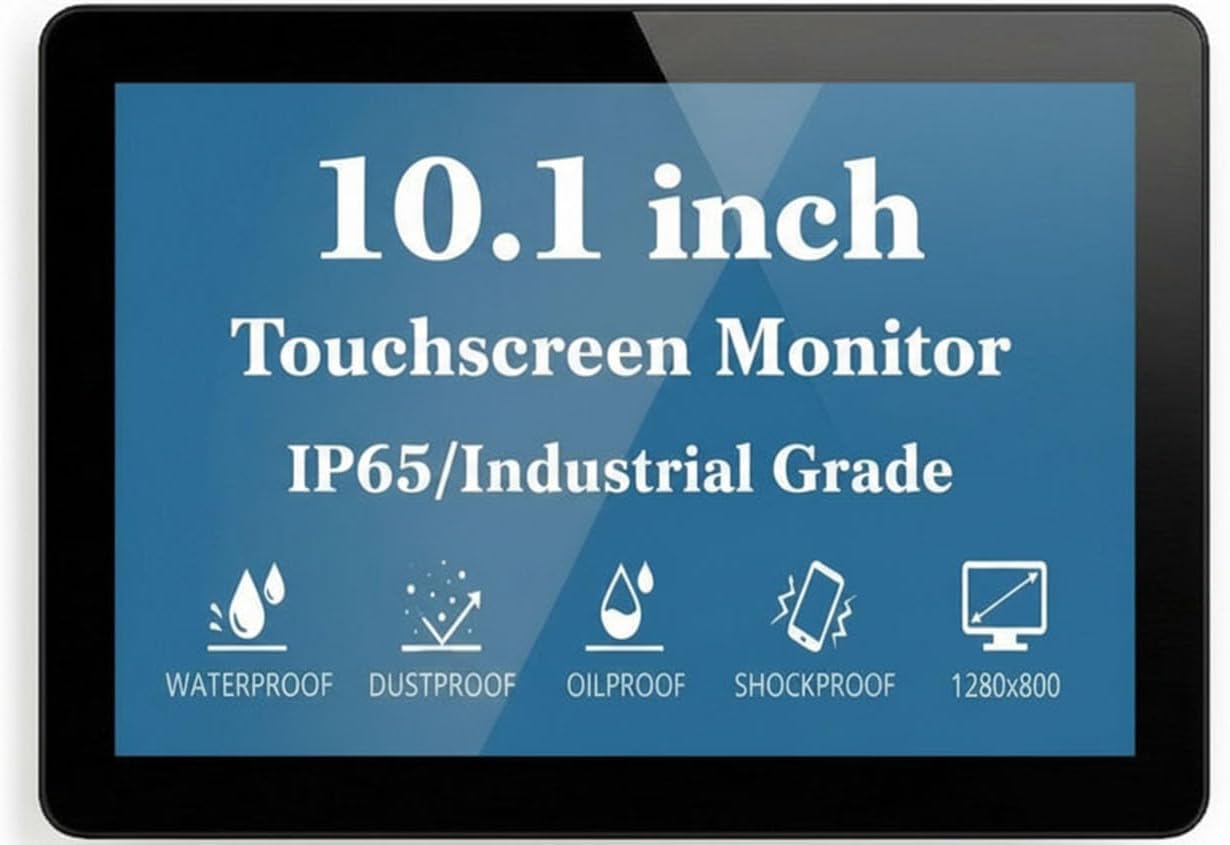
The RIUIIN 10-inch monitor is built for environments where standard consumer displays fail — the front panel is sealed to IP65 standards, meaning it is completely protected against dust ingress and low-pressure water jets from any direction. The 3mm tempered glass front can withstand physical impacts, and the capacitive touch layer supports glove operation up to 2mm thickness, making it practical for food processing, laboratory, or workshop settings where bare-finger touch is not possible. The 1280×800 resolution LCD panel delivers 500 candela per square meter of brightness — significantly brighter than the 250-370 cd/m² range of most competitors — ensuring readability in direct sunlight or brightly lit industrial floors.
Connectivity is equally robust: the monitor includes both HDMI and DisplayPort inputs, plus a USB-B port for touch data. The metal casing is constructed from electrolytic plates rather than aluminum, which the manufacturer states provides stronger electromagnetic interference shielding — a meaningful detail if the monitor is installed near motors, welders, or radio transmitters. The power adapter is UL-certified, and the monitor itself holds FCC, CE, and RoHS certifications. The unit is rated for continuous 24/7 operation at temperatures ranging from -10 to 60 degrees Celsius, with a promised service life exceeding 60,000 hours.
The trade-offs are size and compatibility friction. This monitor weighs over 1.3 kilograms and is physically chunky, so it is not suited for portable use. Some users have reported needing to source specific touch drivers for older Windows XP systems, though modern Windows 7 through 11, Android, and most Linux distributions recognize the touch controller without issues. The power cord is only 47 inches long, which may require an extension in some setups. For anyone installing a touch interface in a kiosk, vending machine, vehicle dashboard, or industrial control panel where reliability and environmental resistance are non-negotiable, the RIUIIN is the only monitor on this list that qualifies.
Why it’s great
- IP65 front rating with 3mm tempered glass for dust and water resistance
- Supports glove touch up to 2mm thickness
- 500 cd/m² brightness for sunlight readability
Good to know
- Heavy and bulky — not portable
- Short 47-inch power cord may require extension
9. ASUS VT229H 21.5 Inch Touch Monitor

The ASUS VT229H breaks the 10-inch mold entirely — at 21.5 inches, it is a full-size desktop monitor with 10-point multi-touch capability built into a frameless IPS panel. The 1920×1080 Full HD resolution is standard for this size, delivering roughly 102 PPI, which is comfortable for reading, document work, and general Windows navigation without scaling adjustments. The IPS panel provides the same 178-degree wide viewing angles found on smaller monitors, ensuring that colors remain consistent when viewed from the side — useful in collaborative work environments or point-of-sale counters where the screen is visible from multiple positions.
ASUS Eye Care technology includes flicker-free backlighting and a blue light filter, both of which reduce eye fatigue during extended touch interactions. The 10-point capacitive touch is plug-and-play on Windows (with full gesture support) and works in single-touch mode on macOS when set as the active display. Connectivity includes HDMI and VGA ports, plus a USB-B upstream port for touch data — the VGA input is a welcome addition for legacy compatibility. The frameless design is not just aesthetic; it allows for nearly seamless multi-monitor setups if you use multiple VT229H panels side by side.
The VT229H is significantly heavier and larger than the other monitors on this list, requiring dedicated desk space and a sturdy stand. Some users report that the touchscreen only functions correctly when the VT229H is set as the primary display in a multi-monitor configuration — interactions may be misdirected to wrong coordinates if it is set as an extended display. The screen surface is hard and reflective, prompting some users to apply a matte screen protector to reduce glare. For anyone who needs a full-size desktop touch monitor for a kiosk, clinic check-in station, or creative workstation with virtual keyboard input, the ASUS delivers the size and reliability that a 10-inch panel simply cannot match.
Why it’s great
- Full 21.5-inch desktop size with 1920×1080 IPS panel
- Flicker-free and low blue light Eye Care technology
- Frameless design for seamless multi-monitor setups
Good to know
- Touch only works correctly as primary display in multi-monitor setups
- Screen is glossy and reflective — matte protector recommended
FAQ
Can I use a 10-inch touch screen monitor with a Raspberry Pi 5 without external power?
Does a 10-inch touch monitor work with macOS or iOS for full touch functionality?
What does VESA mount compatibility mean for a 10-inch touch screen monitor?
Why does my touch screen monitor require two separate cables (HDMI and USB) instead of one?
Final Thoughts: The Verdict
For most users, the best 10 touch screen monitor winner is the SunFounder 10.1 because it solves the single biggest headache in the category — delivering stable 5.1V/5A power to the Raspberry Pi 5 while maintaining driver-free 10-point touch on a sharp 1280×800 IPS panel. If you want the highest pixel density for crisp text and detailed UIs, grab the XBONFIRE 1920×1200. And for an industrial environment where dust, moisture, and gloves are daily realities, nothing beats the RIUIIN IP65-rated display.