
Our readers keep the lights on and my morning glass full of iced black tea. As an Amazon Associate, I earn from qualifying purchases.
Specs are compiled from manufacturer listings and verified buyer reviews and can change over time — please confirm the key details on the product page before buying.
If you want one straight answer: pick the UPERFECT 24-inch touchscreen if you care about picture and speed, and pick the CUNPU if you want a plain, reliable touch screen for a counter or a desk. Everything else in this list sits between those two poles — and the gap that decides your happiness is not the brand name. It is the refresh rate, the brightness, and whether the touch needs a stylus or works with your bare finger.
I’m Min — the founder and writer behind Gadgets Feed. This guide is built by comparing the manufacturers’ published specifications and the patterns across verified customer reviews, so you get each pick’s real strengths and trade-offs instead of marketing spin.
The single most common mistake here is assuming every 24-inch touch display works with your Mac or Raspberry Pi from the start — it often does not. Below I break down nine options so you can find the 24 touch panel that matches your desk, your machine, and the way you actually use a screen.
Our Picks at a Glance

How To Choose The Best 24 Touch Panel
Touch screens at this size are bought for two very different jobs. One buyer wants a second screen they can tap instead of reaching for a mouse. The other wants a fixed panel in a shop, a warehouse, a gym, or a hallway that runs all day and gets poked by strangers. Those two jobs want different things, and buying for the wrong one is where most frustration starts.
Refresh rate decides how a touch screen feels
Refresh rate is how many times per second the display redraws the picture, written in Hz (hertz). A 60Hz or 75Hz panel is perfectly fine for documents and dashboards. A 100Hz or 120Hz panel redraws more often, so a finger swipe or a fast cursor drag leaves less blurred trail behind it. If you plan to game or scroll long lists all day, the higher number is the one you will notice within five minutes.
Touch needs its own cable, and that catches people out
This is the single biggest source of returns on these panels. The HDMI, DisplayPort, or VGA cable carries the picture, and a separate USB cable carries your finger input back to the computer. Plug in only the video cable and you get a working screen that ignores every tap. On most of these panels the touch link is USB-B (the squarish printer-style plug) or USB-C, and it is worth checking the port list before you commit.
Ten-point touch versus single touch
A 10-point touch panel reads up to ten fingers at once, which is what lets you pinch, zoom, and two-finger rotate. Single-point touch only follows one finger, so pinching and gestures simply do not work. If you plan to zoom into photos, maps, or drawings, only look at the 10-point panels.
Match the panel to the machine you actually own
Windows machines almost always recognise touch the moment you plug the USB cable in. Macs are the awkward case — several of these monitors work as touch only through extra software, and a couple are not natively touch-ready on modern Macs at all. Raspberry Pi and Linux generally work, though some features like full 10-point touch may not. Decide which computer will drive the screen before you pick a panel.
Quick Comparison
| Model | Best For | Refresh Rate | Brightness | Contrast Ratio | Amazon |
|---|---|---|---|---|---|
| UPERFECT Portable Monitor Touchscreen 24″ 120Hz 1080P 125% sRGB 400Nits★ Best Overall | Color work and smooth gaming | 120Hz | 400 nits | 2000:1 | Amazon |
| CUNPU 24 Inch Touchscreen Monitor, 10 Point Touch, FHD 1080P 75Hz IPSBest Value | Retail counters and workstations | 75 Hz | 220 cd/m² | 1000:1 | Amazon |
| Pisichen Touchscreen Monitor 24″ FHD 1920x1080P IPS 10-PointBest Display | Bright-room office and POS work | — | 400 cd | 3000:1 | Amazon |
| FYHXele 24 Inch Touchscreen Monitor, IPS FHD 1080P, 100Hz | Gaming and kiosk builds | 100Hz | 300 cd | 1000:1 | Amazon |
| HP E24t G4 23.8″ LCD Touchscreen Monitor | Ergonomic office desks | — | 1027.8 lm | 5,000,000:1 | Amazon |
| ViewSonic TD2430 24 Inch 1080p Touch Screen Monitor | Tough, always-on installations | 60Hz | 250 cd/m2 | 3,000:1 | Amazon |
| ViewSonic TD2465 24 Inch 1080p Touch Screen Monitor | Dashboards and mixed environments | 60Hz | 250 cd/m2 | 20,000,000:1 | Amazon |
| Dell 24 P2424HT 23.8″ Multi-Touch Monitor | Ergonomic Windows workstations | — | 300 cd/m2 | 1000:1 | Amazon |
| Dell P2418HT 23.8″ Touch Monitor | Touch-heavy daily desktop use | — | 250 cd/square meter | 1000:1 | Amazon |
In‑Depth Reviews
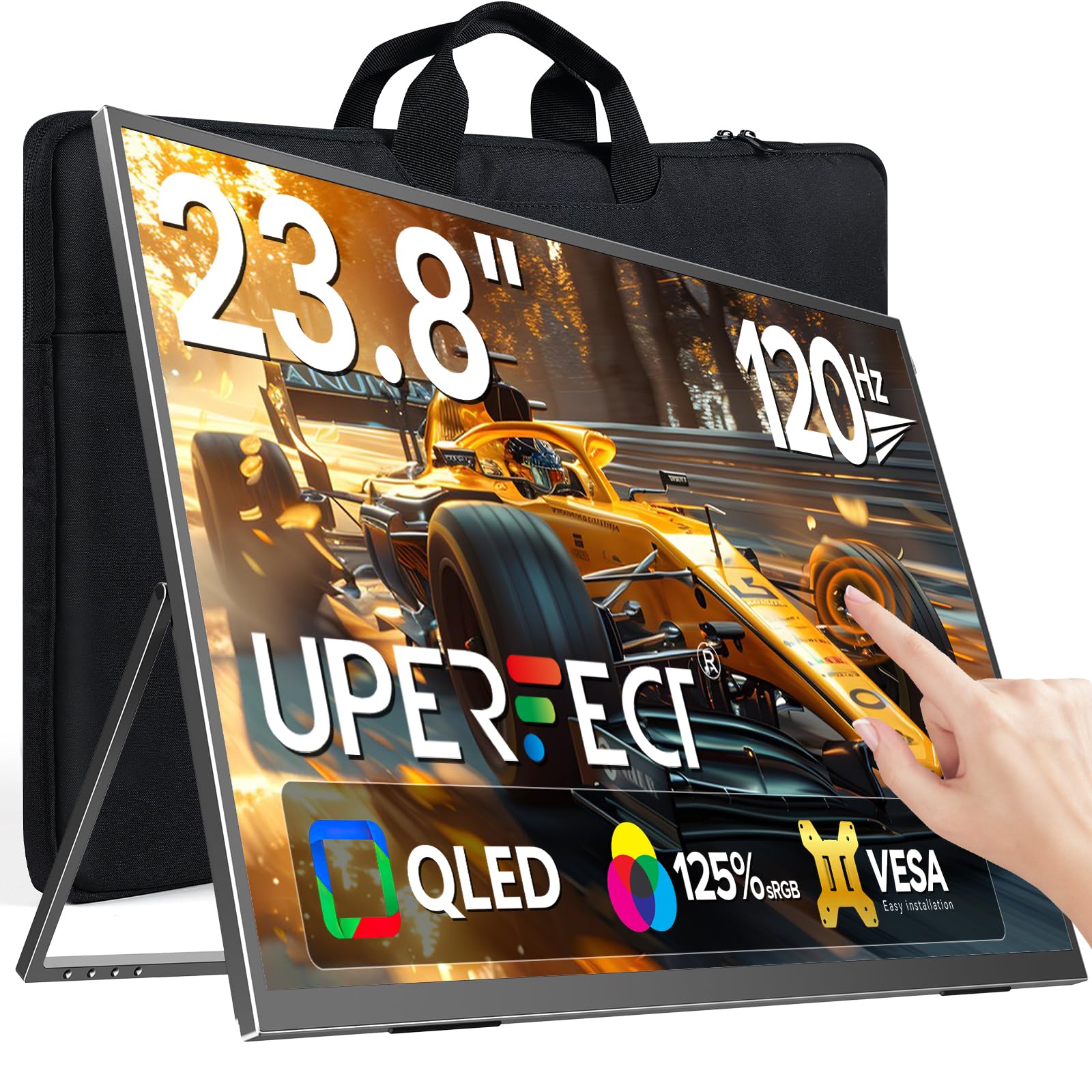
1. UPERFECT Portable Monitor Touchscreen 24″ 120Hz 1080P 125% sRGB 400Nits
Our pick — 4.5★ from 850+ verified ratings; the strongest balance of quality and price.
The 120Hz QLED panel that outruns every other touch screen on this list.
For photo editing or gaming on a touch screen, this is the one to beat. The 120Hz refresh rate means the display redraws 120 times a second, so a fast finger drag or a quick in-game turn stays smooth instead of blurring. The 23.8-inch QLED panel has a 2000:1 contrast ratio, double the 1000:1 of the CUNPU below — that means deeper blacks and more shadow detail, so photos and videos look rich instead of flat. Color coverage is 125% sRGB, and the 400-nit brightness is bright enough to stay clear in a room with a window behind you.
Touch is the 10-point multi-touch type, so pinching, two-finger rotation, and swiping all work with bare fingers. It is a genuinely light panel at 5.37 pounds, thin enough to slip into a travel bag for a dual-screen setup away from your desk. The ports are standard HDMI plus full-featured Type-C, and it supports FreeSync (a feature that syncs the screen’s refresh to your graphics card to reduce stutter). It also carries a 2-year limited warranty with replacement coverage, which is a real safety net on a screen this size.
What buyers keep coming back to is the picture — the display quality is the thing that wins people over, and the touch responsiveness is right behind it. Owners describe the image as rivaling OLED panels and rave about the colors. Be aware of the trade-off: this is a glossy panel, which means reflections in a bright room and fingerprints that show, and the built-in kickstand is designed for a flat table rather than a clamping monitor arm. A handful of owners have run into durability trouble over the months — treat the screen with a little care and you will not be the one writing that review.
What earns it the top spot
- 120Hz refresh makes touch and motion noticeably smoother than the 75Hz CUNPU
- 2000:1 contrast beats the CUNPU’s 1000:1 for deeper blacks
- 125% sRGB covers the color range designers actually want
- 10-point touch with HDMI and full-featured USB-C ports
- Weighs just 5.37 lbs for a portable second screen
Where it asks something back
- Glossy surface shows reflections and fingerprints
- Kickstand design prefers a flat table to a VESA arm
- Brightness drops if you power it from a single USB-C connection
Reach for this if: you want the best-looking, fastest touch panel on this list and you work mainly at a desk or a table.
Look elsewhere if: you need a matte, glare-resistant screen or a mountable arm setup for a shop floor.
2. CUNPU 24 Inch Touchscreen Monitor, 10 Point Touch, FHD 1080P 75Hz IPS
The no-frills 75Hz workhorse built for a shop counter that gets poked all day.
The CUNPU gives you a 24-inch Full HD 1920 x 1080 panel with a 75Hz refresh rate, a 1000:1 contrast ratio, and 220 cd/m² brightness on an IPS screen with a 178° viewing angle (colors stay steady even when you stand off to the side). The touch is 10-point capacitive, so it reads up to ten fingers at once for pinching and zooming. The practical spec that matters most: it has a 100 x 100 mm VESA mount pattern (a standard bracket pattern so you can bolt it to an arm or a wall) and a tilt-adjustable stand, so it fits almost any workspace.
Ports are HDMI, VGA, and USB, which means you can drive it from a modern laptop or an old workstation that still uses VGA. There is one serious catch you need to plan for: to get touch working you must connect both the bundled USB-B and HDMI cables, and MacOS is not supported at all. Buyers on Windows who used it in a retail setting report it holds up fine running full working days without the touch drifting out of calibration, which is the exact thing that ruins a cheap panel over time. If you are on Windows and want a touch panel for a counter, register, or workbench, this does the job cleanly.
Plain and reliable: what stands out is the touch — owners consistently find it fast and responsive, and the thing that makes it worth owning is that it does not need fussing. It is a plug-and-tap screen, not a tuning project.
The honest catch: compatibility is the friction point. Because it will not work over HDMI alone and skips MacOS entirely, this is a Windows-first buy — check your machine before you order.
Worth grabbing for: a Windows-based counter, register, or workstation where you want dependable touch without paying premium money.
Think twice about it if: you are on a Mac or you want to plug in a single HDMI cable and go.
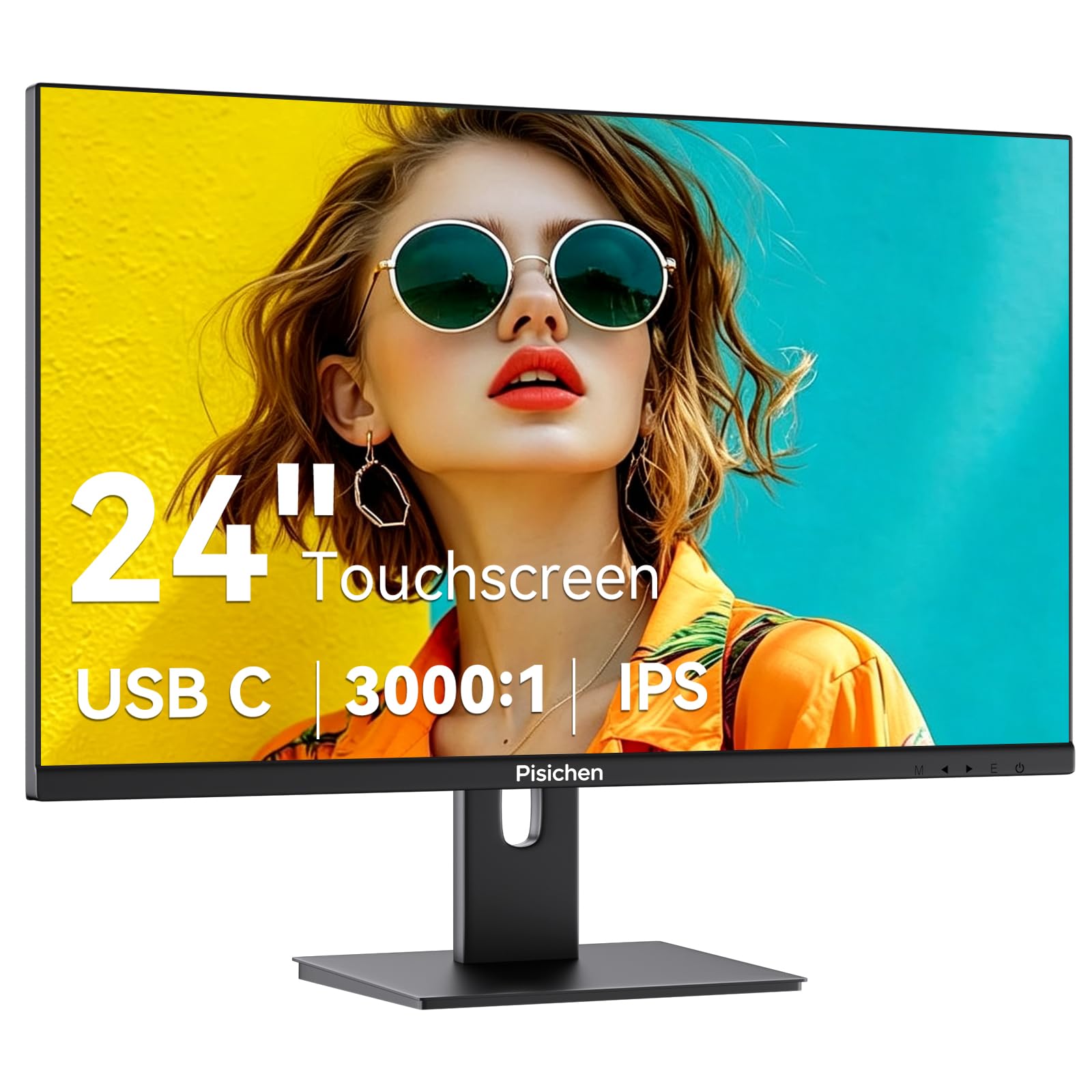
3. Pisichen Touchscreen Monitor 24″ FHD 1920x1080P IPS 10-Point
The bright-room specialist — a 400 cd/m² panel with the punchiest contrast of the mid-range trio.
If your desk faces a window, brightness is the spec that saves you. This panel runs at 400 cd brightness with a 3000:1 contrast ratio — the strongest contrast of any IPS option here, and a notch above the CUNPU’s 220 cd reading on the brightness front. That combination is what keeps text legible and images punchy when the room refuses to cooperate. It is a 24-inch Full HD 1920 x 1080 IPS panel with a 99% color gamut, and the 10-point capacitive touch supports up to ten fingers for smooth pinching and swiping without a stylus.
Ports include USB-C, HDMI, and VGA, and the USB-C video input needs DP Alt Mode support on your machine — that is the mode that lets a USB-C port carry a video signal, and not every laptop has it. The panel is also VESA-mountable and includes a tilt-adjustable stand, plus built-in speakers. The 21.5-inch-wide frame clears a standard desk without crowding your keyboard.
Screen quality is what buyers talk about first here, with picture quality right behind it — the IPS panel gets called sharp and the colors drag people in. The one thing worth knowing up front is that the touch connection runs over USB, not through the video cable alone, and one buyer had to fight with the included manual to get it going. The blue power indicator is bright and the speakers are modest, but for a bright office, a classroom, or a point-of-sale spot, the visibility is the reason to pick it.
Best for: a sunlit office or storefront where screen visibility matters more than anything else.
skip it if: you need louder built-in audio or a dim, subtle power light in a dark room.
4. FYHXele 24 Inch Touchscreen Monitor, IPS FHD 1080P, 100Hz

The 100Hz gaming-and-kiosk panel that splits the difference between speed and budget.
The FYHXele sits in a comfortable middle lane. Its 100Hz refresh rate beats the 75Hz CUNPU and 60Hz ViewSonic models for smoothness, while the IPS panel gives a 178° viewing angle so colors stay consistent across the screen. Brightness is 300 cd with a 1000:1 contrast ratio, it covers 100% of the sRGB color range, and it pairs FreeSync with G-Sync — the two frame-syncing standards that keep games from stuttering or ghosting when the frame rate and refresh rate do not line up.
Touch is 10-point and works with either a finger or a capacitive pen, and the screen supports a 180° horizontal flip so you can angle it flat for sketching or tilt it up for a standing workspace. Ports include HDMI, DP, and USB, plus a 100 x 100 mm VESA mount pattern. For a gaming setup, a warehouse station, a bar, or a gym, that combination of flexibility and mountability covers a lot of ground.
Owners praise screen quality most, followed closely by touch sensitivity — the panel is called crisp and the touch is described as plug-and-play on Windows 11. A few buyers flag long-term reliability: a small number report the display stopping within the first several months, so the safest play is to buy it for the busy, hands-on role it was built for and rely on the after-sales support FYHXele advertises. One owner also noted the slight USB-A redundancy on the monitor itself — a minor quirk rather than a problem.
The strong points: 100Hz smoothness, IPS color at 178°, and FreeSync plus G-Sync for stutter-free gaming. It is the most capable touch panel here for a fast-moving workload without jumping to the premium tier.
Keep in mind: a few owners have seen panels fail in the first months. Not a widespread pattern, but a reason not to run this one in a hot, cramped cabinet.
Fits best: gamers, kiosk builders, and shop or gym setups that want a fast, flexible touch panel.
Not for you if: you need rock-solid all-day reliability without a single point of failure — the ViewSonic models below have the longer track record.
5. HP E24t G4 23.8″ LCD Touchscreen Monitor

A 23.8-inch touch panel for people who sit at a desk eight hours and want the screen to meet them where they are.
This one is about day-to-day ergonomics. The HP E24t G4 runs a 1920 x 1080 Full HD panel with a 1000:1 contrast ratio and a 5ms GtG response time (how fast a pixel changes color, measured with overdrive on) — quick enough to keep cursor movement and touch response feeling immediate. The standout is the stand: it adjusts in height, swivel, and tilt, so you can drop it down for touch work or raise it to eye level for typing. There is also a built-in USB hub, so you can plug a keyboard, mouse, or flash drive into the monitor instead of reaching for the tower.
Ports cover DisplayPort, HDMI, USB, and VGA, so it slots into both newer and older workstations, and it ships with an AC power cord, DisplayPort cable, HDMI cable, USB cable, and a doc-kit. Picture quality is what buyers love here, with touch sensitivity following close behind — the screen is called ultra-bright with an anti-drag coated surface that makes swiping feel smooth. Not that it is without a trade-off: the base is angled, which makes it demand more desk space than its 23.8-inch size suggests, so measure your desk before committing.
Someone looking for a comfortable desk setup gets
- Full height, swivel, and tilt adjustment on the stand
- Built-in USB hub for peripherals
- 5ms GtG response plus 1920 x 1080 clarity
- Anti-drag coated surface that swipes smoothly
The caveats before you buy
- The angled base eats more desk space than expected
- Newer buyers will need to learn the on-screen menu layout
Suits: office workers who will constantly adjust the screen height and angle and want a hub for their accessories.
Look past it if: your desk is shallow and you cannot afford the extra footprint.
6. ViewSonic TD2430 24 Inch 1080p Touch Screen Monitor

Built for the places where a screen gets leaned on, knocked, and left running for years.
ViewSonic’s TD2430 is a 24-inch Full HD 1920 x 1080 LED panel at 60Hz with a 250 cd/m² brightness and a 3000:1 contrast ratio. It is a 10-point multi-touch screen using pressure-sensing touch, which means the surface registers a press rather than relying only on the electrical field of a finger. It carries a 7H scratch-resistant surface — that number is a hardness rating, and 7H is hard enough to shrug off keys, rings, and accidental contacts. A stable adjustable stand and a freestanding tablet design round out the durable side.
Ports cover USB, HDMI, DisplayPort, and VGA, so it connects to laptops, PCs, Macs, and POS systems. Mac users can get touch and gesture controls through ViewSonic’s vTouch driver, though it does not support iPhone or iPad. The brightness is where this panel differs from the HP or Pisichen options: 250 cd/m² is on the low side, so it works best in a controlled-light room rather than beside a window.
Owners highlight the overall monitor quality and reliability — one owner reports it kept working through extreme winter cold, and another notes it runs without complaint in a classroom for long stretches. The caution is touch consistency: some buyers get accurate, responsive touch while others run into repeated or missed taps, so confirm it works with your specific machine before you depend on it for a critical workflow. There are also notes about the controller going to sleep when idle and needing an extra tap to wake — a minor quirk, but one to know.
Where it shines: it is one of the toughest, longest-lasting touch screens in this group — a 7H scratch-resistant surface and a design built to stay cool and keep running for hours at a time.
What to plan around: 250 cd/m² brightness is modest, so a room with strong window light will fight it. And touch consistency can vary by setup, so test it with your machine.
Take this one if: you need a hardy, always-on touch panel for a workshop, garage, classroom, or POS station.
Leave it if: you want the brightest possible picture or a screen that will never need a double-tap.
7. ViewSonic TD2465 24 Inch 1080p Touch Screen Monitor

The touch panel that keeps working when your hands are gloved, wet, or holding a pen.
The TD2465’s calling card is its triple touch mode. ViewSonic built in a Pen Touch Mode, a Glove Touch Mode, and a Wet Hand Mode, so the screen responds whether you are wearing gloves in a cold warehouse, touching it with damp hands, or using a stylus for detail work. It runs a 24-inch Full HD 1920 x 1080 panel at 60Hz with 250 cd/m² brightness, 10-point Projected Capacitive (PCAP) touch — a common touchscreen technology that reads the electrical charge in your fingertip — and a 7H scratch-resistant surface with thin bezels.
The monitor also comes with a freestanding tablet-style stand plus a traditional stand, and it is VESA-mountable with a 100 x 100 mm pattern. Ports are USB, HDMI, DisplayPort, and VGA, so laptops, PCs, Macs, and POS systems all connect. MacOS users get touch and gesture via ViewSonic’s vTouch driver — not available for iPhone or iPad.
Buyers praise quality and touch sensitivity most here, with Dakboard compatibility a recurring favorite among smart-dashboard builders. It also survives long-term use well — some owners are still running theirs after 18 months without trouble. The two honest notes are audio and Mac support. The built-in speakers are weak enough that buyers often add an aux cable, and Mac support is a genuine rough patch for newer Apple Silicon machines — where it works, it works well, but plan around it if your Mac is recent.
Why buyers keep picking it
- Pen, glove, and wet-hand touch modes in one panel
- 10-point PCAP touch with 7H scratch resistance
- Freestanding tablet stand plus a traditional stand in the box
- Strong long-term durability reputation
Where it asks for patience
- Built-in speakers are weak and often need an aux cable
- Mac support is limited on modern Apple Silicon machines
- 60Hz refresh keeps it a work panel, not a gaming one
Go with this for: busy, hands-on environments — dashboards, workshops, or dashboards that need you to tap with gloves or pen.
Pick something else if: you are on a newer Mac or want sturdy built-in speakers.
8. Dell 24 P2424HT 23.8″ Multi-Touch Monitor

A 23.8-inch Dell that treats touchscreen as the whole point instead of an afterthought.
This is the Windows workstation touch panel. The 23.8-inch 1920 x 1080 display runs at 300 cd/m² brightness with a 1000:1 contrast ratio on an LCD panel, and it is FreeSync-capable. The standout is the stand — tilt, pivot, and height all adjust, so you can stand the screen nearly vertical for handwriting or spin it into portrait for full-page documents. Hidden USB-A ports and a USB-C port for charging round out the convenience, and Windows recognises the touch instantly, auto-assigning each monitor’s USB touch input so multi-screen setups stay sane.
On Windows, touch responsiveness is genuinely excellent — buyers describe it as faster and more natural than a mouse-and-keyboard setup for certain workflows. It is also a fine pick for church sound and lighting mixing, where fast reactions matter, and the sturdy base handles daily adjustment without complaint. Mac users have a different experience: you can get touch working, but only with the TouchBase software (an added expense) and you lose multitouch features. Worth checking your Mac’s support before you buy.
The one feature owners wish were present is a USB-C video input — there is a USB-C port, but it cannot carry video, so you are limited to HDMI or a dedicated USB-C video source. That aside, the 23.8-inch size, sturdy base, and crisp touch response make it a strong pick for a clean office environment where the screen and the machine speak the same language.
What you are buying: a touch screen built to be touched. Adjustable in three axes, auto-recognised by Windows, and sturdy enough to handle daily use without wobble.
The hiccup: the USB-C port is for charging only, not video. If your whole desk plan runs over USB-C video, this is not the panel for it.
Best suited to: Windows offices and creative desks that need a screen they can angle flat and tap on all day.
Consider skipping if: you are on a modern Mac or need USB-C to carry both video and power.
9. Dell P2418HT 23.8″ Touch Monitor

The battle-tested 23.8-inch touch panel that has quietly earned one of the biggest followings here.
This Dell has been on desks for years, and that shows in the numbers. It is a 23.8-inch IPS panel at 1920 x 1080 with a 6ms GTG response time, 250 cd/m² brightness, a 1000:1 contrast ratio, and a dynamic contrast of 8,000,000:1. The 10-point touch is capacitive, and every unit ships with DisplayPort, USB, VGA, and power cables plus cable management. The stand is the other headline: it tilts, swivels, and articulates through a wide range, so you can slope the screen for drawing and writing the way you would with paper. It is also VESA-mountable at 100 x 100 mm and weighs 6.88 pounds.
Touch responsiveness is the quality owners talk about first, with picture quality and adjustability following close behind. It has a matte finish that resists glare and fingerprints, which is the specific reason it stays readable in a room with lights on. The trade-off to know is brightness — 250 cd/m² is moderate, and buyers split on whether it is enough. For Photoshop or document work at a controlled distance it is fine. For a bright sunlit desk, expect to dim the room. The graphics are also called slightly soft for pixel-level work, and one owner notes the pop-up port cover is fiddly to reattach.
What makes it a strong pick
- Articulating stand tilts, swivels, and slopes for touch and drawing
- Matte surface resists glare and fingerprints
- Capacitive 10-point touch with 6ms GTG response
- Ships with DisplayPort, USB, VGA, and power cables
The trade-offs to plan around
- 250 cd/m² brightness is modest in strong daylight
- Slightly soft graphics for pixel-level work
- Port cover is fiddly to reattach
For the desk that lives on touch: this Dell is the elder statesman of the group — the one people have been tapping for years and still recommend.
Think carefully if: you need a very bright screen for a room that floods with daylight, or pixel-sharp detail for close-up image work.
Understanding the Specs
Refresh Rate (Hz)
Refresh rate is how many times per second the screen redraws the picture, written in hertz. A 60Hz panel redraws 60 times a second; a 120Hz panel redraws 120 times. For documents and dashboards, 60Hz or 75Hz is smooth enough. For gaming, scroll-heavy work, or any task where a fast finger drag needs to stay clean, a higher number — 100Hz or 120Hz — visibly reduces the motion blur you would otherwise see trailing behind a swipe. Higher is better for motion, but for a static point-of-sale screen the gains are small and you can put the money elsewhere.
Brightness and Contrast Ratio
Brightness is measured in cd/m² (or nits, which mean the same thing) and tells you how hard the backlight pushes. A 220 cd/m² or 250 cd/m² panel is comfortable in a normal room; a 400 cd/m² panel holds up better beside a window. Contrast ratio is the difference between the brightest white and the deepest black the panel can produce, written as a ratio like 1000:1. A higher ratio — 2000:1 or 3000:1 — gives you richer blacks and more separation in shadow detail, which matters most for photography, video, and gaming.
10-Point Touch and PCAP
Ten-point touch means the panel reads up to ten fingers at once, which is what allows pinching, zooming, and two-finger rotation. It is the standard you want if you plan to interact naturally with maps, images, or documents. PCAP stands for Projected Capacitive, a touchscreen technology that senses the electrical charge in your fingertip — it is what makes modern touch screens feel immediate and responsive without needing heavy pressure.
Connection and Mounting
Video comes in over HDMI, DisplayPort, USB-C, or VGA, but touch input almost always travels over a separate USB cable, so both cables need to be plugged in for touch to work. USB-C video also requires DP Alt Mode support on the source device. For mounting, VESA refers to a standard bracket pattern — 100 x 100 mm is the common size — that lets you attach the panel to an arm or a wall instead of the desk stand.
FAQ
Will a 24-inch touch panel work with my Mac?
Why does the touch not work when I plug in only the HDMI cable?
Do I need a stylus to use a 24 touch panel?
Is 75Hz enough, or do I need 100Hz or 120Hz?
Can I mount these screens on a wall or an arm?
Will a 24 touch panel work with a Raspberry Pi?
Does a glossy or matte screen matter for a touch panel?
Is 300 cd/m² brightness enough for a bright office?
What is the difference between 10-point touch and pressure-sensing touch?
Do these touch monitors have built-in speakers?
Final Thoughts: The Verdict
For most buyers, the 24 touch panel winner is the UPERFECT Portable Monitor Touchscreen 24″ because it combines the smoothest 120Hz refresh, the deepest 2000:1 contrast, and 125% sRGB color coverage in one panel — and it adds a 2-year limited warranty with replacement coverage on top. If you want dependable touch for a Windows counter or register without paying for gaming-grade speed, the CUNPU 24 Inch Touchscreen Monitor is the one to reach for. And if you need a hardy, always-on screen for a workshop, garage, or classroom, the ViewSonic TD2430 has the toughness and the long-term track record to match.
How We Picked
We do not accept paid placement. Every pick is matched to a real buyer and a real use-case; we do not hands-on test units.
Sources & Methodology
Specifications: manufacturer listings and product documentation. Review insights: verified customer reviews, as of September 2026. Pricing: not shown on this page (it changes often); check the current price via the retailer link.
As an Amazon Associate, Gadgets Feed earns from qualifying purchases. This does not affect which products we feature.