
Our readers keep the lights on and my morning glass full of iced black tea. As an Amazon Associate, I earn from qualifying purchases.
Specs are compiled from manufacturer listings and verified buyer reviews and can change over time — please confirm the key details on the product page before buying.
If you want the short answer: the LG 27UP650K-W is the safest 27-inch 4K monitor for most desks, and the KTC 27-inch 4K Gaming Monitor is the one to grab if you also game hard. Everything below explains why, in plain words, with the real specs that decide whether a screen looks crisp for years or starts annoying you in a month. One honest note before we start: this list uses flexible, human-like matching for native 4K resolution, so not every pick is the exact model you typed into the search bar — the nearest same-type option serves the same job.
I’m Min — the founder and writer behind Gadgets Feed. This guide is built by comparing the manufacturers’ published specifications and the patterns across verified customer reviews, so you get each pick’s real strengths and trade-offs instead of marketing spin.
What separates a monitor that stays sharp from one you regret is panel type, brightness in nits, contrast ratio, and refresh rate in Hz — and you get all four broken down for every pick in this guide to the best 27 inch 4k monitor.
Our Picks at a Glance


How To Choose The Best 27 Inch 4K Monitor
At 27 inches, 4K resolution packs so many pixels into the panel that the screen size itself stops being the story — the panel quality does all the talking. Four ingredients decide whether you love the screen or fight with it every day: the actual panel type, how bright it gets, how deep its blacks go, and how fast it refreshes. Here is what each one means for your desk.
Panel type: IPS for color and viewing angles, OLED for contrast
An IPS panel spreads colors evenly across wide viewing angles, which is why you can sit slightly off-center at a 27-inch display and still see accurate color. QD-OLED panels take that further with near-infinite contrast thanks to per-pixel light control, so black scenes actually look black instead of dark gray. The trade-off is price and, for OLED, a long-term risk of burn-in that modern protection features are designed to manage.
Brightness and HDR tier: what nits actually do for you
Brightness measured in cd/m² (also called nits — how much light the panel pushes out) is what keeps text readable in a sunlit room. A DisplayHDR 400 rating means the monitor hits around 400 nits at peak and accepts an HDR signal, which adds subtle highlight and shadow detail in supported movies and games — it is an entry-tier HDR standard, not a cinema-grade one, so expect improvement rather than transformation.
Refresh rate: the number gamers stare at first
Refresh rate in Hz is how many times per second the screen redraws the picture. A 60Hz panel refreshes 60 times per second, which is perfectly fine for spreadsheets, photo editing, and streaming. Once you climb to 120Hz or beyond, mouse movement and scrolling feel visibly smoother, and in fast games the improvement is the difference between tracking a target and losing it.
Ports and stand: the boring specs that decide daily comfort
Look at two things most buyers skip. First, the ports: a USB-C connection that carries video plus charging in one cable cleans up a laptop desk dramatically, while HDMI 2.1 and DisplayPort 1.4 matter for consoles and high-refresh PCs. Second, the stand — a height-adjustable, tilt, swivel, and pivot arm lets you raise the screen to eye level and rotate it portrait for long documents. A tilt-only stand forces you to stack books. Also confirm the stand is VESA mountable if you plan to use an arm later.
Quick Comparison
| Model | Best For | Refresh Rate | Brightness | Contrast Ratio | Amazon |
|---|---|---|---|---|---|
| LG 27UP650K-W★ Best Overall | Best overall for work and streaming | 60Hz | 400 cd | 1200:1 | Amazon |
| LG 27US500-WBest Value | Budget-friendly ultra-clean desktop | 60Hz | 300 cd/m² | 1000:1 | Amazon |
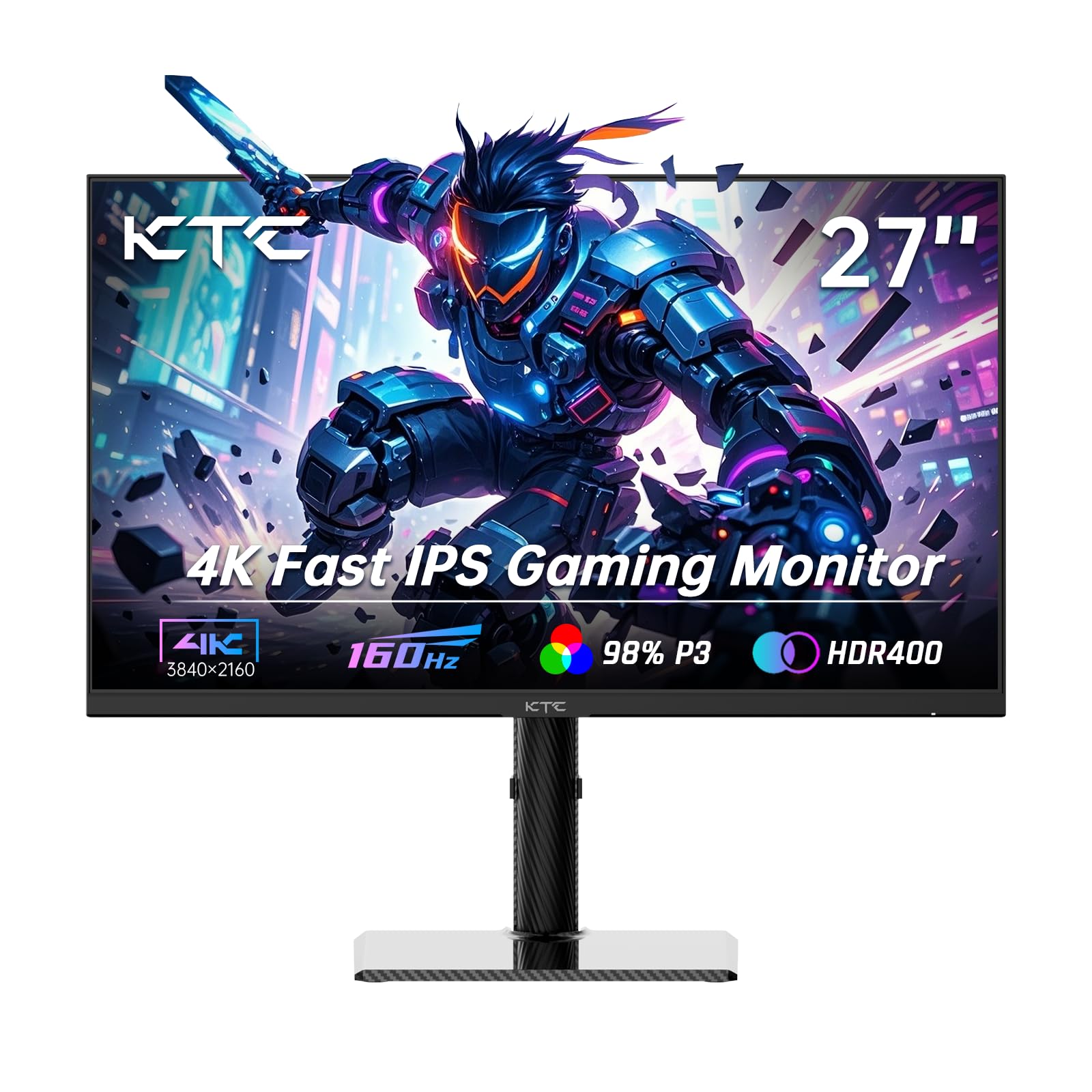
| KTC 27 Inch 4K Gaming MonitorTop Performer | High-refresh gaming and console play | 160Hz | 400 cd | 1000:1 | Amazon |
| Dell S2725QC | USB-C laptop docking on one cable | Up to 120Hz | 350 | 1500:1 | Amazon |
| Samsung ViewFinity S7 (S70D) | Tool-free setup and multi-port work desks | 60Hz | 350 cd | 1,000:1 | Amazon |
| ASUS ProArt PA279CV | Color-accurate professional work | 60Hz | 1233.36 | 100,000,000:1 | Amazon |
| Samsung ViewFinity S8 (S80D) | Portrait-mode document work | 60Hz | 350 cd | 1000:1 | Amazon |
| LG 27G810A-B Ultragear | Dual-mode console and FPS gaming | 4K 180Hz / FHD 360Hz | 400 cd/m² | 1000:1 | Amazon |
| BenQ MA270U | MacBook integration with color match | — | 400 nits | 2000:1 | Amazon |
| Dell UltraSharp U2725QE | Thunderbolt 4 docking and daisy-chaining | 120Hz | 450 | 1000:1 | Amazon |
| ASUS ROG PG27UCDM | Premium QD-OLED for serious gaming | 240Hz | 1541.7 lm | 1500000:1 | Amazon |
In‑Depth Reviews
1. LG 27UP650K-W 27-inch Ultrafine 4K UHD IPS Computer Monitor
Our pick — over 4.5★ from 300+ verified ratings; the strongest balance of quality and price.
The screen that convinced buyers to return a cheaper 4K and pay more for clarity.
This is the pick most desks land on, because it nails the fundamentals without asking you to pay for gaming hardware you will never use. The LG 27UP650K-W runs a 27-inch UHD 4K panel (3840 x 2160 — roughly eight million pixels, four times what a standard 1080p screen shows) at 60Hz with a 5ms response, so text renders with clean edges instead of the fuzz you get on a lower pixel count. It reaches up to 95% DCI-P3 color, the industry color range standard, meaning photos and video keep their richness instead of looking washed out. Brightness sits at 400 cd (400 nits — the light output that keeps the screen readable in a bright room), and the VESA DisplayHDR 400 rating means it accepts HDR signals and stretches the highlights in supported content. The 1200:1 contrast ratio beats the LG 27US500-W, which holds 1000:1 — a real edge when darker scenes fill the screen.
What wins people over is simply how it looks doing everyday work. Buyers consistently point to crisp fonts and true 4K detail as the standout, and the Matte anti-glare coating earns its own praise for handling overhead and ambient light without turning into a mirror. Setup is refreshingly boring: HDMI and DisplayPort cables both ship in the box, the joystick control is intuitive, and the panel arrives close enough to accurate that most owners never touch a setting. Connect a MacBook Pro over HDMI and it behaves. There is also a Switch app that splits the screen into up to six sections, plus Dynamic Action Sync for reduced input lag and a Black Stabilizer that brightens dark game scenes. The ergonomic stand adjusts height, tilt, and pivot — so you can raise it to eye level or spin it portrait for long documents.
What buyers actually report here: “I originally ordered a cheaper screen and the clarity was not good, I returned that and ordered this one and it was 1000x better.” That is the whole pitch in one line. The honest catch is the refresh rate. At 60Hz this is not a competitive-gaming panel, and the standard version has no USB-C port, no built-in speakers, and ships with a silver stand plus white cables that will not match a black desk setup. Assembly is easy and cables are included, but plan on adding speakers or a soundbar separately.
What Earns The Praise
- True 4K at 3840 x 2160 with 95% DCI-P3 color and no panel lottery drama
- 1200:1 contrast ratio beats the 1000:1 LG 27US500-W for deeper blacks
- Matte anti-glare finish confirmed to behave under overhead and ambient light
- Height, tilt, and pivot adjustable stand plus six-way screen splitting via the Switch app
Where It Holds Back
- 60Hz and 5ms response — not the panel for high-refresh gaming
- No USB-C and no built-in speakers on the standard version
- Silver stand with white cables, so it can clash with a black setup
Buy this one if: you want the most balanced work-and-watch 27-inch 4K panel and value proven reliability — it is the highest-rated pick here at 4.7 stars across 300+ ratings.
Think twice if: your priority is frame rate over image fidelity; that job belongs to the KTC or the LG 27G810A-B further down.
2. LG 27US500-W Ultrafine Monitor 27-Inch 4K UHD HDR10 IPS
Borderless white styling and real 4K sharpness — order the right cable before it arrives.
The clearest reason to choose the LG 27US500-W is the pixel count, not the feature list. Its IPS panel delivers the same 3840 x 2160 resolution as the more expensive picks on this page, which means small type finally renders as type instead of a smear after years of 1080p living. HDR10 support with up to 90% DCI-P3 coverage handles streaming and gaming content with a wider color spectrum, and the borderless design with thin bezels looks noticeably more modern on a desk. There is an Onscreen Control tool that lets you split the workspace or change basic monitor settings with a few mouse clicks — genuinely handy if you juggle two windows all day. It ends up in an obvious place: the LG 27UP650K-W above does the same 4K job with a higher contrast ratio and a more flexible stand, while this one trims cost by keeping the stand tilt-only and the brightness at 300 cd/m² rather than the other’s 400 cd.
Where this screen shines is making a cramped setup feel roomy. Multiply a 27-inch diagonal by four times the pixels of Full HD and the payoff is straightforward: you can keep an email client, a document, and a browser open side by side without squinting. The tilt-only stand is VESA mountable, so anyone with a monitor arm is unaffected by the limited adjustment. HDMI and DisplayPort inputs cover a MacBook and a PC on the same desk. Linux users in particular talk about the legibility win, with one long comment summarizing it as: “Works great, 10 point font at 200% scale perfectly clear and good size.”
Two things to plan for before it arrives. The stand wobbles — this is the most-discussed downside of the model, so a VESA arm or a firm desk helps. And the HDMI-to-USB-C cable a MacBook setup needs is not in the box, so budget for that adapter separately on top of the included HDMI cable. Assembly also asks for a screwdriver, a small surprise if you are used to tool-free stands.
Colour right from the start: reviewers describe the colors as accurate and not over-saturated at first start-up, and improved further after calibration — so photographers and casual creators get usable results without buying a colorimeter.
Worth knowing: this is a value-tier 4K panel, not a feature-packed one. You trade the stand and the port extras, not the resolution.
Reach for this if: you want a clean-looking 4K desktop for spreadsheets, documents, and streaming without paying for gaming features.
Look elsewhere if: you want height adjustment built in or need a USB-C cable in the box — you will be buying both separately.
3. KTC 27 Inch 4K Gaming Monitor, UHD 160Hz 3840×2160 Fast IPS
160Hz at 4K — the refresh rate is the headline, and it is not close.
Start with the number that reframes the whole list: 160Hz. The KTC 27-inch 4K Gaming Monitor refreshes 160 times per second, while the LG 27UP650K-W at the top of this page caps at 60Hz — a 2.7x gap that you feel immediately in a fast shooter. That means the same 3840 x 2160 resolution but with motion that stays smooth instead of smearing, and with Adaptive Sync (a technology that syncs the screen to your graphics card to kill tearing) covering both FreeSync and G-Sync Compatible setups. The Fast IPS panel delivers 140% sRGB color coverage, HDR400 brightness at 400 cd, and a claimed ΔE<2 color accuracy — ΔE measures how far a color drifts from the reference, and under 2 is the threshold where a trained eye stops noticing. Ports are generous: HDMI 2.1 x2, DisplayPort 1.4 x2, and a USB 2.0, plus a 75 x 75mm VESA mount if you want it on an arm.
You mainly buy this for gaming, and buyers confirm the value case directly. One review sums it up: “Really amazing monitor,” calling the dual experience of 4K for story games and fast competitive play “insanely cheap for its specs.” The carbon fiber backplate keeps the housing light for its size. Height, tilt, swivel, and pivot adjustment all move freely, and a low blue light mode reduces eye strain across long sessions. For console owners, the HDMI 2.1 ports matter — that is the connection standard that carries high-resolution, high-refresh video from a PlayStation 5 or Xbox Series X without compromise.
The recurring gripe is the menu and the stand. Several long-term owners note the on-screen menu is confusing without the manual, and the stand wobbles more than premium arms do. The bigger honest caveat is durability — there is a report of a unit that stopped powering on after six months with slow support follow-up, and it is worth keeping the warranty window in mind. None of that changes the core math: no other pick here pairs 4K with a refresh rate this high for the same spend.
The refresh-rate verdict: for anyone whose screen time includes first-person shooters, racing games, or a PS5, the 160Hz panel does more for the experience than any other spec on this list.
Pick this if: you want 4K clarity and high-refresh smoothness in one screen and do not mind learning a fiddly menu.
skip it if: you want a screen you set up once and never think about again, or you mostly do color-critical photo work.
4. Dell S2725QC 27 Monitor, 4K UHD IPS, 120Hz, 99% sRGB

One USB-C cable powers the laptop, carries the picture, and clears your desk.
The Dell S2725QC solves a problem the cheaper 4K panels on this list ignore: cable spaghetti. A single USB-C cable carries video, data, and up to 65W of charging power to your laptop, so an entire dock and its rat’s nest of wiring can disappear from the desk. That 65W figure is important — it is enough to keep a MacBook Pro topped up according to the buyers who use it precisely that way. The panel itself is no slouch either: 4K UHD at 3840 x 2160 with 99% sRGB color coverage, a 1500:1 contrast ratio that outruns the LG 27US500-W’s 1000:1, a brightness of 350 nits, and AMD FreeSync Premium with refresh up to 120Hz. Dell also lists a 0.03ms response time and built-in speakers tuned for more detailed sound than the previous generation.
Connectivity is what buyers rave about most, and it is everything-around rather than just one port. There are two USB-C ports, HDMI, and pop-out USB-A and USB-C ports on the side specifically for plugging in dongles without reaching around the back. A built-in KVM lets you control two computers with one keyboard and mouse — a huge quality-of-life upgrade for anyone running a work laptop and a personal machine on the same desk. On the picture side, buyers describe near-OLED blacks and no dead pixels from the start. The matte finish reads like e-reader paper to one owner, and the thin bezel with white back looks sharp in a bright office.
The honest caveat is that this is the monitor where USB-C is a convenience feature, not a workhorse dock replacement forever. There is at least one report of the dock side failing after a few months with slow international warranty support, and reliability is the most-mentioned mixed aspect for the model. For most buyers the port lineup and the built-in display make it worth the cost; just keep your warranty paperwork tidy and check the coverage terms if you are far from the country of purchase.
Why the KVM matters: if you split your day between two machines, this is the feature that turns a monitor into a whole desk workspace — one keyboard, one mouse, one screen.
Home in on this if: you want a single-cable laptop setup with 120Hz smoothness and a built-in KVM to juggle two computers.
Look past it if: you want a no-fuss monitor with no dock behavior to think about, or you rarely move a laptop around.
5. SAMSUNG 27-Inch ViewFinity S7 (S70D) Series 4K UHD Monitor

The monitor you can assemble without touching a single screwdriver.
The Samsung ViewFinity S7 earns its spot on the list with a feature you will appreciate within the first five minutes: the Easy Setup Stand. It assembles with no tools and no screws, and a single button press detaches the panel for repositioning or an arm mount. The 4K UHD panel at 3840 x 2160 puts more screen space to work for creators building detailed diagrams or editing video, and HDR10 support gives content deeper darks and brighter brights so scenes read the way they were graded. Brightness sits at 350 cd, with 99% color gamut coverage, so photo and video work stays faithful to the source. TÜV-certified eye care automatically tunes brightness and color temperature for your room, with Eye Saver Mode reducing flicker and filtering blue light during long sessions.
Ports cover everything most desks need: HDMI, DisplayPort, USB-A, and USB-B for the hub so peripherals plug straight into the monitor. Buyers frequently call the sharpness out as the reason they stayed, and the fit-and-finish with minimal bezels looks tidy on a small desk. At 27 inches with this many pixels, the balance is keeping text at native resolution with modest scaling, and buyers describe the panel as comfortable for reading and multitasking across long workdays. It also handles both laptop and desktop source switching, so a mixed-OS desk is not a problem.
The genuine caveats here are worth naming clearly, because they will affect some buyers more than others. At this pixel density, default interface text appears very small in some operating systems, and scaling to 1080p makes everything oversized instead — a trade-off of any 27-inch 4K panel, but noticeable here. The height adjustment offers a limited range and the controls run through a single rear joystick, both of which come up as the most-mentioned friction points. One buyer even had to buy a mount because the fixed orientation would not rotate on a second unit. A couple of units arrived with manufacturing quirks.
The pick for tool-free living: no screwdriver, no manual hunting, no cable-wrangling beyond what you plug in. If setup chores are what stop you from buying a monitor, this removes the friction entirely.
Right choice for: designers and creators who want a crisp 4K panel with a hub, eye-care features, and a genuinely tool-free build.
Reconsider if: you need a stand with generous height travel or a full-rotation arm from the start — spec those extras before you buy.
6. ASUS ProArt PA279CV 27 Inch 4K UHD USB-C Professional Monitor
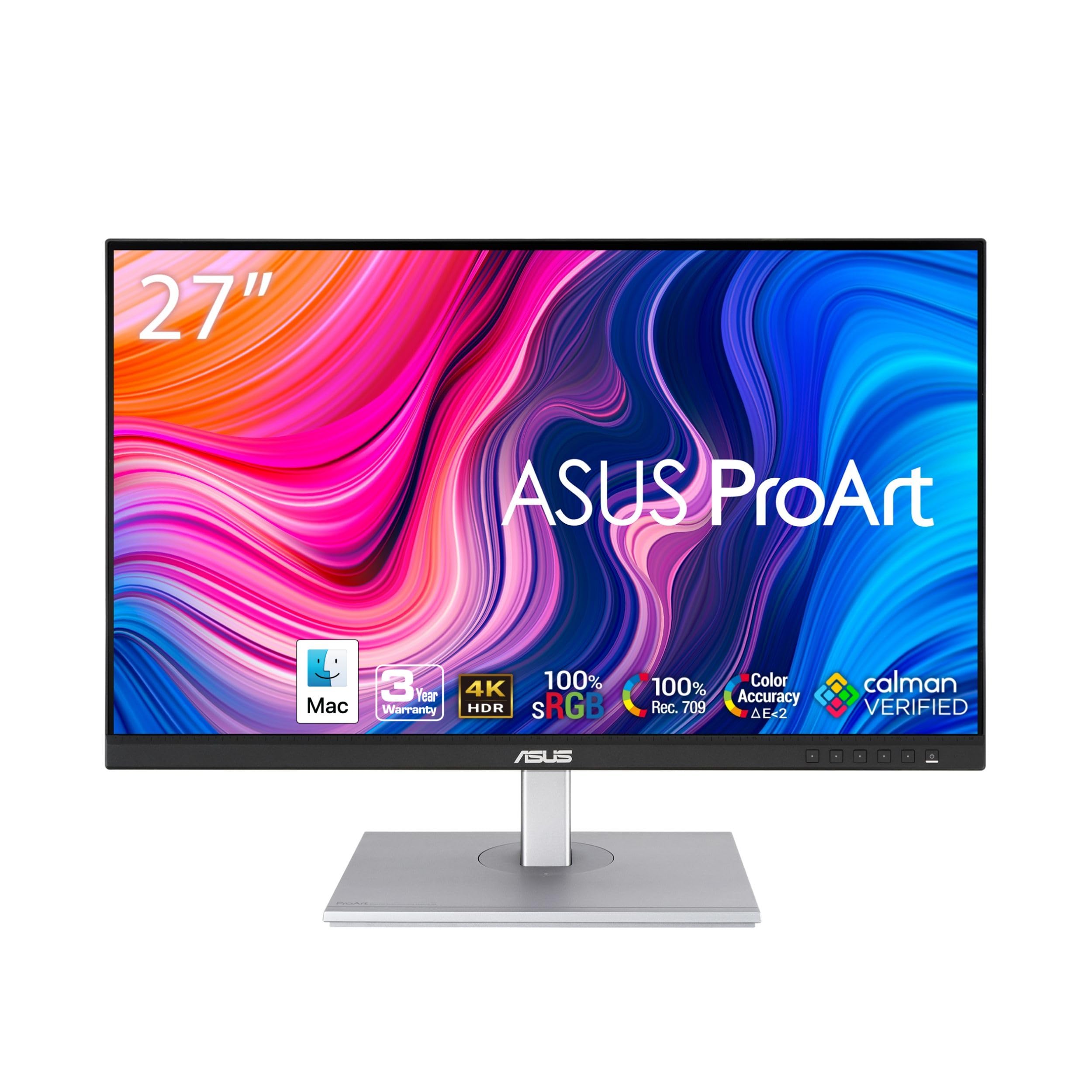
Calman-verified colour accuracy for creators who care about the numbers.
If your work lives or dies on colour matching, the ASUS ProArt PA279CV is built for that exact job, and it tells you so with certifications rather than adjectives. It ships factory-calibrated with a Calman Verified rating, which is a third-party program that verifies the panel hits published colour targets, and it delivers Delta E < 2 colour accuracy — again, the threshold where colour drift stops being visible to a trained eye. Coverage is 100% sRGB and 100% Rec. 709, the two standards designers, editors, and print workflows check first. The monitor supports 4K UHD resolution at 3840 x 2160 on a 27-inch panel, with USB-C carrying DisplayPort video plus 65W Power Delivery so a laptop runs on a single cable. There is also a 5-year warranty (3 years plus 2 years extension with online registration), a long safety net for a professional tool.
What buyers consistently mention is color accuracy first, with amateur photographers describing the ProArt as the fix for colour inconsistency between what the screen showed and what the printer produced. The monitor is well-described as beautiful and easy on the eyes for long sessions, and the swivel, tilt, height, and pivot stand makes it easy to angle for a reference position. The 4x USB 3.2 Gen 1 Type-A hub on the back connects keyboards, drives, and accessories through the monitor, and the stand rotates portrait for editing tall pages. On paper, it pairs up against the Dell UltraSharp U2725QE further down as the professional alternative at a step down in refresh rate — 60Hz here rather than 120Hz there.
Two honest notes before you click. First, calibration from the start is good enough for most but not perfect for the most demanding work — a couple of buyer experiences describe a slight green tint they fixed in the OSD menu, and the most disciplined users still plan to calibrate with their own colorimeter. Second, connectivity is the most-mentioned friction point, with more than one report of USB-C port issues that led to repairs and slow warranty resolution. For a professional monitor with a 5-year warranty, the picture is that the colour is excellent and the support experience can be variable.
Where It Wins
- Calman Verified factory calibration with Delta E < 2 from the start
- 100% sRGB and 100% Rec. 709 coverage for print and video workflows
- 65W USB-C power delivery plus a 4-port USB hub on the back
- 5-year warranty when you register online (3 years plus 2 years)
What To Weigh
- 60Hz refresh — fine for editing, not for high-refresh gaming
- Out-of-box colour drift is small but demanding users will still want a colorimeter
- USB-C connectivity complaints come up more on this model than most
The one for: photographers, video editors, and designers who need verified colour accuracy and solid USB-C docking in one screen.
Not for: gamers who need high refresh rates or buyers who want a built-in display with nothing to calibrate.
7. SAMSUNG 27” ViewFinity S8 (S80D) Series 4K UHD Monitor

Rotate it 90 degrees and turn a 27-inch 4K into a full-page document reader.
The Samsung ViewFinity S8 takes among the most useful 4K features a monitor can offer and turns it into a workstation: a 90-degree pivot. Flip the screen portrait and you have a long column that shows a full page of contracts, code, or long PDFs without endless scrolling — a real workflow advantage over the tilt-only stands on cheaper competing 4K panels. Under the hood it runs 4K UHD at 3840 x 2160 with HDR10 support, G-Sync Compatible adaptive sync to smooth out frame pacing, HDMI, DisplayPort, and USB-A plus USB-B ports for peripheral connections, and the same eye-care suite from the rest of Samsung’s ViewFinity line: automatic brightness and color temperature adjustment and TÜV-certified flicker reduction with Eye Saver Mode. Build quality is a genuine step up from the step-down model, and buyers describe the panel as exceptionally sharp with excellent factory settings.
What people who own it talk about is how usable it stays day after day. It is genuinely comfortable to sit in front of for long Photoshop and Lightroom sessions according to owners using it for exactly that, and Mac Mini M4 owners describe plug-and-play without fiddling. Multiple owners mention the small details that make a difference: the matte finish, the tidy bezels, the anti-glare coating, and the easy pivot back to landscape for video work. It is also a clean fit for a moderate-depth desk — at 27 inches the panel adds real workspace without crowding you out of it.
Two things to plan around. The controls are the most-cited friction: a single rear joystick behind the panel that some buyers find hard to locate and awkward to navigate — it works, it is just not pretty. The durability picture is mixed, with a handful of units arriving with cracks at the bottom edge of the screen; the ratio of happy to unhappy is clearly stacked toward happy, but it is worth checking the panel within your return window. It also does not include built-in speakers or a webcam, and it only tilts and rotates rather than dropping fully flat.
The feature that lives quietly: the 90-degree pivot turns the screen into a page-shaped workspace without a second monitor, and it makes document work noticeably less scroll-heavy.
Made for: writers, coders, and designers who read long documents and want a sharp 4K panel on a well-built adjustable stand with a 3-year warranty.
Less suited to: buyers who want built-in speakers or who need to toggle input sources constantly — those extras are not here.
8. LG 27G810A-B 27-inch Ultragear 4K UHD IPS Gaming Monitor
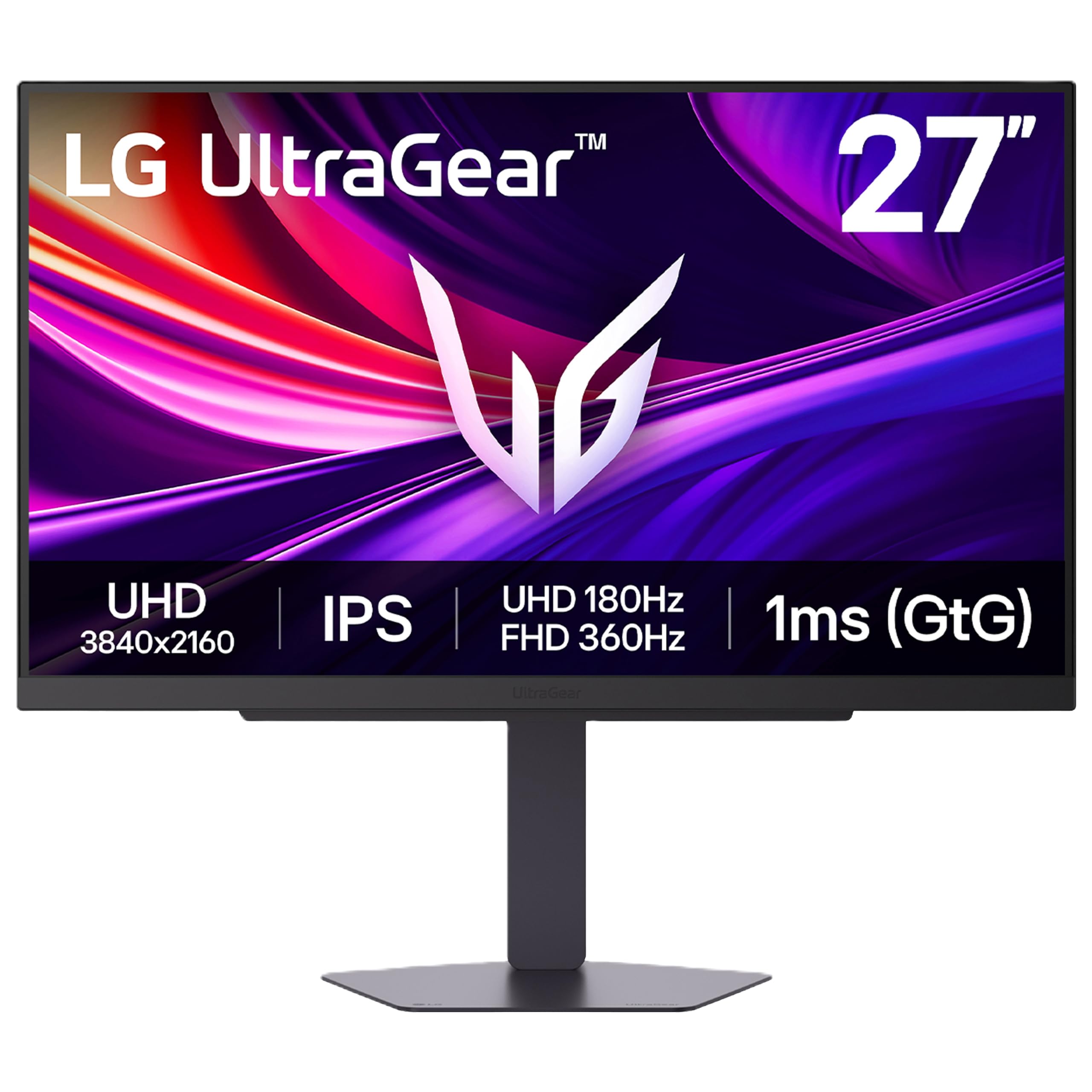
One monitor, two personalities — 4K for story, 360Hz for shooters.
The LG 27G810A-B solves a real dilemma that single-mode monitors cannot: it delivers 4K UHD (3840 x 2160) at 180Hz for detailed story games, and a rear hotkey switches the same panel to Full HD at 360Hz when you want competitive speed. That is the whole pitch — Dual Mode cuts the resolution to buy back responsiveness, at the press of a button. The IPS panel reaches up to 95% DCI-P3 color coverage, hits VESA DisplayHDR 400 brightness for enhanced contrast, and supports a 1ms GtG response time (the speed at which a pixel changes color, which determines how crisp motion looks). Adaptive Sync covers both AMD FreeSync Premium and NVIDIA G-Sync Compatible, so whichever graphics card sits in your rig, screen tearing is handled. HDMI 2.1 and DisplayPort inputs cover PCs and current consoles alike.
Buyers repeatedly describe the dual-mode feature as the reason this monitor makes sense. In their words: “The 360hz and 180hz dual mode is nice — allows me to play nice at 4k for story singleplayers games and fast at 1080p for competitive games that require fast reflexes.” The adjustable stand does height, tilt, swivel, and pivot so you can find a comfortable position for long sessions, and the slim bezel and clean build give it a modern profile on a desk. For casual gaming and schoolwork, owners describe a screen that handles both without a compromise you notice day to day, and the price lands noticeably below the premium QD-OLED pick further down.
The honest trade-offs are about what Dual Mode asks you to accept. When you switch to Full HD to open up the high refresh rate, color rendering shifts on the way, and the monitor can lock you into Full HD mode until you push it back — buyers have flagged this as a quirk worth knowing, and it wants a graphics card that can drive the resolution you plan to use. An occasional unit develops flicker or a dead-pixel issue, and responsiveness as a category comes up as mixed. The good news is that at 4.6 stars the pattern remains strongly positive.
The buyer-case math: one monitor that handles both a story-driven game at 4K detail and a twitch-reflex shooter at 360Hz is a genuinely rare combination and it is the specific reason this monitor keeps showing up on game-room desks.
Perfect for: gamers who switch between cinematic 4K titles and fast competitive rounds and want one screen that does both.
Wrong tool for: buyers who want one native resolution that never changes or who do mostly color-critical photo work.
9. BenQ MA270U 27” 4K 3840×2160 Monitor for MacBook Pro/Air

Colour matched to a MacBook’s own screen so your desk stops disagreeing with your laptop.
Most external monitors fight a MacBook on color. The BenQ MA270U is tuned to win that fight: it ships with BenQ’s Mac Color Match calibration so the wide P3 color gamut lines up with a MacBook Pro or MacBook Air display, meaning the same photo looks the same on both screens. The 27-inch IPS panel runs 4K at 3840 x 2160 with 400 nits of brightness and a genuinely strong 2000:1 contrast ratio — that contrast figure beats every other IPS panel on this page, and it is the reason blacks stay deep rather than milky. The dual USB-C ports deliver 90W to the MacBook and 15W to an iPad or iPhone, so one cable keeps the laptop charged while the monitor handles the picture, and there are also two HDMI ports plus a USB hub. Height, tilt, swivel, and pivot bring the screen to your posture rather than the reverse.
The Mac-specific controls are the details that keep you from reaching for the MacBook every few minutes. Brightness and volume adjust directly from your MacBook keyboard — a small thing until you live with it and then appreciate it. Mac integration gets the loudest praise across buyer impressions, with owners reporting that the single USB-C cable trims desk wiring dramatically. For anyone coming off an iMac that just died or an old display that never matched the laptop, this is the straight-line replacement. Photographers and designers describe color accuracy being good enough to skip second-guessing, and the matte screen keeps reflections under control in rooms with windows.
What you should know before buying. This is a curated Mac product with a price to match, so if you are on Windows or Linux the Mac-specific tuning buys you less. There is no bundled display tuning documentation worth the name, and the recommended way to manage settings is BenQ’s own Display Pilot software — a non-obvious step that buyers eventually figure out. If one of those two conditions bothers you, the Dell UltraSharp U2725QE higher up is a cross-platform alternative with similar USB-C docking.
Where It’s Strongest
- Mac Color Match tuning so the panel matches a MacBook’s own screen
- Dual USB-C with 90W laptop charging plus 15W for iPad or iPhone
- 2000:1 contrast ratio — the highest of any IPS panel in this list
- Brightness and volume controllable from the MacBook keyboard
The Trade-Offs
- Mac-specific tuning adds cost that Windows and Linux buyers will not use
- Settings require BenQ’s Display Pilot software — not documented in the box
- No native 120Hz or higher refresh rate for fast work
The right call for: anyone who lives in a MacBook Pro or Air and wants an external display that finally agrees with the laptop’s own panel.
Steer away if: you use Windows or Linux daily, or you want high refresh rates for gaming on the same screen.
10. Dell UltraSharp U2725QE 27-Inch 4K UHD IPS Black Monitor

A whole desk rebuilt around one Thunderbolt 4 cable that also charges at 140W.
The Dell UltraSharp U2725QE replaces a dock, a monitor, and half your cable clutter at once. Its Thunderbolt 4 connection carries video, data, and up to 140W of power down a single cable — 140W is enough to charge a performance laptop at full speed, not just top it up slowly. The IPS Black panel shows 4K UHD at 3840 x 2160 with 99% DCI-P3 coverage, factory calibrated to Delta E less than 1.5, meaning colors are matched to a reference standard so tightly that drift stops being visible even to a trained eye. Brightness reaches 450 nits, the highest of the standard IPS picks here, and refresh runs at 120Hz with a 5ms response for smooth motion. Daisy chaining is supported for up to two additional 4K monitors, so one cable from the laptop can feed an entire multi-screen setup.
Connectivity is where this monitor separates itself from the pack. Buyers repeatedly highlight the built-in KVM hub, which lets one keyboard and mouse drive two computers and switch between them — a feature people use daily rather than once a month. There is a ComfortView Plus filter that cuts blue light, plus an ambient light sensor that adjusts brightness automatically so the screen stays comfortable from morning to night. HDMI 2.1, USB-C, USB-A, and Ethernet ports mean older peripherals and wired networking still work, so this can sit at the center of a workstation instead of alongside a separate dock. One buyer puts the black levels and image quality side by side with OLED and calls the detail and adjustability outstanding.
The honest caveat is what you pay for all of this, and if you need it. If your work is spreadsheets and streaming, the Dell S2725QC further up the list handles those jobs for a fraction of the complexity — this one is for people who actually want the Thunderbolt dock behavior and daisy chaining. Compatibility and setup are the most-mentioned mixed aspects, so plan on a little configuration the first afternoon. Once running, though, buyers describe a monitor that silences the endless stream of small annoyances and just works.
The dock replacement argument: the 140W of power delivery alone justifies considering this over a separate Thunderbolt dock — many docks top out far below that, and this one carries the signal, the data, and the charge on a single cable.
Best suited to: professionals who run a Thunderbolt laptop and want a single cable to cover power, data, and video, with daisy-chaining for a multi-screen desk.
Overkill for: buyers who just want one sharp 4K screen — the KVM, Ethernet, and 140W charging are features you would be paying for without using.
11. ASUS ROG PG27UCDM 27 Inch 4K 240Hz OLED Gaming Monitor QD-OLED
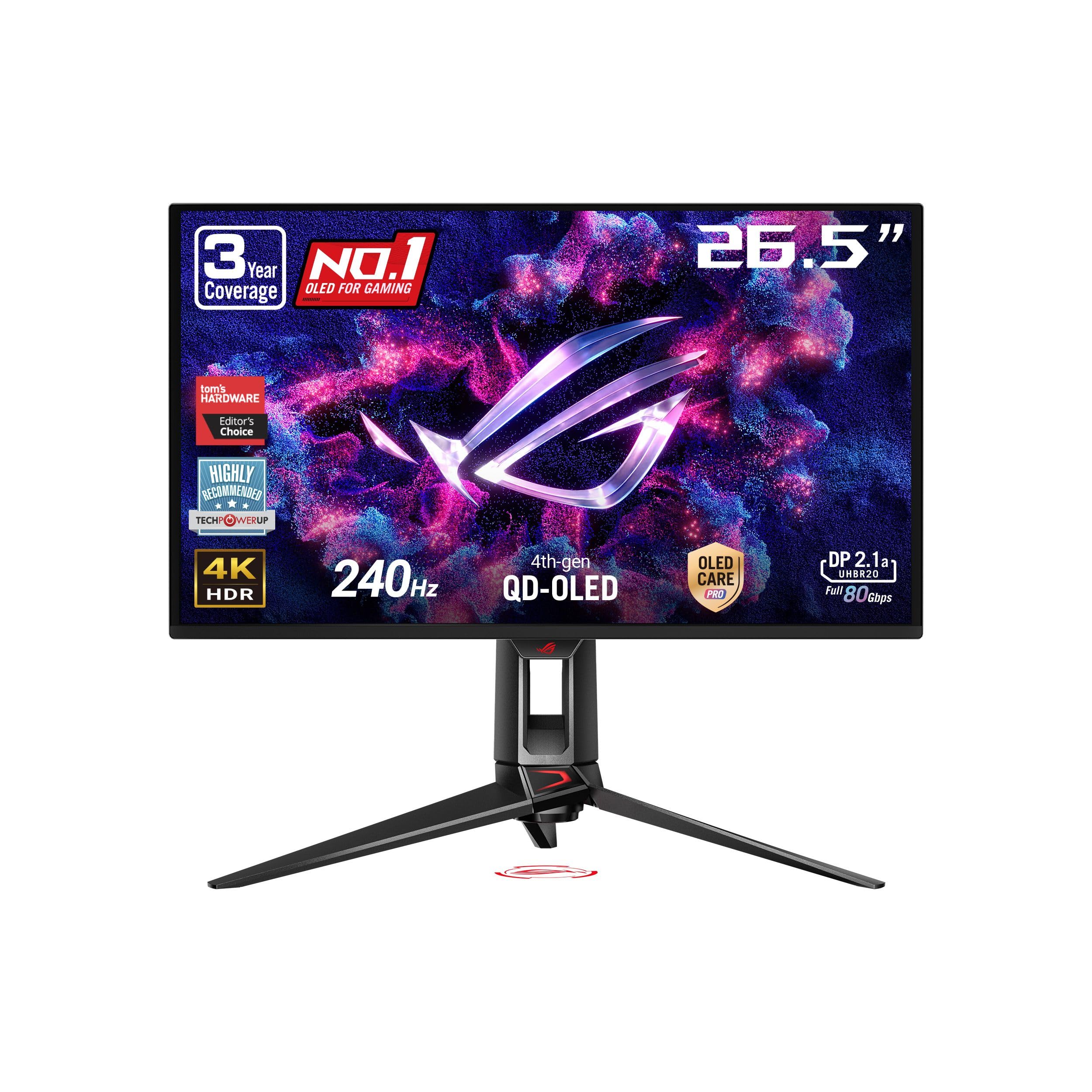
True blacks, 240Hz, and a 0.03ms response — the panel that ends the debate.
This is the top of the ladder, and the numbers explain why. The ASUS ROG PG27UCDM runs a 26.5-inch 4K QD-OLED panel at 240Hz with a 0.03ms response time — QD-OLED uses a quantum-dot layer on top of self-emissive pixels, so each pixel turns off completely for a true black rather than a dark gray. A 1,500,000:1 contrast ratio is what that produces, several orders of magnitude beyond the 1200:1 of the LG 27UP650K-W and the 1000:1 of the KTC. The 4th-gen QD-OLED panel is rated for a longer lifespan than previous-gen OLEDs, and its 145% color gamut with 1541.7 nits of peak brightness gives HDR content genuinely bright highlights. It also supports DisplayPort 2.1a at full 80Gbps for uncompressed high-refresh 4K, plus USB-C with 90W power delivery, HDMI 2.1, and a tripod socket for a webcam or light.
What buyers keep coming back to is the image itself, and the reaction is consistent: picture and monitor quality dominate their impressions, with true blacks, vivid color, and razor-sharp detail in the mix. The built-in KVM switches an Xbox and two PCs with one keyboard and mouse, and a proximity sensor called Neo Proximity Sensor detects when you walk away and blanks the panel to reduce burn-in risk — a real answer to the one long-term worry OLED buyers have. ASUS’s OLED Care Pro suite includes an OLED Anti-Flicker 2.0 algorithm that cuts flicker by 20% versus previous-gen panels. The stand does height, tilt, swivel, and pivot, and the monitor carries a 3-year warranty with burn-in coverage.
The honest catches are worth stating without spin. The QD-OLED subpixel layout can make some Windows desktop fonts less crisp at native scaling, even though game text stays sharp — a quirk of the technology rather than this specific model. There are no built-in speakers, and the ports point downward, which is awkward on a desk rather than a wall mount. Availability and value come up mixed, and there is a report of a unit that failed shortly after purchase — the pattern holds at 4.6 stars, but it is a premium product where you want to keep the return window in mind. If you do not game at high refresh rates consistently, the LG 27G810A-B handles the dual-mode job for less than half the commitment.
Where the money goes: the contrast ratio is the single spec that separates this from every LCD on the page — with per-pixel light control, black scenes have no backlight bleed at all, which is something no IPS panel can match.
Who should skip it: anyone whose work is text-heavy document editing, photographers on a budget, or buyers who cannot tolerate occasional OLED quirks like minor VRR flicker in high-motion content.
Built for: gamers and media users who want the best-looking 4K panel available and will use the 240Hz and the true blacks every week.
Think twice if: your primary use is reading and writing in Windows, where the subpixel layout can soften font rendering, or you want a screen with built-in speakers.
Understanding the Specs
Native 4K (3840 x 2160) and Pixel Density
Native 4K means the panel actually contains 3840 x 2160 physical pixels — roughly 8.3 million of them. A monitor that merely accepts a 4K signal but has a 1440p panel will scale that input down and show you less detail, so the resolution you can see is the one written on the panel spec, not the one on the input port. At 27 inches, that pixel count creates a pixel density high enough that fonts render with crisp edges instead of blurry halos, which is why text-heavy workers notice the difference immediately. Four-times the pixel count of 1080p also doubles your usable screen real estate without a larger physical footprint.
Brightness in nits (cd/m²)
Brightness is measured in cd/m², also called nits — a straightforward measure of how much light the panel pushes out. A 300 nit screen works fine in a dim room, a 350–400 nit screen stays readable in a lit office, and a panel that reports brightness in the thousands is typically describing peak HDR highlights rather than sustained full-screen output. The VESA DisplayHDR 400 rating you see throughout this list means the monitor reaches roughly 400 nits of peak brightness and accepts an HDR signal, so highlights in supported movies and games get a little brighter and shadow detail a little clearer — a visible improvement, not a cinematic transformation.
Panel type: IPS, Fast IPS, and QD-OLED
IPS panels deliver consistent color across wide viewing angles, which is why every non-OLED monitor on this list uses one — you can sit off-center and still see accurate hues. Fast IPS is the same idea tuned for quicker pixel transitions, which matters when the refresh rate climbs past 120Hz. QD-OLED uses self-lit quantum-dot pixels for true per-pixel blacks and near-instant switching, with a 1000:1 or higher contrast on IPS compared to several hundred thousand to one on OLED. That contrast gap is the biggest visual difference between the two technologies and the main reason OLED costs more.
Refresh rate, response time, and adaptive sync
Refresh rate in Hz counts how many times per second the panel redraws the picture — 60Hz for smooth office work, 120Hz and up for gaming, and 240Hz or 360Hz for competitive play. Response time measures how fast a pixel changes color, and a lower number (measured in milliseconds, with GtG meaning gray-to-gray transitions) means less motion blur. Adaptive sync is the technology that paces the panel to the graphics card to stop stuttering and tearing — FreeSync is AMD’s version, G-Sync is NVIDIA’s, and panels that support both cover either brand of card.
FAQ
Is native 4K really worth it at 27 inches, or is 1440p enough?
What is the difference between a true 4K panel and one that just accepts a 4K signal?
Do I need USB-C on a 27-inch 4K monitor?
Is DisplayHDR 400 a meaningful HDR standard?
How long does a 27-inch 4K monitor last?
Should I go with QD-OLED or IPS for a 27-inch 4K monitor?
Can I run a 27-inch 4K monitor at 120Hz or 160Hz from a laptop?
Does a 27-inch 4K monitor work well with a MacBook?
What is the point of a KVM switch in a 27-inch 4K monitor?
Do I need an adjustable stand or should I plan on a monitor arm?
Final Thoughts: The Verdict
For most desks, the 27 inch 4k monitor winner is the LG 27UP650K-W because it nails the fundamentals no one wants to negotiate on — true 4K at 3840 x 2160, 95% DCI-P3 color, a 1200:1 contrast ratio, and a stand that adjusts height, tilt, and pivot without a fight. It also holds the highest rating on this page with over 4.7 stars and 300+ ratings, which is a meaningful cushion when you are pulling the trigger on a screen you will stare at every day.
If you want speed on top of 4K clarity, grab the KTC 27 Inch 4K Gaming Monitor — the 160Hz refresh is the single biggest jump in the list. For Mac users, the BenQ MA270U is the one to reach for, since its Color Match tuning means the monitor and the laptop finally agree. And for buyers who want the most from a single screen with no compromises, the ASUS ROG PG27UCDM delivers the QD-OLED contrast that no IPS panel can match.
How We Picked
We do not accept paid placement. Every pick is matched to a real buyer and a real use-case; we do not hands-on test units.
Sources & Methodology
Specifications: manufacturer listings and product documentation. Review insights: verified customer reviews, as of September 2026. Pricing: not shown on this page (it changes often); check the current price via the retailer link.
As an Amazon Associate, Gadgets Feed earns from qualifying purchases. This does not affect which products we feature.