
Our readers keep the lights on and my morning glass full of iced black tea. As an Amazon Associate, I earn from qualifying purchases.
Specs are compiled from manufacturer listings and verified buyer reviews and can change over time — please confirm the key details on the product page before buying.
If you sit at a desk for eight hours, the right 27-inch screen is the single biggest upgrade to your comfort and focus. The real question is which resolution and refresh rate matter for your daily tasks. This guide breaks down the best 27 Inch Monitor For Home Office options by what you will actually feel during a long workday.
I’m Min — the founder and writer behind Gadgets Feed. This guide is built by comparing the manufacturers’ published specifications and the patterns across verified customer reviews, so you get each pick’s real strengths and trade-offs instead of marketing spin.
Your next 27 inch monitor for home office should make text crisp, scrolling smooth, and hooking up your laptop easy. if you need a sharp 4K panel or a smooth 120Hz display, the right one for your desk is below.
Our Picks at a Glance


How To Choose The Best 27 Inch Monitor For Home Office
Three specs decide if a monitor suits your work: resolution, refresh rate, and connectivity. Match those to your daily tasks, and the choice becomes simple.
Resolution: Match it to your eyes and your machine
Full HD (1920 x 1080) is perfectly fine for document work and budget setups, but text shows more detail on QHD (2560 x 1440) and 4K (3840 x 2160) screens. If you work with spreadsheets, code, or photos, the extra pixels let you fit more columns and see sharper text. Just make sure your laptop can actually drive the resolution over the cable you plan to use.
Refresh Rate: Why 100Hz feels calmer
The refresh rate is how many times per second the screen redraws the image. A standard 60Hz is fine, but 100Hz or 120Hz makes cursor movement and scrolling feel noticeably smoother and reduces eye strain during long sessions. It is a genuine comfort upgrade for anyone staring at a screen all day.
Connectivity and the single-cable dream
Look for a monitor that matches your laptop’s ports. Most work monitors include HDMI and DisplayPort, but a USB-C port with power delivery is the real desk declutterer — one cable carries video, data, and charges your laptop. If you use a MacBook or a slim Windows ultrabook, USB-C is the feature that changes your setup.
Quick Comparison
| Model | Best For | Resolution | Refresh Rate | Key Ports | Amazon |
|---|---|---|---|---|---|
| HP Series 3 327se★ Best Overall | Reliable budget everyday work | 1920 x 1080 (FHD) | 100Hz | VGA, HDMI 1.4, DP 1.2 | Amazon |
| Dell S2725DCAlso Great | Single-cable USB-C desks | 2560 x 1440 (QHD) | 144Hz | USB-C, HDMI, DP 1.4 | Amazon |
| ASUS ProArt PA278CVPro Color Pick | Color-accurate creative work | 2560 x 1440 (QHD) | 75Hz | USB-C, HDMI, DP, USB Hub | Amazon |
| LG 27UP650K-W | Sharp 4K productivity | 3840 x 2160 (4K UHD) | 60Hz | HDMI, DisplayPort | Amazon |
| Dell S2725QS | 4K with high refresh | 3840 x 2160 (4K UHD) | 120Hz | HDMI, DP, USB-C | Amazon |
| LG 27US500-W | Affordable 4K for dual screens | 3840 x 2160 (4K UHD) | 60Hz | HDMI, DisplayPort | Amazon |
| ViewSonic VA2756A-MHD | Smooth 120Hz on a budget | 1920 x 1080 (FHD) | 120Hz | HDMI, DP, VGA, 3.5mm | Amazon |
| ViewSonic VX2776-SMHD | Lightweight second screens | 1920 x 1080 (FHD) | 100Hz | HDMI, DP, VGA | Amazon |
| Samsung S32GF | Gaming-friendly 120Hz work | 1920 x 1080 (FHD) | 120Hz | HDMI | Amazon |
| ASUS VA27DQ | Versatile connectivity | 1920 x 1080 (FHD) | 75Hz | HDMI, DP, VGA | Amazon |
| Amazon Basics 27 | No-frills desk setup | 1920 x 1080 (FHD) | 100Hz | USB-A hub, HDMI | Amazon |
In-Depth Reviews
1. HP Series 3 27 inch FHD Monitor (327se)
Our pick — over 4.5★ from 25,000+ verified ratings; the strongest balance of quality and price.
The crowd favorite for a second display: crisp Full HD and tool-free setup.
The HP Series 3 327se is the most popular pick here, and for good reason — it delivers exactly what a home office needs without extras you will not use. The 1920 x 1080 FHD resolution with an enhanced 1300:1 contrast ratio makes text crisp and colors nuanced, which is ideal for reading, spreadsheets, and video calls. The 100Hz refresh rate keeps motion smooth.
Its IPS panel (a screen technology with consistent colors at wide angles) holds image accuracy across 178 degrees both horizontally and vertically, so you can lean back or share your screen without colors shifting. The HP Eye Ease feature includes Eyesafe certification (a standard for reduced blue light), with an always-on, true-color low-blue-light filter that keeps your eyes comfortable during long sessions. Built-in dual 2W speakers handle meetings and music, and the tilt-adjustable stand plus 3-sided micro-edge bezel make dual-monitor setups nearly smooth.
Buyers call it a remarkable value, noting it is brighter with better contrast than older models and that the height and angle-adjustable stand is sturdy. Setup requires no tools, and the built-in speakers work immediately from the start. One honest tip: the speakers can sound quiet at the default 50% volume — raising audio in the on-screen menu to 100 fixes it. An occasional unit arrives with a height-adjustment quirk, but overall satisfaction runs high.
budget basic: you want a dependable, value-driven work screen with eye comfort built in.
color tasks: your desk needs a full height-and-swivel stand rather than tilt only.
2. Dell 27 Plus QHD USB-C Monitor (S2725DC)
One USB-C cable powers your laptop, sends video, and charges — the clutter just disappears.
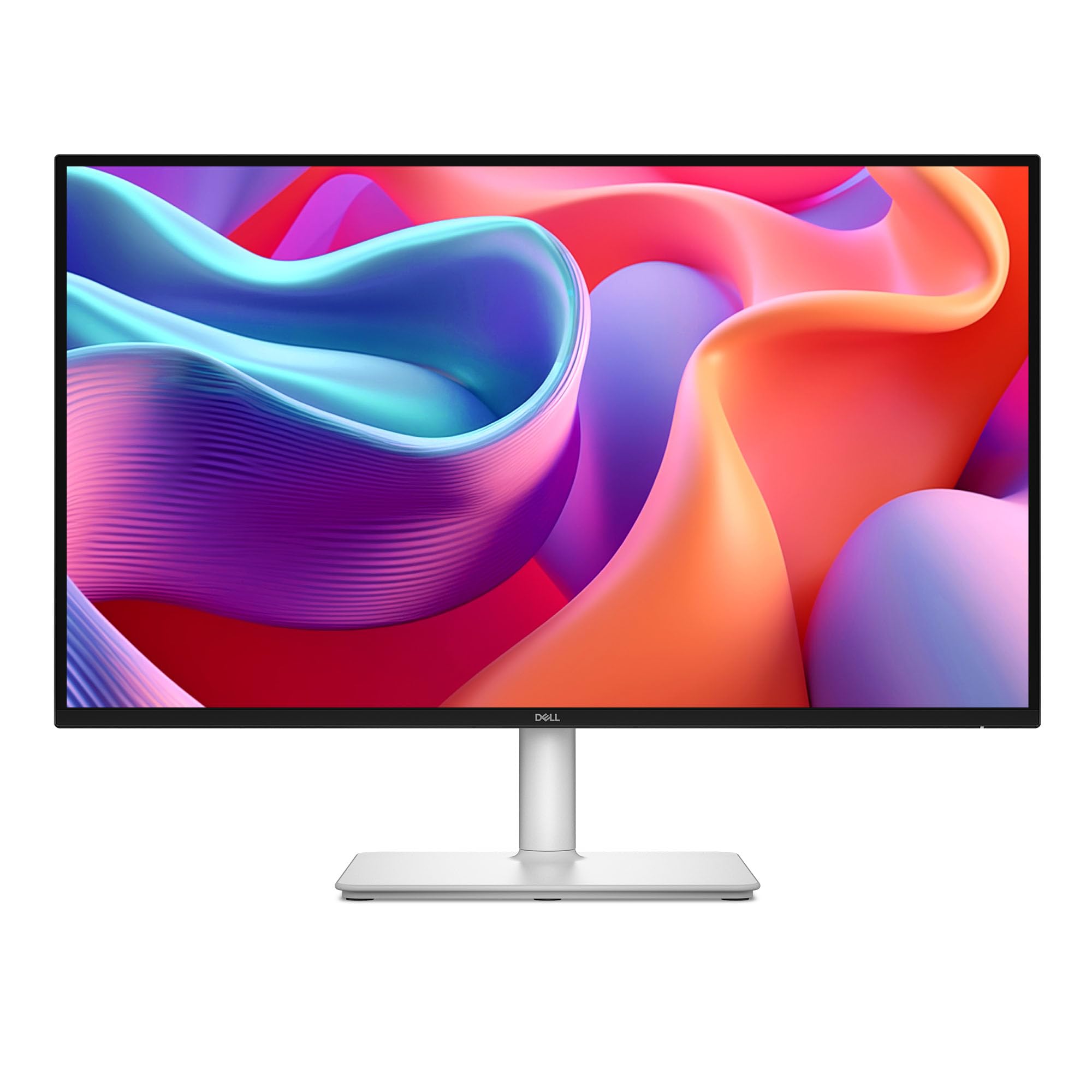
The Dell S2725DC is the monitor that makes the single-cable dream real. Its USB-C port delivers up to 65W of power to your laptop, so you plug in one cable and your desk stays clean. The QHD resolution (2560 x 1440) gives you noticeably sharper text than Full HD, which makes long document sessions easier on your eyes.
The 144Hz refresh rate with a 1ms response time makes scrolling feel instant and tear-free, thanks to AMD FreeSync support (a technology that syncs the screen’s refresh with your graphics card to stop stuttering). You also get a second USB-C port (up to 15W) and a USB-A port for charging accessories. The ash white stand adjusts for height, tilt, pivot, and swivel, so you can find your perfect posture.
Buyers consistently call the picture quality amazing and highlight how the height adjustment makes it comfortable for full workdays. A few note the joystick control feels fragile and that height adjustment range is modest, but most find it a huge value. The built-in dual 3W speakers handle video calls and casual audio with a wider frequency range than most built-ins.
sharp QHD clarity
- USB-C 65W charges and connects with one cable
- 144Hz refresh with FreeSync for smooth motion
- Full ergonomic stand with pivot and swivel
- TÜV-certified low blue light for long days
limited USB-C power
- Joystick control feels delicate to some
- Height adjustment range is on the shorter side
QHD bargain: you want a tidy desk with a single USB-C cable handling power and display.
power hungry: you need a full-range height stand for very tall or very short desks.
3. ASUS ProArt PA278CV
Factory-calibrated color with Delta E less than 2 means what you see is what you print.
If your work depends on accurate color — photo editing, graphic design, or video work — the ASUS ProArt PA278CV is built for you. It is Calman Verified with Delta E less than 2 (a color-accuracy score where lower is better and under 2 is excellent), so the colors you see match what prints or streams. It covers 100% of both sRGB and Rec.709 color spaces (the standard color ranges for web and video), so your edits look right on any screen.
The USB-C port delivers 65W of power to your laptop while carrying video and data in the same cable. For multi-display setups, the DisplayPort supports daisy-chaining, letting you connect up to four monitors through a single cable chain. The ergonomic stand rotates a full 90 degrees into portrait mode for coding or long documents.
Buyers using MacBooks love the single-cord USB-C connection and the accurate out-of-box colors. The sharp QHD resolution is praised for daily computing that mixes photo editing, code review, and multiple open windows. One thoughtful note: the height adjustment only works smoothly once the monitor is attached to the base, so attach it before adjusting.
color work: professional-grade factory color calibration in a home-office friendly package.
connectivity: the 75Hz refresh is fine for work but not a gaming-focused panel.
4. LG 27UP650K-W Ultrafine 4K

A 4K screen with 95% DCI-P3 color that makes spreadsheets feel like a cinema.
The LG 27UP650K-W brings true 4K resolution (3840 x 2160) to your home office, so text is razor sharp and you can fit multiple full spreadsheets side by side without losing readability. Its VESA DisplayHDR 400 certification (a brightness standard for high dynamic range content) means compatible videos show deeper contrast and richer colors than a standard screen.
With up to 95% DCI-P3 color gamut expression (a wide color space used in film and video production), this monitor displays vibrant, accurate colors for photo work and streaming. The ergonomic white stand adjusts for height, tilt, and a full 90-degree pivot into portrait mode. HDMI and DisplayPort cables are included in the box, and the Black Stabilizer feature brightens dark scenes in games.
Buyers call this the best monitor for the price, praising its crisp text, vibrant colors, and excellent contrast. The highly adjustable stand and included cables get consistent praise, and Mac users find it pairs well with Apple products. A few note the white stand may yellow over time, but the overall verdict is a stunning 4K workhorse.
4K value: 4K sharpness with professional color coverage and a fully adjustable stand.
desk stability: you need a high refresh rate — this is a 60Hz panel.
5. Dell 27 Monitor S2725QS

The rare 4K panel that also runs at 120Hz — sharp enough for work, smooth enough for play.
The Dell S2725QS delivers 4K UHD (3840 x 2160) resolution with a 120Hz refresh rate, a combination rarely found at this level. You get the crisp text of 4K for spreadsheets and code, plus the smooth motion of 120Hz when you scroll or do light gaming. The 350 cd/m2 brightness and 1500:1 contrast ratio produce excellent depth and detail.
It covers 99% of sRGB (the standard color gamut for web content) and supports FreeSync Premium (a higher-tier adaptive sync standard that reduces stuttering). The improved ComfortView Plus reduces harmful blue light emissions to ≤35% (a measure of how much blue light the screen sends to your eyes) without sacrificing color accuracy. The ash white finish and ultra-thin bezels keep the design sleek.
Owners rave about the incredibly loud speakers, sharp 4K picture, and the adjustable stand with height, swivel, and pivot. It is a big upgrade from a 1080p work screen, with G-Sync compatibility (an NVIDIA adaptive sync standard) working for casual gaming. A few report the screen occasionally turns off unexpectedly, and gamers note some ghosting on fast mouse movement, so it is best for productivity first.
office minimal: anyone who wants 4K productivity sharpness plus a 120Hz feel for casual gaming.
ergonomics: competitive FPS players who need the absolute fastest response.
6. LG 27US500-W Ultrafine 4K

The most affordable way to put 4K UHD on your desk for sharp, color-rich work.
The LG 27US500-W is the budget entry into true 4K UHD (3840 x 2160) for your home office. It uses an IPS panel (a screen type known for consistent colors at wide viewing angles) with a 1000:1 contrast ratio that delivers deeper blacks and vivid colors in UHD clarity. This resolution is a major step up from Full HD for anyone who works with detailed images.
It supports HDR10 content with up to 90% DCI-P3 color gamut expression (a wide color space used in professional video), bringing brilliant color to compatible movies and photos. The ergonomic stand adjusts tilt to find a comfortable position, and the Onscreen Control software lets you split the display or adjust settings with a few mouse clicks. HDMI and DisplayPort inputs handle Mac, PC, and Linux systems.
Buyers find the font clarity excellent, especially on Linux systems where fonts can look fuzzy at lower resolutions — 10 point font at 200% scale stays perfectly clear. The design is sleek and glare-free, with one owner noting it is a great companion for a MacBook Air. The main trade-offs: the stand is a bit wobbly and the power adapter is bulky, but the display quality earns high marks.
cheap 4K: budget buyers who refuse to give up 4K sharpness for daily work.
bright rooms: if a rock-solid stand and slim power brick are must-haves.
7. ViewSonic VA2756A-MHD
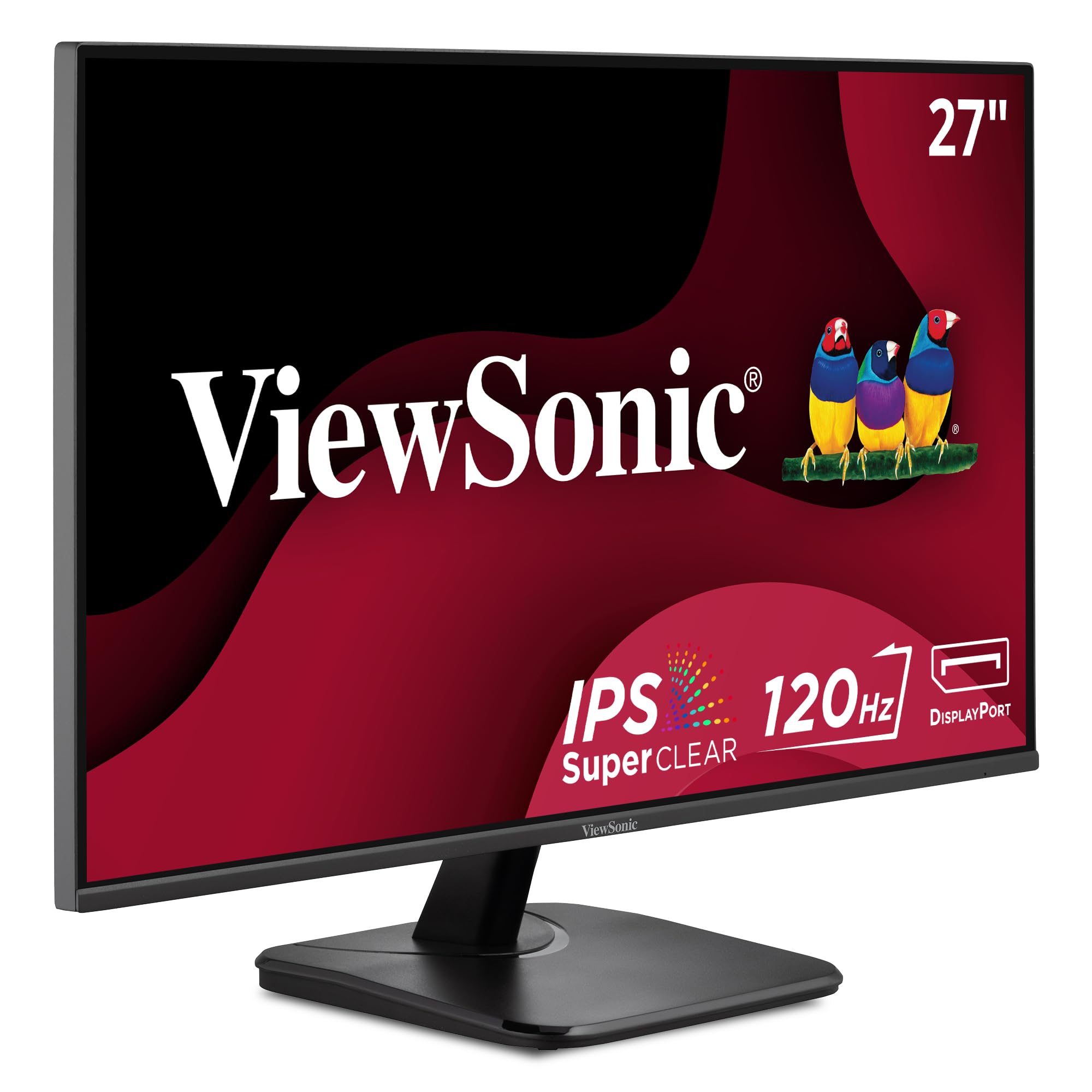
A 120Hz refresh and 1500:1 contrast squeeze into a surprisingly affordable Full HD panel.
The ViewSonic VA2756A-MHD pairs a 120Hz refresh rate with a 1500:1 contrast ratio — a combination that beats the standard 1000:1 found on many comparable screens. In everyday terms, that means smoother scrolling and richer, more defined blacks and shadows for both work and video. The 1920 x 1080 IPS panel keeps colors accurate and vivid from any angle.
Its SuperClear IPS technology (ViewSonic’s term for its wide-angle IPS panel) delivers consistent brightness, and the 1ms response time keeps motion sharp. Flicker-Free technology and a Blue Light Filter reduce eye fatigue during long sessions. The monitor offers “Game,” “Movie,” “Web,” “Text,” and “Mono” presets, letting you switch modes to match what you are doing, and it connects to laptops, PCs, Macs, and consoles via HDMI, DisplayPort, and VGA.
Owners describe it as a solid IPS display that is clear enough for video calls and YouTube, with excellent viewing angles and colors. Reliability is a recurring theme — buyers report “After 6 months, they are still working great,” and long-time ViewSonic owners note their older units still run after years of daily use. The trade-offs are a basic stand and a 250 nit brightness, but the value is hard to argue with.
affordable VA panel
- 120Hz with FreeSync for tear-free smoothness
- 1500:1 contrast for deeper blacks
- Five mode presets for different tasks
HDMI only
- Simple stand with limited adjustment
- 250 nits brightness is average
- No USB hub for accessories
cheap VA: 120Hz smoothness and higher contrast on a budget-friendly panel.
port options: the stand is utilitarian — budget for a monitor arm if ergonomics matter.
8. ViewSonic VX2776-SMHD

A featherlight 27-inch screen with ultra-thin bezels that is almost invisible on your desk.
The ViewSonic VX2776-SMHD wins on weight and presence — it is super light and thin, with ultra-thin bezels that blend into almost any setup. The 1920 x 1080 IPS panel delivers clear, high-contrast images, and FreeSync technology (an adaptive sync standard that prevents screen tearing) provides fluid, tear-free gameplay and video. At 100Hz, motion stays smooth for both work and casual play.
Flicker-Free technology and a Blue Light Filter reduce eye strain, and the same five presets — “Game,” “Movie,” “Web,” “Text,” and “Mono” — let you match the screen to your task. It connects to laptops, PCs, and Macs over HDMI, DisplayPort, and VGA. For a second screen or a light workspace, its simplicity is a feature, not a flaw.
Owners praise the crisp image and note that switching to Standard or Web View Mode (rather than Game presets) avoids any blurriness in text. The deepest compliment: several buyers were so satisfied they bought a second unit. The honest reality is that the stand is its weak point — it can feel unstable and wobbly, and the short height might need a few books underneath to line up with your laptop.
smooth motion: a lightweight second monitor or a desk where slim design matters.
hub needs: the included stand — many owners swap it for a monitor arm.
9. Samsung 27″ S3 Series (S32GF)

A super slim monitor with Eye Saver Mode that keeps colors vivid across the whole screen.
The Samsung S32GF brings a sleek, super slim design to your home office with ultra-thin border bezels that keep the focus on your work. Its IPS panel (known for consistent color at any angle) keeps colors bright and clear even as you change viewing position. The 120Hz refresh rate reduces lag and motion blur, making fast-paced video and creative projects feel smooth.
Eye Saver Mode reduces blue light, and Flicker-Free technology minimizes screen flicker, so long sessions stay comfortable. Game Picture Mode adjusts any game to fill the screen, and optimizable game settings let you fine-tune color and contrast. The monitor also offers FreeSync support for smoother gaming and a lightweight, stylish build that enhances any setup.
Owners call it a solid, value-priced monitor with excellent picture clarity and a terrific size — several noted it was a big step up from their previous 24-inch screen. Setup is genuinely easy, with one buyer having it ready to go in 5 minutes. It works well in dual-monitor stands alongside other 27-inch panels. The mixed note is brightness adjustment: some owners can adjust it while others report difficulty, so it may take some menu digging.
desk style: a slim, stylish 120Hz screen that is ready in minutes for office work.
sharpness: how easy brightness adjustment is in the on-screen menu for your needs.
10. ASUS VA27DQ

A bright, crisp Full HD panel with more connection options than you will ever need.
The ASUS VA27DQ is a straightforward 27-inch Full HD (1920 x 1080) monitor with an IPS 178-degree wide viewing angle panel (a screen that keeps colors accurate from almost any side angle). It runs at up to 75Hz, a small but noticeable step above the standard 60Hz, making scrolling and video playback feel a touch smoother. Its frameless design keeps the look clean for multi-display setups.
Connectivity is a standout — you get HDMI, DisplayPort, and D-sub (VGA) inputs plus 2W x 2 stereo speakers. ASUS Eye Care technology includes TÜV Rheinland-certified Flicker-free and Low Blue Light features (independent certifications for reduced eye strain). It also supports both Adaptive-Sync with NVIDIA GeForce graphics cards and FreeSync with AMD Radeon cards, so it works with most gaming setups.
Buyers find it bright, easy on the eyes, and great value for a dual-monitor setup. The picture is sharp from the start with a matte, near-borderless finish, and the built-in speakers are clear, though they come across as mono in practice. It handles YouTube, school, web, and casual gaming well. The screen is heavier than expected, so unbox carefully, but assembly is easy with a tilt-adjustable stand.
small spaces: you want maximum connectivity and TÜV-certified eye comfort on a budget.
audio quality: only tilt adjustment — no height or swivel on the stand.
11. Amazon Basics 27 Inch Monitor

A no-fuss 27-inch IPS screen with 4 USB ports that declutters your mouse and keyboard.
For plug-and-play simplicity in a home office, the Amazon Basics 27 Inch Monitor delivers. Its 1080P IPS panel (a screen type with consistent colors at wide angles) gives crisp picture quality, and the 1500:1 contrast ratio keeps blacks deep and colors rich. One owner specifically praised that it is not washed out like some budget monitors. It runs at up to 100Hz for smoother motion.
what separates it is the built-in 4-port USB hub — plug your keyboard, mouse, and other peripherals into the monitor instead of your laptop, keeping your desk tidy. It is VESA compatible (a standard mount pattern for attaching to monitor arms), and the built-in speakers deliver clean, clear audio. The matte screen reduces glare, making it comfortable for all-day use, and it works great with a PC dock over HDMI or DisplayPort.
Buyers find it well-crafted, easy to set up, and comfortable even for older users who need larger, clearer fonts. A recurring practical note: remember to remove the protective film from the panel surface before use, and note that the power adapter is not always included in the box. The stand only tilts forward and backward, so height adjustment is limited.
bare bones: a straightforward, affordable work screen with a handy USB hub built in.
build quality: verify the power adapter is included and peel the film off the screen.
Understanding the Specs
Resolution: FHD vs QHD vs 4K
Resolution is the number of pixels on the screen, and more pixels mean sharper text and more space. Full HD (1920 x 1080) is the budget standard, fine for documents but limited for multi-tasking. QHD (2560 x 1440) is the balance for productivity — noticeably sharper than Full HD without the heavy graphics demand of 4K. UHD 4K (3840 x 2160) offers the sharpest text and most screen real estate, ideal for spreadsheets, code, and photo editing, but it needs more graphics power.
Refresh Rate and Response Time
Refresh rate, measured in hertz (Hz), is how many times per second the screen redraws the image. Standard 60Hz is fine, but 100Hz, 120Hz, and 144Hz feel noticeably smoother when scrolling and moving the cursor — a real comfort gain for all-day work, not just gaming. Response time, measured in milliseconds (ms), is how fast a pixel changes color; lower numbers (like 1ms or 5ms) reduce motion blur in fast-moving video.
IPS Panels and Color Gamut
IPS (In-Plane Switching) is a screen technology that keeps colors accurate and consistent even when you view from sharp angles — important if you share your screen or lean back in your chair. Color gamut describes the range of colors a screen can display, often given as a percentage like 99% sRGB or 95% DCI-P3. Higher percentages mean richer, more accurate colors, which matters most for photo editing, graphic design, and enjoying video.
Connectivity: USB-C and Ports
The ports on your monitor decide how it connects to your laptop. All work monitors include HDMI and DisplayPort, which carry video and sometimes audio. USB-C with power delivery lets a single cable carry video, transfer data, and charge your laptop at up to 65W. Some monitors also add a USB hub, letting you plug a keyboard and mouse into the screen instead of your laptop. VGA is an older port, included mainly for legacy machines.
FAQ
Is 4K worth it on a 27-inch monitor for office work?
What refresh rate do I actually need for a home office?
Will a 27-inch monitor work with my MacBook?
What does USB-C power delivery do for me?
Is 1080p still good enough for a 27-inch screen?
Should I worry about eye strain with these monitors?
What is the difference between FreeSync and G-Sync?
Can I mount my 27-inch monitor on an arm?
Are built-in monitor speakers good enough for work?
What should I check before buying a 27-inch monitor?
Final Thoughts: The Verdict
For the majority of shoppers, the best 27 inch monitor for home office is the Dell S2725DC because its QHD sharpness, 144Hz smoothness, and single-cable USB-C charging cover every daily need. If you work with color-critical creative tasksprojects, the ASUS ProArt PA278CV is the professional’s choice with its factory-calibrated colors and full USB hub. And if your priority is 4K sharpness for spreadsheets and detailed work, the LG 27UP650K-W delivers the crispest text at an accessible price. The honest nudge: most of these panels earn strong ratings from thousands of owners, but the Dell’s 4.8-star score across 100+ reviews makes it the safest bet for a monitor you will keep for years.
How We Picked
We do not accept paid placement. Every pick is matched to a real buyer and a real use-case; we do not hands-on test units.
Sources & Methodology
Specifications: manufacturer listings and product documentation. Review insights: verified customer reviews, as of August 2026. Pricing: not shown on this page (it changes often); check the current price via the retailer link.
As an Amazon Associate, Gadgets Feed earns from qualifying purchases. This does not affect which products we feature.