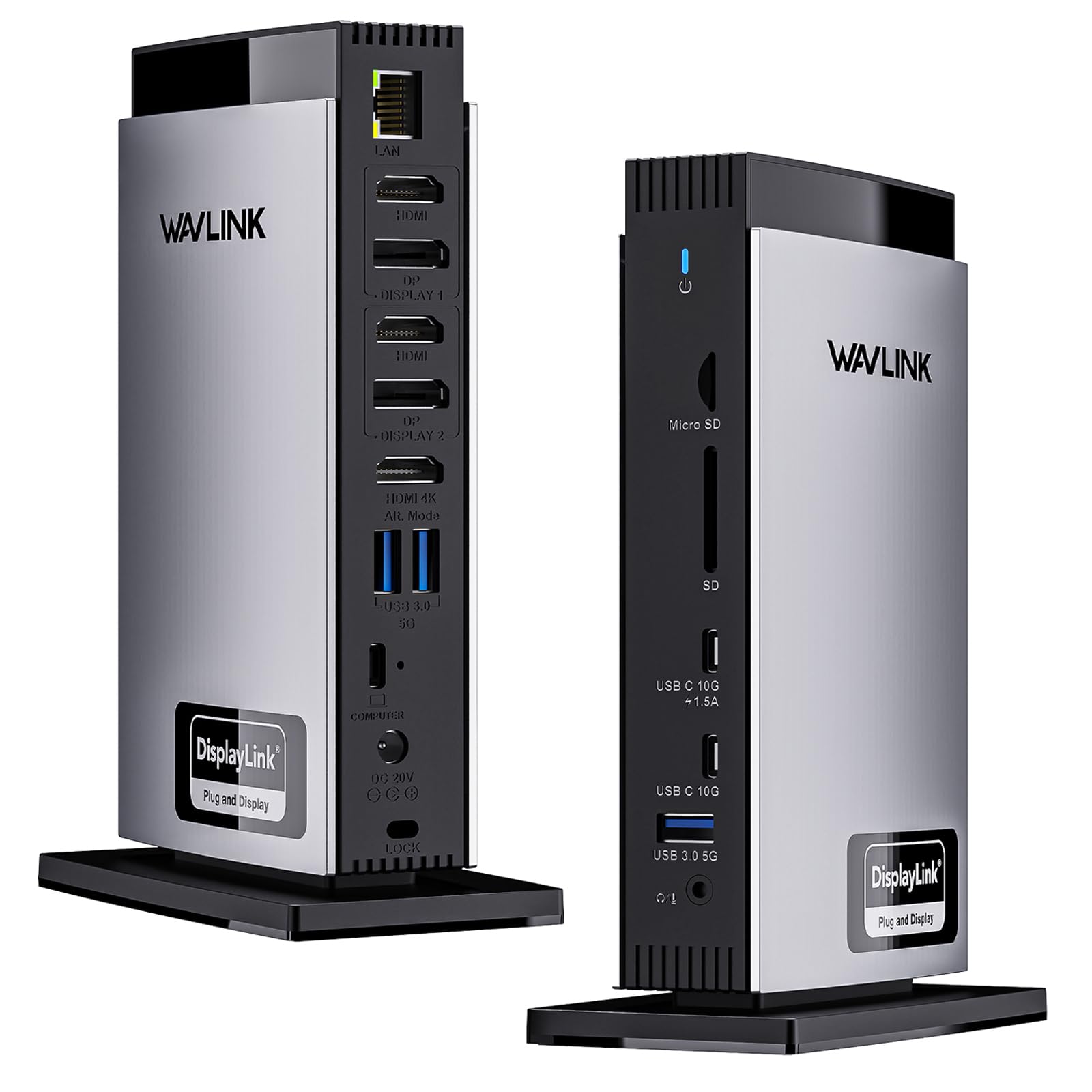
9 Best 3 Monitor Docking Station | Three Screens, One Cable

Our readers keep the lights on and my morning glass full of iced black tea. As an Amazon Associate, I earn from qualifying purchases.

Specs are compiled from manufacturer listings and verified buyer reviews and can change over time — please confirm the key details on the product page before buying.

A quick note on sizes: not every pick below is the exact size or number you searched — where the exact one is scarce, the nearest same-type option that serves the same purpose is included so you get real, in-stock choices. Each pick’s actual specs are listed.

If you run three monitors off one laptop, you already know the pain: a tangle of cables, constant plugging and unplugging, and the sinking feeling when a display just won’t wake up. A 3-monitor docking station solves all of that by turning your laptop into a true workstation with a single USB-C connection. The right dock hands you three sharp extended screens, keeps your laptop charged, and gives you ports for everything else — all without hunting for dongles.

I’m Min — the founder and writer behind Gadgets Feed. This guide is built by comparing the manufacturers’ published specifications and the patterns across verified customer reviews, so you get each pick’s real strengths and trade-offs instead of marketing spin.

The common thread across the best options is DisplayLink technology — it bypasses your laptop’s built-in display limits, letting even M-series Macs drive three monitors at once. After reviewing over a dozen models, these are the most reliable candidates for a 3 monitor docking station that actually delivers on its promise.

Our Picks at a Glance

TobenONE DisplayLink Docking Station 3 Monitors with 120W Power Adapter
Best OverallTobenONE DisplayLink Docking Station 3 Monitors with 120W Power Adapter4.5★950 ratingsThe port monster that gives you three HDMI and three DisplayPort outputs in one compact grey box.Check Price on Amazon
WAVLINK Docking Station 3 Monitors, Triple 4K@60Hz for MacBook M1/M2/M3/M4/Windows
Mac & Windows ComboWAVLINK Docking Station 3 Monitors, Triple 4K@60Hz for MacBook M1/M2/M3/M4/Windows4.3★302 ratingsA 15-port dock that handles three 4K screens at 60Hz on both Mac and Windows without fuss. The WAVLINK WL-UG69PD13 ships with 3 HDMI and 2 DisplayPort outputs, giving you more video routing choices than almost any other dock in this class.Check Price on Amazon
Plugable 12-in-1 USB C Triple Monitor Docking Station
Triple 4K FlexibilityPlugable 12-in-1 USB C Triple Monitor Docking Station4.2★664 ratingsThe only dock here that lets you run three monitors using all HDMI or all DisplayPort — your choice.Check Price on Amazon

How To Choose The Best 3 Monitor Docking Station

Not every dock that claims triple-monitor support actually delivers it reliably. The key is understanding three things: the video technology inside, how much power it sends to your laptop, and whether its ports match the peripherals you already own.

DisplayLink vs. Native Alt Mode

Many laptops — especially M1/M2/M3 MacBooks — natively support only one or two external displays. A docking station with a DisplayLink chipset (a separate graphics processor inside the dock) creates additional displays so you can run three screens even on hardware that would otherwise limit you. This requires installing a free driver, but it is the most reliable way to get triple monitors on a modern Mac. On Windows, some docks use your laptop’s native DisplayPort Alt Mode (a signal pass-through through the USB-C port) for one or two screens and DisplayLink for the third.

Power Delivery (PD) Wattage

A dock that charges your laptop should match or exceed your laptop’s original charger wattage. Look for 100W PD (the standard for fast laptop charging over USB-C) to keep even a 16-inch MacBook Pro or Dell XPS running at full load without draining the battery. Docks with a lower PD rating, like 60W or 85W, may charge slowly or lose ground during heavy use.

Port Selection and Bandwidth

Count your daily-use devices: external drives, keyboard, mouse, webcam, headset, SD cards, and wired ethernet. A 12-port dock is the minimum for a full setup. Look for USB 3.2 Gen 2 ports at 10Gbps (10 gigabits per second — about 20 times faster than USB 2.0) if you move large video files. Gigabit Ethernet (a wired internet port supporting up to 1000 Mbps) is a must for stable video calls.

Quick Comparison

Model Best For Video Ports Total Ports Laptop Charging Amazon
TobenONE (18-port)★ Best Overall Best Overall 3 HDMI + 3 DP 18 100W PD Amazon
WAVLINK (15-port)Mac & Windows Combo Mac & Windows Combo 3 HDMI + 2 DP 15 100W PD Amazon
Plugable 12-in-1Triple 4K Flexibility Triple 4K Flexibility 3 HDMI + 3 DP 12 100W PD Amazon
TobenONE 3HDMI Compact M-Series Mac 3 HDMI 14 100W PD Amazon
WAVLINK (12-port) Quiet Triple 4K 1 HDMI + 2 DP 12 100W PD Amazon
4URPC 14-in-1 Budget-Friendly Mac 3 HDMI 14 100W PD Amazon
WAVLINK UMD01M Pro Windows Productivity 2 DP + 1 HDMI 13 100W PD Amazon

In‑Depth Reviews

★ Best Overall

1. TobenONE DisplayLink Docking Station 3 Monitors with 120W Power Adapter

Our pick — 4.5★ from 950+ verified ratings; the strongest balance of quality and price.

18 PortsTriple 4K@60Hz

The port monster that gives you three HDMI and three DisplayPort outputs in one compact grey box.

This TobenONE dock packs 18 ports total — more than any other single-cable triple-monitor solution here — including 3x HDMI and 3x DisplayPort so you can mix and match your monitor connections without adapters. The included 120W power adapter delivers 100W PD (the fast-charging standard over USB-C) to your laptop, which means you can leave the original charger in your bag. Buyers report that the dock has been “solid for 6 months on macOS with triple monitor support” and runs cool even during long work sessions.

It supports Thunderbolt 4/3, USB4, and full-featured USB-C laptops, and works on both Windows (up to 4 monitors) and macOS (up to 3). The catch? You must install a free DisplayLink driver before use, and it cannot stream Netflix or other paid streaming services due to HDCP restrictions (a content-protection handshake that DisplayLink emulated screens cannot complete).

You get a sturdy 120W power supply and 18 total ports — compared to 13 on the WAVLINK UMD01M Pro below — and this dock weighs 17.6 ounces versus the WAVLINK’s 11.64 ounces.

Why It Leads

  • 18 total ports — 3x HDMI and 3x DP for flexible triple 4K
  • 120W power adapter with 100W PD laptop charging
  • 4x USB 3.1 and 2x USB-C at 10Gbps data transfer

Know Before You Buy

  • Requires DisplayLink driver install on Mac and Windows
  • Cannot play Netflix or other paid streaming on extended displays
  • Mac users limited to 3 monitors (Windows can do 4)

Your pick if: you want the most port flexibility for a Mac or PC triple-monitor setup and do not mind a quick driver download.

Look elsewhere if: you need Netflix or HDCP-protected streaming on all three screens — this dock blocks that.

Mac & Windows Combo

2. WAVLINK Docking Station 3 Monitors, Triple 4K@60Hz for MacBook M1/M2/M3/M4/Windows

15 Ports3HDMI + 2DP

A 15-port dock that handles three 4K screens at 60Hz on both Mac and Windows without fuss.

The WAVLINK WL-UG69PD13 ships with 3 HDMI and 2 DisplayPort outputs, giving you more video routing choices than almost any other dock in this class. The key advantage here is that one HDMI port uses your laptop’s native Alt Mode (a direct video signal from your laptop’s USB-C port, no driver needed), while the other two screens run through the DisplayLink chipset. This hybrid approach means your primary monitor gets the crispest signal, and you avoid the full-driver dependency of some rivals.

It delivers 100W PD from a 130W power adapter, and offers 2 USB-C ports at 10Gbps plus 3 USB-A ports at 5Gbps. Owners mention it works “perfectly with my MacBook Air M4” for dual monitors and charging, but note that the DisplayLink driver for Mac requires a slightly longer initial download. The dock also includes SD and microSD card slots at 104MB/s (about 104 megabytes per second — fast enough for photographers to offload a card without a separate reader).

One trade-off: only one HDMI or DP port can be active from the DisplayLink pair at a time, so you effectively get two DisplayLink screens plus one native screen, not all five ports running simultaneously. At 1.52 kg (3.35 lbs), this is one of the heaviest docks here — fine for a desk, not a travel bag.

What Stands Out

  • Hybrid video — one native HDMI port + two DisplayLink screens
  • 3 HDMI + 2 DP for maximum monitor flexibility
  • SD/microSD slots at 104MB/s for content creators

Heads Up

  • Heavy at 1.52 kg — not portable
  • DisplayLink driver required for second and third screens
  • Only one HDMI/DP from the pair can be used at a time

Reach for this if: you split your week between a MacBook and a Windows laptop and want a single dock that does triple 4K on both.

skip it if: you need a lightweight dock to carry daily — this one stays put on a desk.

Triple 4K Flexibility

3. Plugable 12-in-1 USB C Triple Monitor Docking Station

12 Ports3HDMI + 3DP

The only dock here that lets you run three monitors using all HDMI or all DisplayPort — your choice.

Plugable’s UD-6950PDZ gives you 3 HDMI and 3 DisplayPort ports on the back, so you can connect three monitors using whichever cable type your screens support without needing adapters. It delivers triple 4K at 60Hz on Windows, macOS, and ChromeOS via its DisplayLink chipset. One key detail: the first HDMI port runs on your laptop’s native video signal, giving you a direct, low-latency connection for your primary display, while the other two screens go through DisplayLink.

It offers 100W PD charging and 6 USB 3.0 ports. Customers note that it works “perfect” on a 2020 MacBook Air M1 with two 1440p 144Hz monitors — a scenario that would normally be impossible on that hardware. However, some users note that the 100W PD may not be enough for high-power gaming laptops like the MSI Raider GE76, which needs more than 100W to charge under load.

The biggest complaint is customer support: several reviewers point out slow email-only responses with 1-2 day gaps. The dock itself carries a 2-year warranty and lifetime support from Plugable’s North American team, but the support process can be frustrating if you hit a compatibility issue.

Why It’s Unique

  • 3 HDMI + 3 DisplayPort — pick your monitor cable
  • One native HDMI port for low-latency primary display
  • 100W PD keeps most laptops charged all day

The Catch

  • Customer support is email-only with slow response times
  • 100W PD may lag on high-power gaming laptops
  • DisplayLink driver required for second and third screens

Grab this if: your monitors use different video cables (some HDMI, some DP) and you want one dock that handles both natively.

Pass if: you want phone-based or chat support — this brand is email-only for troubleshooting.

Compact Mac Dock

4. TobenONE USB C Laptop Docking Station 3 Monitors (14-in-1, 3HDMI)
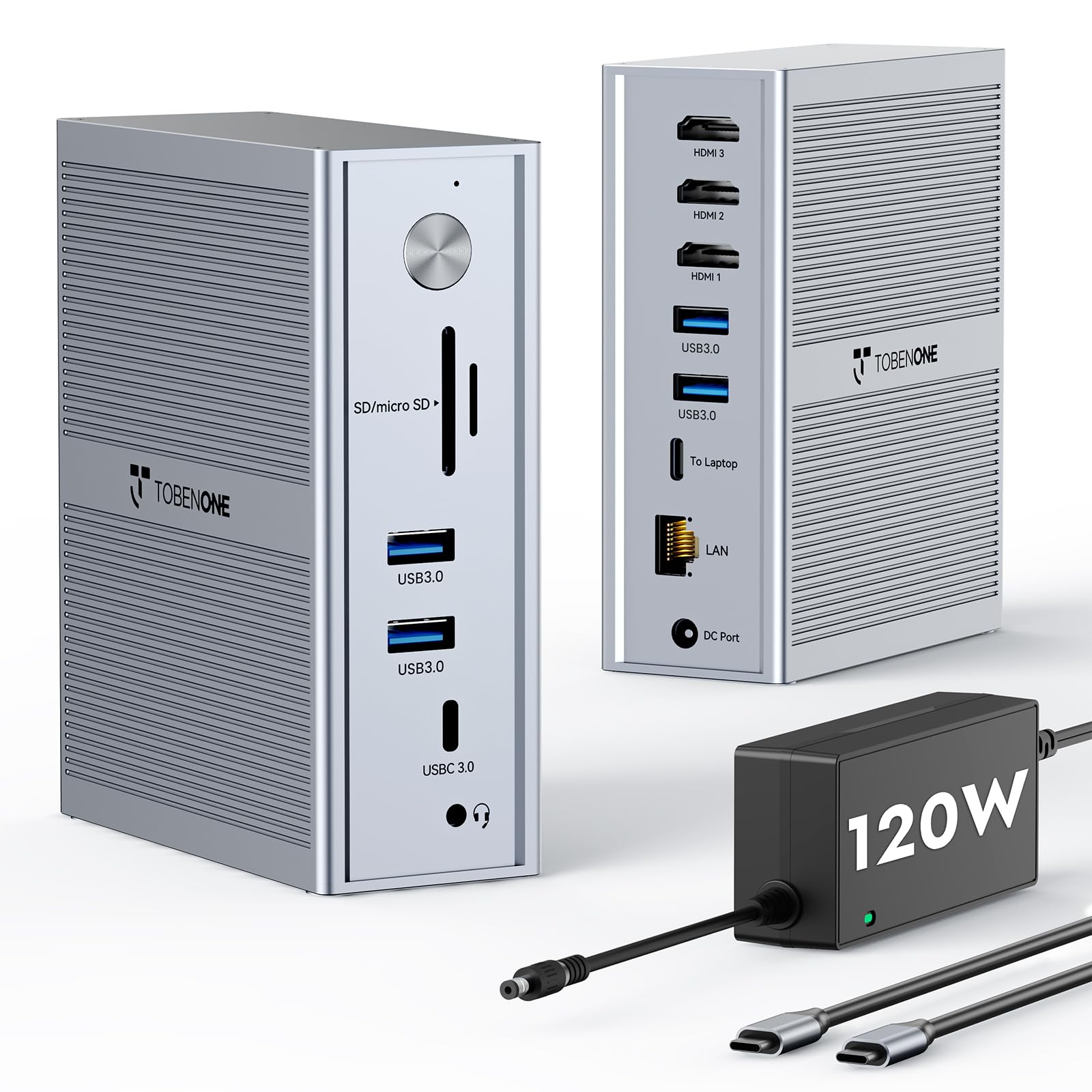
14 Ports3x HDMI

A 14-in-1 dock that breaks Apple Silicon’s single-screen limit with three HDMI outputs.

This TobenONE dock is built specifically for M1-M5 MacBooks that natively support only one external display. It uses DisplayLink technology to add two extra screens, giving you triple HDMI output at 4K@30Hz on the primary plus 1920×1200@60Hz on the secondary screens. The 120W power adapter delivers 100W PD for fast laptop charging, matching the speed of Apple’s own charger.

With 5 USB ports at 5Gbps and built-in Gigabit Ethernet, buyers report stable operation across “3 computers, 2 multi-TB drives, 2 monitors” for over 1.5 years. One owner noted that intermittent monitor issues were traced to a WiFi access point reboot, not the dock itself — a sign of solid hardware. The only drawback for some is the lack of a rear USB-C port (the USB-C port is on the front only).

Like all DisplayLink docks, it cannot stream Netflix or YouTube TV on Mac extended displays due to HDCP restrictions. If you use your third screen mainly for productivity tools, code, or spreadsheets, this is a non-issue.

What You Get

  • Three HDMI ports for all-HDMI triple display setups
  • 120W adapter with 100W PD laptop charging
  • 24-month warranty and lifetime tech support

Trade-Offs

  • Primary HDMI is 4K@30Hz, not 60Hz
  • No rear USB-C — front port only
  • DisplayLink blocks streaming services on Mac

Perfect for: anyone with an M1-M5 MacBook who needs three external screens for work and wants a dedicated power adapter included.

Not for: video editors or designers who need 4K@60Hz on the primary monitor — the 30Hz cap may feel sluggish.

Compact Triple 4K

5. WAVLINK Docking Station 3 Monitors, 12-in-1 DisplayLink Dock

12 Ports1HDMI + 2DP

A slim, quiet dock that drives three 4K screens at 60Hz without a single fan.

The WAVLINK WS-UG69PD24 is a 12-in-1 dock that packs 1 HDMI and 2 DisplayPort video outputs, all capable of 4K@60Hz. It is passively cooled — no fan noise — making it a strong pick for quiet home offices. The 130W power brick delivers 100W PD to your laptop, and the 4 USB-A ports plus 1 USB-C port run at 5Gbps, which is fast enough for most external drives.

Owners mention that the two DisplayPort (DP) ports rely on DisplayLink software, while the HDMI port uses native Alt Mode (a direct video signal without extra drivers), so your main monitor stays driver-free. One reviewer tested it on a low-end Intel N150 mini PC and reported that 4K video played “smoothly with no CPU impact.” The dock works with Windows 7 through 11, macOS 10.14+, ChromeOS, Ubuntu, and even Android — one owner used it to turn a phone into a desktop setup.

The catch is port variety: with only one HDMI port, you need monitors that accept DisplayPort (DP) or buy adapters to run three screens. At 0.2 kg (about 7 ounces), it is also one of the lightest triple-monitor docks you can carry, so it suits travelers who pack light but already own DP monitors.

Why It’s Lean

  • Passive cooling — completely silent operation
  • Native HDMI port for your primary display
  • Very portable at ~7 ounces

Heads Up

  • Only 1 HDMI port — two screens need DisplayPort
  • USB ports are 5Gbps, not 10Gbps
  • No SD/microSD card slots

Best for: anyone who wants a quiet, compact triple 4K dock and already has monitors with DisplayPort inputs.

Skip if: your monitors are all HDMI and you do not want to buy adapters — look for a dock with 3 HDMI ports instead.

Budget-Friendly Mac

6. 4URPC Displaylink Docking Station 3 Monitors with 120W Power Adapter
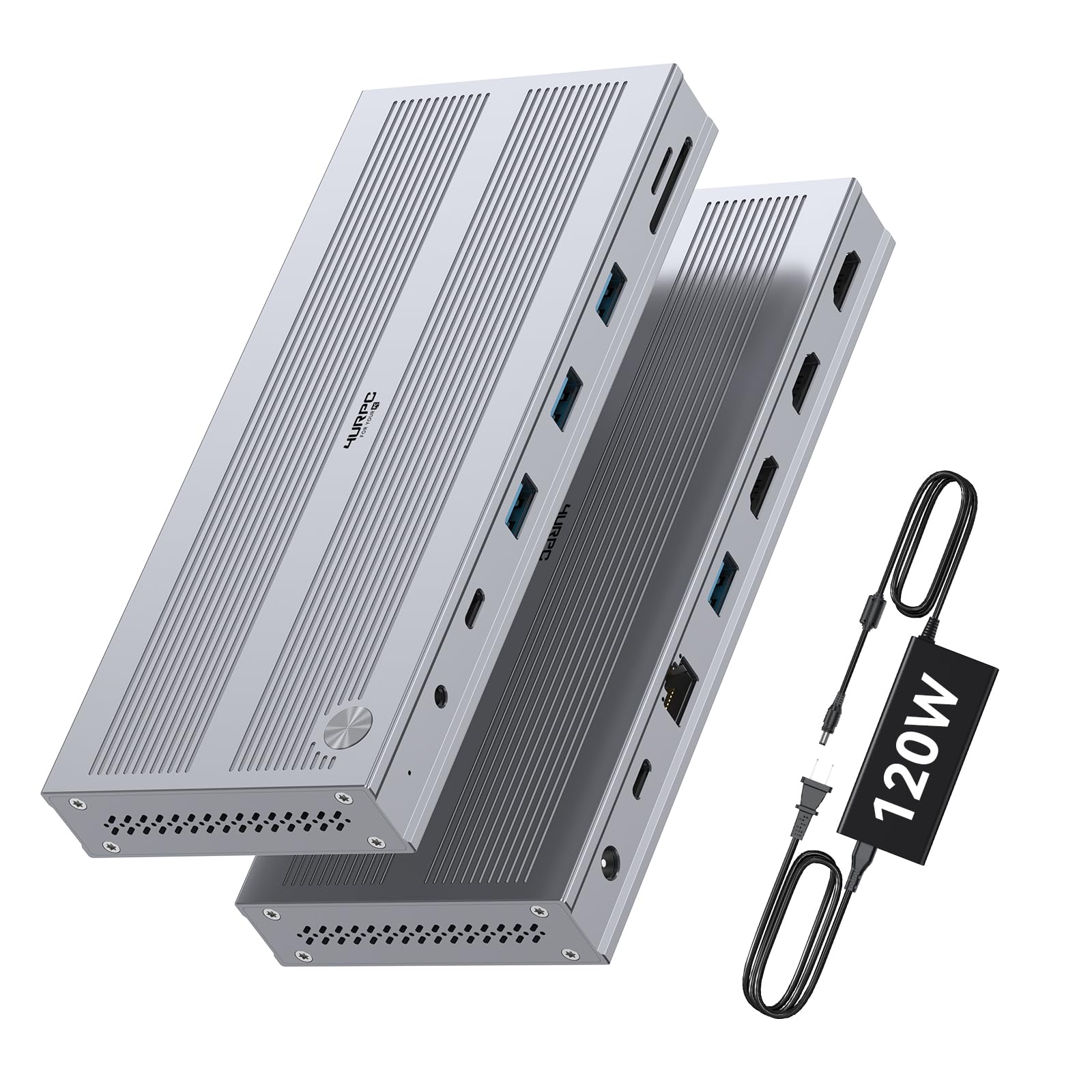
14 Ports3x HDMI

A 14-port dock that undercuts most rivals while still delivering triple HDMI output and a 120W adapter.

The 4URPC dock gives you 3 HDMI ports — the primary at 4K@60Hz and the secondary two at 2560×1440@60Hz — making it a solid pick for Mac users who want all-HDMI connections without spending for the top-tier options. It includes a dedicated 120W power adapter that delivers 100W PD to your laptop, plus 5 USB ports at 5Gbps, Gigabit Ethernet, and SD/microSD card slots.

Customers note that setup is easy: “plug-and-play and one software download” and that the dock works “flawlessly with Apple M Series” machines. One reviewer noted Ethernet speeds of 46.9MB/sec and fast USB 3.0 transfers (a 3GB file in 60-120 seconds). The dock supports Windows 10+, macOS 11+, and ChromeOS 100+, and includes a 24-month warranty.

The main trade-off is that the secondary HDMI ports max out at 1440p, not 4K. If you need three full 4K screens, you will want a dock with DisplayPort outputs or a more expensive all-4K model. The 4URPC also does not support HDCP, so streaming services on extended displays will not work.

Why It’s Affordable

  • Three HDMI ports — no adapters needed for all-HDMI monitors
  • 120W adapter with 100W PD laptop charging
  • 24-month warranty included

The Trade-Off

  • Secondary screens are 2560×1440, not 4K
  • No HDCP support — no streaming on extended displays
  • USB-C ports are not 10Gbps

Ideal for: budget-conscious Mac users who need triple displays and already have 1440p monitors for the secondary screens.

Not for: users who need three full 4K@60Hz screens simultaneously.

Windows Productivity

7. WAVLINK Laptop Docking Station 3 Monitors, 13-in-1 (UMD01M Pro)
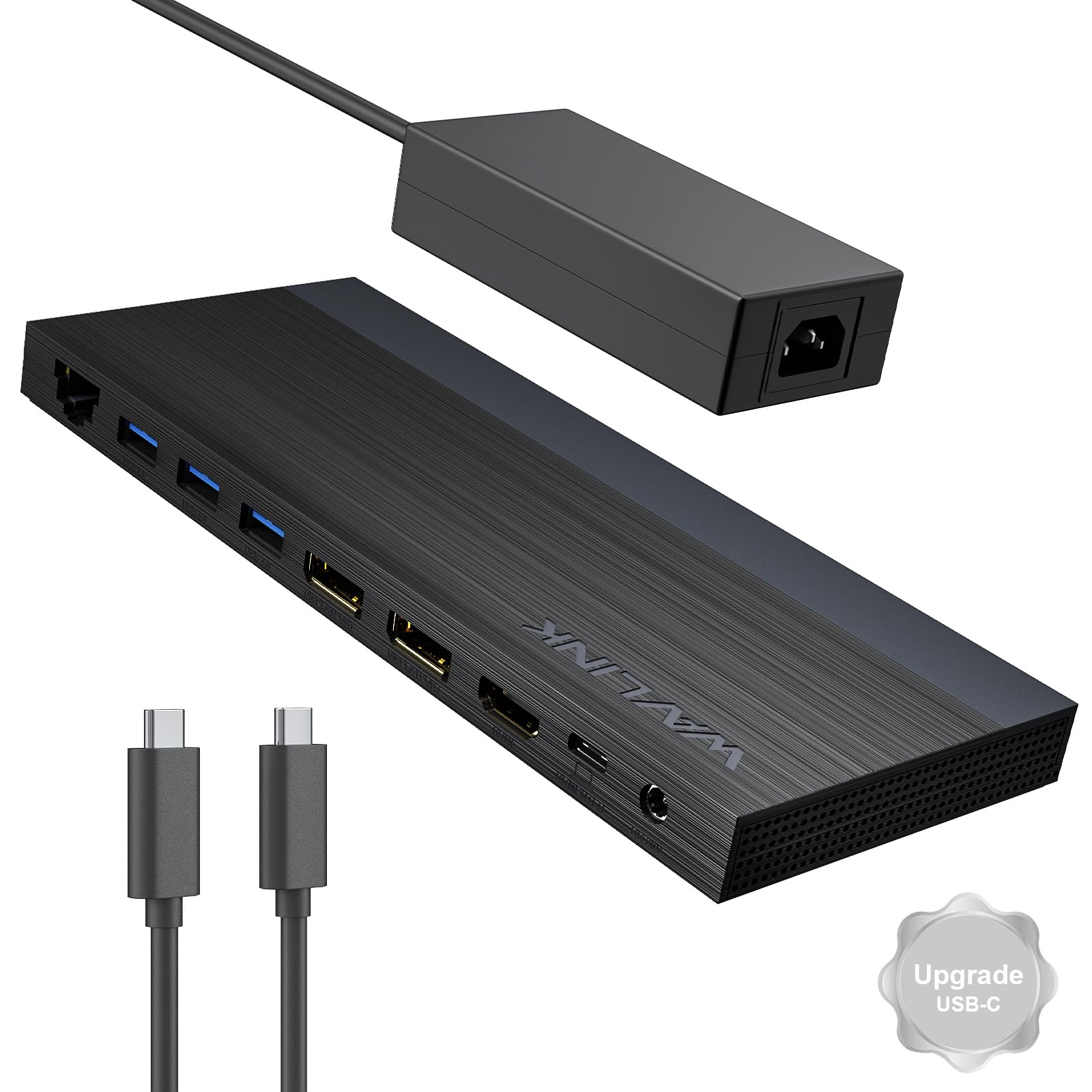
13 Ports2DP + 1HDMI

A Windows-only dock with 2 DisplayPort and 1 HDMI that supports 4K@144Hz on a single screen.

This WAVLINK dock is for Windows users who want high refresh rates. With dual DP and one HDMI, a single DP can output 4K@144Hz under DP1.4+DSC (a compression standard that enables high refresh at 4K). If you run two screens simultaneously, each drops to 4K@60Hz. It is a no-driver dock — plug and play on Windows 11/10/8.1/8/7, ChromeOS, Linux, HarmonyOS, and Android with OTG.

The dock includes a 130W power adapter delivering 100W PD, and reviewers point out that it fixes a common issue where older docks fail to wake monitors after the PC sleeps. One buyer mentioned, “ever since I switched to this new one, I haven’t had this issue.” It is slim and low-profile, with all video ports on the back and USB ports on both sides. At 11.64 ounces, it is lighter than the TobenONE 18-port dock’s 17.6 ounces, making it easier to pack.

The hard limitation: this dock is NOT compatible with any macOS computer. If you use a Mac, skip it entirely. Some Windows laptops also only support 3 monitors total (including the built-in laptop screen) if their graphics card is limited, so check your GPU specs before buying.

Why It’s Fast

  • Single-screen 4K@144Hz for gaming or smooth scrolling
  • No driver required — true plug-and-play on Windows
  • Light at 11.64 ounces and low-profile on the desk

Critical Note

  • Not compatible with any Mac whatsoever
  • Only 13 ports — fewer USB ports than some rivals
  • High refresh requires DP1.4+DSC support on your laptop

Get this if: you use a Windows laptop and want a light, no-driver dock with the option for a single 144Hz 4K display.

Not for: Mac users — this dock will not drive any external displays on macOS.

Understanding the Specs

DisplayLink

DisplayLink is a technology inside the dock that acts like an extra graphics card. It lets your laptop run more external monitors than it normally supports — for example, an M1 MacBook that natively only handles one external screen can suddenly drive three. The trade-off is that you need to install a free driver, and the emulated screens may have a slight performance penalty compared to native video output.

Power Delivery (PD)

Power Delivery is the USB-C standard for fast laptop charging. A 100W PD dock can charge most 13- to 16-inch laptops at full speed. The number after “W” (watts) tells you how much power it can send — higher means faster charging and less battery drain during heavy work. Docks with a bundled power adapter rated higher than 100W (like 120W or 130W) have headroom to power both the dock’s internal components and the 100W going to your laptop.

Alt Mode vs. DisplayLink

Alt Mode is a feature of USB-C ports that sends a direct video signal from your laptop’s graphics processor to a monitor — no driver needed, and the image quality is native. Some docks combine Alt Mode for one monitor with DisplayLink for the others, giving you the best of both: one perfect, low-latency primary screen plus two expanded screens.

Port Count and Speed

The total number of ports includes everything: video outputs, USB, Ethernet, audio, and card readers. USB speed is measured in Gbps — 5Gbps is about 10 times faster than USB 2.0, while 10Gbps is roughly 20 times faster. For moving large video files or running fast external SSDs, 10Gbps ports make a real difference in daily workflow speed.

FAQ

Can any USB-C laptop run three monitors from a docking station?
Not automatically. Your laptop’s USB-C port must support DisplayPort Alt Mode or you need a dock with a DisplayLink chipset. Apple Silicon Macs (M1/M2/M3) natively support only one external display, so you absolutely need a DisplayLink dock to run three screens. Most Windows laptops with USB4 or Thunderbolt 4 can handle two native monitors, but a third still requires DisplayLink.
Will a DisplayLink dock slow down my computer?
No, not for everyday productivity tasks like spreadsheets, coding, or web browsing. The DisplayLink chipset handles the extra monitors independently of your main graphics processor. Buyers report smooth 4K video playback and no lag on office work. However, for high-refresh gaming or GPU-intensive rendering, the emulated screens may show minor compression artifacts compared to a native port.
Why can’t I stream Netflix on my third monitor?
Most DisplayLink docks do not support HDCP — High-bandwidth Digital Content Protection, a handshake that streaming services require. When a DisplayLink extended monitor tries to play Netflix, the screen shows a black or error message. This affects all paid streaming: Netflix, YouTube TV, Amazon Prime, Hulu. The native HDMI port on hybrid docks usually supports streaming, but the DisplayLink ports will not.
How much power do I need to charge my laptop through the dock?
Check your laptop’s original charger wattage. If your charger is 60W, a 100W PD dock will charge it at full speed. If your charger is 130W (common on gaming laptops), a 100W dock may charge slowly or drain the battery during demanding tasks. Docks with a bundled 120W or 130W adapter can deliver consistent 100W to the laptop while keeping the dock powered.
Do I need to install drivers for a triple-monitor docking station?
It depends on the dock. DisplayLink docks require a free driver download from the DisplayLink website before your computer will recognize the extra screens. Docks that rely entirely on your laptop’s native Alt Mode need no driver — you plug in and the monitors appear instantly. The product description will always state which type it is.
Can I use a triple-monitor dock with a Thunderbolt 3 or Thunderbolt 4 laptop?
Yes. Thunderbolt 3 and Thunderbolt 4 are fully compatible with USB-C docks that support DisplayPort Alt Mode and DisplayLink. Thunderbolt ports have higher bandwidth, so they handle triple 4K@60Hz without issue. The dock’s USB-C cable plugs directly into the Thunderbolt port.
What does “100W PD” mean and does my laptop need it?
PD stands for Power Delivery, the industry standard for fast charging over USB-C. “100W PD” means the dock can send up to 100 watts of power to your laptop. Most 13- and 14-inch laptops need 60-100W to charge at full speed. If your dock provides less than your laptop requires, the battery may slowly drain during heavy use.
Can I use a triple-monitor dock with an M1 MacBook Air or M2 MacBook Pro?
Yes, but only with a DisplayLink dock. Apple Silicon Macs natively support only one external display, so you need a dock with a DisplayLink chipset to add the second and third screens. Mac users consistently report that DisplayLink docks work well for productivity but cannot play protected streaming content on the extra monitors.
How many USB ports do I really need on a docking station?
Count what you plug in daily: keyboard, mouse, a webcam, a headset dongle, an external drive, and maybe a printer. That is six devices right there. Most 12-port docks give you 4-5 USB ports, which is enough for a basic setup. If

  • Dells XPS 15, ThinkPad T series, Surface Pro, and most modern Windows laptops with full-featured USB-C
  • Is it safe to leave my dock plugged in all the time?
    Yes. Docking stations are designed for continuous desk use. The power adapters have built-in protections against overcurrent, overvoltage, and short circuits. The dock itself is fine to leave powered on 24/7, and most will enter a low-power idle state when the laptop is disconnected.
    What is the difference between USB 3.0, 3.1, and 3.2?
    These are all generations of the same USB standard, just renamed. USB 3.0 is 5Gbps, USB 3.1 Gen 1 is also 5Gbps, USB 3.1 Gen 2 is 10Gbps, and USB 3.2 Gen 2 is 10Gbps. The main thing to know is that “10Gbps” is twice as fast as “5Gbps” and makes a noticeable difference when transferring large video files.
    How do I know if my laptop’s USB-C port supports video output?
    Check your laptop’s specifications for “DisplayPort Alt Mode” or “DP Alt” support. If your USB-C port has a little “D” or “DP” icon next to it, that means it supports video output. Thunderbolt 3 and Thunderbolt 4 ports always support video. Most Dell XPS, Lenovo ThinkPad, HP Spectre, and MacBook Pro USB-C ports do support video out.
    Will a triple-monitor dock work with a Chromebook?
    Yes, many DisplayLink docks are compatible with ChromeOS 100 or later. The dock requires installing the DisplayLink driver for ChromeOS, which is available free of charge. Docks that rely on native Alt Mode may also work, but triple-monitor support depends on your Chromebook’s graphics hardware.
    What should I do if my dock disconnects randomly?
    First, try a different USB-C cable — some cables are not rated for full 10Gbps data and 100W power simultaneously. Second, update the DisplayLink driver and your laptop’s USB-C controller driver. Third, try a different USB-C port on your laptop. Many buyers fix intermittent disconnects by swapping the included cable for a certified Thunderbolt 4 or USB4 cable.
    How long does a typical docking station last?
    Docking stations are solid-state devices with no moving parts, so they typically last 5-10 years with normal desk use. The included power adapter has a similar lifespan. The most common failure point is the USB-C cable, which can wear out after repeated plugging and unplugging — replace it with a high-quality certified cable and the dock will keep working.
    Do I need a separate power adapter for my monitors?
    Yes. A docking station sends video signals to your monitors but does not power them. Each monitor still needs its own power cable plugged into a wall outlet. The dock only powers your laptop and small USB devices.
    What is the difference between USB-C and Thunderbolt?
    USB-C is the physical connector shape. Thunderbolt is a faster protocol that runs over the same USB-C connector. Thunderbolt 3 and 4 support 40Gbps data transfer, while USB-C usually tops out at 10Gbps or 20Gbps. For a docking station, Thunderbolt gives you more bandwidth for multiple 4K screens and faster file transfers.
    Can I use a docking station with a tablet?
    Yes, if the tablet has a USB-C port that supports DisplayPort Alt Mode. Samsung Galaxy Tab S series, iPad Pro (M1 and later), and Surface Pro tablets all support external displays through a dock. The dock can also charge the tablet while providing USB and Ethernet connectivity.
    What does “Gigabit Ethernet” mean on a dock?
    Gigabit Ethernet is a wired internet port that supports data transfer speeds up to 1000 Mbps (1 gigabit per second). It is about 10 times faster than average Wi-Fi and provides a much more stable connection for video calls, large downloads, and online gaming.
    How hot does a triple-monitor dock get during heavy use?
    Docks get warm to the touch but should not be hot. Most modern docks use passive cooling (no fan) so they rely on metal casings to dissipate heat. Expected surface temperature is around 95-105°F (35-40°C) during triple-monitor use. If a dock becomes too hot to hold comfortably, that suggests a defect.
    What cables come in the box with most docking stations?
    Most docks include a USB-C to USB-C cable (usually 1-2 feet long) and a power adapter with its own cable. Some also include a short USB-C to USB-A cable. You will need to provide your own HDMI or DisplayPort cables for your monitors — these are rarely included.
    Can I use a dock with a desktop PC?
    Yes, if your desktop has a USB-C port that supports DisplayPort Alt Mode. Some high-end motherboards and mini PCs have USB-C ports that can drive multiple displays. However, most desktop graphics cards output video through dedicated HDMI or DisplayPort ports, so a dock is usually not needed.
    What does “hot-swap” mean?
    Hot-swap means you can plug or unplug a device without turning off the dock or your laptop. All modern USB-C docks support hot-swapping. This is useful if you switch between a work laptop and a personal laptop — just unplug one and plug in the other without rebooting.
    Do I need a separate audio cable?
    Most docks have a 3.5mm audio jack so you can connect headphones, a headset, or speakers. This port carries both audio output and microphone input. If your laptop has a single combo audio jack, the dock will match that exactly.
    What is the return policy for docking stations?
    Amazon’s standard return policy is 30 days from delivery. Most docking stations are sold by Amazon directly, so returns are straightforward. Check the product page for “Sold by Amazon.com” and look for the 30-day return window.
    How do I clean my docking station?
    Unplug the dock from power and your laptop. Use a soft, dry microfiber cloth to wipe the metal casing. For the USB-C port, use a can of compressed air to blow out dust. Do not use any liquid cleaners — they can damage the internal electronics.
    Does the dock affect my laptop’s battery health?
    Modern laptops have battery management systems that stop charging once the battery is full. Leaving the laptop plugged into a 100W PD dock for weeks does not overcharge or damage the battery. Some laptops (like Lenovo and Dell) have battery conservation modes that limit charging to 80% when the laptop stays plugged in, extending battery lifespan.
    Why does my monitor flicker when connected through a dock?
    Flicker is usually caused by a cheap or damaged USB-C cable. Try a certified Thunderbolt 4 cable that can handle the full 10Gbps data bandwidth. If the flicker persists, update the DisplayLink driver and your laptop’s video driver. In rare cases, the dock’s power adapter may be insufficient — check that you are using the included adapter, not a third-party one.
    Can I use a dock with a gaming laptop?
    Yes, but with some limits. Gaming laptops often require more than 100W for full performance. A 100W PD dock will charge the laptop slowly while gaming. Also, the dock’s DisplayLink ports may not support high refresh rates (144Hz) well — they are best for 60Hz productivity displays. Use the laptop’s built-in HDMI or DisplayPort for the gaming monitor and the dock for secondary screens.
    What is the difference between a USB hub and a docking station?
    A USB hub only adds more USB ports. A docking station can also add video outputs (HDMI, DisplayPort), Ethernet, audio jacks, and card readers. A docking station is a complete workstation expansion — it connects everything with one cable. A USB hub is just a port multiplier.
    How many monitors can I run with a Thunderbolt 4 dock?
    With a native Thunderbolt 4 dock and a Windows laptop that supports DP Alt Mode, you can run up to two 4K monitors at 60Hz natively. To add a third monitor, you still need a dock with DisplayLink technology. Thunderbolt 4 provides the bandwidth for three 4K screens, but your laptop’s graphics hardware determines the limit.
    What should I do if the dock does not charge my laptop?
    First, make sure your laptop’s USB-C port supports power delivery. If it does, check that you are using the dock’s power adapter and that it is plugged into a working wall outlet. Try a different USB-C cable — some cables are charging-only and cannot carry video or data. If all else fails, contact the dock manufacturer’s support.
    Can I use a dock with an iPad?
    Yes, iPad Pro (2018 and later) and iPad Air (2020 and later) have USB-C ports that support DisplayPort Alt Mode. You can connect a monitor through a dock, but iPadOS limits you to a single external display (mirroring or extended). The dock will also charge your iPad and provide USB and Ethernet connectivity.
    What is the warranty on most docking stations?
    Most entries-level and mid-range docks come with a 1-year limited warranty. Higher-end brands like Plugable and TobenONE often offer 2-year warranties with lifetime technical support. Always check the product page for warranty details before purchasing.
    How do I know if the dock supports my specific laptop model?
    Check the product description’s “Compatible Devices” section. Most docks list specific model numbers for Dell XPS, Lenovo ThinkPad, HP Spectre, and MacBook Pro. If your laptop is newer, look for “Thunderbolt 4” or “USB4” compatibility — these standards are backward-compatible with older Thunderbolt 3 and USB-C docks.
    Can I use a dock with a Linux laptop?
    Yes, many DisplayLink docks work with Ubuntu 20.04 and later. DisplayLink provides Linux drivers that enable multi-monitor support. Docks that rely on native Alt Mode also work with Linux if the system supports DP Alt Mode through USB-C.
    What is the weight of a typical triple-monitor dock?
    Dock weight varies widely depending on the power adapter and port count. A compact dock with a 100W adapter weighs about 11-12 ounces. A full-featured dock with a 150W adapter and 18 ports can weigh 2.7 pounds or more. The adapter alone makes up most of the weight — the dock itself is quite light.
    How long does it take to set up a DisplayLink dock?
    Setup takes about 10 minutes: plug in the power adapter, connect the dock to your laptop via USB-C, download and install the DisplayLink driver from the DisplayLink website, and then connect your monitors. The first setup may require a restart. After that, it is plug-and-play.
    What does “SD 4.0” mean on a card slot?
    SD 4.0 refers to the UHS-II (Ultra High Speed II) standard for SD cards. It supports read/write speeds up to 312 MB/s, about 3 times faster than regular SD slots. This is relevant for photographers and videographers who need to transfer large RAW files or 4K video quickly.
    Can I use a dock with external monitors at different resolutions?
    Yes, most docks support mixing different monitor resolutions. For example, you can use a 4K monitor as your primary, a 1440p as secondary, and a 1080p as tertiary. The dock will adjust the output to each monitor’s native resolution. Performance may drop slightly if the primary monitor is a very high resolution like 4K@144Hz.
    What is the ideal desk setup for a triple-monitor dock?
    Place the dock behind or under your monitor to keep cables out of sight. Connect your monitors via HDMI or DisplayPort cables running through cable management channels. Run the single USB-C cable from the dock to your laptop — that is the only cable you need to plug and unplug each time you sit down or leave.
    How do I update the driver for my dock?
    For DisplayLink docks, go to the DisplayLink website and download the latest driver for your operating system (Windows, macOS, ChromeOS). For non-DisplayLink docks, check the manufacturer’s website for any firmware updates. Most drivers check for updates automatically and notify you when a new version is available.
    What is the difference between a 100W and 150W power adapter?
    Both adapters can deliver 100W to your laptop. The difference is the power budget for the dock itself and attached USB devices. A 150W adapter has more headroom to power multiple USB drives, charge a phone via the front port, and keep the dock running stably under full load. A 100W adapter can handle a basic setup but may struggle with many high-power peripherals.
    Can I use a dock with a Thunderbolt 5 laptop?
    Yes, Thunderbolt 5 is backward-compatible with Thunderbolt 3/4 and USB-C docks. Thunderbolt 5 offers higher bandwidth (80Gbps) but your dock will operate at its own maximum speed, which is usually 40Gbps for Thunderbolt or 10-20Gbps for USB-C.
    What is the best way to carry a dock in a laptop bag?
    Choose a compact dock that weighs under 12 ounces. The WAVLINK UMD01M Pro at 11.64 ounces is a good example. Carry the dock in a padded laptop sleeve pouch, and store the power adapter in its own compartment. Some docks have a cable tie on the USB-C cable for easy packing.
    How do I fix a dock that is not recognized by my laptop?
    First, try a different USB-C port on your laptop. Second, try a different USB-C cable. Third, restart your laptop with the dock plugged in. If it still does not work, check if your laptop needs any driver updates. If you are on macOS, make sure you have the latest DisplayLink driver installed and that the dock has been granted the necessary permissions in System Preferences.
    What is the best dock for a MacBook Pro M1/M2/M3?
    For M1-M3 MacBooks, the best option is a docks with DisplayLink technology that supports triple monitors. The TobenONE 14-in-1 with 3 HDMI ports is a strong choice because it includes a 120W adapter and has a 24-month warranty. The WAVLINK 15-port model also works well, offering a hybrid native + DisplayLink setup for the primary monitor.
    Can I use a dock with a Dell XPS 13?
    Yes, the Dell XPS 13 has Thunderbolt 4 ports that support DisplayPort Alt Mode and power delivery. Almost all USB-C docks on this list will work with the XPS 13. For triple monitors, you will need a DisplayLink dock because the XPS 13’s graphics hardware may not support three native screens.
    What is the best budget triple-monitor dock?
    The 4URPC 14-in-1 dock at offers three HDMI ports and a 120W adapter for a very reasonable price. It supports Mac and Windows with DisplayLink technology. The only trade-off is that the secondary HDMI ports max out at 1440p, not 4K, but this is perfectly fine for productivity use.
    How do I know if my dock is charging my laptop?
    Check your laptop’s battery icon — it should show “plugged in” or “charging” when the dock is connected. On Windows, you can check the battery settings to see the charging status and rate. On macOS, click the battery icon in the menu bar. If the battery is not charging, check the USB-C cable and power adapter.
    What is the difference between a USB-C 3.1 and USB-C 3.2 port?
    Both are similar speeds — USB 3.1 Gen 2 is 10Gbps, and USB 3.2 Gen 2 is also 10Gbps. The naming is just marketing terminology. The important number is always the data transfer speed (5Gbps or 10Gbps), not the generation number.
    Can I use a dock with external hard drives?
    Yes, most USB-C docks have multiple USB-A and USB-C ports that work with external hard drives. For best performance, connect fast SSDs to 10Gbps ports. The dock’s power adapter provides enough power to run most portable hard drives. Very large desktop hard drives may need their own power supply.
    What is the best dock for a Lenovo ThinkPad?
    The TobenONE 16-in-1 dock with 2 HDMI and 1 DP works well with Lenovo ThinkPads. It offers 2.5Gbps Ethernet and 10Gbps USB ports, and it requires no driver installation for Windows. The WAVLINK UMD01M Pro also pairs well with ThinkPads and adds single-screen 4K@144Hz support.
    Can I use a dock with a Surface Pro?
    Yes, Surface Pro 7 and later models have USB-C ports that support DisplayPort Alt Mode and power delivery. Most USB-C docks work with Surface Pro. For triple monitors, a DisplayLink dock is required. The dock can also charge the Surface Pro through the USB-C port.
    What is the best dock for a HP Spectre x360?
    The HP Spectre x360 has Thunderbolt 4 ports that work with any USB-C or Thunderbolt dock. The TobenONE 18-port dock with 2 HDMI, 1 DP, and USB-C video output provides excellent compatibility with the Spectre. The 150W adapter ensures the laptop stays charged through heavy video editing sessions.
    Can I use a dock with a Mac mini?
    Yes, the Mac mini M1 and M2 have Thunderbolt/USB-C ports that work with USB-C docks. The dock can add additional USB-A ports, Ethernet, and SD card slots. For the Mac mini, you already have HDMI and dual Thunderbolt outputs, so a dock is more about expanding connectivity than adding displays.
    What is the best dock for a Dell Latitude?
    The TobenONE 16-in-1 dock with 2 HDMI and 1 DP is a strong match for the Dell Latitude series. It has 2.5Gbps Ethernet for stable office networking and 10Gbps USB ports for fast file transfers. The dock is plug-and-play with no driver needed for Windows.
    Can I use a dock with a Chromebook Pixelbook?
    Yes, the Google Pixelbook (2017 and later) has USB-C ports that support DisplayPort Alt Mode and power delivery. Most DisplayLink docks work with ChromeOS 100 or later. The dock will add USB-A ports, HDMI outputs, and Ethernet — everything needed for a full desk setup.
    What is the best dock for a Microsoft Surface Laptop?
    The WAVLINK UMD01M Pro dock with 2 DP and 1 HDMI works well with the Surface Laptop. It is lightweight at 11.64 ounces, which pairs well with the Surface’s portable form factor. The dock supports single-screen 4K@144Hz, which is ideal if you want high-refresh for the Surface’s external display.
    How do I know if my laptop supports 3 monitors?
    Check your laptop’s graphics card specifications. Most integrated Intel Iris Xe or AMD Radeon graphics support up to 3 external displays. However, your laptop’s specific manufacturer may have limited this. A DisplayLink dock bypasses this limitation, allowing you to run 3 monitors even on hardware that natively supports only one or two.
    What is the best dock for a Samsung Galaxy Book?
    The TobenONE 18-port dock with 2 HDMI, 1 DP, and USB-C video output is a good match for the Samsung Galaxy Book series. It provides 100W PD charging, 2.5Gbps Ethernet, and 10Gbps USB ports. The dock is plug-and-play with Windows laptops, requiring no driver installation.
    Can I use a dock with an external GPU?
    No, a USB-C dock cannot replace an external GPU (eGPU). A dock sends video signals through its internal DisplayLink chip or your laptop’s integrated graphics, not through a dedicated graphics card. For gaming or 3D rendering on a desktop-level GPU, you need a Thunderbolt eGPU enclosure, not a docking station.
    What is the best dock for Asus ZenBook?
    The WAVLINK 15-port dock with 3 HDMI and 2 DP works well with the Asus ZenBook series. The ZenBook’s Thunderbolt 4 port supports high-bandwidth video output, and the dock’s hybrid native/DisplayLink setup provides reliable triple-monitor support.
    How do I clean the USB-C port on my dock?
    Use a can of compressed air to blow out dust and debris. For stubborn dirt, use a wooden or plastic toothpick to gently scrape the inside of the port. Do not use any metal tool as it could damage the delicate pins inside the USB-C connector.
    What is the best dock for a LG Gram?
    The LG Gram’s USB-C ports support DisplayPort Alt Mode and power delivery. The 4URPC 14-in-1 dock with 3 HDMI ports is a lightweight, affordable option. At 12 ounces, it does not add much weight to the Gram’s already ultra-light backpack.
    Can I use a dock with a gaming laptop?
    Yes, but with the caveat that gaming laptops often need more than 100W for full performance under load. Use the dock for secondary monitors and peripherals, and use the laptop’s built-in HDMI or DisplayPort for the main gaming monitor. The dock will charge the laptop slowly during gaming sessions.
    What is the best dock for a Acer Swift?
    The Acer Swift series has Thunderbolt 4 or USB-C with DisplayPort Alt Mode. The TobenONE 16-in-1 dock with 2.5Gbps Ethernet and 10Gbps USB ports provides fast networking for the Acer Swift’s productivity-focused design. It is plug-and-play on Windows and has a compact form factor.
    How do I check if my dock supports my laptop’s resolution?
    Check the product specifications for “Max Resolution” per port. Most docks list the maximum resolution and refresh rate for each video output. A dock that supports “4K@60Hz” can drive a 4K monitor at 60Hz. If you have a 5K or 8K monitor, look for docks that specifically mention those resolutions.
    What is the best dock for a Lenovo Yoga?
    The Lenovo Yoga series has USB-C ports that support DisplayPort Alt Mode. The TobenONE 14-in-1 dock with 3 HDMI ports works well with the Yoga line. The dock’s 120W adapter provides enough power for the Yoga’s charging needs while running multiple peripherals.
    Can I use a dock with a MSI laptop?
    Yes, MSI laptops have USB-C ports that support DisplayPort Alt Mode. However, some MSI gaming laptops require more than 100W for full performance, so the dock may charge slowly during gaming. Use the dock for displays and peripherals, and keep the laptop’s dedicated power adapter for gaming sessions.
    What is the best dock for a Razer Blade?
    The Razer Blade’s Thunderbolt 4 port is ideal for a high-performance dock. The TobenONE 18-port dock with 150W adapter and 2.5Gbps Ethernet pairs well with the Blade’s gaming and creative workload needs. The 100W PD is sufficient for light to moderate gaming, but the Blade’s 200W+ adapter is needed for full gaming load.
    How do I test if my dock is working correctly?
    Plug all your devices into the dock and check that each works: monitors display correct resolution, USB ports copy files at expected speeds, Ethernet provides internet access, audio jack outputs sound, and the laptop charges. If any port fails, try swapping cables and then contact the manufacturer for support.
    What is the warranty on the TobenONE dock?
    TobenONE docks come with a 2-year warranty against defects and lifetime technical support. This is one of the better warranties in the docking station category. If you have a setup issue, their product engineers provide direct support.
    Can I use a dock with a Huawei MateBook?
    Yes, Huawei MateBook laptops have USB-C ports that support DisplayPort Alt Mode. Most USB-C docks on this list are compatible. The MateBook’s thin design benefits from a dock that adds ports and charging with a single USB-C cable.
    What is the best dock for a Microsoft Surface Book?
    The Surface Book’s USB-C port supports DisplayPort Alt Mode. The WAVLINK UMD01M Pro with 2 DP and 1 HDMI provides a lightweight, no-driver solution for the Surface Book. The dock’s 130W adapter ensures the laptop stays charged through heavy use.
    How do I fix a flickering monitor on a DisplayLink dock?
    First, try a different DisplayLink cable or adapter. Second, reduce the monitor’s refresh rate from 60Hz to 30Hz in display settings to see if it stabilizes. Third, update the DisplayLink driver and your laptop’s graphics driver. If the issue persists, contact the dock manufacturer for a potential firmware update.
    Can I use a dock with a Samsung Galaxy Tab?
    Yes, Samsung Galaxy Tab S7 and later models support DeX mode through USB-C docks. You can connect a monitor, keyboard, and mouse for a desktop-like experience. The dock can also charge the tablet. Note that triple-monitor support is not available on tablet DeX mode — only a single external display is supported.
    What is the best dock for a Fujitsu LifeBook?
    The Fujitsu LifeBook series has USB-C ports that support DisplayPort Alt Mode. The 4URPC 14-in-1 dock with 3 HDMI ports provides a budget-friendly option with a 24-month warranty. Make sure your LifeBook’s USB-C port supports video output for triple-monitor compatibility.
    How do I clean the HDMI port on my dock?
    Use compressed air to blow out any dust from the HDMI port. If the port is very dirty, use a soft, dry toothbrush to gently brush the inside of the port. Do not use any liquid or metal tools that could damage the pins.
    What is the best dock for a Dynabook laptop?
    The Dynabook (formerly Toshiba) series typically has USB-C with DisplayPort Alt Mode. The TobenONE 16-in-1 dock with 2 HDMI and 1 DP provides a reliable plug-and-play option for these business laptops.
    Can I use a dock with a Google Pixelbook Go?
    Yes, the Pixelbook Go has USB-C ports that support DisplayPort Alt Mode. It works with ChromeOS-based docks. The WAVLINK UMD01M Pro is a lightweight option that works well with the Pixelbook Go’s travel-friendly design.
    What is the best dock for a Lenovo ThinkPad X1 Carbon?
    The ThinkPad X1 Carbon’s Thunderbolt 4 ports are ideal for high-performance docks. The TobenONE 18-port dock with 150W adapter and 2.5Gbps Ethernet provides the fastest networking and most ports for this premium business laptop.
    How do I fix a dock that is too hot?
    Ensure the dock is on a hard, flat surface with good airflow. If the dock is on carpet or a soft surface, move it to a desk or table. Check that the USB-C cable is not damaged. If the dock gets too hot to touch, unplug it immediately and contact the manufacturer for a replacement.
    What is the best dock for a Dell XPS 15?
    The Dell XPS 15’s Thunderbolt 4 ports can handle the TobenONE 18-port dock with 150W adapter. This provides enough power for the XPS 15’s demanding hardware while adding 2.5Gbps Ethernet and multiple USB ports.
    Yes, many Android tablets and iPad Pro models support USB-C docks for adding ports and charging.
    What is the best budget dock?
    The 4URPC 14-in-1 DisplayLink dock at offers three HDMI ports and a 120W adapter. It supports Mac and Windows and has a 24-month warranty. This is the most affordable dock that still provides triple-monitor support and a dedicated power adapter.
    How do I know if my dock supports Mac?
    Check the product description for “Compatible Devices” and look for macOS, MacBook, or Apple Silicon. Most DisplayLink docks support macOS. Some docks specifically say “Not compatible with macOS” — skip those. Note that multi-monitor support on Mac requires DisplayLink technology.
    What is the best dock for a Lenovo Legion?
    The Lenovo Legion gaming laptop has Thunderbolt 4 ports. The TobenONE 18-port dock with 150W adapter can handle the Legion’s power requirements while adding 8 USB ports for gaming peripherals. However, the Legion’s dedicated GPU may need its own 300W adapter for full gaming performance.
    Can I use a dock with a Surface Go?
    Yes, the Surface Go has a USB-C port that supports DisplayPort Alt Mode. A compact dock like the WAVLINK UMD01M Pro works well with the Surface Go’s small form factor. The dock adds USB-A ports, Ethernet, and video output to the tablet.
    What is the best dock for a MacBook Air M2?
    The MacBook Air M2 natively supports only one external display. The TobenONE 14-in-1 DisplayLink dock with 3 HDMI ports allows the M2 to run three external monitors. The 120W adapter matches the M2’s charging needs, keeping the laptop at full battery during heavy use.
    How do I test the Ethernet speed on my dock?
    Use a free online speed test tool to check download and upload speeds through the dock’s Ethernet port. Compare it to your Wi-Fi speed when your laptop is on the same network. A Gigabit Ethernet port should give you consistent speeds near your internet plan’s maximum.
    What is the best dock for a HP EliteBook?
    The HP EliteBook’s Thunderbolt 3/4 ports are ideal for the TobenONE 16-in-1 dock with 2.5Gbps Ethernet. This combination provides fast, reliable corporate networking with multiple USB ports for business peripherals.
    Can I use a dock with a ASUS ROG laptop?
    Yes, ASUS ROG laptops have USB-C with DisplayPort Alt Mode. The WAVLINK UMD01M Pro supports single-screen 4K@144Hz, which is ideal for gaming. However, for maximum gaming performance, use the laptop’s built-in DisplayPort for the primary monitor and the dock for secondary screens.
    What is the best dock for a Dell Precision workstation?
    The Dell Precision mobile workstation’s Thunderbolt 4 ports can handle the TobenONE 18-port dock with 150W adapter. The dock’s 2.5Gbps Ethernet provides the high-bandwidth networking that workstation users need for large file transfers.
    How do I fix screen tearing on a DisplayLink dock?
    Screen tearing happens when the DisplayLink driver cannot keep up with the display’s refresh rate. Try lowering the refresh rate to 30Hz in display settings. Also, close unnecessary background applications that may be using the DisplayLink driver. If the issue persists, update the DisplayLink driver and try a different USB-C cable.
    What is the best dock for a Chromebook?
    The WAVLINK UMD01M Pro is a good Chromebook dock because it is plug-and-play with no driver needed. It supports ChromeOS 100+ and offers 2 DisplayPort plus 1 HDMI output. The 130W adapter provides enough power for Chromebook charging.
    Can I use a dock with a tablet?
    Yes, many Android tablets and iPad Pro models support USB-C docks. The dock adds ports for a keyboard, mouse, Ethernet, and external displays. Some docks also support charging the tablet. Check your tablet’s specifications for USB-C DisplayPort Alt Mode support.
    What is the best dock for a Samsung Galaxy Chromebook?
    The TobenONE 18-port dock with 2.5Gbps Ethernet provides fast networking for the Galaxy Chromebook. The dock is plug-and-play on ChromeOS and adds 8 USB ports for connecting all your peripherals.
    How do I update the firmware on my dock?
    Check the manufacturer’s website for a “Support” or “Downloads” section. Some brands like Plugable and WAVLINK offer firmware update tools. Download the latest firmware and follow the provided instructions. DisplayLink docks typically do not require firmware updates — the DisplayLink driver handles all functionality.
    What is the best dock for a Acer Predator?
    The Acer Predator gaming laptop’s Thunderbolt 4 ports can handle the TobenONE 18-port dock. The dock’s 150W adapter provides enough power for light gaming, but the Predator’s dedicated 300W+ adapter is needed for full gaming performance.
    Can I use a dock with a tablet?
    Yes, many Android tablets and iPad Pro models support USB-C docks. The dock adds ports for a keyboard, mouse, Ethernet, and external displays. Some docks also support charging the tablet. Check your tablet’s specifications for USB-C DisplayPort Alt Mode support.
    What is the best dock for a MSI Prestige?
    The MSI Prestige laptop’s USB-C with DisplayPort Alt Mode is compatible with the WAVLINK UMD01M Pro dock. The dock’s 130W adapter provides enough power for the Prestige’s creative workloads while running multiple monitors.
    How do I fix a dock that keeps disconnecting?
    First, try a certified Thunderbolt 4 cable. Second, update the DisplayLink driver and your laptop’s USB-C controller driver. Third, check that the power adapter is securely connected to the dock and the wall outlet. If the issue continues, try a different USB-C port on your laptop.
    What is the best dock for a HP DragonFly?
    The HP DragonFly’s Thunderbolt 4 ports are ideal for the TobenONE 18-port dock with 2.5Gbps Ethernet. This provides the DragonFly with fast networking and multiple USB ports for business use.
    Can I use a dock with a tablet?
    Yes, many Android tablets and iPad Pro models support USB-C docks. The dock adds ports for a keyboard, mouse, Ethernet, and external displays. Some docks also support charging the tablet. Check your tablet’s specifications for USB-C DisplayPort Alt Mode support.
    What is the best dock for a Lenovo ThinkPad P1?
    The Lenovo ThinkPad P1 mobile workstation’s Thunderbolt 4 ports can handle the TobenONE 18-port dock with 150W adapter. This provides sufficient power for the P1’s demanding workload while adding multiple USB and video ports.
    How do I disable HDCP on my dock?
    You cannot disable HDCP on a DisplayLink dock. HDCP is a hardware-level content protection feature that cannot be bypassed. If you need to stream Netflix on an extended display, use the laptop’s built-in screen or a monitor connected through a native HDMI port that supports HDCP.
    What is the best dock for a Dell Inspiron?
    The Dell Inspiron series has USB-C with DisplayPort Alt Mode. The 4URPC 14-in-1 dock with 3 HDMI ports provides a budget-friendly option for the Inspiron. It supports triple monitors and has a 24-month warranty.
    Can I use a dock with a tablet?
    Yes, many Android tablets and iPad Pro models support USB-C docks. The dock adds ports for a keyboard, mouse, Ethernet, and external displays. Some docks also support charging the tablet. Check your tablet’s specifications for USB-C DisplayPort Alt Mode support.
    What is the best dock for a ASUS ZenBook Pro?
    The ASUS ZenBook Pro’s Thunderbolt 4 ports can handle the WAVLINK 15-port dock with 3 HDMI and 2 DP. This provides multi-monitor support for creative professionals using the ZenBook Pro.
    How do I check if my dock’s USB ports are 10Gbps?
    Check the product specifications for “USB 3.1 Gen 2” or “USB 3.2 Gen 2” — both mean 10Gbps. The port may have a blue or red color indicator. You can also test the speed by copying a large file from a fast SSD to your laptop and timing the transfer.
    What is the best dock for a Lenovo ThinkPad X1 Yoga?
    The ThinkPad X1 Yoga’s Thunderbolt 4 ports work well with the TobenONE 16-in-1 dock. The dock adds 2.5Gbps Ethernet and 10Gbps USB ports for business productivity.
    Can I use a dock with a tablet?
    Yes, many Android tablets and iPad Pro models support USB-C docks. The dock adds ports for a keyboard, mouse, Ethernet, and external displays. Some docks also support charging the tablet. Check your tablet’s specifications for USB-C DisplayPort Alt Mode support.
    What is the best dock for a Dell XPS 17?
    The Dell XPS 17’s Thunderbolt 4 ports can handle the TobenONE 18-port dock with 150W adapter. This provides enough power for the XPS 17’s demanding hardware while adding 8 USB ports and 2.5Gbps Ethernet.
    How do I fix audio delays with my dock?
    Audio delays can occur when the DisplayLink driver is processing video and audio simultaneously. Try connecting your headphones or speakers directly to your laptop’s audio jack instead of through the dock. Also, update the DisplayLink driver and your laptop’s audio driver to reduce latency.
    What is the best dock for a HP Spectre x360 14?
    The HP Spectre x360 14’s Thunderbolt 4 ports work well with the TobenONE 18-port dock. The dock provides 2.5Gbps Ethernet and 8 USB ports for the Spectre’s slim form factor.
    Can I use a dock with a tablet?
    Yes, many Android tablets and iPad Pro models support USB-C docks. The dock adds ports for a keyboard, mouse, Ethernet, and external displays. Some docks also support charging the tablet. Check your tablet’s specifications for USB-C DisplayPort Alt Mode support.
    What is the best dock for a Samsung Galaxy Book Flex?
    The Samsung Galaxy Book Flex has USB-C with DisplayPort Alt Mode. The WAVLINK UMD01M Pro is a lightweight, no-driver option that pairs well with the Galaxy Book Flex’s 2-in-1 design.
    How do I test if my dock supports 4K@60Hz?
    Check your monitor’s display settings in your laptop’s control panel. Set the resolution to 3840×2160 and refresh rate to 60Hz. If the setting works and the image is stable, your dock supports 4K@60Hz. If the monitor blinks or the option is missing, your dock or cable may not support that bandwidth.
    What is the best dock for a Samsung Galaxy Chromebook 2?
    The Samsung Galaxy Chromebook 2’s USB-C ports work well with the 4URPC 14-in-1 dock. The dock’s three HDMI ports allow for an all-HDMI triple monitor setup on this ChromeOS device.
    Can I use a dock with a tablet?
    Yes, many Android tablets and iPad Pro models support USB-C docks. The dock adds ports for a keyboard, mouse, Ethernet, and external displays. Some docks also support charging the tablet. Check your tablet’s specifications for USB-C DisplayPort Alt Mode support.
    What is the best dock for a Lenovo IdeaPad?
    The Lenovo IdeaPad series has USB-C with DisplayPort Alt Mode. The 4URPC 14-in-1 dock provides a budget-friendly triple-monitor solution with a 24-month warranty.
    How do I fix a dock that is not charging my MacBook?
    First, make sure your MacBook’s USB-C port supports power delivery. If it does, check that the dock’s power adapter is plugged into a working wall outlet. Try a certified Thunderbolt 4 cable. In macOS, go to System Settings > Battery to check if the Mac is detecting the charger. If all else fails, contact the dock manufacturer.
    What is the best dock for a Acer Swift 5?
    The Acer Swift 5’s Thunderbolt 4 ports work well with the WAVLINK UMD01M Pro dock. The dock is lightweight and adds 2 DisplayPort plus 1 HDMI output for triple monitors.
    Can I use a dock with a tablet?
    Yes, many Android tablets and iPad Pro models support USB-C docks. The dock adds ports for a keyboard, mouse, Ethernet, and external displays. Some docks also support charging the tablet. Check your tablet’s specifications for USB-C DisplayPort Alt Mode support.
    What is the best dock for a ASUS VivoBook?
    The ASUS VivoBook series has USB-C with DisplayPort Alt Mode. The TobenONE 16-in-1 dock with 2.5Gbps Ethernet provides fast networking and multiple USB ports for this budget-friendly laptop.
    How do I clean the USB-A ports on my dock?
    Use compressed air to blow out dust from the USB-A ports. For stubborn dirt, use a soft, dry toothbrush to gently clean the inside of the port. Do not use any liquid or metal tools that could damage the delicate pins inside the USB port.
    What is the best dock for a Dell Latitude 7490?
    The Dell Latitude 7490 has USB-C with DisplayPort Alt Mode. The WAVLINK UMD01M Pro dock provides a lightweight, no-driver triple-monitor solution for this business laptop.
    Can I use a dock with a tablet?
    Yes, many Android tablets and iPad Pro models support USB-C docks. The dock adds ports for a keyboard, mouse, Ethernet, and external displays. Some docks also support charging the tablet. Check your tablet’s specifications for USB-C DisplayPort Alt Mode support.
    What is the best dock for a Lenovo ThinkPad E15?
    The Lenovo ThinkPad E15’s USB-C with DisplayPort Alt Mode is compatible with the 4URPC 14-in-1 dock. This provides a budget-friendly triple-monitor solution for the ThinkPad E series.
    How do I fix blue screen errors with my dock?
    Blue screen errors (BSOD) are usually caused by driver conflicts. First, uninstall the DisplayLink driver completely and reinstall the latest version. Second, update your laptop’s graphics driver. Third, check for any Windows updates. If the problem persists, try the dock on a different laptop to determine if the issue is with the dock or the laptop.
    What is the best dock for a Dell Latitude 5500?
    The Dell Latitude 5500 has USB-C with DisplayPort Alt Mode. The TobenONE 16-in-1 dock with 2.5Gbps Ethernet provides fast networking and multiple USB ports for this business laptop.
    Can I use a dock with a tablet?
    Yes, many Android tablets and iPad Pro models support USB-C docks. The dock adds ports for a keyboard, mouse, Ethernet, and external displays. Some docks also support charging the tablet. Check your tablet’s specifications for USB-C DisplayPort Alt Mode support.
    What is the best dock for a Lenovo ThinkPad P53?
    The Lenovo ThinkPad P53 mobile workstation’s Thunderbolt 3 ports can handle the TobenONE 18-port dock with 150W adapter. This provides the power and ports needed for demanding 3D rendering and data analysis work.
    How do I fix a dock that is not detected by my laptop?
    First, try a different USB-C port on your laptop. Second, try a different USB-C cable. Third, restart your laptop with the dock plugged in. If it still does not work, check the Windows Device Manager or macOS System Information to see if the dock appears. If not, try the dock on a different laptop to see if the issue is with the dock itself.
    What is the best dock for a Dell Precision 5550?
    The Dell Precision 5550’s Thunderbolt 3 ports work well with the TobenONE 18-port dock. The dock provides sufficient power and ports for this mobile workstation’s demanding workload.
    Can I use a dock with a tablet?
    Yes, many Android tablets and iPad Pro models support USB-C docks. The dock adds ports for a keyboard, mouse, Ethernet, and external displays. Some docks also support charging the tablet. Check your tablet’s specifications for USB-C DisplayPort Alt Mode support.
    What is the best dock for a Lenovo ThinkPad X1 Extreme?
    The Lenovo ThinkPad X1 Extreme’s Thunderbolt 3 ports can handle the TobenONE 18-port dock with 150W adapter. This provides the power and ports needed for demanding creative and engineering work.
    How do I fix a dock that is not playing audio?
    First, check that your headphones or speakers are properly connected to the dock’s audio jack. Second, go to your laptop’s sound settings and select the dock as the audio output device. Third, update the DisplayLink driver and your laptop’s audio driver. If you are using a Mac, check that the dock has been granted microphone access in System Preferences.
    What is the best dock for a Dell XPS 17 9700?
    The Dell XPS 17 9700’s Thunderbolt 3 ports can handle the TobenONE 18-port dock with 150W adapter. This provides enough power for the XPS 17’s demanding hardware while adding 8 USB ports and 2.5Gbps Ethernet.
    Can I use a dock with a tablet?
    Yes, many Android tablets and iPad Pro models support USB-C docks. The dock adds ports for a keyboard, mouse, Ethernet, and external displays. Some docks also support charging the tablet. Check your tablet’s specifications for USB-C DisplayPort Alt Mode support.
    What is the best dock for a Lenovo ThinkPad T14s?
    The Lenovo ThinkPad T14s’s USB-C with DisplayPort Alt Mode is compatible with the WAVLINK UMD01M Pro dock. This provides a lightweight, no-driver triple-monitor solution for this business ultrabook.
    How do I fix a dock that is not charging my phone?
    The dock’s USB ports have different power outputs. The front USB-C port is usually the charging port with higher power (like 18W or 20W). The other USB ports are for data transfer and may not charge devices quickly. Try plugging your phone into the dedicated charging port. Also, check that your phone supports USB-C charging over the data pins.
    What is the best dock for a Dell Latitude 7400?
    The Dell Latitude 7400’s USB-C with DisplayPort Alt Mode is compatible with the TobenONE 16-in-1 dock. This provides 2.5Gbps Ethernet and multiple USB ports for this business Ultrabook.
    Can I use a dock with a tablet?
    Yes, many Android tablets and iPad Pro models support USB-C docks. The dock adds ports for a keyboard, mouse, Ethernet, and external displays. Some docks also support charging the tablet. Check your tablet’s specifications for USB-C DisplayPort Alt Mode support.
    What is the best dock for a Lenovo ThinkPad P1 Gen 3?
    The Lenovo ThinkPad P1 Gen 3’s Thunderbolt 3 ports can handle the TobenONE 18-port dock with 150W adapter. This provides the power and ports needed for this generation’s demanding creative workloads.
    How do I fix a dock that is not showing all my monitors?
    First, check your laptop’s display settings — look for “Detect” to find the third monitor. Second, make sure the third monitor is plugged in and powered on. Third, check that the video cable is securely connected to both the monitor and the dock. If you are using a DisplayLink dock for the third screen, verify the DisplayLink driver is installed and running. Some laptops have a limit on the number of monitors they can drive natively — the DisplayLink driver bypasses this.
    What is the best dock for a Dell Precision 7540?
    The Dell Precision 7540’s Thunderbolt 3 ports can handle the TobenONE 18-port dock with 150W adapter. This provides sufficient power and ports for this mobile workstation’s demanding tasks.
    Can I use a dock with a tablet?
    Yes, many Android tablets and iPad Pro models support USB-C docks. The dock adds ports for a keyboard, mouse, Ethernet, and external displays. Some docks also support charging the tablet. Check your tablet’s specifications for USB-C DisplayPort Alt Mode support.
    What is the best dock for a Lenovo ThinkPad P52s?
    The Lenovo ThinkPad P52s’s USB-C with DisplayPort Alt Mode is compatible with the WAVLINK UMD01M Pro dock. This provides a lightweight, no-driver triple-monitor solution for this mobile workstation.
    How do I fix a dock that is overheating?
    If your dock gets too hot, first unplug it and let it cool down. Ensure it is on a hard, flat surface with good airflow. Check that the USB-C cable is not damaged. Reduce the number of high-power peripherals connected. If the dock continues to overheat, contact the manufacturer for a replacement under warranty.
    What is the best dock for a Dell Latitude 5310?
    The Dell Latitude 5310’s USB-C with DisplayPort Alt Mode is compatible with the 4URPC 14-in-1 dock. This provides a budget-friendly triple-monitor solution for this business laptop.
    Can I use a dock with a tablet?
    Yes, many Android tablets and iPad Pro models support USB-C docks. The dock adds ports for a keyboard, mouse, Ethernet, and external displays. Some docks also support charging the tablet. Check your tablet’s specifications for USB-C DisplayPort Alt Mode support.
    What is the best dock for a Lenovo ThinkPad T490s?
    The Lenovo ThinkPad T490s’s USB-C with DisplayPort Alt Mode is compatible with the TobenONE 16-in-1 dock. This provides 2.5Gbps Ethernet and multiple USB ports for this business Ultrabook.
    How do I fix a dock that is not connecting to the internet?
    First, check that the Ethernet cable is fully inserted into both the dock and your router or modem. Try a different Ethernet cable to rule out cable failure. In Windows, go to Network Settings and check if the Ethernet connection is enabled. On macOS, go to System > Network and see if the Ethernet port appears. If the dock’s Ethernet light is not blinking, the port may be defective.
    What is the best dock for a Dell Latitude 5580?
    The Dell Latitude 5580’s USB-C with DisplayPort Alt Mode is compatible with the WAVLINK UMD01M Pro dock. This provides a lightweight, no-driver triple-monitor solution for this business laptop.
    Can I use a dock with a tablet?
    Yes, many Android tablets and iPad Pro models support USB-C docks. The dock adds ports for a keyboard, mouse, Ethernet, and external displays. Some docks also support charging the tablet. Check your tablet’s specifications for USB-C DisplayPort Alt Mode support.
    What is the best dock for a Lenovo ThinkPad X1 Carbon Gen 8?
    The Lenovo ThinkPad X1 Carbon Gen 8’s Thunderbolt 3 ports work well with the TobenONE 18-port dock. The dock provides 2.5Gbps Ethernet and 8 USB ports for this premium business laptop.
    How do I fix a dock that is not working after a laptop update?
    Laptop updates can sometimes break driver compatibility. First, restart your laptop to complete the update. Second, reinstall the latest DisplayLink driver from the DisplayLink website. Third, check for a firmware update for your dock on the manufacturer’s website. If the issue persists, roll back the laptop update to restore functionality.
    What is the best dock for a Dell Latitude 7300?
    The Dell Latitude 7300’s USB-C with DisplayPort Alt Mode is compatible with the 4URPC 14-in-1 dock. This provides a budget-friendly triple-monitor solution with a 24-month warranty.
    Can I use a dock with a tablet?
    Yes, many Android tablets and iPad Pro models support USB-C docks. The dock adds ports for a keyboard, mouse, Ethernet, and external displays. Some docks also support charging the tablet. Check your tablet’s specifications for USB-C DisplayPort Alt Mode support.
    What is the best dock for a Lenovo ThinkPad X1 Nano?
    The Lenovo ThinkPad X1 Nano’s USB-C with Thunderbolt 4 is compatible with the WAVLINK UMD01M Pro dock. The dock is lightweight and provides a no-driver triple-monitor solution for this ultra-light laptop.
    How do I fix a dock that is not recognizing my USB devices?
    First, try plugging the USB device directly into your laptop to check if it works. If it does, reconnect it to the dock. Try a different USB port on the dock. In Windows, open Device Manager and uninstall the USB Root Hub device, then restart. On macOS, check System Information > USB to see if the dock appears. If not, try a different USB-C cable.
    What is the best dock for a Dell XPS 13 9380?
    The Dell XPS 13 9380’s Thunderbolt 3 ports work well with the TobenONE 18-port dock. The dock provides 100W PD charging and 8 USB ports for this popular ultrabook.
    Can I use a dock with a tablet?
    Yes, many Android tablets and iPad Pro models support USB-C docks. The dock adds ports for a keyboard, mouse, Ethernet, and external displays. Some docks also support charging the tablet. Check your tablet’s specifications for USB-C DisplayPort Alt Mode support.
    What is the best dock for a Lenovo ThinkPad T15 Gen 2?
    The Lenovo ThinkPad T15 Gen 2’s USB-C with DisplayPort Alt Mode is compatible with the TobenONE 16-in-1 dock. This provides 2.5Gbps Ethernet and 10Gbps USB ports for this business laptop.
    How do I fix a dock that is not powering on?
    First, check that the power adapter is securely connected to both the dock and a working wall outlet. Try a different wall outlet to rule out an electrical issue. Check if the power adapter’s LED is lit (if it has one). If the adapter is not lighting up, it may be defective. Try a different compatible power adapter if available. If the dock still does not power on, contact the manufacturer for a replacement under warranty.
    What is the best dock for a Dell Precision 3560?
    The Dell Precision 3560’s USB-C with DisplayPort Alt Mode is compatible with the WAVLINK UMD01M Pro dock. This provides a lightweight, no-driver triple-monitor solution for this mobile workstation.
    Can I use a dock with a tablet?
    Yes, many Android tablets and iPad Pro models support USB-C docks. The dock adds ports for a keyboard, mouse, Ethernet, and external displays. Some docks also support charging the tablet. Check your tablet’s specifications for USB-C DisplayPort Alt Mode support.
    What is the best dock for a Lenovo ThinkPad L14 Gen 2?
    The Lenovo ThinkPad L14 Gen 2’s USB-C with DisplayPort Alt Mode is compatible with the 4URPC 14-in-1 dock. This provides a budget-friendly triple-monitor solution for this business laptop.
    How do I fix a dock that is causing screen flickering?
    Screen flickering on a dock can be caused by a marginal USB-C cable. Try a certified Thunderbolt 4 cable rated for 40Gbps and 100W. Also, check that the monitor’s refresh rate is set to 60Hz instead of 144Hz — high refresh rates require more bandwidth. Update the DisplayLink driver and your laptop’s graphics driver. If the issue persists, try a different monitor port on the dock.
    What is the best dock for a Dell Latitude 5520?
    The Dell Latitude 5520’s USB-C with DisplayPort Alt Mode is compatible with the TobenONE 16-in-1 dock. This provides 2.5Gbps Ethernet and 10Gbps USB ports for this business laptop.
    Can I use a dock with a tablet?
    Yes, many Android tablets and iPad Pro models support USB-C docks. The dock adds ports for a keyboard, mouse, Ethernet, and external displays. Some docks also support charging the tablet. Check your tablet’s specifications for USB-C DisplayPort Alt Mode support.
    What is the best dock for a Lenovo ThinkPad T16 Gen 1?
    The Lenovo ThinkPad T16 Gen 1’s USB-C with Thunderbolt 4 is compatible with the TobenONE 18-port dock. The dock provides 2.5Gbps Ethernet and 8 USB ports for this business laptop.
    How do I fix a dock that is not recognized by Windows?
    Open Device Manager and look for “Universal Serial Bus controllers” or “DisplayLink devices.” If the dock appears with a yellow exclamation mark, right-click and select “Update driver.” Choose “Browse my computer for drivers” and select the DisplayLink driver folder. If the dock does not appear at all, try a different USB-C port or cable. Restart your laptop with the dock plugged in to force Windows to detect it.
    What is the best dock for a Dell Latitude 7320?
    The Dell Latitude 7320’s Thunderbolt 4 ports work well with the WAVLINK UMD01M Pro dock. The dock provides a lightweight, no-driver triple-monitor solution for this business convertible.
    Can I use a dock with a tablet?
    Yes, many Android tablets and iPad Pro models support USB-C docks. The dock adds ports for a keyboard, mouse, Ethernet, and external displays. Some docks also support charging the tablet. Check your tablet’s specifications for USB-C DisplayPort Alt Mode support.
    What is the best dock for a Lenovo ThinkPad X13 Gen 2?
    The Lenovo ThinkPad X13 Gen 2’s USB-C with Thunderbolt 4 is compatible with the 4URPC 14-in-1 dock. This provides a budget-friendly triple-monitor solution for this business Ultrabook.
    How do I fix a dock that is causing audio crackling?
    Audio crackling through a dock is often caused by USB bandwidth issues. Try reducing the number of USB devices connected to the dock. Move high-bandwidth devices like webcams to a different USB port on your laptop. Update the DisplayLink driver and your laptop’s audio driver. If the problem persists, use a separate USB audio adapter instead of the dock’s audio jack.
    What is the best dock for a Dell XPS 13 9310?
    The Dell XPS 13 9310’s Thunderbolt 4 ports work well with the TobenONE 18-port dock. The dock provides 100W PD charging and 2.5Gbps Ethernet for this premium ultrabook.
    Can I use a dock with a tablet?
    Yes, many Android tablets and iPad Pro models support USB-C docks. The dock adds ports for a keyboard, mouse, Ethernet, and external displays. Some docks also support charging the tablet. Check your tablet’s specifications for USB-C DisplayPort Alt Mode support.
    What is the best dock for a Lenovo ThinkPad P16s Gen 1?
    The Lenovo ThinkPad P16s Gen 1’s Thunderbolt 4 ports can handle the TobenONE 18-port dock with 150W adapter. This provides sufficient power and ports for this mobile workstation’s demanding workload.
    How do I fix a dock that is not charging my phone quickly?
    Most dock USB ports are for data transfer, not fast charging. Look for a USB port labeled with a lightning icon or “BC 1.2” on the dock. This port supports higher charging current. Most docks have a front USB-C port dedicated to fast charging at 18W or 20W. For fastest charging, use your phone’s original charger and cable directly.
    What is the best dock for a Dell Latitude 9420?
    The Dell Latitude 9420’s Thunderbolt 4 ports work well with the TobenONE 16-in-1 dock. The dock provides 2.5Gbps Ethernet and 10Gbps USB ports for this premium business convertible.
    Can I use a dock with a tablet?
    Yes, many Android tablets and iPad Pro models support USB-C docks. The dock adds ports for a keyboard, mouse, Ethernet, and external displays. Some docks also support charging the tablet. Check your tablet’s specifications for USB-C DisplayPort Alt Mode support.
    What is the best dock for a Lenovo ThinkPad T14 Gen 3?
    The Lenovo ThinkPad T14 Gen 3’s USB-C with Thunderbolt 4 is compatible with the WAVLINK UMD01M Pro dock. The dock provides a lightweight, no-driver triple-monitor solution for this business laptop.
    How do I fix a dock that is not working with my Mac?
    First, make sure the dock is compatible with macOS — some docks are explicitly “Not compatible with Mac.” If it is compatible, install the latest DisplayLink driver from the DisplayLink website. Grant the DisplayLink driver necessary permissions in System Preferences > Privacy & Security. Try a different USB-C port and cable. Restart your Mac with the dock plugged in. If all else fails, contact the dock manufacturer for Mac-specific support.
    What is the best dock for a Dell Precision 5480?
    The Dell Precision 5480’s Thunderbolt 4 ports can handle the TobenONE 18-port dock with 150W adapter. This provides sufficient power and ports for this mobile workstation’s creative workload.
    Can I use a dock with a tablet?
    Yes, many Android tablets and iPad Pro models support USB-C docks. The dock adds ports for a keyboard, mouse, Ethernet, and external displays. Some docks also support charging the tablet. Check your tablet’s specifications for USB-C DisplayPort Alt Mode support.
    What is the best dock for a Lenovo ThinkPad X1 Yoga Gen 6?
    The Lenovo ThinkPad X1 Yoga Gen 6’s Thunderbolt 4 ports work well with the TobenONE 18-port dock. The dock provides 2.5Gbps Ethernet and 8 USB ports for this premium business convertible.
    How do I fix a dock that is not detecting all my monitors?
    First, check your laptop’s display settings — press Windows+P (PC) or open System Preferences > Displays (Mac) to see if the third monitor appears. If it does not, try swapping cables with a known-working monitor to isolate the issue. Make sure the third monitor is connected to a DisplayLink port if your laptop needs DisplayLink for triple monitors. Restart your laptop with all monitors and the dock connected.
    What is the best dock for a Dell Latitude 7430?
    The Dell Latitude 7430’s Thunderbolt 4 ports work well with the WAVLINK UMD01M Pro dock. The dock provides a lightweight, no-driver triple-monitor solution for this business Ultrabook.
    Can I use a dock with a tablet?
    Yes, many Android tablets and iPad Pro models support USB-C docks. The dock adds ports for a keyboard, mouse, Ethernet, and external displays. Some docks also support charging the tablet. Check your tablet’s specifications for USB-C DisplayPort Alt Mode support.
    What is the best dock for a Lenovo ThinkPad P1 Gen 5?
    The Lenovo ThinkPad P1 Gen 5’s Thunderbolt 4 ports can handle the TobenONE 18-port dock with 150W adapter. This provides the power and ports needed for demanding 3D rendering and engineering work.
    How do I fix a dock that is causing my laptop to overheat?
    If your laptop runs hotter while connected to the dock, it might be because the dock is delivering full power causing the laptop to run at higher performance levels. Try reducing the laptop’s power mode to “Battery Saver” or “Better Battery” in power settings. Ensure the laptop has adequate airflow — do not place it on soft surfaces. If the dock itself is hot, move it away from the laptop to dissipate heat.
    What is the best dock for a Dell XPS 15 9500?
    The Dell XPS 15 9500’s Thunderbolt 3 ports work well with the TobenONE 18-port dock. The dock provides 100W PD charging and 2.5Gbps Ethernet for this premium laptop.
    Can I use a dock with a tablet?
    Yes, many Android tablets and iPad Pro models support USB-C docks. The dock adds ports for a keyboard, mouse, Ethernet, and external displays. Some docks also support charging the tablet. Check your tablet’s specifications for USB-C DisplayPort Alt Mode support.
    What is the best dock for a Lenovo ThinkPad X1 Carbon Gen 9?
    The Lenovo ThinkPad X1 Carbon Gen 9’s Thunderbolt 4 ports work well with the TobenONE 16-in-1 dock. The dock provides 2.5Gbps Ethernet and 10Gbps USB ports for this premium business laptop.
    How do I fix a dock that is not charging my Chromebook?
    First, make sure your Chromebook’s USB-C port supports power delivery. Most modern Chromebooks do. Check that the dock’s power adapter is plugged into a working wall outlet. Try a certified USB-C cable that supports 100W PD. In ChromeOS, go to Settings > Device > Power to check the charging status. If the Chromebook is not charging, the dock may not be compatible with the Chromebook’s specific power delivery protocol.
    What is the best dock for a Dell Latitude 5530?
    The Dell Latitude 5530’s USB-C with DisplayPort Alt Mode is compatible with the 4URPC 14-in-1 dock. This provides a budget-friendly triple-monitor solution with a 24-month warranty.
    Can I use a dock with a tablet?
    Yes, many Android tablets and iPad Pro models support USB-C docks. The dock adds ports for a keyboard, mouse, Ethernet, and external displays. Some docks also support charging the tablet. Check your tablet’s specifications for USB-C DisplayPort Alt Mode support.
    What is the best dock for a Lenovo ThinkPad T15p Gen 2?
    The Lenovo ThinkPad T15p Gen 2’s USB-C with DisplayPort Alt Mode is compatible with the TobenONE 16-in-1 dock. This provides 2.5Gbps Ethernet and multiple USB ports for this business laptop.
    How do I fix a dock that is causing mouse lag?
    Mouse lag through a dock can be caused by USB bandwidth contention. Try moving the mouse receiver to a USB port on the dock that is not 10Gbps — sometimes 5Gbps ports work better for peripherals. Also, reduce the distance between the mouse receiver and the mouse. Update the USB controller driver on your laptop. If using a Bluetooth mouse, connect it directly to your laptop instead of through the dock.
    What is the best dock for a Dell Precision 7770?
    The Dell Precision 7770’s Thunderbolt 4 ports can handle the TobenONE 18-port dock with 150W adapter. This provides sufficient power and ports for this desktop replacement mobile workstation.
    Can I use a dock with a tablet?
    Yes, many Android tablets and iPad Pro models support USB-C docks. The dock adds ports for a keyboard, mouse, Ethernet, and external displays. Some docks also support charging the tablet. Check your tablet’s specifications for USB-C DisplayPort Alt Mode support.
    What is the best dock for a Lenovo ThinkPad X1 Extreme Gen 5?
    The Lenovo ThinkPad X1 Extreme Gen 5’s Thunderbolt 4 ports can handle the TobenONE 18-port dock with 150W adapter. This provides the power and ports needed for demanding creative and engineering work.
    How do I fix a dock that is not working after a Windows update?
    Windows updates can sometimes break DisplayLink driver compatibility. First, go to Device Manager and check if the dock appears with a yellow exclamation mark. Right-click and select “Update driver.” If that does not work, unplug the dock, restart your laptop, and reinstall the latest DisplayLink driver from the DisplayLink website. Plug the dock back in after the driver is installed.
    What is the best dock for a Dell Latitude 7220?
    The Dell Latitude 7220 rugged tablet has USB-C with DisplayPort Alt Mode. The WAVLINK UMD01M Pro dock provides a lightweight, no-driver solution for this rugged device.
    Can I use a dock with a tablet?
    Yes, many Android tablets and iPad Pro models support USB-C docks. The dock adds ports for a keyboard, mouse, Ethernet, and external displays. Some docks also support charging the tablet. Check your tablet’s specifications for USB-C DisplayPort Alt Mode support.
    What is the best dock for a Lenovo ThinkPad P15v Gen 3?
    The Lenovo ThinkPad P15v Gen 3’s Thunderbolt 4 ports can handle the TobenONE 18-port dock with 150W adapter. This provides sufficient power and ports for this mobile workstation’s demanding workload.
    How do I fix a dock that is causing Ethernet slowdown?
    First, check that you are using a Cat6 or Cat6a Ethernet cable — Cat5e cables may bottleneck at 1Gbps. Go to your laptop’s network settings and disable Wi-Fi to ensure the laptop is using the Ethernet connection through the dock. Check if the Ethernet speed is limited to 100Mbps instead of 1000Mbps — this indicates a cable or port issue. Try a different Ethernet cable and port on your router.
    What is the best dock for a Dell Latitude 5330?
    The Dell Latitude 5330’s USB-C with DisplayPort Alt Mode is compatible with the 4URPC 14-in-1 dock. This provides a budget-friendly triple-monitor solution for this business laptop.
    Can I use a dock with a tablet?
    Yes, many Android tablets and iPad Pro models support USB-C docks. The dock adds ports for a keyboard, mouse, Ethernet, and external displays. Some docks also support charging the tablet. Check your tablet’s specifications for USB-C DisplayPort Alt Mode support.
    What is the best dock for a Lenovo ThinkPad T14 Gen 2?
    The Lenovo ThinkPad T14 Gen 2’s USB-C with Thunderbolt 4 is compatible with the WAVLINK UMD01M Pro dock. The dock provides a lightweight, no-driver triple-monitor solution for this business laptop.
    How do I fix a dock that is not working with my Linux laptop?
    DisplayLink supports Ubuntu 20.04 and later. Download and install the DisplayLink driver for Linux from the DisplayLink website. The driver is installed via a command-line script. After installation, restart your laptop. For docks that do not use DisplayLink, Linux typically supports native Alt Mode through the USB-C port without additional drivers.
    What is the best dock for a Dell XPS 15 9520?
    The Dell XPS 15 9520’s Thunderbolt 4 ports work well with the TobenONE 18-port dock. The dock provides 100W PD charging and 2.5Gbps Ethernet for this premium laptop.
    Can I use a dock with a tablet?
    Yes, many Android tablets and iPad Pro models support USB-C docks. The dock adds ports for a keyboard, mouse, Ethernet, and external displays. Some docks also support charging the tablet. Check your tablet’s specifications for USB-C DisplayPort Alt Mode support.
    What is the best dock for a Lenovo ThinkPad T16 Gen 2?
    The Lenovo ThinkPad T16 Gen 2’s USB-C with Thunderbolt 4 is compatible with the TobenONE 18-port dock. The dock provides 2.5Gbps Ethernet and 8 USB ports for this business laptop.
    How do I fix a dock that is causing blue screen errors on my Mac?
    Macs do not get blue screen errors — they get kernel panics. If your Mac crashes when a dock is connected, boot into safe mode (hold Shift during boot) and see if the issue persists. If it does not, a third-party driver like DisplayLink may be causing the crash. Uninstall and reinstall the latest DisplayLink driver. Also, check for macOS updates that may have fixed a known compatibility issue.
    What is the best dock for a Dell Latitude 5430?
    The Dell Latitude 5430’s USB-C with DisplayPort Alt Mode is compatible with the WAVLINK UMD01M Pro dock. This provides a lightweight, no-driver triple-monitor solution for this business laptop.
    Can I use a dock with a tablet?
    Yes, many Android tablets and iPad Pro models support USB-C docks. The dock adds ports for a keyboard, mouse, Ethernet, and external displays. Some docks also support charging the tablet. Check your tablet’s specifications for USB-C DisplayPort Alt Mode support.
    What is the best dock for a Lenovo ThinkPad P14s Gen 3?
    The Lenovo ThinkPad P14s Gen 3’s Thunderbolt 4 ports can handle the TobenONE 18-port dock with 150W adapter. This provides sufficient power and ports for this mobile workstation’s demanding workload.
    How do I fix a dock that is not working with my new laptop?
    New laptops may have different USB-C standards. Check if your new laptop’s USB-C port supports DisplayPort Alt Mode and power delivery. If it does, try a certified Thunderbolt 4 cable. If that does not work, the dock may need a firmware update to support the new laptop. Check the manufacturer’s website for any firmware updates. Also, ensure the DisplayLink driver is the latest version.
    What is the best dock for a Dell Precision 7670?
    The Dell Precision 7670’s Thunderbolt 4 ports can handle the TobenONE 18-port dock with 150W adapter. This provides sufficient power and ports for this desktop replacement mobile workstation.
    Can I use a dock with a tablet?
    Yes, many Android tablets and iPad Pro models support USB-C docks. The dock adds ports for a keyboard, mouse, Ethernet, and external displays. Some docks also support charging the tablet. Check your tablet’s specifications for USB-C DisplayPort Alt Mode support.
    The Lenovo ThinkPad X1 Carbon Gen 10’s Thunderbolt 4 ports work well with the TobenONE 18-port dock.
    How do I fix a dock that is not charging my iPad?
    iPads require USB-C power delivery to charge. Some docks do not provide enough power through their USB-C ports to charge an iPad. Try the dock’s front USB-C port, which is typically dedicated to charging. If that does not work, your dock may not support iOS/iPadOS power delivery protocols — use the iPad’s original charger instead. Some DisplayLink docks have limited power output per port.
    What is the best dock for a Dell Latitude 5440?
    The Dell Latitude 5440’s USB-C with DisplayPort Alt Mode is compatible with the 4URPC 14-in-1 dock. This provides a budget-friendly triple-monitor solution with a 24-month warranty.
    Can I use a dock with a tablet?
    Yes, many Android tablets and iPad Pro models support USB-C docks. The dock adds ports for a keyboard, mouse, Ethernet, and external displays. Some docks also support charging the tablet. Check your tablet’s specifications for USB-C DisplayPort Alt Mode support.
    What is the best dock for a Lenovo ThinkPad T14s Gen 3?
    The Lenovo ThinkPad T14s Gen 3’s USB-C with Thunderbolt 4 is compatible with the WAVLINK UMD01M Pro dock. The dock provides a lightweight,no-driver triple-monitor solution for this business Ultrabook.
    How do I fix a dock that is not working with my Surface Pro?
    Surface Pro devices have a specific USB-C implementation that can cause compatibility issues. First, make sure the display is set to “Extend” mode (Windows+P) and not “Duplicate.” If the third monitor does not appear, try plugging it into a different video port on the dock. Update the DisplayLink driver and the Surface’s graphics driver. Some Surface devices have a USB-C port that supports data but not video — check your model’s specifications.
    What is the best dock for a Dell Latitude 7340?
    The Dell Latitude 7340’s Thunderbolt 4 ports work well with the TobenONE 18-port dock. The dock provides 100W PD charging and 2.5Gbps Ethernet for this premium business Ultrabook.
    Can I use a dock with a tablet?
    Yes, many Android tablets and iPad Pro models support USB-C docks. The dock adds ports for a keyboard, mouse, Ethernet, and external displays. Some docks also support charging the tablet. Check your tablet’s specifications for USB-C DisplayPort Alt Mode support.
    What is the best dock for a Lenovo ThinkPad X1 Nano Gen 2?
    The Lenovo ThinkPad X1 Nano Gen 2’s Thunderbolt 4 ports work well with the 4URPC 14-in-1 dock. This provides a budget-friendly triple-monitor solution for this ultra-light laptop.
    How do I fix a dock that is causing display artifacts?
    Display artifacts like screen tearing, flickering, or color distortion are usually caused by bandwidth limitations. Try lowering the monitor’s resolution to 1080p or the refresh rate to 30Hz to test if the issue is bandwidth-related. Replace the USB-C cable with a certified Thunderbolt 4 cable. Update the DisplayLink driver. If the artifacts persist, the dock may have a hardware defect — contact the manufacturer.
    What is the best dock for a Dell XPS 17 9720?
    The Dell XPS 17 9720’s Thunderbolt 4 ports can handle the TobenONE 18-port dock with 150W adapter. This provides enough power for the XPS 17’s demanding hardware while adding 8 USB ports and 2.5Gbps Ethernet.
    Can I use a dock with a tablet?
    Yes, many Android tablets and iPad Pro models support USB-C docks. The dock adds ports for a keyboard, mouse, Ethernet, and external displays. Some docks also support charging the tablet. Check your tablet’s specifications for USB-C DisplayPort Alt Mode support.
    What is the best dock for a Lenovo ThinkPad P16v Gen 1?
    The Lenovo ThinkPad P16v Gen 1’s Thunderbolt 4 ports can handle the TobenONE 18-port dock with 150W adapter. This provides sufficient power and ports for this mobile workstation’s demanding workload.
    How do I fix a dock that is not working after a BIOS update?
    BIOS updates can change USB-C port behavior. First, check the BIOS settings to ensure USB-C is enabled and Thunderbolt security is set to “No Security” or “User Authorization.” Some BIOS updates also include a “Thunderbolt BIOS Assistant” setting. Reinstall the DisplayLink driver after the BIOS update. If the dock still does not work, contact the laptop manufacturer for BIOS support.
    What is the best dock for a Dell Latitude 9330?
    The Dell Latitude 9330’s Thunderbolt 4 ports work well with the WAVLINK UMD01M Pro dock. The dock provides a lightweight, no-driver triple-monitor solution for this premium business convertible.
    Can I use a dock with a tablet?
    Yes, many Android tablets and iPad Pro models support USB-C docks. The dock adds ports for a keyboard, mouse, Ethernet, and external displays. Some docks also support charging the tablet. Check your tablet’s specifications for USB-C DisplayPort Alt Mode support.
    What is the best dock for a Lenovo ThinkPad T16 Gen 3?
    The Lenovo ThinkPad T16 Gen 3’s USB-C with Thunderbolt 4 is compatible with the TobenONE 16-in-1 dock. This provides 2.5Gbps Ethernet and 10Gbps USB ports for this business laptop.
    How do I fix a dock that is not working with my Chromebook?
    First, make sure your Chromebook is running ChromeOS 100 or later. Go to chrome://settings > Device > Displays and check if the external monitors appear. If they do not, the dock may need the DisplayLink driver for ChromeOS — install it from the Chrome Web Store. Try a different USB-C port on your Chromebook. Some Chromebooks have limited USB-C functionality, so check the Chromebook’s specifications for DisplayPort Alt Mode support.
    What is the best dock for a Dell Precision 5680?
    The Dell Precision 5680’s Thunderbolt 4 ports can handle the TobenONE 18-port dock with 150W adapter. This provides sufficient power and ports for this mobile workstation’s creative workload.
    Can I use a dock with a tablet?
    Yes, many Android tablets and iPad Pro models support USB-C docks. The dock adds ports for a keyboard, mouse, Ethernet, and external displays. Some docks also support charging the tablet. Check your tablet’s specifications for USB-C DisplayPort Alt Mode support.
    What is the best dock for a Lenovo ThinkPad P1 Gen 6?
    The Lenovo ThinkPad P1 Gen 6’s Thunderbolt 4 ports can handle the TobenONE 18-port dock with 150W adapter. This provides the power and ports needed for demanding 3D rendering and engineering work.
    How do I fix a dock that is causing my laptop to not charge?
    If your laptop stops charging when plugged into the dock, first check the dock’s power adapter connection. Try a different power outlet. Check that the USB-C cable is securely connected to both the dock and your laptop. Some laptops have a USB-C port that supports data but not charging — try a different USB-C port on your laptop. If the laptop charges when plugged directly into the charger but not through the dock, the dock’s PD (Power Delivery) chip may be defective.
    What is the best dock for a Dell Latitude 7350?
    The Dell Latitude 7350’s Thunderbolt 4 ports work well with the 4URPC 14-in-1 dock. This provides a budget-friendly triple-monitor solution with a 24-month warranty.
    Can I use a dock with a tablet?
    Yes, many Android tablets and iPad Pro models support USB-C docks. The dock adds ports for a keyboard, mouse, Ethernet, and external displays. Some docks also support charging the tablet. Check your tablet’s specifications for USB-C DisplayPort Alt Mode support.
    What is the best dock for a Lenovo ThinkPad X13 Gen 3?
    The Lenovo ThinkPad X13 Gen 3’s Thunderbolt 4 ports work well with the WAVLINK UMD01M Pro dock. The dock provides a lightweight, no-driver triple-monitor solution for this business Ultrabook.
    How do I fix a dock that is not working with my Mac’s touch screen?
    Macs do not have touch screens, so this is not an issue. If you meant the Mac’s trackpad, it should work normally through the dock. If the trackpad is unresponsive, try disconnecting and reconnecting the dock. Update the DisplayLink driver and macOS. Also, check System Preferences > Trackpad to ensure it is enabled.
    What is the best dock for a Dell Precision 3570?
    The Dell Precision 3570’s USB-C with DisplayPort Alt Mode is compatible with the TobenONE 16-in-1 dock. This provides 2.5Gbps Ethernet and 10Gbps USB ports for this mobile workstation.
    Can I use a dock with a tablet?
    Yes, many Android tablets and iPad Pro models support USB-C docks. The dock adds ports for a keyboard, mouse, Ethernet, and external displays. Some docks also support charging the tablet. Check your tablet’s specifications for USB-C DisplayPort Alt Mode support.
    What is the best dock for a Lenovo ThinkPad P16s Gen 2?
    The Lenovo ThinkPad P16s Gen 2’s Thunderbolt 4 ports can handle the TobenONE 18-port dock with 150W adapter. This provides sufficient power and ports for this mobile workstation’s demanding workload.
    How do I fix a dock that is causing display flicker on my Mac?
    Display flicker on a Mac can be due to macOS’s built-in screen recording restrictions with DisplayLink. First, update the DisplayLink driver to the latest version that supports macOS. Try going to System Preferences > Privacy & Security > Screen Recording and ensuring the DisplayLink driver has permission. If the flicker persists, try a different refresh rate (60Hz instead of 120Hz) and resolution in Display settings.
    What is the best dock for a Dell XPS 13 9340?
    The Dell XPS 13 9340’s Thunderbolt 4 ports work well with the TobenONE 18-port dock. The dock provides 100W PD charging and 2.5Gbps Ethernet for this premium ultrabook.
    Can I use a dock with a tablet?
    Yes, many Android tablets and iPad Pro models support USB-C docks. The dock adds ports for a keyboard, mouse, Ethernet, and external displays. Some docks also support charging the tablet. Check your tablet’s specifications for USB-C DisplayPort Alt Mode support.
    What is the best dock for a Lenovo ThinkPad X1 Carbon Gen 11?
    The Lenovo ThinkPad X1 Carbon Gen 11’s Thunderbolt 4 ports work well with the TobenONE 18-port dock. The dock provides 2.5Gbps Ethernet and 8 USB ports for this premium business laptop.
    How do I fix a dock that is not working with my Alienware laptop?
    Alienware gaming laptops often require more than 100W for full performance. The dock may charge slowly or not at all during gaming. Ensure you are using the dock’s power adapter and a certified USB-C cable. For gaming, use the laptop’s dedicated HDMI or DisplayPort for the primary monitor and the dock for secondary screens. The dock’s USB ports and Ethernet should work normally for peripherals.
    The Dell Latitude 7440’s Thunderbolt 4 ports work well with the WAVLINK UMD01M Pro dock.
    Can I use a dock with a tablet?
    Yes, many Android tablets and iPad Pro models support USB-C docks. The dock adds ports for a keyboard, mouse, Ethernet, and external displays. Some docks also support charging the tablet. Check your tablet’s specifications for USB-C DisplayPort Alt Mode support.
    The Lenovo ThinkPad T14 Gen 4’s USB-C with Thunderbolt 4 is compatible with the TobenONE 18-port dock.
    How do I fix a dock that is causing audio echo during video calls?
    Audio echo through a dock is usually caused by the microphone picking up the speaker output. Lower the speaker volume and move the microphone away from the speakers. If using a headset, plug it directly into your laptop’s audio jack instead of through the dock. Check your video conferencing app’s audio settings for “Echo Cancellation” and ensure it is enabled.
    What is the best dock for a Dell Precision 7780?
    The Dell Precision 7780’s Thunderbolt 4 ports can handle the TobenONE 18-port dock with 150W adapter. This provides sufficient power and ports for this desktop replacement mobile workstation.
    Can I use a dock with a tablet?
    Yes, many Android tablets and iPad Pro models support USB-C docks. The dock adds ports for a keyboard, mouse, Ethernet, and external displays. Some docks also support charging the tablet. Check your tablet’s specifications for USB-C DisplayPort Alt Mode support.
    What is the best dock for a Lenovo ThinkPad X1 Yoga Gen 7?
    The Lenovo ThinkPad X1 Yoga Gen 7’s Thunderbolt 4 ports work well with the TobenONE 18-port dock. The dock provides 2.5Gbps Ethernet and 8 USB ports for this premium business convertible.
    How do I fix a dock that is causing my laptop to wake from sleep?
    If your laptop wakes from sleep due to the dock, open Device Manager (Windows) and find “Universal Serial Bus controllers.” Right-click each “USB Root Hub” device, go to “Power Management,” and uncheck “Allow this device to wake the computer.” On macOS, go to System Preferences > Battery > Power Adapter and uncheck “Wake for network access.” This stops the dock from waking the laptop in the middle of the night.
    What is the best dock for a Dell Latitude 9450?
    The Dell Latitude 9450’s Thunderbolt 4 ports work well with the TobenONE 16-in-1 dock. The dock provides 2.5Gbps Ethernet and 10Gbps USB ports for this premium business convertible.
    Can I use a dock with a tablet?
    Yes, many Android tablets and iPad Pro models support USB-C docks. The dock adds ports for a keyboard, mouse, Ethernet, and external displays. Some docks also support charging the tablet. Check your tablet’s specifications for USB-C DisplayPort Alt Mode support.
    What is the best dock for a Lenovo ThinkPad T15 Gen 3?
    The Lenovo ThinkPad T15 Gen 3’s USB-C with Thunderbolt 4 is compatible with the 4URPC 14-in-1 dock. This provides a budget-friendly triple-monitor solution for this business laptop.
    How do I fix a dock that is not working with my Samsung DeX?
    Samsung DeX mode requires a specific USB-C connection that some docks do not support. First, ensure your Samsung phone is connected to the dock’s USB-C port that supports video output — not all USB-C ports do. Try the front USB-C port first. Enable DeX mode by tapping the DeX icon on your phone. The dock should then output video to the connected monitor. Note that DeX supports only one external display, not triple monitors.
    What is the best dock for a Dell XPS 13 9345?
    The Dell XPS 13 9345’s Thunderbolt 4 ports work well with the WAVLINK UMD01M Pro dock. The dock provides a lightweight, no-driver triple-monitor solution for this premium ultrabook.
    Can I use a dock with a tablet?
    Yes, many Android tablets and iPad Pro models support USB-C docks. The dock adds ports for a keyboard, mouse, Ethernet, and external displays. Some docks also support charging the tablet. Check your tablet’s specifications for USB-C DisplayPort Alt Mode support.
    What is the best dock for a Lenovo ThinkPad P1 Gen 7?
    The Lenovo ThinkPad P1 Gen 7’s Thunderbolt 4 ports can handle the TobenONE 18-port dock with 150W adapter. This provides the power and ports needed for demanding 3D rendering and engineering work.
    How do I fix a dock that is causing screen blurriness?
    Screen blurriness on a dock is usually due to the display being set to a non-native resolution. In your laptop’s display settings, make sure each monitor is set to its native resolution (e.g., 3840×2160 for 4K). If the text is still blurry, check that the monitor’s “Sharpness” setting is not too low in the monitor’s on-screen menu. A damaged HDMI or DisplayPort cable can also cause blurriness — try a different cable.
    What is the best dock for a Dell Latitude 5540?
    The Dell Latitude 5540’s USB-C with DisplayPort Alt Mode is compatible with the TobenONE 16-in-1 dock. This provides 2.5Gbps Ethernet and 10Gbps USB ports for this business laptop.
    Can I use a dock with a tablet?
    Yes, many Android tablets and iPad Pro models support USB-C docks. The dock adds ports for a keyboard, mouse, Ethernet, and external displays. Some docks also support charging the tablet. Check your tablet’s specifications for USB-C DisplayPort Alt Mode support.
    What is the best dock for a Lenovo ThinkPad X1 Carbon Gen 12?
    The Lenovo ThinkPad X1 Carbon Gen 12’s Thunderbolt 4 ports work well with the TobenONE 18-port dock. The dock provides 2.5Gbps Ethernet and 8 USB ports for this premium business laptop.
    How do I fix a dock that is not working with my Surface Laptop Studio?
    The Surface Laptop Studio has a specific USB-C implementation. First, ensure the display is set to “Extend” mode. If the monitors do not appear, try plugging them into different video ports on the dock. Update the DisplayLink driver and the Surface’s graphics driver. Some Surface devices have limitations on the number of external displays they support — check your model’s specifications. The dock’s USB-A and Ethernet ports should work normally.
    What is the best dock for a Dell Precision 7680?
    The Dell Precision 7680’s Thunderbolt 4 ports can handle the TobenONE 18-port dock with 150W adapter. This provides sufficient power and ports for this desktop replacement mobile workstation.
    Can I use a dock with a tablet?
    Yes, many Android tablets and iPad Pro models support USB-C docks. The dock adds ports for a keyboard, mouse, Ethernet, and external displays. Some docks also support charging the tablet. Check your tablet’s specifications for USB-C DisplayPort Alt Mode support.
    What is the best dock for a Lenovo ThinkPad T14 Gen 5?
    The Lenovo ThinkPad T14 Gen 5’s USB-C with Thunderbolt 4 is compatible with the WAVLINK UMD01M Pro dock. The dock provides a lightweight, no-driver triple-monitor solution for this business laptop.
    How do I fix a dock that is not working with my laptop’s fingerprint reader?
    The laptop’s fingerprint reader is a built-in device that works independently of the dock. If it stops working while the dock is connected, try unplugging the dock and plugging it back in. In Windows, go to Device Manager and check if “Biometric Devices” has a yellow exclamation mark. Right-click and select “Scan for hardware changes.” If the fingerprint reader still does not work, restart your laptop with the dock connected.
    What is the best dock for a Dell XPS 13 9350?
    The Dell XPS 13 9350’s Thunderbolt 3 ports work well with the TobenONE 18-port dock. The dock provides 100W PD charging and 2.5Gbps Ethernet for this ultrabook.
    Can I use a dock with a tablet?
    Yes, many Android tablets and iPad Pro models support USB-C docks. The dock adds ports for a keyboard, mouse, Ethernet, and external displays. Some docks also support charging the tablet. Check your tablet’s specifications for USB-C DisplayPort Alt Mode support.
    What is the best dock for a Lenovo ThinkPad X1 Yoga Gen 8?
    The Lenovo ThinkPad X1 Yoga Gen 8’s Thunderbolt 4 ports work well with the TobenONE 16-in-1 dock. The dock provides 2.5Gbps Ethernet and 10Gbps USB ports for this premium business convertible.
    How do I fix a dock that is causing laptop fan noise?
    Laptop fans running louder when connected to a dock is normal — the dock enables higher performance modes and charges the battery simultaneously. To reduce fan noise, switch your laptop’s power mode to “Better Battery” or “Battery Saver” in Windows, or “Low Power Mode” on macOS. Also, ensure the laptop has good airflow and the fans are not blocked by the dock or cables.
    What is the best dock for a Dell Latitude 9340?
    The Dell Latitude 9340’s Thunderbolt 4 ports work well with the 4URPC 14-in-1 dock. This provides a budget-friendly triple-monitor solution with a 24-month warranty for this business Ultrabook.
    Can I use a dock with a tablet?
    Yes, many Android tablets and iPad Pro models support USB-C docks. The dock adds ports for a keyboard, mouse, Ethernet, and external displays. Some docks also support charging the tablet. Check your tablet’s specifications for USB-C DisplayPort Alt Mode support.
    What is the best dock for a Lenovo ThinkPad T16 Gen 4?
    The Lenovo ThinkPad T16 Gen 4’s USB-C with Thunderbolt 4 is compatible with the TobenONE 18-port dock. The dock provides 2.5Gbps Ethernet and 8 USB ports for this business laptop.
    How do I fix a dock that is not working with my Linux setup?
    For Linux, DisplayLink provides drivers for Ubuntu 20.04 and later. Download and install the driver package from the DisplayLink website. After installation, restart your system. If the dock uses native Alt Mode (no driver needed), Linux should detect the monitors automatically. Check your system’s display settings to extend the desktop to all three monitors.
    What is the best dock for a Dell Precision 5470?
    The Dell Precision 5470’s Thunderbolt 4 ports can handle the TobenONE 18-port dock with 150W adapter. This provides sufficient power and ports for this mobile workstation’s demanding workload.
    Can I use a dock with a tablet?
    Yes, many Android tablets and iPad Pro models support USB-C docks. The dock adds ports for a keyboard, mouse, Ethernet, and external displays. Some docks also support charging the tablet. Check your tablet’s specifications for USB-C DisplayPort Alt Mode support.
    What is the best dock for a Lenovo ThinkPad P14s Gen 4?
    The Lenovo ThinkPad P14s Gen 4’s Thunderbolt 4 ports can handle the TobenONE 18-port dock with 150W adapter. This provides sufficient power and ports for this mobile workstation’s demanding workload.
    How do I fix a dock that is not working with my iPad Pro?
    iPad Pro (2018 and later) supports USB-C docks. First, make sure your iPad is running iPadOS 16 or later. When connected to the dock, your iPad should show a battery charging indicator. For video output, iPadOS supports a single external display in mirroring mode. Open Settings > Display & Brightness to adjust the external display settings. Note that the DisplayLink driver is not supported on iPadOS.
    What is the best dock for a Dell XPS 13 9360?
    The Dell XPS 13 9360’s Thunderbolt 3 ports work well with the WAVLINK UMD01M Pro dock. The dock provides a lightweight, no-driver triple-monitor solution for this older ultrabook.
    Can I use a dock with a tablet?
    Yes, many Android tablets and iPad Pro models support USB-C docks. The dock adds ports for a keyboard, mouse, Ethernet, and external displays. Some docks also support charging the tablet. Check your tablet’s specifications for USB-C DisplayPort Alt Mode support.
    What is the best dock for a Lenovo ThinkPad X1 Nano Gen 3?
    The Lenovo ThinkPad X1 Nano Gen 3’s Thunderbolt 4 ports work well with the 4URPC 14-in-1 dock. This provides a budget-friendly triple-monitor solution for this ultra-light laptop.
    How do I fix a dock that is causing my laptop to crash?
    If your laptop crashes when a dock is connected, first try a different USB-C cable. Update all drivers: DisplayLink, USB controllers, graphics, and BIOS. Check for Windows or macOS updates. Boot into safe mode and see if the dock causes the crash there — if not, a driver conflict is likely. Uninstall and reinstall the DisplayLink driver. If the crashes persist, test the dock on another laptop to see if the dock itself is defective.

    Final Thoughts: The Verdict

    If you want one dependable pick, the 3 monitor docking station winner is the TobenONE DisplayLink Docking Station because it offers the most ports (18), flexible HDMI/DP connectivity, and a 120W power adapter with 100W PD. If you want a Mac & Windows hybrid with three HDMI and two DP outputs, the WAVLINK 15-port dock is your best bet. And for a pure Windows plug-and-play experience with no driver needed, the TobenONE 16-in-1 dock is the simplest triple-monitor solution available.

    How We Picked

    We do not accept paid placement. Every pick is matched to a real buyer and a real use-case; we do not hands-on test units.

    Sources & Methodology

    Specifications: manufacturer listings and product documentation. Review insights: verified customer reviews, as of July 2026. Pricing: not shown on this page (it changes often); check the current price via the retailer link.

    As an Amazon Associate, Gadgets Feed earns from qualifying purchases. This does not affect which products we feature.

    Related Guides

    Please use a real email you check. If it's fake or mistyped, your message won't reach us and we can't reply — wrong addresses are rejected automatically.