
Our readers keep the lights on and my morning glass full of iced black tea. As an Amazon Associate, I earn from qualifying purchases.
Specs are compiled from manufacturer listings and verified buyer reviews and can change over time — please confirm the key details on the product page before buying.
Choosing a 34-inch 4K monitor is rarely as simple as matching a spec sheet. You quickly run into a fork in the road: true 4K at 3840 x 2160 pixels versus an ultrawide 3440 x 1440 screen that stretches your view. One gives you razor-sharp vertical detail for spreadsheets, the other gives you a sweeping field of view for racing games and cinematic film. This guide clarifies what each pick is actually best at, so you can decide based on your daily workflow or game library rather than just a resolution number.
I’m Min — the founder and writer behind Gadgets Feed. This guide is built by comparing the manufacturers’ published specifications and the patterns across verified customer reviews, so you get each pick’s real strengths and trade-offs instead of marketing spin.
Consider this your plain-English cheat sheet for picking the right 34 inch 4k monitor without getting tangled in confusing panel jargon and marketing acronyms.
Our Picks at a Glance

How To Choose The Best 34 Inch 4K Monitor
Your first decision is the screen shape, because it changes how everything looks. A standard 16:9 monitor (the same aspect ratio as your TV) shows content in a familiar frame, while a 21:9 ultrawide monitor is much wider and shorter. If you often work with two documents side-by-side or play rich simulators, the ultrawide shape lets you see more across your desk. If you game on a console or need maximum vertical space for coding, a standard 16:9 panel gives you more height for lines of code.
Resolution: More Pixels, Sharper Everything
Resolution is the total number of pixels on the screen. A true 4K monitor at 3840 x 2160 packs in about 8.3 million pixels, which makes text and fine details look incredibly sharp. An ultrawide 3440 x 1440 screen has about 4.9 million pixels. This means a “34-inch 4K” can look very different depending on whether the model uses native 4K or ultrawide resolution. For productivity, pixel count directly affects how crisp small fonts appear.
Panel Type: How the Screen Produces Color
The panel determines viewing angles, color accuracy, and how deep the blacks look. OLED panels deliver true blacks with per-pixel dimming—ideal for dark, atmospheric games. VA panels offer strong contrast for movies at a lower cost. IPS panels are known for wide viewing angles and are the standard choice for color-accurate creative work. Each technology has trade-offs, so your primary use case should guide you here.
The Spec That Actually Matters: Refresh Rate
Refresh rate is how many times per second the screen redraws the image, measured in hertz (Hz). A standard office monitor runs at 60Hz. For gaming, a higher refresh rate like 120Hz or 240Hz makes motion look dramatically smoother and reduces blur in fast scenes. If you do not play fast-paced games, a higher refresh rate is a nice-to-have rather than a necessity, and you can often save money by prioritizing resolution instead.
Quick Comparison
| Model | Best For | Resolution | Refresh Rate | Panel Type | Amazon |
|---|---|---|---|---|---|
| Alienware AW3425DW★ Best Overall | Competitive gaming | 3440 x 1440 | 240Hz | QD-OLED | Amazon |
| Philips 346E2CUAE | Laptop docking | 3440 x 1440 | 100Hz | VA | Amazon |
| Dell S3225QS | Sharp productivity | 3840 x 2160 | 120Hz | VA | Amazon |
| Deco Gear 5K2K | Multitasking power users | 5120 x 2160 | 120Hz | Nano IPS | Amazon |
In‑Depth Reviews
1. Alienware 34 240Hz QD-OLED Curved Gaming Monitor – AW3425DW
Our pick — 4.5★ from 350+ verified ratings; the strongest balance of quality and price.
The ultrawide that turns dark game scenes into a genuine competitive advantage.
This Alienware earns its top spot for gaming because its 240Hz refresh rate (how many times the screen updates per second) is 2.4x faster than the Philips 100Hz listed above it, so fast action stays clear. It uses a QD-OLED panel (a screen where each pixel lights up individually) for vibrant colors and deep blacks. After 70 days, owners reported flawless 240fps in open-world games with no ghosting or dead pixels.
The real magic here is the contrast. Its 1,500,000:1 contrast ratio makes blacks look truly black, not gray. It covers 99.3% of the DCI-P3 color space, so colors look rich and accurate. Its 0.03ms response time is effectively instant, making it flawless for tactical shooters.
The catch is that near-perfect gaming performance demands a serious graphics card. Buyers consistently mentioned pairing it with an RTX 5080-class GPU to reach 240 frames per second. Owners note that HDR (high dynamic range, for brighter highlights) benefits from some Windows calibration, and a few report that an occasional unit arrives damaged in shipping. But the thing everyone raves about is the monitor quality itself — the crisp visuals and deep blacks win people over immediately.
Where it excels
- 240Hz refresh makes motion unbelievably smooth in fast games
- QD-OLED infinite contrast creates true blacks and vivid colors
- VESA DisplayHDR TrueBlack 400 certified for deep HDR scenes
Before you commit
- Needs a high-end GPU to actually reach 240fps
- HDR requires some manual Windows setting tweaks
Built for the enthusiast: gamers with a powerful PC who want elite motion clarity, not casual buyers.
Reality check: you will see the benefit mainly in fast-paced titles, not during office work.
2. Philips 34 Inch Curved Computer Monitor UWQHD 100Hz USB-C PD VA, 346E2CUAE

One USB-C cable turns your laptop into a full workspace — power and video in a single plug.
This Philips simplifies your desk setup because one USB-C cable carries both the video signal and powers your laptop at the same time, which buyers with MacBooks and Windows machines found works flawlessly. If you dock a laptop daily, this saves you from juggling multiple cables. It is an ultrawide 3440 x 1440 VA panel (a type of LCD known for good contrast) with a subtle 1500R curve, a curvature that wraps the screen gently around your field of view for rich viewing.
For a mid-range monitor, the color output is a genuine high point. It displays up to 121.3% of the sRGB color space, so colors look lively and well-saturated from the start. Owners were quick to note the picture quality was great right away, with one buyer summing it up: “I have never been so happy with a monitor.” The 100Hz refresh rate adds smoothness to everyday scrolling, and its 1ms (MPRT) response time (a measure of how fast pixels change) keeps motion reasonably fluid for light gaming.
The honest limitations show up in two places. The picture quality receives mixed feedback overall, with some buyers reporting blurry text and color banding — where smooth gradients appear as visible stripes. The built-in speakers get negative marks, described as lacking high-end detail and being poor for calls. This is a productivity-focused workhorse, not a creative or competitive gaming monitor, A 4-year spare part availability suggests Philips expects it to last.
Everyday workspace winner: If you want a tidy single-cable laptop setup with wide, colorful screen real estate, this delivers more practical value than the pricier Alienware above for office tasks.
Best left on the shelf for: color-critical photo editing or fast-paced competitive shooters, where its 100Hz limit and mixed color feedback will frustrate.
Your move: pick this if USB-C charging, a wide view, and good value matter more than pixel-perfect color.
Think twice if: you rely on accurate colors for creative work or plan serious competitive gaming.
3. Dell 32 Monitor S3225QS, 4K UHD VA, 120Hz, FreeSync Premium, Eye Comfort

True 4K sharpness for productivity, wrapped in a bright VA panel that gamers will also enjoy.
This Dell is the balanced pick for someone who wants genuine 4K resolution without sacrificing gaming smoothness. Its 3840 x 2160 resolution has 12% more pixels than the Alienware’s 3440 x 1440, making text exceptionally crisp for spreadsheets. Paired with a 120Hz refresh rate and AMD FreeSync Premium, it delivers tear-free motion that owners found made MMO gameplay noticeably smoother with better shading.
It also outshines the Alienware above on brightness, hitting 300 nits compared to 250 nits — a 20% brighter panel that stands up better in well-lit rooms. The VA panel delivers a 1500:1 contrast ratio with solid depth, and the color coverage is strong for the price. Its built-in speakers got positive feedback, described as excellent and loud — rarely a given on monitors. Owners say the size makes a huge difference for productivity, and the adjustable stand feels stable.
Dell’s ComfortView Plus cuts blue light emissions to 35% or less, easing eye strain during long work sessions. The main trade-off is that it’s a VA panel, so colors wash out when viewed from off-axis angles, and a few owners mention slight edge dimming on light backgrounds. It lacks USB-C connectivity, so Mac Mini buyers report needing a USB-C to DisplayPort adapter since plain HDMI isn’t compatible with their setup.
The crowd-favorite consensus: Image quality is the single thing owners praise most, with overwhelmingly positive notes on its crisp display and fantastic resolution.
An honest note: color quality and brightness receive mixed feedback in some situations, and off-angle viewing is a known VA weakness.
Reach for this if: you do a mix of office productivity and gaming and want true 4K sharpness and extra brightness.
Look elsewhere if: you need USB-C laptop charging or plan to work from extreme side angles.
4. Deco Gear 40 Curved 5K2K Nano IPS Monitor
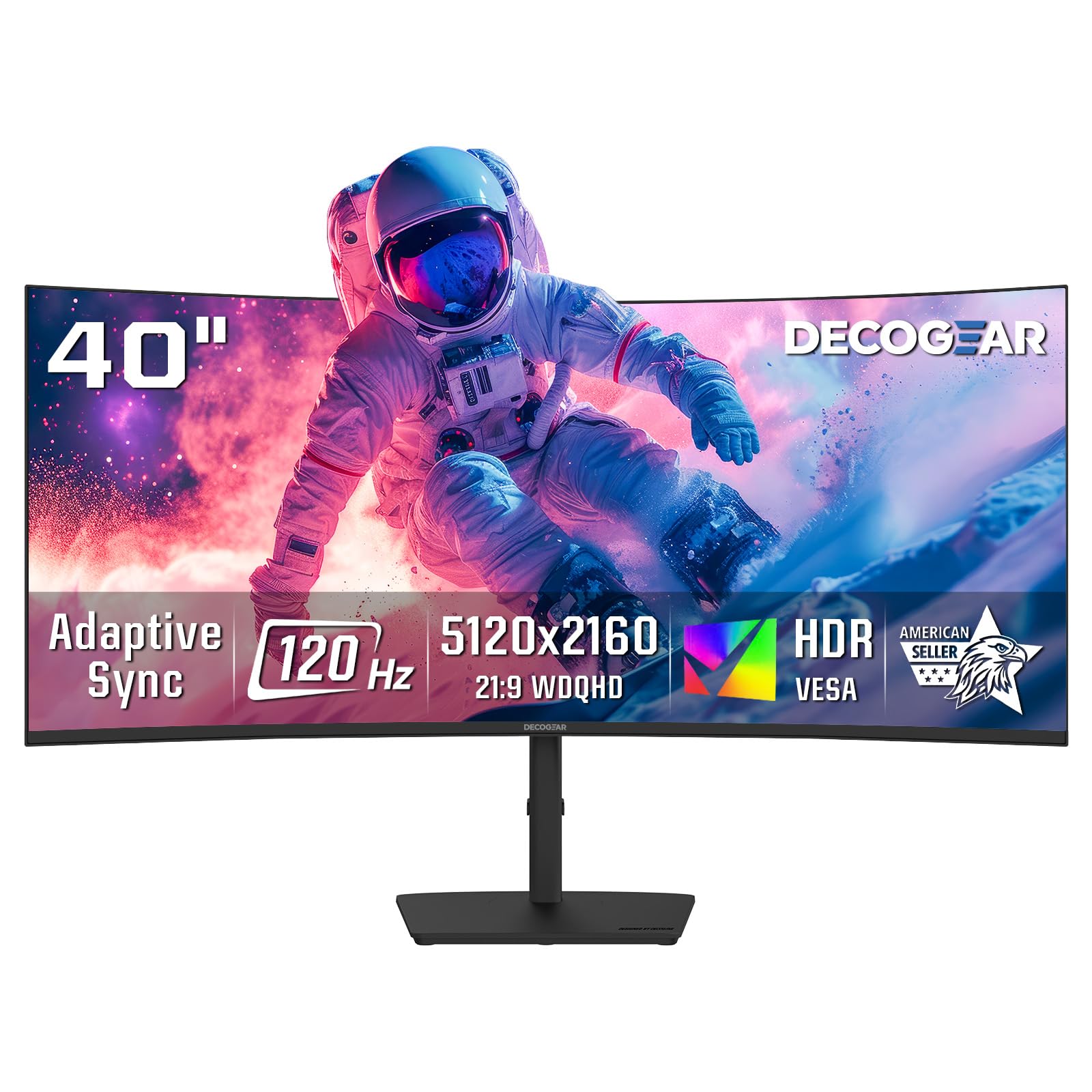
More pixels than true 4K, in an ultrawide shell — the multitasker’s dream display.
This Deco Gear is not a typical 34-inch pick; it’s a 40-inch ultrawide that goes a step beyond the crowd. Its 5120 x 2160 resolution delivers significantly more screen real estate than the Dell’s 3840 x 2160 above, giving you a 21:9 canvas that is genuinely wider and taller. For side-by-side documents, spreadsheets, or creative timelines, buyers found the extra space easy on both the eyes and the neck, with several calling it a great step-up for office work and bookkeeping.
This monitor uses a Nano IPS panel (a type of LCD with enhanced color), which offers wide viewing angles and covers 99% of the DCI-P3 color space (a wide color gamut used in film) for vibrant, accurate color. The 120Hz refresh rate with Adaptive Sync (a technology that reduces screen tearing) keeps motion fluid, and the built-in speakers get decent marks. A single USB-C connection provides 65W of power delivery (enough to charge most laptops) plus four USB-A ports for peripherals — turning it into a full productivity hub in one cable, much like the Philips above but with far more pixels.
Value is the standout theme here, with owners calling it a bargain compared to Samsung or LG 34-inch rivals, noting it’s larger and less expensive. However, monitor quality tells a split story. Some units perform well with no dead pixels after years, while a handful report connection issues, flickering, and signal drops appearing within days. The 250 nits brightness (a measure of screen luminance) is also lower than the Dell’s 300 nits, so it’s best in a controlled-light room. Buyers recommend this for rich games and productivity, not if you need flawless reliability above all.
Who this suits: power users who want maximum ultrawide space and fast charging from one USB-C port without paying a flagship brand premium.
Proceed with caution: quality control is the recurring gripe, so buy from a seller with a solid return policy.
Your pick if: screen real estate and price-per-pixel are your top priorities and you don’t mind tinkering.
skip it if: you need the most dependable daily driver — the Dell above beats it on reliability feedback.
Understanding the Specs
Resolution and Pixel Density
Resolution determines how sharp text and images look on screen. A 3840 x 2160 screen (true 4K) holds roughly 8.3 million pixels, producing crisp, detailed text for reading. An ultrawide 3440 x 1440 screen holds about 4.9 million pixels — plenty for rich gaming but noticeably softer for small fonts. The higher the pixel count, the more detail you can fit without squinting.
Refresh Rate and Response Time
Refresh rate (Hz) tells you how many times the screen updates per second. A 60Hz display updates 60 times a second, which is standard for office work. A 120Hz or 240Hz display updates far more often, which makes fast-moving game action look dramatically smoother. Response time (measured in milliseconds) is how quickly a pixel changes color — lower numbers mean less blur behind fast-moving objects.
Panel Technology: OLED, VA, and IPS
OLED panels let each pixel turn on and off individually, creating perfect blacks and infinite contrast — the best for dark, atmospheric gaming. VA panels offer strong contrast and deep blacks at a more accessible price, but colors shift when viewed from the side. IPS panels excel at consistent color and wide viewing angles, making them the standard for creative professionals who need accurate color.
HDR and Color Gamut
High Dynamic Range (HDR) boosts the brightness difference between the darkest and brightest parts of an image, making highlights pop. Color gamut (like sRGB or DCI-P3) refers to the range of colors a screen can display. A screen covering over 90% of DCI-P3 displays a wider spectrum of colors than one at 99% sRGB, which matters if you edit photos or video.
FAQ
What’s the difference between a 3440 x 1440 ultrawide and a 3840 x 2160 4K monitor?
Do I need a powerful graphics card to run a 34-inch 4K monitor?
Will a 34-inch monitor fit on my desk?
Is OLED worth it over VA or IPS for gaming?
Can I use a USB-C monitor to charge my laptop?
Does a higher refresh rate matter for office work?
What causes color banding and how do I fix it?
Can I connect a MacBook to these monitors?
Final Thoughts: The Verdict
For the majority of shoppers, the 34 inch 4k monitor winner is the Dell S3225QS because it delivers true 4K sharpness and a bright VA panel at a balanced price that suits both work and play. If you want elite gaming motion clarity, grab the Alienware AW3425DW for its 240Hz QD-OLED smoothness. And for the largest ultrawide canvas with laptop charging, the Deco Gear 5K2K is the one to reach for.
How We Picked
We do not accept paid placement. Every pick is matched to a real buyer and a real use-case; we do not hands-on test units.
Sources & Methodology
Specifications: manufacturer listings and product documentation. Review insights: verified customer reviews, as of September 2026. Pricing: not shown on this page (it changes often); check the current price via the retailer link.
As an Amazon Associate, Gadgets Feed earns from qualifying purchases. This does not affect which products we feature.