
Our readers keep the lights on and my morning glass full of iced black tea. As an Amazon Associate, I earn from qualifying purchases.
Specs are compiled from manufacturer listings and verified buyer reviews and can change over time — please confirm the key details on the product page before buying.
Building a Raspberry Pi project means you will stare at the display every time you use it — whether that is a Klipper 3D-printer control panel, a retro-gaming rig, or a desktop dashboard. A 7-inch MIPI DSI screen plugs directly into the Pi’s camera/display ribbon slot, so you get a clean single-cable build without the clutter of HDMI and USB power wires. The trick is picking the one that works for you: some are plug-and-play, and some demand hours of file editing before they show a single pixel.
I’m Min — the founder and writer behind Gadgets Feed. This guide is built by comparing the manufacturers’ published specifications and the patterns across verified customer reviews, so you get each pick’s real strengths and trade-offs instead of marketing spin.
The right 7 inch mipi display can be the difference between a 30-second setup and an evening of terminal commands — here are three that earn their spot based on real specs and real buyer experiences.
Quick Picks
- Waveshare 7 Inch DSI LCD Screen (with Case) — Premium Pick
- Hosyond 7 Inch Touchscreen IPS DSI Display — Wide View
- iUoyoMon 7 Inch Touchscreen MIPI DSI Display — Compact Build
How To Choose The Best 7 Inch MIPI Display
A 7 inch MIPI display connects through the Pi’s dedicated DSI port (the same ribbon-cable slot used for the official camera), so the first decision is not about resolution or color — it is about which operating system you run and if you want a case. Here are the three things that matter most.
Operating System Support: Plug-and-Play vs. Configuration
Not every screen works with every OS from the start. If you are running official Raspberry Pi OS (formerly Raspbian), most of these displays are genuinely driver-free and work on first boot. Kali Linux and Ubuntu are more demanding — some screens require you to edit a system file like cmdline.txt and add a boot parameter such as nomodeset (a command that disables the kernel’s video driver to allow the screen to work). Before buying, check buyer reports for the specific OS you plan to use.
Build Quality: Case, Standoffs, and Mounting
Budget-friendly screens often arrive as a bare panel with exposed circuit boards and small metal standoffs (threaded spacers) to hold the Pi. A premium pick includes a full polycarbonate enclosure that protects the back of the screen and gives the whole build a finished look. The trade-off is that an enclosed case makes swapping the microSD card harder, while a bare panel gives you total flexibility to design a custom 3D-printed mount.
Touch Performance: Multi-Touch vs. Single Touch
All three screens here use capacitive touch (the same technology as your phone). Under Raspberry Pi OS, they support multi-touch for pinch-to-zoom and two-finger scrolling. On Ubuntu, Kali, and Windows 10 IoT, they drop to single-touch only. The hardware is the same — the limitation is in the operating system’s driver support. If you need full multi-touch outside of Pi OS, none of these displays will deliver it.
Quick Comparison
| Model | Best For | Contrast Ratio | Aspect Ratio | Case Included | Amazon |
|---|---|---|---|---|---|
| Waveshare 7 Inch DSI LCD (with case) | Kali Linux, premium build | 2000:1 | 1.66:1 | Yes (polycarbonate) | Amazon |
| iUoyoMon 7 Inch Touchscreen MIPI DSI | Budget-friendly, 3D printer (Klipper) | 1000:1 | — | No (bare panel) | Amazon |
| Hosyond 7 Inch Touchscreen IPS DSI | Pi 5 users, custom casing | 1000:1 | 5:3 | No (includes stand) | Amazon |
In‑Depth Reviews
1. Waveshare 7 Inch DSI LCD Screen (with Case)

The MIPI display that works with Kali Linux on first boot — zero file editing needed.
If you run Kali Linux or want a finished-looking build, this is the screen to reach for. The Waveshare ships inside a polycarbonate enclosure (a hard plastic case), so you get a single, sturdy unit rather than a bare circuit board. The contrast ratio is 2000:1 — 2000:1, compared to the other two screens at 1000:1 — meaning dark scenes in Retropie games and dark-themed desktops look blacker and richer. Buyers report “excellent quality, easy assembly, works with Kali Linux touchscreen on first boot,” which is a significant time-saver compared to screens that require file tweaks.
The screen runs at 800×480 (horizontal by vertical pixels) with a capacitive touch panel (the same type as a phone) that supports 5-point multi-touch under Pi OS. It connects through the MIPI DSI interface on a Raspberry Pi 4B and runs at up to 60Hz. The catch, as one reviewer noted, is that swapping the microSD card requires full disassembly because the TFT ribbon cable blocks the slot. The workaround is to boot from a USB SD card reader, but if you swap cards often, consider that a real limitation. The aspect ratio (width-to-height shape) is 1.66:1, which is visibly narrower than the Hosyond’s 5:3 panel below.
The screwy-threaded inserts in the case are easy to strip if you over-tighten, so go gentle on the included screws — treat them like phone screws, not deck screws.
Scenario Champ: The absolute pick if you use Kali Linux, want a protective case from the start, and prefer deep dark blacks (2000:1 contrast) over a wider aspect ratio.
One Buyer’s Grumble: If you regularly swap microSD cards, the full disassembly requirement will frustrate you — keep a USB SD card reader handy as a workaround.
Reach for this if: You are on Kali or Pi OS and want a finished, cased display that works the moment you plug it in.
Look elsewhere if: You need a bare panel for a custom 3D-printed frame or you swap SD cards multiple times per day.
2. Hosyond 7 Inch Touchscreen IPS DSI Display

The 5:3 aspect ratio (width-to-height shape) is wider than the Waveshare’s 1.66:1 — that means more room for side-by-side windows and terminal workflows.
This Hosyond screen stands out for its 5:3 aspect ratio,. That extra horizontal space is useful if you are running a 3D printer interface like KlipperScreen and want to see multiple status readouts without scrolling, or if you keep a terminal and file manager open side by side. The IPS panel (In-Plane Switching, a type of LCD with better color and viewing angles) delivers a 1000:1 contrast ratio and an 800×480 resolution, and the capacitive touch works smoothly — owners mention a “clear 7-inch picture” and “sharp display, easy install.”
The screen is fully compatible with Raspberry Pi 5, 4B, and 3 models, connecting straight to the MIPI DSI port. One reviewer successfully got it working with a Pi 5 and an NVMe SSD using a specific screw configuration. However, if you run Kali Linux, be prepared: one buyer mentioned spending “8 hours” getting it to work, requiring “modifying files and adding nomodeset to cmdline.txt.” That is a big time commitment compared to the Waveshare’s first-boot compatibility. The screen ships as a bare panel with a separate stand, so you will need a custom case if you plan to use it in a mobile or mounted setup.
The Hosyond includes mounting hardware and ribbon cables, but customers note the bolt placement is different from standard Pi touch screen cases. If you are designing your own enclosure, that flexibility is a bonus; if you want a drop-in case, it is an extra job.
What Makes It Stand Out
- Widest aspect ratio (5:3) — noticeably more horizontal space than the Waveshare
- Works with Raspberry Pi 5 and NVMe SSD with the right screw configuration
- Flexible mounting: board mounts on the back of the screen or sits separately
The Catch
- Kali Linux requires editing cmdline.txt and adding nomodeset — not plug-and-play for that OS
- No case included; bolt pattern may not fit standard Pi touch screen cases
- Some units shipped missing cables and hardware (though the replacement was complete)
Grab this for: Raspberry Pi OS or Ubuntu users who want a wider screen for project dashboards and are okay with a bare-panel build.
Pass if: You need a case from the start or your primary OS is Kali Linux — the setup time is significant.
3. iUoyoMon 7 Inch Touchscreen MIPI DSI Display
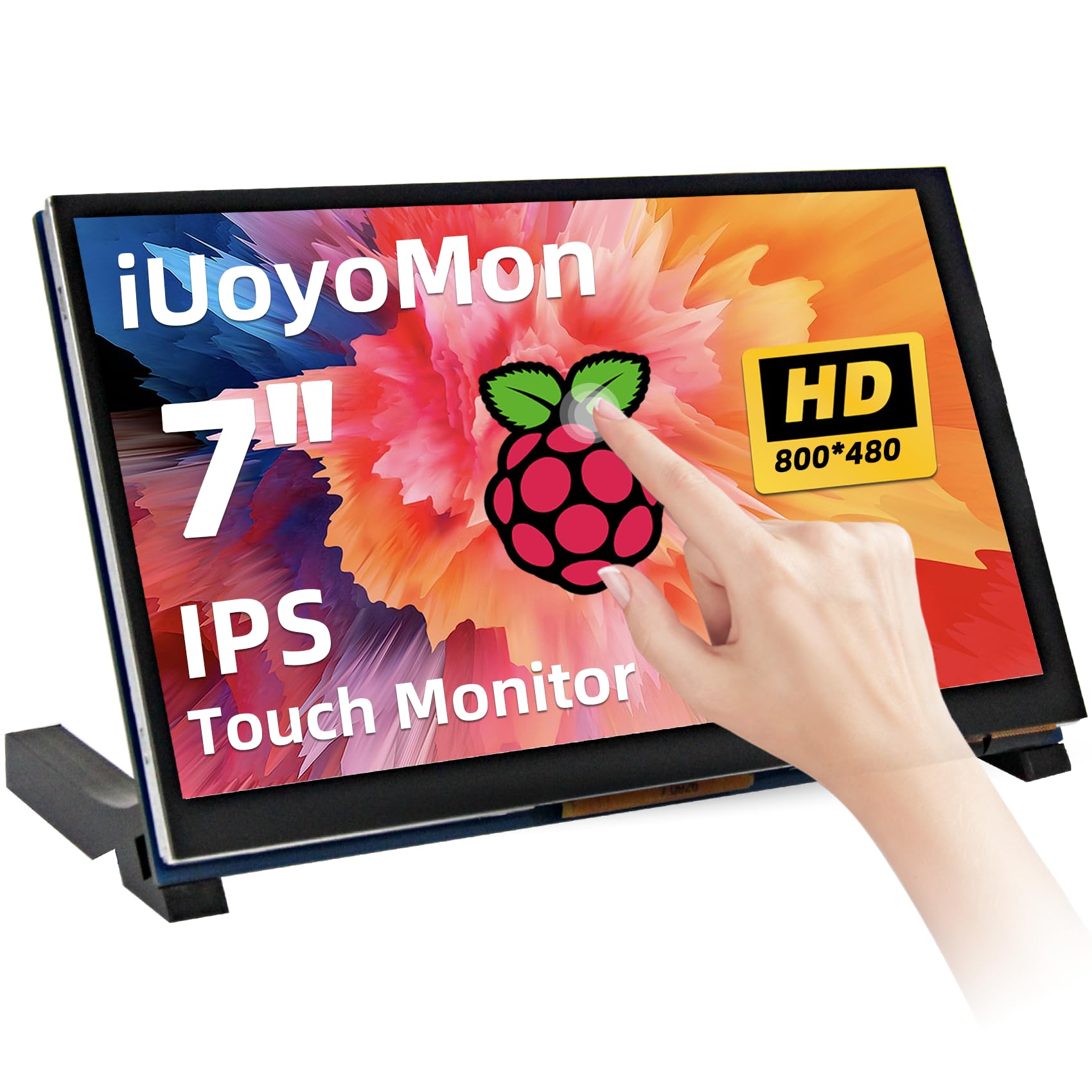
The entry-level MIPI screen that works beautifully with a Raspberry Pi 3B+ — but comes with no instructions.
At the budget end of the MIPI display range, this iUoyoMon screen offers the same 800×480 IPS panel and capacitive touch as the others, but it ships as a bare board with no case and no documentation. That simplicity is a strength if you already know your way around Raspberry Pi displays — you plug the ribbon cable into the DSI port, and it works. One buyer confirmed it “works perfectly with a Raspberry pi 3B+,” and another uses it as a KlipperScreen display for a 3D printer, calling it “responsive, wide viewing angles, plug-and-play with Pi.” It also includes a built-in port for a cooling fan, which is a nice extra if you are running a Pi 5 that generates more heat.
The contrast ratio is 1000:1 and the panel supports PWM backlight brightness adjustment (PWM stands for Pulse-Width Modulation, a method to dim the screen by quickly turning the backlight on and off), so you can dim it for night-time use. But the lack of documentation is a real annoyance — one buyer had to “find a similar document from another manufacturer” to figure out the setup, and another reported “nothing right from the start. Disappointing. Not even a status light.” A few units also arrived with a defective standoff (a threaded post with no threads or a missing screw), so the build quality is less consistent than the premium Waveshare. At 0.33 kg, it is the lightest panel here, and its compact dimensions (0.39″D x 4.7″W x 2.95″H) make it easy to fit into small enclosures.
If you are running Raspberry Pi OS or Klipper on a Pi 3B+ or 4B, this screen will save you money and deliver a solid experience — as long as you are comfortable with a no-frills build and the possibility of a missing screw.
Why It Makes Sense
- Most affordable MIPI DSI display of the three — good for budget builds
- Works with Raspberry Pi 3B+ and 4B from the start for Pi OS users
- Includes a built-in fan port for active cooling on the Pi
- Compact and light (0.33 kg) for tight enclosures
Where It Falls Short
- No documentation included — you may need to search for setup guides
- Some units ship with missing or defective standoff hardware
- Not reliably plug-and-play across all Pi models or operating systems
Perfect for: Budget-minded Pi OS and Klipper users who already know how to set up a DSI display and don’t need a case.
Not for: Anyone who needs a “it just works” experience, wants a protective case, or runs Kali Linux — the lack of documentation and quality inconsistency are too risky.
Understanding the Specs
Contrast Ratio (1000:1 vs 2000:1)
This number tells you how much difference there is between the darkest black and the brightest white a screen can show. A 2000:1 ratio — found on the Waveshare — means blacks look deeper and richer, which matters for dark movies, Retropie gaming, or any dark-themed desktop. A 1000:1 ratio (the iUoyoMon and Hosyond) is still fine for everyday use but you will see a greyish glow on dark backgrounds if you compare them side by side.
Aspect Ratio (1.66:1 vs 5:3)
This is the width-to-height shape of the screen. The Hosyond’s 5:3 aspect ratio is noticeably wider than the Waveshare’s 1.66:1, giving you more horizontal space for side-by-side windows, terminal workflows, or a 3D printer dashboard. The wider the ratio, the less scrolling you need to do when showing multiple pieces of information at once. For square or portrait-oriented projects, a narrower ratio may actually be easier to fit into a space.
FAQ
Will any of these displays work with a Raspberry Pi 5?
Do I need to install any drivers to use these screens?
What is the difference between a MIPI DSI display and an HDMI display?
Can I use these screens for a 3D printer (Klipper / KlipperScreen)?
Do these screens work with a regular Windows PC or laptop?
How much does a 7 inch MIPI display weigh?
What does the contrast ratio mean for reading text?
Is multi-touch supported on all operating systems?
Final Thoughts: The Verdict
For the majority of shoppers, the 7 inch mipi display winner is the Waveshare 7 Inch DSI LCD because it offers the highest contrast ratio (2000:1), a sturdy polycarbonate case, and proven first-boot compatibility with Kali Linux — the OS that gives other screens headaches. If you want a wider screen for a 3D printer dashboard or a side-by-side terminal setup, grab the Hosyond 7 Inch IPS DSI Display for its 5:3 aspect ratio and Pi 5 compatibility. And for a budget-friendly bare panel that works well with Raspberry Pi OS and Klipper, the iUoyoMon 7 Inch MIPI DSI Display saves you money but comes with no instructions and inconsistent build quality.
How We Picked
We do not accept paid placement. Every pick is matched to a real buyer and a real use-case; we do not hands-on test units.
Sources & Methodology
Specifications: manufacturer listings and product documentation. Review insights: verified customer reviews, as of July 2026. Pricing: not shown on this page (it changes often); check the current price via the retailer link.
As an Amazon Associate, Gadgets Feed earns from qualifying purchases. This does not affect which products we feature.