
Our readers keep the lights on and my morning glass full of iced black tea. As an Amazon Associate, I earn from qualifying purchases.
Specs are compiled from manufacturer listings and verified buyer reviews and can change over time — please confirm the key details on the product page before buying.
Picking your first screen-based drawing tablet or upgrading from an old pad can feel like a gamble. You want the smooth, natural pen-on-paper feel without paying a month’s rent, and you need to know which one actually works without driver headaches. This guide cuts through the noise with clear, data-backed picks.
I’m Min — the founder and writer behind Gadgets Feed. This guide is built by comparing the manufacturers’ published specifications and the patterns across verified customer reviews, so you get each pick’s real strengths and trade-offs instead of marketing spin.
You will find seven proven options here, from a powerful pen display with a dual dial to a budget-friendly entry-level tablet, all carefully selected as the best affordable graphics tablet choices for artists, students, and hobbyists.
Our Picks at a Glance


How To Choose The Best Affordable Graphics Tablet
To create digital art on a budget, match the tablet type and pen tech to your workflow.
Pen Display vs. Pen Tablet: The Screen Decision
A pen display has its own screen, so you draw directly on the image. This feels more natural and is great for detailed illustrations. A pen tablet has no screen; you look at your computer monitor while drawing on the pad. Pen tablets are usually much cheaper and use less desk space.
Pressure Sensitivity: From 8192 to 16384 Levels
Pressure sensitivity controls how line thickness changes with pen pressure. 8192 levels suit most beginners and hobbyists. 16384 levels double the precision for delicate shading and natural brush strokes.
Color Accuracy and sRGB Coverage
For pen displays, color gamut matters. 99% sRGB means colors appear vivid and true to life. Lower coverage can make your art look washed out or off-color when viewed on other screens. Look for at least 99% sRGB if color-critical work is your priority.
Quick Comparison
| Model | Best For | Type | Pressure Levels | Active Area (mm/in) | Amazon |
|---|---|---|---|---|---|
| HUION Kamvas 13 (Gen 3)★ Best Overall | Pen display with premium color | Pen Display | 16384 | 293.8 x 165.2mm | Amazon |
| Wacom Intuos SmallIndustry Standard | Trusted brand, no-screen pad | Pen Tablet | —— | 6 x 3.7 inches | Amazon |
| HUION Inspiroy 2 Large | Large drawing surface, budget price | Pen Tablet | 8192 | 10.5 x 6.56 inches | Amazon |
| UGEE UE12 | Wide color gamut pen display | Pen Display | 16000 | —— | Amazon |
| VEIKK VK1200V2 | High sensitivity & two pens included | Pen Display | 16384 | 11.6 inches | Amazon |
| XPPen Deco Pro LW 2nd | Wireless & extra shortcut remote | Pen Tablet | 16000 | 9 x 6 inches | Amazon |
| XP-PEN Artist12 | Most reviewed budget pen display | Pen Display | 8192 | 11.6 inches | Amazon |
In‑Depth Reviews
1. HUION Kamvas 13 (Gen 3) Drawing Tablet with Screen
Our pick — 4.5★ from 750+ verified ratings; the strongest balance of quality and price.
The pen display that delivers professional color and dual dials while staying affordable.
The HUION Kamvas 13 (Gen 3) gives you a 13.3-inch fully laminated screen with an anti-sparkle Canvas Glass 2.0 that cuts down glare while keeping the image sharp. The colors are exceptional — 99% sRGB coverage and an average Delta E under 1.5 means what you see is exactly what you get in print or on a monitor. You can draw without that frustrating gap between the pen tip and the cursor, thanks to the full lamination.
The real workflow boost comes from the dual dial and five shortcut keys. Scrubbing through your brush size or zooming in on a canvas feels instant. The included adjustable stand (ST300) lets you tilt the tablet to a comfortable angle. Owners praise the build quality, and the PenTech 4.0 with 16384 pressure levels gives you incredibly fine control over your strokes. A few users note the screen gets warm on the port side after a few hours and that the 200-nit brightness is better suited for darker rooms, but for the price it is a fantastic tool.
What Wins People Over
- Vivid color accuracy at 99% sRGB with a factory calibration report
- Advanced PenTech 4.0 stylus with 16384 pressure levels for natural line control
- Streamlined workflow via dual dials and 5 programmable shortcut keys
- Includes a free adjustable stand for comfortable angles
The Trade-offs to Know
- The screen brightness is relatively dark at 200 nits, so a bright room may cause glare
- It gets slightly warm on the port side during long sessions
- It is a bit long for easy backpacking at 14.2 inches long
Reach for this if: You want a color-accurate pen display with premium build and the fastest workflow keys on the market.
Look elsewhere if: You work in a very bright studio and need a super-bright screen, or you want a portable tablet for daily travel.
2. Wacom Intuos Small, Bluetooth Graphic Drawing Tablet with Pen + Software
The no-screen tablet that sets the bar for reliability and comes with full creative software.
The Wacom Intuos Small is the pick for anyone who wants a proven, no-hassle pen tablet backed by decades of industry trust. It has no built-in screen, so you look at your computer monitor while drawing on the small 6 x 3.7-inch active area, which saves desk space and money. The battery-free pen uses Wacom’s EMR technology, so it never needs charging and feels solid in the hand.
You can connect via Bluetooth or a standard USB-A cable. The build quality is what owners praise most — it feels durable and the surface holds up over years. The tablet comes with a bundle of creative software and training, giving you real tools to start with. The main downsides are the small active area, which feels cramped for full-arm drawing, and the Bluetooth connection can cause slightly jagged lines compared to the smoothness of a wired connection. It is a fantastic starter pad, but know that reliability and Bluetooth are a mixed bag for some users.
Why It Earns Its Spot
- Battery-free pen (EMR) means zero charging and a natural pen-on-paper feel
- Wireless freedom via Bluetooth, plus USB-A cable for lag-free work
- Includes full creative software and online training right from the start
- The active area is a balance for small desks and casual use
What Holds It Back
- The small surface is limiting if you prefer large, sweeping brush strokes
- Bluetooth can cause less responsive, jagged lines; the cable is noticeably smoother
- Some users find the pen gets uncomfortable after long drawing sessions
Best fit for: Students and beginners who want a durable, well-known brand with included software and prefer a small footprint.
Not ideal for: Artists who need a large canvas for expressive arm movement or anyone who can’t tolerate even minor Bluetooth lag.
3. HUION Inspiroy 2 Large Drawing Tablet with 3-Group 8 Customized ExpressKeys

A massive drawing surface with a scroll wheel and eight keys at a price that leaves room for a Wacom.
The HUION Inspiroy 2 Large gives you a generous 10.5 x 6.56-inch active area, while the Wacom Intuos Small has a 6 x 3.7-inch active area. This extra room lets you make fluid arm movements without hitting the edges. It is a pen tablet (no screen), so you draw on the pad while looking at your monitor, but the smooth, responsive surface from PenTech 3.0 makes it feel close to paper.
You get a programmable scroll wheel and 3 sets of 8 customizable express keys (shortcut buttons you can assign per app), so switching from Photoshop to Blender is smooth. The PW110 stylus has a soft silicone grip and feels comfortable for long sessions. Buyers overwhelmingly praise its ease of use and setup — it works from the start via USB-C, including with Android devices. The recurring nitpick is that the button bindings can occasionally reset to default, but it is a quick fix.
Why It Wins on Value
- Large 10.5 x 6.56-inch active area for full-arm drawing expression
- Innovative scroll wheel and 8 keys with 3 profiles for different apps
- Improved ergonomics with a slimmer stylus and soft silicone grip
- Works with Mac, PC, and Android smartphones (OS 6.0 or later)
The Real-World Trade-off
- Button bindings sometimes reset to default, requiring a quick reinstall
- No screen means you need to develop hand-eye coordination
- PenTech 3.0 (8192 levels) is excellent but less sensitive than the latest 16384 standard
Grab this for: A huge drawing canvas, a customizable scroll wheel, and a budget-friendly price that outperforms on space.
Pass on it if: You want a built-in screen for direct drawing or you cannot tolerate the occasional driver reset issue.
4. UGEE UE12 11.6 inch Drawing Tablet with Screen

A pen display with ultra-wide color that lets you switch between sRGB, Adobe RGB, and DCI-P3.
The UGEE UE12 stands out for its massive 124% sRGB color gamut, which goes beyond the standard 100% to deliver richer hues and better saturation. It features a full-laminated 11.6-inch FHD screen (1920×1080) with zero parallax, so your pen tip touches the cursor exactly where it lands. The anti-glare glass helps reduce reflections during long work sessions.
The battery-free stylus offers 16K-level pressure sensitivity and 60-degree tilt recognition, which mimics the angle of a real pencil for natural shading. You get 8 customizable shortcut keys with a raised-concave design so you can feel for them without looking. The dual Type-C ports let you plug in from either side, which is handy for messy desks. Owners call it excellent value, with the only real caveat being that the included nibs can wear down quickly if you have a heavy hand. Also, make sure you remove the blue protective film before use to see accurate colors.
Color-first verdict: The UGEE UE12 is for the artist who demands vivid, wide-gamut color and wants a zero-parallax screen at a mid-range price. The downside is the soft nibs may need early replacement.
Choose this for: The best color coverage in this price bracket, with three color space switches and dual USB-C ports for convenience.
Skip it for: Heavy-handed artists who wear down nibs fast and don’t want to stock replacements regularly.
5. VEIKK VK1200V2 Drawing Tablet with Screen, 11.6 Inch
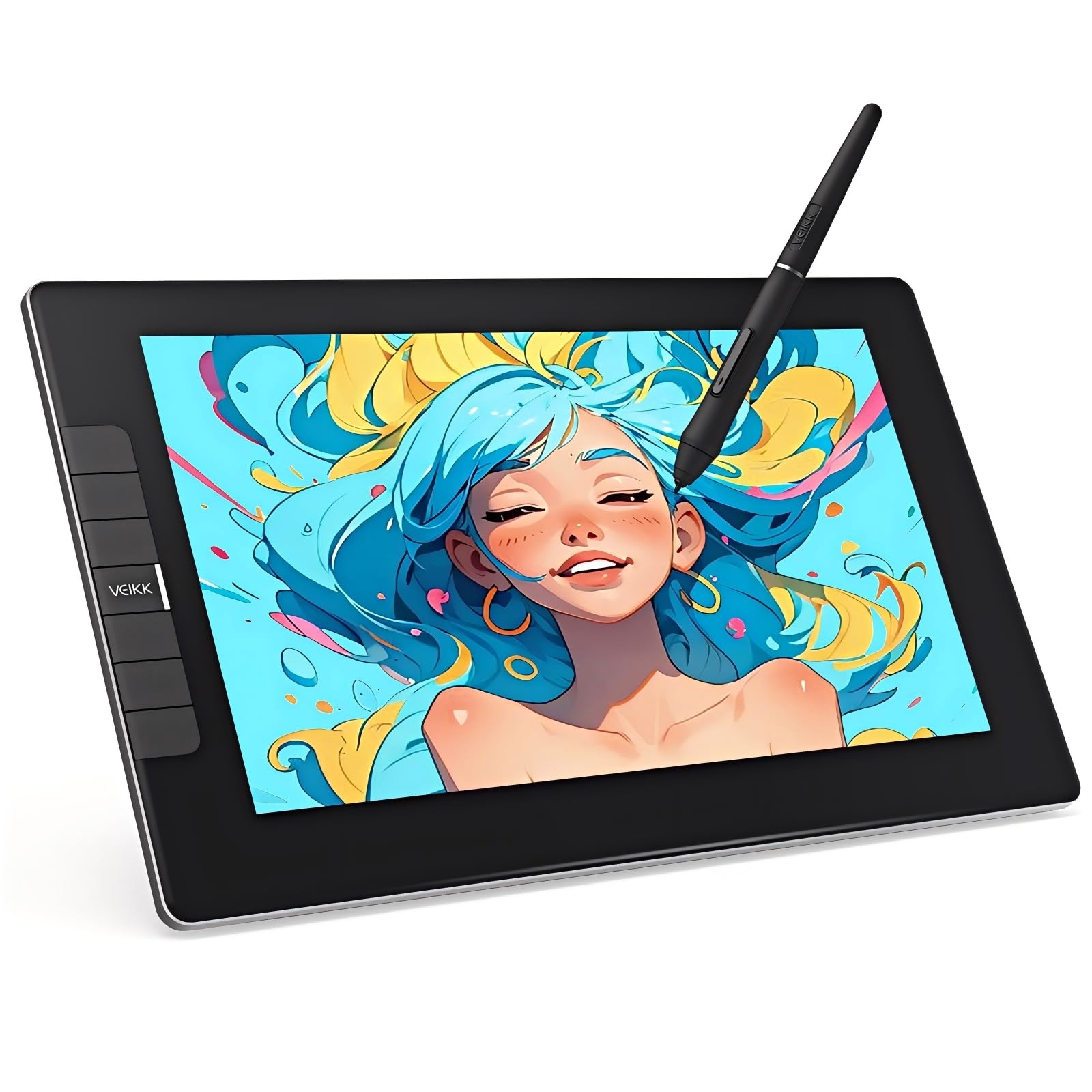
A pen display with double the pressure levels and two battery-free pens for backup.
The VEIKK VK1200V2 is a compelling pen display that comes with two P05 passive styluses in the box — one for daily use and one as a spare. This is a thoughtful touch that saves you from panic if the first pen goes missing. The 11.6-inch IPS screen is fully laminated with an anti-glare coating and delivers a 120% sRGB color gamut, so your art looks vibrant.
It packs a newly upgraded 16384 pressure levels (compared to 8192) and a fast 290 PPS reading rate for smooth, lag-free tracking. The body is made of metal with an anti-slip back, and at just 1.78 lbs, it is light enough to move between rooms. The 6 customizable hotkeys let you set shortcuts for erasing, zooming, or switching layers. Owners find it a perfect starter tablet for kids and beginners, with easy USB setup. The caveat is that it must be connected to a computer — it is not a standalone device — and a few users mention initial screen detection can be fussy with some desktops.
what separates it
- Comes with two battery-free pens (backup included) and 20 replacement nibs
- 16384 pressure levels for precise control compared to 8192 tablets
- Lightweight all-metal body at 1.78 lbs for easy portability
- High 290 PPS reading rate for ultra-smooth tracking with no lag
One Thing to Know
- Screen output can be tricky with some desktop PCs; works best with laptops
- No standalone operation — always requires a PC, Mac, or Linux computer
Best for: Beginners and students who want the latest 16384 sensitivity and a reliable backup pen from day one.
Not for: Users who need a guaranteed plug-and-play experience with a desktop PC, as setup can be finicky.
6. XPPen Wireless Drawing Tablet Deco Pro LW 2nd, 11 Inch

A large pen tablet with true wireless freedom and a separate shortcut remote dial.
The XPPen Deco Pro LW 2nd offers the best wireless setup in this guide. It connects via Bluetooth 5.0, a USB wireless receiver, or a standard USB-C cable, and it can pair with two devices at once, switching between them with one click. The built-in 1000mAh battery gives you over 10 hours of use, so you can draw on the sofa without hunting for a port.
It uses the X3 Pro stylus with 16k levels of pressure sensitivity and 60-degree tilt. The real productivity booster is the included Mini Key-dial — a separate remote with 10 customizable keys and four shortcut sets. The 9 x 6-inch active area is a good middle ground, giving you space without the bulk of the Inspiroy 2 Large. Owners love the build quality and the pen sensitivity. The trade-offs are that wireless mode can have some lag in demanding 3D software (users recommend the wired cable for smooth tracking), and the nibs wear down fairly quickly for heavy sketchers.
Why It Stands Out
- True wireless connectivity with Bluetooth 5.0, dongle, or USB, plus 10+ hour battery
- Comes with a separate Mini Key-dial remote for fast shortcuts without leaving the canvas
- X3 Pro stylus offers 16k pressure levels and 60-degree tilt for natural strokes
- Pairs with two devices simultaneously for low-maintenance switching
What to Watch For
- Bluetooth can cause lag in professional 3D apps; wired connection remains smoother
- Nib wear is fast — some buyers report using two nibs in 10 days of heavy use
- Wireless is not compatible with Android or Linux systems
Reach for this if: You want a wireless pen tablet with an external shortcut remote and the flexibility of dual-device pairing.
Look elsewhere if: You are a heavy sketcher who will burn through nibs, or you need the smoothest possible latency for professional 3D work.
7. XP-PEN Artist12 11.6 Inch FHD Drawing Monitor Pen Display

The most popular budget pen display with millions of owners and a battery-free stylus with an eraser.
The XP-PEN Artist12 is the pen display that tens of thousands of artists have bought, making it the most-reviewed model on this list by a wide margin. It packs an 11.6-inch HD IPS display (1920×1080) with a 72% NTSC color gamut (roughly 100% sRGB), giving you crisp, vibrant images. The screen comes pre-installed with an anti-reflective protector, saving you the hassle of buying one separately.
The P06 battery-free stylus has a unique hexagonal design that feels like a real pencil, and it includes a digital eraser on the end — a feature many screen tablets leave out. It offers 8192 levels of pressure sensitivity, which is still excellent for all but the most demanding shading work. The 6 customizable shortcut keys and a slim touch bar let you zoom or scroll quickly. The biggest pain point is the setup: several owners describe it as finicky, requiring multiple cable resets and driver calibration. Once running, it is a fantastic display for the money, but beginners should be ready for a potentially frustrating first hour.
The Crowd Favorite
- Incredible value — the most reviewed budget pen display with a proven track record
- Battery-free P06 stylus with a digital eraser at the end for natural workflow
- Anti-reflective screen protector pre-installed for reduced glare
- Touch bar and 6 shortcut keys for quick zoom and brush control
The Reality Check
- Setup can be difficult — some users report needing 15+ resets and cable fiddling
- The screen is not perfectly color-accurate from the start; some tuning may be needed
- You must reconnect the HDMI adapter each time you boot your computer
Grab this for: The most affordable entry into screen-based drawing with a trusted brand and an integrated eraser.
Pass if: You want a smooth plug-and-play experience and are not prepared to troubleshoot drivers and cables on day one.
Understanding the Specs
Pressure Sensitivity (8192 vs 16384 Levels)
This number tells you how finely the tablet can detect changes in how hard you press the pen. 8192 levels are already very precise and cover everything a beginner or hobbyist needs. 16384 levels give you finer gradation than 8192 levels, which helps with ultra-soft shading and mimicking real brush strokes. The jump from 8192 to 16384 is noticeable if you do professional illustration, but it is not a must-have for casual drawing.
Color Gamut (sRGB Percentage)
For pen displays, the color gamut (usually given as a percentage of sRGB) determines how vivid and true-to-life the screen colors are. A display with 99% sRGB or higher will show colors accurately. A lower rating, like 72% sRGB, can make your art look washed out or slightly off-color when shared on other screens. If color-critical work is your thing, aim for at least 99% sRGB.
FAQ
Do I need a pen display, or will a pen tablet work?
How do I set up a graphics tablet for the first time?
Will my graphics tablet work with Photoshop or Clip Studio Paint?
What does full lamination mean on a pen display?
Can I use a graphics tablet with my Android phone or tablet?
What is a battery-free stylus and why does it matter?
How long do the pen nibs last on a drawing tablet?
Can I use a graphics tablet for photo editing or 3D modeling?
Final Thoughts: The Verdict
For most artists, the best affordable graphics tablet pick is the huion kamvas 13 (gen 3) because it combines a vivid 99% sRGB pen display with dual dials and the latest 16384 pressure sensitivity at a price that rivals tablets with fewer features. If you prefer the reliability of the industry standard without a screen, grab the Wacom Intuos Small. And for the biggest drawing surface at the lowest cost, the HUION Inspiroy 2 Large is the one to reach for — its 10.5 x 6.56-inch active area and scroll wheel are tough to top for the money.
How We Picked
We do not accept paid placement. Every pick is matched to a real buyer and a real use-case; we do not hands-on test units.
Sources & Methodology
Specifications: manufacturer listings and product documentation. Review insights: verified customer reviews, as of July 2026. Pricing: not shown on this page (it changes often); check the current price via the retailer link.
As an Amazon Associate, Gadgets Feed earns from qualifying purchases. This does not affect which products we feature.