
Our readers keep the lights on and my morning glass full of iced black tea. As an Amazon Associate, I earn from qualifying purchases.
Specs are compiled from manufacturer listings and verified buyer reviews and can change over time — please confirm the key details on the product page before buying.
If you are staring at a single USB-C port and wondering how to hook up monitors, a mouse, a keyboard, and charging all at once, the answer is a docking station. The right one turns that single port into a full desktop setup; the wrong one causes flickering screens or dropped connections. This guide compares the specs that matter and real owner experiences to help you find the right dock for your laptop and workflow.
I’m Min — the founder and writer behind Gadgets Feed. This guide is built by comparing the manufacturers’ published specifications and the patterns across verified customer reviews, so you get each pick’s real strengths and trade-offs instead of marketing spin.
The right dock depends on your laptop’s USB-C port capabilities and how many monitors you need to drive. This guide covers the android docking station and USB-C docking stations for laptops, focusing on what works for both mobile and desktop use.
Our Picks at a Glance

How To Choose The Best Android Docking Station
A docking station turns one USB-C port into a full desktop hub for monitors, peripherals, and charging. Your laptop’s USB-C port must support DP Alt Mode for video; port count alone won’t determine compatibility.
Check Your Laptop’s USB-C Port First
A plain USB-C port for charging is not enough. Look for a full-featured USB-C port or a Thunderbolt 3/4 port that supports DisplayPort Alt Mode (DP Alt Mode)—which allows video, data, and power to travel through one cable. If your port only handles data or charging, video output will not work at all.
Decode the Video Rules
Windows laptops generally support MST (Multi-Stream Transport), letting you extend one image across several screens. macOS is different—it usually only mirrors the same content on multiple external monitors, not extends. This explains why many owners find their dual-screen dreams limited on a Mac.
Count Your Ports and Your Power
Beyond monitors, count what you plug in daily: USB-A for a mouse, USB-C for a drive, SD cards from a camera, and a wired Ethernet connection. Every dock also consumes power to run its chips, so the actual output is often less than the advertised input—you may see “100W input” but get 85W or 87W to your laptop.
Quick Comparison
| Model | Best For | Video Output | Data Speed | Charging Output | Amazon |
|---|---|---|---|---|---|
| Acer 8-in-1 USB-C Hub★ Best Overall | Everyday portability | 4K@60Hz | 10Gbps | 90W | Amazon |
| Selore 8-in-1 Dual MonitorBest Value | Dual monitor value | Dual 4K@60Hz | 5Gbps | 85W | Amazon |
| LSIKMC 7-in-1 Triple MonitorTop Performer | Triple monitor setups | 2x 4K@60Hz + 8K@30Hz DP | 10Gbps | 87W | Amazon |
| Anker 7-in-1 Dual Monitor | Travel-friendly quality | Dual 1080p@60Hz | 10Gbps | 85W | Amazon |
| LIONWEI 13-in-1 | Maximum port count | 2x 4K@60Hz + DP 4K@60Hz | 10Gbps | 87W | Amazon |
| Acer 11-in-1 3 Monitors | Triple 4K productivity | 2x 4K@60Hz + 8K@30Hz DP | 10Gbps | 85W | Amazon |
| MOKiN 12-in-1 Triple HDMI | Three HDMI displays | 3x 4K@60Hz HDMI | 10Gbps | — | Amazon |
| Baseus Spacemate 11-in-1 | Upright desk design | 2x HDMI + 2x DP | 10Gbps | 85W | Amazon |
| Anker Nano 13-in-1 | Detachable work hubs | 2x HDMI +1x DP | 10Gbps | 100W | Amazon |
In‑Depth Reviews
1. Acer 8-in-1 USB C Hub
Our pick — 4.5★ from 400+ verified ratings; the strongest balance of quality and price.
The compact crowd-pleaser that reliably runs two external drives and a monitor without breaking a sweat.
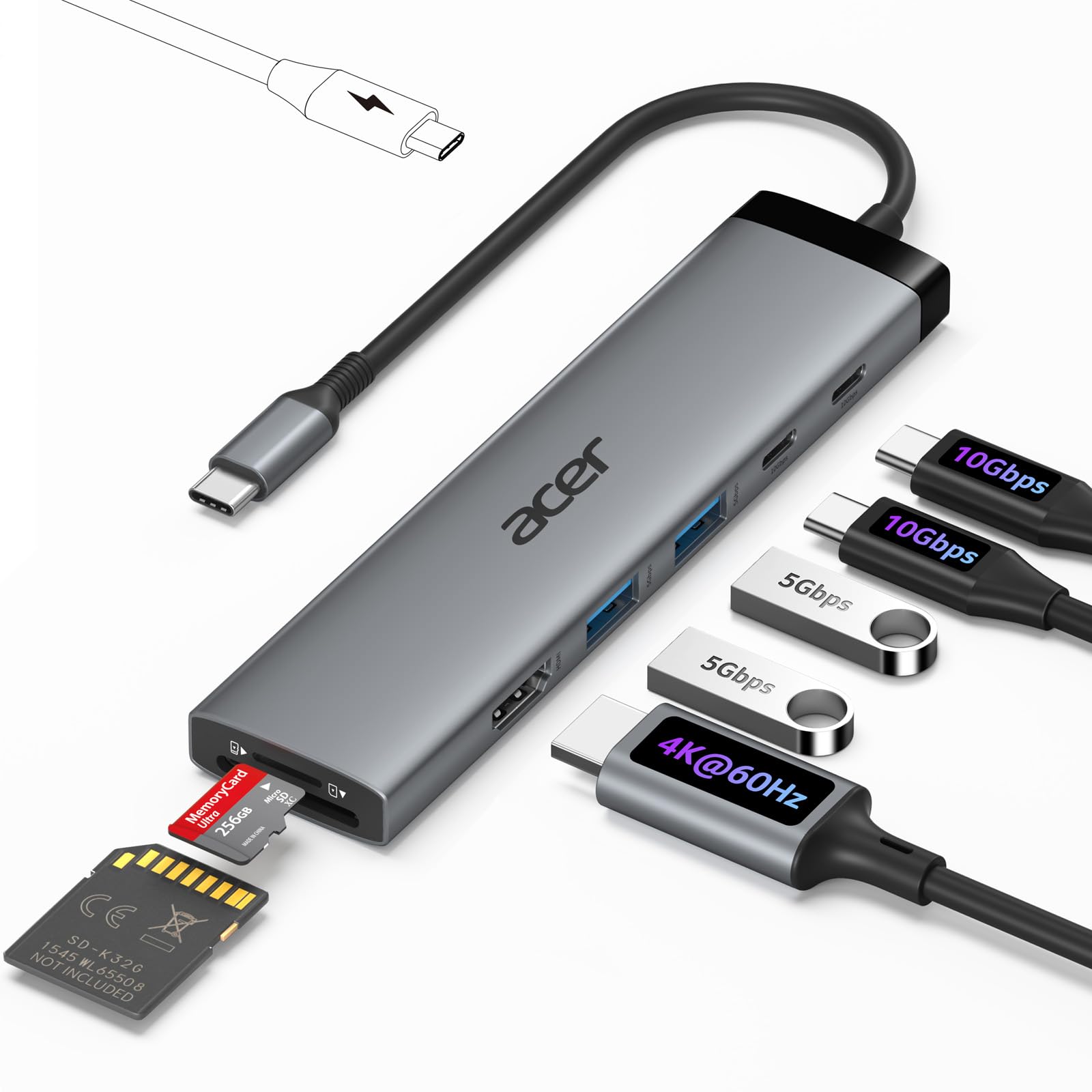
For someone who owns a laptop, a tablet, or a phone with a single USB-C port, this Acer hub answers the “only one hookup” problem. It packs an 8-in-1 splitter that gives you 4K@60Hz HDMI, two USB-C ports at 10Gbps, two USB-A ports at 5Gbps, a 100W Power Delivery port, and SD/MicroSD slots—all in a slim 5.4-inch plastic body that weighs just 118 grams (about the weight of a small chocolate bar).
The defining strength here is how it handles the everyday stuff without drama. Buyers report having two external drives plugged in simultaneously with zero issues, and the 10Gbps transfer rate (which is double the 5Gbps found on the Selore dock below) means large files move noticeably quicker. Reliability is the trait owners single out most, followed closely by the quality of construction—no rattling ports or flimsy connections.
The honest trade-off: this is a hub, not a charging brick. The 100W PD port requires you to supply your own 100W charger (none is included), and a few owners mentioned seeing an “underpowered” warning for charging. If passthrough charging is your absolute priority, check the Anker Nano below—but for pure port expansion, this Acer’s speed and trustworthiness make it the top pick.
Why Owners Stick With It
- 10Gbps data transfer — twice the speed of entry hubs
- Runs two external drives at once with no hiccups, per buyer reports
- Works with MacBook, iPad Pro, iPhone 15/16, and Android devices with OTG support
The Fine Print
- No charging cable included — you must supply your own 100W brick
- USB-C and USB-A ports carry data only, not charging
- Some owners see an “underpowered” message during charging
Your best match: the versatile user who needs dependable ports for drives, SD cards, and one 4K monitor without fuss.
Reach elsewhere if: you expect this hub to power your laptop from scratch instead of just passing power through.
2. Selore 8-in-1 Dual Monitor Docking Station
An aluminum dual-monitor workhorse that open up two 4K screens for a fraction of what rivals charge.
If you measure value by what you get per dollar, this is where dual-monitor productivity gets affordable. The Selore 8-in-1 expands one Thunderbolt or full-featured USB-C port into two HDMI outputs at 4K@60Hz, a 100W PD charging port, a USB-C port, two USB-A ports at 5Gbps, and an SD/microSD slot—all wrapped in an aluminum shell that feels more premium than its position on this list suggests.
The real story is the reception it has earned from owners. With a massive installed base, the consensus is that it drives two monitors and peripherals with no lag on Windows—including setups with a 4K 28-inch HDMI and a 24-inch Thunderbolt display running in extended mode. Portability is a highlight; it’s small enough to toss in a bag for a MacBook Air, and buyers praise the fit on the M3 Air specifically.
Now the catch, and it’s a real one: reliability gets called out as a recurring gripe, not a universal failure. Some users experienced Ethernet failing after a few months, though the support team resolved it — as owners put it, “excellent support (Marina) resolved it.” Also, this dock transfers data at 5Gbps, which is half the 10Gbps speed of the Acer above, so if you move huge video files all day, the Acer’s faster pipe is worth the difference.
What Wins People Over
- Dual 4K@60Hz HDMI for a full extended desktop on Windows
- Aluminum build stays cool and feels solid, a step above plastic
- Plug-and-play with Intel NUC and Samsung laptops, per owners
Owner Fit Notes
- Data speed is 5Gbps, not the 10Gbps of faster-tier hubs
- Ethernet reliability has been a point of failure for some, though support responds
- Charger and cable are not included
Who it beats: cheaper single-monitor hubs, giving you a true dual-4K desktop at an entry-level cost.
Look elsewhere if: you need the fastest file transfers or you’ve had a bad experience with mixed Ethernet reliability.
3. LSIKMC 7-in-1 Triple Monitor Docking Station
The only hub here that serves up a triple-monitor layout with a DisplayPort that hits 8K when you reach for it.
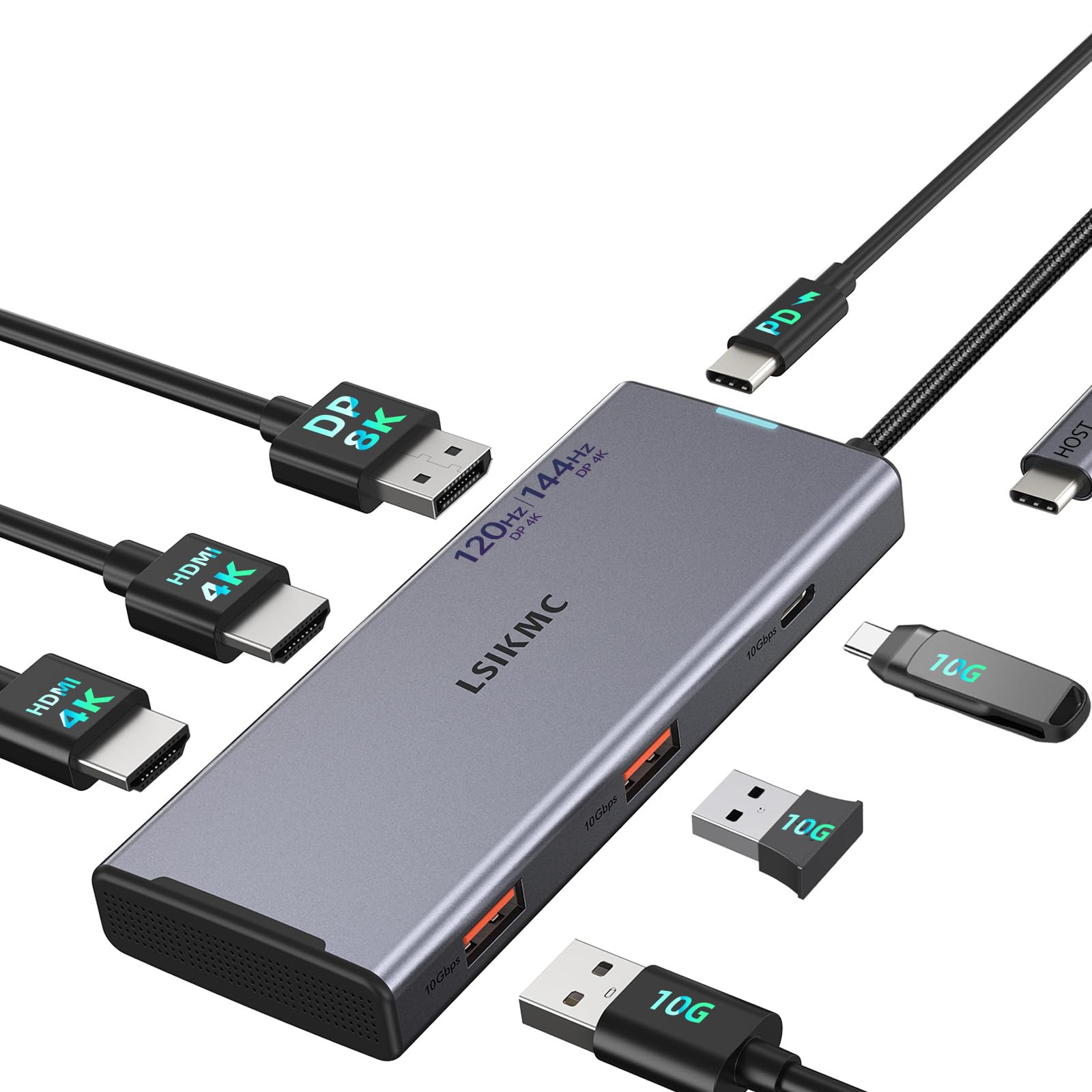
If you work with spreadsheets, code, or charts where more screen space means fewer clicks, the LSIKMC is built for your desk. This 7-in-1 dock turns one USB-C/Thunderbolt 3 port into seven interfaces: two HDMI ports at 4K@60Hz, one DisplayPort capable of 8K@30Hz or 4K@144Hz, a 100W USB-C PD port, two USB 3.0 ports, and one USB-C port. On Windows with a DP1.4 laptop, it can drive up to three 4K outputs at once.
The appeal for hybrid workers is obvious. One owner uses it to connect a laptop to two 27-inch monitors plus a wireless keyboard and mouse without a single issue, and several mention they were surprised it stayed cool while running dual displays. The aluminum alloy casing and braided cables are a durability step above the plastic on budget competitors.
The trade-off is in the fine print. Need honest triple 4K? It’s only possible if your laptop has DisplayPort 1.4, and macOS owners get mirror mode only. The data note is also specific: this dock can connect to only one hard drive or SSD at a time, which is a unique limitation versus the Acer above that handles two drives simultaneously. Heat isn’t a problem, and it runs 2x 27-inch monitors comfortably, making it a solid pick for Windows desktop users who crave a third screen.
The Strengths
- Supports up to three 4K video outputs on a DP1.4 laptop
- DisplayPort alone can hit 8K@30Hz or 4K@144Hz for smooth gaming
- Runs two 27-inch monitors without heat issues, per owners
The Limitations
- Connects to only one hard drive or SSD at a time
- Consumes 13W, leaving 87W for your laptop, not the full 100W
- MacOS is restricted to mirror mode
This one’s for: Windows users with DP1.4 laptops who want to span three screens and value the DisplayPort’s high refresh rate.
Not for: anyone who needs to run multiple external drives simultaneously.
4. Anker 7-in-1 USB-C Hub
A slim, cool-running aluminum companion that slips into a bag and covers dual monitors on the go.
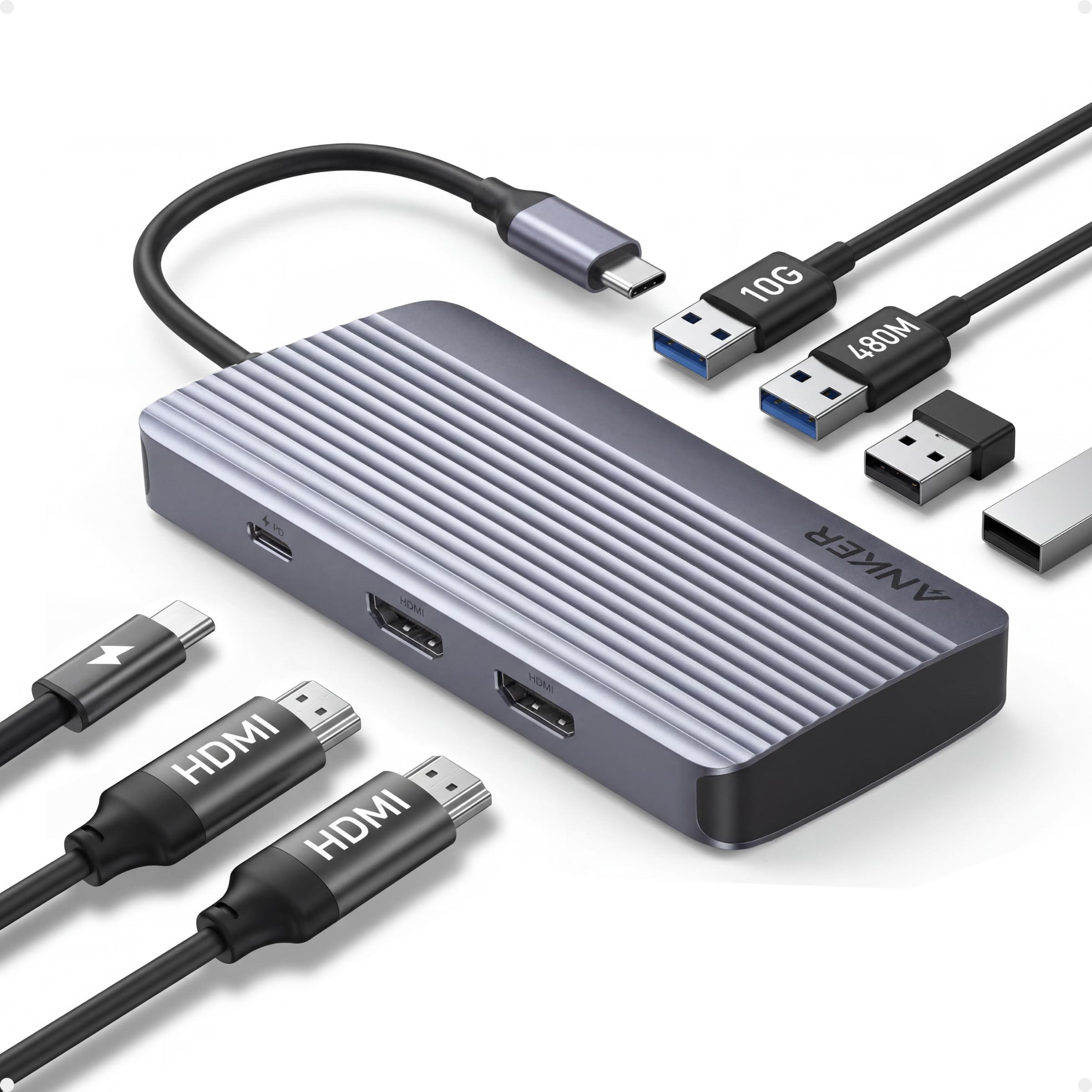
For the traveler who still wants a real desktop experience in a hotel room, this Anker is a featherweight that keeps things simple. It’s a compact 7-in-1 hub that extends your workspace across two external screens at 1080p@60Hz, moves files at 10Gbps through its fastest port, and delivers 100W input with 85W output for your laptop. The aluminum body and 96-gram weight make it disappear into a pocket.
Owners consistently call it a great value for work-from-home and travel. A common review thread: flawless dual-monitor setup with an HP Victus or Dell XPS, solid 85W pass-through charging, and no overheating even after hours of use. The quality of the build is what people single out most, outpacing even its value-for-money praise—which tells you Anker’s reputation holds up here.
Here’s where it falls short of other picks: 1080p resolution means it cannot drive the crisp 4K desktops that the Selore or LSIKMC above manage, so if high-res is non-negotiable, look higher on this list. Reliability also draws mixed feedback—when it works, it’s reliable, but a minority of owners experience screens that occasionally shut off and on, and a few report needing a direct charger to the hub to keep connections stable. Durability has also been flagged as a weak point. This is the pick for casual dual-screen work, not a permanent 4K workstation.
Why It Travels Well
- Weighs just 96 grams — lighter than most rival hubs
- 85W output keeps high-demand laptops charged while working
- Well-spaced ports and a cool-running aluminum design win owner praise
Owner Caveats
- Dual monitors cap out at 1080p, not 4K
- A minority report screens randomly disconnecting
- No Ethernet port is included
Choose this if: you want a dependable, pocket-friendly hub for basic dual-screen setups while moving between home and office.
Steer clear if: you need 4K sharpness or a wired network connection built in.
5. LIONWEI 13-in-1 Docking Station

A 13-port hub that connects two displays, Ethernet, a mic, and eight USB devices through one plug.
For the home office that has grown beyond a simple setup, this LIONWEI covers the most ground. It’s a 13-in-1 dock with 2x 4K@60Hz HDMI ports, a DisplayPort, 2 USB-C ports (both doing 100W Power Delivery plus 10Gbps data), a USB 3.1 port at 10Gbps, 3 USB 3.0 ports, 2 USB 2.0 ports, a 3.5mm audio/mic jack, and Gigabit Ethernet. It’s the kind of port menu that lets a teacher or an analyst plug in two displays, a TV cast, a tablet, a clicker, a charger, and an external drive all at once.
The one-plug convenience is what owners keep circling back to. A classroom user runs two displays plus a TV cast, an iPad, and an external drive simultaneously with quick connectivity and no heat issues yet. For a work-from-home setup, it handles two monitors, Ethernet, a microphone, a mouse up keyboard, all while charging the laptop through a single connection. The mode-switch button to toggle display layouts is a handy touch that most docks lack.
The observation that keeps surfacing is heat. This dock runs noticeably warm under load, and some owners note occasional mouse lag when the receiver is docked directly—though that clears up when the receiver is plugged in separately. The durability of the HDMI ports has also been questioned, with one report of HDMI outputs failing after roughly six months, though the merchant offered a replacement that worked. It’s a fantastic, feature-dense option that handles almost everything a desktop user needs.
Port Paradise
- 8 USB-C/A ports for all your peripherals at once
- Gigabit Ethernet for stable wired internet and gaming
- 3.5mm audio/mic jack built in
The Fine Print
- Runs noticeably warm during heavy use
- Some owners mention HDMI failure after about six months (merchant replaces)
- MacOS only extends one monitor in extend mode
Grab this for: the workstation that needs every port filled—teachers, analysts, and multi-device users who want one cable to rule them all.
Think twice if: you value cool operation above all or you’re on macOS with multiple displays.
6. Acer 11-in-1 3 Monitor Docking Station
A brand-name triple-display dock that drives an 8K panel and wired gigabit internet without bulky drivers.
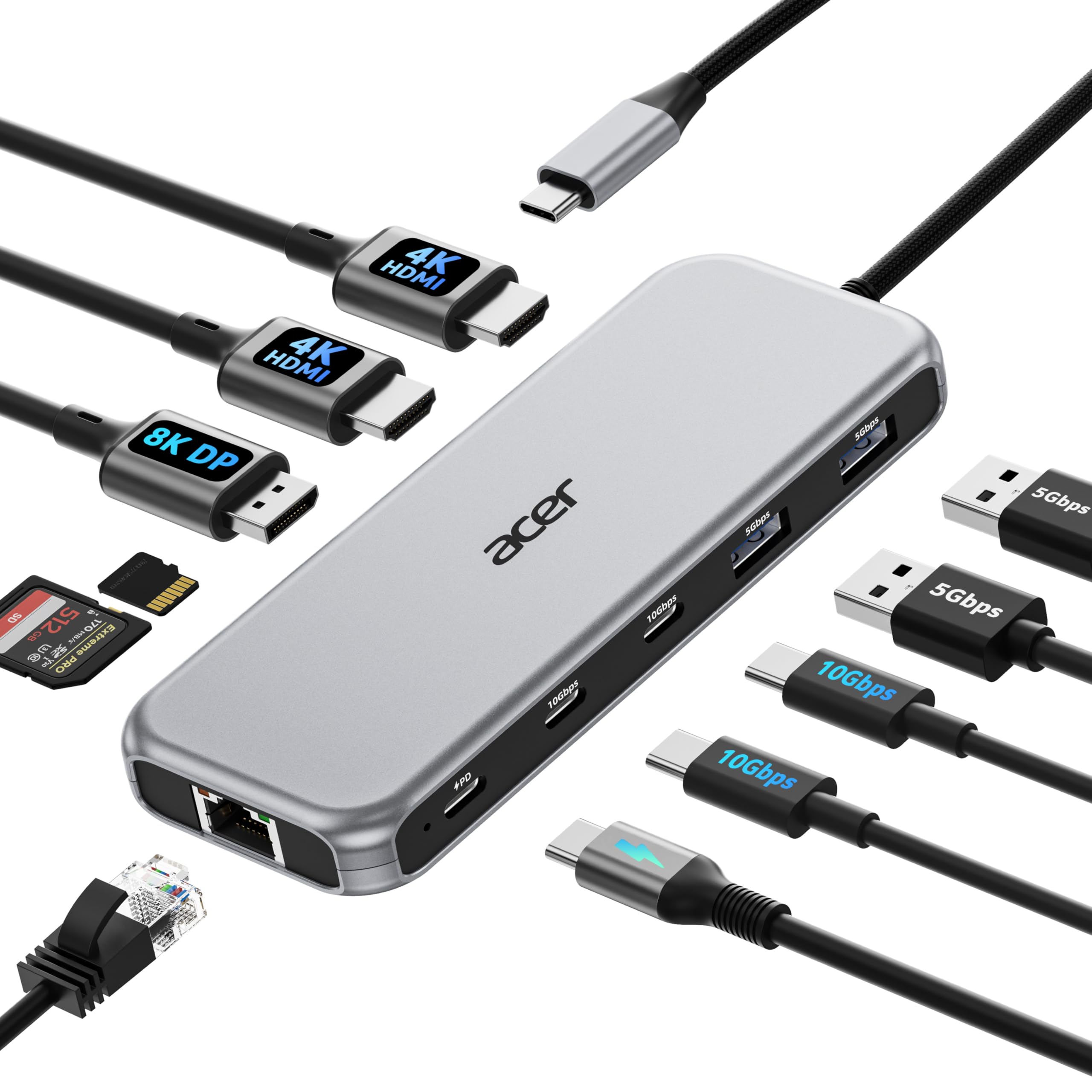
Here is the upgrade path if you want Acer’s name on a three-screen setup. This 11-in-1 dock gives you 2 HDMI ports at 4K@60Hz, a DisplayPort that can hit 8K@30Hz, 2 USB-C ports at 10Gbps, 2 USB-A ports at 5Gbps, Gigabit Ethernet, 100W PD charging, and SD/MicroSD slots. On Windows, it can run a triple-monitor layout, automatically matching the resolution of each display to your laptop’s bandwidth—typically landing on 4K@60Hz plus 4K@60Hz plus 1080p@60Hz.
Buyers are quick to praise the quality and the immediate connectivity. There’s no install process—it’s plug-and-play, with instant detection and no driver hunting. Owners note that it is compact enough to be “TV remote size,” making it portable despite its triple-display ambitions. A key validation comes from an owner who connected two SSDs that mounted immediately plus a monitor at 4K@60Hz, declaring it a worthy alternative to powered docks costing hundreds more.
The rarity here is the most honest caveat: one unit reportedly burned out after a week of light use, with a burning electrical smell inside. That’s an isolated case within a mostly satisfied owner base, but its mention here is honest. Also note that value for money draws genuinely mixed opinions—some call it a steal while others feel it’s priced above its station. For a triple-monitor-capable dock with a reliable brand, though, this remains a strong mid-premium choice.
Why it earns its spot: Acer’s build quality and ease of use win over owners, with instant plug-and-play connectivity and a compact footprint for onsite work.
Honest word of caution: a rare unit has failed early, so it’s a pick for those who want brand reassurance and accept a small risk of a defective sample.
Best fit: the professional who wants triple-display capability, gigabit Ethernet, and Acer’s name without paying for a powered dock’s premium.
Choose differently if: you’re on a tight budget and find the mixed value reviews a reason to look at the LSIKMC above.
7. MOKiN 12-in-1 Triple HDMI Docking Station
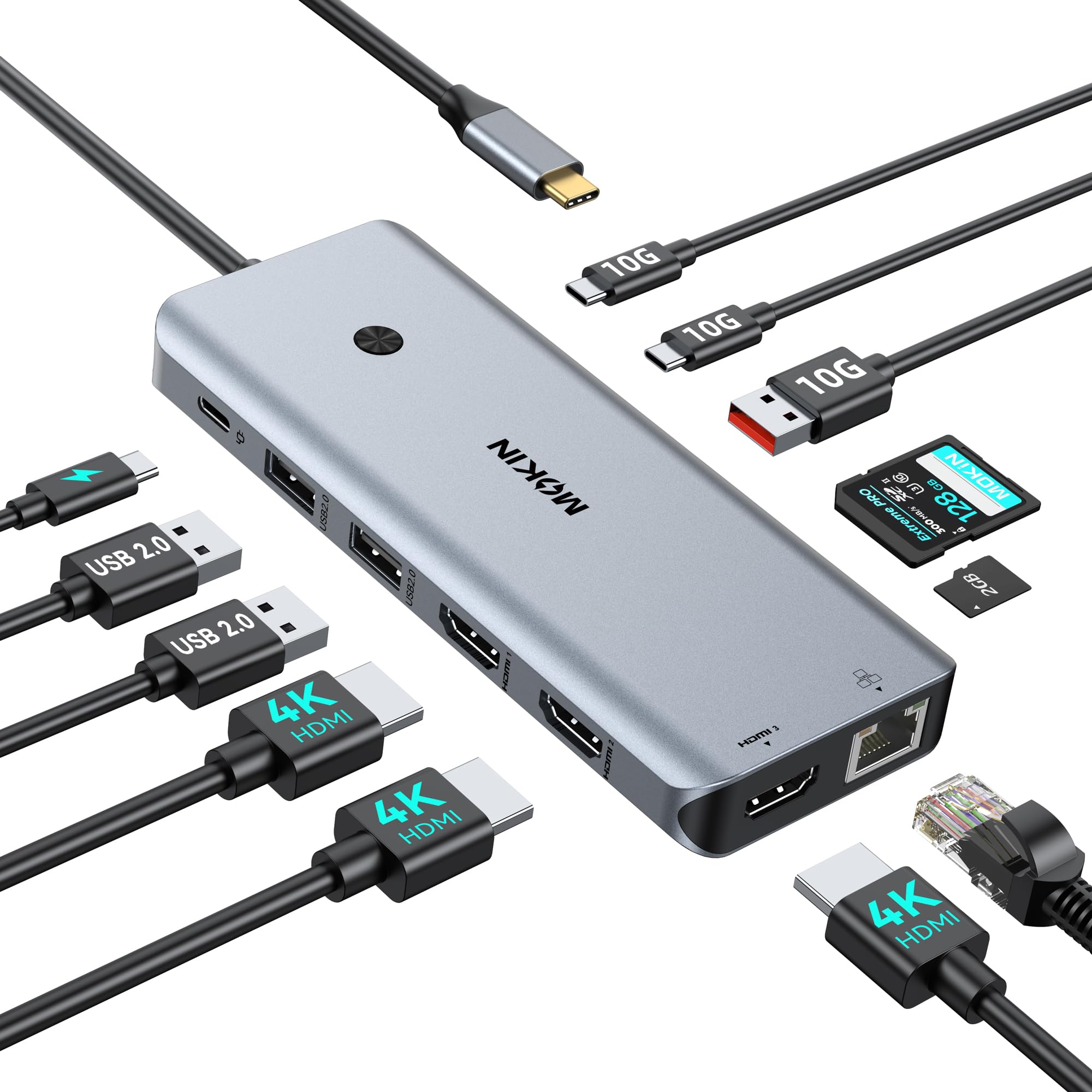
A 12-port triple-HDMI dock with a screen-lock privacy button and wattage readout to watch your charging live.
If three separate HDMI cables sound better than mixing DisplayPort into the mix, this MOKiN is your answer. Its 12-in-1 design expands one USB-C port into 3x 4K@60Hz HDMI outputs, a 100W PD3.0 charging port, 2 USB-C 3.1 ports at 10Gbps, a USB-A 3.1 port at 10Gbps, 2 USB 2.0 ports, an SD/microSD card reader that reads and writes at 320Mbps simultaneously, and Gigabit Ethernet. A unique LCD screen displays the wattage flowing to your laptop, and a one-press button turns off all external monitors or switches display modes—a privacy tool for meetings.
Customers note an unusually smooth experience across the board. The MacBook Air M4 community in particular found it flawless: one plug connects the laptop to a desk monitor, all sorts of peripherals, and provides power simultaneously, so no second charging cable is needed. Zero connection issues with mice and keyboards is the recurring theme, and the aluminum shell runs cool even with a 3440×1440 ultrawide hooked up. Reliability is the trait praised more than any other here.
The design quirks, not the performance, are what get mentioned. The card reader needs upside-down card insertion, which takes getting used to, and the layout favors a right-side connection that’s awkward for right-handed MacBook Air owners—though the dock can be flipped upside down. A minority note it’s a bit unstable when used with a laptop on your lap. If you want three HDMI screens with dependable connection, this is a very polished option.
The thing everyone raves about: rock-solid reliability and cool operation, with owners reporting no lag even on ultrawide monitors.
Quirks to know: the SD card inserts upside-down and the design favors a right-side cable — minor annoyances that don’t affect function.
Perfect for: MacBook Air and Windows users wanting three HDMI monitors and a live look at their charging wattage.
Not ideal if: your laptop connects on the left and you’d rather not flip the dock around.
8. Baseus Spacemate 11-in-1 Docking Station
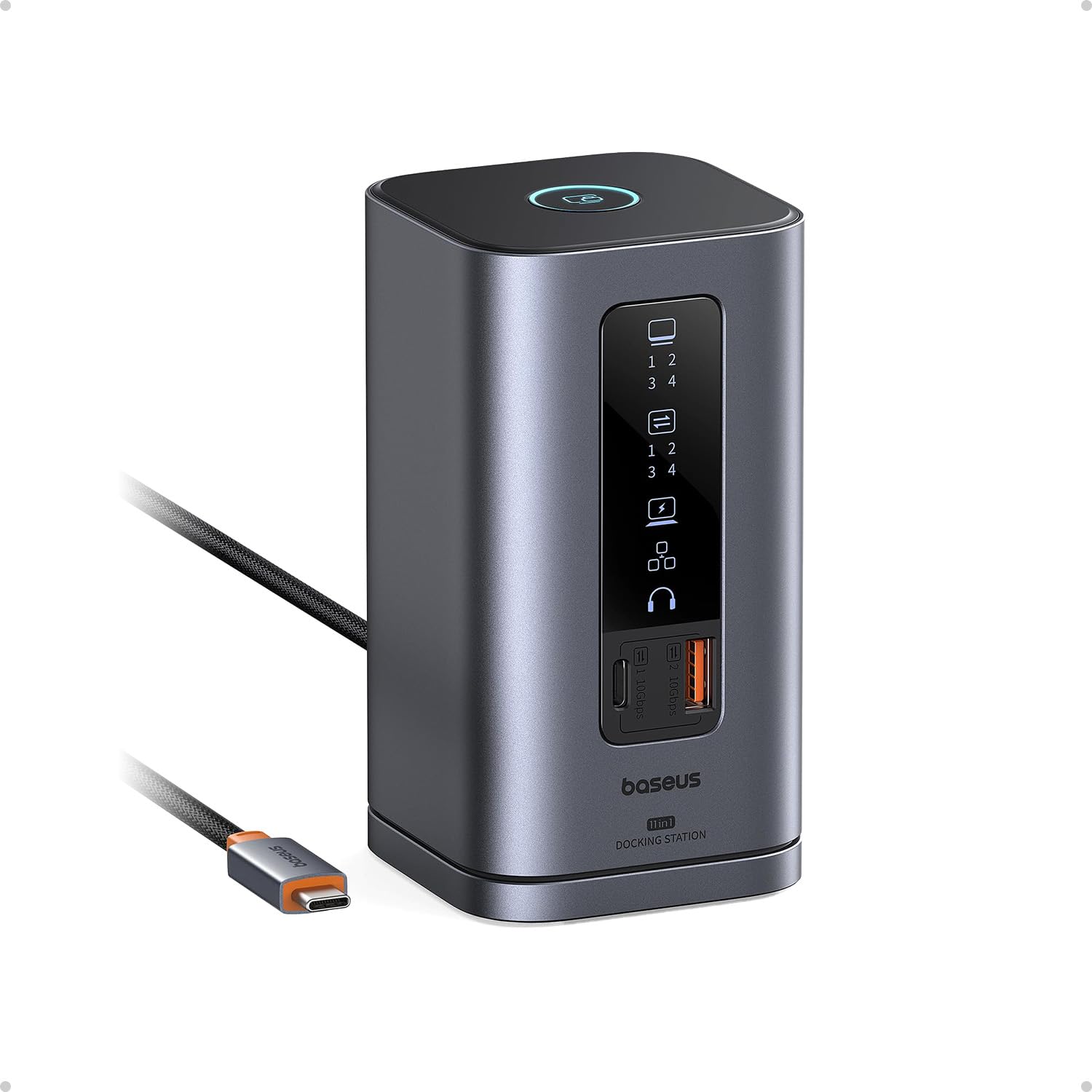
A vertical aluminum tower that stands on its own magnetic base and keeps your desk tidy with an LED status screen.
Let’s start with what you won’t find anywhere else in this list: a dock that stands upright. The Baseus Spacemate’s vertical, compact design with a sleek aluminum finish and magnetic base redefines desk space, letting you connect cables from the side while taking up minimal room. Its built-in LED screen shows the connection status of each port at a glance. Under the hood, it’s an 11-in-1 with 2 HDMI ports, 2 DisplayPort connectors, a USB-C port and 2 USB-A ports at 10Gbps, a USB-A 2.0 port, a 100W PD input, Gigabit Ethernet, and a 3.5mm AUX jack.
Owners genuinely love the design and function. It simplifies a home office to one plug on a Windows laptop, supporting multiple monitors (some using just two of its four video outputs) while keeping the desk visually clean. It has earned recommendations from Forbes, ZDNet, and Tom’s Guide, per the maker, and was shortlisted in Future’s Innovation Awards. For Windows users, the triple-display capability over HDMI and DisplayPort is a genuine productivity boost.
Here’s the honest tension in the reviews: connectivity is the most mixed aspect. While many report perfect connections, a recurring complaint describes the laptop constantly plugging and unplugging, particularly on MacBook Pro M4 units where the limitations of macOS mirror mode frustrate dual-monitor users. A reviewer retracted their initial praise due to flickering that only resolved when pairing a specific Baseus charger. It’s a stunning, well-built dock—just verify your charger and laptop combo before committing fully.
Design that Wins
- Upright aluminum construction with magnetic base saves desk space
- Transfers a 20GB file in about 20 seconds at 10Gbps
- LED screen displays status for every port
Owner Mixed Notes
- Some report constant device plugging/unplugging on specific laptops
- MacOS only extends one display, limiting its triple-screen promise
- Needs a 100W adapter for a fully loaded dock (not included)
The draw: an elegant, upright, media-endorsed dock for Windows users who want a tidy desk and plenty of ports.
Look elsewhere if: you’re on a MacBook Pro M4 needing true extended multi-monitor or you don’t want charger compatibility risk.
9. Anker Nano 13-in-1 Laptop Docking Station
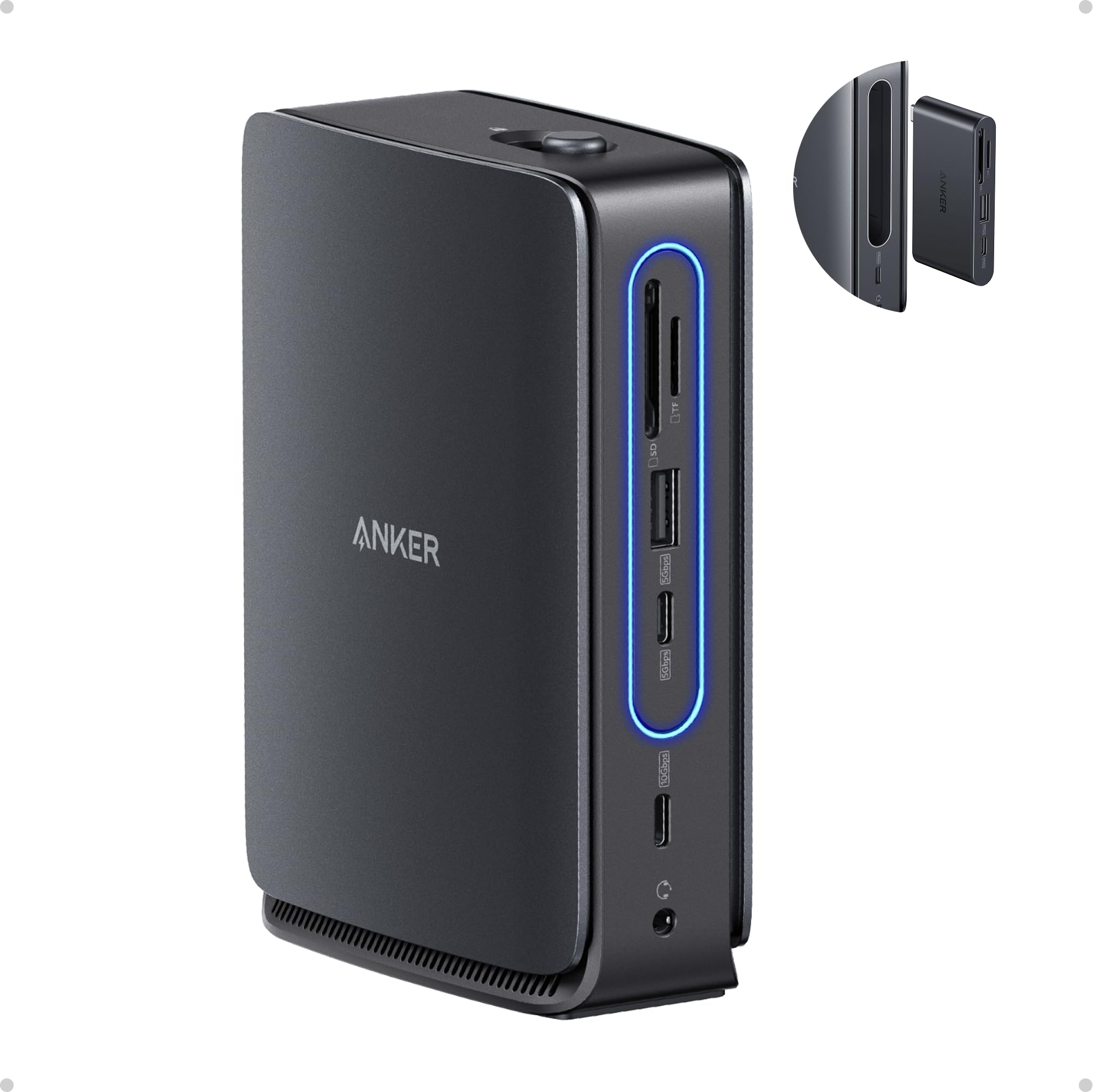
The only dock here that snaps in half — leaving a travel hub behind when you head out the door.
For the person who works from a desk by day and a coffee shop by night, this Anker is a two-for-one deal. Its 13-in-1 desktop dock features a detachable 6-in-1 portable hub that snaps off for on-the-go use, so you buy one device instead of two. Back at the desk, it connects up to three monitors through 2x HDMI and 1x DisplayPort, delivering up to 4K@60Hz on a single display, dual 2K@60Hz, or triple 1080p@60Hz. It charges your laptop with up to 100W Power Delivery, and a 140W power adapter is included in the box.
The detachable design is the headline feature that owners keep validating. It doubles as a travel hub, eliminating the daily plugging and unplugging dance between home and work setups. Connection is truly plug-and-play—set up in under two minutes with no drivers needed—and it stays cool under continuous use, even while charging a laptop and running a full multi-monitor array. Compatibility is the trait owners mention most, with support spanning Dell XPS, Lenovo ThinkPad, HP Spectre, and most Windows laptops with USB-C.
The honest gripes here are about longevity. A recurring concern notes that monitors can randomly lose connection, and one owner reported complete failure after five months where displays wouldn’t enumerate without a full unplug-restart cycle. Some feel the plastic build seems less premium than the price suggests, and the removable dock can pop out if bumped. These are the trade-offs of a feature-rich, detachable design—one that remains the most capable and complete package on this list when it works as intended.
The Innovation
- Detachable 6-in-1 hub covers your travel needs
- 140W power adapter included for stable full-load performance
- Ships with a 3ft USB-C cable and 5ft power cord
The Trade-offs
- A minority report monitors randomly losing connection
- Plastic build feels less premium than its price point
- Removable dock can pop out if bumped accidentally
The standout pick for: hybrid workers who want one dock for the office and a detachable hub for travel, without buying twice.
Reconsider if: you need guaranteed rock-solid monitor connections all day or prioritize a full-metal chassis.
Understanding the Specs
DisplayPort Alt Mode (DP Alt Mode)
This is the feature your laptop’s USB-C port needs to send video signals. Without it, a dock simply cannot push an image to your monitor, no matter how many HDMI ports it has. Check your laptop’s specs for this before buying anything.
Power Delivery (PD)
This tells you how fast a dock can charge your laptop while running your peripherals. The dock itself uses some power to operate, so a 100W input might only deliver 85W or 87W onward. If your laptop needs more than that, it may still drain slowly under heavy load.
MST vs SST
Multi-Stream Transport (MST) lets a Windows laptop extend different images across multiple monitors—your true dual-screen mode. Single-Stream Transport (SST) mirrors the same image, which is typically all macOS allows on multiple external displays. This is why Mac users often can’t extend two separate screens.
Data Transfer Rate (Gbps)
This is how fast files move between your laptop and connected drives. A 10Gbps port is roughly twice as fast as a 5Gbps one, so moving large video files or photo libraries is noticeably quicker. For everyday mouse and keyboard use, even 5Gbps is plenty.
FAQ
Will this docking station work with your Android phone?
What is the difference between a full-featured USB-C port and a regular one?
How many monitors can a docking station actually support?
Is 10Gbps data transfer worth paying more for?
Why does the dock output less power than it advertises?
Does a docking station come with a power adapter?
Can you charge your laptop and use monitors at the same time?
What is MST mode on a Windows laptop and why does it matter?
Is a docking station better than a simple USB-C hub?
Why does my external monitor keep disconnecting from the dock?
Final Thoughts: The Verdict
For most buyers, the android docking station winner is the Acer 8-in-1 because it nails the essentials with dependable performance and double the data speed of most rivals. If you want a true dual-monitor workspace on a budget, grab the Selore. And for the hybrid workerworker who needs a dock that travels, the Anker Nano 13-in-1 is the one to reach for—its detachable hub replaces two purchases. The LSIKMC stands out for anyone determined to run three monitors on a Windows laptop, delivering triple 4K output plus a DisplayPort that hits 8K. The MOKiN earns its place if three HDMI cables and a live wattage readout sound like your ideal desk setup.
Before you commit, check your laptop’s USB-C port for DisplayPort Alt Mode support—this single detail decides whether any dock will show a picture at all. Then match the dock’s charging output to your laptop’s needs, since a 100W input often means just 85W reaches your machine. If you’re on macOS, accept that dual extended monitors usually won’t happen, and plan for mirror mode instead.
The Acer 8-in-1 earns a 4.5-star rating from 400+ owners, making it the safest choice for most. The Selore, with over 22,000 reviews, scores 4.4 stars—slightly lower satisfaction but strong dual-monitor value. For the money, the LSIKMC’s triple-display capability at its price point is hard to argue with, provided you stick to Windows.
The best dock matches your laptop’s ports, monitor setup, and daily routine—not the one with the most ports. Start with the Acer for balance, upgrade to the Anker Nano for detachable flexibility, and let your monitor count guide everything else.
How We Picked
We do not accept paid placement. Every pick is matched to a real buyer and a real use-case; we do not hands-on test units.
Sources & Methodology
Specifications: manufacturer listings and product documentation. Review insights: verified customer reviews, as of September 2026. Pricing: not shown on this page (it changes often); check the current price via the retailer link.
As an Amazon Associate, Gadgets Feed earns from qualifying purchases. This does not affect which products we feature.