
The difference between an animation tablet that feels like a dead slab and one that actually keeps up with line weight, onion skin layering, and frame-by-frame scrubbing comes down to three numbers: pressure sensitivity levels, refresh rate, and whether the screen is fully laminated. A display with parallax—the visible gap between the glass surface and the LCD panel underneath—breaks the illusion of drawing on paper every time the cursor trails your pen by a hair. The wrong tablet makes clean, consistent stroke tapering nearly impossible during fast in-betweening sessions.
I’m Min — the co-founder and writer behind Gadgets Feed. I’ve spent hundreds of hours cross-referencing active area dimensions, color gamut coverage reports, initial activation force ratings, and real-world driver compatibility logs across display and standalone models to isolate the handful of panels that actually serve animation workflows without introducing lag or line jitter.
Whether you need a pen display for precise rigging in Toon Boom Harmony or a standalone slate for sketching poses on the go, this guide dissects every critical spec so you can confidently choose the best animation tablet for your pipeline.
How To Choose The Best Animation Tablet
Animation places unique demands on a drawing tablet. Unlike static illustration, animation requires constant timeline scrubbing, onion skin reference, and quick layer switching — all while maintaining precise line weight. Choosing the right tool means prioritizing a screen that eliminates parallax, a stylus that detects the faintest pressure changes, and software compatibility that matches your chosen animation program.
Display Type: Tethered Pen Display vs. Standalone Tablet
Tethered pen displays (like the XPPen Artist 13.3 Pro V2 or Wacom Cintiq 16) connect to your computer and act as a dedicated monitor. These deliver maximum color accuracy and processing power because the heavy lifting happens on your PC or Mac. Standalone tablets (like the HUION Kamvas Slate 11 or XPPen Magic Drawing Pad) run Android natively, letting you sketch anywhere without cables — but you are limited to the Android app ecosystem (Clip Studio Paint, ibisPaint X) and the CPU/GPU inside the device. For professional frame-by-frame animation on a desktop rig, a tethered display is the reliable choice. For mobile thumbnailing and pose studies, a standalone slate is more versatile.
Full Lamination and Anti-Glare Glass
A fully laminated screen bonds the glass digitizer layer directly to the LCD panel, removing the air gap that causes parallax. Parallax makes the cursor appear offset from the pen tip, which ruins muscle memory during closed-line work. Combined with an anti-glare (AG) etched surface that mimics paper tooth, a fully laminated display gives you the tactile feedback and visual accuracy needed for clean, confident strokes in animation.
Pressure Sensitivity and Initial Activation Force
Pressure sensitivity is measured in levels, with 4096 being the baseline for serious work, 8192 being the current standard, and 16384 (16K) emerging on premium models like the XPPen X3 Pro chip and HUION PenTech 4.0. More levels mean finer gradations between a hairline and a thick line — critical for expressive weight changes in character animation. Equally important is the initial activation force (IAF), measured in grams. A lower IAF (around 3g or 2g) means the tablet registers the tiniest brush touch, preventing dead zones at the start of a stroke.
Quick Comparison
On smaller screens, swipe sideways to see the full table.
| Model | Category | Best For | Key Spec | Amazon |
|---|---|---|---|---|
| XP-Pen Artist Pro 19 Gen2 | Premium Pen Display | Studio animation & color-critical work | 4K UHD 18.4″ / dual 16K stylus | Amazon |
| Wacom Cintiq 16 | Premium Pen Display | Industry-standard reliability | 16″ IPS 2.5K / 8192 pressure | Amazon |
| XPPen Magic Drawing Pad | Standalone Tablet | Wireless on-the-go animation | Android 14 / 16K pen / 8000mAh | Amazon |
| Wacom One 13 Touch | Mid-Range Pen Display | Touch gesture navigation | 13.3″ HD touch / 4096 pressure | Amazon |
| HUION Kamvas Slate 11 | Standalone Tablet | Budget standalone sketching | Android 14 / 90Hz / 4096 pen | Amazon |
| HUION Kamvas 13 Gen 3 | Mid-Range Pen Display | Accurate color on a budget | 13.3″ / 16K pressure / ΔE<1.5 | Amazon |
| XP-Pen Artist 13.3 Pro V2 | Mid-Range Pen Display | First 16K pressure display | 13.3″ / 16K X3 Pro / lamination | Amazon |
| UGEE UE12 | Entry-Level Pen Display | Affordable screened tablet | 11.6″ FHD / 16K / 124% sRGB | Amazon |
| iflytek AINOTE 2 | E-Ink Note Tablet | Voice transcription & note-taking | 10.65″ E-Ink / voice-to-text | Amazon |
In‑Depth Reviews
1. XPPen Artist Pro 19 Gen2

The XPPen Artist Pro 19 Gen2 sets a new bar for animation pen displays with its 4K UHD 18.4-inch canvas — 3840×2160 resolution means you can zoom deep into a lip-sync mouth chart without losing pixel clarity. The full-laminated AG etched glass eliminates parallax completely, and the TÜV SÜD certification reduces blue light fatigue during 12-hour rigging sessions. Color accuracy is Calman-verified with a ΔE below 1.5, delivering 99.8% sRGB and 98% Display P3, which keeps exported frames consistent across monitors.
The dual-stylus approach is especially clever for animation: the X3 Pro Roller Stylus features a physical wheel for timeline scrubbing and brush resizing, while the X3 Pro Slim Stylus offers a lightweight option with removable side buttons to prevent accidental inputs during fast line work. Both pens run at 16,384 pressure levels with a 3g initial activation force. The bundled ACK05 wireless Mini Keydial adds ten customizable keys and a physical dial that pairs over Bluetooth 5.0, making frame navigation and keyframe insertion significantly faster.
Connectivity is flexible with dual reversible USB-C ports plus a 3-in-1 cable option, and the 75x75mm VESA mount lets you bolt it to an articulated arm for ergonomic positioning. The 1.07 billion color output ensures smooth gradients on cel-shaded scenes. If your workflow demands a large, color-critical display that keeps up with 24-fps production deadlines, this is the panel to beat.
Why it’s great
- Massive 4K canvas for multi-layer timeline visibility
- Calman-verified ΔE<1.5 color accuracy
- Dual stylus system plus wireless keydial
Good to know
- Heavy chassis — not travel-friendly
- No touch input on the display
2. Wacom Cintiq 16

The Wacom Cintiq 16 remains the touchstone for professional animation studios, and the latest revision justifies the legacy with a 16-inch IPS panel running 2560×1600 resolution — noticeably sharper than the older 1080p Cintiq 16. The anti-glare glass has minimal sparkle, and the 100% sRGB coverage with 99% DCI-P3 ensures your color holds up across cinema-grade deliverables. Wacom’s Pro Pen 3 delivers 8192 levels of pressure sensitivity and tilt support with the brand’s famously reliable EMR technology — no battery, no pairing, zero latency.
The built-in fold-out legs provide a stable 20-degree angle out of the box, though serious users will want an adjustable stand for better ergonomics over long animation sessions. The USB-C connection with DisplayPort Alt Mode keeps the cable count low, but computers without Thunderbolt 3/4 or DP Alt will need an adapter. Some users report the Pro Pen 3’s side buttons feel stiffer than the previous generation, and the pen lacks a built-in eraser — a minor workflow adjustment for Toon Boom or TVPaint users.
Driver support is the tightest in the industry, with regular updates for Windows and macOS. The 8-bit color depth isn’t class-leading (10-bit panels exist at this price), but color banding is barely perceptible in normal animation work. If long-term reliability and software compatibility are your primary concerns, the Cintiq 16 is the safest investment you can make.
Why it’s great
- Sharp 2.5K resolution on a proven IPS panel
- Rock-solid Wacom driver ecosystem
- No-glare surface with minimal sparkle
Good to know
- No shortcut buttons on the tablet body
- Pro Pen 3 lacks built-in eraser
3. XPPen Magic Drawing Pad

The XPPen Magic Drawing Pad is the only standalone slate that matches tethered pen displays in pressure sensitivity, packing the industry-first X3 Pro Slim Stylus with 16,384 levels. The 12.2-inch screen runs 2160×1440 resolution with AG-etched anti-glare glass that feels convincingly like textured paper, and the 115% sRGB color gamut keeps thumbnails and rough passes vivid. The 90Hz refresh rate isn’t advertised here, but the panel is responsive enough for frame-by-frame sketching without visible lag.
Under the hood, 8GB of RAM and 256GB of internal storage (expandable to 1TB via microSD) handle Clip Studio Paint and ibisPaint X smoothly. The 8000mAh battery delivers up to 13 hours of continuous drawing — enough for a full day of location sketching. The tablet is remarkably thin at 6.9mm and weighs only 599g, slipping easily into a bag alongside a field notebook. The pre-installed three-month memberships for Clip Studio Paint and ibisPaint X remove the friction of immediate software costs.
Android 14 provides access to the full Google Play ecosystem, though serious animators may find the Android version of Clip Studio Paint less capable than the desktop version. The tilt recognition on the X3 Pro Slim Stylus works but isn’t as responsive as the roller stylus bundled with the Artist Pro 19 Gen2. For animators who need a cable-free device for pose studies, storyboards, and mobile animation, this is the most powerful standalone option available.
Why it’s great
- 16K pressure sensitivity in a standalone device
- Large 256GB storage plus microSD expansion
- Ultra-thin and portable with 13-hour battery
Good to know
- Android app version limits complex animation
- Tilt support lags behind tethered styluses
4. Wacom One 13 Touch

The Wacom One 13 Touch is the most affordable Wacom pen display with multi-touch support, letting you pinch-zoom on your timeline and rotate the canvas with gestures — a genuine workflow advantage for animators who switch between keyboard shortcuts and direct manipulation. The 13.3-inch HD display (1920×1080) uses Wacom’s full-lamination process and anti-glare paper-like film, keeping parallax low and reflections manageable even under harsh studio lights.
The included battery-free Wacom One Pen offers 4096 levels of pressure sensitivity and tilt recognition with the brand’s characteristic low-latency tracking. While 4096 levels is below the 16K competition, the pen’s consistency and build quality remain excellent for in-betweening and cleanup work. The two customizable shortcut buttons on the pen provide quick access to undo and brush resize without reaching for the keyboard. The display connects via USB-C, though some devices require a separate power adapter or a 3-in-1 HDMI cable — check your laptop’s port capabilities before purchasing.
The touch experience is smooth for two-finger zoom and rotation, but palm rejection works best when using the bundled glove. The 1080p resolution at 13.3 inches yields roughly 165 PPI, which is adequate for animation work but noticeably less dense than the 2.5K or 4K panels. The Wacom One 13 Touch is a solid choice for animators who want a Wacom warranty and touch gestures on a mid-range budget.
Why it’s great
- Responsive multi-touch for timeline navigation
- Proven Wacom driver stability
- Battery-free EMR pen with low latency
Good to know
- Only 1080p HD resolution
- 4096 pressure levels — not 8K or 16K
5. HUION Kamvas Slate 11

The HUION Kamvas Slate 11 is a standalone Android drawing tablet that eliminates the need for a laptop connection, making it ideal for quick gesture drawings, thumbnailing storyboards, or note-taking in meetings. The 10.95-inch FHD+ screen (1920×1200) at 207 PPI delivers sharp text and line art, and the 90Hz refresh rate means pen strokes appear smoother than standard 60Hz slates. The full-laminated, nano-etched anti-glare surface provides a paper-like texture with significantly reduced glare compared to glossy iPad screens.
The H-Pencil stylus offers 4096 levels of pressure sensitivity and 60-degree tilt recognition, drawing on Huion’s line-algorithm experience to keep strokes precise. The included Clip Studio Paint and ibisPaint X memberships (up to 3 months free) give you professional-grade software out of the box. The 8-core CPU with 8GB of RAM handles multi-layer sketch files well, and the 128GB of internal storage (expandable via microSD) is sufficient for a mobile animation sketchbook. The 8000mAh battery provides all-day usage, and the rear 13MP camera is useful for capturing reference photos.
Some users report palm rejection issues that cause choppy strokes until the system learns the user’s grip pattern. The build quality is solid with an aluminum back, though the included case is basic. At the entry-level standalone price point, the Kamvas Slate 11 delivers a good balance of performance and portability for animators who need a secondary mobile device for roughs and storyboard sketches.
Why it’s great
- 90Hz refresh for smooth stroke feedback
- Includes Clip Studio Paint membership
- Lightweight aluminum build, 8000mAh battery
Good to know
- Palm rejection can be inconsistent
- 4096 pressure — lower than competitive standalone
6. HUION Kamvas 13 Gen 3

HUION’s Kamvas 13 Gen 3 redefines the mid-range pen display by delivering 16,384 levels of pressure sensitivity with PenTech 4.0 — achieving a 2g initial activation force that captures the lightest tick marks needed for rough animation timing. The 13.3-inch FHD panel is fully laminated with the new Canvas Glass 2.0, which combines anti-sparkle etched glass with reduced glare and minimal rainbow pixelation. Color accuracy is a standout feature: ΔE below 1.5 with 99% sRGB coverage, backed by a factory calibration report included in the box.
The user interface is improved with two physical dials and five programmable shortcut keys — the dials are great for zooming into an animation timeline or adjusting brush size in Clip Studio Paint without taking your eyes off the canvas. The PW600L pen features three side buttons for quick tool switching, and the tilt sensitivity is accurate enough for natural inking. The adjustable ST300 stand supports multiple working angles, reducing neck strain during long cleanup sessions.
Single USB-C connection works with devices supporting USB3.1 DP1.2, keeping the desk tidy. On Linux, the basic pen and display functions work, but the dials and shortcut keys lose some functionality — a limitation for open-source animators. The screen brightness is rated at 200 nits, which is adequate for indoor use but washes out in brightly lit rooms. For the price, the Kamvas 13 Gen 3 delivers a level of color fidelity and pressure detail that was previously reserved for units costing significantly more.
Why it’s great
- Industry-leading 16K pressure at this price tier
- ΔE<1.5 color accuracy with factory report
- Dual dials plus five shortcut keys
Good to know
- Only 200 nits brightness
- Dial functions limited on Linux
7. XP-Pen Artist 13.3 Pro V2

The XP-Pen Artist 13.3 Pro V2 was one of the first pen displays to bring 16,384 pressure levels into the sub- range via the X3 Pro Smart Chip stylus, and it remains a compelling option for animators who want premium stroke data without the premium price. The 13.3-inch FHD panel is fully laminated, and the 95% P3 cinema-grade color gamut ensures that your animations preview accurately on modern cinema displays. The pre-applied anti-glare film provides a textured drawing surface that resists fingerprints and reduces eye strain.
The red Dial Roller is a standout productivity feature — it maps perfectly to brush size and timeline scrub in Clip Studio Paint, and the eight customizable express keys handle common commands like undo, save, and layer navigation. The X3 Pro stylus is battery-free with a built-in digital eraser on the tail, giving you quick access to erasing without reaching for a keyboard. The tablet supports dual-mode operation: Pen Display mode for direct drawing, and Pen Tablet mode (screen off) for use as a traditional black drawing pad, which can extend your laptop battery on long flights.
The metal back panel aids heat dissipation, keeping the surface cool during marathon sessions. Connection options include a full-featured USB-C port for single-cable simplicity, plus a legacy 3-in-1 HDMI port for older computers. Some users note that the full-featured USB-C requires USB3.1 DP1.2 support on the host device, otherwise the 3-in-1 cable is necessary. The included foldable stand is basic but functional. For animators looking to step up to 16K pressure on a compact display, this is the most cost-effective entry point.
Why it’s great
- Affordable 16K pressure sensitivity display
- Dual USB-C and HDMI connectivity
- Built-in digital eraser on the pen
Good to know
- USB-C DP1.2 support required for single cable
- Basic stand included, not adjustable
8. UGEE UE12

The UGEE UE12 is the most affordable fully-laminated pen display on the market, offering a zero-parallax 11.6-inch FHD screen with 124% sRGB color gamut coverage. For animation students or hobbyists building their first rig, this eliminates the parallax disconnect that makes cheap pen displays frustrating for line art. The pen delivers 16K-level pressure sensitivity with 60-degree tilt recognition, which is exceptional at this price point — the same pressure resolution found on units costing three times as much.
The eight concave-convex shortcut keys are designed for blind operation, letting you assign brush, eraser, undo, and zoom commands without looking away from the canvas. Dual Type-C ports provide flexible connection options: single USB-C direct to compatible laptops and Android devices, or 3-in-1 cable for older hardware. The battery-free stylus includes two programmable side buttons and eight replacement nibs in the package. The UE12 works with Windows, macOS, Android, and ChromeOS, supporting Adobe Photoshop, Illustrator, Manga Studio, CorelPainter, and ibisPaint.
Some users report that the included nibs wear down within a year if you have a heavy hand, but replacement nibs are inexpensive and easily sourced. The 11.6-inch active area is smaller than 13.3-inch panels, which means less room for a full animation timeline alongside your canvas — you’ll need to zoom or use keyboard shortcuts to navigate the interface. For the price, the UE12 sacrifices screen size and build refinements to deliver core specs that genuinely matter for animation: full lamination, high color gamut, and 16K pressure.
Why it’s great
- Best value fully-laminated display available
- 16K pressure and tilt at entry-level price
- Dual Type-C ports for flexible connectivity
Good to know
- 11.6″ screen limits timeline space
- Nibs wear quickly with heavy pressure
9. iflytek AINOTE 2
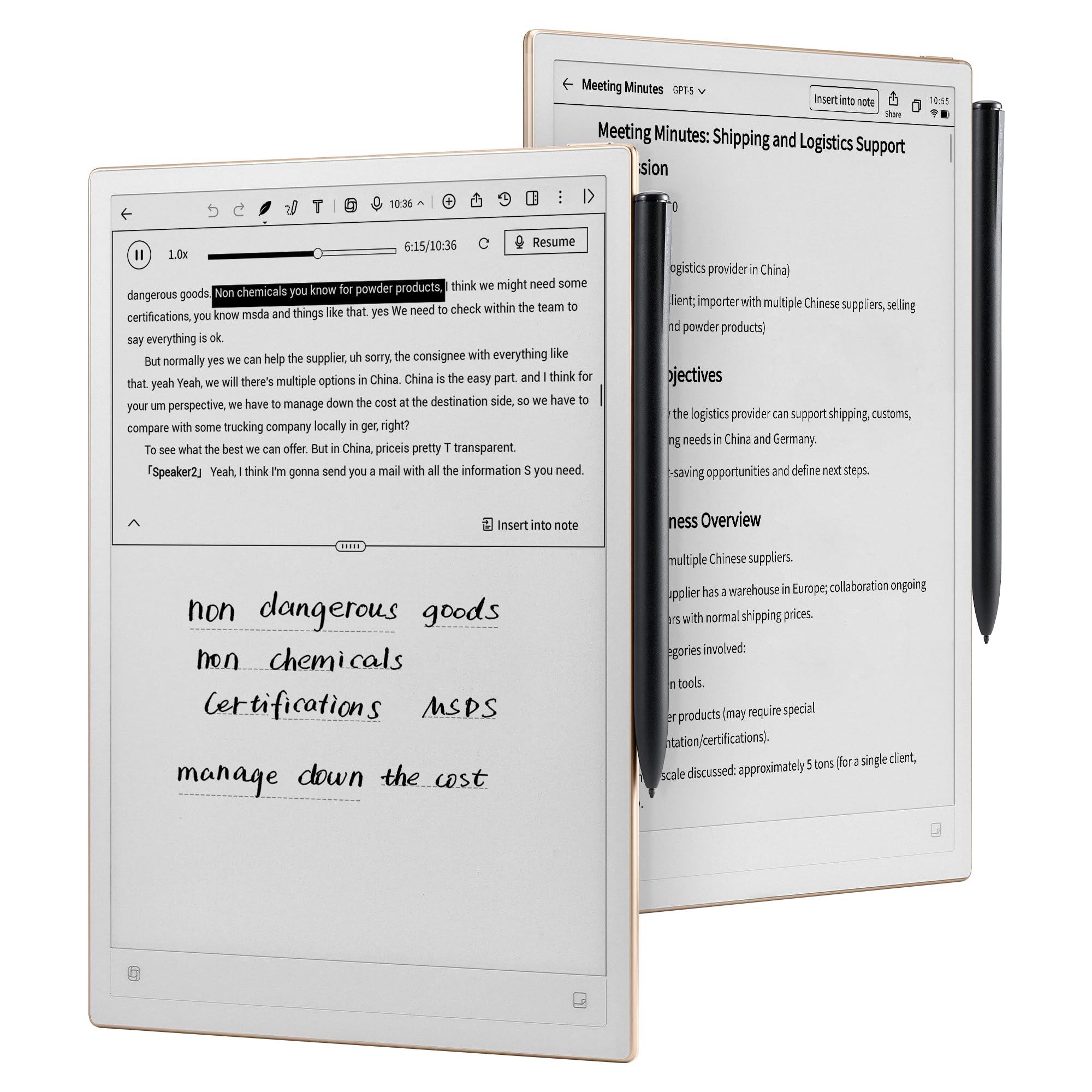
The iflytek AINOTE 2 is not an animation tablet in the traditional sense — it is a frontlight-free E-Ink device designed for note-taking and voice transcription. The 10.65-inch E-Ink screen with 1920×2560 resolution delivers a paper-like writing experience that is excellent for brainstorming story concepts, sketching rough character thumbnails, or transcribing meeting notes about animation project schedules. The intelligent AI transcription supports 16 languages, capturing spoken dialog and converting it to text with speaker separation — useful for transcribing voiceover scripts or recording creative feedback on storyboards.
The stylus uses Wacom EMR technology, providing a natural pen-on-paper feel with 8 brush styles and low-latency handwriting. The ultra-thin 4.2mm chassis and 14-day battery life (at 30 minutes of daily use) make it a highly portable companion for field notes and script development. Google Calendar sync and task management help organize animation deadlines, and the E-Ink screen is glare-free outdoors, making it ideal for location scouts or coffee shop brainstorming sessions.
There is no backlight, so the device is unusable in low-light environments without an external lamp. The E-Ink refresh rate is far too slow for frame-by-frame animation preview or real-time scrubbing. AI features require an active internet connection, and handwriting-to-text accuracy varies depending on writing speed and legibility. The AINOTE 2 is included here as a supplementary tool for animators who need a distraction-free writing and transcription device for pre-production and script work, not for actual animation creation.
Why it’s great
- Excellent E-Ink writing feel for notes
- Real-time AI voice transcription with 16 languages
- Ultra-thin and long battery life
Good to know
- Not suitable for animation work
- No backlight — requires external lighting
FAQ
Is 4096 pressure sensitivity enough for professional animation?
Can I use an iPad Pro instead of a dedicated animation tablet?
What does “fully laminated” mean on a drawing tablet?
Do I need a standalone tablet or a tethered pen display?
Final Thoughts: The Verdict
For most users, the animation tablet winner is the XPPen Artist Pro 19 Gen2 because the 4K UHD 18.4-inch canvas, Calman-verified color accuracy, and dual 16K stylus system deliver a complete studio-grade toolkit for serious animators. If you want cable-free mobility for sketching storyboards on the go, grab the XPPen Magic Drawing Pad. And for budget-conscious students or first-time buyers who need zero parallax and 16K pressure without breaking the bank, nothing beats the UGEE UE12.