
The arrow key cluster is the most underrated navigation tool on any keyboard — yet most compact layouts sacrifice it first. Whether you’re editing spreadsheets, navigating code, moving through documents, or just trying to survive a menu-driven game, losing dedicated arrow keys is a daily friction most buyers don’t realize until it’s too late.
I’m Min — the co-founder and writer behind Gadgets Feed. I’ve analyzed over 200 keyboard spec sheets and customer feedback threads to identify exactly which mechanical, ergonomic, and wireless models keep arrow keys accessible without compromising on switch quality or desk space.
This guide breaks down the top contenders that preserve tactile arrow key access while delivering solid build quality, reliable connectivity, and satisfying keystrokes. Whether you need a compact 60% with arrow keys or a full-size ergonomic board for heavy data entry, these picks represent the most practical arrow key keyboard options available today.
How To Choose The Best Arrow Key Keyboard
Arrow key placement varies dramatically between keyboard form factors. A 60% layout typically tucks arrow keys into a function layer or squeezes them into the bottom right corner, while 75% and TKL boards dedicate full physical rows. The wrong layout can turn simple cursor movement into a multi-key finger dance.
Layout Size: Where Do the Arrows Actually Live?
Full-size and 1800-compact layouts place arrow keys in a dedicated island between the main cluster and the numpad — this is the most ergonomic position for spreadsheet work. TKL boards trim the numpad but keep the arrow block intact. The 75% layout is the smallest form factor that still offers a dedicated arrow row without needing a function-layer hold. 60% boards like the AULA WIN68 HE include arrows but force them into a separate column that shifts the right Shift key — great for space-saving but requires muscle-memory adjustment.
Switch Type and Typing Feedback
Linear switches (Redragon K552’s reds or AULA’s magnetic Hall Effect switches) offer smooth keystrokes with no tactile bump — ideal for rapid double-taps on arrow keys during gaming. Tactile switches like Cherry MX Brown (found on the Adesso EasyTouch 150) give a distinct bump at actuation, which helps you feel exactly when the key registers during data entry. Clicky switches (Logitech MX Mechanical) add an audible click for auditory confirmation. For arrow keys specifically, the switch weight matters because these keys are often held down or tapped repeatedly — lighter actuation force reduces fatigue during extended navigation.
Connectivity: Wired Stability vs. Wireless Convenience
If arrow key latency matters for competitive gaming or rapid cursor work, wired USB-C or a dedicated 2.4GHz dongle (like the Logi Bolt receiver on Logitech models) delivers the lowest input delay. Bluetooth is convenient for multi-device setups but introduces slight latency that can feel sluggish on quick arrow presses. The AULA S75 PRO offers tri-mode connectivity with a toggle switch, letting you reserve wired mode for precision work and Bluetooth for casual typing.
Quick Comparison
On smaller screens, swipe sideways to see the full table.
| Model | Category | Best For | Key Spec | Amazon |
|---|---|---|---|---|
| Logitech MX Mechanical | Premium Wireless | Multi-device productivity | Low-profile clicky switches; 15-day battery with backlight | Amazon |
| Magic Keyboard with Touch ID | Apple Ecosystem | Mac users needing Touch ID | Full-size arrow keys; numeric keypad; 1-month battery | Amazon |
| Logitech Alto Keys K98M | Premium Compact | Quiet mechanical with numpad | Gasket-mounted UniCushion; 12-month battery life | Amazon |
| AULA S75 PRO | Mid-Range Wireless | Thocky sound with screen/knob | Tri-mode; LCD screen; 75% layout with dedicated arrows | Amazon |
| Adesso EasyTouch 150 | Ergonomic Mechanical | RSI prevention & data entry | Split-key contoured layout; Cherry MX Brown switches | Amazon |
| AULA WIN68 HE | Budget Gaming | Low-latency competitive gaming | Hall Effect magnetic switches; 8000Hz polling rate | Amazon |
| Redragon K552 | Budget Mechanical | First mechanical keyboard on a budget | 87-key TKL; metal frame; linear red switches | Amazon |
In‑Depth Reviews
1. Logitech MX Mechanical

The Logitech MX Mechanical packs a full-size layout with dedicated arrow keys and a numeric keypad into a low-profile chassis that doesn’t compromise on switch travel. The clicky mechanical switches deliver an audible, tactile confirmation with every key press — the arrow keys in particular feel snappy and responsive for rapid document scrolling or cursor navigation. The smart illumination backlighting activates as your hands approach, which is useful when you’re jumping between cells in a spreadsheet late at night.
Connectivity is the standout feature here: the keyboard pairs with up to three devices via Bluetooth Low Energy or the included Logi Bolt USB receiver, and switching between them is instantaneous. The USB-C charge holds up to 15 days with backlighting on or up to 10 months with it turned off, making this one of the longest-lasting wireless mechanical options in this price tier. The low-profile keycaps also reduce wrist angle compared to standard-height mechanical boards, which helps during all-day typing sessions.
The MX Mechanical is expensive relative to budget mechanical options, but the build quality, multi-OS compatibility (Windows, macOS, Linux), and Logi Options+ software customization justify the premium. For professionals who need reliable arrow key access across multiple machines without cable clutter, this is the most versatile arrow key keyboard available.
Why it’s great
- Full-size arrow keys with low-profile clicky switches
- Tri-device pairing with instant switching
- Exceptional battery life with or without backlighting
Good to know
- Keycaps show fingerprints and smudges easily
- Switches are not hot-swappable — you’re locked into clicky
- Premium price point compared to budget mechanicals
2. Magic Keyboard with Touch ID and Numeric Keypad

Apple’s Magic Keyboard with Touch ID is the only keyboard in this roundup that integrates a biometric fingerprint sensor for unlocking your Mac and authenticating purchases. The full-size arrow keys are separated from the numeric keypad by a dedicated navigation cluster, giving you distinct physical zones for cursor movement versus number entry — a layout that finance professionals and spreadsheet users will appreciate immediately. The scissor-switch mechanism delivers a crisp, stable feel with about 1mm of travel that closely mirrors the built-in MacBook Pro keyboard.
Battery life is outstanding: a single USB-C charge lasts roughly a month under normal use, and the keyboard pairs seamlessly with any Apple Silicon Mac without additional dongles or software. The aluminum chassis is rigid and slim at just 0.75 inches thick, making it easy to slide into a bag between workstations. The extended layout includes document navigation keys (Page Up, Page Down, Home, End) that sit logically above the arrow cluster for quick document jumping.
The obvious drawback is the lack of backlighting, which makes low-light typing a guessing game. It also only works reliably within the Apple ecosystem — Windows compatibility is limited. For Mac users who prioritize Touch ID convenience and full-size arrow key access, this is the most refined arrow key keyboard built for Apple hardware.
Why it’s great
- Touch ID unlocks and authenticates instantly
- Dedicated arrow key island with navigation cluster
- Month-long battery life with USB-C charging
Good to know
- No backlighting — unusable in dark rooms
- Mac-only compatibility; limited Windows support
- Premium pricing with no alternate switch options
3. Logitech Alto Keys K98M
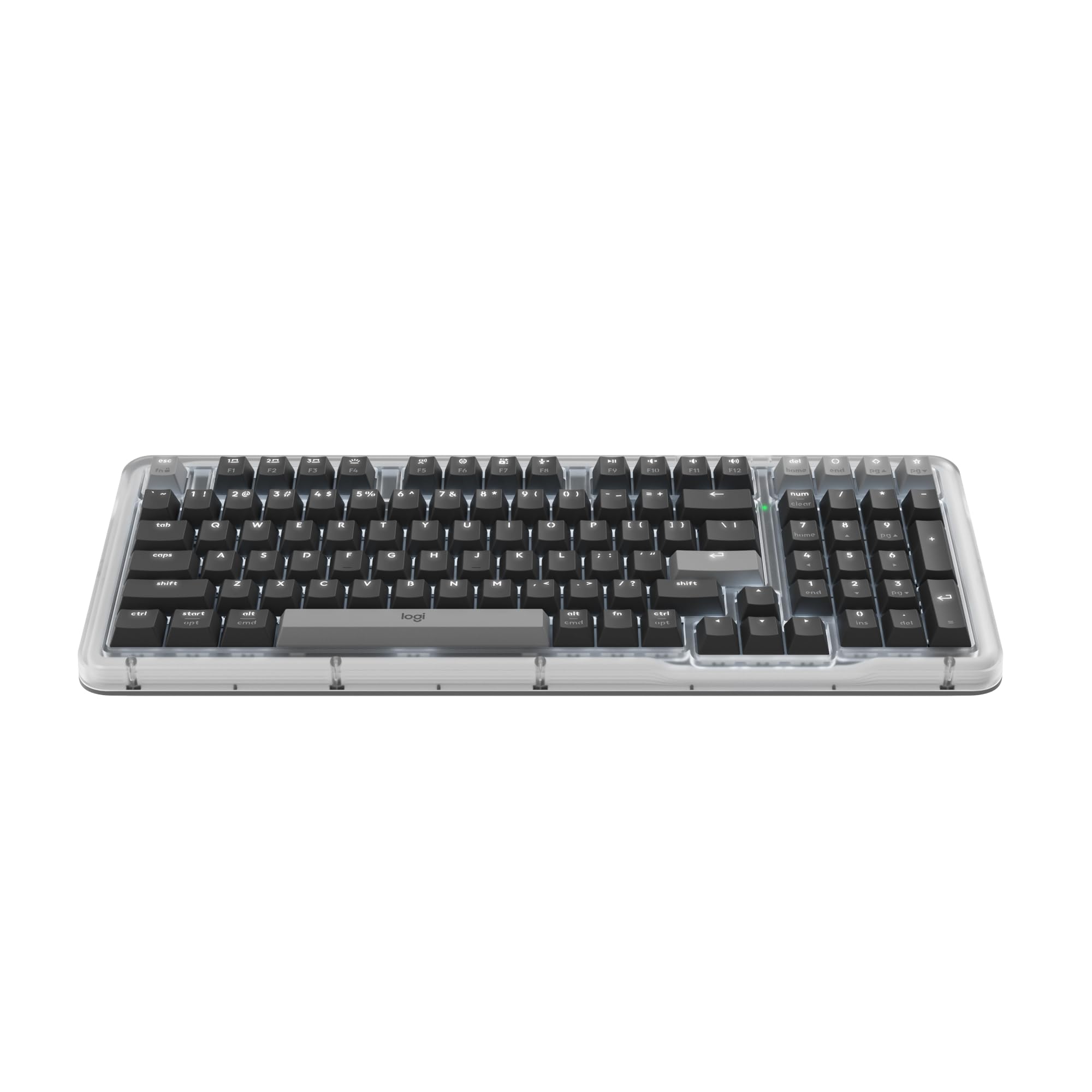
The Logitech Alto Keys K98M brings a gasket-mounted UniCushion system to the wireless mechanical market, absorbing vibrations and delivering a softer bottom-out feel than traditional tray-mounted boards. The 98-key 1800-compact layout keeps dedicated arrow keys intact while shaving inches off the width of a full-size keyboard — the arrow cluster sits in the classic inverted-T formation to the right of the alphas, flanked by the navigation keys above. The Marble Switches (linear, pre-lubed) are smooth and surprisingly quiet for a mechanical board, making this a strong candidate for shared office environments.
Battery life is exceptional at up to 12 months over Bluetooth Low Energy or the Logi Bolt USB receiver. The white backlighting is non-RGB and evenly diffused through the keycaps — no flashy patterns, just clean illumination for dark workspaces. Programming the Action Keys via Logi Options+ lets you assign arrow-key shortcuts or macro sequences to the Fn row, which adds flexibility if you need to navigate without moving your hands from the home row.
The lack of a wrist rest is the main ergonomic complaint, and the hollow sound on the spacebar is noticeable in a quiet room. But for a wireless mechanical that balances compact desk footprint with a full numpad and proper arrow keys, the K98M delivers a refined typing experience that bridges office and home use.
Why it’s great
- Gasket-mount design for quieter, softer keystrokes
- 98-key layout saves desk space without losing arrow keys or numpad
- Up to 12 months of battery life on a single charge
Good to know
- No included wrist rest — plan to buy one separately
- Hollow spacebar sound detracts from otherwise quiet typing
- White backlight only; no per-key RGB customization
4. AULA S75 PRO
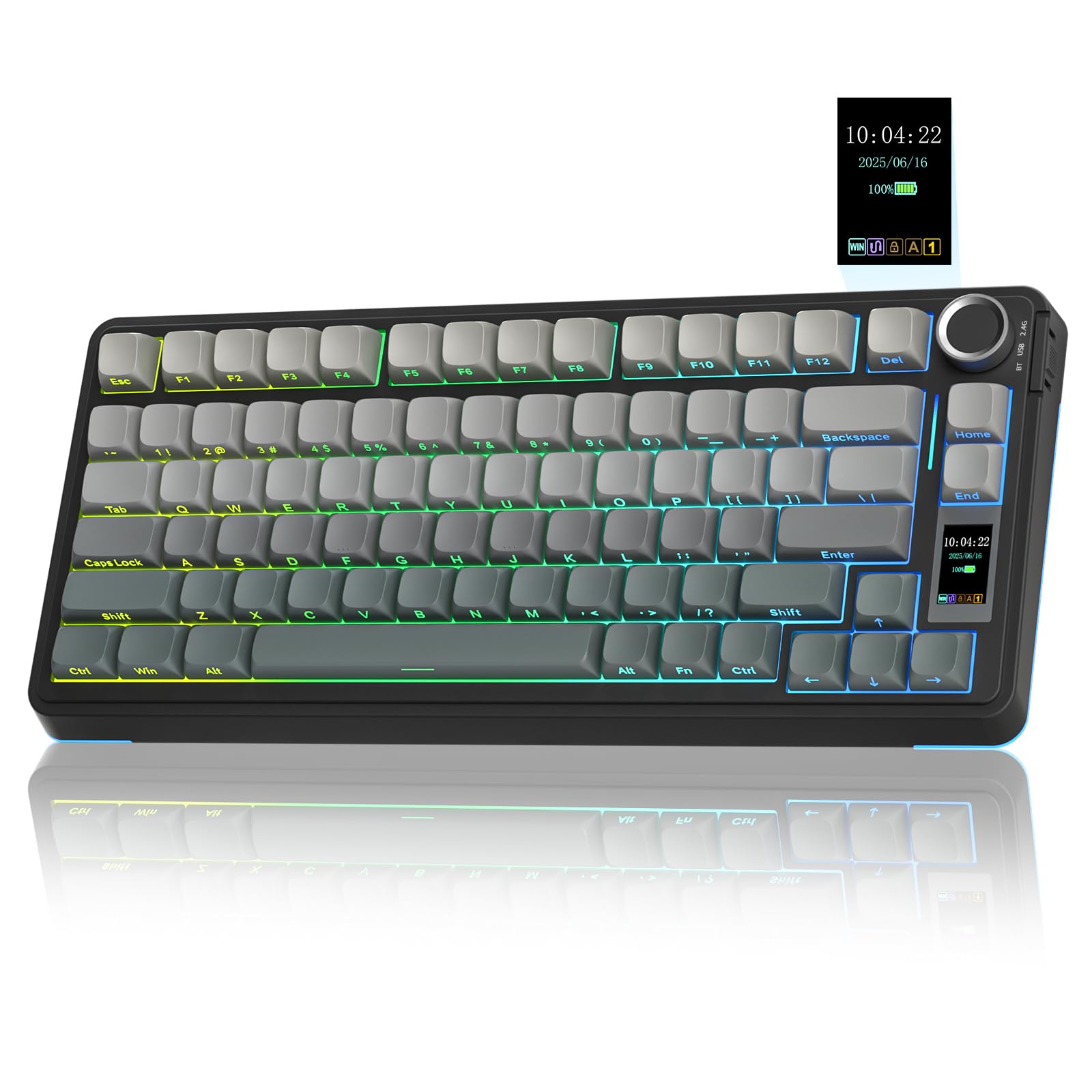
The AULA S75 PRO is a 75% wireless mechanical that squeezes in dedicated arrow keys without shifting the right Shift key — the arrow cluster sits flush against the bottom edge, separated slightly from the main block by a gap that helps tactile location. The star of the show is the integrated LCD screen and multi-function knob: the screen displays battery status, date, time, and custom GIFs, while the knob controls volume, lighting effects, and operating system switching. This is a genuinely useful feature set for someone who frequently toggles between Windows and macOS.
The pre-lubed linear switches produce a creamy, thocky sound signature that fans of deep acoustics will love. Five layers of silicone padding and a gasket-mounted structure eliminate most cavity echo, and the hot-swappable PCB supports 3-pin and 5-pin switches so you can replace the switches without soldering. The side-printed PBT keycaps resist shine and show off the south-facing RGB nicely without blinding you from above.
Battery life is the main compromise: with full RGB lighting active, expect around 20 hours of use. The software driver also only works in wired mode on Windows, which is frustrating if you primarily use macOS. But for the price, you get a wireless arrow-key keyboard with a screen, knob, hot-swap PCB, and genuinely great stock sound — a rare combination in the mid-range.
Why it’s great
- LCD screen with GIF support and multi-function control knob
- Tri-mode wireless (2.4GHz, Bluetooth, USB-C) with side toggle
- Hot-swappable PCB supports both 3-pin and 5-pin switches
Good to know
- Battery lasts about 20 hours with RGB on
- Driver software only works in wired mode on Windows
- Plastic case doesn’t feel as premium as metal-framed alternatives
5. Adesso EasyTouch 150
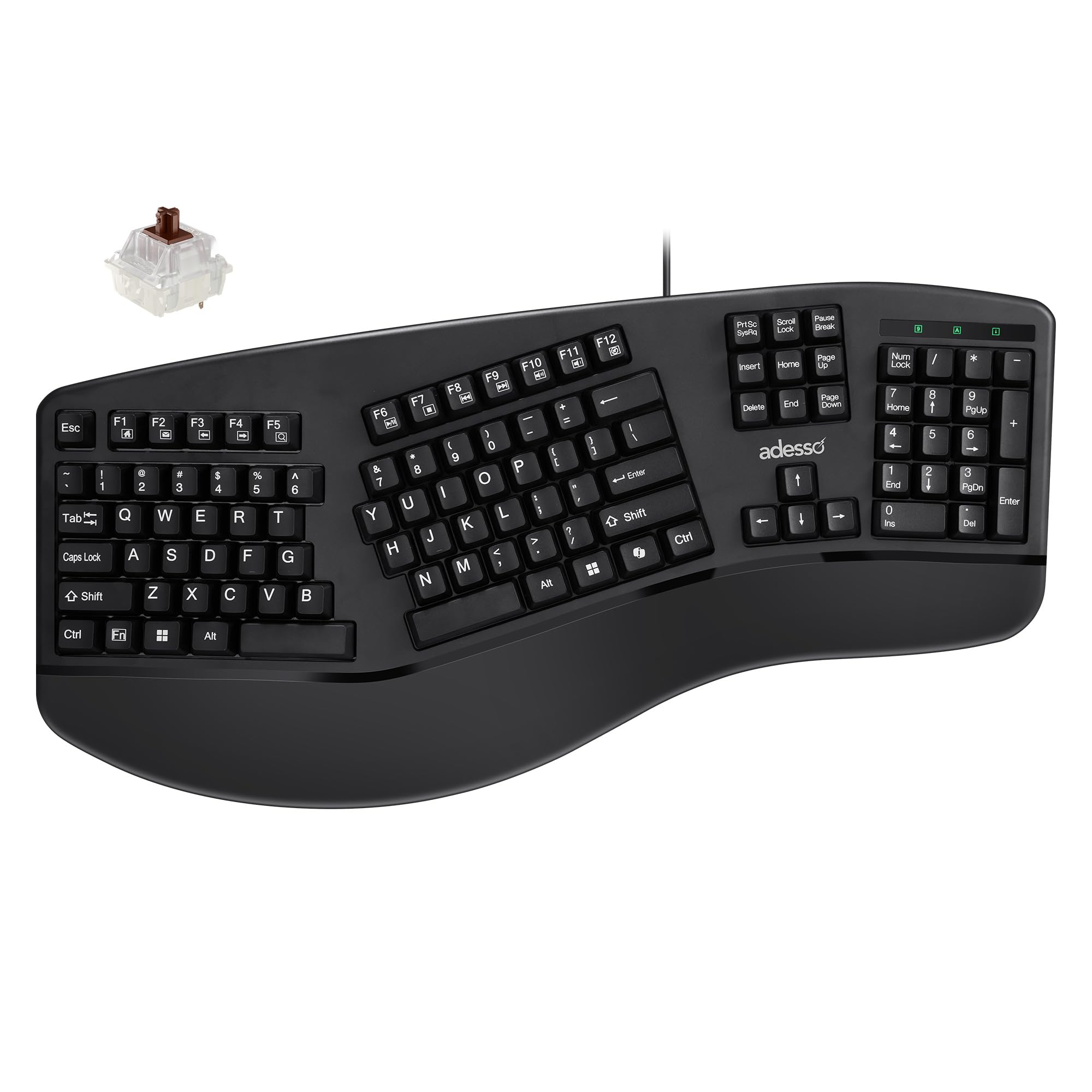
The Adesso EasyTouch 150 is a full-size ergonomic mechanical keyboard with a split-key, contoured layout that forces your wrists into a neutral, straight position — the arrow keys sit in the center valley between the two alphanumeric halves, which is an unconventional placement but one that becomes intuitive after a few hours of use. Cherry MX Brown switches provide a tactile bump with each keystroke, giving you clear confirmation that your arrow press registered without requiring full bottom-out force. The integrated palm rest supports your wrists at the correct height, reducing ulnar deviation during extended data entry sessions.
The dedicated Copilot AI hotkey is a unique addition for Microsoft ecosystem users, launching the AI assistant instantly from within any application. The full 104-key US layout includes a complete numeric keypad and N-key rollover — useful if you’re entering data while simultaneously navigating with arrow keys. The wired USB-A connection ensures zero latency, which is critical when arrow keys are being used for precise cell-by-cell spreadsheet navigation.
The wrist rest is too short for users with larger hands, and the laser-etched keycaps may fade over time. The lack of backlighting is also a miss for a keyboard in this price bracket. But for anyone dealing with wrist strain or repetitive stress injuries who needs dedicated arrow keys and a mechanical typing feel, the EasyTouch 150 is a specialized solution that prioritizes ergonomics over everything else.
Why it’s great
- Split-key ergonomic layout reduces wrist strain
- Cherry MX Brown switches offer tactile feedback without excessive noise
- Dedicated Copilot AI hotkey for Microsoft users
Good to know
- Wrist rest is too short for average to large hands
- No backlighting — not usable in low light
- Laser-etched keycaps may show wear over time
6. AULA WIN68 HE

The AULA WIN68 HE is a 60% keyboard that retains arrow keys by squeezing them into a right-hand column — an arrangement that requires a shorter right Shift key but gives you four physical arrow switches without any function-layer gymnastics. The Hall Effect magnetic switches are the real draw: adjustable actuation from 0.02mm to 3.44mm in 0.1mm increments, which lets you set the arrow keys to trigger on the lightest touch for racing games or require deeper presses to avoid accidental input during typing. The 8000Hz polling rate and 0.3ms latency make this one of the fastest response windows available in any keyboard at this price point.
The software driver runs in a web browser and allows per-key configuration of Rapid Trigger mode, SOCD (simultaneous opposing cardinal directions), and DKS (dynamic keystroke) functions — features that competitive FPS and fighting game players specifically look for in an arrow key keyboard for strafing and precision movement. The detachable USB-C cable and compact 68-key frame make it easy to take to LAN events or between workstations.
The plastic enclosure doesn’t feel as premium as metal-framed alternatives, and the limited size means no dedicated function row or navigation cluster. The web driver also occasionally has connection issues. But for the price, you get magnetic-switch technology that historically costs significantly more, packaged in a layout that actually gives you physical arrow keys — a rare combination in the budget tier.
Why it’s great
- Hall Effect magnetic switches with adjustable actuation from 0.02mm
- 8000Hz polling rate and 0.3ms latency for competitive gaming
- Physical arrow keys in a 60% layout without function-layer holds
Good to know
- Plastic case lacks the rigidity of metal-frame keyboards
- Web driver can be finicky to connect and maintain
- No dedicated function row — all F-keys in Fn layer
7. Redragon K552

The Redragon K552 is the entry-level mechanical that introduced thousands of users to dedicated arrow key clusters in a tenkeyless format. The 87-key TKL layout gives you an independent inverted-T arrow block separated from the main typing area by a small gap, making it nearly impossible to hit the wrong navigation key by accident. The linear red switches are smooth and consistent, and the metal top plate keeps the board rigid — you won’t feel any flex even under aggressive typing or gaming.
Rainbow LED backlighting includes six dynamic modes (breathing, wave, ripple, reactive) controlled via keyboard shortcuts without requiring software. The braided USB cable is a nice touch at this price point, and the N-key rollover ensures every simultaneous key press registers — important for arrow-key combinations like Shift+arrow for text selection or WASD+Shift for sprinting in games. The switch stems are compatible with Cherry MX keycaps, so you can replace the stock ABS caps with PBT alternatives later.
The switches are loud — the click noise, bottom-out sound, and return resonance all transmit through the plastic case and into your desk surface. Some users also report that the backlighting resets to default on system boot. But as a budget option that gives you a full dedicated arrow key cluster in a tank-like metal frame, the K552 remains the most reliable choice for someone who just wants mechanical arrow keys without spending heavily.
Why it’s great
- 87-key TKL layout with dedicated arrow key cluster
- Metal top plate and steel backplate for rigid, flex-free typing
- N-key rollover and full anti-ghosting for accurate input
Good to know
- Linearly loud — both switch click and bottom-out noise are pronounced
- Backlighting resets to default pattern on each system boot
- Stock keycaps feel thin; plan to upgrade to PBT eventually
FAQ
How can I tell if a compact keyboard has dedicated arrow keys without buying it first?
Do linear or tactile switches work better for arrow key navigation in spreadsheets?
Can I use a mechanical arrow key keyboard wirelessly for competitive gaming?
Final Thoughts: The Verdict
For most users, the arrow key keyboard winner is the Logitech MX Mechanical because it combines a full-size arrow key island with low-profile clicky switches, tri-device wireless, and exceptional battery life — no compromises on navigation or typing feel. If you want a compact build with a screen and knob that still gives you dedicated arrow keys, grab the AULA S75 PRO. And for competitive gaming where arrow key latency and adjustable actuation matter most, nothing beats the AULA WIN68 HE with its Hall Effect magnetic switches and 8000Hz polling rate.