
Our readers keep the lights on and my morning glass full of iced black tea. As an Amazon Associate, I earn from qualifying purchases.
Specs are compiled from manufacturer listings and verified buyer reviews and can change over time — please confirm the key details on the product page before buying.
A pen display lets you draw directly on the screen, so your strokes appear exactly where your pen touches, eliminating the hand-eye disconnect of non-screen tablets. This guide compares specs and real-world feedback to help you pick the right pen display for your budget and skill level.
I’m Min — the founder and writer behind Gadgets Feed. This guide is built by comparing the manufacturers’ published specifications and the patterns across verified customer reviews, so you get each pick’s real strengths and trade-offs instead of marketing spin.
Screen size, color accuracy, and pressure sensitivity decide how natural drawing feels, and the right art tablet with screen makes the leap to digital art easy.
Our Picks at a Glance


How To Choose The Best Art Tablet With Screen
Buying a pen display means deciding how it will be used daily. Most of these devices are not standalone — they must connect to a computer to work, so your laptop or desktop needs the right ports and enough graphics muscle.
Screen Size and Workspace
Larger screens (15.6″ and up) allow full-arm strokes but cost more and require more desk space. A 15.6-inch display is the popular middle ground for studio work, while an 11.6-inch panel suits tight dorm desks or travel bags.
Color Accuracy Matters
If you design for print or sell digital art, color gamut coverage determines whether the teal on your screen matches the teal on your client’s monitor. Higher sRGB coverage (e.g., 143% vs. 99%) delivers more vivid, accurate colors for print and digital work.
Quick Comparison
| Model | Best For | Screen Size | Pressure Levels | Color Gamut | Amazon |
|---|---|---|---|---|---|
| HUION Kamvas 13 (Gen 3)★ Best Overall | Budget-friendly beginners | 13.3″ | 16384 | 99% sRGB | Amazon |
| UGEE UE16Color King | Color-focused artists | 15.4″ | 16384 | 143% sRGB | Amazon |
| VEIKK VK1200 V3Compact Pick | First-time buyers | 11.6″ | 16384 | — | Amazon |
| RubensTab T11 Pro | Standalone sketching | 10.1″ | 1024 | — | Amazon |
| XPPen Artist 12 3rd | Students and hobbyists | 11.9″ | 16384 | — | Amazon |
| GAOMON PD1561 | Generous canvas on a budget | 15.6″ | 8192 | — | Amazon |
| Xencelabs Pen Display 16 | Professional color work | 16″ | — | 4K OLED | Amazon |
| Wacom Cintiq 22 | Pros needing space | 21.5″ | 8192 | — | Amazon |
| Wacom Cintiq Pro 22 | High-end professionals | 22″ | 8192 | 4K 120Hz | Amazon |
In‑Depth Reviews
1. HUION Kamvas 13 (Gen 3)
Our pick — 4.5★ from 800+ verified ratings; the strongest balance of quality and price.
The budget artist’s gateway to drawing directly on a 13.3-inch screen while staying affordable
This is the pen display most beginners should start with because it delivers a clean 1080p experience at a friendly price. The 13.3-inch fully laminated screen uses new anti-sparkle canvas glass 2.0, which cuts glare and improves accuracy so your pen tip feels closer to the cursor.
Pressure sensitivity sits at 16384 levels with a 2g initial activation force, so the lightest feather-touch marks the screen. A USB-C single cable connection keeps your desk tidy, and the 5 programmable shortcut keys plus dual dial buttons speed up zoom and brush-size changes. Buyers report the port side gets warm after about 3 hours of continuous use, and the 200-nit brightness means it’s best used in a lit room rather than bright sunlight.
What wins people over is the build quality and value — one long-time Xp-pen fan switched over completely, praising the smooth etched glass, thin parallax, and excellent support. The included ST300 adjustable stand and drawing glove make it a ready-to-go package for Clip Studio and Photoshop alike.
budget-friendly 13-inch
- Smooth etched glass feels paper-like to draw on
- High pressure sensitivity with thin parallax
- Clean 1080p display with excellent value
cramped workspace
- Screen brightness is modest at 200 nits
- Port side runs warm during long sessions
- Not a standalone device — needs a computer
budget pick: you want the most balanced entry into screen-based drawing with a proven track record.
small screens: you need a bright, highly portable display for travel — the 13.3-inch size is slightly long for a backpack.
2. UGEE UE16
A 15.4-inch canvas that pushes colors far beyond what comparably priced rivals can show
If color accuracy is your priority, this screen beats the HUION Kamvas 13 on gamut — the UE16 covers 143% sRGB versus the Kamvas’s 99% sRGB, a 44% wider color gap. That extra range means richer, more vivid reds and blues when you’re designing or illustrating.
The 15.4-inch full-laminated LED display reproduces 16.7 million colors with 8-bit depth, and you can switch between sRGB, Adobe RGB, DCI-P3, and a Black & White mode. Four color spaces give you flexibility whether you’re prepping print work or reading documents. The battery-free U-Pencil has two hotkeys, a pressure-sensitive eraser, and 16K pressure sensitivity for precise strokes.
Owners describe the drawing feel as close to paper, and the 8 physical shortcut keys plus scroll wheel make tool-switching smooth. The honest trade-off: pen nibs are soft and wear quickly, with buyers reporting they may need replacements within a year if you press hard. Also, remember to peel off the blue protective plastic film on arrival — some mistook it for a weak blue tint for months.
value size: artists who obsess over color depth and want a large screen on a mid-range budget.
software purists: you have a heavy hand — the soft nibs will need more frequent replacement.
3. VEIKK VK1200 V3
A featherweight 11.6-inch display that slips into a bag and starts drawing in minutes
This compact pen display is the lightest option here at just 450g, so it’s the one to grab if you sketch in coffee shops or move between classrooms. The 11.6-inch full-laminated IPS screen runs at Full HD 1920×1080 with anti-glare matte glass that reduces reflections and eye strain.
You get two battery-free pens right in the box, each with 16384 levels of pressure sensitivity and 60° tilt support for dynamic brush strokes. A single full-featured USB-C to USB-C cable handles video, data, and power at once, so there’s no adapter hunting for compatible devices.
The bundle includes a portable adjustable stand, a drawing glove, and 28 replacement nibs — everything a first-timer needs. Reviews praise the paper-like drawing feel and responsive screen. The catch is consistency: a few units arrived with defective pens that registered full pressure on hover, and the included pens feel a bit loose and light. Buyers also note the stand is for the pen display, not a tablet stand, so check your setup.
entry choice: portability and a ready-to-draw bundle matter more than a huge canvas.
pro needs: you want a large stationary studio display — 11.6 inches is snug for full-arm strokes.
4. RubensTab T11 Pro

The only pick that works completely on its own, freeing you from cables and computers entirely
You can sketch anywhere without a computer because the RubensTab T11 Pro is fully self-contained. It boots straight into a 10.1-inch Full HD IPS screen at 1920×1200 resolution, so you can draw on a train, in a meeting, or on a couch without plugging anything in.
An internal 5800mAh battery delivers up to 5 hours of continuous use and charges over USB-C, and you can top it up with a mobile power bank on the go. The battery-free stylus offers 1024 pressure levels with tilt support, and multi-touch lets you pinch-zoom and pan naturally. Android 12 comes pre-loaded with Krita and Sketchbook, plus a suite of drawing apps for beginners.
What makes this a standout for families is the all-in-one bundle: an adjustable stand case, spare nibs, a metal stylus, a glove, and a pre-installed screen protector. Buyers love that the battery held 87% after three days idle, and the drawing performance feels paper-like and lag-free. The mixed feedback centers on performance and durability — some units have a wobbly stylus tip, and there’s no keyboard accessory available.
travel buddy: kids, students, or travelers who want a grab-and-go drawing device with zero setup.
tech support: you need professional-grade pressure depth — 1024 levels is entry-level territory.
5. XPPen Artist 12 3rd
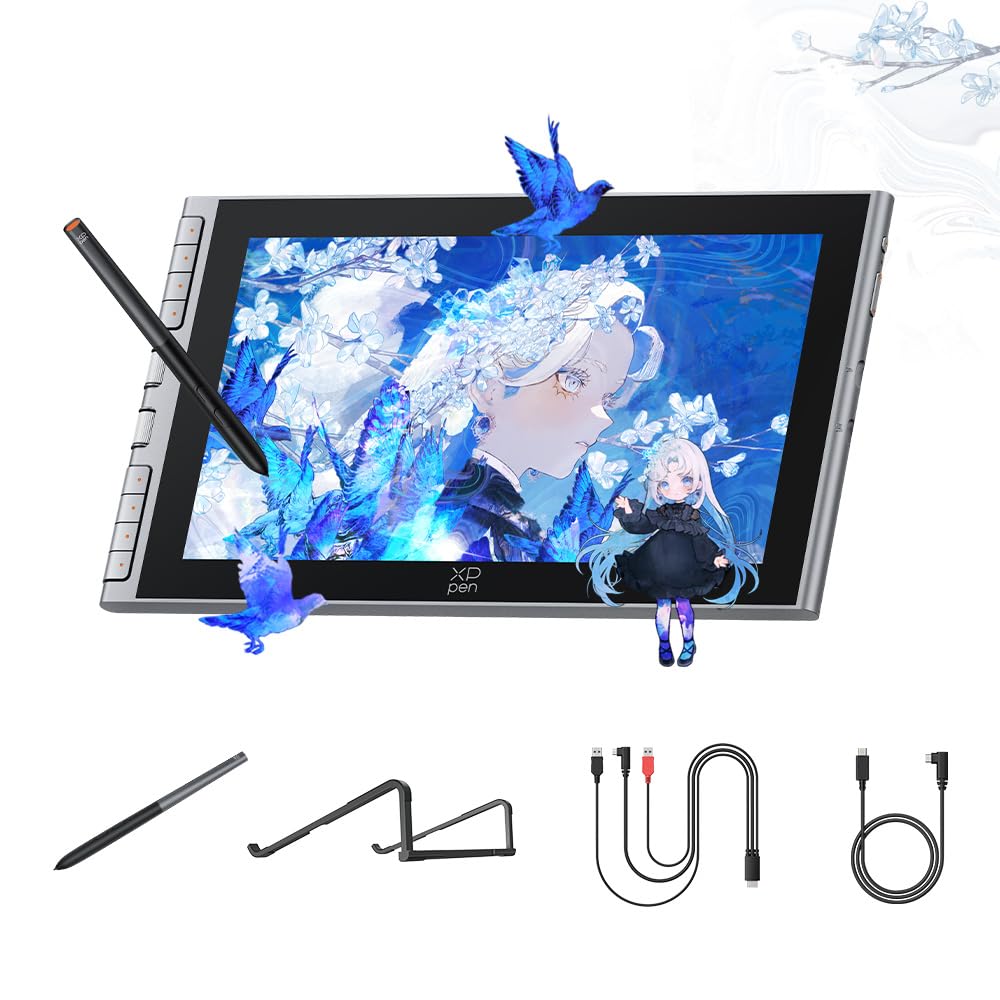
A beginner-focused 11.9-inch display with a magnetic stylus that refuses to get lost
XPPen built this one specifically for students and first-time digital artists. The 11.9-inch screen uses AG+AF nano-etched glass to mimic paper resistance while cutting glare and smudges, and full lamination removes the air gap so your cursor sits right under the nib.
The headline feature is the X4 Smart Chip inside the stylus, pushing pressure sensitivity to 16,384 levels with a rapid 0.3mm nib travel. Magnetic storage on the side of the tablet keeps the pen from vanishing in a dorm room or travel bag. A full-featured USB-C one-cable connection handles video, data, and power to Windows, Mac, and Android devices.
Eight customizable shortcut keys sit at the top for instant undo and zoom, and the included S20 foldable stand supports good posture during long study sessions. Owners who came from traditional drawing after 25 years called this a regret-free buy, setting up with a MacBook in about three minutes and drawing flawlessly in Clip Studio Paint. The occasional gripe is the eraser end — it can act as a pen in some apps like Krita instead of an eraser, which is likely a settings tweak.
color work: students who want a tidy, plug-and-play display with a pen that stays put.
build snobs: you need a larger canvas for full-arm gestures — 11.9 inches suits focused, detailed work.
6. GAOMON PD1561

A roomy 15.6-inch IPS display that gives pros a big canvas without a premium price tag
For artists who want a generous drawing surface, the PD1561 offers a 15.6-inch Full HD IPS screen with a 178° viewing angle and a 266PPS report rate for smooth, natural lines. The 8192-level pressure sensitivity with 60° tilt support and a battery-free AP50 pen keeps strokes fluid and responsive.
Ten customizable shortcut keys give you quick access to tools, and the adjustable stand lets you find a comfortable angle whether you’re sketching or annotating. A pre-applied anti-glare screen film protects the surface and adds a paper-like texture, and the included pen holder stores 8 replacement nibs. It works with Windows 7 and above and Mac OS 10.12 and above, plus major software like Photoshop, Clip Studio, and Krita.
The biggest crowd-pleaser is performance and value, with thousands of owners praising the screen size and suitability for drawing and sketching. The honest caveats: color matching with your laptop screen can take adjustment using the OSD panel, and the 3-in-1 cable setup means three separate connections (HDMI, USB, power) rather than a single wire. Left-handed users should know the side-button placement can cause accidental presses.
desk anchor: you want a large, comfortable canvas for illustration or online teaching without jumping to premium pricing.
portability: you need one-cable simplicity or a compact footprint — this is a desk-bound device.
7. Xencelabs Pen Display 16 Bundle

A studio-grade 16-inch OLED panel that renders a billion colors with true deep blacks
This is the premium pick for color-critical work because the 4K OLED display (3840×2160) delivers 1.07 billion colors across 5 color gamuts, from deep blacks to vibrant highlights. The Super AG Etching surface gives a smooth pen-and-paper feel, and the pressure curve ranges from 3g to 500g to suit both feather-light and heavy-handed artists.
You get two battery-free pens — the 3 Button Pen v2 and the Thin Pen v2 — both with built-in erasers, plus the Quick Keys remote with an OLED screen, 8 buttons, and 5 sets for up to 40 customizable shortcuts per application. A dial handles zoom, rotation, and brush size in four modes. It’s slimmer and lighter than an equivalent Wacom, and owners mention no fan or power adapter needed. One noted the OLED display is beautiful with minimal glare and parallax.
Owners who’ve worked with Wacom for years call this the better option, praising the instant drivers and quality build. The honest trade-offs are the OLED burn-in risk over time and a setup that took some patience on Windows 11 — you may need to plug into the motherboard’s HDMI port and reinstall the driver if the connection drops when idle. Those eyeing an even bigger studio canvas sometimes return it for the 24-inch model.
complete kit: you’re a working illustrator who demands accurate, vivid color and wants two pens plus a shortcut remote included.
base model: you don’t need the extra pens and Quick Keys — some say it’s the smarter deal.
8. Wacom Cintiq 22
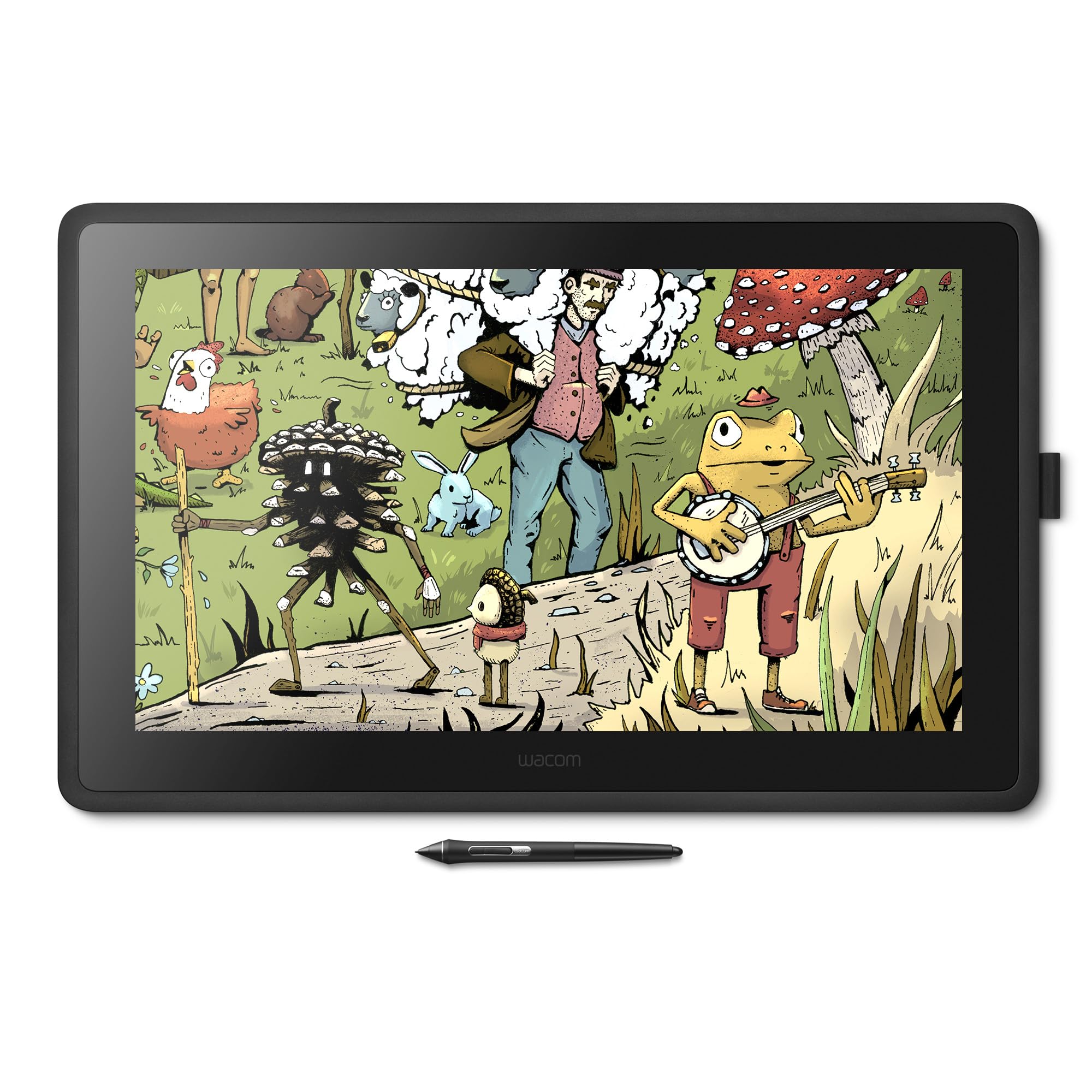
The trusted name in pen displays, offering a huge canvas that professional concept artists swear by
Wacom set the standard for drawing tablets, and the Cintiq 22 delivers a large 21.5-inch Full HD display with uniform brightness and true-to-life color. The included Pro Pen 2 offers 8192 levels of pressure sensitivity, tilt recognition, and virtually lag-free tracking with two customizable switches for quick shortcuts.
The active surface area of 18.74 x 10.55 inches gives professionals room for whole-arm drawing strokes, and the relaxed parallax makes it feel like drawing on paper. Owners call it a direct upgrade from older Cintiq models — lighter, cooler, with a sturdier stand and more screen area. It’s not a standalone computer, so it needs a PC with USB and HDMI ports.
Performance is what wins people over, with buyers noting it’s better than an iPad for serious work and that 1080p resolution at 600 DPI is plenty for illustration. The mixed opinions center on value — some call it worth every penny while others find it expensive. The practical downsides: three top-mounted cables create some clutter, color matching can require calibration, and it’s a large, heavy unit that needs real desk space. A rare dead pixel or two appeared in isolated units.
brand trust: professional artists and serious hobbyists who want a proven, spacious canvas and don’t mind a permanent desk setup.
modern specs: beginners on a budget or anyone needing portability — this stays put.
9. Wacom Cintiq Pro 22

The flagship 22-inch display with 4K resolution, a 120Hz refresh, and a fully customizable Pro Pen 3
Creative professionals who want the absolute best drawing experience should look at this top-of-the-line pen display. The Ultra HD 4K screen runs at a 120Hz refresh rate for near-zero latency, and the etched glass surface feels amazing to draw on. Colors pop with professional-grade accuracy, and the 10-point multi-touch lets you zoom and pan intuitively.
The Pro Pen 3 pushes customization further with 8192 levels of pressure sensitivity, 3 side switches, adjustable pen grips, and adjustable weight and center of balance. Eight ExpressKeys sit on the display for quick tool access, and the Easy Stand offers a fixed-angle height you can adjust. The bundle includes 10 replacement nibs, extra grips, button plates, and a balance piece.
Owners who compared it to competitors say the line quality is superior and the pen is accurate with no wobble. The etched glass surface is repeatedly praised as the best drawing feel available, and the 120Hz refresh is a bonus for both drawing and gaming. The recurring critiques are the poor pen holder design that can block buttons and vents, a wobbly overpriced stand, and occasional Windows driver quirks that require a reinstall. It’s expensive, but for dedicated professionals it’s considered the top-tier 22-inch display.
pro investment: you’re a professional who lives in your art software and wants the smoothest, most color-accurate canvas money can buy.
tight budgets: your budget is mid-range — the 120Hz and 4K are luxuries, not necessities, for most hobbyists.
Understanding the Specs
Full Lamination and Parallax
Full lamination bonds the glass directly to the LCD panel, removing the air gap between them. That gap is what causes parallax — the visible offset between your pen tip and where the cursor actually appears. With full lamination, your strokes land exactly where you see them, making drawing feel more natural and precise.
Pressure Sensitivity Levels
Pressure levels (e.g., 8192 vs. 16384) control how precisely the tablet registers pen pressure for line variation. Higher counts like 16384 let you make ultra-subtle transitions from a faint pencil line to a bold brush stroke. For most beginners, 8192 levels are sufficient; 16384 levels offer finer nuance that pros may notice in detailed shading.
FAQ
Does an art tablet with screen work without a computer?
How many pressure levels do I really need?
Can I use a pen display with a Mac or a phone?
What is sRGB color gamut and why does it matter?
Do I need a stand for my drawing tablet?
What cables do I need to connect a pen display?
How long do pen nibs last?
Is a pen display good for beginners?
What is the difference between a drawing tablet and a pen display?
Final Thoughts: The Verdict
For most buyers, the best art tablet with screen is the HUION Kamvas 13 (Gen 3) because it balances price, build quality, and a clean 1080p display for beginners. If you live for rich color, grab the UGEE UE16 for its 143% sRGB coverage. And for a completely portable setup with no computer needed, the RubensTab T11 Pro is the one to reach for.
How We Picked
We do not accept paid placement. Every pick is matched to a real buyer and a real use-case; we do not hands-on test units.
Sources & Methodology
Specifications: manufacturer listings and product documentation. Review insights: verified customer reviews, as of September 2026. Pricing: not shown on this page (it changes often); check the current price via the retailer link.
As an Amazon Associate, Gadgets Feed earns from qualifying purchases. This does not affect which products we feature.