
Our readers keep the lights on and my morning glass full of iced black tea. As an Amazon Associate, I earn from qualifying purchases.
Specs are compiled from manufacturer listings and verified buyer reviews and can change over time — please confirm the key details on the product page before buying.
You want an art tablet that feels natural in your hand, whether you’re sketching on the couch or doing client work at a desk. You don’t need to be a tech wizard to pick one — you just need to know which specs actually affect your drawing, like pressure sensitivity and the size of the drawing surface, and which ones are just marketing noise. This guide cuts through that noise so you can choose the tablet that matches your workflow.
I’m Min — the founder and writer behind Gadgets Feed. This guide is built by comparing the manufacturers’ published specifications and the patterns across verified customer reviews, so you get each pick’s real strengths and trade-offs instead of marketing spin.
From budget pen tablets to premium pen displays and standalone Android options, here are the best art tablet picks worth your money in this lineup.
Our Picks at a Glance



How To Choose The Best Art Tablet
Before you click buy, decide between a pen tablet (a pad that connects to your computer, while you watch the monitor) or a pen display (a screen you draw directly on). Your budget and if you need to draw on the go, away from a computer, will drive that choice.
Pen Tablet vs. Pen Display vs. Standalone
Pen tablets are the most affordable entry point. They are lightweight pads with no screen, so you look at your computer monitor while your hand works on the pad. They tend to be easier on your budget and often include a battery-free pen that never needs charging. Pen displays have a built-in screen, so you draw right on the image, which feels more intuitive for many beginners but costs more. Standalone drawing tablets run their own operating system, so you can draw anywhere without a computer, but they are usually a step down in raw pressure sensitivity compared to dedicated professional gear.
Pressure Sensitivity and Tilt
Pressure sensitivity levels tell you how finely the pen can register changes in pressure. More levels, like 16,384, mean you can create very subtle gradients and line variations. Tilt support lets the tablet sense the angle of your pen, so you can shade with the side of the “lead” just like a pencil. If you plan to do detailed illustration or painting, aim for a high level of pressure sensitivity and tilt support.
Size, Weight, and Connectivity
Consider the active surface area — the part of the tablet where you draw. A medium-sized surface, around 9 x 5 inches, is good for most users and big enough to make sweeping strokes. If you travel a lot, a lighter and more compact tablet is easier to fit in a bag. For connectivity, most tablets use USB, while higher-end models offer Bluetooth wireless freedom. Just remember, a Bluetooth connection can have a tiny bit of lag, so for professional work, a wired USB connection is often more reliable.
Quick Comparison
| Model | Best For | Active Area | Pressure Levels | Connection | Amazon |
|---|---|---|---|---|---|
| HUION Inspiroy 2 Medium★ Best Overall | The best value pen tablet | 8.7″ x 5.4″ | 8192 (PenTech 3.0) | USB-C | Amazon |
| GAOMON WH851Best Value | Budget wireless drawing | 8″ x 5″ | 16384 | Bluetooth 5.0 / USB-C | Amazon |
| XPPen Deco Pro LW 2ndTop Performer | Wireless with shortcut remote | 9″ x 6″ | 16384 | Bluetooth / USB | Amazon |
| Frunsi T8 RubensTab | Standalone drawing for beginners | 8 inches | Not specified | Wi-Fi Built In | Amazon |
| Frunsi T11 Pro RubensTab | 10.1″ standalone canvas | 10.1 inches | 1024 | Wi-Fi / USB-C | Amazon |
| XPPen Artist 12 3rd | Beginner pen display | 11.9 inches | 16384 | USB-C one-cable | Amazon |
| TECLAST Artpad Pro | Large 2K display for media & art | 12.7 inches | 4096 | Wi-Fi / 4G | Amazon |
| HUION Kamvas 13 (Gen 3) | Pro-color pen display | 13.3 inches | 16384 | 3-in-1 USB-C | Amazon |
| Wacom Cintiq Pro 24 | Professional 4K workhorse | 24 inches | 8192 | HDMI / DisplayPort | Amazon |
In‑Depth Reviews
1. HUION Inspiroy 2 Medium Drawing Tablet
Our pick — over 4.5★ from 950+ verified ratings; the strongest balance of quality and price.
The crowd favorite pen tablet that brings pro-level pen control to a budget price.
The Inspiroy 2 Medium earns its spot in “which one should I buy” conversations because it pairs a large 8.7″ x 5.4″ drawing area with the upgraded PenTech 3.0 (the pen technology that tracks your strokes). Your lines track precisely with no noticeable lag or wobble, just like a standard pen. You get a battery-free pen, so there’s no charging to worry about mid-sketch, and it connects simply via USB-C to your laptop, desktop, or Android smartphone (OS version 6.0 or later).
What wins people over is the quality — it’s the most-praised aspect by far, with the value-for-money a close second. The 10 customizable buttons and scroll wheel let you map your favorite shortcuts for different apps, making your workflow smoother, whether you’re culling photo edits or modeling. It’s lightweight at 420 g and feels great quality for the price, with the included pen holder and 10 extra nibs ready to go from the start.
The main drawback is the lack of Bluetooth, so you’re tethered to your computer via USB-C. A few owners also note the nib wears fast and the scroll wheel takes a firm push. If you’re an artist, modeler, or just want a mouse alternative, this is the one to get.
What You’ll Love
- Excellent precision with PenTech 3.0, no lag or wobble
- Battery-free pen and easy USB-C setup
- Lightweight at 420 g and great value
- Works with Mac, Windows, Linux, Android, and ChromeOS
Keep In Mind
- No Bluetooth — wired connection only
- Scroll wheel can be hard to press
- Nib wears faster than some would like
Reach for this if: you want the best balance of price, precision, and a medium-sized drawing surface for art, modeling, or photo editing.
Look elsewhere if: you absolutely need wireless freedom, as this tablet is strictly USB-connected.
2. GAOMON WH851 Bluetooth Graphics Drawing Tablet
A compact wireless tablet with the highest industry pressure levels, perfect for drawing on the go.
The WH851 takes the crown for wireless drawing at a budget price. It offers 16,384 levels of pressure sensitivity (the highest level in the industry) with a battery-free pen, so you get extremely fine control over your lines without ever needing to charge the stylus. It also supports 60° tilt detection, letting you shade naturally like a pencil. The big draw here is Bluetooth 5.0, giving you real wireless freedom — no cable clutter on your desk.
Performance is the thing everyone raves about here, with the tablet often exceeding expectations for the price. It has an intuitive dial for quick zoom, brush size, and scrolling, plus 8 customizable press keys. At just 397 g, it’s noticeably lighter than the HUION Inspiroy 2 Medium (which comes in at 420 g), making it a great travel companion. You can even switch the drawing area ratio to 16:10 or 20:10 depending on your preference.
The catch is battery life. While the maker claims 18 hours of battery, buyers report the real-world battery is closer to 6–7 hours with heavy use, so you’ll want to keep the included USB-C cable handy. A few owners also mention the surface can smudge over time, though a drawing glove is included to help. This is a good fit for seasoned artists who want wireless, not beginners.
Solid wireless pick: The 16K pressure and Bluetooth make it a steal for the price, but manage your expectations on the battery life.
Choose this for: wireless drawing on a budget with industry-leading pressure sensitivity and a lightweight 397 g build.
skip it if: you need all-day battery life without charging, as real-world use lands at 6–7 hours.
3. XPPen Deco Pro LW 2nd 11″ Wireless Bluetooth Drawing Tablet
A large wireless canvas with a dedicated shortcut remote that streamlines your whole workflow.
The Deco Pro LW 2nd is built for productivity. Its 9″ x 6″ active area is spacious — the tablet itself measures 13.1″L x 10.15″W, making it a bigger footprint than the GAOMON WH851, which is 11.37″L x 6.74″W. The X3 Pro battery-free stylus delivers 16K levels of pressure sensitivity with a 60-degree tilt function, so your strokes feel natural and precise. The standout feature, though, is the included wireless shortcut remote with 10 keys that you can customize into 4 different sets of shortcuts — a real standout for Photoshop, ZBrush, or Lightroom.
The component quality is the most-discussed positive, and you can feel it — the metal back plate helps with cooling, and the X-edge design eases wrist fatigue. You get Bluetooth v5.0, a USB wireless receiver, or a wired USB-C connection for flexibility, and it can pair with two devices simultaneously, switching with one click. The large-capacity battery (1000mAh/3.7V) gives over 10 hours of battery life. It also comes with a pen case, 4 standard nibs, 4 felt nibs, a glove, and a cleaning cloth.
The trade-off is wireless connectivity: a few owners mention lag in some software, and Bluetooth isn’t compatible with Android or Linux. Also, some users found the nibs wore out quickly. But as a senior 3D artist with 25+ years put it, this is an excellent-value alternative to pricier Wacom models, and for most users, the included remote and sturdy design make it a top pick.
Workflow booster: The wireless shortcut remote and 16K pressure make this a productivity powerhouse, but expect to use the USB-C cable in heavier 3D programs.
Best for: artists and 3D modelers who want a large, wireless tablet with dedicated shortcut controls to speed up their software.
Think twice if: you’re on Android or Linux and need wireless, as Bluetooth isn’t supported on those systems.
4. Frunsi T8 RubensTab Standalone Drawing Tablet

A self-contained Android tablet that goes wherever your creativity does, without a computer in sight.
If you want to draw on the couch, in the park, or on a plane without packing a laptop, the T8 Standalone tablet is the ticket. It runs Android 13, so you can install apps like SketchBook, ArtFlow, and ibis Paint X directly, and it even comes with pre-installed drawing apps and tutorials to get beginners started immediately. The 1200×800 resolution display brings your art to life, and the MTK quad-core CPU with 4GB RAM and 64GB storage (expandable to 256GB) handles demanding design apps.
Effectiveness is what buyers praise most here — it’s a fantastic tool for kids and beginners, with a responsive pen and great pressure sensitivity. The 8-inch size is perfect for small bags, and the 4000mAh battery is advertised to deliver up to 20 hours of drawing, keeping your flow uninterrupted. The included detachable keyboard, stylus pen, screen protector, and cleaning cloth make this a ready-to-go package.
The main caveat is consistency. While many owners find the battery and screen great, some report the tablet stops working after a few months or the battery stops charging, and battery life in real heavy drawing sessions can be under 3.5 hours. Screen quality is mixed too — some find it vibrant while others say it’s grainy. If you’re a beginner wanting to learn digital art without a laptop, this is a helpful transition tool, but think of it as an entry-level device.
The Upside
- Fully standalone with Android 13 — no computer needed
- Includes detachable keyboard and pre-installed drawing apps
- Portable 8-inch size for easy travel
The Trade-Off
- Battery life is mixed, sometimes under 3.5 hours of heavy drawing
- Screen quality can look grainy to some
- No palm rejection in some apps
Ideal for: kids, students, or total beginners who want a self-contained Android tablet to learn to draw without a laptop.
Not for: professionals who need reliable long battery life and a flawless screen.
5. Frunsi T11 Pro RubensTab Standalone Drawing Tablet

A larger standalone canvas with a paper-like screen that shines for beginners and students.
The T11 Pro is the bigger sibling in the RubensTab lineup, upgrading to a 10.1-inch Full HD IPS screen (1920×1200 resolution) that delivers vibrant colors, sharp details, and wide viewing angles. what separates it is the paper-like anti-glare surface — the etched glass gives a tactile experience that feels like drawing on paper while reducing glare. The battery-free stylus offers 1024 levels of pressure sensitivity with tilt support and low lag, giving you natural, fluid strokes.
The value-for-money is what wins buyers over here, with the drawing capability a close second. It’s pre-installed with professional-grade drawing apps, including Krita and Sketchbook, making it easy for beginners to learn and experienced artists to dive right in. The built-in 5800mAh battery provides up to 5 hours of continuous use, and it supports USB-C charging, so you can even top it up from a mobile power bank while traveling. The included adjustable stand case adds convenience for both desktop use and travel.
The performance is the most-discussed aspect, but feedback is mixed. An occasional miss on pen tracking comes from a wobbly stylus tip, and the battery is decent but not all-day for heavy use. The screen is vibrant and great for media consumption too, and the 10.1-inch size makes it a versatile tool for note-taking during meetings or classroom lectures, not just drawing. With a 12-month warranty and certifications (GMS, FCC, CE), it’s a reliable entry point.
Paper-feel canvas: The anti-glare screen and 1024 levels of pressure make this a joyfully natural drawing experience for the money.
Who this fits: beginners and students who want a larger, standalone, paper-like screen for drawing and note-taking without a computer.
Who it doesn’t: pros needing flawless pen tracking, as the stylus tip can occasionally miss on fast strokes.
6. XPPen Artist 12 3rd Drawing Tablet with Screen
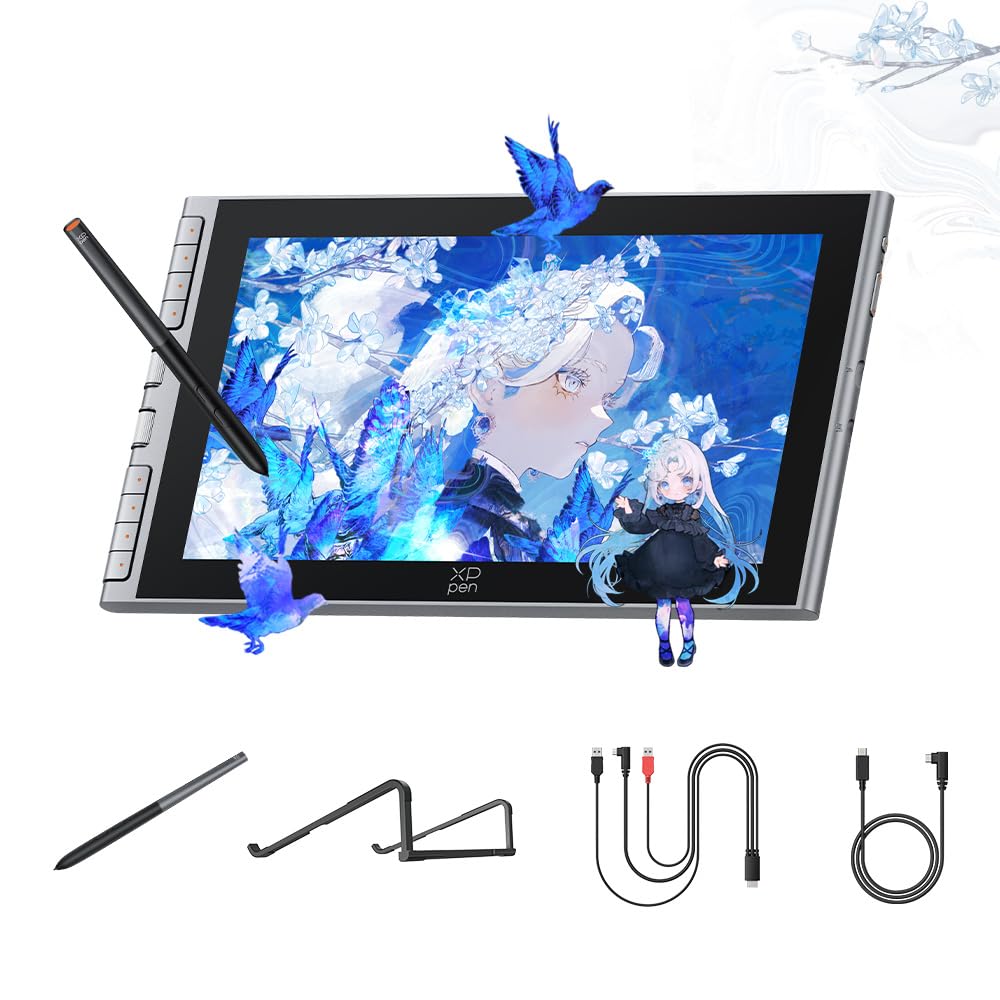
An 11.9-inch pen display that makes the leap to drawing on screen feel easy for beginners.
The Artist 12 3rd is the ideal bridge for beginners ready to see their art directly under their pen. Its 11.9-inch screen features a natural paper-feel nano-etched glass (AG+AF) that mimics the resistance of paper while reducing glare and smudges. The breakthrough X4 Smart Chip stylus improve pressure to 16,384 levels with a 0.3mm nib travel, giving rapid response and stable lines. The stylus even has magnetic storage to prevent accidental loss, perfect for dorms or travel.
Performance is the most-praised aspect here, with ease of use a close second. The minimalist one-cable USB-C solution provides a clutter-free connection to Windows, Mac, and Android, making setup a true plug-and-play experience. The 8 customizable shortcut keys give instant access to undo and zoom, lowering the learning curve for new artists. The included S20 foldable stand provides ergonomic support to reduce neck fatigue during long study sessions.
The recurring gripe is the eraser tip — it can act like a pen in some software like Krita unless you reset settings. Also, connectivity and screen quality get mixed feedback. Some owners need an HDMI plus USB plus power setup, which is a bit more involved than the one-cable promise. Still, for a beginner art learning, this is a great product that’s fast and responsive, earning its place as a top pick for those new to pen displays.
First display pick: The 16K pressure and paper-like screen feel amazing for the price, but the eraser tip might need a settings tweak in some apps.
Grab this for: beginners and hobbyists entering digital art who want to draw directly on a big, paper-feel screen.
Consider other options if: you are a pro who needs a larger canvas and flawless eraser support in every app.
7. TECLAST Artpad Pro 12.7″ 4G Android 15 Tablet
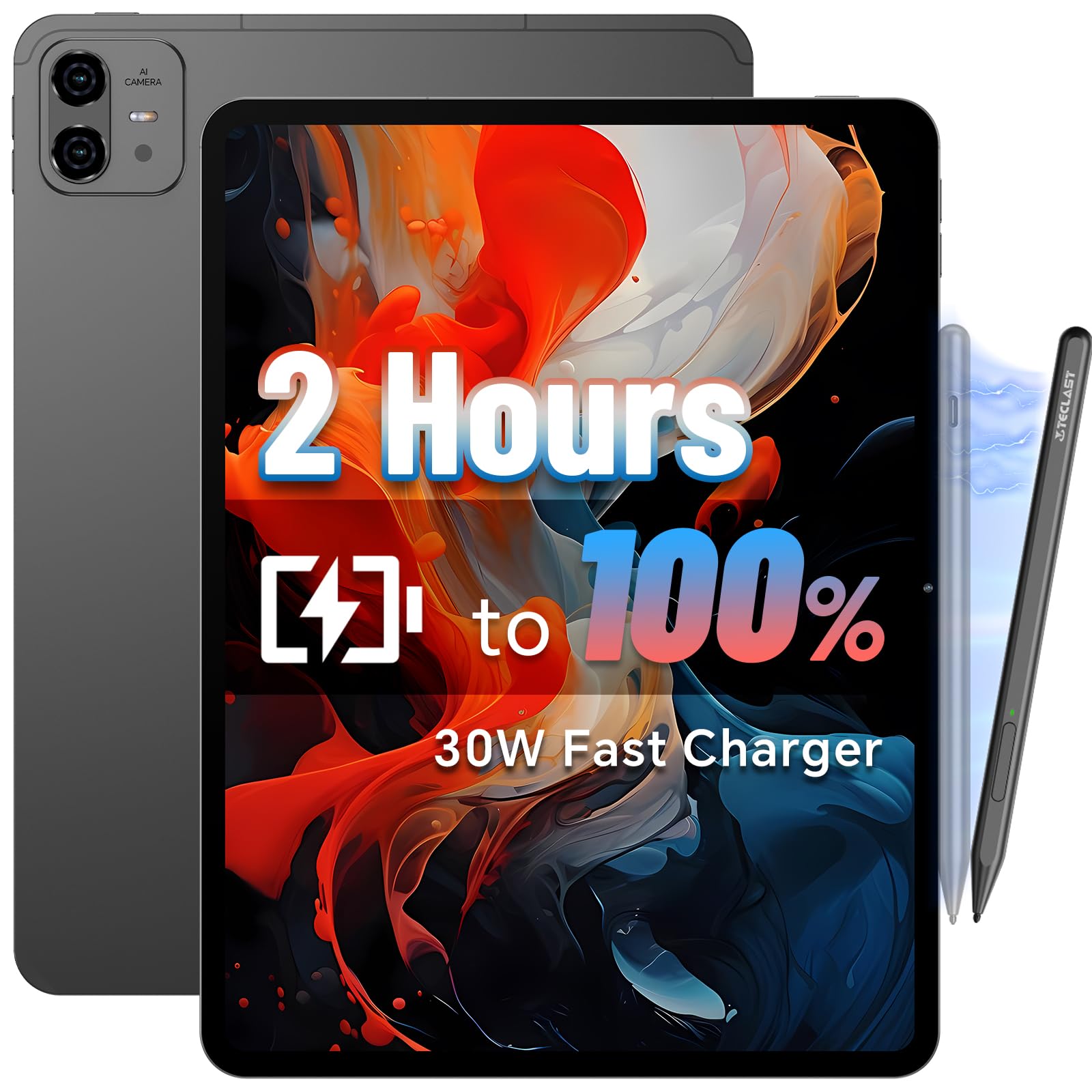
A massive 2K Android tablet that doubles as an art canvas and a flagship media machine.
The Artpad Pro is the multi-tasker’s dream. Its 12.7-inch screen with 2K resolution (2176×1600 IPS) and a narrow bezel design delivers a massive viewing area — it actually offers 20% more display area than comparable tablets with the same 16:10 aspect ratio. The TDDI technology enhances light transmittance for brighter images and faster response. When paired with the T-Pen stylus, it delivers up to 4096 levels of pressure sensitivity with global anti-misclick functionality, so your palm won’t accidentally trigger marks while you draw. It also supports other USI 2.0-compatible active capacitive styluses.
Device quality is the most-praised aspect, with value for money a close second. The 20GB RAM (8GB physical plus 12GB virtual expansion) and 256GB UFS storage (expandable to 1TB via TF card) make multitasking smooth, opening multiple apps without lag. The 10,000mAh lithium cobalt oxide battery with 30W peak fast charging keeps you drawing or streaming for hours. The four speakers with the Symphony Sound Chamber System deliver rich audio, and you can even use the 4G connectivity to stay connected on the go.
The trade-off is battery life, which gets mixed feedback — some find it all-day, others want more. The stylus has also had issues for a couple of owners, though the manufacturer’s 1-year warranty with 24/7 technical support is genuinely outstanding at resolving problems. The screen is bright and sharp, ideal for video and reading, making this a brilliant budget alternative to larger iPads if you want a versatile device for both art and entertainment.
Big Screen Perks
- 12.7-inch 2K IPS display with 20% more area than comparable tablets
- 20GB RAM and 256GB storage for smooth multitasking
- Includes 4G LTE and a 10,000mAh battery
Things to Watch
- Battery life feedback is mixed
- Stylus charging/connectivity had issues for some owners
- T-Pen needed for full pressure sensitivity
Perfect for: anyone who wants a large versatile Android tablet for sketching, note-taking, and streaming without paying iPad prices.
Reconsider if: you need flawless stylus support straight from the start, as there are occasional reported quirks.
8. HUION Kamvas 13 (Gen 3) Drawing Tablet with Screen

A color-accurate 13.3-inch pen display with dual dials that feels like a pro studio in a compact frame.
The Kamvas 13 (Gen 3) is where color accuracy becomes the star. It features a fully laminated 13.3-inch screen with the new anti-sparkle Canvas Glass 2.0 for reduced glare and improved accuracy. The color accuracy is superb — with Avg. ΔE<1.5, 16.7 million display colors, and 99% sRGB coverage, your colors will look true to life right on the screen. It even comes with a factory calibration report for added assurance of color consistency.
Quality is the thing everyone raves about here — it’s the most-praised aspect by a huge margin, with value for money second. The advanced PenTech 4.0 technology delivers 16384 levels of pressure sensitivity with a 2g IAF (initial activation force, meaning it responds to the lightest touch), ensuring a fluid and natural drawing experience. The 3 customized pen side buttons and the 5 programmable shortcut keys plus dual dial buttons streamline your creative workflow. It’s also lefty-friendly with its dual dials.
The trade-off is that it needs a computer to work — it’s not standalone. The 3-in-1 cable can be a bit inconvenient with some port layouts, and the port side gets warm after a few hours of use, with the screen being a bit dark at 200 nits. But it comes with the ST300 adjustable stand and a glove, and the drawing feels smooth with excellent sensitivity in Clip Studio Paint. For a budget-conscious artist wanting a pro-level color display, this is a stellar Wacom Cintiq alternative.
Color-accurate star: The 99% sRGB coverage (the standard color space for digital art) and 16K pressure (16,384 levels of pen sensitivity) make this a pro-feel display that’s tough to top at this price point.
Ideal for: designers, artists, and illustrators who need accurate colors and a large screen but don’t want to pay Wacom prices.
pass on it if: you need a standalone device, as this requires a computer connection to function.
9. Wacom Cintiq Pro 24 Drawing Tablet

The ultimate professional canvas — a 4K behemoth that sets the standard for precision drawing.
The Cintiq Pro 24 is the undisputed king for professionals. It packs 4K resolution (3840 x 2160 pixels) into a 24-inch LCD display with superb color accuracy — covering 99% of Adobe RGB, which is critical for print and client work. The Pro Pen 2 delivers Wacom’s most natural and advanced pen performance with 8,192 levels of pressure sensitivity, an eraser, and virtually lag-free tracking. You’ll be hard-pressed to find a more natural drawing experience.
The quality is what wins people over, with screen quality a close second. The etched glass screen reduces glare and reflections while providing a distinct, tactile experience, mimicking the feel of a pen on paper. The ExpressKey Remote puts 17 programmable buttons within easy reach, and the on-screen keypad and radial menus offer further one-touch shortcuts. It’s a huge machine — 15.9 pounds — so it’s meant for a dedicated desk setup, and it works beautifully with USB-C or USB+DisplayPort connections.
The trade-off is the fan noise. It’s the most significant negative in the feedback, with owners noting it activates at higher brightness levels. It’s also not portable, and the ExpressKey remote’s rubber backing can collect dust and slide around. Some early units had QC (quality control) issues. But for a professional who needs crisp 4K and near-zero parallax, this is the best in the field — a tool that pays for itself in workflow improvement.
Pro-Grade Strengths
- 4K resolution with 99% Adobe RGB color accuracy
- Pro Pen 2 with 8,192 levels of pressure and eraser
- Etched glass screen feels like pen on paper
- 17 programmable buttons on the ExpressKey Remote
Professional Caveats
- Fan noise is a significant issue for many owners
- Very heavy at 15.9 pounds — not portable
- No stand included; expect to buy one separately
Made for: professional artists and studios who need a large 4K canvas with flawless color and pen accuracy for paid client work.
Not for: casual sketchers or anyone on a tight budget — this is a serious investment in a serious tool.
Understanding the Specs
Pressure Sensitivity Levels
Think of this as how finely your pen “feels” your hand. A tablet with more levels, like 16,384, can detect super subtle changes in how hard you press, letting you create delicate gradient washes, vary line weight smoothly, and shade naturally. A lower number, like 1024, still works well but gives you less nuance, which can feel a bit “digital” for intricate work.
Active Surface Area and Size
This is the actual drawing space — the part of the tablet your pen touches. A medium area like 8.7″ x 5.4″ is a comfortable middle ground; your hand can make large, sweeping gestures without constantly lifting the pen. A bigger surface (like a 9″ x 6″ or a full-display 13.3″) feels more spacious and natural, but it also takes up more desk space and usually costs more. Match it to your desk and how much arm movement you like.
FAQ
Do I need a computer to use a drawing tablet?
What is the difference between a pen tablet and a pen display?
How many levels of pressure sensitivity do I need?
What does a battery-free pen mean?
What is tilt support and why does it matter?
Is Bluetooth wireless connection always better than wired?
How do I know which tablet size is right for me?
Can I use these tablets with my Android phone or tablet?
What is 4K resolution on a drawing tablet?
Do I need an art tablet if I already have an iPad?
Final Thoughts: The Verdict
For the majority of shoppers, the art tablet winner is the HUION Inspiroy 2 Medium because it delivers the best blend of precision, comfort, and value, anchored by the highest review count in the lineup. If you want the wireless freedom of a compact tablet with industry-leading pressure levels, grab the GAOMON WH851. And for the professional who demands a massive 4K canvas with flawless color, the Wacom Cintiq Pro 24 is the one to reach for.
How We Picked
We do not accept paid placement. Every pick is matched to a real buyer and a real use-case; we do not hands-on test units.
Sources & Methodology
Specifications: manufacturer listings and product documentation. Review insights: verified customer reviews, as of September 2026. Pricing: not shown on this page (it changes often); check the current price via the retailer link.
As an Amazon Associate, Gadgets Feed earns from qualifying purchases. This does not affect which products we feature.