
Our readers keep the lights on and my morning glass full of iced black tea. As an Amazon Associate, I earn from qualifying purchases.
Every brush stroke, every line you pull, every gradient blend—your artist computer tablet either captures it faithfully or introduces a frustrating lag, a wobbly diagonal, a color shift. The difference between a session that flows and one that fights you comes down to three things: pressure sensitivity resolution, screen quality, and whether the tablet is standalone or tethered. This isn’t about whether it looks like an iPad—it’s about whether the cursor lands exactly where your hand tells it to, every single time.
I’m Min — the co-founder and writer behind Gadgets Feed. I’ve spent hundreds of hours dissecting technical specifications, pressure curves, color gamut coverage, latency reports, and real-world user testing to separate the genuinely responsive artist computer tablets from those that merely look the part on paper.
Whether you’re sketching concept art, retouching photos, or learning digital painting on a budget, this guide cuts through the marketing noise and evaluates nine distinct models side by side. Finding the right best artist computer tablet for your workflow comes down to matching hardware limits to your actual creative habits—and that is exactly what this guide is built to help you do.
How To Choose The Best Artist Computer Tablet
The market splits into two clear camps: standalone tablets (run apps natively, no computer needed) and pen displays (must connect to a PC or Mac, but offload processing to that machine). Your choice hinges on whether you need portability and independence or raw processing power and a larger color-graded workspace. Each tier presents trade-offs in battery life, screen size, pressure resolution, and color fidelity that directly affect your daily workflow.
Connectivity and Workflow: Standalone vs Tethered
Standalone tablets like the UGEE UT3 run Android and include pre-installed drawing applications—you can sketch in a coffee shop without a laptop. But their processing power is capped by mobile chipsets, meaning heavy multi-layer files in Clip Studio Paint may stutter. Tethered pen displays like the Wacom Cintiq Pro 17 rely on your computer’s GPU and RAM, so they handle massive canvases, 3D modeling, and video editing with zero slowdown. The trade-off is you are tied to a desk.
Pressure Sensitivity and Pen Feel
The industry baseline has moved from 2048 to 8192 levels, with several current models pushing to 16384. Higher sensitivity matters most for delicate hatch work, watercolor-style opacity builds, and pressure-sensitive brush engines in apps like Procreate and Photoshop. Equally important is the initial activation force (IAF)—a 2g or 3g IAF registers the lightest tickle of a stroke, while heavier IAFs require deliberate pressing. Battery-free pens (Wacom, Huion PenTech 4.0, XP-Pen X3 Pro) eliminate charging anxiety and maintain consistent weight.
Screen Quality: Resolution, Color Accuracy, and Lamination
Resolution determines how much detail you can see while zoomed out. Full HD (1920×1080) is the entry-level sweet spot for 13-inch tablets. 2.5K (2560×1600) and 4K UHD (3840×2160) displays let you work with ultra-high-res canvases without pixelation. Color gamut coverage—99% sRGB is the minimum for web work, while 95%+ DCI-P3 or Adobe RGB is critical for print and cinematic projects. Full lamination eliminates the parallax gap between the glass and LCD layer, making the cursor appear directly under the pen tip rather than hovering slightly above it.
Quick Comparison
On smaller screens, swipe sideways to see the full table.
| Model | Category | Best For | Key Spec | Amazon |
|---|---|---|---|---|
| UGEE UT3 Fun Drawing Pad | Standalone | Large-canvas standalone work | 14.25″ 2.4K / 4096 levels | Amazon |
| Wacom Cintiq Pro 17 | Pen Display | Professional studio precision | 17.3″ 4K 120Hz / 8192 levels | Amazon |
| XPPen Artist Pro 19 Gen2 | Pen Display | 4K color-critical work | 18.4″ 4K / 16384 levels | Amazon |
| HUION Kamvas Pro 16 4K | Pen Display | Detail-oriented illustration | 15.6″ 4K / 8192 levels | Amazon |
| Wacom Cintiq 16 | Pen Display | Industry-standard reliability | 16″ 2.5K / 8192 levels | Amazon |
| XPPen Artist 13.3 Pro V2 | Pen Display | Budget screened pen display | 13.3″ FHD / 16384 levels | Amazon |
| HUION Kamvas 13 (Gen 3) | Pen Display | Entry-level pen display value | 13.3″ FHD / 16384 levels | Amazon |
| RubensTab T11 Pro | Standalone | Standalone entry-level drawing | 10.1″ FHD / 1024 levels | Amazon |
| Frunsi RubensTab T8 | Standalone | Budget-friendly learning tool | 8″ FHD / 2048 levels | Amazon |
In‑Depth Reviews
1. UGEE UT3 Fun Drawing Pad

The UGEE UT3 is the most complete standalone drawing tablet on this list, combining a massive 14.25-inch 2.4K (2400×1600) nanomatte display with a 10000mAh battery and 27W fast charging. The 6nm octa-core processor and 8GB of RAM run Android 14 smoothly, handling apps like Krita, Clip Studio Paint, and SketchBook with minimal stutter even on multi-layer files. The full-laminated screen with NTSC >72% color gamut and TÜV Rheinland low blue light certification means you can work for hours without eye fatigue and without losing color accuracy.
The included stylus supports 4096 levels of pressure sensitivity and 60-degree tilt, which is adequate for all but the most feather-light stroke work. The U-Key lets you switch between regular, ink paper, and color paper modes on the fly, mimicking traditional media surfaces. Real-world battery life lands around 5-6 hours of heavy Krita use and weeks of standby—beating every other standalone model here by a wide margin.
The pen does require charging via USB-C, which is a minor inconvenience compared to battery-free styluses, and there is no microSD expansion slot. At 760g and just 6.95mm thin, it is surprisingly portable for a 14-inch device. The nanomatte finish cuts glare effectively in bright environments, making it a genuine companion for outdoor sketching sessions.
Why it’s great
- 14.25″ 2.4K nanomatte screen with full lamination eliminates parallax
- 10000mAh battery delivers 5-6 hours of heavy drawing
- Android 14 with 8GB RAM runs professional apps natively
- U-Key mode switching for paper-like surface feel
Good to know
- Stylus requires USB-C charging
- No microSD expansion slot
- Pen tip alignment can feel slightly off-axis in some apps
2. Wacom Cintiq Pro 17

The Wacom Cintiq Pro 17 sets the professional benchmark with a 17.3-inch Ultra HD 4K display running at a buttery 120Hz refresh rate—virtually eliminating cursor latency on every stroke. The 10-bit panel delivers 1.07 billion colors with factory-calibrated accuracy, and the 10-point multi-touch gesture support lets you pinch-zoom and rotate your canvas without reaching for a keyboard. Paired with the Pro Pen 3 (8192 pressure levels, adjustable weight and center of balance), this is the most natural-feeling pen display on the market.
The etched glass surface provides just enough resistance to mimic paper without wearing down nibs too quickly. Eight ExpressKeys and customizable on-screen menus streamline your workflow, though the side buttons on the pen are stiff and the included stand feels wobbly at certain angles—most professionals will want to invest in a third-party monitor arm or the Wacom Ergo Stand. The device is also not fully standalone; it requires a USB-C connection to a PC or Mac with DisplayPort Alt Mode or Thunderbolt 3/4.
Fan noise is minimal during normal use and the chassis stays cool even after hours of rendering. At 4.9 pounds, it is light enough to reposition but not truly portable. The 16:10 aspect ratio gives you extra vertical canvas space for tool palettes and timelines, a meaningful advantage over 16:9 competitors.
Why it’s great
- 17.3″ 4K 120Hz display with 10-bit color depth and multi-touch
- Pro Pen 3 with adjustable weight, balance, and grip thickness
- Factory-calibrated color accuracy with wide gamut coverage
- 8 ExpressKeys and customizable on-screen menus improve workflow
Good to know
- Requires a PC or Mac with DisplayPort Alt Mode or Thunderbolt 3/4
- Included stand is wobbly; an Ergo stand or arm is recommended
- Pro Pen 3 buttons are stiff and the pen holder can block ventilation
3. XPPen Artist Pro 19 Gen2

The XPPen Artist Pro 19 Gen2 brings 4K UHD resolution (3840×2160) to an expansive 18.4-inch workspace, making it the largest pen display in this lineup. The full-laminated AG etched glass is TÜV SÜD certified for low blue light and delivers a paper-like surface with minimal glare. The color specs are the most impressive on paper: 99.8% sRGB, 96% Adobe RGB, and 98% Display P3 coverage, all Calman-verified with a Delta E of less than 1.5—meaning the colors you see are virtually indistinguishable from the output on a calibrated monitor.
The dual-stylus system includes the X3 Pro Roller Stylus (with a physical roller wheel for brush size and zoom) and the slim X3 Pro Slim Stylus with removable side buttons to prevent accidental presses. Both deliver 16384 levels of pressure sensitivity with a 3g initial activation force, capturing the faintest tick marks. The included ACK05 wireless shortcut remote (Good Design Award 2023) adds a physical dial and ten programmable keys, freeing you from keyboard dependency entirely.
At 19 inches wide and over 5 pounds, this is not a portable tool—it is a desktop workstation. The dual reversible USB-C connections simplify cable management and allow easy switching between a MacBook and a Windows PC. The pen case holds both styluses and 23 extra nibs, a thoughtful inclusion that saves you from hunting for replacements mid-project.
Why it’s great
- 18.4″ 4K UHD display with Calman-verified Delta E < 1.5 color accuracy
- Dual stylus system with 16384 pressure levels and 3g IAF
- Full-laminated AG glass eliminates parallax and glare
- ACK05 wireless shortcut remote with physical dial
Good to know
- Large and heavy—designed for permanent desktop use
- No built-in touchscreen support
- Requires a powerful PC to drive 4K resolution smoothly
4. HUION Kamvas Pro 16 4K
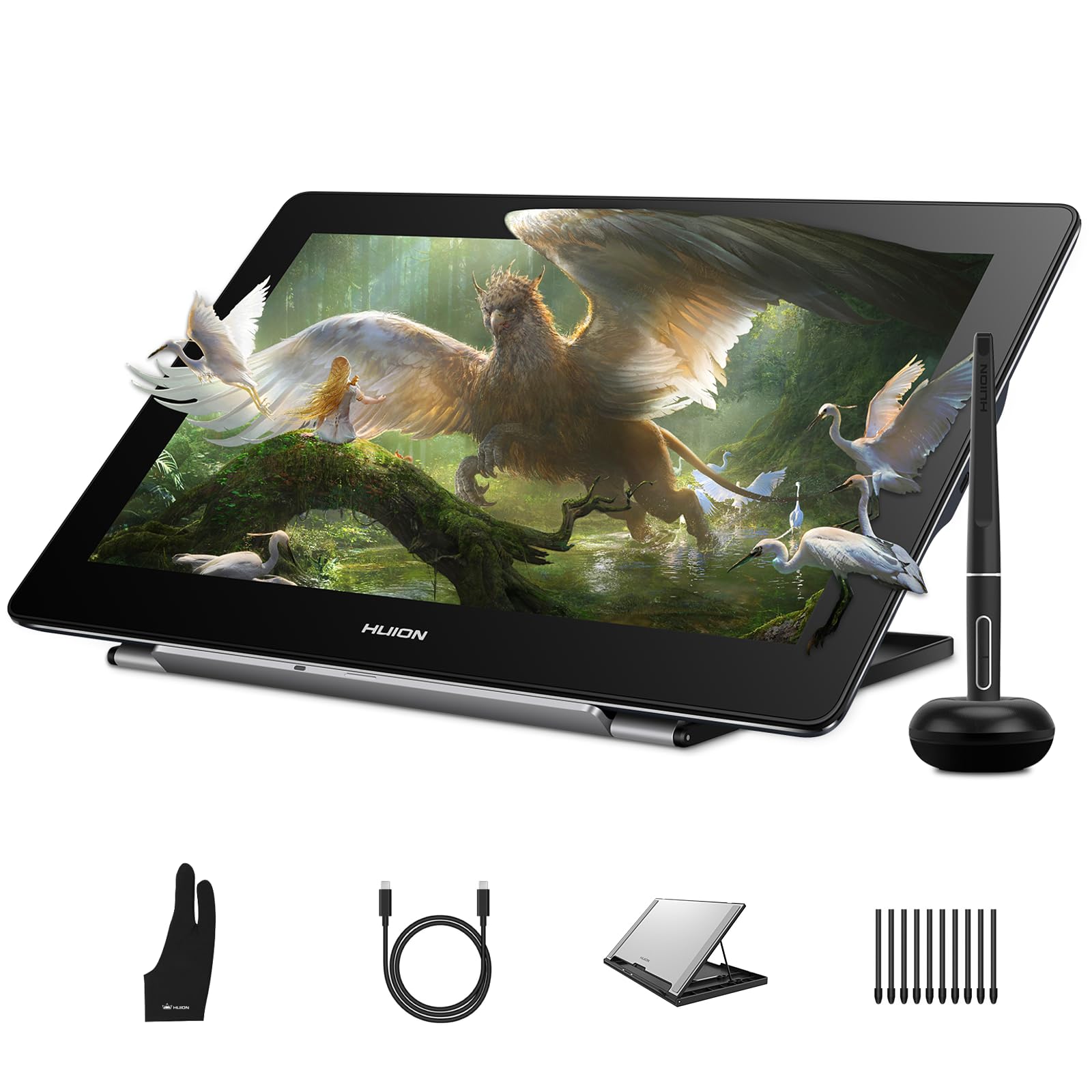
The HUION Kamvas Pro 16 4K delivers true 4K UHD resolution (3840×2160) on a 15.6-inch fully laminated anti-glare screen, making it the sharpest sub-16-inch pen display available. With 120% sRGB color gamut coverage and 16.7 million colors, every gradient transition is smooth and band-free. The PenTech 3.0 PW517 stylus offers 8192 pressure levels with plus-or-minus 0.3mm accuracy, maintaining precision even at the screen edges where cheaper tablets often drift.
The dual USB-C ports support plug-and-play connectivity with Windows, macOS, Linux, and Android devices—no HDMI adapters needed as long as your device supports DisplayPort Alt Mode. The included ST300 adjustable stand (20 to 80 degrees) allows comfortable ergonomic positioning, though the plastic legs feel less robust than the metal stands on the premium Wacom and XP-Pen models. The surface is a true anti-glare etched glass that reduces reflections significantly without introducing the rainbow sparkle artifact seen on some competitors.
Real-world usage shows the screen running warm after three hours of continuous use, and the maximum brightness of about 200 nits makes it difficult to use in brightly lit rooms or near windows. The 3-in-1 cable is functional but bulky—a single USB-C cable is the cleaner option. For artists who need 4K pixel density for detailed illustration work but cannot justify the premium of a Wacom, this is the strongest alternative.
Why it’s great
- 15.6″ true 4K UHD display with 120% sRGB coverage
- Full lamination eliminates parallax gap for accurate cursor placement
- Dual USB-C ports for flexible cross-platform connectivity
- ±0.3mm pen accuracy even at screen edges
Good to know
- Maximum brightness ~200 nits struggles in bright rooms
- Stand plastic legs feel less durable than metal alternatives
- No multi-touch gesture support
5. Wacom Cintiq 16

The Wacom Cintiq 16 is the entry point into Wacom’s professional pen display ecosystem, offering a 16-inch IPS display with 2.5K WQXGA resolution (2560×1600) and 100% sRGB coverage at 8-bit color depth. The 16:10 aspect ratio provides noticeably more vertical workspace than the 16:9 standard, making it easier to keep tool palettes visible without shrinking your canvas. The Pro Pen 3 delivers 8192 pressure levels with tilt support and three customizable side switches.
The built-in fold-out legs provide a fixed 20-degree working angle—useful for desk use but not adjustable. You can purchase the separate adjustable stand for more ergonomic positioning. The anti-glare glass does a reasonable job cutting reflections, though it introduces a slight grainy texture that can make fine lines look slightly less crisp than laminated alternatives. There are no customizable shortcut buttons on the tablet itself, so you will rely on keyboard shortcuts or a separate shortcut remote.
Setup requires a USB-C cable for devices with DisplayPort Alt Mode or Thunderbolt 3/4, but users on older PCs will need a separate HDMI cable and USB-A cable. Some buyers report a single dead pixel out of the box, though Wacom’s warranty covers that. The surface feels durable and the pen tracking is the most consistent in the industry—no diagonal jitter, no dropped strokes, no calibration drift.
Why it’s great
- 2.5K WQXGA resolution with 16:10 aspect ratio for vertical canvas space
- 100% sRGB and 99% DCI-P3 color gamut coverage
- Industry-leading pen tracking with zero diagonal jitter
- Durable anti-glare glass surface
Good to know
- No customizable shortcut buttons on the tablet
- Fixed 20-degree stand angle; adjustable stand sold separately
- Non-laminated display creates slight parallax gap
6. XPPen Artist 13.3 Pro V2

The XPPen Artist 13.3 Pro V2 punches well above its price tier with the industry-first 16384 levels of pressure sensitivity delivered by the X3 Pro Smart Chip Stylus. The 13.3-inch full-laminated AG film display delivers Full HD resolution (1920×1080) with 125% sRGB, 107% Adobe RGB, and 95% Display P3 color gamut coverage—specs that rival pen displays costing nearly twice as much. The 250 cd/m² brightness and 1000:1 contrast ratio make colors pop without washing out in moderately lit rooms.
The red dial quick key simplifies brush size, zoom, and navigation adjustments, while eight customizable shortcut keys streamline your workflow. The included AC42 adjustable stand (0 to 90 degrees) promotes better posture during long sessions. Setup is genuinely beginner-friendly with clear on-screen driver instructions, and the full-featured USB-C cable means a single connection to your laptop (provided your laptop supports video output over USB-C).
Some users report pen misalignment when using the tablet alongside a second display set to a different resolution—setting both displays to 1080p resolves the issue. The pen does scratch the screen over time without a screen protector, so budget an extra few dollars for a matte protector. The driver software occasionally behaves unpredictably on Windows, requiring a reinstall to fix saturation settings.
Why it’s great
- 16384 pressure sensitivity levels with X3 Pro Smart Chip Stylus
- Full-laminated AG film eliminates parallax and glare
- 125% sRGB, 107% Adobe RGB, 95% P3 color coverage
- Red dial quick key plus eight customizable shortcut buttons
Good to know
- Pen may scratch the screen; a matte protector is advised
- Driver software can cause display saturation issues on Windows
- Pen misalignment occurs with mixed-resolution multi-monitor setups
7. HUION Kamvas 13 (Gen 3)

The HUION Kamvas 13 (Gen 3) brings the latest PenTech 4.0 technology to an affordable 13.3-inch form factor, offering 16384 pressure sensitivity levels with a 2g initial activation force—the lowest IAF in this guide, meaning it registers even the ghost of a touch. The fully laminated anti-sparkle Canvas Glass 2.0 eliminates parallax while cutting glare, and the 99% sRGB coverage with average Delta E of less than 1.5 ensures color-accurate output suitable for client work.
The dual dial buttons plus five programmable shortcut keys provide physical control over brush size, canvas zoom, and undo/redo without reaching for a keyboard. The included ST300 adjustable stand supports multiple angles from flat to 80 degrees. Setup uses a 3-in-1 cable (HDMI, USB-A, power) or an optional single USB-C cable if your device supports USB 3.1 Gen1 with DP1.2. The 200-nit brightness ceiling is the same limitation as the Kamvas Pro 16 4K—fine in dim studios but dim in bright rooms.
User feedback highlights the nearly paper-like surface texture and smooth glide of the included glove. Linux users report basic tablet functionality works, but the dial and shortcut keys are hit-or-miss on Debian-based distributions. The 13.3-inch active area (293.8 x 165.2mm) is spacious enough for detailed work but compact enough to fit in a laptop bag alongside a 13-inch MacBook.
Why it’s great
- PenTech 4.0 with 16384 levels and ultra-light 2g IAF
- Full-laminated Canvas Glass 2.0 eliminates parallax and glare
- 99% sRGB with factory calibration report under Delta E 1.5
- Dual dial and five shortcut keys improve workflow
Good to know
- 200-nit maximum brightness is dim in well-lit rooms
- 3-in-1 cable required if USB-C DP Alt Mode is not available
- Dial and shortcut keys have limited Linux support
8. RubensTab T11 Pro
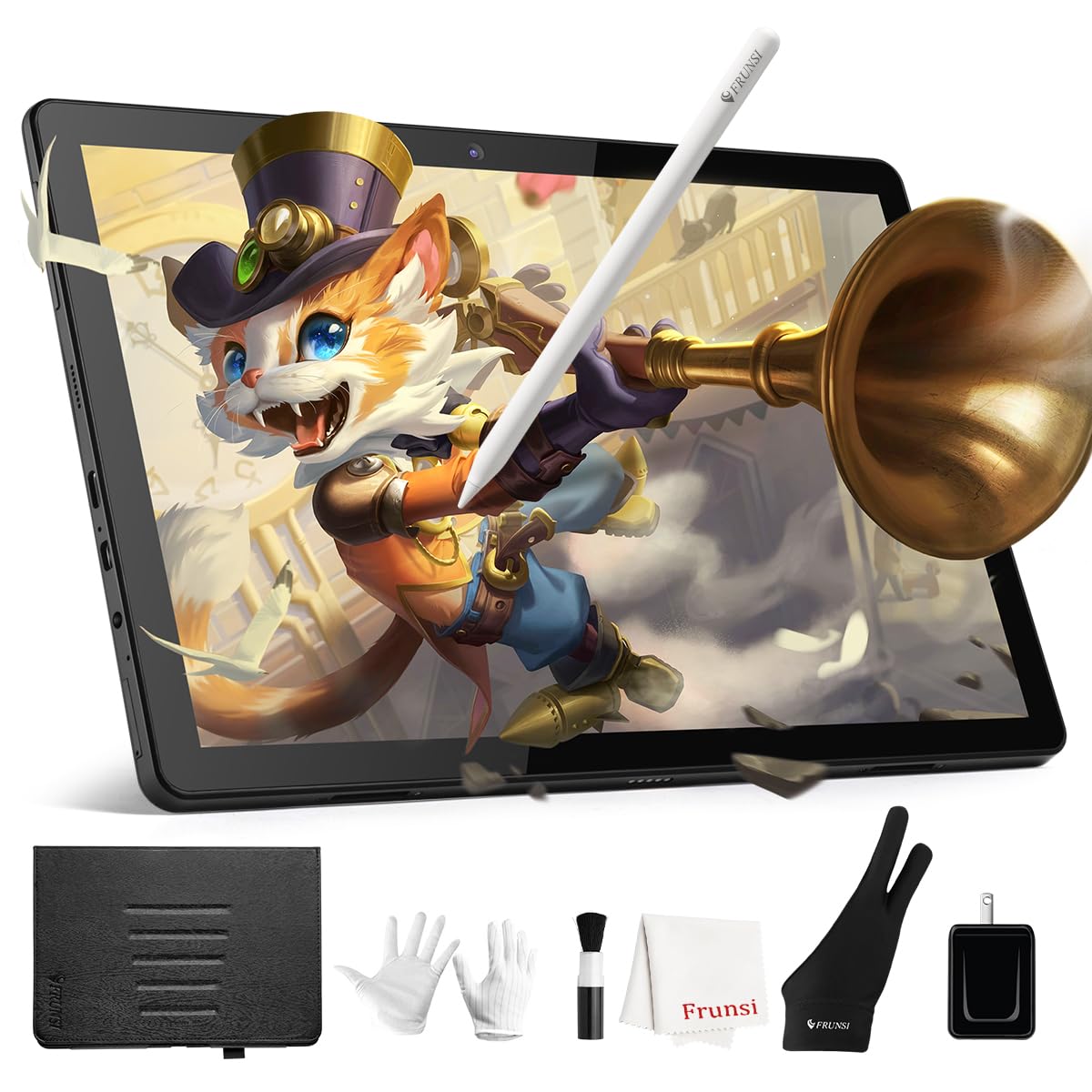
The RubensTab T11 Pro is a standalone drawing tablet with a 10.1-inch Full HD IPS display (1920×1200) that does not require a computer. It runs a custom Android-based OS with pre-installed apps like Krita and Adobe SketchBook, making it ready to draw out of the box. The battery-free stylus supports 1024 pressure levels with tilt support—lower resolution than premium models, but adequate for beginners learning brush control and layer management.
The 5800mAh battery delivers about 5 hours of continuous drawing, and USB-C charging means you can top up with a power bank. The included adjustable stand case protects the tablet during travel and props it up at comfortable desktop angles. Build quality is solid for the price point, with a slim and lightweight chassis (7.87 x 6.69 inches) that fits easily into a small bag. Customer reviews consistently praise the responsive customer service team for handling replacement requests quickly.
Pressure sensitivity is adjustable via the settings app, which helps users with hand fatigue or tremors dial in a comfortable response curve. Some users note a slight lag between stroke and line appearance, especially with complex brushes in Krita. The lack of palm rejection can cause accidental marks when resting your hand on the screen, and there is no pen holder built into the case.
Why it’s great
- Standalone device with FHD IPS display—no computer needed
- Pre-installed Krita, SketchBook, and tutorials for immediate use
- Adjustable pressure sensitivity settings for accessibility
- Excellent customer support with fast warranty response
Good to know
- 1024 pressure levels limit fine stroke variation
- Slight drawing lag with complex brushes in Krita
- No palm rejection and no built-in pen holder
9. Frunsi RubensTab T8

The Frunsi RubensTab T8 is the most affordable standalone drawing tablet on this list, featuring an 8-inch FHD display (1200×800) with 2048 levels of pressure sensitivity. It runs Android 13 on an MTK quad-core processor with 4GB RAM and 64GB of storage (expandable to 256GB via microSD). The compact form factor makes it ideal for young artists, students, or anyone wanting a secondary sketching device that fits in a small bag.
The 4000mAh battery delivers approximately 3.5 hours of active drawing in SketchBook, which is the weakest battery life here—expect to charge mid-session for long projects. The included stylus feels comfortable in the hand with a good tip texture, but diagonal line jitter is noticeable at slow drawing speeds. Using the smoothing feature in apps like Ibis Paint X mitigates the issue. The tablet also runs YouTube, Facebook, and other Android apps, making it a functional general-purpose device for kids.
Customer reviews highlight excellent customer service with fast warranty replacements. The 2048 pressure sensitivity is a step up from the RubensTab T11 Pro’s 1024 levels, but still below the 4096 minimum recommended for serious digital painting. The 8-inch screen means you will be zooming and panning frequently on detailed pieces. For the price, it is a capable learning tool rather than a professional workstation.
Why it’s great
- Most affordable standalone drawing tablet with 2048 pressure levels
- Runs Android 13 with expandable storage up to 256GB
- Compact 8-inch form factor is highly portable
- Excellent customer service with fast warranty replacements
Good to know
- 3.5-hour battery life requires mid-session charging
- Noticeable diagonal line jitter at slow speeds
- 8-inch screen requires frequent zoom/pan on detailed work
FAQ
Why does the cursor appear offset from the pen tip on some tablets?
Can I use a standalone drawing tablet for professional work like animation?
What does 16384 pressure sensitivity actually do that 8192 does not?
How important is color gamut coverage for digital art?
Final Thoughts: The Verdict
For most users, the best artist computer tablet winner is the UGEE UT3 Fun Drawing Pad because it combines a large 14.25-inch 2.4K display, full standalone operation, and a 10000mAh battery that outlasts every other standalone tablet here. If you want the highest pen sensitivity and dual stylus support, grab the XPPen Artist Pro 19 Gen2. And for professional studio work where 4K resolution and zero-latency 120Hz refresh are non-negotiable, nothing beats the Wacom Cintiq Pro 17.