
Our readers keep the lights on and my morning glass full of iced black tea. As an Amazon Associate, I earn from qualifying purchases.
Specs are compiled from manufacturer listings and verified buyer reviews and can change over time — please confirm the key details on the product page before buying.
The biggest decision isn’t pen pressure levels or color gamuts—it’s whether you draw on the screen itself or on a pad while looking at your monitor. Screen tablets (pen displays) feel like drawing on paper and are perfect if hand-eye coordination throws you off. Pad tablets are lighter, cheaper, and force you into good posture. This guide breaks down the 8 best models in both styles, using real specs and owner experiences to match you with the right one.
I’m Min — the founder and writer behind Gadgets Feed. This guide is built by comparing the manufacturers’ published specifications and the patterns across verified customer reviews, so you get each pick’s real strengths and trade-offs instead of marketing spin.
Before you buy, know this: the right artist drawing tablet depends on your budget, your computer’s ports, and if you want to draw directly on the screen or on a separate pad. This guide ranks the top 8 models by beginner-friendliness, screen value, and premium quality.
Our Picks at a Glance



How To Choose The Best Artist Drawing Tablet
Before you dive into specific models, you need to settle the one question that defines everything else: do you want to draw directly on a screen, or on a pad while looking up at your computer? Your answer narrows the field by half instantly.
Pen Displays: Drawing Directly on Screen
If you draw on the screen, you eliminate the hand-eye coordination gap that frustrates many beginners. This is the more intuitive path. Look for full lamination—a construction method that removes the air gap between the glass and the LCD. It reduces parallax, meaning your cursor sits right under the pen tip instead of floating above it. A 13-inch screen is a popular starting size; 16 inches is roomier but heavier.
Pad Tablets: The Ergonomics and Budget Choice
If you choose a pad, you get a lighter device you can toss in a laptop bag, and you avoid staring down at a screen for hours, which strains your neck. The active area is the drawing space on the pad itself—a larger area gives you sweeping strokes, but a smaller one means less arm movement. Your strokes appear on your monitor, so you must keep your head up. This style is also the budget-friendly entry point into digital art.
Quick Comparison
| Model | Best For | Type | Pressure Levels | Active Area | Amazon |
|---|---|---|---|---|---|
| HUION Kamvas 13 (Gen 3)★ Best Overall | Best Overall & Value | Pen Display | 16384 | 293.8 × 165.2mm | Amazon |
| Wacom Cintiq 16Pro Studio Pick | Premium Screen Clarity | Pen Display | 8192 | 13.6 x 8.5 inches | Amazon |
| XP-PEN Artist 13.3 Pro V2Most Versatile | Versatile Dual-Mode | Pen Display | 16384 | 294.76*166.24 mm | Amazon |
| XPPen Artist 12 3rd | Beginner Screen Tablet | Pen Display | 16384 | 141.61 sq inches | Amazon |
| UGEE UE16 | Budget Screen Real Estate | Pen Display | 16384 | 15.4 inches | Amazon |
| UGEE UE12 | Compact Screen Starter | Pen Display | 16384 | 57.27 sq inches | Amazon |
| Wacom Intuos Pro Medium | Premium Pad, No Screen | Pad Tablet | 8192 | 8.7 x 5.8 inches | Amazon |
| HUION Inspiroy 2 Large | Budget Pad Champion | Pad Tablet | 8192 | 10.5 x 6.56 inches | Amazon |
In-Depth Reviews
1. HUION Kamvas 13 (Gen 3)
Our pick — 4.5★ from 800+ verified ratings; the strongest balance of quality and price.
The 13-inch screen tablet that gives budget-conscious artists a premium feel without the premium price.
You get a fully laminated 13.3-inch screen, a construction method that eliminates the air gap between glass and LCD. The payoff is “no etched glass rainbow effect” and a “thin parallax,” so your cursor sits right under the pen tip. Buyers report “no diagonal jitter” and a “smooth, high pressure sensitivity” track, which is the #1 thing artists rave about here—quality is the most-mentioned positive, with over 130 owners singling it out. The display is also clean 1080p, and the build feels solid.
The 16384 levels of pressure sensitivity (the highest available) respond to your lightest touch, starting at just a 2g initial activation force. That means a delicate hatch mark comes out light, and a firm press lays down a bold line—no jumping. The included ST300 adjustable stand lets you tilt the screen to a comfortable angle, and the 3 customized pen side buttons keep your tools at your fingertips. It draws with a USB-C single cable connection, keeping your desk tidy.
Color work is taken seriously with an average ΔE<1.5 (a measure of color accuracy where lower is better), meaning the colors you see are remarkably close to true. It covers 99% sRGB with 16.7 million display colors, which is plenty for digital painting and illustration. Each unit ships with a factory calibration report so you know the color is tuned before it reaches you. It isn’t a standalone device though—you must connect it to a computer or laptop to work. Owners mention the port side gets warm after about 3 hours of heavy use, and the screen is a bit dark at 200 nits, so you’ll want to avoid super-bright rooms.
What Wins Artists Over
- Highest 16384 pressure levels feel fluid and natural
- Fully laminated screen kills the gap between pen and cursor
- Excellent value with adjustable stand included
Consider This First
- Requires a computer—it’s not a standalone device
- Screen brightness is on the dimmer side at 200 nits
- Port side can run warm during long sessions
Your Best First Screen: If you want a real pen display without the flagship cost, this is the one to beat—it holds a 4.5-star crowd favorite rating from 800+ owners.
Look Elsewhere If: You need a highly portable tablet for drawing on the couch; this one is best kept on a desk with its stand.
2. Wacom Cintiq 16
A 2.5K studio-grade canvas where color accuracy and pen feel meet Wacom’s legendary build.
The defining spec here is the 16-inch IPS display with a sharp 2.5K WQXGA resolution of 2560 x 1600. That’s significantly sharper than the 1080p screens on most rivals, so fine details and textures stay crisp. You also get a 16:10 aspect ratio, which artists often prefer for its taller working space compared to the common 16:9. Owners describe it as the closest to a perfect drawing tablet they’ve used, with “zero anti-glare sparkle” and a crisp display that feels durable even after months of use.
The Pro Pen 3 responds to 8192 pressure levels and includes tilt support, plus 3 shortcut keys for quick tool access. It detects your lightest touch, which makes a huge difference for smooth line work. The pen holder mounts to either side of the display with an adjustable angle, so it stays within reach. It ships with fold-out legs that give a 20-degree working angle built right in.
Color is where Wacom stands apart: 99% DCI-P3 and 100% sRGB coverage with 8-bit color depth. This is the wide color gamut used in modern displays and digital media, so what you see is what you get when exporting for screens. One honest note: the screen has a 1-inch border around the entire drawing area that isn’t usable, and the included cable setup can be a hurdle. It only comes with a USB-C cable, so computers without DisplayPort Alt Mode or Thunderbolt 3 or 4 input will need extra cables to connect.
The Color Authority: If your client work demands exact colors, the Cintiq 16 delivers with a 2.5K resolution and 99% DCI-P3 coverage (a wide color gamut standard used in film and print). At 4.5 pounds, it’s a dedicated studio tool, not a portable sketchpad.
Reach for This If: Your artwork goes to print or client screens, and you need the widest, most accurate color possible on a 16-inch canvas.
Keep in Mind: The Pro Pen 3 is slimmer than older models—some owners find it less comfortable and note the buttons feel stiff, so test the grip before committing long-term.
3. XP-PEN Artist 13.3 Pro V2
The only tablet here that switches between a pen display and a classic pad to save your neck and battery.
Its headline feature is dual-mode: draw directly on the 13.3-inch screen as a pen display, or switch to Pen Tablet mode by turning the screen off, turning it into a traditional pad. That second mode saves your laptop’s battery and reduces neck fatigue during long sketching sessions. This flexibility is unique in this lineup, making it a smart choice for artists who move between careful line work and quick thumbnails.
Under the hood is the X3 Pro Smart Chip stylus with a massive 16384 pressure levels—that’s 2x higher than standard 8192 tablets. It also has a higher precision of Center: ±0.4mm and an ultra-low initial activation force, so your lightest stroke registers instantly. A built-in digital eraser sits on the tail of the pen, meaning you never reach for a separate tool. Owners say drawing on screen feels natural, like paper, with no hand-eye coordination issues and clean lines.
The fully laminated 1920×1080 FHD display removes the air gap for a zero-parallax feel. Color gamut is cinema-grade with 99% sRGB, 89% Adobe RGB, and 95% P3 coverage across 16.7 million colors. The red dial roller wheel and 8 customizable express keys let you zoom, resize brushes, and undo without touching your keyboard. A premium metal back panel dissipates heat faster than plastic rivals, keeping the screen cool during marathon sessions. It connects via a full-featured USB-C port for a single-cable setup, though a 3-in-1 cable is sold separately for legacy HDMI connections.
Two Tablets in One: This is the pick for artists who want the direct-draw experience but also value the ergonomic option to look up at their monitor—no other model here offers that switch.
Choose This For: Maximum flexibility, whether you’re a digital art student, animator, or remote educator who needs a portable plug-and-play setup.
One Setup Hurdle: Some owners find the initial driver installation tricky on laptops, and you’ll need the 3-in-1 cable for older computers without USB-C video output.
4. XPPen Artist 12 3rd
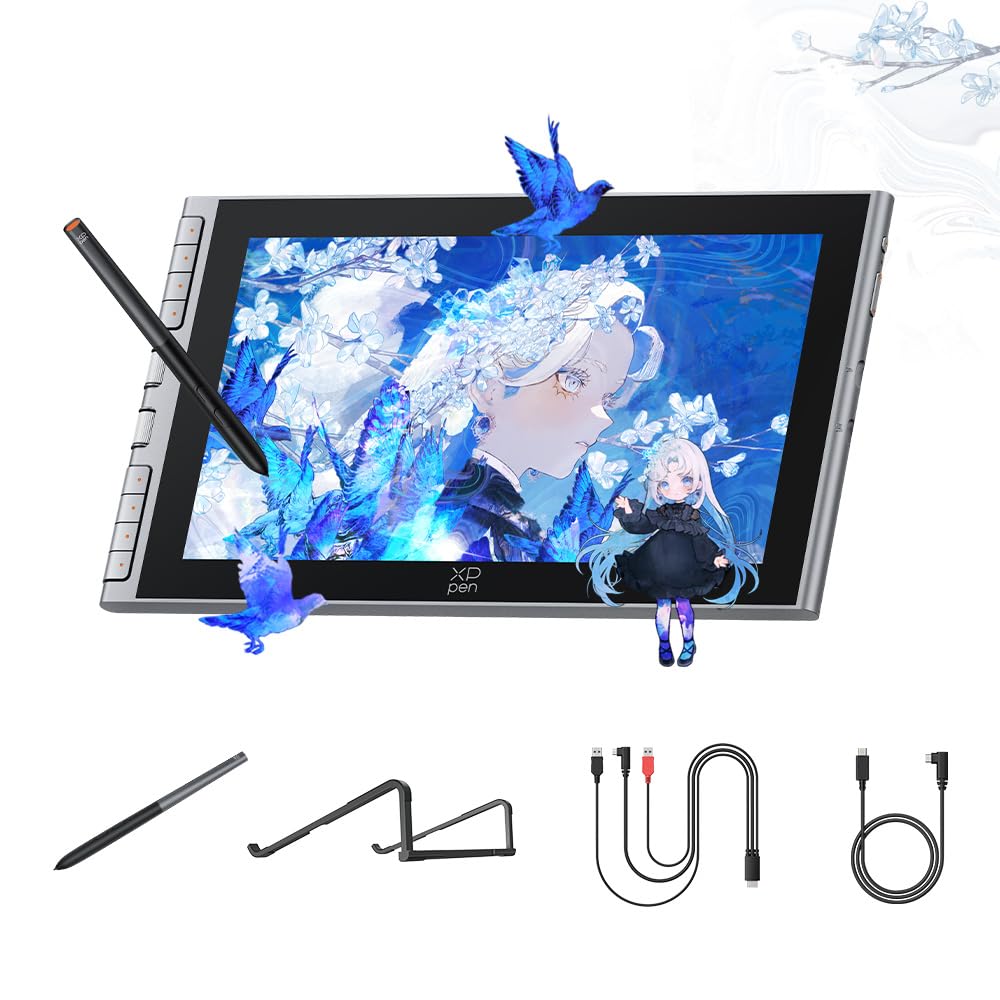
A beginner-focused 11.9-inch display with a paper-feel screen that lowers the learning curve from day one.
This model is tailored for beginners, and the design choices show it. The 11.9-inch screen features 8 customizable shortcut keys for instant undo and zoom, so you focus on creating from day one without hunting through menus. It ships with an S20 foldable stand that provides ergonomic support to reduce neck fatigue—a thoughtful addition for those long first study sessions. The screen feels big enough to work on large projects without issues, and owners mention the display is crisp.
The screen uses AG+AF nano-etched glass (anti-glare and anti-fingerprint), which mimics the natural resistance of paper while reducing glare and smudges. Full-lamination technology eliminates the air gap between the nib and cursor, so your strokes feel direct and crisp. The X4 Smart Chip stylus pushes pressure levels to 16384 (the finest gradations of line weight), giving rapid response and stable lines. It also has a 0.3mm nib travel (the distance the nib presses before registering) and magnetic storage on the tablet’s side, so you won’t lose the pen when you toss it in a bag for dorm study or library sketching.
Connectivity is minimalist: a full-featured USB-C one-cable solution that works with Windows, Mac, and Android devices. It’s plug-and-play, giving you a clutter-free workspace. The included X4 Magnetic Stylus, 10 replacement nibs, and drawing glove round out the kit. Software compatibility covers Photoshop, Krita, and online teaching tools for art and annotation.
The Beginner Advantage
- Paper-feel nano-etched glass is intuitive for new artists
- 16K X4 Smart Chip stylus with magnetic storage
- One-cable USB-C setup keeps a dorm desk tidy
Know Before You Buy
- Screen durability has mixed feedback—treat the glass gently
- Pen pressure sensitivity can feel inconsistent until you tune the driver
Start Here If: You’re coming from paper drawing and want the most natural transition into digital art without a huge investment.
Think Twice If: You need a larger canvas for detailed illustrations; the 11.9-inch size is cozy rather than expansive.
5. UGEE UE16

More canvas for your cash—a 15.4-inch screen with ultra-wide color that rivals pricier brands.
If you want a big drawing surface without the flagship price tag, the UE16 delivers a rare combination: a 15.4-inch screen with a 143% sRGB ultra-high color gamut. That color coverage exceeds the 100% sRGB standard, meaning colors appear more saturated and vivid than a basic display can show. Owners praise it as a “terrific value” with an “excellent display with matte texture,” and many say it feels like drawing on paper. It reproduces 16.7 million colors with 8-bit color depth, which is essential for smooth gradients without banding.
The real standout is its four color spaces: sRGB, Adobe RGB, DCI-P3, and Black & White mode. That last one is a hidden gem for sketch artists who want a distraction-free monochrome canvas for value studies. The 16K pressure sensitivity ensures each stroke translates faithfully. The U-Pencil features a slim, pencil-like grip with two customized hotkeys and a pressure-sensitive eraser on the tail. You also get 8 physical shortcut keys plus a scroll wheel that cycles between 4 preset functions.
The full-laminated, anti-glare glass keeps reflections down and the image crisp. The included stand is a plus, and owners note it can even be used flat without the stand if you prefer. A word of caution from the review pages: remove the blue protective film on the screen before use—one owner didn’t and thought the lighting was broken for a year. Also, the pen nibs wear down relatively quickly with heavy use, so budget for replacements down the line. The 3-in-1 cable is packed separately, so check the parcel carefully.
The Space Advantage
- Big 15.4-inch canvas for sweeping arm movements
- Four color spaces including a unique Black & White mode
- 143% sRGB gamut delivers vivid, punchy color
Handle With Care
- Pen nibs wear faster than rivals—keep spares handy
- The screen is long; it needs a 20-inch backpack for travel
Grab This For: Illustrators and designers who want maximum screen real estate and vivid colors at a mid-range cost.
Be Prepared For: The included 3-in-1 cable setup and soft nibs that need periodic replacement with heavy use.
6. UGEE UE12

A compact 11.6-inch display that wears many hats—second monitor, calligraphy pad, or travel canvas.
Owners find this small screen tablet remarkably versatile. As customers note, one graphic design student’s parent says “esta tabla compacta y del tamaño justo le ha encantado” (this compact tablet of just the right size has delighted her), and it has even replaced a traditional setup because it doubles as a second monitor when not drawing. The 11.6-inch FHD (1920×1080) screen is fully laminated with anti-glare glass, providing a zero-parallax drawing experience—so your cursor sits exactly where the nib touches.
The color story is strong for the size: a 124% sRGB ultra-wide gamut with the ability to switch between three color spaces—sRGB, Adobe RGB, and DCI-P3. The battery-free stylus incorporates 16K-level pressure sensitivity and 60° tilt recognition, giving you a natural pencil-like feel with no delays. It has a slender, pencil-like body with two programmable hot keys. The 8 customizable shortcut keys feature a concave-convex design that facilitates blind operation, so your fingers can find the keys without looking away from your canvas.
One of its smartest features is the dual Type-C ports, which allow blind plug-in from either side. It supports a direct single full-featured USB-C cable connection to computers, laptops, Android phones, and tablets. The main friction point from owners is the cable situation: some need a 3-to-1 cable (HDMI/USB/power) but find the included one awkward because the USB-C end is bent at the wrong angle. It works well on Linux with the vendor driver, but only on X11, not Wayland.
The Space-Saver: Perfect for students and hobbyists with limited desk space who want a genuine screen tablet that pulls double duty as a second monitor when the pen is idle.
Best For: Calligraphy artists and note-takers who value tilt response—it simulates a one-dimensional nib beautifully, and the stylus never dries out.
Acceptable Trade-off: The 11.6-inch canvas is small for complex illustrations, and you may need an HDMI adapter if your computer has limited ports.
7. Wacom Intuos Pro Medium

The pad purist’s dream—a magnesium-bodied tablet with a dial for every workflow.
If you’ve decided a screen isn’t necessary, this is the pad to beat. The medium size packs a large active area into a compact footprint, measuring 11.5 x 8.1 inches overall. It’s sleek and sturdy, measuring just 4mm at its thinnest, built from durable magnesium that feels equally at home on an office desk or in a travel bag. Owners who upgraded from other brands describe it as far superior for clean lines, with a smooth, quiet texture that feels like pen-on-paper.
The Pro Pen 3 is Wacom’s best pen tech: 8192 pressure levels, tilt support, and lag-free tracking. what separates it is its customizability—you can choose a slim, straight, or flared grip, adjust the balance, and change the button layout for precision and comfort. It ships with all the accessories to do so: grips, a balance weight, and button covers. The pen has a third button compared to older models, giving you more shortcut options.
Productivity comes from the 10 customizable ExpressKeys and 2 mechanical dials at the top of the tablet, close to your keyboard. The dials are the standout—great for scrubbing through timelines, changing brush sizes, or rotating your canvas. For wireless freedom, connect via Bluetooth to multiple computers with a simple switch, or use the USB-C cable. The 16:9 format is designed for modern widescreen monitors. The active area is 8.7 x 5.8 inches—generous for a pad, though some owners note the lack of a bezel around the drawing area can be tricky in certain software like After Effects where the bottom-right timeline gets clipped.
The Pro Pad Experience
- Customizable Pro Pen 3 with swappable grips and balance
- Bluetooth wireless with a simple device switch
- 2 mechanical dials and 10 ExpressKeys for speedy workflows
Premium Caveats
- No touch sensitivity on this model
- Bluetooth stability on Windows 11 can be less flawless than on Mac
- Setup requires downloading the full driver suite
Worth It For: Professionals and serious hobbyists who want the best pad experience money can buy, with a “buy once, cry once” build that lasts.
Not For: Beginners who want to see their strokes appear under the pen tip; without a screen, there’s a learning curve for hand-eye coordination.
8. HUION Inspiroy 2 Large

The lightweight budget pad that punches far above its price for beginners and pros alike.
This is the entry-level pad that consistently delights, earning its reputation as a crowd favorite with over 14,000 owners rating it. The large model gives you a big 10.5 x 6.56 inch active area—plenty of room for sweeping strokes—while keeping the tablet itself remarkably light at just 1.2 pounds. That makes it easy to carry between home, work, and school, fitting in a laptop bag for on-the-go creation. The crowd consensus is clear: functionality wins people over, with the largest number of owners (nearly 680) praising how well it simply works from the start.
Under the hood is PenTech 3.0, offering 8192 pressure levels with no noticeable lag or wobble. The new PW110 stylus has a slimmer body, soft silicone grip, and accessible side buttons for better ergonomics. Owners describe the drawing feel as smooth and responsive, with one noting it matches Wacom quality on a PC for photo editing. Durability is another plus—the pen tip lasts, and the tablet has bottom grips to keep it steady on a desk.
The unique feature here is the programmable scroll wheel plus 3-set 8-press shortcut keys. You can customize all of them to your favorite shortcuts for different apps, making your creative work smoother and more efficient. It connects via USB-C and works with Mac (MacOS 10.12 or later), PC (Windows 7 or later), Linux (Ubuntu), and certain Android devices with the included OTG adapter. One minor gripe from owners: the bindings occasionally reset to default, but they’re easy to fix in the driver. It’s also note the tablet is not standalone and has no internal power source, so it must be connected to work.
The Budget Brilliance
- Lightweight design at 1.2 pounds for easy portability
- Customizable scroll wheel and 8 press keys
- Huge active area at a budget-friendly price
Simple Sacrifices
- No screen—requires looking up at your monitor
- Occasional button bindings reset until you update the driver
Start Here If: You’re on a tight budget or completely new to digital art and want a reliable, large-surface pad that “works great on Linux” and Windows alike.
Move Up If: You find yourself wishing for a screen under your pen—this pad has none, and that eye-hand split isn’t for everyone.
Understanding the Specs
Pressure Sensitivity & Parallax
Pressure sensitivity is measured in levels (like 8192 or 16384). It controls how finely the tablet detects the force of your stroke—more levels mean subtler gradations between a whisper-light tick and a heavy bold line. For most artists, 8192 is the balance; higher numbers offer smoother transitions for ultra-fine detail work. Parallax is the gap between the pen tip and the cursor on a screen tablet. Full lamination eliminates this air gap, so your cursor sits exactly where the nib touches, making your strokes feel more direct and natural.
Color Accuracy & Screen Quality
Color gamut measurements like sRGB, Adobe RGB, and DCI-P3 describe the range of colors a screen can display. Higher percentages (like 124% sRGB) mean the screen shows more of that color space, making hues look more vivid and saturated. DCI-P3 is a wider, cinema-grade standard that modern displays use, so 95% DCI-P3 coverage is excellent. A factory calibration report (like the one HUION includes) ensures the colors are tuned before shipping. Native resolution (1080p vs 2.5K) determines sharpness—higher resolution shows finer details and prevents pixelation when you zoom in.
FAQ
Should I buy a screen tablet or a pad tablet as my first Artist Drawing Tablet?
Does the HUION Kamvas 13 (Gen 3) work as a standalone tablet?
What does “full lamination” mean on a screen tablet?
How many pressure levels do I really need?
Can I use a drawing tablet with an Android phone or tablet?
Is the Wacom Cintiq 16 worth the premium price over the HUION Kamvas?
Does the XP-PEN Artist 13.3 Pro V2 have an eraser?
What does 124% sRGB mean on the UGEE UE12?
Final Thoughts: The Verdict
The strongest overall pick is the HUION Kamvas 13 (Gen 3). It delivers the closest-to-paper drawing experience on a fully laminated 13.3-inch screen with top-tier 16384 pressure levels, all at a price that undercuts the big-name competition while earning a 4.5-star rating from a large owner base. If your work demands the sharpest, most color-accurate canvas, the Wacom Cintiq 16 offers that 2.5K QHD resolution and 99% DCI-P3 coverage. For a budget entry point, the HUION Inspiroy 2 Large gives you a vast, light drawing surface and is the most-praised budget model in this lineup. And if you want one device that flexes between a screen display and a pad, the XP-PEN Artist 13.3 Pro V2 is the versatile middle ground. Pick based on your budget, desk space, and drawing style—screen or pad—to sketch comfortably.
How We Picked
We do not accept paid placement. Every pick is matched to a real buyer and a real use-case; we do not hands-on test units.
Sources & Methodology
Specifications: manufacturer listings and product documentation. Review insights: verified customer reviews, as of September 2026. Pricing: not shown on this page (it changes often); check the current price via the retailer link.
As an Amazon Associate, Gadgets Feed earns from qualifying purchases. This does not affect which products we feature.