
Our readers keep the lights on and my morning glass full of iced black tea. As an Amazon Associate, I earn from qualifying purchases.
Specs are compiled from manufacturer listings and verified buyer reviews and can change over time — please confirm the key details on the product page before buying.
Picking the wrong artist tablet usually costs you more than money — it costs you the natural feel that makes drawing on a screen actually enjoyable instead of frustrating. The real difference between a tablet you will use daily and one that collects dust in a drawer depends on three things: pressure sensitivity that responds like a real pencil, a screen (or surface) that does not fight your hand, and shortcut controls that keep you in your creative flow instead of digging through menus. This guide breaks down seven contenders that span from budget-friendly entry points to premium studio tools, each with its own strengths and honest trade-offs.
I’m Min — the founder and writer behind Gadgets Feed. This guide is built by comparing the manufacturers’ published specifications and the patterns across verified customer reviews, so you get each pick’s real strengths and trade-offs instead of marketing spin.
Whether you are a beginner sketching in Krita or a senior artist modeling in Blender, choosing the right artist tablet means matching the active area, pressure levels, and connectivity to your actual workflow rather than chasing the highest numbers on a spec sheet.
Our Picks at a Glance

How To Choose The Best Artist Tablet
Three factors really separate a tablet that feels natural from one that feels like a chore. Keep these in mind as you compare the picks below.
Pen Technology and Pressure Sensitivity
The pen is everything — it is your pencil, brush, and eraser rolled into one. Look for a battery-free stylus (no charging, no added weight) with at least 8192 levels of pressure sensitivity. Higher numbers like 16K give finer control over line weight, especially for subtle shading work. Tilt support (usually 60 degrees) lets you shade naturally by angling the pen, just like a real pencil.
Active Area and Screen (or Surface) Quality
For a pen tablet (no screen), the active surface area determines how much you have to move your hand — a 10×6-inch area gives you sweeping arm motions, while a 9×5-inch area works for tighter wrist-based strokes. For a pen display (has a screen), look for full lamination (eliminates the gap between the glass and the LCD, so your cursor sits directly under the nib), anti-glare coating (reduces distracting reflections), and at least 99% sRGB color coverage if accurate color matters for your work.
Shortcut Controls and Connectivity
Customizable shortcut keys and a scroll wheel or dial save you from constantly reaching for your keyboard. Some tablets let you assign different shortcut sets for different apps (drawing in Photoshop vs. modeling in Blender). For connectivity, USB-C is the modern standard — check whether the tablet supports a single USB-C cable (video + data + power) or requires a bulky 3-in-1 cable with HDMI and separate power.
Quick Comparison
| Model | Best For | Active Area | Pen Pressure | Screen | Amazon |
|---|---|---|---|---|---|
| HUION Inspiroy 2 Large★ Best Overall | Large active area for sweeping strokes | 10.5 x 6.56 inch | PenTech 3.0 | No (pen tablet) | Amazon |
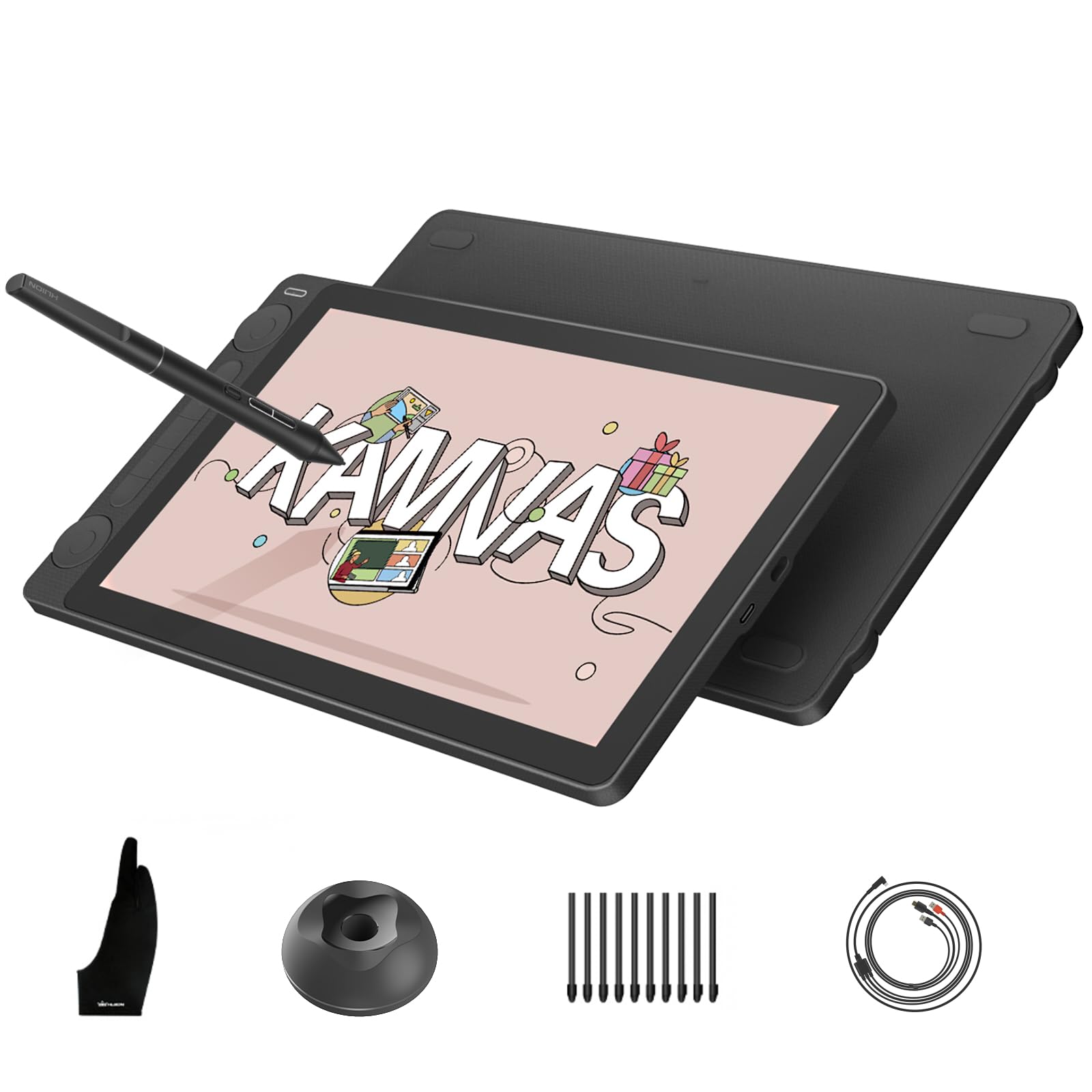
| HUION Kamvas 13 (Gen 3)Also Great | Precision drawing on a paper-like screen | 293.8 × 165.2 mm | 16384 levels | 13.3″ 1080p, Full-Laminated | Amazon |
| XPPen Artist13.3 Pro V2 | Wide color gamut with a built-in stand | 294.76*166.24 mm | 16384 levels | 13.3″ 1080p, Full-Laminated | Amazon |
| Wacom Cintiq 16 | Professional-grade color and build | 13.6 x 8.5 inches | 8192 levels | 16″ 2.5K, IPS | Amazon |
| UGEE UE16 | Large screen with vivid color at a budget | 15.4 inch | 16K levels | 15.4″ 1080p, Full-Laminated | Amazon |
| XPPen Deco Pro LW 2nd | Wireless freedom with a remote dial | 9 x 6 inches | 16K levels | No (pen tablet) | Amazon |
| HUION Inspiroy 2 Medium | Compact carry with scroll wheel | 8.7 x 5.4 inches | PenTech 3.0 | No (pen tablet) | Amazon |
In‑Depth Reviews
1. 2023 HUION Inspiroy 2 Large
Our pick — over 4★ from 14,000+ verified ratings; the strongest balance of quality and price.
A spacious pen tablet with a scroll wheel that fits comfortably in your laptop bag.
At 13.87 inches long by 8.21 inches wide with a 10.5 x 6.56-inch active area, this is a large drawing surface that gives you real arm motion — helpful for sweeping gestures in Blender or long strokes in Photoshop. The 3-set programmable shortcut keys let you assign different shortcuts for different apps (modeling mode vs. painting mode), and the scroll wheel adds a tactile way to zoom or scroll without looking. The PenTech 3.0 stylus uses a battery-free design with a slimmer body and soft silicone grip for comfort.
One buyer calls it a “good beginner tablet for Blender 3D modeling” and notes the “customizable buttons, easy setup.” Another reviewer says it is “great value for art/PNGTube work” and that the “shortcut buttons speed workflow.” On the honesty side, some buyers notice the “small size may limit experienced users” — though this is the large model, so that comment likely refers to the overall pen tablet format. Also, a reviewer mentions the build “feels weak — like it could break if it was dropped hard enough,” so handle it with care. It connects via USB-C and works with Mac (macOS 10.12 or later), PC (Windows 7 or later), Linux (Ubuntu), and Android (OS 6.0 or later). It weighs 1.2 pounds, while the Wacom Cintiq 16 weighs 4.5 pounds. The Large version has dimensions of 13.87″L x 8.21″W, providing ample drawing space for sweeping strokes.
Spacious pen tablet
- Large 10.5 x 6.56-inch active area gives you room for big, natural arm movements
- 3-set shortcut keys let you configure different shortcuts for different software
- PenTech 3.0 stylus with battery-free design and soft silicone grip
No screen feedback
- Build feels a bit fragile — not as solid as more expensive models
- No screen (pen tablet), so you draw while looking at your monitor
Desktop workstation: you are a beginner or intermediate user who wants a large drawing surface without paying for a screen — ideal for 3D modeling and software that rewards arm motion.
Direct drawing fans: you prefer drawing directly on the screen instead of looking up at a monitor, or you want the most durable build possible.
2. HUION Kamvas 13 (Gen 3)
A pen display that finally makes digital drawing feel like a pencil on paper.
The star of this tablet is the Canvas Glass 2.0 — a full-laminated, anti-glare surface with nano-etching that reduces sparkle and image noise while giving you a paper-textured feel. Unlike many pen displays where the cursor sits slightly below the glass (parallax), the full lamination here eliminates that gap so your stroke lands exactly where you expect. The PenTech 4.0 stylus delivers 16384 pressure sensitivity and a 2g IAF (initial activation force), meaning even the lightest brush stroke registers without you having to press down.
You get two dial controllers and five silent press keys on the tablet itself — that is more physical control than most rivals offer. Buyers report the “anti-sparkle canvas glass provides paper-like texture for controlled drawing” and that the PenTech 4.0 stylus has “smooth pressure transitions, less wobble/jitter,” boosting sketching confidence. One catch a buyer flagged: the unit arrived missing the listed 10 pen nibs and nib clip, so check your package on arrival. At 865g and an ultra-thin 11.7mm profile, it is genuinely portable for a 13.3-inch pen display. The 99% sRGB and Delta E under 1.5 factory calibration means the colors you see are the colors you get, straight from the start — no manual fiddling required. Compared to the XPPen Artist13.3 Pro V2, the HUION Kamvas 13 (Gen 3) offers a more advanced surface technology and higher initial pressure sensitivity, making it the sharper pick for stroke-level control.
Vibrant 13-inch display
- Canvas Glass 2.0 with nano-etching for a true paper feel and zero parallax
- Dual dial controllers plus 5 silent press keys put brush size, zoom, and opacity at your fingertips
- Factory-calibrated to Delta E under 1.5 with a certificate included
Slight pen jitter
- Some units have arrived missing listed accessories (pen nibs and clip)
- Requires USB-C with DisplayPort Alt Mode for single-cable connection
Pen display beginners: you want a portable pen display with real paper texture, 16384 pressure levels, and dual-dial control that skips the usual fiddly calibration.
Cintiq loyalists: you need a built-in stand (this one is meant to be used with a separate stand or arm) or you prefer a larger 16-inch workspace like the Wacom Cintiq 16.
3. XPPen Artist13.3 Pro V2
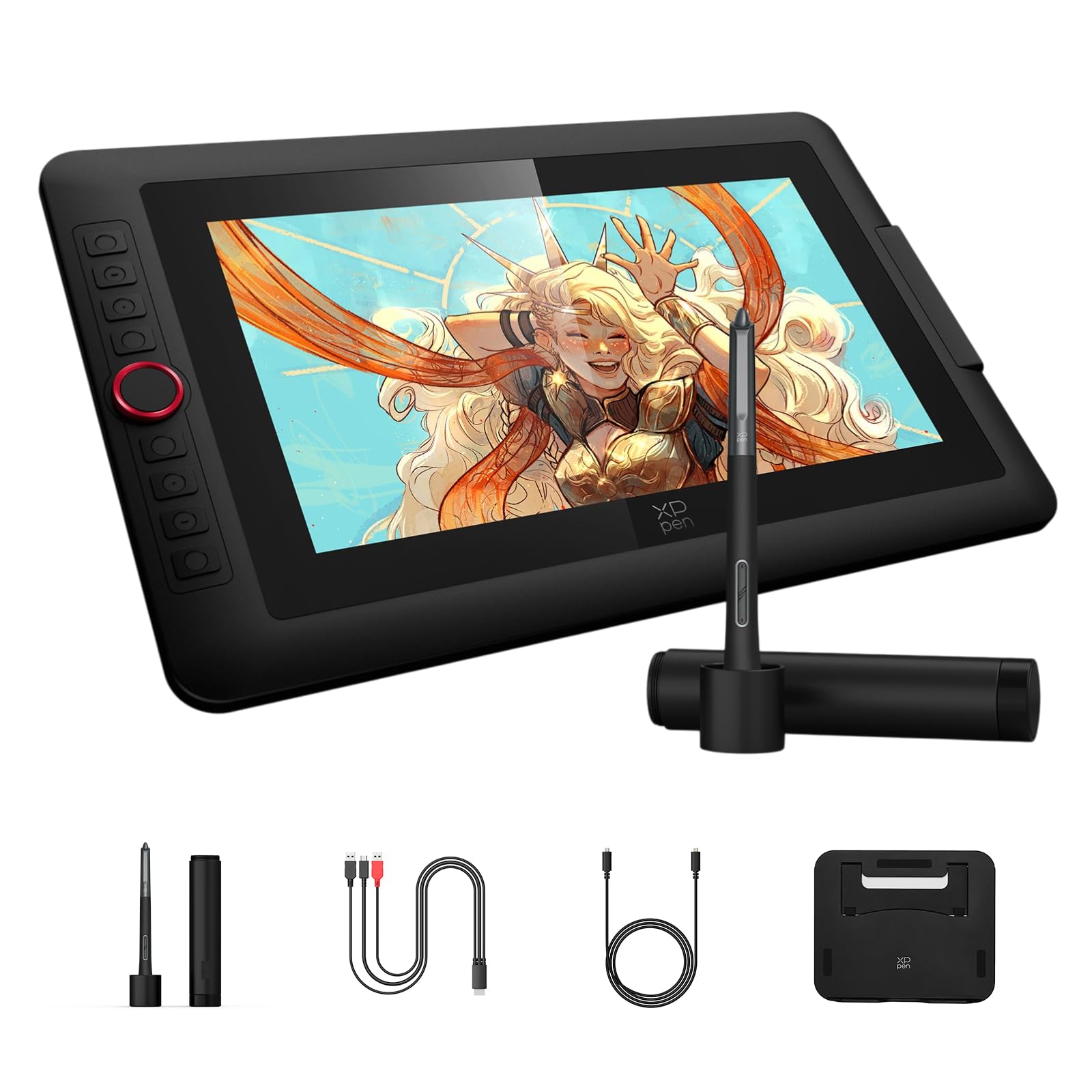
A color-accurate pen display with a built-in stand and a beginner-friendly workflow dial.
What sets this tablet apart is the color gamut — you get 125% sRGB, 107% Adobe RGB, and 95% DCI-P3 coverage, compared to the 99% sRGB on the HUION Kamvas 13 (Gen 3) above. The 13.3-inch full-laminated screen with AG film cuts glare and reduces parallax, while the IPS panel delivers a 178-degree viewing angle so you are not locked into one perfect head position. The included AC42 adjustable stand goes from flat to a 90-degree angle, which is a thoughtful addition that most rivals sell separately.
The Red Dial Quick Key gives you one physical control for brush size, navigation, and zoom — simpler than memorizing keyboard shortcuts, especially if you are newer to digital art. Reviewers call it a “significant upgrade” over the previous Artist 12 and note that the “additional controls make my daughter extremely productive.” On the catch side, owners mention that the “pen feels a bit too light” during long sessions and that the “driver sometimes glitches and requires a restart.” The stylus is the X3 Pro Smart Chip with 16384 pressure levels and 60-degree tilt support, so you get line variation from angling the pen naturally. It also packs 8 customizable shortcut keys on the tablet itself. For a mid-range pen display that includes the stand and a wide color workspace, this is a strong value.
Large drawing area
- 125% sRGB / 107% Adobe RGB color gamut — one of the widest in this price range
- Included adjustable stand saves you – on accessories
- Red Dial simplifies brush and canvas control for beginners
Plastic build feel
- Pen can feel light and tiring during extended drawing sessions
- Driver occasionally requires a restart when glitching
Budget-conscious artists: you want a pen display with a wide Adobe RGB color space and a stand included, especially if you are moving from a smaller tablet like the Artist 12.
Premium feel seekers: you prefer a heavier, more substantial pen feel like the Wacom Pro Pen 2, or if driver stability is your top priority — the HUION Kamvas (Gen 3) has fewer reported glitches.
4. Wacom Cintiq 16
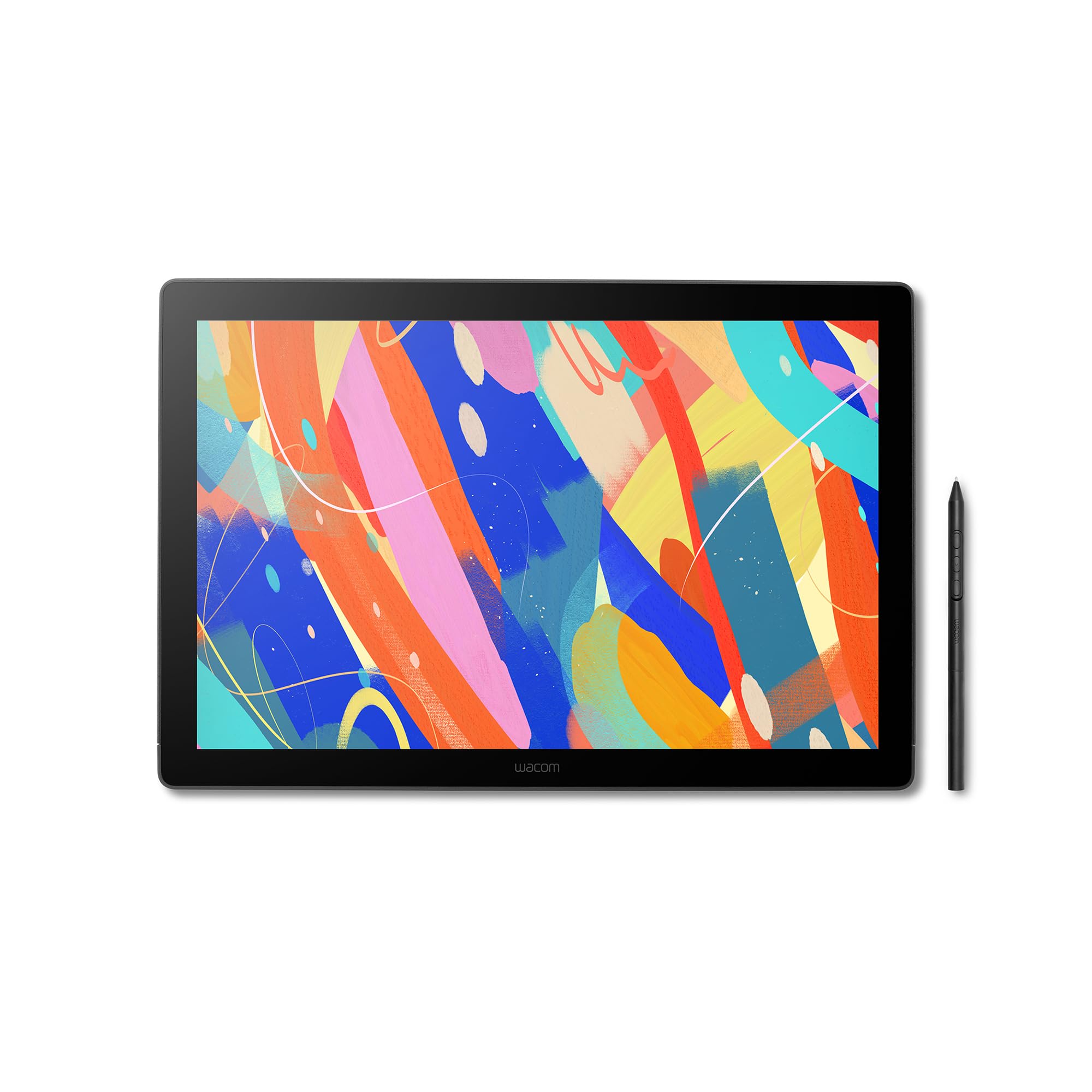
A 16-inch pro display with 2.5K resolution and Wacom’s best pen technology.
This is the most expensive pick in the list, and the question is whether the price translates to a genuinely better experience. The 16-inch IPS display runs at 2560 x 1600 (2.5K WQXGA) — noticeably sharper than the 1080p screens on the HUION and XPPen pen displays above. You get 99% DCI-P3 and 100% sRGB coverage with 8-bit color depth, so gradients look smooth and colors match what professional monitors produce. The built-in fold-out legs give you a 20-degree working angle without needing a separate stand, and the anti-glare glass keeps reflections under control.
The Pro Pen 3 offers 8192 pressure levels, tilt support, and three shortcut keys. Customers note the pen “responds to your lightest touch” and call the tablet “accurate, no lag.” But there are real trade-offs at this price: reviewers mention that the included Pro Pen 3 feels “uncomfortable with stiff buttons and no eraser,” and the tablet lacks any shortcut buttons or a dial on the body — you will need the keyboard or a separate shortcut remote. Unlike the HUION and XPPen, this Cintiq uses a USB-C cable and requires DisplayPort Alt Mode or Thunderbolt 3/4, and some reviewers point out needing to buy a mini-HDMI cable separately. At 4.5 pounds, it is also significantly heavier than the 1.2-pound HUION Inspiroy 2 Large pen tablet. For professionals who need the resolution and the Wacom ecosystem, the trade-offs make sense. For most other users, the HUION Kamvas 13 (Gen 3) or XPPen Artist13.3 Pro V2 deliver comparable or better pen feel for a fraction of the cost.
Industry-standard reliability
- 2.5K resolution (2560×1600) versus 1080p (1920×1080) on competitors — text and fine lines look noticeably crisp
- 99% DCI-P3 color gamut covers the modern cinema color standard used in animation and video
- Built-in fold-out legs and VESA mount option for flexible desk setups
No laminated screen
- No shortcut buttons or dial on the tablet — you provide your own controls
- Pro Pen 3 has stiff side buttons and lacks an eraser, some reviewers recommend using the older Pro Pen 2 instead
Professional illustrators: you need a 2.5K display for detailed line work or color-critical professional work, and you already have a keyboard or remote for shortcuts.
Portable setup fans: you want shortcut keys on the tablet itself, prefer a lighter pen feel with an eraser, or want the best value per dollar — the HUION and XPPen options match most features at half the price.
5. UGEE UE16

A big 15.4-inch pen display with rich color at an accessible price point.
The headline spec here is 143% sRGB — that compares to the 99% sRGB on the HUION Kamvas 13 (Gen 3) and 125% sRGB on the XPPen Artist13.3 Pro V2 for color space coverage. The UE16 supports four color space modes (sRGB, Adobe RGB, DCI-P3, and a black-and-white mode), so you can switch depending on whether you are editing photos or doing line art. The full-laminated screen with anti-glare glass reduces parallax, and the 16K pressure sensitivity from the battery-free stylus gives you fine control over stroke weight.
You get 8 physical shortcut keys plus a scroll wheel that cycles through 4 preset functions — a flexible setup for different apps. One buyer notes the “screen is large” and another says the tablet is “far better than Huion H610 Pro V2” for education use. However, there are some real-world oddities: reviewers mention a “very slight buzzing at the power port” (though one reviewer noted “if you use headphones or breathe, you shouldn’t hear it”), and the 3-in-1 cable is “awkward” with the USB-C connector bent at the wrong angle. The nibs are soft and wear down quickly if you have a heavy hand, so plan to buy extras. At 15.4 inches, this is a big unit — one buyer warns you need a 20-inch backpack to carry it. Compare this to the HUION Inspiroy 2 Large below, which gives you a larger drawing area (10.5 x 6.56 inches) but without the built-in screen. The UE16 is for buyers who want a large, colorful display on a budget and are willing to overlook some build quirks.
Affordable large canvas
- 143% sRGB coverage — wider color space than most 13-inch rivals
- Four color space modes let you toggle between sRGB, Adobe RGB, DCI-P3, and black-and-white
- 16K pressure sensitivity with 60-degree tilt support for natural shading
Color accuracy varies
- 3-in-1 cable is bulky and the USB-C connector bends at an awkward angle
- Soft nibs wear down quickly for heavy-handed artists — budget for replacement nibs
Learning digital art: a 15.4-inch screen and 143% sRGB color space matter more to your work than a compact footprint, and you are comfortable with a few build quirks.
Color-critical work: you prioritize portability and a clean single USB-C cable setup — the 3-in-1 cable here is the opposite of travel-friendly.
6. XPPen Deco Pro LW 2nd

A wireless pen tablet with 10-hour battery life and a detachable dial remote.
This is the only pen tablet here that offers genuine wireless freedom via Bluetooth 5.0 — you get over 10 hours of battery life from the 1000mAh lithium battery, and you can pair it with two devices and switch between them with one click. The 9 x 6-inch active area is a comfortable middle ground between the HUION Inspiroy 2 Medium (8.7 x 5.4 inches) and the HUION Inspiroy 2 Large (10.5 x 6.56 inches) — enough room for expressive strokes without dominating your desk. The X3 Pro stylus delivers 16K pressure sensitivity and 60-degree tilt support, which is a step up from the 8192-level pens on older models.
The included Wireless Shortcut Remote gives you 10 programmable keys that you can customize into up to 4 sets, plus a mini key-dial. A “senior 3D artist with 25+ years experience” calls it a “great purchase with high value to price ratio” and notes the “packaging 5/5, documentation 4.5/5.” One catch: Bluetooth wireless connection is not compatible with Android 10.0 or later, nor with Linux — you have to use the USB-C cable for those devices. Buyers also report “initial lag via Bluetooth” in heavy 3D software like Maya and ZBrush, which goes away when switching to the USB-C cable. This is a flexible option if you switch between a desktop and a laptop and hate fussing with cables, but keep the USB-C cable handy for latency-sensitive work.
Wireless convenience
- Bluetooth 5.0 with over 10 hours battery — pair two devices and switch with one click
- 16K pressure and 60-degree tilt from the X3 Pro Smart Chip stylus
- Wireless Shortcut Remote with 10 programmable keys and a mini key-dial
Battery life limits
- Bluetooth wireless not compatible with Android 10.0+ or Linux — cable required
- Some Bluetooth lag in heavy 3D apps like Maya and ZBrush
Cable-free setup: you want the freedom to draw wirelessly across two devices (laptop and desktop, for example) with a separate dial remote for shortcuts.
Long session users: your primary device is an Android tablet or Linux computer — you will be stuck using the cable, so the wireless feature becomes irrelevant.
7. HUION Inspiroy 2 Medium

A lightweight entry-level tablet that punches above its price with a scroll wheel.
If you are on a strict budget and just starting digital art, this is the most affordable pick in the list — and it still gives you PenTech 3.0 (the same pen technology as the Large version above), a scroll wheel, and 8 customizable press keys organized into 3 groups. The active area is 8.7 x 5.4 inches, which is compact enough to slide into a bag alongside a laptop but still big enough for comfortable sketching. At 420 grams (about 0.9 pounds), reviewers call it “lightweight” and “affordable.” The battery-free PW110 stylus with soft silicone grip is the same one used in the large model.
Shoppers say it is a “fantastic entry-level pen tablet” and that “the software is very intuitive.” One reviewer specifically calls it “lightweight, affordable medium tablet with 10 customizable buttons, scroll wheel, battery-free pen, USB-C.” The honest trade-offs: no Bluetooth (wired USB-C only), the scroll wheel is “hard to push,” and the nib wears down over time. Another buyer notes the “Huion app lacks 180° rotation display” and that “button changes need app restart for UWP apps.” The Medium weighs 0.9 pounds, while the Large weighs 1.2 pounds, making it the obvious choice if portability matters more than canvas size. For the price, this is a no-regret starter tablet — just be aware that the lack of Bluetooth means you are always tethered.
Entry-level price
- Budget-friendly price with PenTech 3.0, a scroll wheel, and 8 customizable keys
- Ultra-lightweight at 420 grams — easy to throw in any bag
- Battery-free stylus with soft silicone grip for comfortable sessions
Limited shortcut keys
- No Bluetooth — USB-C cable only, so you are always wired to your device
- Scroll wheel feels stiff to press compared to the dial on more expensive models
First-time buyers: you are a beginner wanting the lowest entry price into digital drawing with a solid pen, customizable buttons, and a scroll wheel — all in a portable package.
Advanced shortcut users: wireless freedom is a must (the XPPen Deco Pro LW 2nd has Bluetooth) or you need a larger active area for sweeping arm motions.
Understanding the Specs
Pressure Sensitivity Levels
This number (8192, 16384, or 16K) tells you how many distinct pressure levels the pen can detect. Higher numbers give you finer control over line weight — a light brush stroke creates a thin, faint line, while pressing harder makes it thick and dark. 8192 levels is already good for most artists; 16384 (found on the XPPen Artist13.3 Pro V2 and the UGEE UE16) adds subtlety for ultra-light shading work. The difference is most noticeable when you are doing soft gradients or watercolor-style digital painting.
Full Lamination vs. Non-Laminated
On a pen display (a tablet with a screen), full lamination means the glass and the LCD panel are bonded together with no air gap between them. This eliminates parallax — that annoying offset where the cursor appears slightly below where the nib touches the glass. Non-laminated screens have a visible gap that makes precise line work harder. All four pen displays in this list (HUION Kamvas 13 Gen 3, XPPen Artist13.3 Pro V2, Wacom Cintiq 16, and UGEE UE16) use full lamination, so you get accurate cursor placement.
FAQ
Will a pen tablet work with my Chromebook?
How long do pen nibs last on these tablets?
Can I use these tablets with an Android phone?
What is the difference between a pen tablet and a pen display?
Is 8192 pressure sensitivity good enough for professional work?
Do I need a screen protector for a pen display?
Which tablet is best for Blender 3D modeling?
What cables come with these tablets?
Can I use a pen tablet left-handed?
How much desk space do I need for a pen display?
Final Thoughts: The Verdict
If you want one dependable pick, the artist tablet winner is the HUION Kamvas 13 (Gen 3) because it combines a paper-like drawing feel, 16384 pressure sensitivity, dual dial controls, and factory-calibrated color in a lightweight 13.3-inch package that beats models costing hundreds more on pen feel alone. If you want wireless freedom and a compact build, grab the XPPen Deco Pro LW 2nd. And for a budget-friendly start with a scroll wheel and customizable keys, the standout is the HUION Inspiroy 2 Medium.
How We Picked
We do not accept paid placement. Every pick is matched to a real buyer and a real use-case; we do not hands-on test units.
Sources & Methodology
Specifications: manufacturer listings and product documentation. Review insights: verified customer reviews, as of July 2026. Pricing: not shown on this page (it changes often); check the current price via the retailer link.
As an Amazon Associate, Gadgets Feed earns from qualifying purchases. This does not affect which products we feature.