
Our readers keep the lights on and my morning glass full of iced black tea. As an Amazon Associate, I earn from qualifying purchases.
Specs are compiled from manufacturer listings and verified buyer reviews and can change over time — please confirm the key details on the product page before buying.
If you spend your day pinching and scrolling through windows, a big monitor is the cheapest way to add usable screen area. The picks below all measure 27 inches or larger, and each one solves a different problem — from squeezing two screens into one desk to gaming at 240Hz on a panel that turns black pixels truly black.
I’m Min — the founder and writer behind Gadgets Feed. This guide is built by comparing the manufacturers’ published specifications and the patterns across verified customer reviews, so you get each pick’s real strengths and trade-offs instead of marketing spin.
You do not need the most expensive screen on the shelf — you need the one whose size, resolution, and refresh rate fit your desk and your workload. That is what this roundup of the best big monitor options is here to sort out for you.
Our Picks at a Glance


How To Choose The Best Big Monitor
The first thing to settle is inches, because a big screen changes how far back you need to sit and how much of it your eyes can actually take in at once. The second is pixels, because a wide panel with too few pixels turns crisp text into a fuzzy mess.
Match the resolution to the size
A 27-inch screen at 1920×1080 (often called 1080p or Full HD) is comfortable to read from arm’s length. Stretch that same pixel count across a 34-inch panel and the picture starts to soften, which is why several picks here step up to 2560×1440 (1440p or QHD), 3440×1440 (WQHD), or all the way to 5120×2160 (5K2K). More pixels mean more windows fit side by side at full size.
Decide how much curve you want
The number before the “R” tells you how tightly the screen bends — a smaller number means a deeper curve. An 800R curve wraps the edges toward your eyes the most, while a 1500R or 1800R bend is gentler and better if you also do spreadsheet or editing work where a straight grid matters. Flat panels are still an option if you prefer zero distortion.
Know your panel type
IPS panels hold their colors from off-angle seats, which suits shared desks and creative work. VA panels push deeper blacks and higher contrast, which suits movies and dark games. OLED panels switch each pixel on and off individually, giving near-perfect blacks, and they carry higher prices to match.
Quick Comparison
| Model | Best For | Screen Size | Resolution | Refresh Rate | Amazon |
|---|---|---|---|---|---|
| Kado Dual Monitor 2-Pack 27″ Curved 1500R★ Best Overall | Two-screen desks on one budget | 27 inch (x2) | 1920 x 1080 | 75Hz | Amazon |
| KTC 32 Inch 2K Computer MonitorBudget Ultrawide | Sharp creative work and fast gaming | 32 inch | 2560 x 1440 | 120Hz | Amazon |
| Samsung 34″ ViewFinity S50GCBest for Office | All-day office multitasking | 34 inch | 3440 x 1440 | 100Hz | Amazon |
| Alienware AW3425DWM 34″ Curved | High-refresh gaming without OLED prices | 34 inch | 3440 x 1440 | 180Hz | Amazon |
| Dell S3425DW 34″ | One-cable laptop desks | 34 inch | 3440 x 1440 | 120Hz | Amazon |
| Alienware AW3425DW 34″ QD-OLED | Serious competitive gaming | 34.2 inch | 3440 x 1440 | 240Hz | Amazon |
| MSI MPG 321URX QD-OLED | 4K detail on a desktop panel | 32 inch | 3840 x 2160 | 240Hz | Amazon |
| Gawfolk 34″ Ultrawide IPS | Cheapest way into ultrawide | 34 inch | 2560 x 1080 | 120Hz | Amazon |
| LG 45GX950A-B Ultragear | rich gaming and tall documents | 45 inch | 5120 x 2160 | 165Hz | Amazon |
| Dell UltraSharp U4025QW | Professional workstations and Mac setups | 39.7 inch | 5120 x 2160 | 120Hz | Amazon |
| Samsung 57″ Odyssey Neo G9 | Replacing a three-screen wall | 57 inch | 7680 x 2160 | 240Hz | Amazon |
In‑Depth Reviews
1. Kado Dual Monitor 2-Pack 27″ Curved 1500R
Our pick — over 4.5★ from 400+ verified ratings; the strongest balance of quality and price.
Two curved 27-inch screens in one box — the widest desktop you can build on the smallest budget.
Buying one big monitor usually means giving up a second screen, and this two-pack sidesteps that entirely. You get a pair of 27-inch panels, each curved at 1500R (a gentle bend that pulls the edges toward your eyes), each running 1920 x 1080 at 75Hz. For a dual setup that is the point: two screens mean you can park email on the left and your real work on the right, and nothing gets shrunk to fit.
The contrast here is genuinely the standout — a 2000:1 static ratio, which is twice the 1000:1 the Gawfolk ultrawide below manages. That shows up as deeper dark tones in games and movies, so shadowy scenes keep their detail instead of going muddy. Color holds up too at 98% sRGB coverage, the range of colors a screen can display, which keeps photos and video looking natural rather than washed out. As buyers put it: “Setup under 20 min, well-packaged, sleek design.”
What wins people over is how little friction there is between unboxing and working. Owners talk about the picture being sharp, the fonts clear, and the color landing right from the start — no calibrating for an afternoon. The curved shape also earns its keep over long sessions, easing the eye and neck strain that flat panels cause when you sit close and split your attention. On the honest side, the pair does eat desk width, and the built-in speakers are there when you need them rather than for serious listening. One thing worth knowing: the panels ship Sceptre-branded even though the listing says Kado.
What you get in the box
- Two 27-inch curved screens for the footprint one large panel would take
- 2000:1 contrast — double the Gawfolk ultrawide below — so blacks stay deep
- 98% sRGB color keeps photos and video looking natural
- 75Hz refresh with FreeSync, plus built-in speakers that save desk space
Where it stops short
- 1920 x 1080 per panel means less pixel detail than a 1440p screen
- Two screens need real desk width and two inputs
- Built-in speakers are a convenience, not a sound system
Reach for this if: you want maximum screen real estate for a home office and would rather have two panels than one premium ultrawide.
Think twice if: you need fine text at close range — the 1080p pixels spread across 27 inches are easier to spot than a 1440p panel’s.
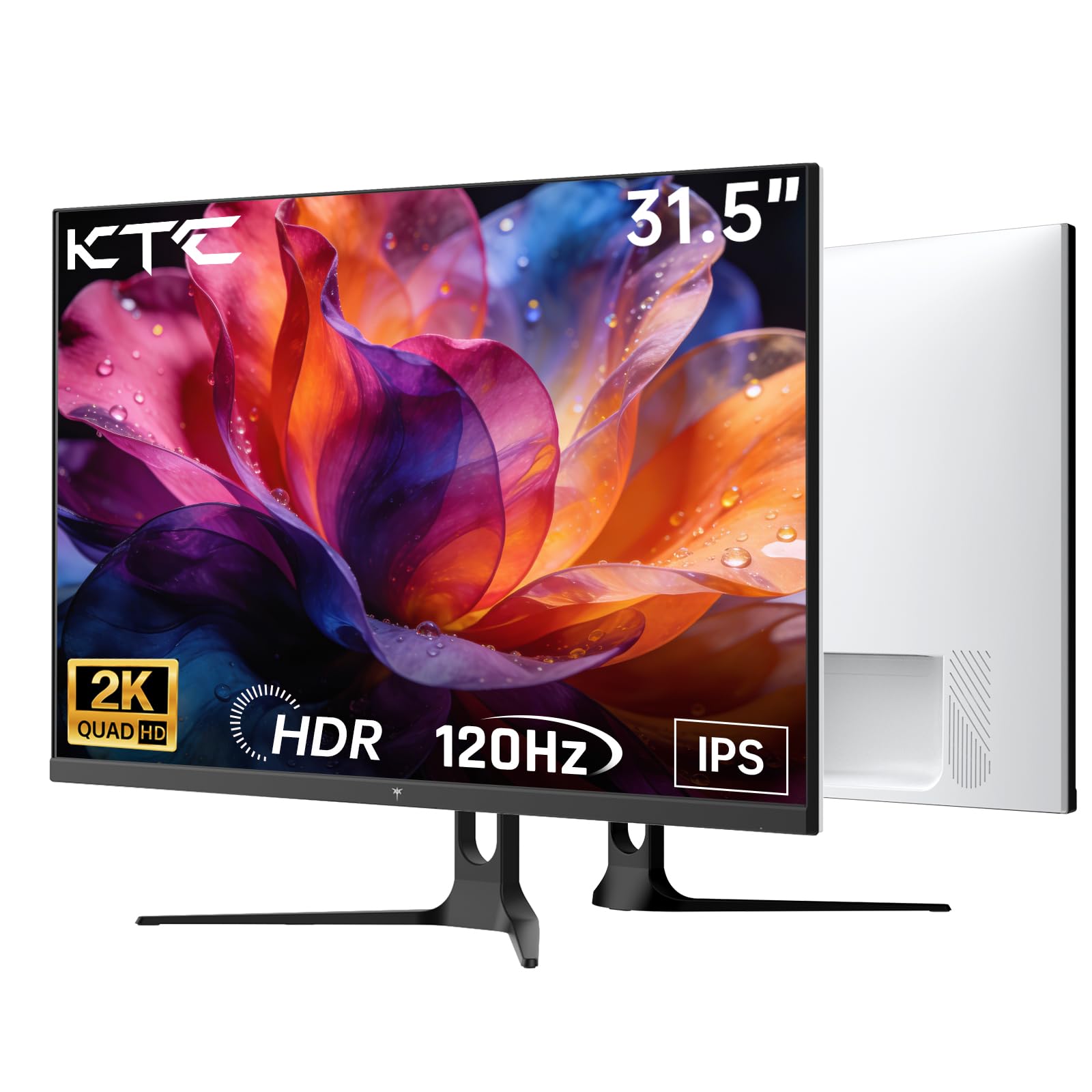
2. KTC 32 Inch 2K Computer Monitor, QHD 120Hz IPS
The 32-inch panel that out-resolves the Kado pair and out-runs both of them at 120Hz.
You get sharper detail on the KTC than on the Kado dual set. The KTC pushes 2560 x 1440, while the Kado tops out at 1920 x 1080 — 33% more horizontal pixels, so columns of spreadsheet data and lines of code hold their edges here. Its 120Hz panel (120 refreshes per second) also steps past the Kado’s 75Hz by a 60% margin, and that gap is what you feel when a cursor glides across the screen instead of stuttering.
Your colors come out accurate for print and publishing. At 109% sRGB coverage (sRGB is the standard color range for screens and web) the panel reaches past the standard range, and a ΔE under 2 (a measure of how far off a displayed color is from the true one, where lower is better) means the reds and blues you pick are the ones that print or publish. HDR10 (a format for brighter highlights and deeper shadows) with 350 cd/m² brightness keeps highlights bright in well-lit rooms. For gaming, FreeSync and G-Sync Compatible support mean the screen and your graphics card trade frames in sync, killing the torn line down the middle. The connectivity is genuinely generous: one DisplayPort 1.4 plus two HDMI 2.0 ports, four inputs in total, which is enough to keep a laptop, a desktop, and a console plugged in at once.
The honest caveat is setup polish rather than hardware. The stand tilts, though it wobbles if you bump the desk. Buyers do report border fringing at first, which cleared up once they adjusted the refresh rate settings — a tweak, not a fault.
The resolution argument: if your day is spreadsheets, timelines, or photo edits, the jump to 1440p is the single most visible upgrade on this page, and the KTC delivers it without the premium-panel price.
Best for: anyone whose screen time is text- and detail-heavy — coders, editors, analysts — and who games in the evenings.
Skip if: you want a tool-free, app-managed setup, since every adjustment here runs through the menu.
3. Samsung 34″ ViewFinity S50GC Ultrawide QHD
A 21:9 desk monitor built for people who live in three windows at once.
You can run two full documents side by side and still see the whole of each. The 21:9 shape (a wider-than-standard screen ratio) is the whole story here. At 3440 x 1440 across 34 inches, that extra width is 31% more horizontal spread than the Kado’s 16:9 panels. Samsung’s Picture-by-Picture mode takes that further — it pulls input from two sources at once and shows both at native resolution, so a work laptop and a personal desktop can share the glass without a KVM box (a switch that lets two computers share one keyboard and mouse).
Contrast lands at 3000:1, the deeper of the two ultrawide entries here and triple the Gawfolk’s 1000:1, which is what makes the HDR10 processing worth having. Samsung claims over a billion colors in HDR10 against 16.7 million in standard SDR, and in practice dark scenes keep their shadow detail rather than crushing to black. Eye care is handled automatically: a built-in light sensor reads the room and adjusts brightness for you, while Eye Saver Mode trims excess blue light (the short-wavelength light that tires eyes) and Flicker Free smooths the backlight. Monitoring and design work both benefit from the 100Hz refresh, which keeps motion cleaner than a standard 60Hz office panel.
The recurring gripe is configuration rather than picture. Getting a Mac or PC to hold the panel at its full refresh can take some tinkering, and there are no built-in speakers — an aux output handles audio if you have a set of desktop speakers handy. A protective film covers the panel, and owners warn it must be peeled bottom-to-top; leave it on or pull it the wrong way and you can mark the screen. Note too that the plastic film warning is a one-time thing, not an ongoing hassle.
Why work desks love it
- 3440 x 1440 across 21:9 — two full windows with no horizontal scroll
- 3000:1 contrast, the deepest of the four ultrawides at this price level
- Ambient light sensor handles brightness so you never touch a menu
- PBP and PIP show two devices on one panel at native resolution
Before you commit
- No built-in speakers — you supply your own audio
- Hitting full refresh on some Mac and PC setups takes configuration
- The protective film must be peeled bottom-to-top or it can damage the display
Pick this one if: multitasking is your job and you want the widest usable desktop for office work.
Look elsewhere if: you need speakers inside the monitor or expect plug-and-play at 100Hz on every machine.
4. Alienware 34″ Curved Gaming Monitor AW3425DWM

180Hz, 1ms, and a 1500R curve — competitive speed without stepping into OLED money.
You get smooth motion without paying QD-OLED Alienware prices. If the QD-OLED Alienware further down is more than you plan to spend, this is the one to look at. The panel runs 3440 x 1440 at 180Hz with a 1ms gray-to-gray response time (how fast a pixel changes shade, where lower means less blur), and both AMD FreeSync Premium and VESA Adaptive Sync keep the frame rate matched to your card. The practical result: no torn edges when you flick a mouse across a fast shooter, and no smeared trail behind a moving target.
Your games look vivid and your eyes stay comfortable on late nights. Color coverage reaches 95% of DCI-P3 (the wide color standard used for film and games), and the screen carries VESA DisplayHDR 400 certification — meaning it hits 400 nits of brightness for HDR highlights, so muzzle flashes and neon signs read as bright rather than flat. The 3000:1 contrast gives the dark corners of a level real weight. There is also a dedicated console mode and a hardware low-blue-light filter that trims eye strain without wrecking the colors. The stand adjusts for height and tilt with no tools, and the included kit covers the HDMI cable, power cable, and VESA cover.
Where it lands short is pixel speed at the very top end — buyers are quick to point out it does not feel like an IPS or OLED lightning panel, because it is not. Fine ghosting shows up in the fastest scenes. There are no built-in speakers either, so plan on a headset or desk speakers. None of that undercuts its case: this is the best value name-brand high-refresh ultrawide in the group, and for a 3440 x 1440 setup with a console mode and USB passthrough, it is the tidy middle rung.
Speed versus price: the 180Hz refresh and 1ms response are the reasons to choose it — twice the Kado’s 75Hz, and enough to keep a competitive shooter clean.
One real limit: if your library is mostly twitch-reaction titles, the OLED pick below will always feel snappier, and this VA panel will not pretend otherwise.
Made for: gamers who want a fast, big curved monitor and value a name-brand warranty over the last few milliseconds.
Not the one if: you need speakers built in or plan on serious color-graded creative work.
5. Dell S3425DW 34″ WQHD Curved Monitor

One USB-C cable carries your picture, your data, and 65W of charge to your laptop.
For a laptop-first desk, cable count is the real spec. A single USB-C cable here handles video, peripherals, and up to 65W of power delivery — enough to keep a MacBook topped up, so you can unplug one connector and leave. Around that sit a VA panel at 3440 x 1440, a 120Hz refresh with AMD FreeSync Premium, and a 3000:1 contrast ratio that gives dark scenes proper depth. The 0.03ms response time is quoted as gray-to-gray and is best read as a marketing figure on a VA panel, but the motion is genuinely clean.
Color coverage is the part creative buyers should note: 99% sRGB and 95% DCI-P3, which is wide enough that photos and grading work hold their accuracy. Dell also built ComfortView Plus into the hardware to cut blue light to ≤35% without shifting the on-screen colors — most blue-light filters yellow the screen; this one does not. The stand adjusts for height and tilt, and speakers are built in, so the monitor handles a video call without extra kit.
The honest trade-offs are ports and ergonomics. Several owners wish for a DisplayPort input and more USB, and the panel sits lower than some monitors, so you may want to raise your chair or add a riser. The bigger recurring note is the stand — it arrives firm and sometimes leans or sags if the unit takes a bump in transit. Assembling the stand honestly takes a minute; the monitor itself snaps on in well under a minute. If yours arrives level, like most do, this is a quiet workhorse.
Desk-clearing wins
- One USB-C cable handles video, data, and 65W laptop charging
- 99% sRGB and 95% DCI-P3 for color-accurate work
- 3000:1 VA contrast and 120Hz FreeSync Premium motion
- Built-in speakers and a height/tilt adjustable stand
Small print to know
- No DisplayPort input and a limited USB line-up
- Stand is known to lean if bumped or shipped poorly
- Panel sits low for some seated setups
Ideal setup: a laptop you dock and undock daily, with a desk you want to keep visually clean.
Second-guess it if: you need a DisplayPort or a mountain of USB ports, or you dislike monitors that sit low.
6. Alienware AW3425DW 34″ QD-OLED 240Hz

240Hz and a 1,500,000:1 contrast ratio — this is what OLED money buys.
The number that defines this one is the contrast ratio: 1,500,000:1, which is the point of a QD-OLED panel. Each pixel lights itself, so black pixels simply switch off and dark scenes show real shadow — an advantage the VA and IPS picks above cannot match. Drop 240Hz and a 0.03ms response time on top and you have the sharpest moving image in the mid-priced group, with zero smearing through a fast pan. Coverage of 99.3% DCI-P3 and a Delta E under 2 carries that into color-accurate work too.
The 1800R curve wraps the panel just enough to fill your vision without the extreme bend of the Dell and LG ultrawides further down. HDMI, DisplayPort, and USB are all present, and the kit includes both a DisplayPort and an HDMI cable, plus a microfiber cloth — small, but it tells you the maker knows a glossy panel shows fingerprints. Brightness is quoted at 250 nits with VESA DisplayHDR TrueBlack 400 on board, and one owner sums up the response simply: it pushed high-refresh gaming to its limits.
Two trade-offs are worth planning around. First, OLED panels need a little care — owners run the built-in pixel refresh daily and some switch the screen off when stepping away, purely to guard against burn-in. None of the reviews here report burn-in, but it is the reason that routine exists. Second, a handful find HDR needs calibration because midrange scenes dim aggressively; a firmware update addressed part of it, and running SDR instead sidesteps the rest. If you like to set a screen up once and never touch it, budget an evening of tinkering.
The standout spec: that 1,500,000:1 contrast plus 240Hz is why this sits a tier above the DWM version — if you game competitively in dark scenes, the difference is visible instantly.
One caveat worth naming: OLED brightness sits below the MSI below in HDR, and the light output on a bright window-lit desk will not match a mini-LED panel.
Step up for: a competitive gamer who wants OLED blacks, 240Hz speed, and color accuracy on one panel.
Stay down if: you leave a screen on a static display all day — the pixel-refresh routine is real added care.
7. MSI MPG 321URX QD-OLED 32″ 4K 240Hz

A 32-inch 4K QD-OLED that hits 240Hz — text-sharp pixels and deep blacks on one desk.
Where the Alienware OLED runs 3440 x 1440, this MSI pushes 3840 x 2160 across a 32-inch 16:9 panel — the classic 4K layout, so every pixel is squared away and text reads razor sharp. Add a 240Hz refresh and a 0.03ms gray-to-gray response and you get a monitor that games like a competitive panel but shows a page of text like a workstation screen. VESA DisplayHDR TrueBlack 400 backs up the HDR claim with 1.07 billion colors at 10-bit depth and DCI-P3 coverage at 99% with Delta E of 2 or less.
Ports matter for this kind of panel, and there are plenty: HDMI 2.1, DisplayPort 1.4a, and USB Type-C with 90W of power delivery — enough to charge a laptop and carry the display signal over one cable. There is a KVM switch and picture-in-picture support for handling two machines, plus a four-way adjustable stand and MSI’s Mystic Light. One buyer describes the upgrade from a 1440p IPS panel as the largest image-quality jump they have made, and the deep blacks with zero motion blur ring true for QD-OLED.
The catch worth knowing up front is HDR calibration. Several owners find midrange scenes dim aggressively in HDR, and one notes the on-screen knob controls feel fidgety for a panel at this level. There is also a well-documented Mac quirk: driving two of these off Apple Silicon needs a settings change or only one screen lights up. If you are on a single Mac or a Windows PC, neither issue tends to surface. Look past that and this is the most versatile picture on the list.
Why it earns its place
- 3840 x 2160 at 240Hz — 4K sharpness and gaming speed on one panel
- 90W USB-C powers a laptop over a single cable
- KVM switch and PIP switch between two machines
- 1.07 billion colors at 10-bit with 99% DCI-P3 and Delta E ≤2
Real-world snags
- HDR needs tuning to avoid dim midrange scenes
- Two Macs need a settings change to both display
- On-screen knob controls feel fiddly for the tier
Choose this when: you want 4K text clarity for work and a 240Hz QD-OLED for play, and you want a USB-C hub built in.
Avoid if: you run two Macs side by side and prefer not to touch a single setting.
8. Gawfolk 34″ IPS 120Hz Ultrawide
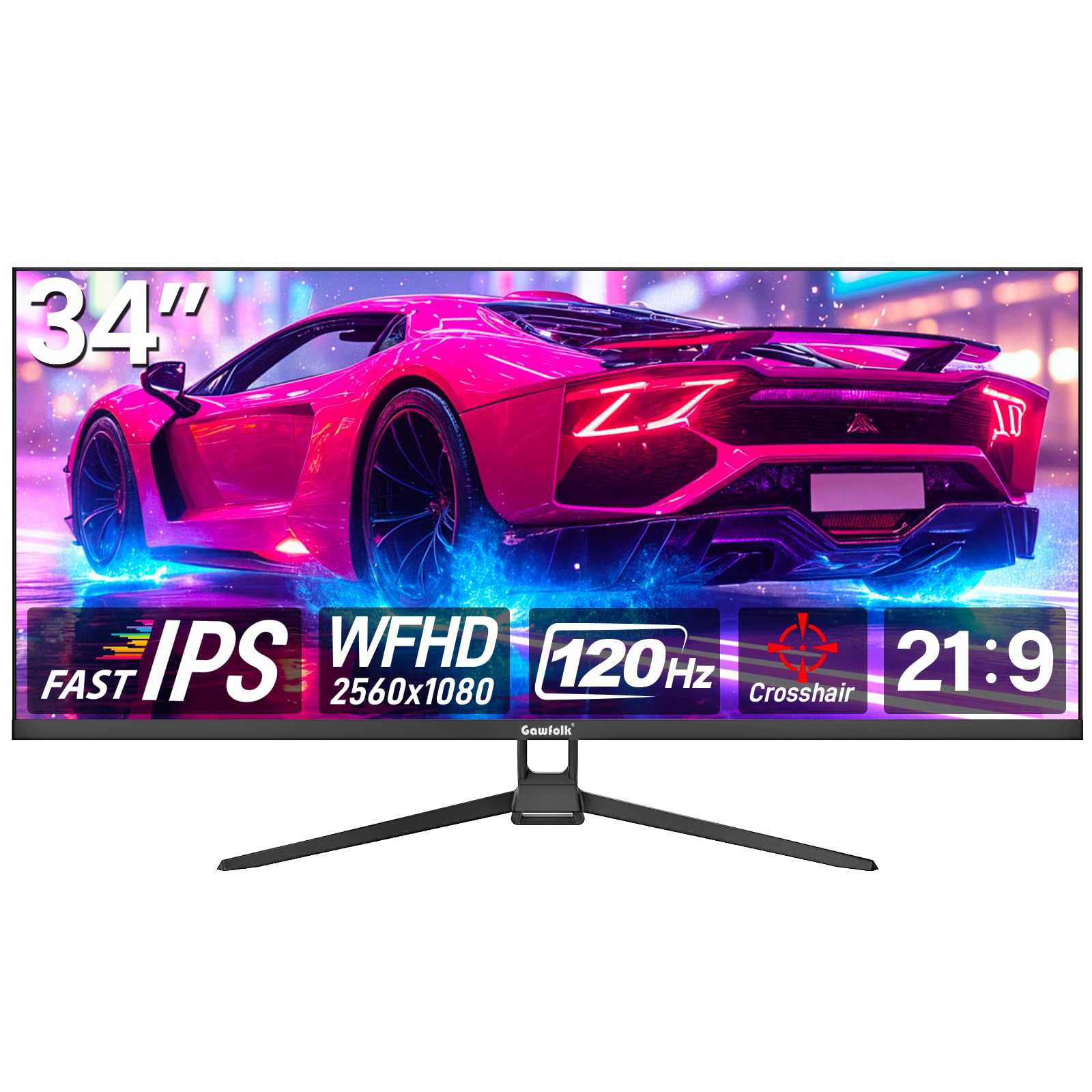
The cheapest route to a 34-inch ultrawide — as wide as the pricey picks for a fraction of the outlay.
You get a 34-inch 21:9 panel at 2560 x 1080, which is 30% more screen space than a standard widescreen in the maker’s own measurement, so you get the ultrawide shape without the premium price. The IPS panel delivers a 178-degree viewing angle, meaning color holds up from off to the side, and the bezel-less frame keeps distractions out of the way.
Where buyers land varies with what they expect from a budget screen. The quality and color stability draw the most praise, and reviewers call it an easy one to set up and easy to live with for both gaming and office work. The picture is sharp, the colors accurate, and the stand snaps on quickly with a tool-free assembly. HDMI and DisplayPort both feed in, so a PC, a console, and a laptop can all share the panel, and it accepts a 75x75mm wall mount if you would rather clamp it to an arm.
The honest cautions are brightness and clarity at this price. Brightness sits at 350 cd/m² and the contrast at 1000:1, the lowest of the ultrawides here, so dark scenes lack the depth of the Samsung and Dell VA panels. Pixel density is the bigger reality: 1080 vertical rows stretched across 34 inches is a lot of spread for each pixel, and some notice slightly soft text as a result. There is no height adjustment on the stand, and the rear attachment is light, so a monitor arm would be the upgrade. One owner reported a symptom of a blinking screen after a month — a single report against a large pool, but worth buying from a seller with an easy return path.
The value read: if the ultrawide shape is what you want and the budget is tight, this delivers the same 34 inches as the premium picks — you trade pixel density, contrast, and stand adjustment to get there.
Buy this if: the ultrawide footprint matters more to you than pixel sharpness, and you want in at the lowest point.
Pay more instead if: you read a lot of small text or watch dark films — the extra contrast and resolution of the Samsung or Dell above are worth the step up.
9. LG 45GX950A-B 45″ 5K2K OLED Ultragear
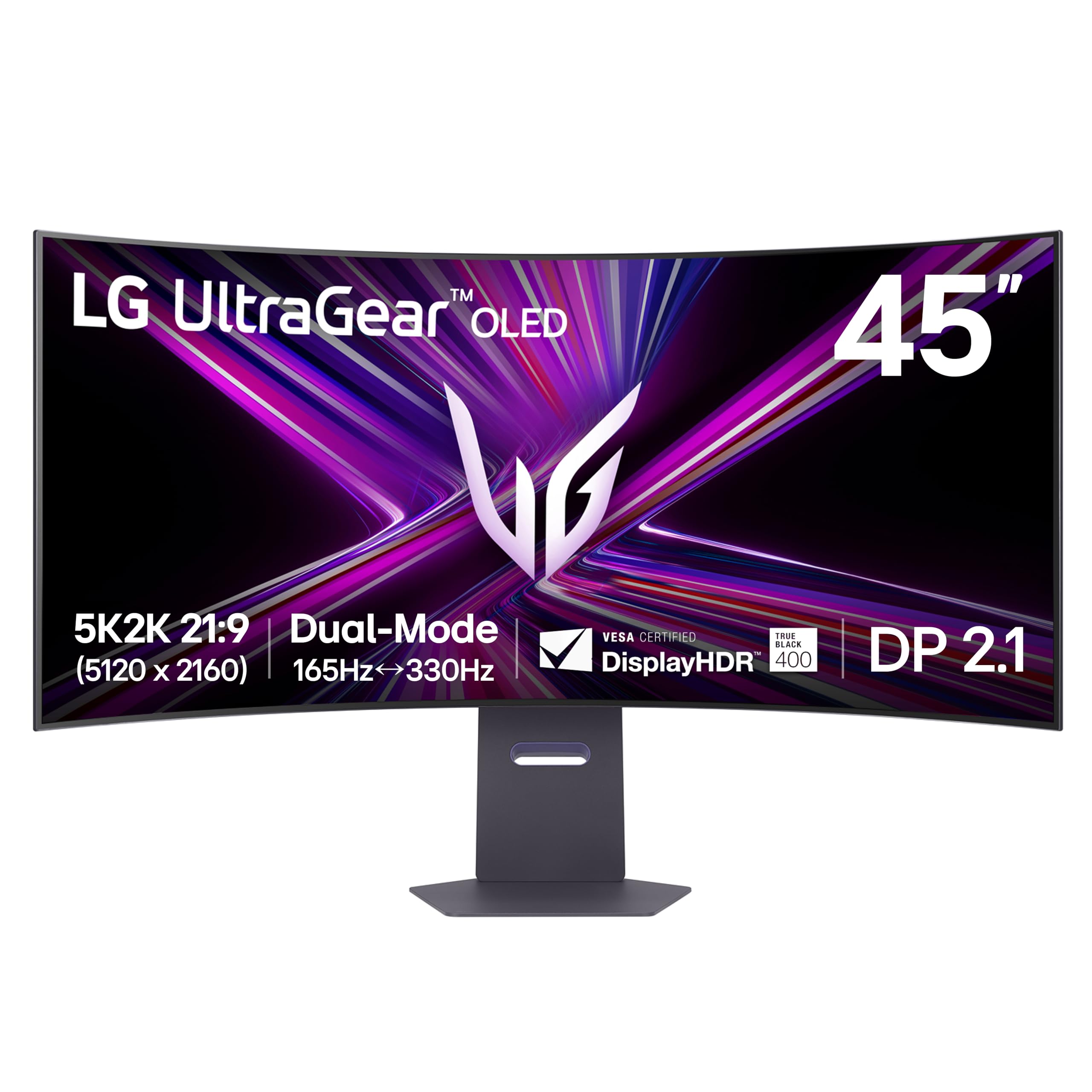
A 45-inch 5K2K OLED with two refresh modes — adventure in crisp detail, then flick to 330Hz.
The spec to lead with is the 5120 x 2160 resolution across a 45-inch curved OLED — the first 5K2K OLED on the market, per LG. At 125 pixels per inch, its subpixel layout is tuned to cut color fringing, so text edges stay clean even with that much width. When you want speed, Dual Mode drops the resolution and jumps the refresh to 330Hz for fast shooters, then snaps back to the sharp 5K2K view for story games. DisplayPort 2.1, two HDMI 2.1 ports, and USB-C with 90W delivery cover the connections.
You see the brightest highlights and deepest blacks on the same scene. Brightness reaches 1300 nits peak in HDR, and the 1.5M:1 contrast ratio comes from OLED pixels (organic light-emitting diodes that switch fully off for true black) switching fully off. Color coverage hits 98.5% of DCI-P3 with DisplayHDR True Black 400, and the 800R curve (a gentle 800mm-radius bend) wraps the edges so the wide panel surrounds your field of view. That curve is also the divisive part — some owners find it rich, a “VR-lite” experience, and others note the extreme bend as a preference issue, not a fault. The display is triple UL-certified for anti-glare, flicker-free, and low blue light.
Three honest notes before you buy. This panel asks a lot of your graphics card: at 5K2K (5120 x 2160 resolution), owners with an RTX 5080 hit frame-rate ceilings in demanding titles and find the bottleneck moves to VRAM (video memory), so a mid-tier GPU would need to run Dual Mode or lower settings. A built-in speaker produces an echo for some, and one owner reports occasional black-screen moments; a small cluster flag the mixed reliability picture, though most report no issues. Note too that the warranty card in the box is not the official LG channel — owners advise registering through LG’s own site. This is a luxury display and needs the machine to feed it.
What makes it special
- 5120 x 2160 OLED at 45 inches with 125 PPI for sharp text
- Dual Mode jumps to 330Hz at lower resolution for fast action
- 1300 nits peak brightness with a 1.5M:1 OLED contrast ratio
- DisplayPort 2.1, two HDMI 2.1, USB-C at 90W
Plan for these
- 5K2K resolution is punishing on anything short of a top-tier GPU
- Curve is pronounced — you either love it or you do not
- Some report a black-screen bug and speaker echo
Worth it for: a gamer with a high-end graphics card who wants a cinematic, tall OLED desktop and speed when the match starts.
Look past it if: you game on a mid-range card or prefer a shallower curve — the 800R bend is a specific taste.
10. Dell UltraSharp U4025QW 40″ 5K2K Curved

A 40-inch 5K2K work panel with a Thunderbolt 4 hub built in, made to replace a dock.
The case for this one is productivity density: 5120 x 2160 across a 40-inch curved panel, running at 120Hz. That 2160-pixel height is the same vertical count as a 4K monitor, so moving between a 4K screen and this one keeps windows the same size instead of resizing everything. In practice a 40-inch canvas fits two full documents or three narrowed ones, which is why programmers and traders rate it. Coverage of 99% sRGB keeps colors trustworthy, and 600 nits of brightness holds up in a bright room.
The hub is the other headline. Thunderbolt 4 with 140W power delivery charges a MacBook Pro over one cable and lets owners drop a separate dock entirely, and the display handles Mac and Linux from the start. There are multiple ports for peripherals, KVM support for switching between, say, a Mac Studio and a Linux machine, and a height, swivel, and tilt adjustable stand. Buyers praise the text clarity for long coding sessions, the wide screen for full timelines in editing software, and the way the curve reduces neck strain over a workday by bringing the edges into easy viewing range.
The real caveats are HDR and stand stability. HDR mode disappoints several owners — the panel lacks the black-level depth of an OLED, so HDR on a Mac never quite delivers the punch; treat it as a superb SDR work screen instead. The stand can feel rocky with stiff height travel, and the base is bulky. One unit arrived with a loose stand and a sag off-level — a single report, but the kind of thing to test in the return window. The DA2 note the panel is heavy, near 42 pounds, so mounting it on an arm needs a high-capacity arm or a solid desk.
Who it is for: a professional running a Mac or Linux desktop who wants one big screen with a full dock inside and does not need OLED blacks.
Where it slips: HDR is the weak link, and the panel’s near-42-pound weight pushes most monitor arms unless you pair it with a high-capacity model.
Step up for: a Mac or Linux power user who wants maximum work space and a built-in Thunderbolt hub over OLED black levels.
Not the pick if: glossy HDR film watching is a priority, or you plan to clamp a standard monitor arm to it.
11. Samsung 57″ Odyssey Neo G9 (G95NC) Dual 4K UHD

A 57-inch panel as wide as two UHD monitors — the one desk that replaces a triple-screen wall.
You get two 4K monitors stitched into one smooth surface. The number that matters is 7680 x 2160 — dual UHD, effectively two 4K monitors in one 32:9 surface. That is a full step past even the Dell’s 5120 x 2160, and it is the reason owners who ran three 27-inch screens say the swap eliminated neck pain and freed desk space. The 1000R curve (a tight 1000mm-radius bend) wraps the edges around you so your eyes track a smooth arc instead of swiveling between bezels. Refresh is 240Hz with a 1ms gray-to-gray response, driven by DisplayPort 2.1, so the full 7,680-wide resolution still runs at the high rate rather than dropping to a slideshow.
Brightness and contrast come from Quantum Matrix Technology with Quantum Mini LEDs — 2,392 local dimming zones each lit independently, working with 12-bit black levels. VESA DisplayHDR 1000 certification means 1,000-nit peak brightness and a 1,000,000:1 contrast ratio, which is what lets dark corners of a game hold detail instead of going flat. AMD FreeSync Premium Pro handles frame sync, and there is a USB hub, HDMI 2.1, and picture-by-picture for running two sources at once. CoreSync pushes the on-screen colors into lighting on the back, and the stand swivels, tilts, and adjusts for height.
The honest trade-off is quality control and heft. Buyers describe the picture and size consistently as excellent, but the physical build draws mixed notes — a heavy stand that demands real desk depth, and someone reported a popping sound and a short 3-foot DisplayPort cable on a panel at this level. The 1ms response is a figure worth reading loosely on a VA panel (a panel type with slower pixel transitions than OLED); in the fastest scenes you may see slight blur the OLED picks above avoid. And the 240Hz needs a modern GPU and the right DisplayPort to open up. Treat it as a monitor that rewards a strong setup and a big desk.
Why people replace three screens
- 7680 x 2160 dual UHD across 57 inches with a 1000R curve
- 240Hz at 1ms with DisplayPort 2.1 keeping the full resolution fast
- 2,392 local dimming zones with VESA DisplayHDR 1000 and 1,000,000:1 contrast
- PBP and PIP run two sources at once, plus a built-in USB hub
Weigh before buying
- Heavy stand needs serious desk space and depth
- Build quality draws mixed notes at this price
- Full 240Hz needs a modern GPU and DisplayPort 2.1
Built for: the buyer replacing a multi-monitor wall who wants one smooth, rich surface and a big gaming canvas.
Rethink it if: desk space is tight or your GPU is older — the full resolution at 240Hz is the whole point, and lesser hardware will not reach it.
Understanding the Specs
Resolution and pixel density
Resolution is the pixel count, width by height, shown as something like 2560 x 1440. More pixels spread across the same screen size means sharper text and more windows visible at once. Density is what matters: the same pixel count on a bigger panel makes each pixel larger, so fine text looks softer. That is the whole reason the Kado’s 27-inch 1080p pair and the Gawfolk’s 34-inch 1080p panel read differently from a 34-inch 1440p ultrawide: same broad shape, very different detail.
Refresh rate and response time
Refresh rate is how many times a second the panel redraws, in Hz. A 75Hz screen redraws 75 times a second; a 180Hz or 240Hz gaming panel redraws far more, which is why a cursor or a moving target stays crisp instead of trailing. Response time (gray-to-gray) measures how quickly one pixel changes shade, where lower means less ghosting. Both numbers matter most in fast games; for office work, 100Hz or 120Hz already scrolls noticeably smoother than 60Hz.
FAQ
How big a monitor can a normal desk actually fit?
Is a curved big monitor better than a flat one?
Will a big monitor work with my laptop?
What is the difference between IPS, VA, and OLED panels?
Do I need 240Hz, or is 120Hz or 75Hz enough?
Does a big high-resolution monitor hurt my graphics card?
Is ultrawide better than a standard 16:9 monitor for work?
Should I worry about burn-in on an OLED monitor?
Can one big screen really replace two or three smaller monitors?
What ports and connections should I look for on a big monitor?
Final Thoughts: The Verdict
The winner of this roundup is the Kado Dual Monitor 2-Pack, and the reason is simple: for anyone building a desk on a budget, two curved 27-inch screens in one box deliver more usable workspace than a single expensive panel, and the 2000:1 contrast keeps the picture deep. If what you really want is one crisp, high-resolution surface, step up to the KTC 32-Inch 2K, where the jump to 2560 x 1440 and 120Hz is the most visible upgrade here for spreadsheets, code, and creative work. And if you are replacing a three-monitor wall with a single smooth surface, the Samsung 57-Inch Odyssey Neo G9 is the one to reach for, as long as your desk and your graphics card are big enough to handle it.
How We Picked
We do not accept paid placement. Every pick is matched to a real buyer and a real use-case; we do not hands-on test units.
Sources & Methodology
Specifications: manufacturer listings and product documentation. Review insights: verified customer reviews, as of September 2026. Pricing: not shown on this page (it changes often); check the current price via the retailer link.
As an Amazon Associate, Gadgets Feed earns from qualifying purchases. This does not affect which products we feature.