
Finding a drawing tablet that delivers a natural pen-on-paper feel without draining your wallet can feel like an impossible hunt. The market is flooded with cheap alternatives that introduce frustrating input lag, jittery lines, and unreliable pressure sensitivity — killing creativity before it even starts. A real budget drawing tablet must prioritize a responsive, battery-free stylus and a large enough active area to let your arm move freely, not just your wrist.
I’m Min — the co-founder and writer behind Gadgets Feed. I’ve spent hours analyzing the technical specifications of nearly a dozen entry-level pen tablets, comparing pressure levels, active area dimensions, shortcut flexibility, and driver compatibility across Windows, Mac, and Android ecosystems to separate the genuine tools from the toys.
Whether you’re a student taking digital notes or an aspiring artist sketching your first character, this guide will help you pick the absolute best budget drawing tablet for your specific needs and workspace.
How To Choose The Best Budget Drawing Tablet
The budget pen tablet market is fiercely competitive, with brands like Huion, XP-Pen, GAOMON, and Wacom all fighting for your desk space. To avoid buyer’s remorse, you need to evaluate a few key specs that directly impact your drawing experience — not just the price tag.
Active Area vs. Desk Space
A larger active area, such as 10 x 6.25 inches, lets you use your whole arm for sweeping strokes, mimicking traditional paper. Smaller tablets (6 x 3.7 inches) force you to draw from your wrist and can feel cramped on a large monitor. Measure your desk and match the tablet size to your primary display’s aspect ratio for a natural 1:1 mapping feel.
Pressure Sensitivity & Tilt
8192 levels of pressure sensitivity is the baseline standard for any serious budget tablet. Higher numbers, like 16384 on the XP-Pen Deco 01 V3, offer finer gradations but are only noticeable with very light or heavy strokes. Tilt support (±60°) is more important for shading and calligraphy — without it, angled strokes lose their natural taper.
Shortcut Keys & Connectivity
Programmable express keys and a scroll wheel dramatically speed up your workflow by giving you one-handed access to undo, brush size, and zoom. Wired USB-C connectivity is the most reliable for low-latency drawing, while Bluetooth adds wireless convenience at the cost of occasional lag. For a budget drawing tablet, prioritize stability over wireless freedom unless you specifically need to work untethered.
Quick Comparison
On smaller screens, swipe sideways to see the full table.
| Model | Category | Best For | Key Spec | Amazon |
|---|---|---|---|---|
| XP-Pen Deco 01 V3 | Premium | Beginner artists seeking 16K pressure | 16384 pressure levels, 60° tilt | Amazon |
| Wacom Intuos Small BT | Premium | Travel & Bluetooth convenience | 6 x 3.7 inch, Bluetooth 4.2 | Amazon |
| Huion Inspiroy 2 Large | Mid-Range | Multi-app workflow with scroll wheel | 10.5 x 6.56 inch, scroll wheel | Amazon |
| Huion HS610 | Mid-Range | Large surface with touch ring | 10 x 6.25 inch, touch ring | Amazon |
| Huion Inspiroy 2 Small | Mid-Range | Portable & precise sketching | 6.3 x 3.9 inch, PenTech 3.0 | Amazon |
| GAOMON M10K | Budget | Large area at lowest price | 10 x 6.25 inch, touch ring | Amazon |
| XP-Pen Deco mini7W | Budget | Wireless freedom on a tight budget | 7 inch, 2.4 GHz wireless | Amazon |
In‑Depth Reviews
1. XP-Pen Deco 01 V3

The XP-Pen Deco 01 V3 redefines what a budget drawing tablet should offer by packing 16,384 levels of pressure sensitivity and ±60° tilt support into a 10 x 6.25-inch active area. The upgraded stylus responds to the lightest touch, delivering smooth lines and natural shading that rivals tablets costing three times as much. The 8 customizable express keys are located on both sides, making it equally friendly for right-handed and left-handed users without reconfiguration.
Connectivity is future-proof with a USB-C to USB-C cable plus adapters for older USB-A ports, and it works out of the box with Windows, Mac, Chrome OS, and Android 10.0 or later. The included protective film adds a paper-like texture that reduces the slick glass feeling, and the artist glove keeps your palm from registering accidental touches. Linux users praise its plug-and-play functionality with OpenTabletDriver, which is rare at this price point.
Where the Deco 01 V3 truly shines is in its consistent pressure curve — unlike many budget tablets that require a harder initial press, this pen registers fine gradations from the very first millimeter of travel. The only drawback is that Android compatibility can be hit-or-miss with older phones, so stick with a PC or Mac for the most reliable experience. For beginners and intermediate artists alike, this is the most feature-dense drawing pad under .
Why it’s great
- Industry-first 16384 pressure levels at this price point
- Large 10×6.25 inch active area for full-arm drawing
- USB-C connectivity with included adapters
- Excellent Linux compatibility out of the box
Good to know
- Android compatibility can be inconsistent with older devices
- Artist glove may feel tight for larger hands
2. Wacom Intuos Small Bluetooth
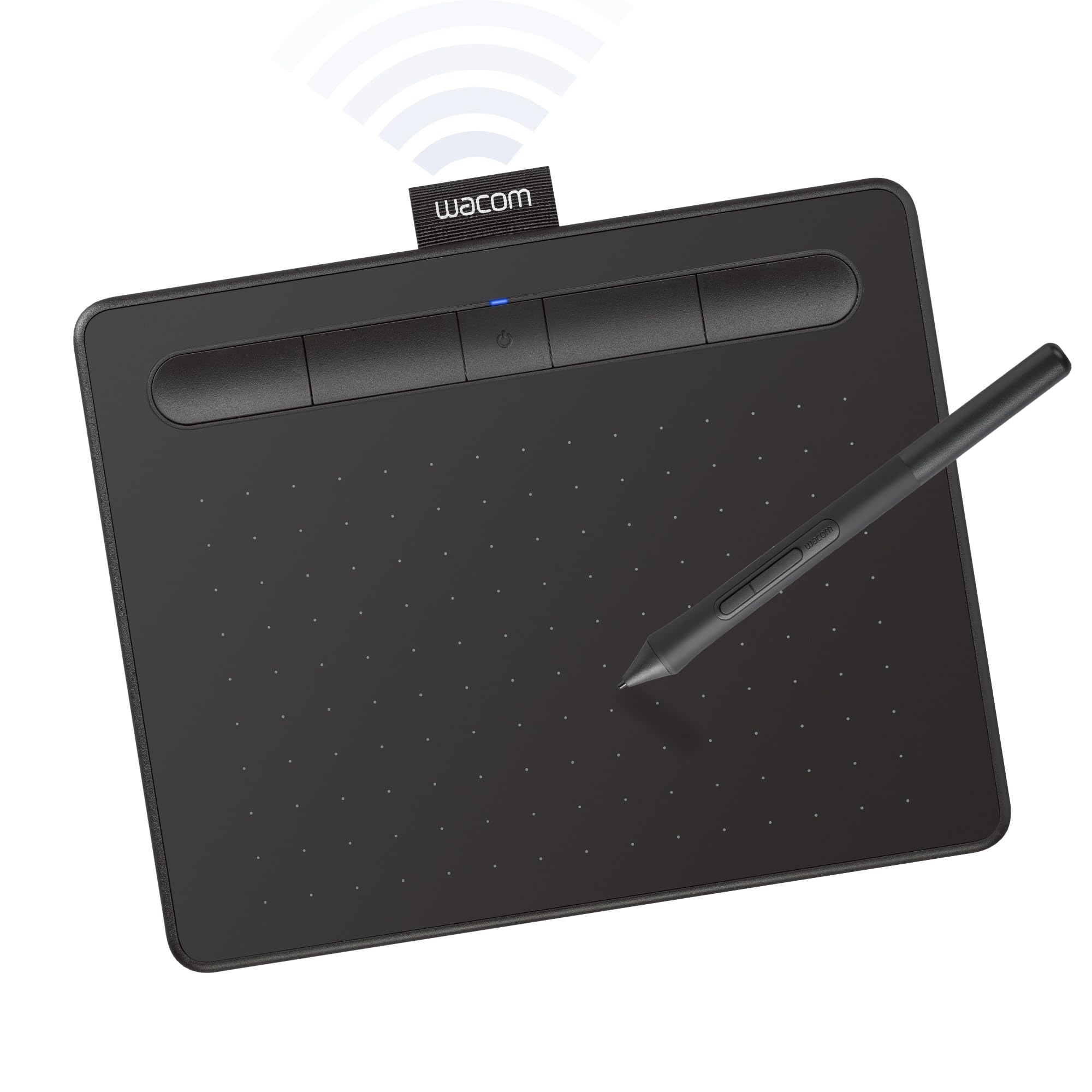
The Wacom Intuos Small Bluetooth is the most recognizable name in the drawing tablet world, and for good reason. Its 6 x 3.7-inch active area is compact enough to slide into any laptop bag, making it a top choice for students who need to take handwritten notes in OneNote or mark up PDFs during lectures. The battery-free EMR pen delivers the signature Wacom feel — a natural, slightly textured glide that mimics real paper with no lag or jitter.
Bluetooth connectivity lets you work wirelessly from up to 30 feet away, though users report that USB-A wired mode provides noticeably smoother linework for detailed digital art. The 4 customizable ExpressKeys are positioned along the top edge and can be programmed for undo, brush size, or eraser toggle. Wacom also bundles a free software suite (including Corel Painter Essentials and Clip Studio Paint Pro trial) with every purchase, adding significant value for artists exploring new tools.
The trade-off for Wacom’s brand reliability and software bundle is a smaller active area and lower pressure sensitivity (4096 levels) compared to the 8192-level competitors in the same price bracket. For heavy sketching or painting, the compact surface can feel restrictive, and the pen lacks tilt support entirely. If you prioritize portability, software, and a trusted ecosystem, this is your tablet. If active area and tilt are non-negotiable, the XP-Pen or Huion options deliver more raw hardware for less.
Why it’s great
- Industry-leading pen feel and build quality
- Bluetooth wireless for untethered work
- Bundled creative software worth over
- Ultra-portable size fits any laptop bag
Good to know
- Only 4096 pressure levels — half of most competitors
- No tilt support for shading or calligraphy
- Bluetooth can introduce slight line jitter
3. Huion Inspiroy 2 Large

The Huion Inspiroy 2 Large is a powerhouse for its price, offering a massive 10.5 x 6.56-inch active area that matches the proportions of a standard 16:9 monitor. This 1:1 mapping eliminates the need to guess where your cursor lands, making it ideal for artists who work on large displays. The PW110 stylus features PenTech 3.0 technology, which Huion claims reduces line wobble and lag compared to the previous generation, and it delivers — strokes are smooth and responsive even during fast sketching.
What sets the Inspiroy 2 Large apart from the competition is its programmable scroll wheel, which can be customized for zooming, brush adjustment, or canvas rotation. Additionally, it features three sets of 8 express keys each (24 total configurations), letting you switch between Photoshop, Krita, and OneNote with different shortcut mappings. The tablet is also compatible with Android 6.0 or later via the included USB-C OTG adapter, making it a versatile tool for phone-based sketching.
On the downside, the Huion driver software on Linux has limitations — the express keys map input to the left third of the screen rather than functioning as true shortcuts. The pen also has a slight dead zone in the first 1-2% of pressure, so the lightest feather strokes may not register. Despite these quirks, the Inspiroy 2 Large offers the best balance of active area, shortcut flexibility, and build quality in the mid-range tier.
Why it’s great
- Large active area matches 16:9 monitor perfectly
- Programmable scroll wheel speeds up workflow
- Three sets of 8 express keys for different apps
- PenTech 3.0 offers smooth, wobble-free lines
Good to know
- Linux express key mapping is broken
- Pen has a small initial pressure dead zone
4. Huion HS610

The Huion HS610 delivers a large 10 x 6.25-inch drawing surface at a price that undercuts most competitors, making it a phenomenal entry point for budget-conscious artists. The PW100 stylus supports 8192 levels of pressure sensitivity and ±60° tilt, allowing for expressive line variation and natural shading. The surface features a subtle paper-like texture that provides just enough resistance to feel familiar, reducing the slick plastic sensation common on cheaper tablets.
The standout hardware feature is the multifunctional touch ring, which can be programmed for zooming, brush adjustment, or page scrolling. Combined with 12 physical express keys arranged in two rows, you have extensive shortcut options without reaching for the keyboard. The HS610 also supports Android 6.0 or later via an included OTG adapter, though some users report that Android compatibility is less reliable than on Windows or Mac.
Build quality is solid with an 8mm thin profile and a weight of just 600 grams, making it easy to toss into a backpack. The main trade-off is that the HS610 is a slightly older model (released in 2019) and lacks the PenTech 3.0 refinements found on the Inspiroy 2 series. Some units may exhibit minor driver quirks on Windows 7, so ensure your OS is up to date. For pure value — large area, tilt support, and extensive shortcuts — the HS610 is hard to beat.
Why it’s great
- Large 10×6.25 inch active area at an entry-level price
- 60° tilt support for natural shading
- 12 express keys + touch ring for fast shortcuts
- Lightweight and slim for easy portability
Good to know
- Older PenTech 2.0 stylus — less refined than newer models
- Android compatibility can be inconsistent
- Some driver issues reported on Windows 7
5. Huion Inspiroy 2 Small

The Huion Inspiroy 2 Small is a testament to the fact that great things come in small packages. With a 6.3 x 3.9-inch active area, it occupies less desk space than a mouse pad, making it the perfect companion for laptop users and digital nomads. The pen features Huion’s PenTech 3.0 technology, which provides exceptional precision and virtually no lag or line wobble — a noticeable upgrade from the HS610’s older stylus.
Despite its compact size, the Inspiroy 2 Small includes a programmable scroll wheel and 6 express keys, all of which can be customized for different applications. The PW110 stylus has a slimmer body with a soft silicone grip, reducing hand fatigue during extended sessions. It also supports Android 6.0 or later via the included USB-C OTG adapter, and its ultra-portable 275-gram weight makes it easy to slip into any bag.
The obvious limitation is the small active area, which forces you to draw from your wrist rather than your arm. Artists accustomed to larger tablets may find the cramped space frustrating for sweeping gestures. Additionally, the scroll wheel requires a firm push to register, which can be awkward during fast-paced workflows. If you primarily do detailed line art or take digital notes on the go, this tablet excels. For broad strokes and painting, consider the larger Inspiroy 2 model.
Why it’s great
- Extremely portable at 275 grams
- PenTech 3.0 offers premium line precision
- Scroll wheel + 6 express keys in a tiny footprint
- Comfortable silicone grip pen reduces fatigue
Good to know
- Small active area limits full-arm drawing
- Scroll wheel requires firm pressure to activate
6. GAOMON M10K

The GAOMON M10K delivers a massive 10 x 6.25-inch active area at a price that often dips below , making it the undisputed champion for those who need maximum surface area on a minimal budget. The AP31 battery-free stylus offers 8192 levels of pressure sensitivity and tracks smoothly without requiring any charging. The surface has a papery texture that provides pleasant friction, closely mimicking the feel of drawing on actual paper.
The M10K includes a programmable touch ring and 10 fully customizable press keys, giving you a level of shortcut control that rivals tablets costing twice as much. Connectivity is via USB cable, and the tablet works with Windows 7 or later, macOS 10.12 or later, and Android 11 through 14. Many users report plug-and-play functionality on Windows without needing to install drivers, though driver installation unlocks the full customization features.
The main compromises are in build quality and pen consistency. Some users note that the pen requires a slightly harder press after 1-2 hours of use, and the nibs can wear down faster than expected. The rubber stoppers on the bottom are also quite small, so the tablet may slide on smooth desks without a mat. If you’re a beginner or a teacher who needs a large canvas for math equations and whiteboarding, the GAOMON M10K offers incredible value for the price.
Why it’s great
- Largest active area in the budget tier (10 x 6.25 inch)
- Plenty of shortcuts — 10 keys + touch ring
- Battery-free pen with 8192 pressure levels
- Plug-and-play on Windows without driver
Good to know
- Pen requires harder press after extended use
- Nibs wear down relatively quickly
- Rubber feet are small; may slide on smooth surfaces
7. XP-Pen Deco mini7W

The XP-Pen Deco mini7W is the only wireless drawing tablet in this budget roundup, offering true 2.4 GHz wireless connectivity via a USB dongle. This means you can draw from across the room or simply keep your desk free of cables without sacrificing latency — the 2.4 GHz connection is responsive enough for most sketching and note-taking. The 7-inch active area sits between the ultra-compact and large categories, offering a decent middle ground for portability and drawing space.
The battery-free stylus supports 8192 levels of pressure sensitivity and 60° tilt, matching the spec sheets of more expensive models. The Deco mini7W also features 8 customizable press keys, giving you quick access to undo, save, and brush controls. Connectivity is versatile with USB-C to USB-C, USB-C to USB-A, and even Micro USB adapters included, ensuring compatibility with modern laptops and older desktops alike.
The biggest downsides are the nib wear rate and the driver experience on Mac OS. Several users report that the included nibs wear down within a week of heavy use, causing scratching on the tablet surface. The Mac driver requires accessibility permissions and can be buggy, occasionally causing menu glitches. If you’re a Windows or Linux user looking for wireless freedom at a low price, the Deco mini7W is a solid choice. Mac users should stick with a wired model or budget for replacement nibs upfront.
Why it’s great
- True 2.4 GHz wireless with low latency
- 8192 pressure levels with 60° tilt support
- 8 customizable express keys
- Multiple cable adapters for broad compatibility
Good to know
- Nibs wear down very quickly
- Mac driver can be buggy and invasive
- Smaller 7-inch surface may feel cramped for some
FAQ
Do I need a screen on my drawing tablet to draw well?
What is a battery-free stylus and why does it matter?
Can I use a budget drawing tablet with my Android phone?
How many express keys do I really need on a budget tablet?
Will a cheap drawing tablet work with Linux?
Final Thoughts: The Verdict
For most users, the best budget drawing tablet winner is the XP-Pen Deco 01 V3 because it combines 16384 pressure levels, a generous 10 x 6.25-inch active area, tilt support, and USB-C connectivity at a price that undercuts nearly everything with similar specs. If you want wireless freedom without breaking the bank, grab the XP-Pen Deco mini7W. And for maximum surface area at the lowest possible cost, nothing beats the GAOMON M10K.