
Staring at a single laptop screen while toggling between a spreadsheet, a Zoom call, and a browser tab is a recipe for context-switching chaos. The friction of constantly alt-tabbing costs you focus and time, and the fix has nothing to do with buying a new laptop—it’s about choosing the right bridge between your machine and a pair of external monitors. A dedicated piece of hardware can unlock a proper dual-display workflow from a single USB-C or USB-A port, turning your laptop into a genuine desktop-grade workstation without sacrificing portability.
I’m Min — the co-founder and writer behind Gadgets Feed. My buying guides are grounded in hundreds of hours spent cross-referencing technical datasheets, parsing real user feedback across multiple generations of silicon (from Intel Tiger Lake to Apple M-series and AMD Ryzen), and mapping the frustrating edge cases—like macOS mirroring limits or MST handshake failures—that separate a solid purchase from a return.
If you need to multiply your screen real estate without replacing your laptop, the right dual monitor adapter for laptop eliminates the guesswork and connects you to a more organized, less cluttered workflow immediately.
How To Choose The Best Dual Monitor Adapter For Laptop
The market is crowded with adapters that look identical but behave very differently depending on your laptop’s chipset, operating system, and the ports you have available. Making the right choice requires understanding a few non-negotiable technical variables that directly affect whether your external monitors will work—or just flicker.
USB-C Alt Mode vs. DisplayLink: The Core Divide
This is the single most important distinction. USB-C Alt Mode (DisplayPort Alternate Mode) sends a native video signal directly from your laptop’s GPU over the USB-C cable. It’s efficient, low-latency, and requires no drivers—but your laptop must have a full-featured USB-C port that explicitly supports video output. DisplayLink adapters, on the other hand, use a chip that compresses video and sends it over a standard USB 3.0 or USB-C port, then decompresses it inside the adapter. DisplayLink works with any USB port, including those that lack video output, but requires a driver installation and introduces a tiny amount of latency. MacBooks with M1 through M5 chips cannot natively drive two external monitors via Alt Mode—DisplayLink is the only universal workaround.
Power Delivery (PD) Passthrough vs. External Power
If you plan to run two monitors, your laptop will be drawing significant power. Some adapters include a Power Delivery (PD) port that lets you plug a laptop charger into the adapter, which then passes power to your laptop while simultaneously handling video and data. This keeps your desk clean with a single cable connecting to your laptop. The PD wattage matters—look for at least 85W to 100W. Adapters without PD will not charge your laptop at all, which means you will need a separate power cable for the laptop, defeating the “single-cable” convenience.
Resolution and Refresh Rate Ceilings
Not all dual monitors are created equal. A budget adapter might cap each external display at 1920×1080 @ 60Hz, which is fine for spreadsheets and emails but looks soft on a 27-inch panel. Mid-range adapters push to 2560×1440 or dual 4K @ 30Hz. The gold standard for productivity is dual 4K @ 60Hz—crisp text, smooth cursor movement, and no eye strain after eight hours. Check the fine print on the adapter’s “Key Spec” before buying.
Quick Comparison
On smaller screens, swipe sideways to see the full table.
| Model | Category | Best For | Key Spec | Amazon |
|---|---|---|---|---|
| Acer 9-in-1 USB-C Docking Station | Mid-Range | Dual 4K @ 60Hz on a budget | 2x HDMI, 4K@60Hz, 100W PD | Amazon |
| WAVLINK USB 3.0 & USB-C to Dual HDMI | Mid-Range | Mac M1-M5 DisplayLink compatibility | Dual 4K@60Hz, DisplayLink | Amazon |
| Plugable UD-3900 Universal Dock | Premium | Wide OS compatibility (Win/Mac/Chrome) | 2x HDMI, 1920×1200@60Hz | Amazon |
| Acer Premium 13-in-1 Docking Station | Premium | Triple monitors for Windows power users | 2x HDMI + 1 DP, 85W PD | Amazon |
| Anker Nano 13-in-1 Docking Station | Premium | Detachable hub for desk-to-go workflows | 2x HDMI + DP, 100W PD | Amazon |
| StarTech.com USB 3.0 to Dual DisplayPort | Premium | USB-A host systems and IT deployments | 2x DP, 4K@60Hz, DisplayLink | Amazon |
| Plugable USBC-6950M Dual HDMI | Premium | MacBook Neo/M5 dual 4K @ 60Hz | 2x HDMI, 4K@60Hz, DisplayLink | Amazon |
In‑Depth Reviews
1. Plugable USBC-6950M Dual HDMI Adapter

The Plugable USBC-6950M is engineered for the trickiest use case in the dual-monitor world: getting two extended 4K displays out of an Apple Silicon MacBook that natively only supports a single external screen. It uses a DisplayLink chip to bypass macOS’s GPU limitation, delivering a full 4K @ 60Hz to each HDMI port without the stutter or compression artifacts that plague cheaper adapters at this resolution. Setup requires installing the DisplayLink Manager driver and granting screen recording permissions, but once configured, the adapter is invisible to the user—monitors wake reliably from sleep and cursor movement is smooth.
Build quality is excellent for a compact dongle; the Space Grey aluminum housing matches the Mac aesthetic and dissipates heat effectively during extended use. The adapter is passively cooled and runs warm but never hot, even when driving a pair of 27-inch 4K panels through an M3 Pro. It is compatible with Windows and ChromeOS via plug-and-play, but its real talent is on macOS, where it earned a MacWorld award for being the best DisplayLink adapter for MacBook Neo. For users on an M1, M2, M3, M4, or M5 chip, this is the most reliable path to a triple-screen layout (laptop + two external monitors).
One edge case to note: HDCP-protected streaming apps like Netflix or Disney+ will not render through DisplayLink adapters, so this is strictly a productivity tool rather than a media hub. The 2-foot cable is short but adequate for desktop placement, and the adapter is truly plug-and-play on Windows and ChromeOS without any manual driver hunting. At this price point, it delivers the highest possible output quality for the most finicky operating system.
Why it’s great
- Delivers dual 4K @ 60Hz on all M-series Macs, which natively only support one external monitor
- Compact, premium metal build that matches the Mac aesthetic and stays cool
- Works with Windows and ChromeOS plug-and-play after initial driver install
Good to know
- Requires DisplayLink driver and macOS screen recording permission for setup
- Does not support HDCP-protected streaming content
2. Anker Nano 13-in-1 Docking Station
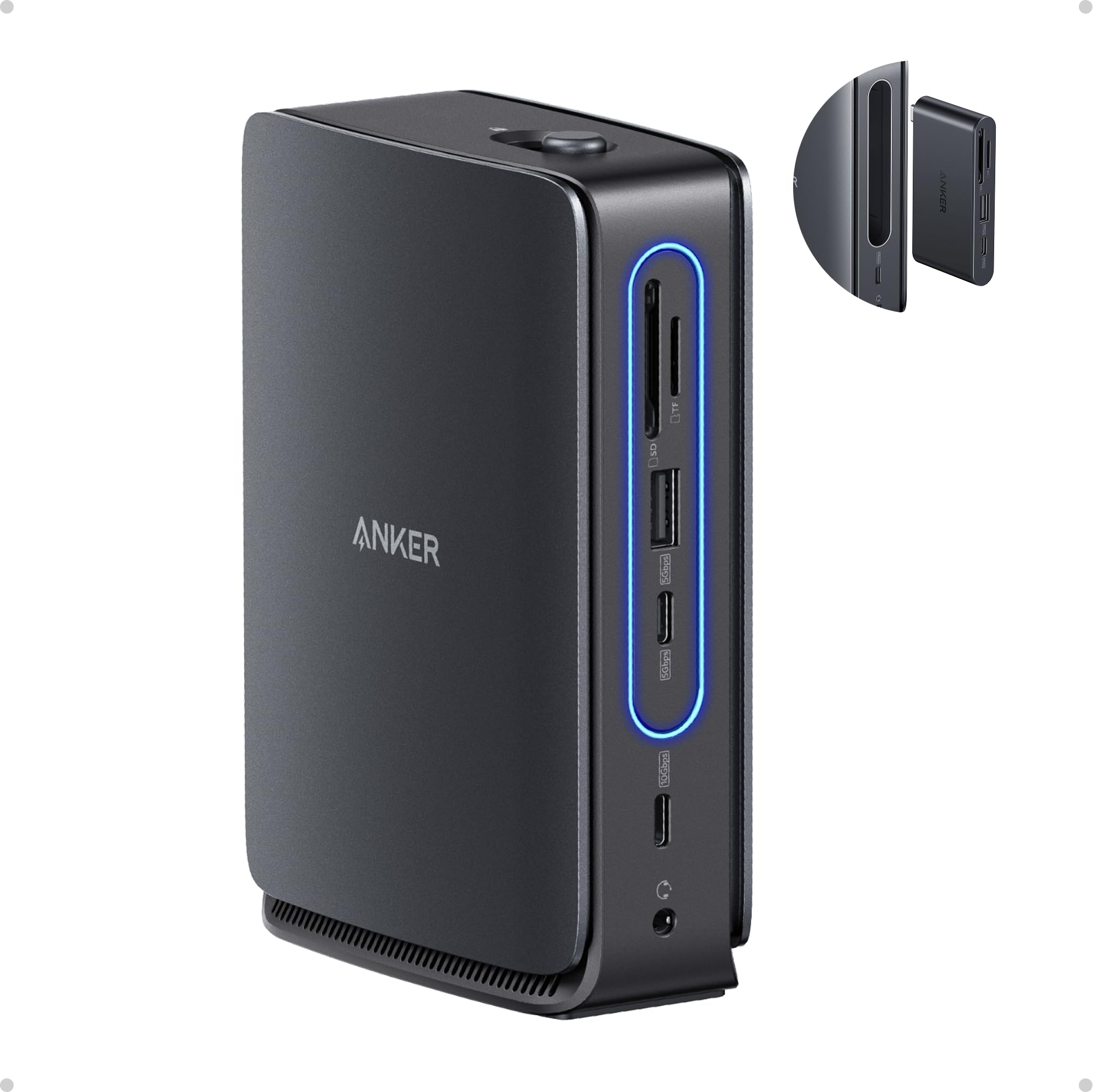
The Anker Nano 13-in-1 redefines what a desktop dock can be by making its core module detachable. The main dock base sits on your desk with two HDMI ports, a DisplayPort, Ethernet, an audio jack, SD/TF card slots, and full USB-A and USB-C data ports. The center section pops out as a compact 6-in-1 hub that you can slip into a bag and use on the go for a single monitor and essential ports. This design is a genuine productivity innovation for hybrid workers who need a fully wired desk at home but want to keep things light when they commute.
Video performance is strong: the dock supports triple-screen setups on Windows via MST, and dual 4K monitors run smoothly at 60Hz. On macOS, all external monitors mirror by default, so this dock is best suited for Windows laptops that can leverage its MST capabilities. Power delivery reaches 100W to the host laptop, and the included 140W power adapter ensures stable power allocation across all connected peripherals. Data transfer speeds hit 10 Gbps over the USB-C ports, making file transfers to external SSDs snappy.
The only compromise is build material—the detachable hub is mostly plastic, which feels slightly less premium than the all-aluminum alternatives. The magnetic attachment is secure, but the hub can pop out if you tug the cable at an angle. Despite this, the flexibility of having a full-featured desktop dock that splits into a portable monitor adapter is unmatched in this category. It is an outstanding choice for anyone who splits their week between an office desk and a coffee shop.
Why it’s great
- Detachable 6-in-1 hub gives you a portable monitor adapter when you leave the desk
- 100W Power Delivery keeps even demanding laptops charged under full load
- Triple-screen MST support on Windows for a true command-center layout
Good to know
- Detachable hub is plastic and can disconnect if pulled at the wrong angle
- MacOS only supports mirror mode across external displays
3. StarTech.com USB 3.0 to Dual DisplayPort Adapter

When your laptop or desktop lacks any USB-C port with DisplayPort Alt Mode, the StarTech USB32DP24K60 is the most reliable bridge to a dual-monitor setup using only standard USB-A ports. This adapter is DisplayLink certified and functions as an external graphics card, converting the USB 3.0 5 Gbps signal into two independent DisplayPort video streams. It supports up to 4K @ 60Hz on each connected DisplayPort monitor, which is a rare achievement for a USB-A adapter—most top out at 30Hz for 4K or require a DisplayPort-capable cable for the higher refresh.
The adapter is bus-powered, meaning it draws power directly from the USB-A port and needs no external power brick. This makes it exceptionally clean for travel or for adding monitors to an IT-managed corporate laptop where installing internal hardware is not an option. On Windows, after a one-time DisplayLink driver install, it works transparently with extended desktop mode. On macOS, the same DisplayLink manager bypasses the single-monitor restriction on M-series Macs, though the driver must be manually downloaded from the StarTech support page.
Some users reported that heavy video or animation playback can cause the adapter to crash, likely because USB 3.0 bandwidth (~5 Gbps) is stretched thin by two 4K streams. For static productivity tasks—spreadsheets, coding, data analysis—the adapter is rock-solid. IT professionals will appreciate the 2-year warranty and 24/5 multilingual technical support, which is rare for this category. If your monitors use DisplayPort natively and your laptop has only USB-A, this is the best engineered solution available.
Why it’s great
- Drives dual DisplayPort monitors at 4K @ 60Hz from a single USB-A port
- Bus-powered design eliminates the need for a bulky external power adapter
- IT-grade build with 2-year warranty and professional technical support
Good to know
- USB 3.0 bandwidth can cause crashes under heavy video or animation load
- Requires manual DisplayLink driver installation on both Windows and macOS
4. Acer Premium 13-in-1 Docking Station
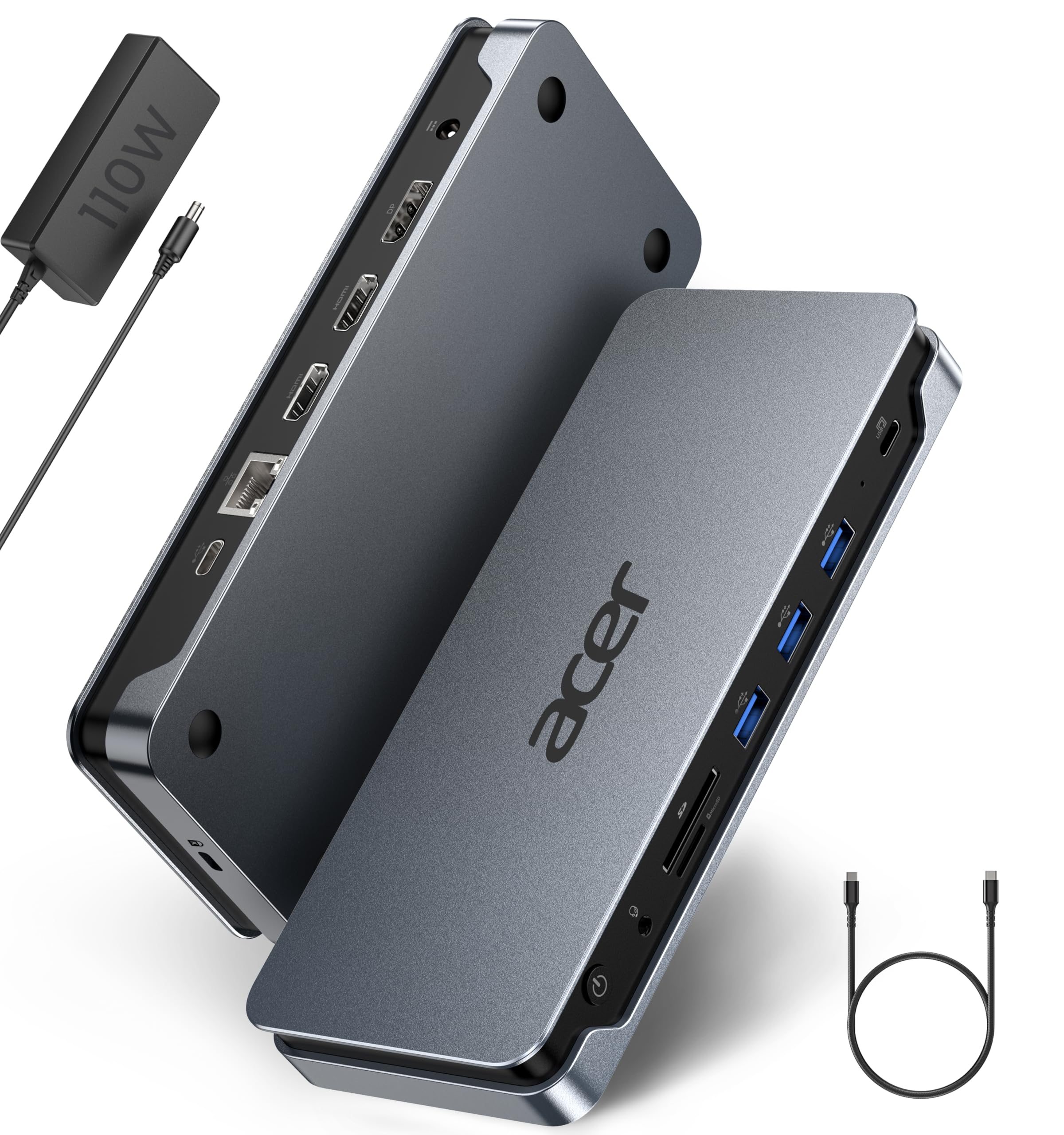
The Acer Premium 13-in-1 is the only dock in this lineup that ships with an actual power adapter in the box—a 110W unit that delivers a consistent 85W to the laptop via USB-C PD. This is a critical distinction because most docks in this price range require you to supply your own power brick. The dock supports triple independent displays on Windows laptops with MST: two HDMI ports and one DisplayPort 1.4 port. If your laptop’s GPU supports Display Stream Compression (DSC), you can push triple 4K @ 30Hz across all three monitors simultaneously, which is genuinely impressive for a sub- dock.
The aluminum alloy body keeps temperatures in check even during all-day use, and the built-in security lock slot makes it suitable for open-plan offices or shared workspaces. Ethernet performance is excellent—Gigabit speeds that stay stable under load, unlike some budget docks that throttle to 100 Mbps. The included USB 4.0 Type-C cable is also a nice touch; it handles the full 10 Gbps data bandwidth and 85W PD without any signal degradation.
There are notable limitations. Triple-monitor output only works on Windows—macOS users are stuck with a single extended display in mirror mode. The rear USB-C port is data-only and does not support video output, which can be confusing if you plug a monitor into it expecting it to work. Some users reported Ethernet dropouts and monitor flickering after extended use, which suggests the dock’s MST controller may have inconsistent firmware. Still, for a Windows user who needs three screens and 85W charging from a single cable, the Acer provides unmatched port density for the price.
Why it’s great
- Includes a 110W power adapter (85W PD), saving you from buying a separate brick
- Triple monitor support via 2x HDMI + 1 DisplayPort for Windows MST setups
- Aluminum body dissipates heat well and includes a security lock slot
Good to know
- MacOS only supports a single extended display; no triple screen on Apple Silicon
- Some units experience Ethernet dropouts and monitor flickering over time
5. Plugable UD-3900 Universal Docking Station

The Plugable UD-3900 has been a staple in the dual-monitor docking station world for years, and for good reason: it includes a hybrid 2-in-1 cable that terminates in both a USB-A and a USB-C connector, making it compatible with nearly any laptop manufactured in the past decade. The dock outputs two HDMI ports at up to 1920×1200 @ 60Hz, or a single display up to 2560×1440 @ 50Hz. It does not support 4K, so it is best suited for users with 1080p or 1440p monitors who need a stable, no-fuss solution for productivity software and web apps.
Port selection is generous: two USB 3.0 ports, four USB 2.0 ports, Gigabit Ethernet, and separate 3.5mm audio and microphone jacks. The dock does not charge the host laptop, so you will still need to plug in your laptop’s power adapter—this is the trade-off for its universal USB 3.0 compatibility. On Windows, drivers install automatically via Windows Update; on macOS, a manual DisplayLink driver download is required. ChromeOS 100+ works without any additional setup.
Multiple long-term users report this dock working flawlessly with old laptops (including Surface Pro 3 and Lenovo Yoga from 2013) alongside new machines, with no driver conflicts across OS upgrades. The 2-year warranty and lifetime North American technical support are a safety net you rarely get at this price. If your monitor resolution is 1080p or 1440p and you need to connect every peripheral to a single USB cable, the UD-3900 remains the most battle-tested choice on the market.
Why it’s great
- Hybrid USB-A/USB-C cable works with virtually any laptop from the last 10 years
- Extensive port selection: 6 USB ports, Gigabit Ethernet, and separate audio jacks
- 2-year warranty with lifetime support from a well-regarded brand
Good to know
- Resolution limited to 1920×1200 per display; no 4K support
- Does not charge the host laptop—you’ll need a separate power cable
6. WAVLINK USB 3.0 & USB-C to Dual HDMI Adapter

The WAVLINK WL-UG6902H is a compact DisplayLink adapter that works from both USB-A and USB-C ports, making it one of the most flexible budget-friendly options for adding dual monitors to a MacBook with M-series chips. It delivers dual 4K @ 60Hz output through two HDMI ports, and requires the standard DisplayLink driver installation on macOS and Windows. On Linux (specifically Asahi Ubuntu on M1 Macs), the adapter works at 4K @ 30Hz after installing the Synaptics DisplayLink driver—a rare feat for a sub- adapter.
The build is surprisingly light at 3.2 ounces, and the adapter is small enough to dangle directly from a laptop port without causing strain. The cable length is reasonable for desktop use, and the included OTG adapter allows compatibility with Android devices that support mirroring. On Windows, plug-and-play works immediately after the driver install, and the adapter maintains stable extended desktop mode without the cursor lag that plagues some DisplayLink alternatives.
The main limitation is the lack of a USB-C power delivery port—the adapter does not pass through any charging power, so you will need to power the laptop separately. This is a significant omission for users who want a single-cable desktop experience. Additionally, WAVLINK markets enterprise-level encrypted chip security, but this is primarily relevant for corporate IT policies rather than home users. For the price, however, it is a reliable DisplayLink dongle that gets the job done for dual 4K productivity without breaking the bank.
Why it’s great
- Works from both USB-A and USB-C ports, maximizing device compatibility
- Dual 4K @ 60Hz output with stable DisplayLink performance on Mac and Windows
- Lightweight and portable at just 3.2 ounces
Good to know
- No Power Delivery pass-through—your laptop needs its own charger
- Linux support is limited to 4K @ 30Hz with manual driver installation
7. Acer USB C Docking Station 9-in-1
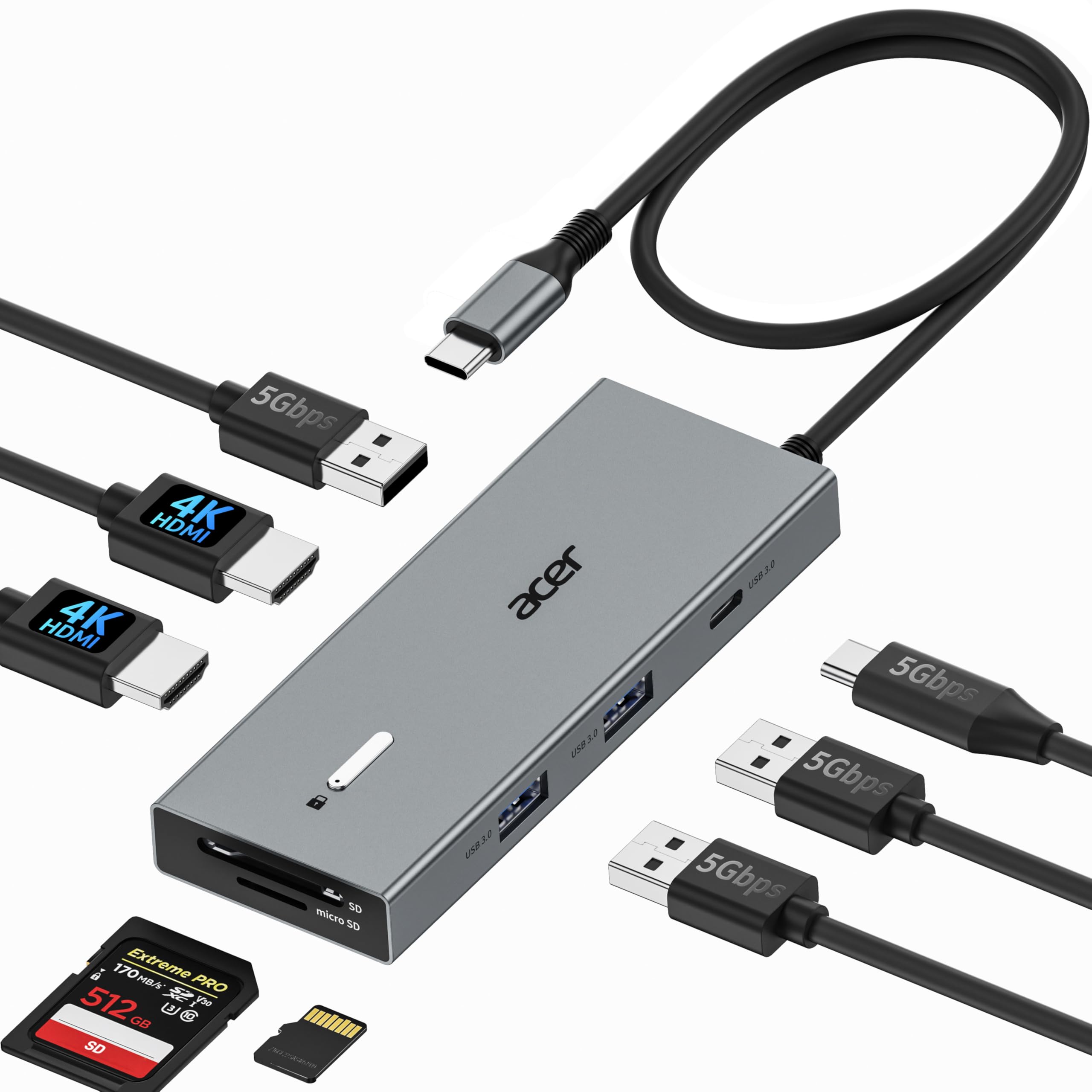
The Acer 9-in-1 USB-C Docking Station packs an impressive feature set for its entry-level price: dual HDMI ports supporting 4K @ 60Hz, a 100W PD input (delivering 90W to the laptop), three USB-A 5 Gbps ports, one USB-C 5 Gbps data port, and dual SD/MicroSD card slots. The aluminum alloy body gives it a premium feel that contradicts its cost, and the built-in lock button (single click locks Windows, hold for Mac) adds a layer of physical security for office use.
Display performance is genuinely good for the price—dual 4K @ 60Hz works reliably on Windows laptops with USB-C ports that support DP Alt Mode. The 0.66-foot integrated cable is very short, however, so the dock must sit immediately next to the laptop. This is a deliberate design choice to reduce desk clutter, but it limits placement flexibility. The 100W PD input means the dock can charge your laptop, but you must supply your own power adapter (65W or higher recommended), as none is included.
There are some quality control concerns. Multiple users reported that the SD card reader has persistent connectivity issues, and a small number of units suffered from monitor flickering and unstable PD charging. The dock runs warm under load, though the aluminum body does a decent job of heat dissipation. For a budget price, this Acer dock delivers the core dual-4K experience plus 90W laptop charging—just be aware that the SD card slot may disappoint and the short cable requires a specific desk layout.
Why it’s great
- Dual 4K @ 60Hz output with 100W PD at a very competitive entry-level price
- Aluminum body feels premium and helps with heat management
- Includes SD/MicroSD dual card reader slot for photographers
Good to know
- Very short 0.66-foot cable limits placement options on your desk
- SD card reader has inconsistent connectivity reported by multiple users
FAQ
Can I use a dual monitor adapter with a MacBook that has an M1 chip?
What is the difference between a DisplayLink adapter and an MST hub?
Will a dual monitor adapter work if my laptop has only USB-A ports and no USB-C?
Why do some adapters support 4K@60Hz while others only support 4K@30Hz?
Does a dual monitor adapter also charge my laptop?
Final Thoughts: The Verdict
For most users, the dual monitor adapter for laptop winner is the Plugable USBC-6950M because it reliably delivers dual 4K @ 60Hz on the most demanding platform (Apple Silicon Macs) with excellent build quality and solid driver support. If you want a dock that separates into a portable hub for hybrid work, grab the Anker Nano 13-in-1 Docking Station. And for a budget-friendly dual 4K option with laptop charging, nothing beats the feature density of the Acer USB C Docking Station 9-in-1.