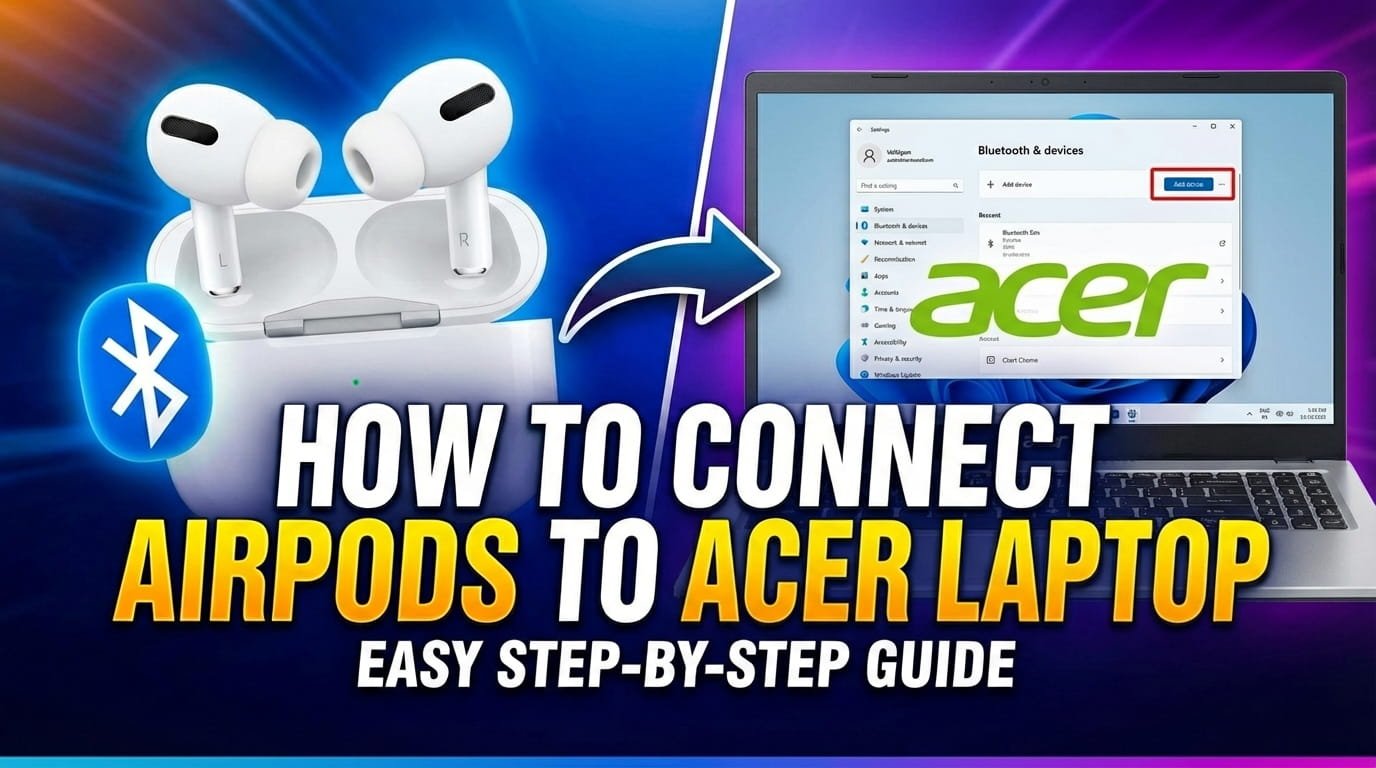
While AirPods are designed primarily for Apple devices, connecting them to an Acer laptop running Windows is entirely possible. You can certainly pair your AirPods with your Acer laptop to enjoy wireless audio for music, videos, or calls.
If you’re looking to get your favorite earbuds working seamlessly with your Windows-powered Acer machine, the good news is that the process is straightforward. Whether you have AirPods Pro, AirPods Max, or standard AirPods, the connection relies on your laptop’s built-in Bluetooth.
This article will guide you with simple, step-by-step instructions to connect your AirPods and play audio from your Acer laptop. We will cover the main pairing methods and offer practical troubleshooting tips should you encounter any minor issues.
Before You Start: Essential Checks
Before you try to connect your AirPods, a few quick checks can help prevent common issues and ensure a smooth pairing process.
First, make sure your AirPods are sufficiently charged. A low battery can sometimes interfere with pairing or cause connection drops.
Next, confirm that Bluetooth is enabled on your Acer laptop. This is the wireless technology your AirPods use to communicate with the laptop.
Finally, ensure your AirPods are not currently connected to another device, like an iPhone or iPad. If they are, disconnect them from that device first to make them available for your Acer laptop.
1) Connect AirPods Using Windows Settings
The most reliable way to connect your AirPods to an Acer laptop is through the Windows Settings menu. This method offers a clear, guided process for adding new Bluetooth devices.
This approach works consistently across both Windows 10 and Windows 11, with only minor visual differences in the interface.
Step-by-Step Pairing via Settings
To begin, open the Settings application on your Acer laptop. You can do this by clicking the Start button and then selecting the gear icon.
Next, go to the Bluetooth & devices section. In Windows 10, this is usually labeled “Devices” and then “Bluetooth & other devices.” In Windows 11, it’s directly labeled “Bluetooth & devices” in the left-hand menu.
Ensure that the Bluetooth toggle switch is set to “On.” If it’s off, simply click or tap it to enable Bluetooth connectivity on your laptop.
Now, click on the “Add device” button. In Windows 10, this is “Add Bluetooth or other device.” In Windows 11, it’s often a large “+ Add device” button.
A new window will appear with options for the type of device you want to add. Select “Bluetooth” from the list. This tells your laptop to search for Bluetooth audio devices like your AirPods.
It’s time to put your AirPods into pairing mode. Open the lid of your AirPods charging case with both AirPods inside.
Locate the small, circular button on the back of the AirPods charging case. Press and hold this button until the status light on the front of the case begins to flash white. This indicates your AirPods are ready to pair.
Back on your Acer laptop, your AirPods should now appear in the list of available Bluetooth devices. They will typically be listed as “AirPods” followed by your name (e.g., “John’s AirPods”).
Click on your AirPods in the list. Your laptop will then attempt to connect. Once successful, you will see a confirmation message indicating that your AirPods are connected and ready for use.
You can now close the Settings window. Your AirPods should automatically connect to your Acer laptop whenever they are nearby and turned on, as long as Bluetooth is active on the laptop.
2) Connect AirPods Using the Action Center or Quick Settings
After your AirPods have been paired with your Acer laptop for the first time using the detailed Settings method, you can often reconnect them more quickly through the Action Center (Windows 10) or Quick Settings (Windows 11).
This method is convenient for swiftly switching between audio output devices or re-establishing a connection.
Connecting on Windows 10
Click on the Action Center icon in the bottom-right corner of your screen. It typically looks like a speech bubble or a square with notifications.
In the Action Center, ensure the “Bluetooth” tile is highlighted. If it’s grayed out, click it to enable Bluetooth.
Now, right-click on the Bluetooth tile. This will usually open a menu with an option like “Go to Settings” or “Show Bluetooth devices.”
Alternatively, if your AirPods are already paired, simply open the Action Center and click on the “Connect” tile. Your paired AirPods might appear in a list, allowing you to select them directly.
If they don’t appear immediately, you may need to open the AirPods case and press the pairing button briefly to wake them up before they show in the list.
Connecting on Windows 11
Click on the Quick Settings area in the bottom-right corner of your screen. This is typically where the Wi-Fi, volume, and battery icons are grouped.
In the Quick Settings panel, verify that the “Bluetooth” tile is active. If it’s not, click it to turn Bluetooth on.
Click the small arrow or expand button next to the “Bluetooth” tile. This will reveal a list of nearby and previously paired Bluetooth devices.
Your paired AirPods should appear in this list. Click on your AirPods name to connect them. A checkmark or “Connected” status will confirm the successful link.
Troubleshooting Common Connection Issues
Even with the correct steps, you might sometimes encounter issues connecting your AirPods to your Acer laptop. Here are some common problems and their solutions.
AirPods Not Appearing in Device List
If your AirPods don’t show up when you’re trying to add a new device, ensure they are properly in pairing mode. The white light on the case must be flashing.
Try closing the AirPods case, waiting a few seconds, then reopening it and re-entering pairing mode. Sometimes, a quick reset helps.
Also, make sure your AirPods are fully charged. A low battery can prevent them from broadcasting their signal for pairing.
Connection Fails or Drops Frequently
If your AirPods connect but then drop, or if the connection is unstable, try moving closer to your Acer laptop. Obstacles or distance can interfere with Bluetooth signals.
Restarting both your Acer laptop and your AirPods can often resolve temporary glitches. Turn off the laptop, place AirPods in their case, then restart both devices.
You can also try “forgetting” the device and then re-pairing it. Go to Bluetooth & devices in Settings, select your AirPods, and choose “Remove device” or “Disconnect.” Then, follow the initial pairing steps again.
No Sound from AirPods
Even if your AirPods are connected, sound might still come from your laptop’s speakers. You need to ensure your AirPods are selected as the default audio output device.
Click the speaker icon in the bottom-right corner of your Acer laptop’s taskbar. A small menu will appear showing your current audio output device.
Click the arrow next to the current device name (e.g., “Speakers (Realtek Audio)”) and select your AirPods from the list of available options.
AirPods Work, But Microphone Does Not
When using AirPods with Windows, the microphone can sometimes be an issue. Windows often prioritizes higher-quality stereo audio for playback and lower-quality mono audio for calls (which enables the microphone).
Go to your Sound Settings (right-click the speaker icon, then “Sound settings”). Under the “Input” section, ensure your AirPods are selected as the microphone device. You might need to switch to a different profile, often labeled “Hands-Free AG Audio,” for the microphone to work.
Be aware that using the AirPods microphone on Windows might result in a temporary drop in audio quality for playback, as the AirPods switch to a “headset” profile.
Bluetooth Driver Issues
Outdated or corrupted Bluetooth drivers on your Acer laptop can cause connectivity problems. It’s a good idea to check for driver updates.
Search for “Device Manager” in the Windows search bar and open it. Expand the “Bluetooth” section.
Tips for Best Performance
To ensure you get the best experience when using your AirPods with your Acer laptop, keep these tips in mind.
Always keep your AirPods and Acer laptop within a reasonable range, typically up to 30 feet, for a stable connection. Walls and other electronic devices can interfere with the signal.
Charge your AirPods regularly. Consistent battery levels help maintain reliable connectivity and performance.
Keep your laptop’s operating system updated. Windows updates often include improvements to Bluetooth functionality and driver compatibility.
Periodically check for updated Bluetooth drivers for your Acer laptop. Newer drivers can sometimes offer better compatibility and performance with devices like AirPods.
FAQ
Do AirPods work with any Windows laptop, not just Acer?
Yes, AirPods are Bluetooth headphones. Any Windows laptop with Bluetooth capabilities, including Acer models, can connect to them. The pairing process is largely the same across all Windows machines.
Why isn’t my Acer laptop finding my AirPods even though they’re in pairing mode?
Ensure your AirPods are disconnected from any other nearby Apple devices (like an iPhone). They sometimes automatically connect to the last paired device. Also, confirm Bluetooth is on for your laptop, and try restarting both the laptop and the AirPods case.
Can I use just one AirPod with my Acer laptop?
Yes, you can use just one AirPod. Simply place the other AirPod back in its case. The active AirPod will continue to play audio from your Acer laptop.
How do I switch my AirPods between my Acer laptop and my iPhone?
AirPods do not have the seamless automatic switching feature with Windows as they do with Apple devices. To switch, you’ll need to manually disconnect them from your Acer laptop (via Bluetooth settings) and then connect them from the Bluetooth settings on your iPhone or iPad.
Is there a special app I need to install for AirPods on Windows?
No, you do not need to install any special apps to connect AirPods to your Acer laptop. They function as standard Bluetooth headphones and connect directly through Windows’ built-in Bluetooth settings.
Connecting your AirPods to an Acer laptop running Windows is a simple process that enables convenient wireless audio. By following these steps and troubleshooting tips, you should have your AirPods paired and ready to use quickly.
Don’t hesitate to try the different methods until you find what works best for your specific setup. With a little patience, you’ll be enjoying your favorite audio content from your Acer laptop through your AirPods with ease.

Hi, I’m Michael Davis, the owner and writer of GadgetsFeed.com. This website is where I share my knowledge and passion for tech, laptops, and computers. I’m a software engineer by profession, and I enjoy testing and reviewing various gadgets and technologies. I started GadgetsFeed.com to help others find easy solutions for their laptop, computer, and tech problems.