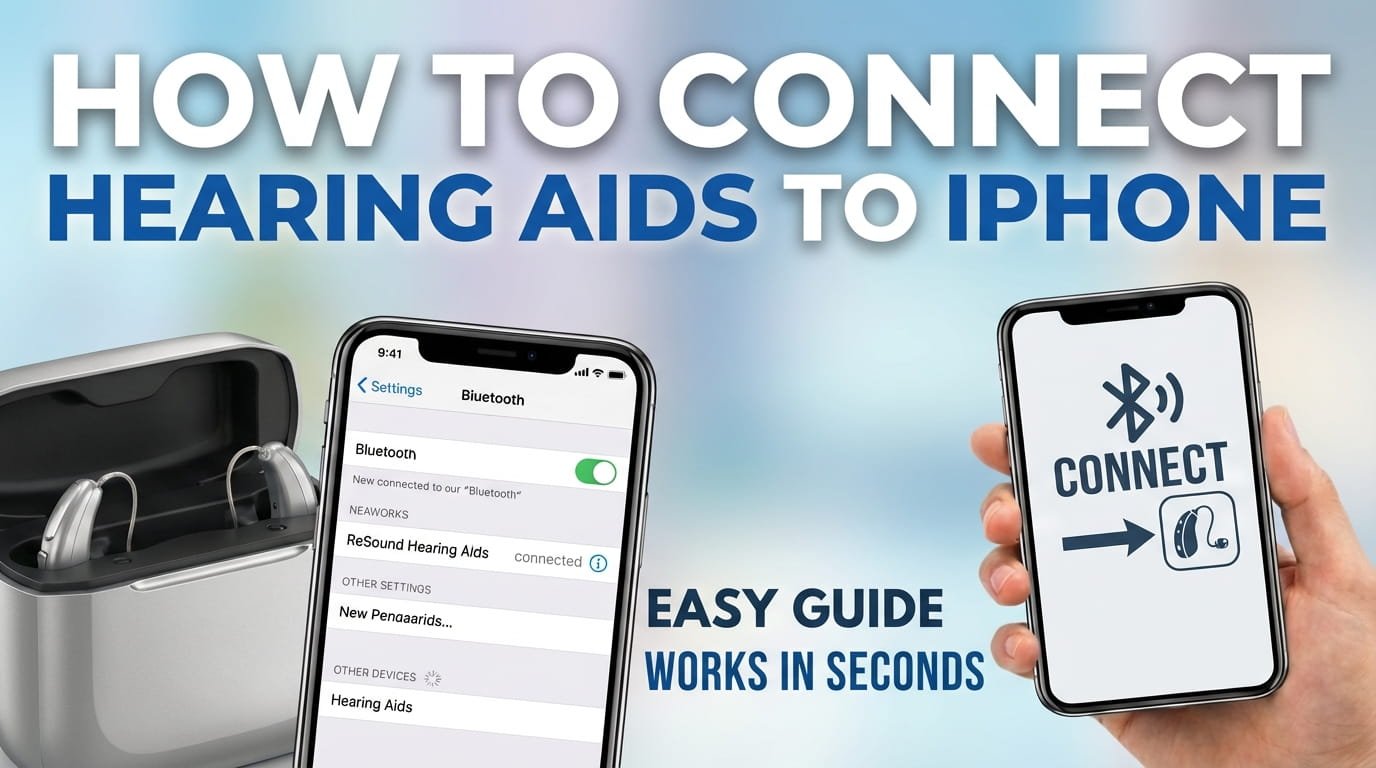
Connecting your hearing aids to your iPhone can greatly improve your daily listening experience. This setup lets you stream audio, take phone calls, and even adjust settings directly from your device. Whether you have new hearing aids or want to reconnect an existing pair, the process is usually quite simple.
This guide will show you how to connect your hearing aids to any iPhone running a modern iOS version. You will learn the most common connection methods and find practical troubleshooting tips.
By following these steps, you can confidently pair your hearing aids with your iPhone, ensuring you stay connected to the sounds around you.
1) What Are Made for iPhone (MFi) Hearing Aids?
Before you start the connection process, it helps to know if your hearing aids are “Made for iPhone” or MFi certified. Most modern hearing aids are MFi compatible. This means they are designed to connect directly to your iPhone without needing an extra device.
MFi hearing aids offer a smooth experience. You can control volume, switch programs, and stream audio straight to your ears. This certification ensures a reliable and integrated connection with your Apple devices, including your iPhone.
If your hearing aids were purchased recently or are from a major manufacturer, they are very likely MFi. Check your hearing aid’s documentation or contact your audiologist if you are unsure about their MFi status.
2) How to Connect Made for iPhone (MFi) Hearing Aids to Your iPhone
Pairing MFi hearing aids to your iPhone is quick and straightforward. You will primarily use your iPhone’s Accessibility settings for this first connection.
Prepare Your Hearing Aids for Pairing
First, make sure your hearing aids are in pairing mode. For most models, this involves opening and then closing the battery doors. If they are rechargeable, you might press and hold a button for a few seconds instead.
This action usually makes your hearing aids discoverable by your iPhone for a few minutes. Ensure they are fully charged or have fresh batteries before you begin the pairing process.
Access Your iPhone Settings
Unlock your iPhone and open the “Settings” app. Here, you will find all the controls needed to connect and manage your hearing aids.
Scroll down in the Settings menu and tap “Accessibility.” This section of your iPhone settings includes features that make the device easier to use for everyone, such as controls for hearing devices.
Within the Accessibility menu, find and tap “Hearing Devices.” This is where you will manage your MFi hearing aids and start the pairing process.
Pair Your Hearing Aids with iPhone
Under the “Hearing Devices” section, your iPhone will begin searching for available MFi hearing aids. You should see “MFi Hearing Devices” displayed at the top of the screen.
After a short moment, your hearing aids should appear in the list below. They are usually identified by their brand name or a general “Hearing Aid” label, often showing left and right indicators.
Tap on your hearing aid’s name when it appears. Your iPhone will then ask you to confirm the pairing request. You might see two separate requests, one for each hearing aid (left and right).
Tap “Pair” for each request that appears on your screen. Confirming these requests allows your iPhone to establish a secure connection with your hearing aids.
Once confirmed, your hearing aids are connected to your iPhone. Their status will change to “Connected,” and your iPhone will display their current battery levels.
3) Managing Your Paired Hearing Aids on iPhone
Once connected, your iPhone offers several ways to control and monitor your hearing aids directly. You often won’t need to open the full Settings app each time.
Using the Accessibility Shortcut
For quick access to your hearing aid controls, you can set up an Accessibility Shortcut. Go to Settings > Accessibility > Accessibility Shortcut on your iPhone.
From the list of options, select “Hearing Devices.” Now, you can quickly access hearing aid controls by triple-clicking the Side button (or the Home button on older iPhone models).
This shortcut allows you to adjust volume, change programs, use the Live Listen feature, and check battery status without navigating through many menus.
Control Center Access
You can also access some hearing aid controls directly from your iPhone’s Control Center. Swipe down from the top-right corner of your screen (or up from the bottom on older iPhones) to open it.
Look for the hearing icon, which typically looks like an ear symbol. If it’s not there, you can add it by going to Settings > Control Center > Customize Controls, and then adding “Hearing” to your included controls.
Tapping this hearing icon in Control Center brings up a smaller menu for program selection, quick volume adjustments, and a toggle for the Live Listen feature.
Utilizing the Live Listen Feature
Live Listen is a helpful feature that uses your iPhone’s microphone to pick up sounds and stream them directly to your MFi hearing aids. This can be especially useful in noisy environments or when trying to hear someone from a distance.
To turn on Live Listen, access the hearing aid controls through the Accessibility Shortcut or the Control Center. Simply toggle the “Live Listen” switch to the “On” position.
You can then place your iPhone near the sound source you want to amplify. This effectively turns your phone into a remote microphone to improve your listening experience.
4) How to Connect Non-MFi Hearing Aids to Your iPhone (If Applicable)
If your hearing aids are not MFi certified, they might still connect to your iPhone, but the process will likely be different. This usually involves using an extra device or a specific manufacturer’s app.
Using a Separate Streaming Device
Some non-MFi hearing aids require a separate “streamer” or “gateway” accessory. This device connects wirelessly to your hearing aids and then connects to your iPhone using standard Bluetooth.
First, pair the streamer device with your hearing aids according to its specific instructions. Then, pair the streamer device with your iPhone through the standard Bluetooth settings (Settings > Bluetooth).
Refer to your hearing aid manufacturer’s documentation for exact instructions on pairing and using any required streaming accessories. Each device will have its own unique pairing sequence.
Using a Manufacturer’s Dedicated App
Many hearing aid brands, even for non-MFi models, offer a dedicated mobile app for your iPhone. This app often helps with the connection and allows for detailed control over various hearing aid settings.
Download the official app for your hearing aid brand from the App Store. Once installed, follow the in-app instructions to connect your hearing aids to your iPhone.
This typically involves putting your hearing aids into pairing mode and confirming the connection within the app itself. The app acts as the link for communication and control, even if direct MFi pairing is not an option.
5) Troubleshooting Common Hearing Aid Connection Issues
Sometimes, your hearing aids might not connect to your iPhone right away, or the connection could drop unexpectedly. Here are some practical steps to fix common problems.
Restart Both Devices
A simple restart can often resolve small glitches and communication errors. Turn your iPhone off completely, then turn it back on.
Similarly, restart your hearing aids by opening and closing their battery doors. If they are rechargeable, turn them off and then back on. Wait a few seconds before restarting.
Once both devices are refreshed, try the pairing process again as described in the MFi connection section.
Forget and Re-pair Your Hearing Aids
If your hearing aids were previously paired but are no longer connecting, “forgetting” them and then re-pairing can often fix the issue. Go to Settings > Accessibility > Hearing Devices.
Tap on the name of your hearing aids, then scroll down and tap “Forget This Device.” Confirm your choice when prompted to remove the pairing.
After forgetting, go back and follow the steps in the MFi connection section to pair your hearing aids as if they were new. This clears any potentially corrupted connection data.
Check iPhone Software and Hearing Aid Firmware
Ensure your iPhone is running the latest version of iOS. Go to Settings > General > Software Update to check for and install any available updates. Outdated software can sometimes cause compatibility problems.
Keeping your iOS updated ensures you have the latest drivers and features for the best hearing aid connectivity. Apple often releases updates that improve Bluetooth stability and accessory support.
For your hearing aids, check with your audiologist or through the manufacturer’s app if any firmware updates are available. Hearing aid firmware updates often improve connectivity and overall performance.
Reset Network Settings on iPhone
If you are still having persistent connection problems, resetting your iPhone’s network settings can sometimes help. This resets Wi-Fi, cellular, and Bluetooth settings without erasing your personal data.
Go to Settings > General > Transfer or Reset iPhone > Reset. Then, tap “Reset Network Settings.” Keep in mind that you will need to re-enter any saved Wi-Fi passwords afterward.
After the network settings reset is complete, try pairing your hearing aids again. This action can often resolve underlying Bluetooth communication problems that were preventing a stable connection.
Check Battery Levels and Proximity
Always make sure both your iPhone and your hearing aids have enough battery charge. Low battery levels on either device can sometimes interfere with stable Bluetooth connections or prevent pairing completely.
Keep your iPhone and hearing aids relatively close to each other during the pairing process and during normal use. While Bluetooth ranges are generally good, direct line of sight and closer proximity can improve connection stability and reliability.
FAQ
Why won’t my iPhone find my hearing aids?
Make sure your hearing aids are in pairing mode (usually by opening and closing battery doors or holding a button). Also, confirm Bluetooth is on for your iPhone and try restarting both devices.
Can I connect multiple hearing aids to one iPhone?
MFi hearing aids typically pair as a stereo pair (left and right) to one iPhone. You cannot connect two separate, unrelated sets of MFi hearing aids to a single iPhone simultaneously for independent control.
What is Live Listen and how does it work?
Live Listen uses your iPhone’s microphone to send sound directly to your MFi hearing aids. It helps you hear conversations better in noisy places or pick up sound from a distance. You activate it through the Accessibility Shortcut or Control Center.
Do all hearing aids connect directly to iPhone?
No, only “Made for iPhone” (MFi) hearing aids offer direct, seamless pairing. Other hearing aids may need a separate streaming device or a dedicated manufacturer app to connect and control via your iPhone.
My hearing aids keep disconnecting. What should I do?
Try restarting both your iPhone and hearing aids. Ensure both have good battery levels. You might also try “forgetting” the device in iPhone settings and then re-pairing them. Check for software updates on both your iPhone and hearing aids.
Connecting your hearing aids to your iPhone enhances your hearing experience. This includes clear phone calls and streaming your favorite music or podcasts directly. The process is user-friendly, especially for those with Made for iPhone (MFi) compatible devices.
By following the steps in this guide, you should now be able to confidently pair your hearing aids. You can then fully use your iPhone’s powerful accessibility features. Remember that a simple restart or re-pairing often fixes most common connection problems.
Enjoy the convenience and improved sound quality that comes with integrating your hearing aids with your iPhone. This makes your daily interactions and entertainment more accessible and enjoyable.

Hi, I’m Michael Davis, the owner and writer of GadgetsFeed.com. This website is where I share my knowledge and passion for tech, laptops, and computers. I’m a software engineer by profession, and I enjoy testing and reviewing various gadgets and technologies. I started GadgetsFeed.com to help others find easy solutions for their laptop, computer, and tech problems.