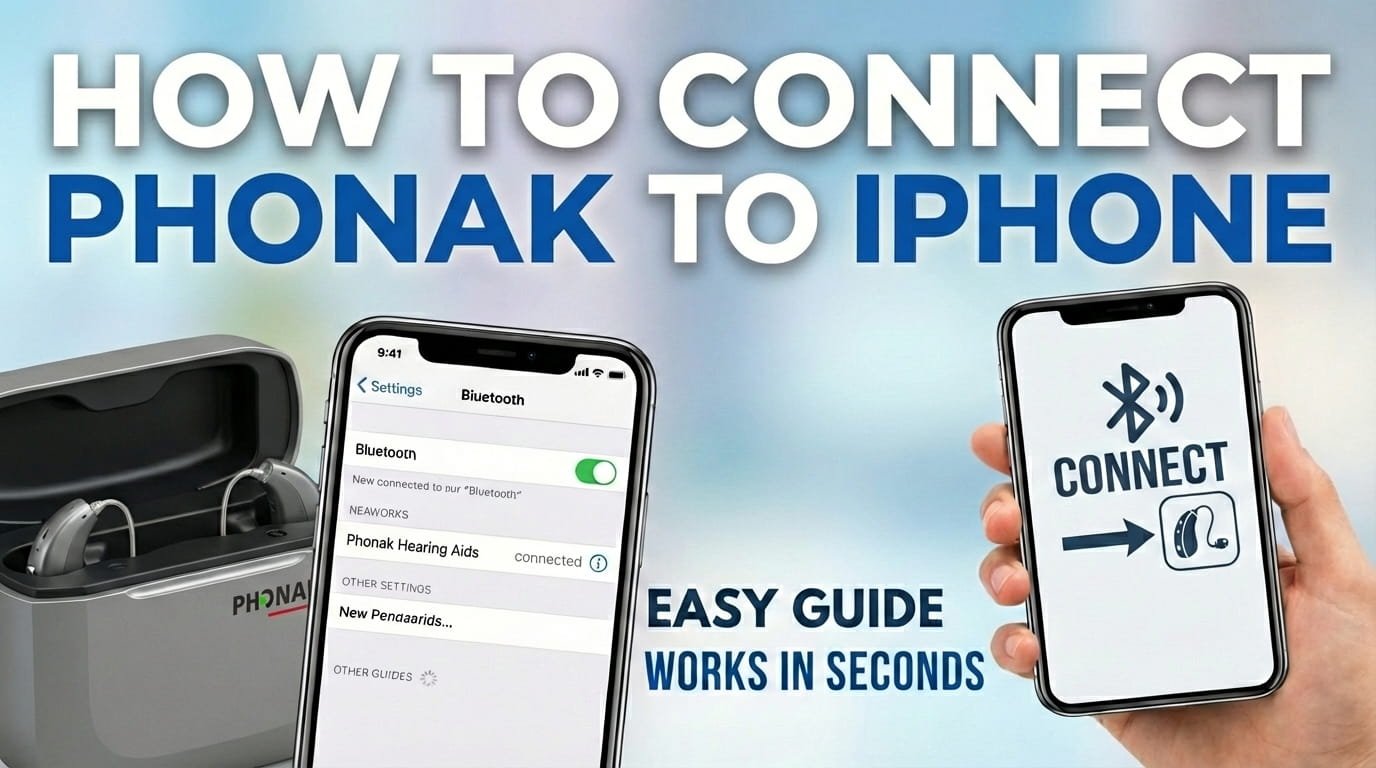
Connecting your Phonak hearing aids to your iPhone offers a new level of control, personalized sound, and direct audio streaming. Many people want to manage their hearing aid settings, answer calls, or listen to music directly from their iPhone.
If you’re looking to pair your new Phonak hearing aids or are simply having trouble linking your existing ones, don’t worry—the process is easy.
This article will guide you through the straightforward steps to successfully connect your Phonak hearing aids with your iPhone so you can enjoy all the features.
1) Prepare Your Phonak Hearing Aids for Pairing
For your iPhone to discover your Phonak hearing aids, they must first be in “pairing mode.” This quick step usually involves simply restarting them.
The exact way to restart your hearing aids depends on their battery type.
For Hearing Aids with Disposable Batteries
If your Phonak hearing aids use disposable batteries, open the battery door on each hearing aid. Keep the doors open for about five seconds. Then, close them.
This restarts the hearing aids and puts them into pairing mode for a few minutes.
For Hearing Aids with Rechargeable Batteries
For rechargeable Phonak hearing aids, remove them from their charger. Then, press and hold the lower part of the rocker switch on each hearing aid for about three to five seconds to turn them off.
To restart and activate pairing mode, press and hold the same lower part of the rocker switch again for about three to five seconds until the indicator light flashes.
Alternatively, place your rechargeable hearing aids back into their charger for about five seconds, then remove them. This action also restarts them and activates pairing mode.
After restarting, your Phonak hearing aids will actively search for an iPhone to connect with for about three minutes.
2) Connect Phonak Hearing Aids via iPhone Accessibility Settings
Phonak hearing aids are “Made for iPhone” (MFi) devices. This means they connect through your iPhone’s Accessibility settings, not the standard Bluetooth menu.
First, ensure your iPhone’s Bluetooth is enabled. Go to Settings, then select Bluetooth, and check that the toggle is in the green “On” position.
From your iPhone’s main Settings menu, scroll down and tap “Accessibility.” This section holds various accessibility features.
Inside the Accessibility menu, find and tap “Hearing Devices.” This section is for MFi hearing aids.
Your iPhone will now search for available hearing aids. It may take a few seconds for your Phonak hearing aids to appear under “MFi Hearing Devices.”
When your Phonak hearing aids appear in the list, tap their name. You might see “Phonak P” or “Phonak L” followed by numbers. If you use two hearing aids, you will typically see one entry, and both will connect at the same time.
A Bluetooth Pairing Request pop-up will appear. You’ll need to confirm this for each hearing aid, so you might see it twice if you have a pair. Tap “Pair” for each request to establish the connection.
Once paired, your hearing aids should show “Connected” next to their name in the MFi Hearing Devices list. From this screen, you can also adjust volume, streaming, and other settings.
3) Download and Set Up the myPhonak App
While your Phonak hearing aids are now connected for basic audio streaming and calls, the myPhonak app offers significantly more control and personalization. It’s recommended for the best experience.
Open the App Store on your iPhone. In the search bar, type “myPhonak” and download the official application. Confirm it’s published by Sonova AG.
After installation, open the app. It will guide you through an initial setup, including accepting terms and conditions.
The myPhonak app will then try to connect to your paired hearing aids. It may ask for Bluetooth permissions; be sure to allow them.
If the app has trouble connecting, you might need to restart your hearing aids again (following the steps in section 1) to put them back into pairing mode for the app to find them.
Once the app detects your hearing aids, it will confirm the connection. You can then use the app to fine-tune sound settings, adjust programs, check battery levels, and access remote support.
4) Using Your Connected Phonak Hearing Aids with iPhone
After your Phonak hearing aids are paired and connected to your iPhone, you can use them for various audio tasks.
When you receive a phone call, the audio streams automatically to your Phonak hearing aids. Answer calls as you normally would on your iPhone, and the sound will come through your hearing aids.
Audio playing on your iPhone—like music, podcasts, or videos—can stream directly to your hearing aids. Simply play audio from any app, and it should automatically route through your Phonak devices.
Adjust the volume for streamed audio and calls using your iPhone’s side volume buttons, the myPhonak app, or the Accessibility shortcut. To use the shortcut, triple-click the Side button (or Home button on older iPhones) and tap “Hearing Devices” for quick setting adjustments.
Troubleshooting Common Connection Issues
Even after following the steps, your Phonak hearing aids might sometimes not connect. Here are some common troubleshooting tips.
Always check that your Phonak hearing aids have enough battery charge. Low battery can prevent pairing or cause intermittent connections. Recharge or replace batteries as needed.
Confirm your iPhone’s Bluetooth is on. Try toggling it off and then back on in the Settings menu. This often resolves minor connection glitches.
If your hearing aids were paired with another device or you’re having persistent issues, it helps to “forget” the device. Go to Settings > Accessibility > Hearing Devices, tap your hearing aids, then scroll and tap “Forget This Device.”
Restart your hearing aids, then try the pairing process again from the start.
Restart your Phonak hearing aids (as described in section 1) before trying to pair them. This ensures they are in active pairing mode.
A simple restart of your iPhone can sometimes resolve temporary software issues that prevent a connection. Turn your iPhone off completely, wait a few seconds, then turn it back on.
If you’re having trouble with the myPhonak app, try uninstalling and reinstalling it from the App Store. Be sure to allow all requested permissions during reinstallation.
Confirm your Phonak hearing aids are compatible with your iPhone model and iOS version. Most modern Phonak aids are MFi compatible, but older models may have limitations. Check your hearing aid’s manual if you’re unsure.
Stay close to your iPhone during pairing. Keep the hearing aids and iPhone within a few feet of each other for a strong signal.
FAQ
Why can’t my iPhone find my Phonak hearing aids?
Make sure your hearing aids are restarted correctly to enter pairing mode. Check that your iPhone’s Bluetooth is on. Also, confirm no other device is currently paired with your hearing aids.
Do I need the myPhonak app to use my hearing aids with my iPhone?
No, you can stream audio and calls directly using your iPhone’s MFi Hearing Devices settings without the app. The myPhonak app, however, offers advanced control, program changes, and remote support, improving your overall experience.
My hearing aids keep disconnecting from my iPhone. What should I do?
Check battery levels on both your hearing aids and iPhone. Try restarting both devices. Ensure there are no significant interferences (like other strong Bluetooth signals), and keep your iPhone close to your hearing aids.
Can I stream music from my iPhone to my Phonak hearing aids?
Yes, after pairing, any audio from your iPhone—including music, podcasts, and videos—will stream directly to your Phonak hearing aids.
How do I answer calls through my Phonak hearing aids?
When your hearing aids are connected, incoming calls stream directly to them. Answer the call as you normally would on your iPhone, and the audio will automatically route to your hearing aids.
Connecting your Phonak hearing aids to your iPhone is a straightforward process that offers many benefits for better hearing and convenience. By following these clear steps, you can confidently pair your devices, gaining control over your sound environment and enjoying direct audio streaming.
Whether you’re setting them up for the first time or need a refresher, these methods will help you maintain a reliable connection. Feel free to use the troubleshooting tips if you encounter any issues.

Hi, I’m Michael Davis, the owner and writer of GadgetsFeed.com. This website is where I share my knowledge and passion for tech, laptops, and computers. I’m a software engineer by profession, and I enjoy testing and reviewing various gadgets and technologies. I started GadgetsFeed.com to help others find easy solutions for their laptop, computer, and tech problems.