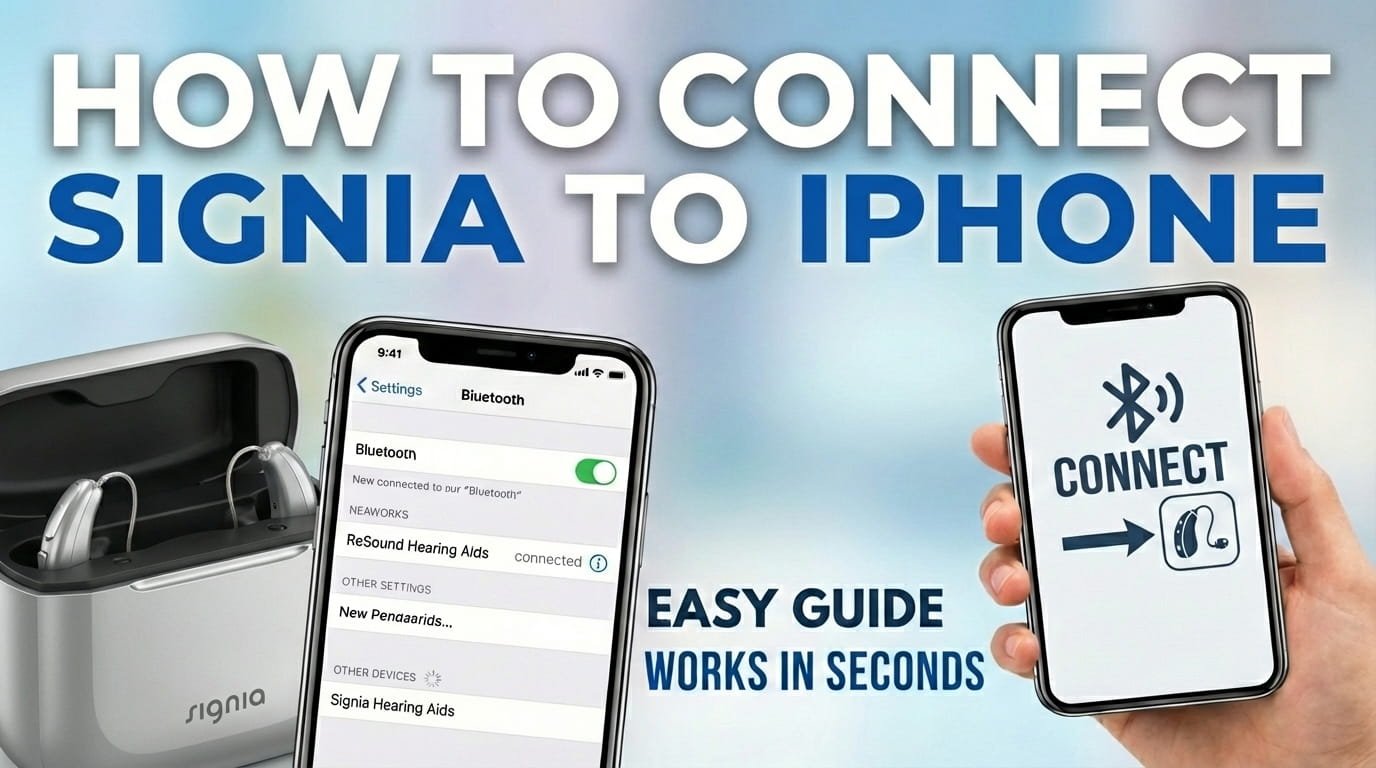
Connecting your Signia hearing aids to your iPhone improves your listening experience, letting you stream audio, make phone calls, and control your devices easily. Many users want this direct connection to get the most from their hearing aids.
Fortunately, most modern Signia hearing aids are “Made for iPhone” (MFi). This makes the connection process simple, especially with a recent iOS version on your iPhone. Whether you’re connecting for the first time or reconnecting, there are clear steps to follow.
This guide will walk you through pairing your Signia hearing aids with your iPhone, helping you gain full control and enjoy clear sound.
How to Pair Signia Hearing Aids Through iPhone Settings (MFi)
Most modern Signia hearing aids are “Made for iPhone” (MFi), meaning they connect directly via your iPhone’s Accessibility settings, not the regular Bluetooth menu. This connection provides the best reliability for audio streaming and hearing aid control.
Before you start, make sure your iPhone’s Bluetooth is active. Open Control Center by swiping down from the top-right (Face ID iPhones) or up from the bottom (Home button iPhones). The Bluetooth icon should appear blue.
Step-by-Step MFi Pairing:
Here’s how to connect your Signia hearing aids to your iPhone for the first time.
1. **Prepare Your Hearing Aids:** If your hearing aids use disposable batteries, open and then close the battery doors. This reboots them and activates pairing mode for a few minutes. For rechargeable models, remove them from their charger; they will automatically enter pairing mode.
2. **Open iPhone Settings:** Tap the “Settings” app icon on your iPhone’s Home screen.
3. **Navigate to Accessibility:** Scroll down in the Settings menu and tap “Accessibility.”
4. **Find Hearing Devices:** Within the Accessibility menu, scroll down and tap “Hearing Devices.”
5. **Look for MFi Hearing Devices:** Your iPhone will now search for available Made for iPhone hearing aids. Keep your Signia hearing aids close to your iPhone.
6. **Select Your Hearing Aids:** Once detected, your Signia hearing aid’s name (e.g., “John Doe’s Hearing Aids” or a Signia model name) will appear under “MFi Hearing Devices.” Tap their name to start connecting.
7. **Confirm Pairing:** A “Bluetooth Pairing Request” pop-up will appear for each hearing aid (left and right). Tap “Pair” for both requests. Accepting both ensures full functionality and stereo sound.
8. **Verify Connection:** After pairing, your Signia hearing aids will be listed under “MFi Hearing Devices” with a “Connected” status. You may also see battery indicators. This confirms a successful connection.
After this initial pairing, your Signia hearing aids will automatically reconnect to your iPhone when turned on and within range, as long as Bluetooth is enabled.
How to Connect Your Signia Hearing Aids Using the Signia App
MFi pairing through iPhone settings creates the basic connection for streaming and calls. However, the Signia App (sometimes called mySignia App, depending on your model) provides many advanced features and customization options. These include adjusting volume, changing programs, sound balance, and accessing remote support.
It’s important to remember that the Signia App needs your hearing aids to be already paired with your iPhone using the MFi process (Section 1). The app then uses this existing connection for its extra functions.
Steps to Connect with the Signia App:
This method uses your existing MFi connection to give you detailed control over your hearing aids.
1. **Ensure MFi Pairing is Complete:** Make sure your Signia hearing aids are already paired with your iPhone via “Settings > Accessibility > Hearing Devices,” as explained in Section 1. The app needs this primary connection.
2. **Download the Signia App:** Go to the Apple App Store on your iPhone. Search for “Signia App” or “mySignia App” (check your hearing aid’s manual or ask your audiologist for the correct app name). Download and install it.
3. **Open the Signia App:** Launch the app from your iPhone’s Home screen. When first opened, you might need to grant permissions for Bluetooth access or notifications.
4. **Follow On-Screen Setup:** The app will guide you through an initial setup. This often includes accepting terms and conditions or creating an account.
5. **Connect to Hearing Aids:** The app will usually prompt you to connect to your hearing aids. Since they’re already MFi paired, the app should detect them automatically. If prompted to search, ensure your hearing aids are on and near your iPhone.
6. **Confirm Connection within App:** Once detected, the app will display your hearing aids. You might need to tap “Connect” or “Start” in the app. It will confirm the connection, often by displaying control sliders or program options.
7. **Explore App Features:** With the app connected, you can adjust settings like volume, sound profiles, directional focus, and use remote assistance, depending on your Signia model and app features.
The Signia App provides a convenient way to manage your hearing experience from your iPhone, offering more flexibility than basic MFi controls alone.
Troubleshooting Common Signia Hearing Aid Connection Issues with iPhone
Even with MFi technology, you might sometimes face issues connecting your Signia hearing aids to your iPhone. Here are solutions for common problems.
Hearing Aids Not Appearing or Connecting:
If your iPhone isn’t detecting your Signia hearing aids, or if they fail to connect after appearing, try these steps.
1. **Check Battery Levels:** Make sure your Signia hearing aids have enough battery charge. For disposable batteries, replace them. For rechargeable models, place them in their charger briefly to confirm power.
2. **Restart Hearing Aids:** This is often a simple fix. For battery-operated models, open and close the battery doors. For rechargeable models, place them in the charger for at least 10 seconds, then remove them. This reboots the devices and puts them into pairing mode.
3. **Restart Your iPhone:** Restarting your iPhone can fix temporary software glitches preventing a connection. Turn your iPhone off and then back on.
4. **Ensure Bluetooth is Enabled:** Double-check that Bluetooth is turned on in your iPhone’s Control Center or Settings app. MFi pairing uses Accessibility, but it still needs the Bluetooth radio.
5. **Forget Device and Re-Pair:** If previously connected but now experiencing issues, “forgetting” and re-pairing can help. Go to “Settings > Accessibility > Hearing Devices,” tap your hearing aid’s name, then tap “Forget This Device.” Afterward, repeat the full MFi pairing process from Section 1.
Dropping Connection or Poor Audio Quality:
If your hearing aids connect but the connection is unstable or the audio quality is poor, consider these points.
1. **Proximity to iPhone:** Keep your iPhone close to your Signia hearing aids, ideally within arm’s reach. Distance or obstacles can weaken the Bluetooth signal.
2. **Minimize Interference:** Other electronics, Wi-Fi routers, or some household appliances can cause Bluetooth interference. Move to a different location to see if the issue continues.
3. **Update iOS:** Ensure your iPhone runs the latest iOS version. Apple often releases updates with bug fixes and improvements that can affect Bluetooth. Go to “Settings > General > Software Update.”
4. **Update Signia App:** If you use the Signia App, check the App Store for available updates. App updates frequently include bug fixes for connectivity and performance.
5. **Check for Signia Firmware Updates:** Your audiologist typically performs firmware updates for some Signia hearing aids. These can boost device performance and connectivity. Contact your hearing care professional if you think this is the problem.
Compatibility Check:
Not all older Signia hearing aid models are MFi compatible.
1. **Verify MFi Compatibility:** Confirm that your specific Signia hearing aid model is MFi compatible. Check your hearing aid’s manual or the Signia website for this information. If your model is not MFi, it might only connect through a separate streaming accessory (like a StreamLine Mic), not directly.
If these troubleshooting steps don’t resolve persistent issues, contact your hearing care professional. They have specialized tools and knowledge to diagnose and fix more complex problems.
FAQ
How do I disconnect my Signia hearing aids from my iPhone?
To temporarily disconnect, simply turn off your Signia hearing aids or turn off Bluetooth on your iPhone. To “forget” the device entirely, go to iPhone Settings, then Accessibility, then Hearing Devices. Tap on your hearing aid’s name, then select “Forget This Device.”
Can I connect my Signia hearing aids to multiple devices at once?
Signia hearing aids can typically pair with multiple iPhones or iPads. However, they will only actively stream and connect to one device at a time. The device actively trying to connect or stream audio will take priority.
Why isn’t my iPhone finding my Signia hearing aids?
Ensure your hearing aids are charged or have fresh batteries, and that you’ve reset them (by opening/closing battery doors or removing from the charger) to activate pairing mode. Also, confirm Bluetooth is on and your iPhone is nearby. If they still don’t appear, try restarting your iPhone.
Do all Signia hearing aids work with iPhone?
Most modern Signia hearing aids are “Made for iPhone” (MFi), but older models may not be directly compatible. Check your hearing aid model’s specifications or consult your audiologist to confirm MFi compatibility. Non-MFi models might require a separate streaming accessory.
What is the Signia App for?
The Signia App offers enhanced control and customization for your paired Signia hearing aids. It lets you adjust volume, change listening programs, fine-tune sound balance, check battery status, and access remote support features, all from your iPhone.
Connecting your Signia hearing aids to your iPhone is a straightforward process, bringing greater convenience and better listening. By following the MFi pairing steps through your iPhone’s Accessibility settings and using the Signia App, you get smooth audio streaming, phone call functions, and personalized control over your hearing experience.
Remember that basic troubleshooting often resolves initial issues. Most connection problems are easily fixed with a simple restart or re-pairing. With your Signia hearing aids and iPhone connected, you can fully enjoy the benefits of modern hearing technology.

Hi, I’m Michael Davis, the owner and writer of GadgetsFeed.com. This website is where I share my knowledge and passion for tech, laptops, and computers. I’m a software engineer by profession, and I enjoy testing and reviewing various gadgets and technologies. I started GadgetsFeed.com to help others find easy solutions for their laptop, computer, and tech problems.