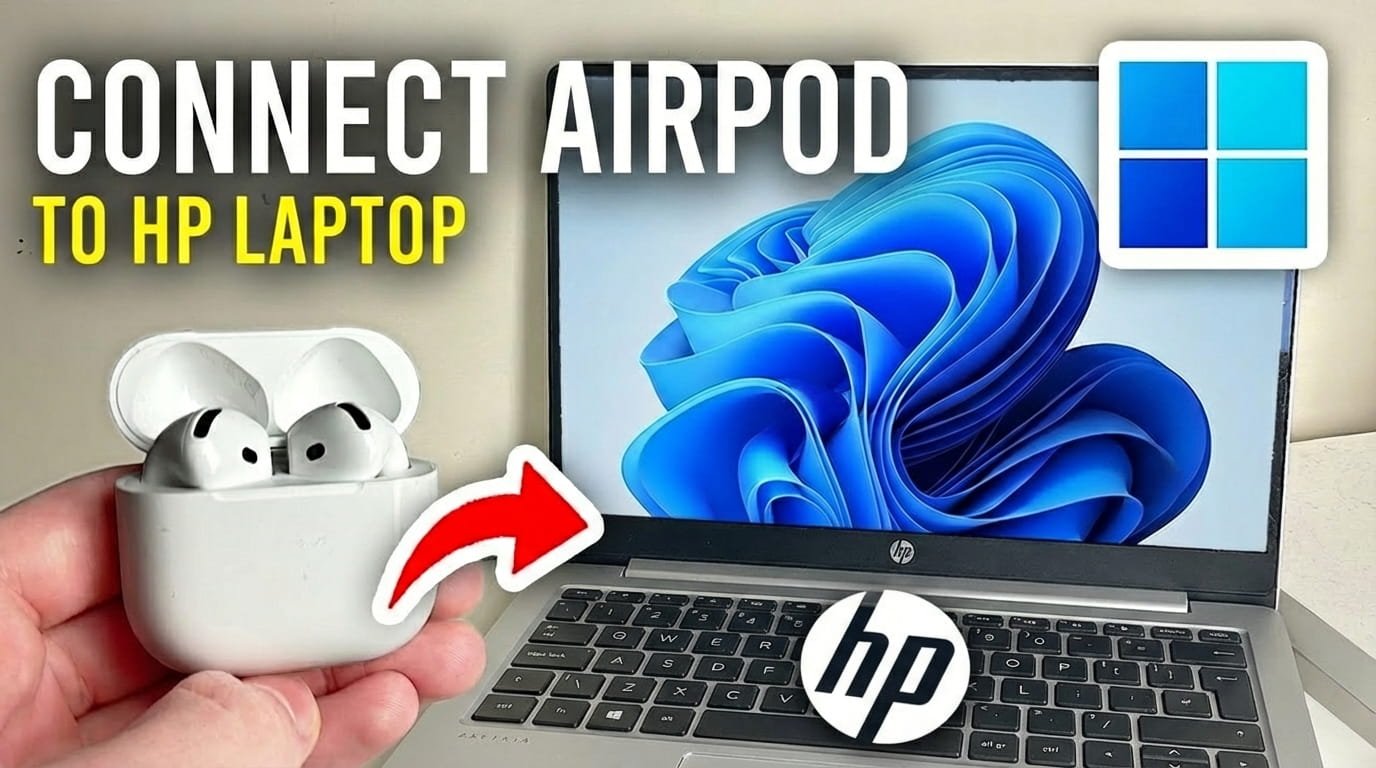
Connecting your Apple AirPods to an HP laptop is much simpler than you might think. While AirPods are designed for Apple devices, they pair easily with Windows-powered HP computers, allowing you to enjoy their audio quality for work, entertainment, or video calls.
Most HP laptops, running Windows 10 or 11, come with built-in Bluetooth. This means you won’t need any special software or complex steps to get your AirPods connected.
This guide will walk you through pairing your AirPods with your HP laptop. You’ll learn how to get your AirPods ready, enable Bluetooth on Windows, and fix any common problems, so you can enjoy your audio without any trouble.
1) Prepare Your AirPods for Pairing
To connect your AirPods to an HP laptop, first prepare them for pairing. This involves putting them into a discovery mode so your laptop can find them.
Open your AirPods charging case, making sure both AirPods are inside. Do not take them out of the case yet. Find the small, circular setup button on the back of the case. It usually sits flush with the surface.
Press and hold this setup button for several seconds. The status light on the front or inside of the case will start flashing white. A white flashing light confirms your AirPods are in pairing mode and ready to connect to a new device.
2) Enable Bluetooth on Your HP Laptop
Once your AirPods are in pairing mode, ensure Bluetooth is active on your HP laptop. Windows offers two simple methods to do this: through the Settings menu or the Action Center.
On Windows 11:
Click the Start button on your taskbar, then open the Settings app. You can also use the Windows key + I shortcut to open Settings quickly.
From the Settings menu, go to “Bluetooth & devices” in the left-hand pane. At the top of this section, find the toggle switch for Bluetooth and make sure it is turned “On”.
On Windows 10:
Click the Start button on your taskbar, then open the Settings app. You can also press the Windows key + I shortcut. In the Settings menu, click on “Devices”.
Within the “Devices” section, choose “Bluetooth & other devices” from the left-side menu. Locate the Bluetooth toggle switch at the top and confirm it is “On”.
For a quicker method on both Windows 10 and 11, use the Action Center. Click the notification icon or the date and time on the far right of your taskbar. Find the “Bluetooth” tile and click it to activate Bluetooth if it’s currently disabled.
3) Pair Your AirPods with Your HP Laptop
With your AirPods in pairing mode and Bluetooth enabled on your HP laptop, you are ready to connect them. Your laptop should now be able to find your AirPods.
Add a New Bluetooth Device (Windows 11):
From the “Bluetooth & devices” section in Settings, click “Add device”. A new window will appear. Choose “Bluetooth” from the device type options.
Your HP laptop will then search for nearby Bluetooth devices. Find your AirPods in the list that appears. They will typically show up as “AirPods” or “[Your Name]’s AirPods”.
When you see your AirPods, click on them. The pairing process will start, and your laptop will confirm the connection. You should see a “Connected” status next to your AirPods in the list.
Add a New Bluetooth Device (Windows 10):
In the “Bluetooth & other devices” section of Settings, click “Add Bluetooth or other device”. A window will open; select “Bluetooth” from the choices.
Your HP laptop will begin scanning for nearby Bluetooth devices. Locate your AirPods in the list. They should be identified as “AirPods” or “[Your Name]’s AirPods”.
Click on your AirPods to start connecting. A confirmation message will appear when pairing is successful, indicating your AirPods are now linked to your HP laptop.
4) Select AirPods as Your Audio Output Device
Even after successfully pairing your AirPods, your HP laptop may not automatically use them for audio. You will need to manually set them as your main audio output device.
On your HP laptop’s taskbar, find the speaker icon, usually near the clock. Right-click this icon. From the menu that appears, select “Open Sound settings” or “Sound settings”.
Alternatively, in Windows 11, you can click the speaker icon once to open the quick settings panel. Then, click the arrow next to the volume slider to see the audio output options. Your AirPods should be listed there.
In the sound settings window, locate the “Output” section. You’ll see a dropdown menu or a list of available output devices. Click on this menu and select your AirPods from the list. They will likely be labeled as “Headphones (AirPods Stereo)”.
Once selected, all audio from your HP laptop will play through your AirPods. Test this by playing music or a video to confirm the sound is coming through your earbuds.
Troubleshooting Common Connection Issues
If your AirPods won’t connect or stay connected, even after following the steps, don’t worry. Here are some common troubleshooting tips to help resolve these issues.
Ensure AirPods are Charged
A frequent cause of connection problems is a low battery. Make sure your AirPods and their charging case have enough power. Place your AirPods in their case and charge the case if needed.
Restart Bluetooth on Your HP Laptop
Turning Bluetooth off and then on again can often fix small glitches. Go to your Bluetooth settings (as described in step 2) and toggle the Bluetooth switch off, wait a few seconds, then turn it back on. Afterward, try pairing again.
Restart Your HP Laptop
A full system restart can clear temporary software issues that might prevent a smooth Bluetooth connection. Save any open work, then restart your HP laptop.
Forget Device and Re-Pair
If your AirPods previously connected but are now having trouble, try “forgetting” them from your HP laptop’s Bluetooth settings, then re-pairing them from the start. In the “Bluetooth & devices” settings, find your AirPods, click on the three dots (Windows 11) or select them (Windows 10), and choose “Remove device” or “Disconnect”. Then, go back to step 1 and begin the pairing process again.
Update Bluetooth Drivers
Old or damaged Bluetooth drivers can cause connectivity issues. Open Device Manager (search for it in the Start menu). Expand “Bluetooth”, right-click on your Bluetooth adapter, and select “Update driver”. You can choose to “Search automatically for drivers” or visit HP’s support website for your laptop model to download the latest drivers.
Check for Interference
Other wireless devices, such as Wi-Fi routers, microwaves, or other Bluetooth devices, can sometimes interfere with your AirPods’ connection. Try moving closer to your laptop or away from potential sources of interference.
Reset Your AirPods
As a last option, you can perform a factory reset on your AirPods. With both AirPods in the charging case, close the lid. Wait 30 seconds, then open the lid. Press and hold the setup button on the back of the case for about 15 seconds until the status light flashes amber a few times, then continuously flashes white. This resets your AirPods, and you’ll need to re-pair them with all your devices.
FAQ
Here are answers to some frequently asked questions about connecting AirPods to an HP laptop.
Can I connect AirPods to any HP laptop?
Yes, as long as your HP laptop has Bluetooth functionality, which most modern HP laptops do, you can connect your AirPods. Bluetooth is a universal wireless standard.
Why won’t my HP laptop find my AirPods?
Ensure your AirPods are in pairing mode (white flashing light on the case) and your laptop’s Bluetooth is turned on. Also, try moving closer to the laptop and restarting Bluetooth on the computer.
Do I need an Apple ID to use AirPods with an HP laptop?
No, you do not need an Apple ID to use AirPods with a Windows HP laptop. They connect purely as standard Bluetooth headphones.
How do I switch my AirPods from my iPhone to my HP laptop?
If your AirPods are connected to your iPhone, place them in their case. Then, put them into pairing mode again (white flashing light) and connect them to your HP laptop via Bluetooth settings. You might need to manually select them as the audio output on your laptop.
Can I use all AirPods features, like “Hey Siri,” on my HP laptop?
Most advanced features, like “Hey Siri,” automatic device switching, and spatial audio, are exclusive to Apple devices. On an HP laptop, AirPods function primarily as standard Bluetooth headphones for audio playback and microphone use.
My AirPods connect, but I hear no sound. What’s wrong?
After connecting, you must select your AirPods as the audio output device in your HP laptop’s sound settings. Right-click the speaker icon on the taskbar and choose “AirPods Stereo” from the output options.
Connecting your AirPods to an HP laptop becomes a straightforward process once you follow these steps. By getting your AirPods ready, enabling Bluetooth on your Windows computer, and pairing them correctly, you can quickly start enjoying your audio.
If you run into any issues, the troubleshooting guide above offers solutions for common problems. Always keep your AirPods charged and make sure your laptop’s Bluetooth drivers are current for the best performance. With these guidelines, you’ll be able to use your AirPods with your HP laptop for all your listening needs.

Hi, I’m Michael Davis, the owner and writer of GadgetsFeed.com. This website is where I share my knowledge and passion for tech, laptops, and computers. I’m a software engineer by profession, and I enjoy testing and reviewing various gadgets and technologies. I started GadgetsFeed.com to help others find easy solutions for their laptop, computer, and tech problems.