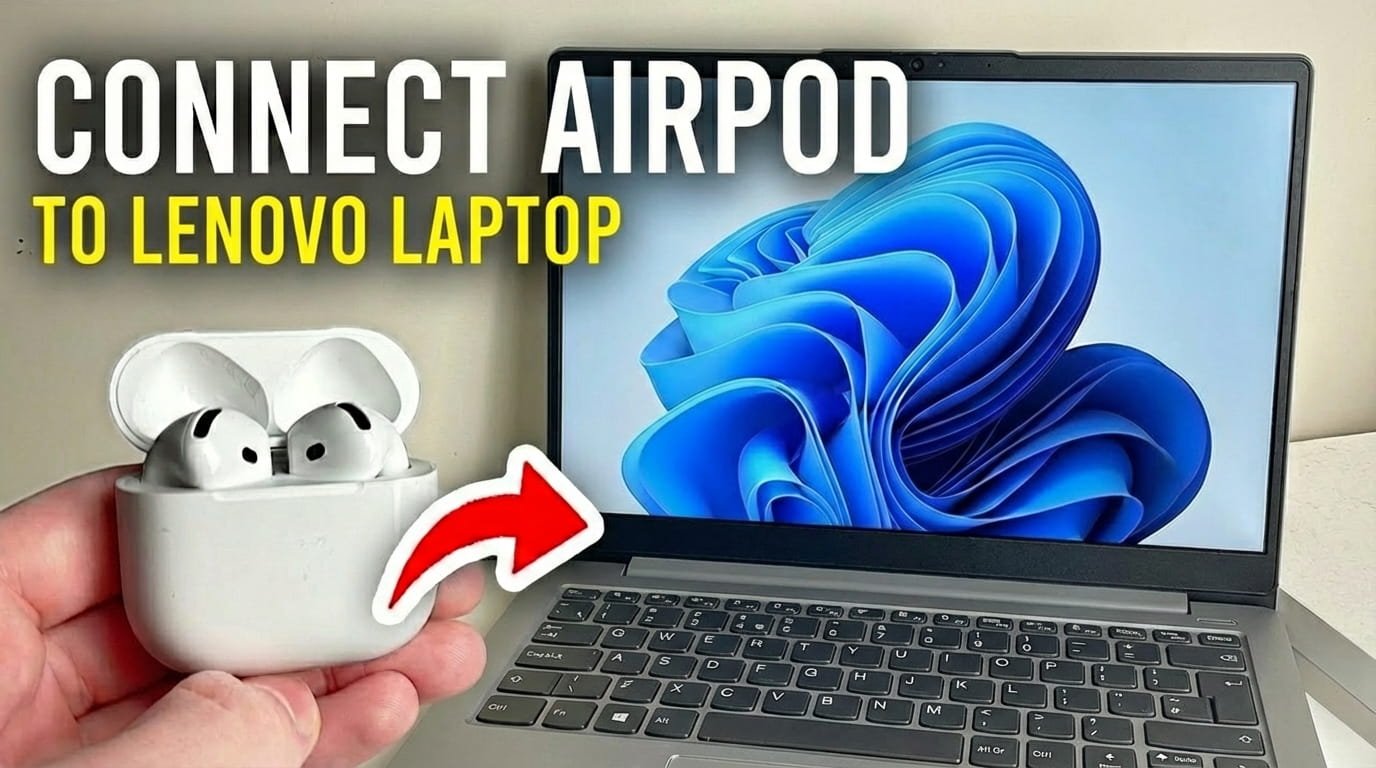
Connecting your Apple AirPods to a Lenovo laptop is a common need, and it’s perfectly normal to seek clear guidance. Many users want to enjoy their AirPods for calls, music, and videos on their Windows-based Lenovo computers. Even though AirPods are primarily made for Apple devices, connecting them to a Windows laptop is quite simple.
You might wonder if it’s complicated, but there’s no need to worry. Windows, the operating system found on most Lenovo laptops, includes strong Bluetooth features that work well with AirPods. This guide will walk you through the easy, step-by-step process to pair your AirPods and get them working smoothly with your Lenovo laptop.
Regardless of whether you use Windows 10 or Windows 11, the steps are very similar and easy to follow. We’ll cover everything from preparing your AirPods to handling any small issues that might come up. Soon, your AirPods will be connected and ready to go.
1) Preparing Your Lenovo Laptop for AirPods Connection
Before connecting your AirPods, first ensure your Lenovo laptop’s Bluetooth is active and ready to find new devices. This is the essential first step for any wireless audio connection.
Checking and Enabling Bluetooth in Windows Settings
Windows offers a central place to manage all Bluetooth devices. The steps are very similar for both Windows 10 and Windows 11 operating systems.
First, open your laptop’s Settings. Click the Start button, then select the gear icon for “Settings.” You can also search for “Settings” in the Windows search bar.
With the Settings window open, go to the “Bluetooth & devices” section. In Windows 10, this path might be “Devices” followed by “Bluetooth & other devices.” In Windows 11, it’s listed directly as “Bluetooth & devices” in the left menu.
Find the Bluetooth toggle switch and make sure it’s set to “On.” If it’s off, click the switch to enable it. Your Lenovo laptop can now discover new Bluetooth devices.
You can also quickly check or toggle Bluetooth from your laptop’s Quick Settings or Action Center. In Windows 10, click the notification icon at the bottom-right of the taskbar. For Windows 11, click the network, volume, or battery icon in the bottom-right to open Quick Settings. Confirm the Bluetooth icon is highlighted or active.
2) Putting Your AirPods into Pairing Mode
After your Lenovo laptop is ready, prepare your AirPods to be discovered. AirPods must be in “pairing mode” to connect with new devices, such as your Lenovo computer.
For AirPods, AirPods Pro, and AirPods Max
The pairing process is very similar for all AirPods models, including original AirPods, AirPods Pro, and the over-ear AirPods Max.
For AirPods or AirPods Pro, place both earbuds in their charging case with the lid open. On the back of the case, you’ll find a small, circular setup button. Press and hold this button firmly for several seconds.
Continue holding until the status light on the front of the charging case starts flashing white. This white light means your AirPods are now in pairing mode and can be discovered by other Bluetooth devices, like your Lenovo laptop.
If you have AirPods Max, ensure they are charged. Remove them from their Smart Case. Press and hold the noise control button—the smaller, elongated button on an earcup—until the status light near the Lightning port flashes white. Once it flashes white, your AirPods Max are ready to pair.
3) Connecting AirPods to Your Lenovo Laptop
With your Lenovo laptop’s Bluetooth enabled and your AirPods in pairing mode, you can now establish the connection. This is the last step to get your wireless headphones working with your computer.
Adding the Device in Windows Bluetooth Settings
Return to the “Bluetooth & devices” section in your Lenovo laptop’s Settings. Look for an “Add device” or “Add Bluetooth or other device” button. Click this button to start the device discovery process.
A new window will ask what type of device you want to add. Select “Bluetooth” (for mice, keyboards, pens, audio, and other Bluetooth devices).
Your Lenovo laptop will now scan for nearby Bluetooth devices in pairing mode. Soon, your AirPods should appear in the list of available devices. They might be listed as “AirPods,” “AirPods Pro,” or “AirPods Max,” often with your name.
Click on your AirPods in the list. Your Lenovo laptop will then try to connect. A confirmation message should appear, stating your AirPods are “Connected for voice and music” or something similar. Click “Done” to close the window.
Verifying the Connection
To confirm your AirPods are connected and ready, quickly check your audio output settings. In the bottom-right corner of your taskbar, right-click the speaker icon. Select “Sound settings” or “Open Sound settings.”
In Sound settings, find the “Output” section. Your AirPods should appear as a playback device. Make sure they are selected as the default output. If not, click your AirPods to choose them.
Now, try playing audio on your Lenovo laptop, like a YouTube video or music file. The sound should play through your AirPods. If you hear nothing, double-check that your AirPods are selected as the audio output and that the volume is up on both your laptop and AirPods.
4) Troubleshooting Common AirPods Connectivity Issues
Sometimes, even with correct steps, technology can be a bit tricky. If your AirPods don’t connect to your Lenovo laptop right away, don’t worry. There are several simple troubleshooting steps you can try.
Ensure AirPods Are Charged
This may seem obvious, but it’s often the easiest reason for connection issues. Check that your AirPods and their charging case have enough battery. Low power can prevent a stable Bluetooth connection or effective pairing mode. Charge them fully, then try connecting again.
Resetting Your AirPods
A soft reset of your AirPods can often resolve small issues that prevent connection. To do this, place both AirPods in their charging case and close the lid. Wait about 30 seconds, then open the lid. Press and hold the setup button on the back of the case until the status light flashes amber a few times, then flashes white. This resets them to factory settings, requiring you to re-pair them with your Lenovo laptop.
Restarting Your Lenovo Laptop
The classic “turn it off and on again” solution often fixes computer issues, including Bluetooth problems. Restarting your Lenovo laptop can refresh its Bluetooth services and clear temporary software conflicts that might interfere with the connection. After the restart, try the connection steps again.
Updating Bluetooth Drivers on Your Lenovo
Outdated or corrupted Bluetooth drivers can cause connectivity issues. Always ensure your Lenovo laptop’s drivers are current. Search for “Device Manager” in the Windows search bar and open it.
In Device Manager, expand the “Bluetooth” section. Right-click your Bluetooth adapter (e.g., “Intel Wireless Bluetooth” or “Realtek Bluetooth”) and select “Update driver.” Then choose “Search automatically for drivers.”
If Windows does not find a newer driver, visit Lenovo’s official support website. Enter your laptop’s serial number or model and find the latest Bluetooth drivers for your specific device. Downloading and installing them manually can fix more persistent issues.
Forget Device and Re-Pair
If your AirPods previously connected but are now having trouble, or if the connection is unstable, “forgetting” the device from your laptop and starting fresh can help. Go to “Settings” > “Bluetooth & devices.” Find your AirPods under the “Audio” section.
Click your AirPods, then select “Remove device” or “Disconnect.” Confirm the removal. After this, repeat the full pairing process from the start: put your AirPods in pairing mode, then add them again using your Lenovo laptop’s Bluetooth settings.
5) Managing Your AirPods Connection on Lenovo
Once your AirPods are paired, managing their connection and switching between audio devices on your Lenovo laptop is straightforward. You won’t need to repeat the full pairing process each time.
Connecting and Disconnecting Quickly
Once paired, you can usually connect your AirPods simply by taking them out of their case (or putting AirPods Max on your head) when your Lenovo laptop’s Bluetooth is active. They should connect automatically.
To quickly check or switch their connection, click the speaker icon in the bottom-right corner of your taskbar. A small pop-up menu will show your current audio output device. If your AirPods are charged and in range, they should appear here. Click them to select them as your audio output.
To disconnect your AirPods without removing them from your settings, simply place them back in their case and close the lid. They will automatically disconnect from your Lenovo laptop. Or, from the sound output menu, you can switch to your laptop’s built-in speakers or another audio device.
Switching Between Audio Devices
If you have several audio devices connected to your Lenovo laptop (such as a headset, external speakers, and your AirPods), Windows makes switching simple. Click the speaker icon in your taskbar. This opens the volume control and a list of available audio output devices.
Just click the name of the device you want to use—whether it’s your AirPods, your laptop’s speakers, or another connected headset. Windows will instantly switch the audio output to that selected device. This makes managing your sound preferences very convenient.
FAQ
Can I use my AirPods microphone on my Lenovo laptop?
Yes, you can use your AirPods microphone on your Lenovo laptop. When connected, AirPods typically appear as both an audio output (headphones) and an audio input (microphone). You might need to choose AirPods as your microphone input in sound settings or specific applications like video conferencing software.
Why is my audio quality poor with AirPods on Windows?
AirPods on Windows can sometimes have lower audio quality, particularly when the microphone is also active. This often happens because Windows switches to a lower quality Bluetooth profile (like Hands-Free Profile, HFP) to manage both audio input and output. If you are only listening, ensure your AirPods are selected as the “Headphones” (stereo) output device, not “Headset” (mono, hands-free), in your sound settings for better quality.
My AirPods keep disconnecting, what should I do?
Frequent disconnections can stem from several factors. Make sure your AirPods are charged, you are within range of your laptop, and there is no significant interference from other wireless devices. Try restarting your laptop and resetting your AirPods. Updating your laptop’s Bluetooth drivers can also help stabilize the connection.
Can I connect multiple AirPods to my Lenovo laptop?
You can pair several sets of AirPods to your Lenovo laptop. However, Windows usually allows only one Bluetooth audio output device to actively stream sound at a time. This means you can switch between different AirPods, but you cannot have two sets playing audio from the same laptop simultaneously.
Connecting your AirPods to a Lenovo laptop is a simple process that significantly improves your audio experience. By following these steps, you can easily pair your devices and enjoy music, podcasts, or video calls without tangled wires.
Always remember that turning on your laptop’s Bluetooth and putting your AirPods into pairing mode are the crucial first steps. If you run into any trouble, the troubleshooting tips here should help you fix most common issues. You are now ready to use your AirPods with your Lenovo laptop for clear sound.

Hi, I’m Michael Davis, the owner and writer of GadgetsFeed.com. This website is where I share my knowledge and passion for tech, laptops, and computers. I’m a software engineer by profession, and I enjoy testing and reviewing various gadgets and technologies. I started GadgetsFeed.com to help others find easy solutions for their laptop, computer, and tech problems.