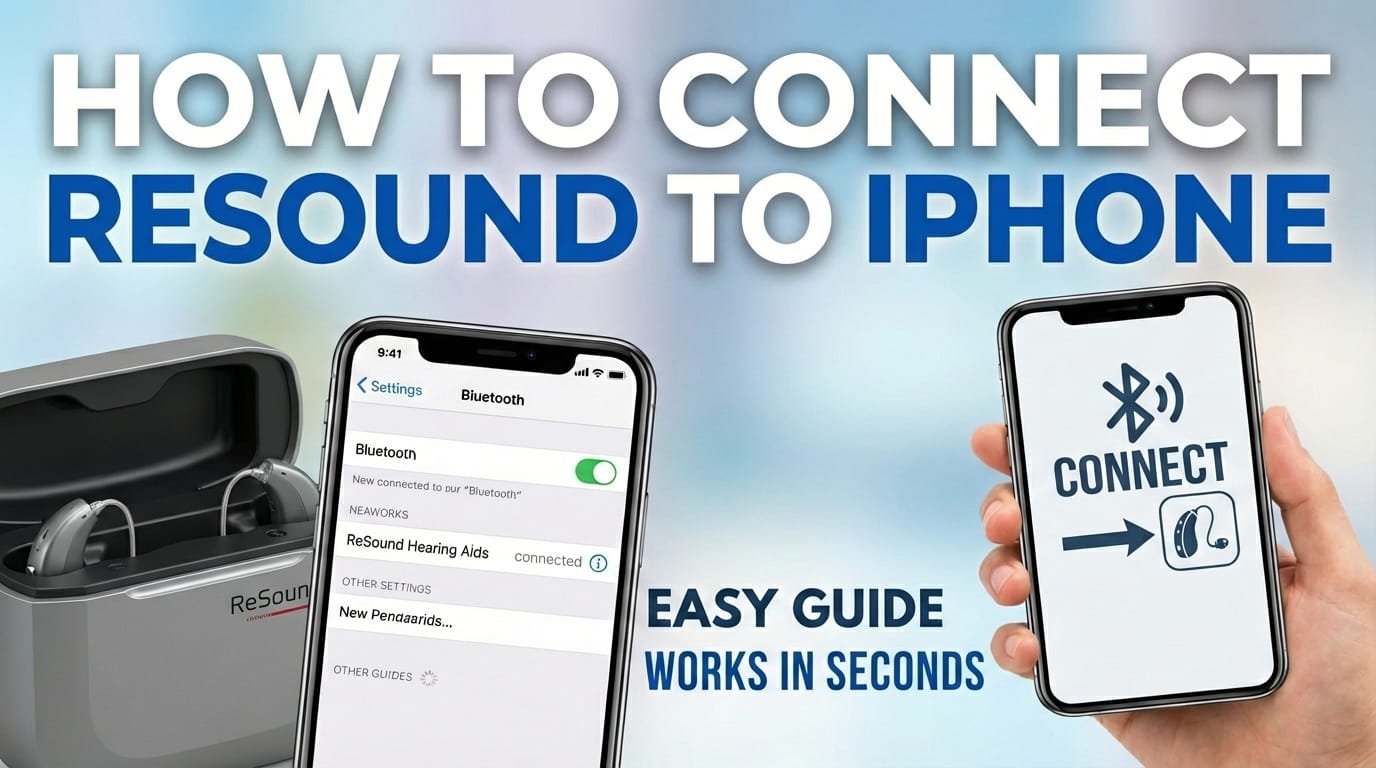
Connecting your Resound hearing aids to your iPhone brings great convenience. It lets you stream audio, make calls, and adjust settings right from your phone. Many users want to know how to get their Resound devices to work smoothly with their Apple iPhone.
You might be setting up new hearing aids for the first time, or maybe your current connection has dropped. No matter the reason, you’ve found the right information.
This process is simple, thanks to Apple’s “Made for iPhone” (MFi) hearing aid technology, which Resound fully supports. There are clear, easy steps for both initial pairing and keeping a strong connection.
This article will show you how to connect your Resound hearing aids to your iPhone, set up the control app, and fix common issues. This way, you can get the most out of your devices.
Understanding Made for iPhone (MFi) Hearing Aids
Before connecting, it helps to know how Resound hearing aids work with your iPhone. Resound devices are part of Apple’s “Made for iPhone” (MFi) program.
This means they don’t connect like standard Bluetooth headphones. Instead, they use a special, low-energy Bluetooth protocol designed for hearing devices.
The MFi connection enables direct audio streaming, phone calls, and more. It also optimizes battery life for both your hearing aids and iPhone.
You will manage the connection and settings through your iPhone’s Accessibility menu, not the general Bluetooth settings used for other accessories.
This dedicated connection offers a more reliable and integrated experience, giving you direct control over your hearing aids from your Apple device.
1) Initial Pairing: Connecting Resound Hearing Aids to Your iPhone
Here’s how to connect your Resound hearing aids to your iPhone for the first time. This quick process integrates your hearing aids with your iPhone’s accessibility features.
Make sure your iPhone runs a recent iOS version for full compatibility and access to all features.
Prepare Your Hearing Aids
First, get your Resound hearing aids ready for pairing. For models with batteries, open and close the battery doors. For rechargeable ones, turn them off and then on again.
This action puts them into “pairing mode” for a short time, usually about three minutes. Do this right before you start the pairing process on your iPhone.
If you have rechargeable hearing aids, place them in their charger for a few seconds, then remove them. This also starts pairing mode.
Open iPhone Settings
Unlock your iPhone and tap the “Settings” app icon. This is the gray gear icon typically found on your home screen.
This app controls all your iPhone’s functions, including connections to other devices.
Navigate to Accessibility
In the Settings menu, scroll down and tap “Accessibility.” This section contains features designed to make your iPhone easier to use.
The Made for iPhone hearing aid settings are here, separate from the general Bluetooth settings.
Select Hearing Devices
Within the Accessibility menu, scroll further down until you see “Hearing Devices.” Tap this option to continue.
This is where your iPhone will search for and manage your MFi hearing aids.
Discover Your Resound Hearing Aids
At this point, your iPhone will search for available Made for iPhone hearing aids. Make sure your Resound hearing aids are close to your iPhone and still in pairing mode.
You should see your Resound hearing aids appear on the screen, often listed as “MFi Hearing Devices” or by their model name.
If they don’t appear, try opening and closing the battery doors again, or re-initiating pairing mode for rechargeable aids, and wait a few more seconds.
Pair Your Devices
Once your Resound hearing aids appear, tap their name. Your iPhone will then show a “Bluetooth Pairing Request.”
You might see one or two requests, one for each hearing aid (left and right). Tap “Pair” for each request to confirm the connection.
After successful pairing, your Resound hearing aids will show as “Connected” under the Hearing Devices menu. You will also find options to adjust their settings directly from this screen.
2) Enhancing Control with the ReSound Smart 3D App
Your Resound hearing aids are now connected to your iPhone. The ReSound Smart 3D app, however, offers a richer and more intuitive way to control them.
This app allows for fine-tuning sound settings, personalizing programs, and even connecting to remote support from your audiologist.
Download the ReSound Smart 3D App
Open the Apple App Store on your iPhone and search for “ReSound Smart 3D.” Download and install the app.
This free app is designed specifically for Resound MFi hearing aids. It provides an easy-to-use interface for managing your listening experience.
Open the App and Connect
After installation, open the ReSound Smart 3D app. The app usually detects your already paired Resound hearing aids automatically.
It might ask for Bluetooth permission; grant this permission. Follow any on-screen prompts to finish the initial setup within the app.
The app will then display your connected hearing aids, letting you access various features and settings immediately.
Explore App Features
With the app, you can adjust the volume, change listening programs (like for a restaurant or outdoors), fine-tune bass and treble, and use features like the “Sound Enhancer” for specific environments.
The ReSound Smart 3D app also tracks your hearing aid battery levels, provides helpful tips, and can support telecare services with your hearing care professional.
It serves as a complete remote control for your Resound hearing aids, making daily adjustments easy and discreet.
Troubleshooting: What If Your Resound Hearing Aids Aren’t Connecting?
Sometimes, even after following the steps, your Resound hearing aids might not connect. Don’t worry; this often happens due to small glitches that are easy to fix.
Here are several troubleshooting steps to help re-establish the connection between your Resound hearing aids and your iPhone.
Check the Basics First
Ensure your Resound hearing aids are charged or have fresh batteries. A low battery is a common cause of connection issues.
Also, confirm your iPhone’s Bluetooth is on. Even though the MFi connection is managed through Accessibility, Bluetooth must be active for communication.
Verify that your hearing aids are within a reasonable range of your iPhone, ideally a few feet away, especially during the first pairing.
Restart Your Devices
One of the simplest and most effective troubleshooting steps is to restart both your Resound hearing aids and your iPhone.
For hearing aids with batteries, open and close the battery doors. For rechargeable aids, place them in their charger for a few seconds, then remove them.
For your iPhone, turn it off completely and then turn it back on. This can resolve temporary software glitches that might prevent a proper connection.
Forget and Re-pair Your Hearing Aids
If a simple restart doesn’t work, you might need to “forget” the hearing aids from your iPhone and then re-pair them.
Go to iPhone Settings, then Accessibility, then Hearing Devices. Tap the name of your Resound hearing aids.
Scroll down and tap “Forget This Device.” Confirm your choice. Then, follow the initial pairing steps described in section 1 to reconnect your hearing aids.
Update Your iPhone Software
Outdated iOS software can sometimes cause connectivity problems with accessories. Make sure your iPhone is running the latest version of iOS.
Go to Settings, then General, then Software Update. If an update is available, download and install it.
Keeping your iPhone’s software current helps ensure compatibility and stability with all connected devices, including your Resound hearing aids.
Reset Your Resound Hearing Aids
If everything else fails, a full reset of your Resound hearing aids might be necessary. The exact method changes by model, so check your Resound user manual for specific instructions.
Often, this involves pressing and holding certain buttons for a specific time, or using the ReSound Smart 3D app for a factory reset option.
A reset will return your hearing aids to their factory settings, clearing any corrupted data that could be stopping the connection.
Maintaining Your Connection: Tips for Daily Use
Once your Resound hearing aids are reliably connected to your iPhone, a few habits can help keep the connection strong and steady.
Always keep your hearing aids charged. A low battery is a frequent cause of intermittent or complete disconnections.
Keep your iPhone’s operating system updated. Apple regularly releases updates that improve Bluetooth and MFi connectivity performance.
Consider restarting your iPhone and hearing aids regularly, perhaps once a week. This helps refresh their systems and clear any minor software issues.
If you have persistent problems, remember that your hearing care professional is a valuable resource. They can check your hearing aids for hardware faults or give you further guidance.
FAQ
Why won’t my iPhone find my Resound hearing aids?
Ensure your hearing aids are in pairing mode (open and close battery doors or remove from charger). Check that Bluetooth is enabled on your iPhone, and try restarting both devices. Also, make sure your iPhone software is up to date.
Do I need to keep Bluetooth on for my Resound hearing aids?
Yes, Resound hearing aids rely on your iPhone’s Bluetooth radio to establish and maintain the connection, even though they use the MFi protocol. Keep Bluetooth enabled in your iPhone settings.
Can I connect my Resound hearing aids to multiple iPhones?
You can pair your Resound hearing aids with multiple MFi devices. However, they can only be actively connected to one iPhone at a time. You will need to switch the active connection from the Accessibility settings on the iPhone you wish to use.
How do I know if my Resound hearing aids are connected to my iPhone?
You can check by going to iPhone Settings, then Accessibility, then Hearing Devices. Your Resound hearing aids should be listed as “Connected.” The ReSound Smart 3D app will also show their connection status.
My Resound app isn’t controlling my hearing aids, but they’re paired. What’s wrong?
Ensure the ReSound Smart 3D app has Bluetooth permissions. Try closing and reopening the app. If the issue continues, “forget” your hearing aids from the iPhone’s Accessibility settings and re-pair them, then reconnect through the app.
How often should I charge my Resound rechargeable hearing aids?
Most Resound rechargeable hearing aids are designed to last a full day on one charge. It’s best to place them in their charger every night while you sleep to ensure they are ready for the next morning.
Connecting your Resound hearing aids to your iPhone greatly improves your hearing experience. It provides seamless control and direct audio streaming. By following these straightforward steps for initial pairing and using the dedicated ReSound Smart 3D app, you can use your devices to their fullest.
Remember that a strong connection often depends on simple checks, such as making sure batteries are charged and software is updated. If you face any connection problems, the troubleshooting tips provided should help you quickly get back on track.
Feel confident managing your hearing aids directly from your iPhone. This gives you greater convenience and personalized control over your sound environment every day.

Hi, I’m Michael Davis, the owner and writer of GadgetsFeed.com. This website is where I share my knowledge and passion for tech, laptops, and computers. I’m a software engineer by profession, and I enjoy testing and reviewing various gadgets and technologies. I started GadgetsFeed.com to help others find easy solutions for their laptop, computer, and tech problems.