Finding the exact model number of your Acer laptop is a small yet essential step for many tasks. Whether you’re looking to download the correct drivers, troubleshoot an issue, upgrade components, or register your device for warranty, this information is crucial. Many Acer users encounter this need, and fortunately, your Windows operating system and the laptop itself offer several straightforward ways to find this detail quickly.
You don’t need to be a tech expert to locate this information. This guide will show you three easy, reliable methods to identify your Acer laptop’s model. You’ll find what you need without any hassle. We’ll cover both physical inspection and built-in Windows tools, giving you all the options at hand.
1) Check the Laptop’s Physical Labels and Stickers
One of the most direct ways to find your Acer laptop model is by simply looking at the device itself. Manufacturers often place important details, including the model number, on stickers or labels directly on the laptop.
This method is convenient because it doesn’t require the laptop to be powered on. This can be very helpful if you’re troubleshooting a device that won’t boot or just checking a spare unit.
Examine the Bottom of the Laptop
Most Acer laptops have a sticker on the underside of the chassis. This label usually contains the model name, serial number, and other regulatory information.
Carefully flip your laptop over. Look for a sticker that clearly states “Model Name,” “Product Model,” or something similar. The model number might be a combination of letters and numbers, such as “Aspire A515-56” or “Predator Helios 300 PH315-54.”
Keep in mind that these stickers can sometimes become worn, faded, or even detach over time. If the label is unreadable, don’t worry—there are other methods you can use.
Look Under the Battery (Older Models)
For some older Acer laptop models with a removable battery, the model information might be on a sticker inside the battery compartment.
If your laptop has a removable battery, power it down completely and disconnect the power adapter. Carefully remove the battery according to your laptop’s instructions. Inside the compartment, look for a sticker with the model details.
Modern Acer laptops typically have internal, non-removable batteries, so this step won’t apply to newer devices.
Check Around the Keyboard or Screen Bezel
Sometimes, Acer might place a small sticker with the model series or full model name near the keyboard, often in a corner, or on the bezel surrounding the screen.
While this is less common for the exact model number, it might give you a general series like “Aspire” or “Swift.” You can then use other methods to find the precise model.
2) Use Windows System Information Tool
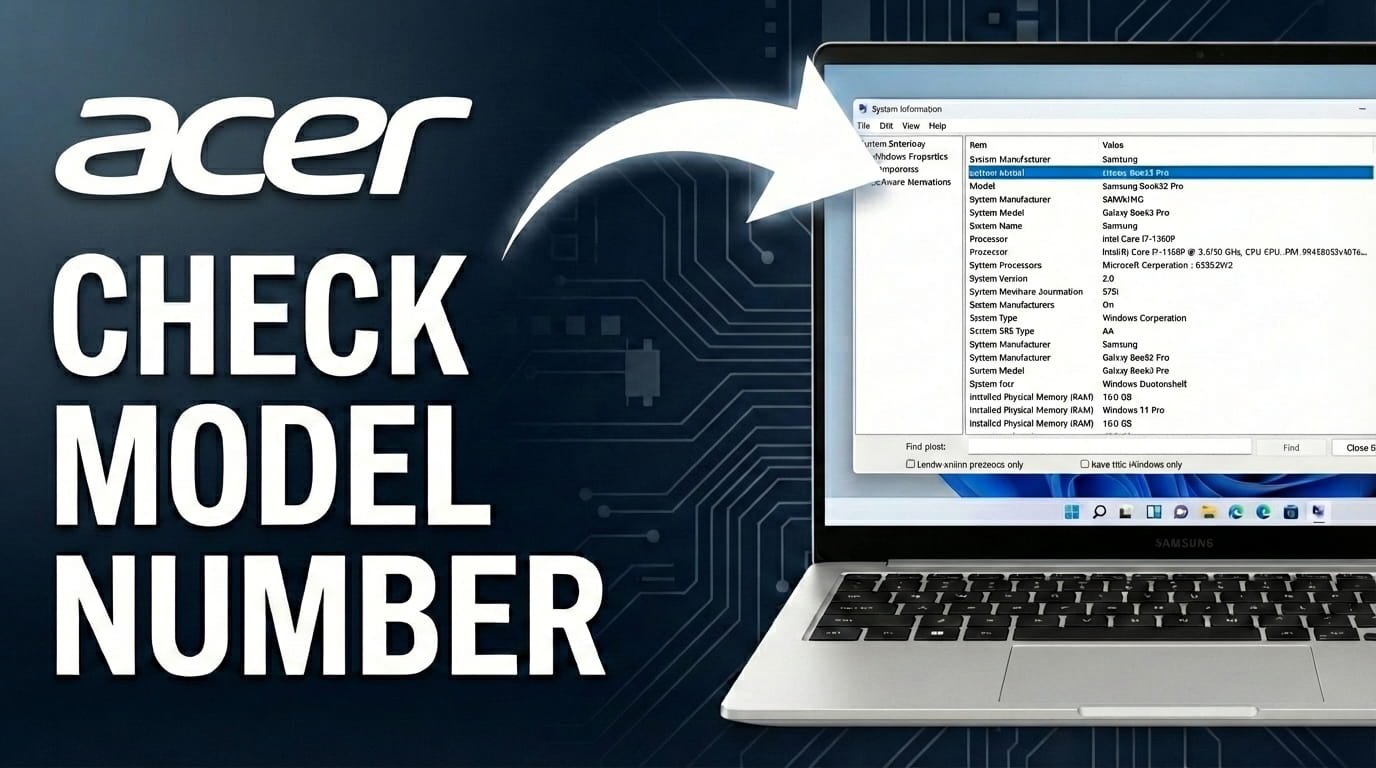
Windows includes a built-in utility called “System Information.” This tool provides a detailed overview of your computer’s hardware and software. It’s a very reliable way to find your Acer laptop’s model number, as the information comes directly from the system’s BIOS or UEFI.
This method works whether your laptop is connected to the internet or not, making it a dependable choice for most users.
Accessing System Information via Run Dialog
The quickest way to open the System Information window is by using the Run dialog box.
Press the Windows key + R simultaneously on your keyboard. This will open the “Run” dialog box.
In the “Open:” field, type “msinfo32” (without the quotes) and then press Enter or click “OK.”
Locating Your Model Information
Once the System Information window opens, you’ll see a summary of your system details on the “System Summary” page, which is usually the default view.
Look for an entry called “System Model” in the list. This entry will display your Acer laptop’s specific model number. You might also see “System Manufacturer” listed as “Acer,” confirming you are viewing the correct details.
The information provided here is accurate. Acer itself uses this detail to identify your specific device for support or driver downloads.
3) Find Your Model Number Using Command Prompt (CMD)
For those who prefer a command-line approach or need a super-fast way to find the model number, the Command Prompt offers an excellent solution. This method also retrieves the information directly from your system’s hardware identification.
It involves a very straightforward command that gives you the exact model name without navigating through graphical interfaces, making it efficient for quick checks.
Opening Command Prompt
You can open the Command Prompt in a couple of ways, both equally effective.
Press the Windows key + R to open the Run dialog. Type “cmd” (without the quotes) and press Enter or click “OK.” This will open a standard Command Prompt window.
Alternatively, you can type “cmd” into the Windows search bar (usually next to the Start button) and then select “Command Prompt” from the search results.
Executing the Model Command
Once the Command Prompt window is open, you will see a blinking cursor. This is where you will type the command.
Type the following command exactly as it appears (case sensitivity generally doesn’t matter for this particular command, but precision is good practice):
wmic csproduct get name
After typing the command, press Enter. The Command Prompt will then display your Acer laptop’s model number directly below the “Name” heading.
This method provides a clean, concise output, giving you exactly the information you need without extra details.
Why You Need Your Acer Laptop Model Number
Knowing your Acer laptop’s precise model number is more important than you might initially realize. It acts as a unique identifier that assists with several key tasks:
Driver Downloads: When you need to update graphics drivers, Wi-Fi drivers, or other system components, Acer’s support website requires the exact model number. This ensures you get the correct software compatible with your hardware.
Technical Support: If you contact Acer customer service for troubleshooting or warranty claims, providing your model number allows them to quickly access your device’s specifications and history.
Hardware Upgrades: Planning to add more RAM or replace a hard drive? The model number helps you determine compatible parts and check for available expansion slots, ensuring you buy the correct components.
Repair Services: For any repairs, technicians use the model number to look up schematics, order correct replacement parts, and understand your laptop’s configuration.
Selling or Trading: When listing your laptop for sale, including the specific model number gives potential buyers clear information about the device’s capabilities and value.
FAQ
What is the difference between a model number and a serial number?
The model number identifies a specific product line or series, such like “Acer Aspire A515-56.” All laptops of that model share similar core specifications. A serial number, however, is a unique identifier for your individual laptop within that model line. It’s unique to your specific unit and helps with warranty and service tracking.
Can I find my Acer model number in the BIOS?
Yes, your Acer laptop’s model number is typically shown within the BIOS or UEFI settings. To access it, you usually need to restart your laptop and press a specific key (often F2 or Delete) repeatedly during startup. Once in the BIOS, look for sections like “Main,” “System Information,” or “About” to find the model name or number.
What if the physical labels are unreadable?
If the stickers on your laptop are worn or missing, the Windows System Information tool (msinfo32) or the Command Prompt method (wmic csproduct get name) are your best options. These digital methods retrieve the information directly from the system’s firmware and are not affected by physical wear and tear.
Why would my Acer model number not appear using these methods?
It’s very rare for these methods to fail unless there’s a significant issue with your Windows installation or BIOS firmware. If you encounter a problem, ensure you are typing the commands correctly. If it still doesn’t appear, you might try updating your BIOS (if possible and you know the general series) or contacting Acer support directly with your serial number (if you can find it) to identify the model.
Knowing your Acer laptop’s model number is a simple piece of information that can save you a lot of time and potential frustrations. Whether you prefer to check the physical labels, use Windows’ System Information, or quickly run a Command Prompt command, there’s an easy way for everyone to find what they need.
Try one of these methods now to accurately identify your specific Acer device. Having this detail readily available will make future driver updates, troubleshooting, or support requests much smoother and more efficient.

Hi, I’m Michael Davis, the owner and writer of GadgetsFeed.com. This website is where I share my knowledge and passion for tech, laptops, and computers. I’m a software engineer by profession, and I enjoy testing and reviewing various gadgets and technologies. I started GadgetsFeed.com to help others find easy solutions for their laptop, computer, and tech problems.