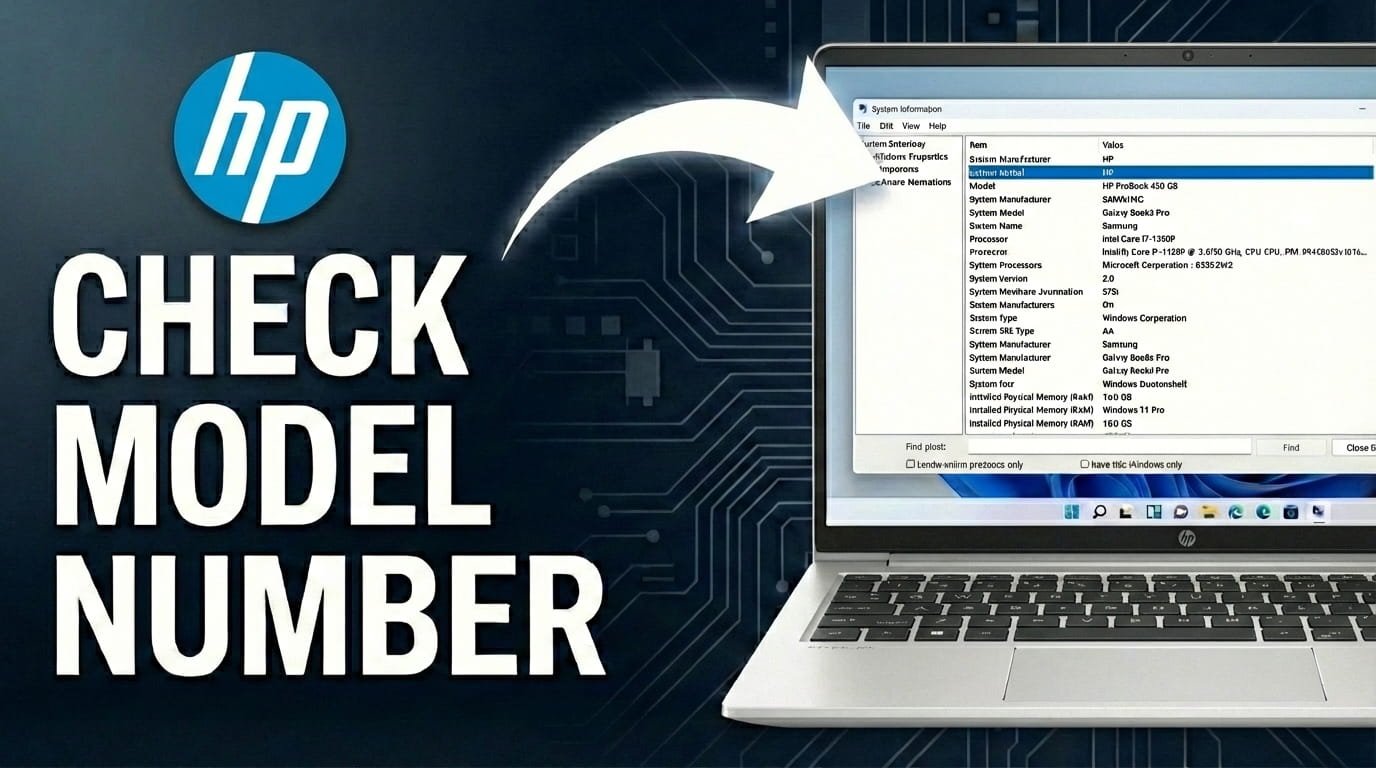
Finding the exact model of your HP laptop is often necessary for various tasks. You might need it to download the right drivers, check your warranty status, or plan a component upgrade. This can feel a little confusing if you’re unsure where to start.
The good news is that identifying your specific HP laptop model is straightforward, whether your device runs Windows 10 or Windows 11. Several easy methods allow you to find this key information quickly and accurately.
This article will guide you through three simple and practical ways to locate your HP laptop model, making sure you have the correct details for any situation.
1) Check the Physical Label on Your HP Laptop
The easiest and fastest way to find your HP laptop model is by looking directly at the device. HP, like other manufacturers, places important identification labels on different parts of their laptops.
These labels typically show the product name, model number, and serial number. This method is especially helpful if your laptop won’t turn on or if you need the information without booting into Windows.
Look at the Bottom of the Laptop
Carefully flip your HP laptop over. Most modern HP laptops have a sticker or laser-etched label on the bottom. Search for text fields like “Product Name,” “Model,” “P/N” (Product Number), and “S/N” (Serial Number).
The “Product Name” usually indicates the series (e.g., HP Pavilion 15, HP Envy x360). The “Model” or “P/N” provides a more specific identifier (e.g., 15-cs3000, 13-bd0000).
Check Under the Battery (Older Models)
On some older HP laptop models with removable batteries, the identification sticker might be inside the battery compartment. If your laptop has a removable battery, power it off, unplug the charger, and carefully remove the battery to check for a label underneath.
Always handle laptop components with care. Most current HP laptops have non-removable batteries, so this step might not apply to your device.
Examine Around the Screen or Keyboard
Sometimes, you might find a small sticker or etched text around the screen bezel or near the keyboard. This is less common for the full model number but can sometimes show the series name or specific features.
While physical labels are convenient, they can fade, get scratched, or even be removed over time, making them unreadable. If this happens, the next methods will be more useful.
2) Use Windows System Information
You can find your HP laptop model using the built-in “System Information” tool in Windows. This tool offers a detailed overview of your computer’s hardware and software.
This method reliably provides accurate details, as it pulls information directly from your system’s BIOS and hardware. It works consistently across Windows 10 and Windows 11.
Accessing System Information
There are two quick ways to open the System Information tool:
Method 1: Via the Run Dialog
Press the Windows key + R to open the Run dialog box. Type “msinfo32” (without quotes) into the box and press Enter. This will open the System Information window.
Method 2: Via Start Menu Search
Click the Start button or press the Windows key. Type “System Information” into the search bar. The “System Information” app should appear in the search results. Click on it to open.
Locating Your HP Laptop Model
Once the System Information window opens, you’ll see a summary page. On the right-hand side, look for the “System Model” entry. This line will show your HP laptop’s specific model name and often a more detailed product number.
For example, you might see “HP Pavilion Laptop 15-cs3xxx.” This gives you the series and a key part of the product number, usually sufficient for most support or driver searches.
You can also find the “System SKU” or “Product” entry, which sometimes provides more detail about your device’s configuration. The “System Manufacturer” will be “HP,” confirming the details are correct.
3) Use HP Support Assistant
HP Support Assistant is a pre-installed software application on most HP laptops. It helps users maintain, troubleshoot, and get support for their devices.
If your HP laptop is running, this is often the most reliable way to get precise model and serial numbers, along with direct links to drivers and warranty information.
Opening HP Support Assistant
Method 1: Via Start Menu Search
Click the Start button or press the Windows key. Type “HP Support Assistant” into the search bar. The application should appear in the search results. Click to open it.
Method 2: Via the Taskbar
On many HP laptops, you might find the HP Support Assistant icon directly in your taskbar (it often looks like a question mark within a blue circle). Click this icon to launch the application.
Finding Your Laptop Details
When HP Support Assistant opens, it typically shows a dashboard. Look for a section or tab labeled “My devices,” “My HP,” or something similar. This section will display an image of your laptop and its key identification details.
You will usually see your “Product name” (e.g., HP Pavilion Laptop 15), your “Product number” (e.g., 7ZF42EA#ABU), and your “Serial number.” This product number is especially important as it uniquely identifies your laptop’s exact configuration.
HP Support Assistant also provides useful information like your warranty status and direct links to recommended driver updates for your specific model. It’s a handy resource for your HP laptop.
Why Knowing Your HP Laptop Model is Important
Having your HP laptop’s model number readily available is useful for several reasons. When you need to download new drivers or update existing ones, the manufacturer’s website requires your specific model to provide the correct software. Using the wrong drivers can cause performance issues or hardware problems.
If your laptop needs repair or you need to check its warranty, customer support will ask for the model and serial number. These details allow them to quickly identify your device and offer accurate service. It also helps confirm if your device is still under warranty.
For potential upgrades, such as adding more RAM or replacing a battery, knowing the exact model ensures compatibility. Buying parts that don’t match your specific model can result in wasted money and effort. Similarly, if you plan to sell your laptop, providing precise model details can help potential buyers.
FAQ
What is the difference between an HP product name and a model number?
The product name (e.g., HP Spectre x360) refers to the general series or family of laptops. The model number (e.g., 13-aw0000) offers a more specific identifier within that series, often indicating different configurations or generations. Both are useful, but the model number is more precise for technical support.
Can I find my HP laptop model if it won’t turn on?
Yes, you can still find it using the physical label method. Check the stickers on the bottom of the laptop or inside the battery compartment (if it has a removable battery). This is the only way to get the information without powering on the device.
What should I do if the physical label is unreadable?
If the label is worn off or unreadable, you will need to use one of the software methods. Boot into Windows and use either “System Information” (msinfo32) or “HP Support Assistant” to retrieve your laptop’s details.
Why do I need the serial number?
The serial number is a unique identifier for your individual laptop, distinct from the model number which applies to a line of products. It’s often required for warranty claims, specific troubleshooting with HP support, and sometimes for theft reporting.
Finding your HP laptop model doesn’t have to be difficult. By using these three simple methods, you can quickly and accurately get the information you need.
Whether you prefer to check a physical label, use a built-in Windows tool, or open HP’s dedicated support software, you now have the tools to identify your device with confidence. This information is vital for maintaining your laptop, getting support, and having the right details for any future needs.

Hi, I’m Michael Davis, the owner and writer of GadgetsFeed.com. This website is where I share my knowledge and passion for tech, laptops, and computers. I’m a software engineer by profession, and I enjoy testing and reviewing various gadgets and technologies. I started GadgetsFeed.com to help others find easy solutions for their laptop, computer, and tech problems.