Finding your Samsung laptop’s exact model number is often necessary for various reasons. You might need it to update drivers, get technical support, purchase accessories, or plan an upgrade. This specific piece of information ensures you always get the correct components or services for your device.
While this might seem like a complex task, Samsung makes it quite straightforward. Whether your laptop runs Windows 10 or Windows 11, several easy and reliable ways exist to identify your model quickly. This article will guide you through three simple methods to find your Samsung laptop’s model, giving you the correct information.
1) Check the Laptop’s Physical Labels
The quickest way to find your Samsung laptop’s model number is by checking the device itself. Samsung typically places this information on a label affixed to the laptop. This method works without software or an internet connection, making it ideal if your laptop isn’t turning on or you need to reference the model quickly.
Carefully turn your Samsung laptop over. Look for a sticker or label on the bottom casing. This label usually lists various details, including the serial number, manufacturing date, and, importantly, the model name or model code. The model code often begins with letters like “NP” followed by numbers and letters, such as “NP550XTA.”
For some older Samsung laptop models, the label might be under the battery. If your laptop has a removable battery, carefully take it out and check the compartment. Newer, slimmer designs might have the model information printed discreetly on the bezel around the screen or on a small sticker near the keyboard.
Always double-check the label for accuracy. Sometimes, there might be several codes; look specifically for “Model Name,” “Model Code,” or a similar identifier. This physical label is often the most definitive source, especially if software methods provide a generic product name instead of the specific model variation.
2) Use Windows System Information
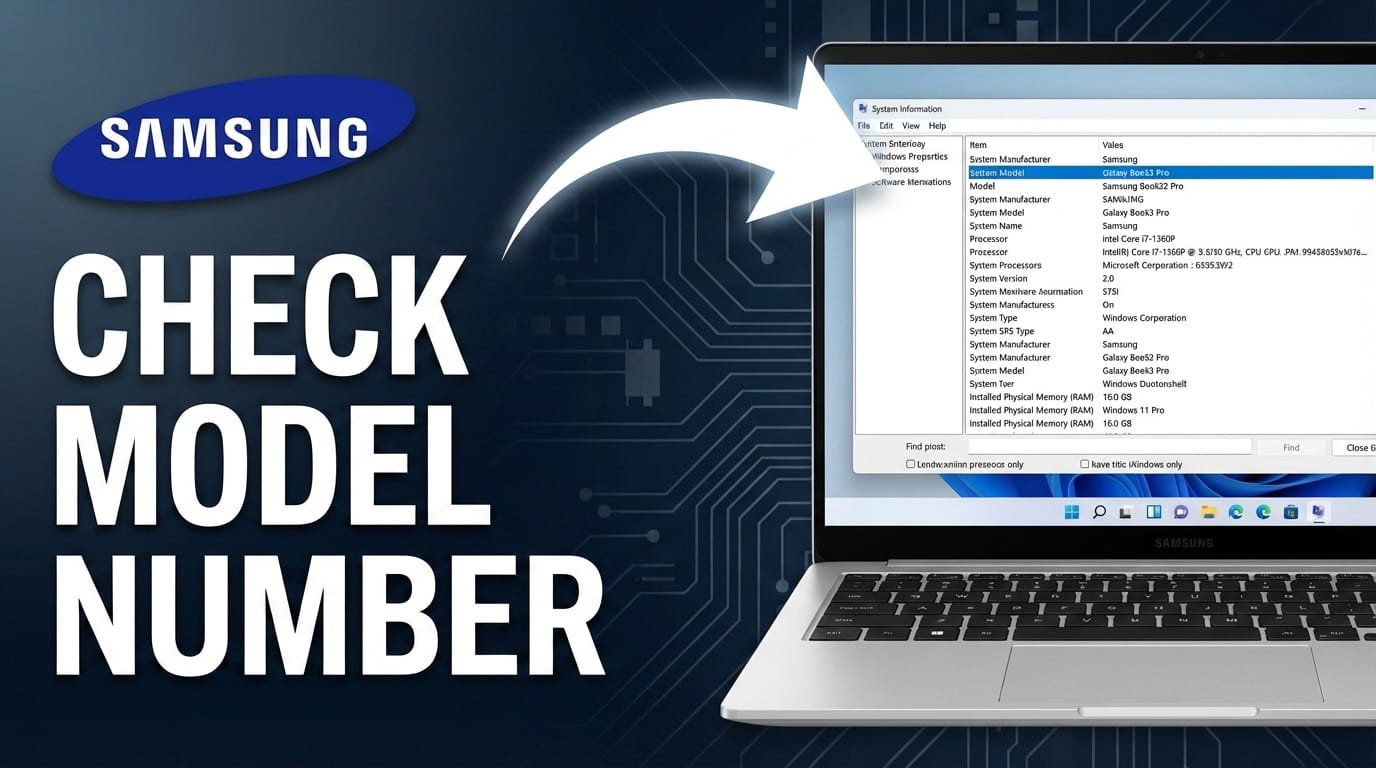
If your Samsung laptop is powered on and running Windows, the built-in System Information tool is an excellent way to get your model details. This utility provides a full overview of your computer’s hardware and software setup, including the specific model number.
To open System Information, press the Windows key + R simultaneously on your keyboard. This opens the “Run” dialog box. In the box, type “msinfo32” (without quotes), then press Enter or click “OK.” The System Information window will appear shortly, collecting all relevant details about your laptop.
Once the System Information window loads, you will see a summary page with several entries on the right pane. Find the entry labeled “System Model.” This field directly shows your Samsung laptop’s specific model number, such as “NP750QUB-KD1US” or “Galaxy Book Pro 360.” It provides a clear and accurate identification.
This method is very reliable and works consistently across Windows 10 and Windows 11. It’s especially useful when the physical label is worn or hard to read. The information displayed here comes directly from your laptop’s BIOS/UEFI firmware, ensuring its accuracy.
3) Use the Command Prompt
For users comfortable with a command-line interface, the Command Prompt offers a quick and precise way to find your Samsung laptop’s model number. This method is highly accurate and can be helpful when graphical interfaces are slow or unavailable.
To open the Command Prompt, go to the Start menu, type “cmd” into the search bar, and then select “Command Prompt” from the results. You do not need to run it as an administrator for this particular command, but it is often a good practice.
Once the Command Prompt window appears, you will see a black window with a blinking cursor. Type the following command exactly as it appears here, then press Enter:
wmic csproduct get name
After pressing Enter, the Command Prompt will execute the command and display your Samsung laptop’s model name or model number directly below the “Name” header. For instance, it might show “NP750XDA-KD1US” or “Galaxy Book2 Pro 360.”
This command asks the Windows Management Instrumentation Command-line (WMIC) for product information. This is a standard and reliable way to extract system details. It’s a very efficient method that bypasses various graphical layers, providing the information directly and consistently.
FAQ
What is the difference between a model name and a model code?
The model name is often the common name, like “Galaxy Book Pro” or “Notebook 9.” The model code, such as “NP950XDB-KC1US,” is a more specific alphanumeric string. It identifies the exact configuration, region, and hardware specifics. For support, drivers, or parts, the model code is usually more important.
Why do I need my laptop’s model number?
The model number is vital for several reasons. It helps you download the correct drivers from Samsung’s support website, find compatible replacement parts like batteries or chargers, receive accurate technical support, and confirm if your system meets requirements for software or hardware upgrades.
Can I find the model number if my Samsung laptop won’t turn on?
Yes, if your laptop won’t turn on, your best option is the first method: checking the physical labels on the bottom of the laptop or under the battery. This information is physically printed on the device and does not require the system to be operational.
Where else might I find my Samsung laptop’s model information?
Besides the methods listed, you can often find the model number on the original packaging box. It might also be on the purchase receipt or invoice from the retailer, or sometimes within your Samsung account if you registered the device online after purchase.
Finding the model number of your Samsung laptop is a straightforward process with several reliable options. Whether you prefer a quick look at a physical label, using Windows’ built-in tools, or a command-line approach, you now have the knowledge to get the information you need.
Having your specific model number available will save you time and frustration when dealing with support, looking for accessories, or performing maintenance. Go ahead and try one of these methods to identify your Samsung laptop with confidence.

Hi, I’m Michael Davis, the owner and writer of GadgetsFeed.com. This website is where I share my knowledge and passion for tech, laptops, and computers. I’m a software engineer by profession, and I enjoy testing and reviewing various gadgets and technologies. I started GadgetsFeed.com to help others find easy solutions for their laptop, computer, and tech problems.